

 TL;DR:
To safely recover deleted WhatsApp images on Android, first check the original chat thread, local File Manager directories, and gallery trash bins before resorting to backup restorations.
● Restoring a Google Drive or local WhatsApp backup replaces all newer chats and media created after that specific backup date, making it essential to verify the timestamp and manually save recent conversations beforehand.
● Desktop recovery software like Recoverit cannot retrieve media from Android internal storage, cloud backups, or expired View Once messages, but it is necessary if the images were lost from a removable SD card or an exported computer folder.
● Deleted images can be restored from Google Photos Trash within 60 days if backed up, or 30 days for unbacked items on Android 11 and later, provided no storage cleaner apps or new downloads have overwritten the local memory.
Ask AI for a summary
 ChatGPT
 Perplexity
 Gemini
 Claude
 Grok
Grok
Losing WhatsApp images on Android does not always mean they are gone forever. The missing photo may still be in the original chat, your phone Gallery, Google Photos Trash, the WhatsApp Images folder, a Google Drive backup, a local WhatsApp backup, an SD card, or an exported computer folder.
Quick answer: If a WhatsApp image is missing on Android, check the original chat first. Then check Gallery Trash, Google Photos Trash, and the WhatsApp Images folder in File Manager. If a Google Drive or local WhatsApp backup was created before the image was deleted, you may restore it, but restoring an old backup can replace newer chats and media. If the image was stored on an SD card or exported to a computer folder, stop using that storage and scan it with a recovery tool like Recoverit.
Google Photos says backed-up deleted photos and videos stay in Trash for 60 days, while unbacked-up items deleted from Android 11 and later stay in Trash for 30 days. Permanently deleted items cannot be restored from Google Photos. Google’s Android help also notes that WhatsApp cloud restore requires the correct Google account and that restoring old chat history can replace newer chat history created on the new device.
In this article
-
- Method 1. Check the WhatsApp Chat and Download the Image Again
- Method 2. Find Missing Images in Gallery, Google Photos, or Trash
- Method 3. Look for WhatsApp Images in Android File Manager
- Method 4. Ask the Sender to Resend the Image
- Method 5. Restore WhatsApp Images from a Google Drive Backup
- Method 6. Restore Media from a Local WhatsApp Backup
Quick Answer: Which WhatsApp Image Recovery Method Should You Try First?
Use this table to choose the safest recovery path before uninstalling WhatsApp, restoring a backup, or installing recovery tools.
| Your Situation | Try This First | Risk Level | Is Recoverit Needed? |
| Image is missing from Gallery but visible in WhatsApp | Re-download it from the chat | Low | No |
| Image appears in the chat’s Media section | Save or download it again | Low | No |
| Image was deleted from Gallery or Google Photos | Check Recently Deleted or Trash | Low | No |
| Image exists in the WhatsApp Images folder | Copy it to a safe folder | Low | No |
| Sender still has the image | Ask the sender to resend it | Low | No |
| Google Drive backup was created before deletion | Restore WhatsApp backup | Medium | No |
| Local WhatsApp backup exists before deletion | Restore local backup | Medium | No |
| Image was stored on an SD card | Stop using the card and scan it | Medium | Yes |
| Image was exported to a PC folder and deleted | Scan the computer folder or drive | Medium | Yes |
| Image was View Once or expired by Disappearing Messages | Check whether it was saved elsewhere | High | Usually no |
| No chat, no backup, no local file, and storage overwritten | Recovery is unlikely | High | Usually no |
Part 1. Before You Recover Deleted WhatsApp Images on Android
Before trying any recovery method, take a few precautions. These steps help prevent overwriting, backup loss, and accidental data replacement.
- Stop Downloading New WhatsApp Media: Avoid downloading new images, videos, documents, or voice notes until you check the missing photo. New files can overwrite deleted data on internal storage or SD cards.
- Do Not Uninstall WhatsApp Before Checking the Backup Date: Many users uninstall WhatsApp too early. Before doing that, open: WhatsApp > Settings > Chats > Chat backup. Check when the last Google Drive or local backup was created. If the backup was made after the image was deleted, restoring it may not bring that image back.
- Save Current Important Chats First: Restoring an older WhatsApp backup may replace newer chats and media with the backup version. Google’s Android help warns that old chat history cannot be merged with new chat history and that restoring old chat history replaces new chat history created on the new phone.
- Avoid Cleaner Apps: Do not run junk cleaner, duplicate cleaner, or storage optimizer apps during recovery. These apps may delete cached media, WhatsApp folders, or temporary files that could still help recovery.
- Stop Using the SD Card: If WhatsApp images were stored on a removable SD card, stop using the card immediately. Do not take new photos, copy new files, or format the card. Remove it and connect it to a computer for a safer scan.
Part 2. Why WhatsApp Images Disappear on Android
Knowing the exact cause helps you learn how to recover deleted WhatsApp images on Android. Thus, below are common reasons that explain why WhatsApp images may go missing:
- Media Visibility Is Turned Off: WhatsApp has a Media Visibility setting. If it is turned off, newly downloaded images may not appear in your phone Gallery, even though they still exist inside WhatsApp or local storage.
- The Image Was Hidden from Gallery: Some images are saved locally but do not show in Gallery because of folder settings, hidden files, or indexing issues.
- The Image Was Deleted from Chat or Phone Storage: You may delete a WhatsApp image from the chat, Gallery, Google Photos, or File Manager. Depending on where it was deleted, it may still exist in another location.
- Google Photos or Gallery Moved It to Trash: Deleted images may stay temporarily in Google Photos Trash or the phone Gallery’s Recently Deleted folder. If the image is still there, restoring it is usually the safest option.
- WhatsApp Was Reinstalled Without Restoring Media: If WhatsApp was uninstalled or reinstalled without restoring the correct backup, older images may disappear from chats or local storage.
- Google Drive or Local Backup Was Overwritten: WhatsApp backups change over time. If a newer backup was created after the image disappeared, the older version that contained the image may no longer be available.
- Disappearing Messages or View Once Media Expired: Disappearing Messages and View Once media are designed to disappear. Recovery is unlikely unless the image was separately saved, downloaded, backed up, or resent by the sender.
- SD Card or Storage Corruption: If your WhatsApp media was saved to an SD card, corruption can make images disappear from Gallery or WhatsApp. The card may also ask to be formatted. Do not format it before recovery.
Part 3. How to Recover Deleted WhatsApp Images on Android
The methods below are arranged from safest and easiest to more advanced. Start with chats, Trash, and local folders before restoring backups or scanning storage devices.
Method 1. Check the WhatsApp Chat and Download the Image Again
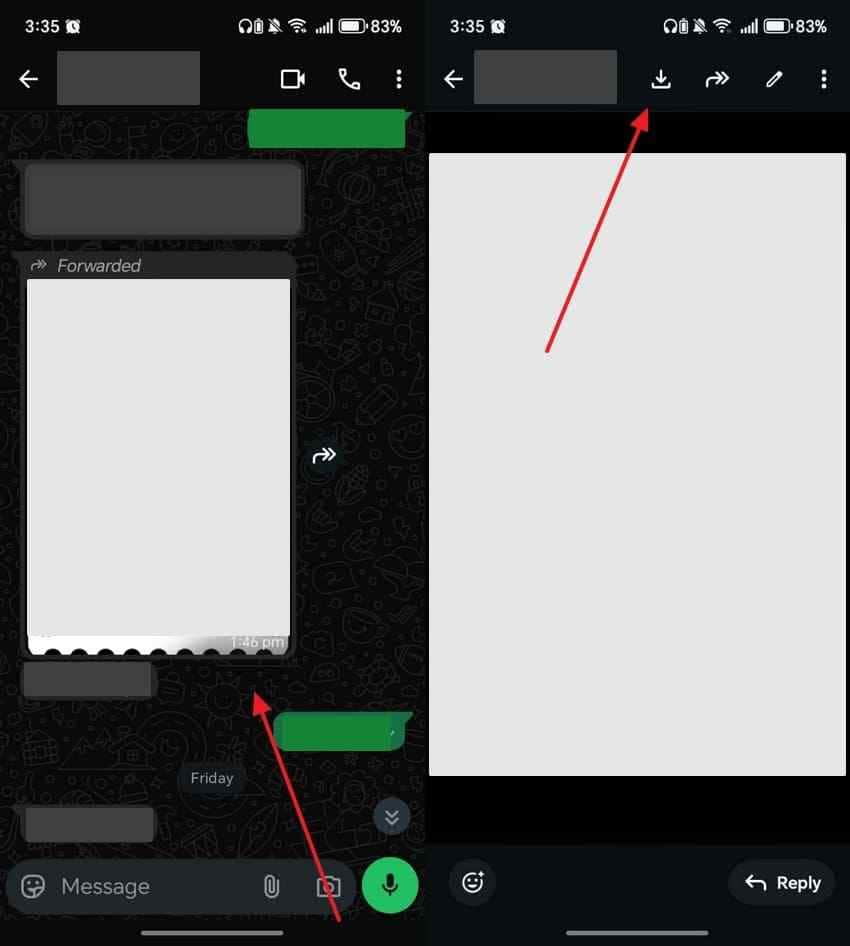
Many deleted WhatsApp images are not gone from the original chat thread. The sender's message stays visible even after you delete the image from your phone. Therefore, it lets you re-download any received media directly from the original chat. You need to follow these steps to download the image again:
- As you navigate to the individual chat info screen, locate the required image > Tap on it > Press the “Download” icon.
Method 2. Find Missing Images in Gallery, Google Photos, or Trash
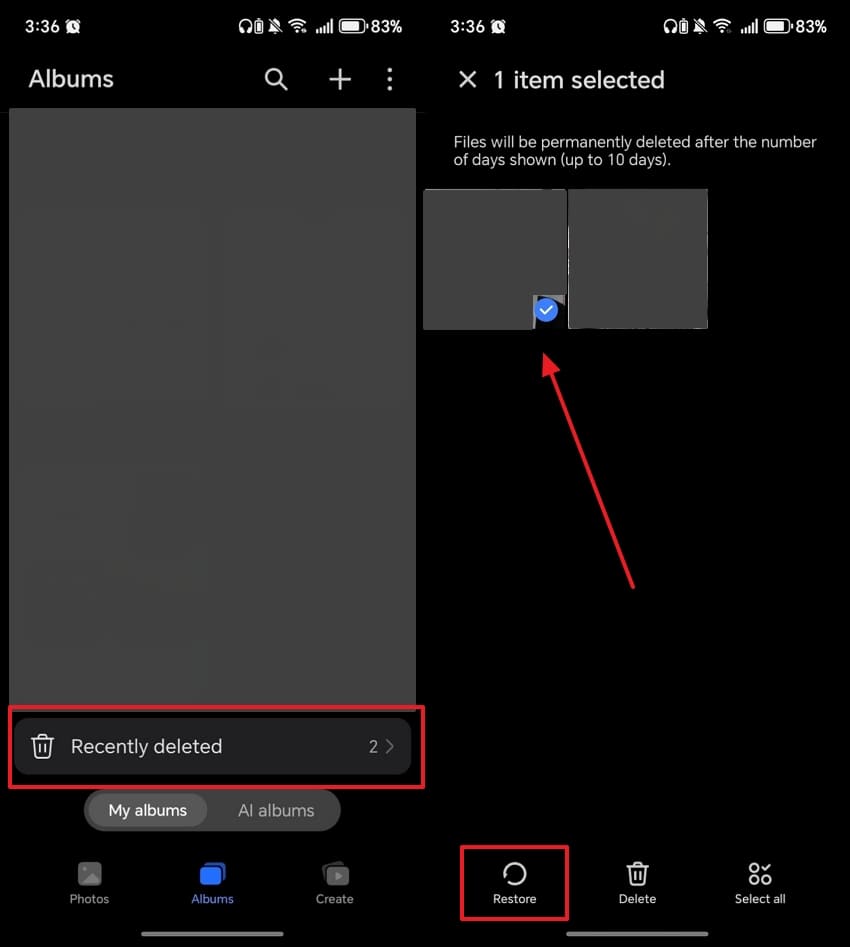
Your deleted media files often stay hidden inside alternative storage folders on Android. Check your local phone gallery or the cloud backup system first. Many users overlook the Trash folder, where deleted photos stay for up to 30 days. So, adhere to the given steps to learn how to recover deleted WhatsApp images on Android:
- When you open the “Gallery” app, go to “Recently Deleted” > Long-press the preferred image > Opt for “Restore.”
Method 3. Look for WhatsApp Images in Android File Manager
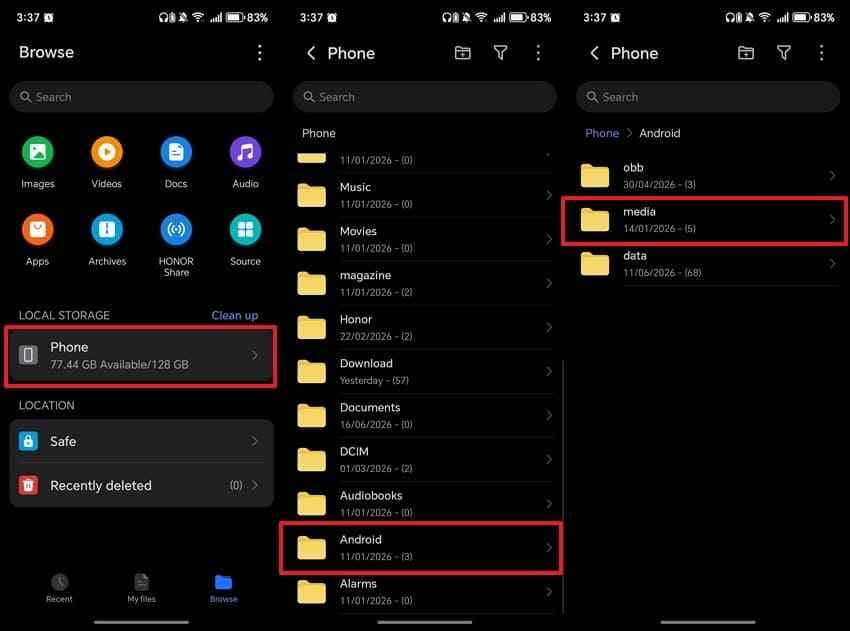
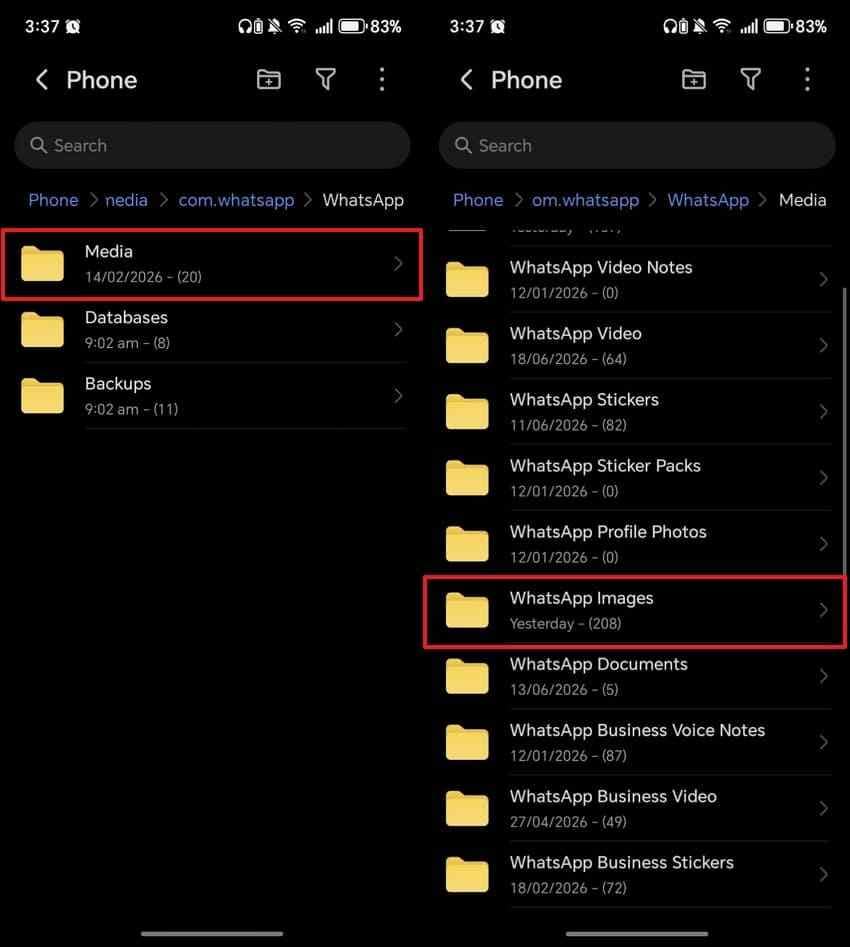
Android OS stores all received media files inside a dedicated local directory. Even if pictures disappear from your gallery, they often remain intact here. You can access these hidden directories using the “Files” application on Android. Anyone can go through the given directions to find your internal phone storage:
Step 1. Navigate to the “Files” app > Access “Local Storage > Android > Media.”
Step 2. Moving forward, you need to tap the “com.WhatsApp > WhatsApp” folder.
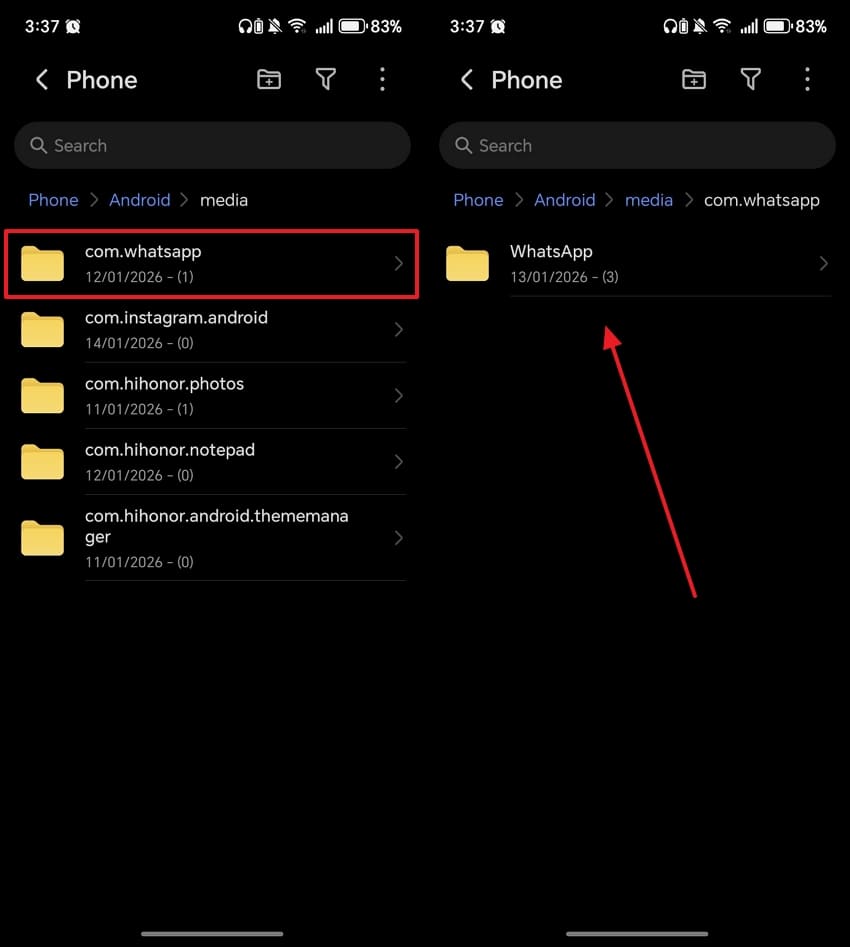
Step 3. After that, tap the “Media > WhatsApp Images” section to view the images.
Method 4. Ask the Sender to Resend the Image
If the sender still has the original photo, asking them to resend it is often the safest recovery method.
This method does not overwrite current WhatsApp chats, does not require uninstalling WhatsApp, and does not depend on backup dates.
Use this method when:
- The image is gone from your phone.
- The sender still has the image.
- You want to avoid restoring an old backup.
- View Once or disappearing media is gone but the sender can send a normal copy.
Method 5. Restore WhatsApp Images from a Google Drive Backup
Use this method only if your Google Drive backup was created before the WhatsApp image was deleted.
Important: Restoring a WhatsApp backup can replace current chats and media with the backup version. Check the backup date first and save important recent chats before restoring.
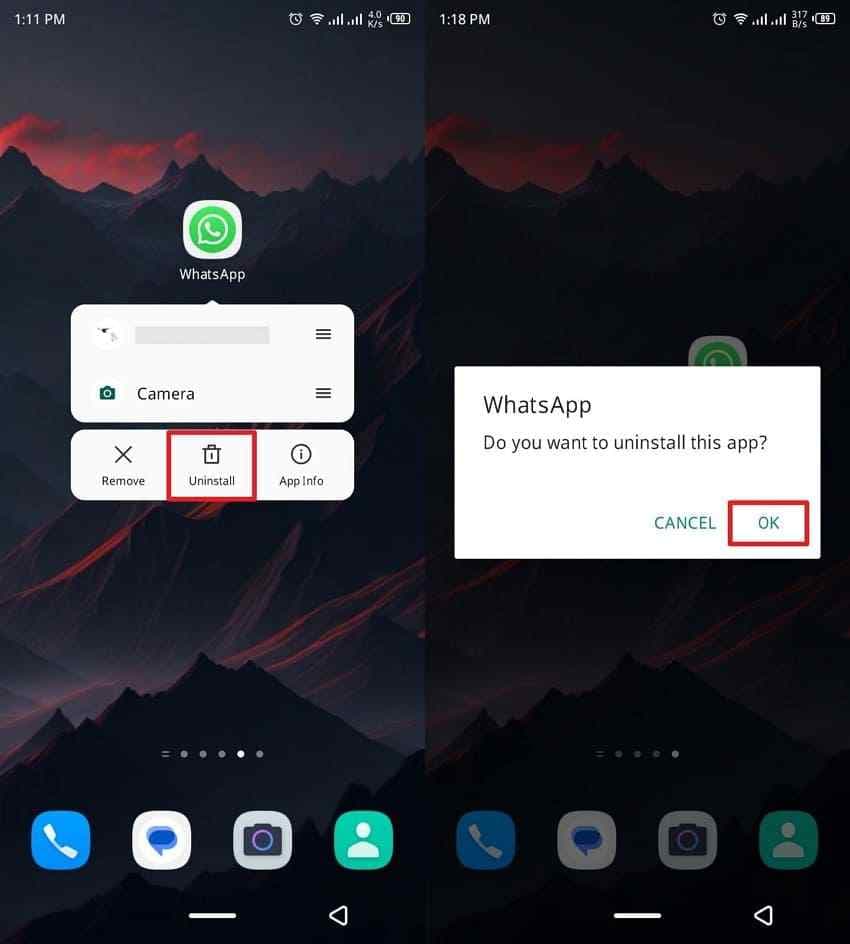
Step 1. Long-press the “WhatsApp” icon > Choose “Uninstall” > Tap “OK.”
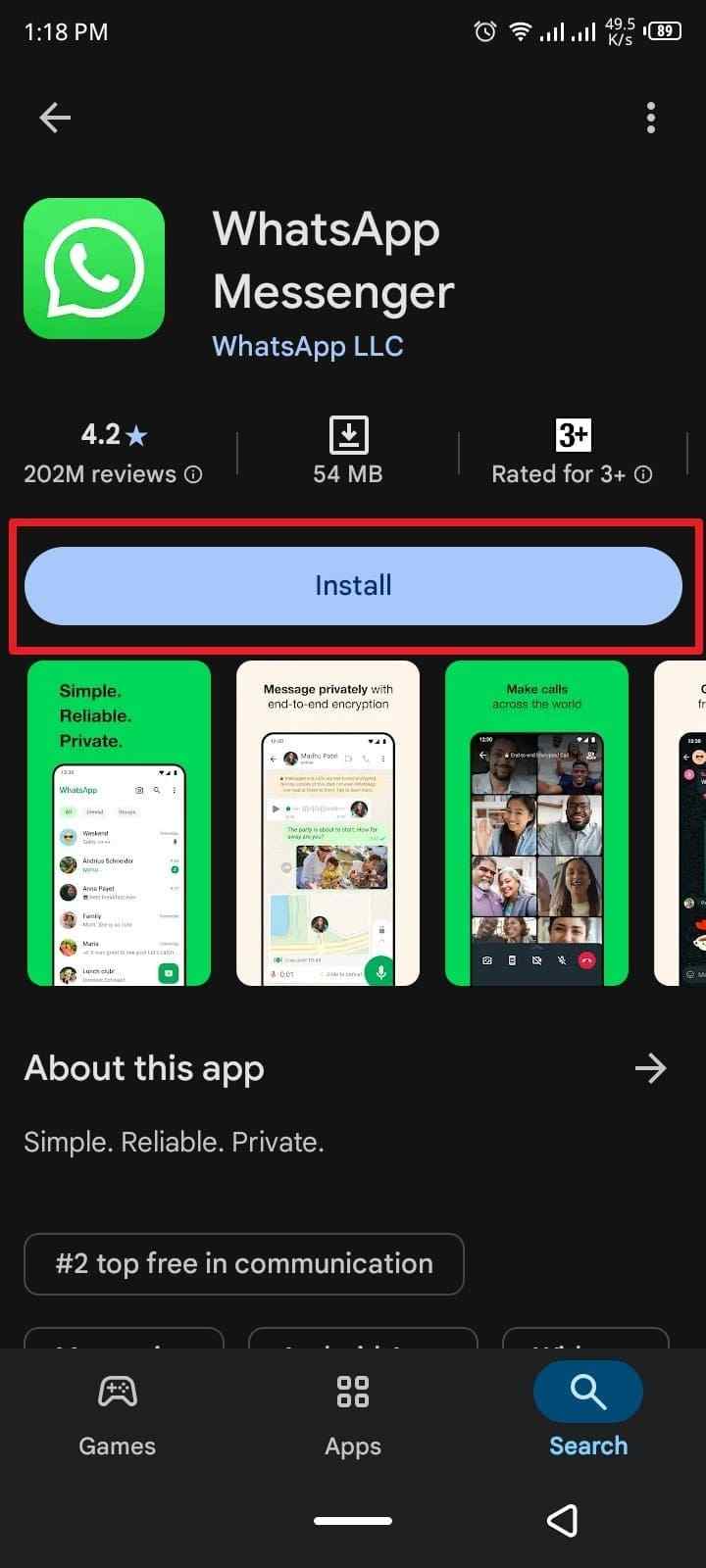
Step 2. Search for “WhatsApp” > Tap “Install” to reinstall it.
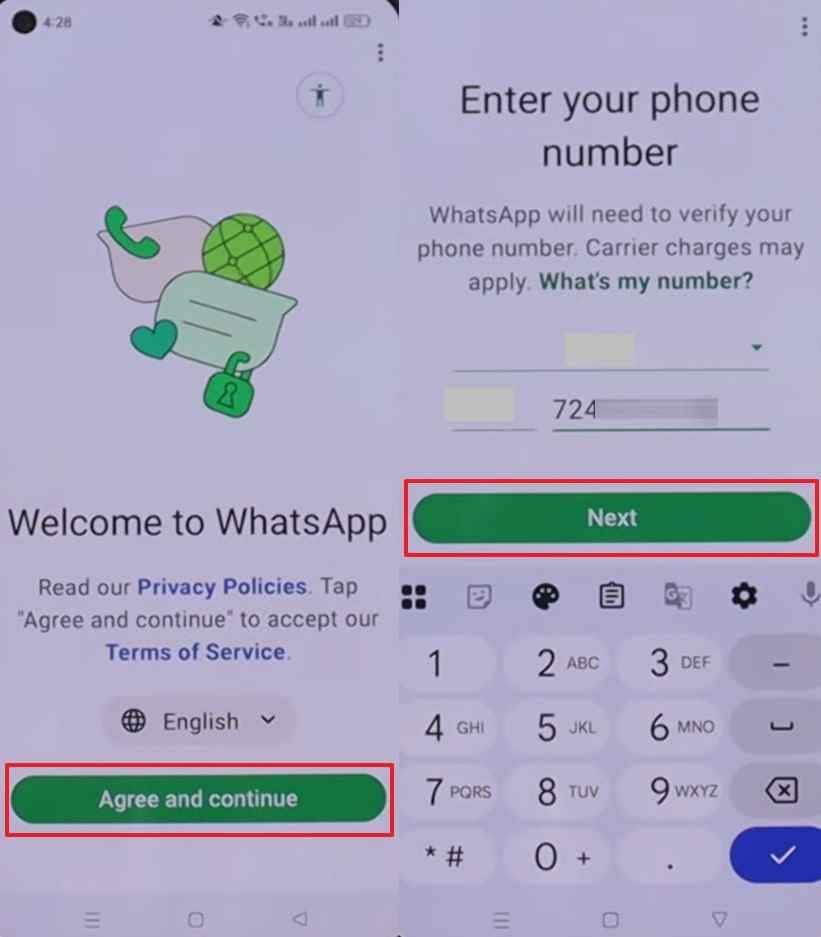
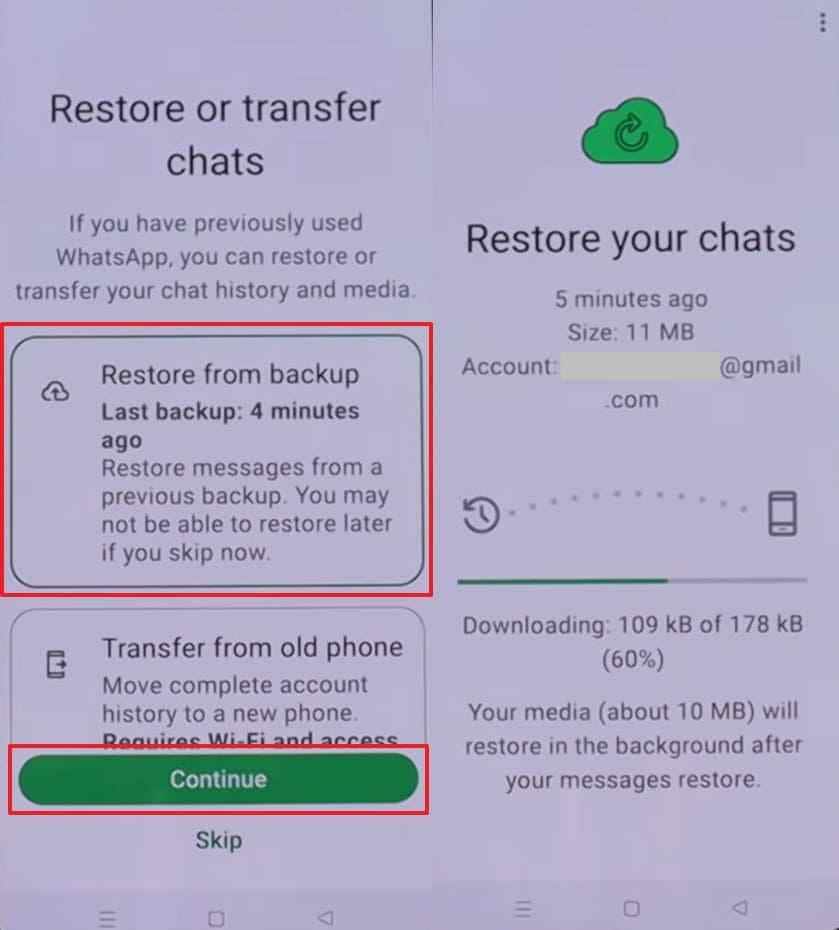
Step 3. Run the app > Press “Agree and Continue” > Enter the same phone number > Tap “Next” to proceed with verification.
Step 4. After a few moments, follow the prompt and tap “Restore from Backup > Continue.”
Method 6. Restore Media from a Local WhatsApp Backup
Android WhatsApp may keep local backup files. This can help if Google Drive backup is unavailable or if a local backup from before deletion still exists.
Important: Local backup restoration can also replace newer chats and media. Back up current important data before trying this method.
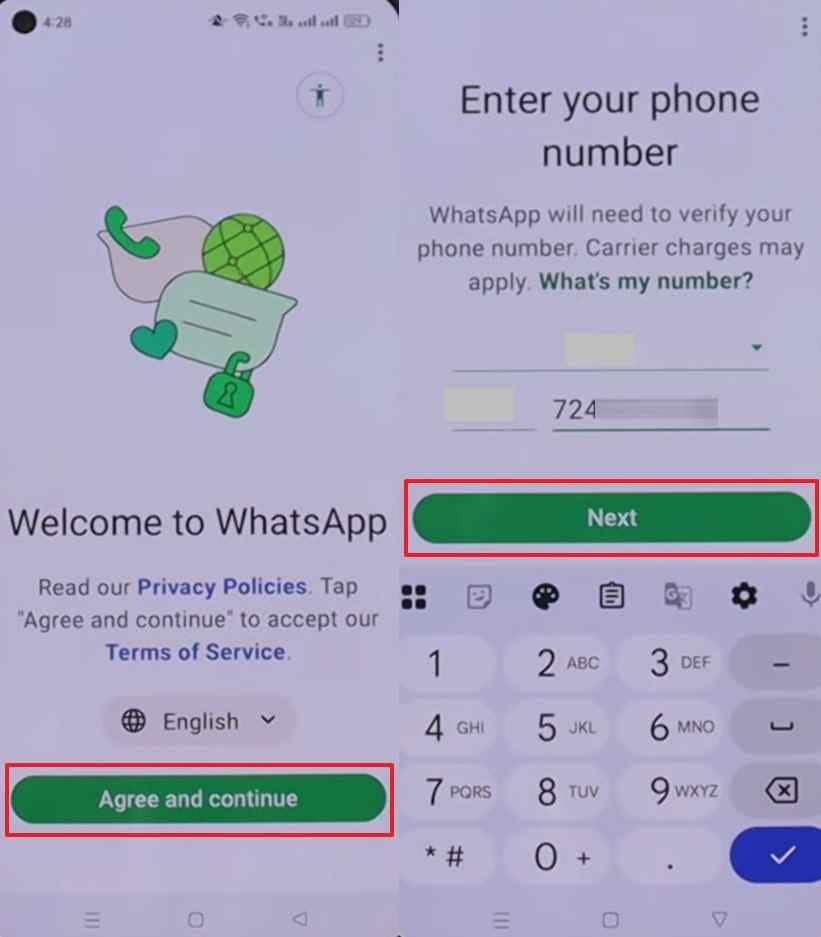
Step 1. After reinstalling and launching the app, tap “Agree and Continue” > Enter your phone number > Choose “Next.”
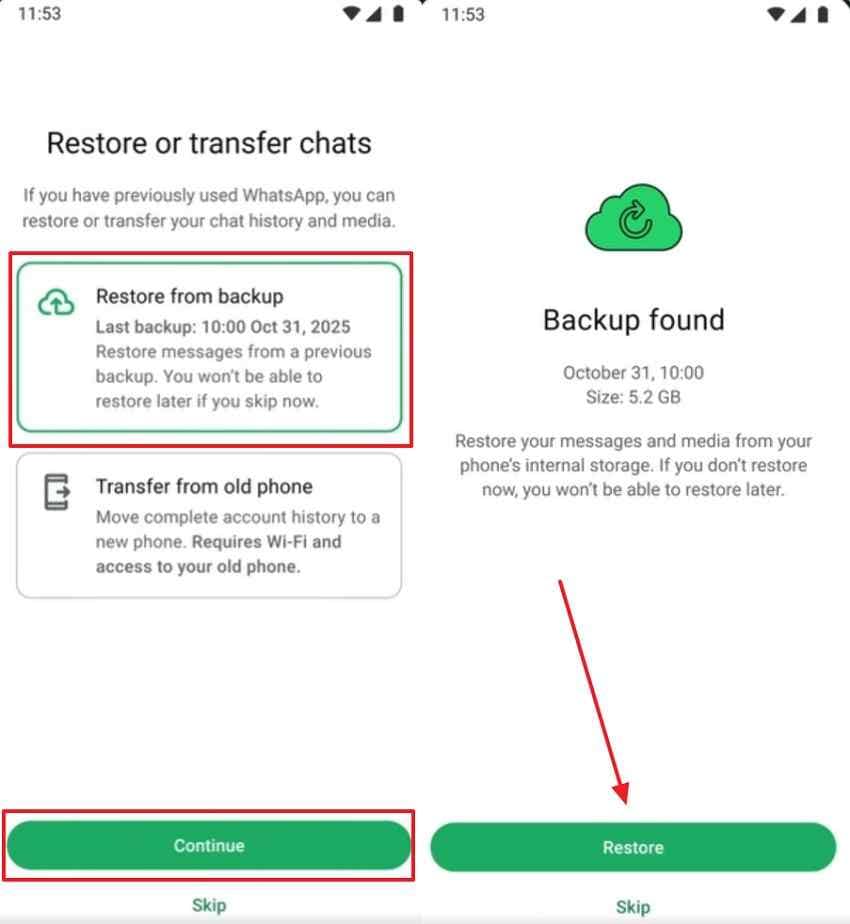
Step 2. As you see the “Restore or Transfer Chats” display, tap “Restore from Backup > Continue > Restore.”
Part 4. Recover Deleted WhatsApp Images from an SD Card or Exported PC Folder with Recoverit
Standard WhatsApp recovery methods work best when the image still exists in a chat, phone folder, Trash, or WhatsApp backup. But if WhatsApp images were deleted from a removable SD card, USB drive, hard drive, or exported computer folder, a desktop recovery tool may help.
Recoverit is not a WhatsApp account recovery tool. It does not restore WhatsApp chats from Google Drive and does not recover View Once media from your WhatsApp account. It is a Windows/Mac data recovery tool for recoverable files stored on storage devices such as SD cards, USB drives, hard drives, and computer folders.
Recoverit’s official Photo Recovery page describes it as read-only image recovery software for restoring deleted or lost photo, video, and audio files from HDDs, SSDs, cameras, USB drives, SD cards, and other devices.
Recoverit is useful when:
- WhatsApp images were stored on a removable SD card.
- An SD card was formatted or became unreadable.
- WhatsApp images were exported to a PC folder and then deleted.
- A USB drive or external drive containing WhatsApp images lost files.
- You want to preview recoverable images before saving them.
Key Features
- Read-Only Recovery: Recoverit scans storage without writing recovered files back to the same location during scanning.
- SD Card and External Storage Support: It can scan SD cards, USB drives, hard drives, SSDs, and selected computer folders.
- Photo Preview: You can preview found images before recovery.
- Multiple Image Format Support: It supports common image formats such as JPG, PNG, HEIC, WEBP, and RAW formats.
- Safe Recovery Destination: Recovered files should be saved to another healthy drive, not the same SD card or folder where they were lost.
Guide to Recover Deleted WhatsApp Images from an SD Card/Computer Backup
Take guidance from this quick guide to find out how to recover WhatsApp images in Android:
Step 1. Select the SD Card or Backup Folder
Move to “Hard Drives and Locations” and choose the computer folder where the deleted WhatsApp images were stored. On the other hand, access the “SD Card Recovery" tab after connecting your SD card and pressing the "Start Scan” button.

Step 2. Search for Lost WhatsApp Photos
The tool then scans the storage and displays all recoverable WhatsApp images it finds.

Step 3. Check and Recover WhatsApp Images
As the scan completes, find the detected results and preview the WhatsApp photos to verify them. Next, select the desired photos and click “Recover” to save them to a secure destination.

Part 5. What to Do If You Still Cannot Find Deleted WhatsApp Images
Some WhatsApp images remain missing even after trying every recovery method available. So, the following table shows what to check and do next for each specific situation:
| Situation | What to Check | What It Means |
| You are not sure whether the image was downloaded | Check WhatsApp Images folder | Confirms whether the file exists locally |
| Image is missing from Gallery only | Check Media Visibility and File Manager | The file may still be stored locally |
| Backup is not found | Check same Google account and phone number | WhatsApp restore needs matching account details |
| Backup restored but image is missing | Check backup date | Backup may have been created after deletion |
| Local backup exists but media is missing | Check WhatsApp Images folder | Chat backup may not include the actual media file |
| Sender deleted the message for everyone | Check local storage or ask sender | Downloaded copies may still exist |
| View Once media disappeared | Check whether it was saved elsewhere | Recovery is usually unlikely |
| SD card is not recognized | Stop using it and scan on computer | Prevents further data loss |
| SD card is physically damaged | Contact a data recovery lab | Software may not read damaged hardware |
| No chat, no backup, no local file, no sender copy | Recovery may be impossible | Software cannot recreate a file from nothing |
Part 6. Why Some Deleted WhatsApp Photos Cannot Be Recovered
Not every attempt to learn how to recover deleted WhatsApp pictures on Android will succeed. Below are some factors that explain why some multimedia assets remain unrecoverable:
- No Backup Exists: If no copy exists in the chat, local storage, Google Photos, Gallery Trash, Google Drive backup, local backup, SD card, computer folder, or sender’s device, software cannot recreate the original photo from nothing.
- The Image Was Never Downloaded: Some WhatsApp images appear as previews but were never fully downloaded to your phone. If the sender deleted the message or the file expired before download, local recovery options are limited.
- View Once or Disappearing Media Expired: View Once and Disappearing Messages are designed to disappear. Unless the media was saved or backed up somewhere else before it disappeared, recovery is usually unlikely.
- Storage Was Overwritten: New downloads, app updates, camera photos, or cleaner apps can overwrite deleted data. Once overwritten, the original image cannot usually be restored through software.
- Backup Was Created After Deletion: If your latest WhatsApp backup was created after the image was deleted, restoring that backup may not bring the image back.
- The SD Card Is Physically Damaged: If an SD card is cracked, water-damaged, burned, or not detected by any computer, software recovery may fail. A professional data recovery lab may be required.
Part 8. How to Prevent WhatsApp Image Loss on Android
Prevention is easier than recovery. Use the steps below to protect important WhatsApp images.
| Prevention Step | How to Do It | Why It Matters |
| Turn on WhatsApp backup | WhatsApp > Settings > Chats > Chat backup | Keeps chat history and media backed up |
| Check backup status regularly | Review the last backup date | Confirms your backup is active |
| Use the correct Google account | Check the account under Chat backup | Prevents restore failure later |
| Enable Media Visibility | WhatsApp > Settings > Chats > Media visibility | Shows new images in Gallery |
| Save important images manually | Copy to Google Photos, PC, or cloud storage | Creates an extra copy outside WhatsApp |
| Export important chats | Use Export chat for key conversations | Keeps a separate record |
| Avoid aggressive cleaner apps | Exclude WhatsApp folders from auto-cleaning | Prevents accidental deletion |
| Back up SD cards | Copy SD card images to PC or cloud | Protects removable storage media |
| Replace unstable SD cards | Move data off failing cards | Reduces corruption risk |
| Include videos if needed | Turn on Include videos in Chat backup | Ensures videos are backed up too |
Conclusion
Knowing how to recover deleted WhatsApp images on Android starts with choosing the right recovery path. First, check the original WhatsApp chat, the chat’s Media section, Gallery Trash, Google Photos Trash, and the WhatsApp Images folder in File Manager. If the sender still has the image, asking them to resend it is often the safest option.
If a Google Drive or local WhatsApp backup was created before the image was deleted, restoring it may help. However, backup restoration can replace newer chats and media, so always check the backup date and protect current data first.
For images deleted from an SD card, USB drive, hard drive, or exported computer folder, Recoverit can help scan recoverable storage and preview WhatsApp images before recovery. It is useful for file recovery from storage devices, but it does not restore WhatsApp chats from Google Drive or recover expired View Once media from your WhatsApp account.
FAQs
-
1 How can I recover deleted WhatsApp images on Android without backup?
First check the original chat, the chat’s Media section, Gallery Trash, Google Photos Trash, and the WhatsApp Images folder in File Manager. If the image was saved on an SD card or exported to a computer folder, scan that storage with a recovery tool before saving new files to it. -
2 Where are WhatsApp images stored on Android?
On many newer Android phones, WhatsApp images are stored under:
Internal storage > Android > media > com.whatsapp > WhatsApp > Media > WhatsApp Images
On older devices, they may be under:
Internal storage > WhatsApp > Media > WhatsApp Images -
3 Can I recover WhatsApp images deleted from Gallery?
Yes, if they are still in Gallery Trash, Google Photos Trash, WhatsApp local folders, or a backup. If they were permanently deleted and overwritten, recovery becomes much harder. -
4 Can I restore only WhatsApp photos from Google Drive backup?
Usually, WhatsApp restores chat history and media through its setup process. It is not designed as a single-photo download system from Google Drive. Restoring an old backup may replace newer chats and media. -
5 Will restoring WhatsApp backup delete my current chats?
It can replace current WhatsApp data with the backup version. Before restoring an older backup, check the backup date and save important current chats or media. -
6 How do I recover WhatsApp images from local backup?
Check the WhatsApp Databases folder for files such as msgstore-YYYY-MM-DD.1.db.crypt14. Choose a backup from before the deletion, keep a copy, rename it if needed, reinstall WhatsApp, and restore during setup. Media recovery also depends on whether the actual image files still exist. -
7 Can I recover View Once WhatsApp photos?
Usually no. View Once media is designed to disappear after being opened. Recovery is only possible if the image was saved, backed up, exported, or resent outside the View Once flow. -
8 Can Recoverit recover WhatsApp images from Android internal storage?
Recoverit is mainly used for recoverable files on SD cards, USB drives, hard drives, and computer folders. For WhatsApp images stored only in Android internal app data, try WhatsApp chats, local folders, Google Photos, Gallery Trash, and WhatsApp backups first. -
9 Can Recoverit recover WhatsApp images from an SD card?
Yes, if the WhatsApp images were stored on a removable SD card and have not been overwritten, Recoverit can scan the SD card and preview recoverable photos before saving them to another safe location. -
10 What should I do if my SD card is damaged?
Stop using the card immediately. If it is detected by a computer, scan it with recovery software and save recovered files to another drive. If the card is physically damaged or not detected by any computer, contact a professional data recovery service.


