 TL;DR:
You can recover iPhone photos without a device backup by locating existing copies synced to iCloud Photos, stored in the Recently Deleted folder within its 30-day window, or saved across messaging apps and previously trusted computers.
● iCloud Photos operates independently from iCloud Backup, meaning you can retrieve synced images directly from icloud.com/photos, or check apps like WhatsApp and Messages for compressed copies of shared media.
● Extracting photos from an iPhone with a broken screen via Image Capture on Mac or Microsoft Photos on Windows requires the device to power on and connect to a previously trusted computer to bypass USB authorization blocks.
● Wondershare Recoverit can salvage deleted photo copies from readable computers, SD cards, and external drives, but it cannot bypass security to scan locked iPhones or recover permanently deleted data directly from internal iOS storage.
Ask AI for a summary
 ChatGPT
 Perplexity
 Gemini
 Claude
 Grok
Grok
“I need to recover some photos I deleted around 2 months ago. I didn't save them in Icloud or anything like that. I tried a few softwares that "recovered deleted photos" but the only thing they did was show me my entire photo gallery that I can just access on my phone….” - FineSwimming3563
Missing an iPhone backup does not always mean your favorite photos are gone forever. Copies may still exist across iCloud Photos, messaging apps, computers, or external storage devices. Knowing how to recover photos from iCloud without backup starts with finding those copies.
Even a damaged iPhone may still provide access if it powers on, can be unlocked when required, and can communicate with a trusted computer. This guide explains where to search, what works, and when Recoverit can help.
Recover Deleted Photo Copies With Wondershare Recoverit
 Security Verified. Over 7,302,189 people have downloaded it.
In This Article
Part 1. Can You Recover iPhone Photos Without a Backup?
Recovering iPhone photos without a backup is possible when another copy still exists somewhere. A backup is just one place where your iPhone photos might have been stored. Photos can remain in synced services, chat apps, computers, or other saved storage locations.
Your recovery chances depend on which copies still exist and remain open for access. The table below shows common situations and points you toward the right recovery method:
| Situation | Recovery Chance | Best Place to Check |
| Still in Recently Deleted | Very high | The Photos app, within 30 days |
| iCloud Photos Was On | Very high | iCloud Photos at icloud.com/photos |
| Hidden or in Another App | High | Hidden album, Shared Albums, messaging apps |
| Copied to a Computer Before | High | Photos library, Pictures, Downloads, or import folders |
| Screen Broken, Phone Works | Depends on whether the device can unlock/connect | A previously trusted computer |
| Deleted With No Copy Anywhere | Very low | No reliable recovery method from modern iPhone internal storage |
Why Having No Backup Does Not Mean Your Photos Are Gone
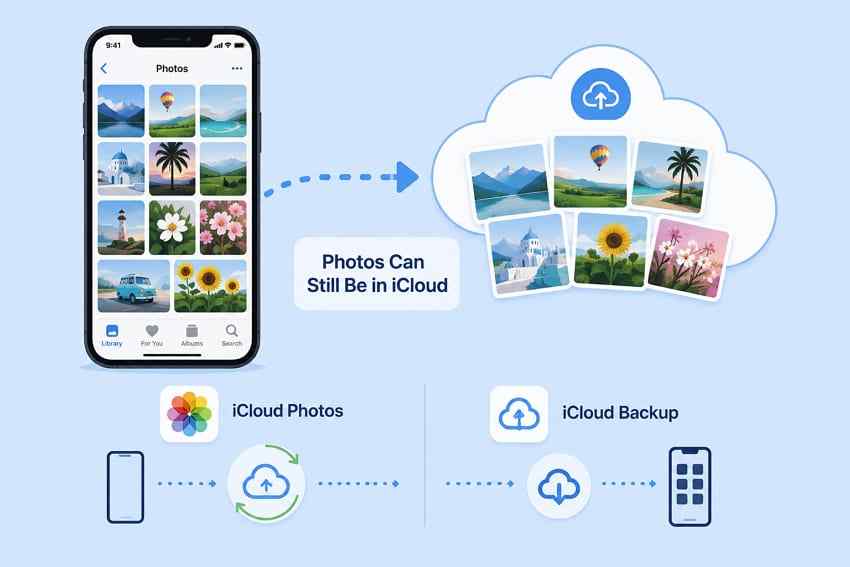
iCloud Photos and iCloud Backup serve different purposes. iCloud Backup stores certain device data and settings, while iCloud Photos syncs photos and videos across Apple devices. According to Apple, synced photos remain stored in iCloud. So, having no iPhone backup does not mean your photos were never uploaded.
This matters when learning how to recover photos from a broken iPhone without iCloud, since synced photos may still be accessible without a device backup. Check “Settings > Your Name > iCloud > Photos.” If “Sync this iPhone” is enabled, search iCloud Photos for the missing images. However, the current setting does not confirm that those photos finished syncing before they disappeared.
Part 2. Start With the Places That May Still Hold Your Photos
Start by checking places where your missing iPhone photos may still be stored. These simple checks can help before you move on to other recovery options. They also show how to restore iPhone photos without backup using available copies.
Method 1. Recover Photos From Recently Deleted
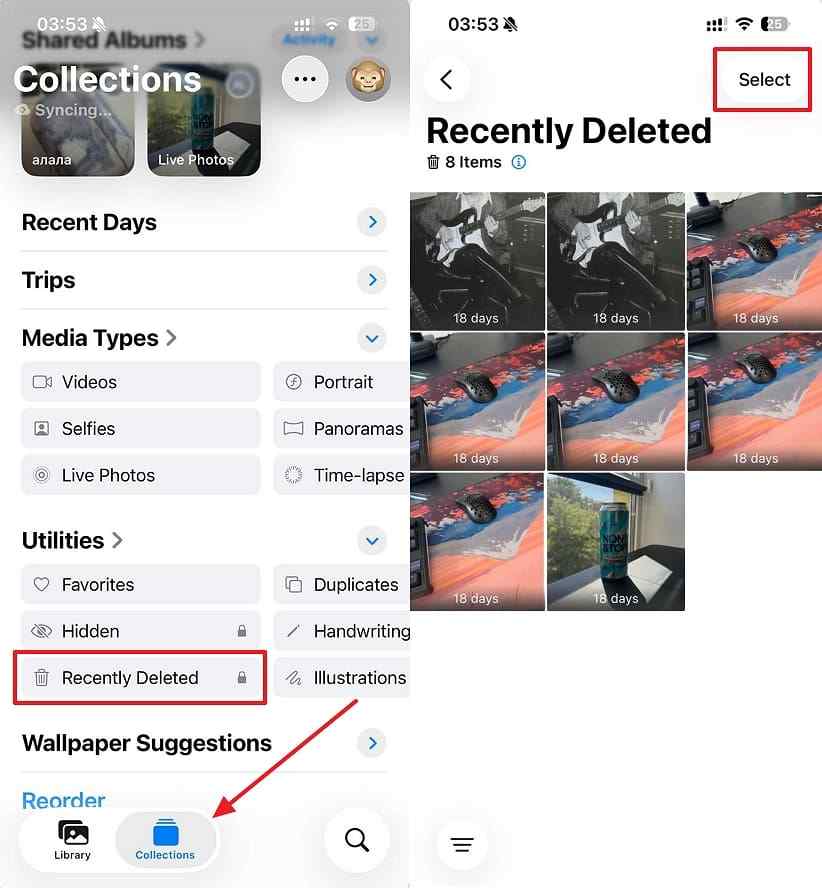
Apple confirms that deleted photos remain in Recently Deleted for 30 days before permanent deletion. During this period, you can recover them without needing an iCloud device backup. Check this album first because your missing photos may still be stored there. Here is how you can recover them:
Step 1. First, open “Photos” > Go to “Collections” > Tap “Recently Deleted.” Then, use your Face ID or enter the passcode to view this album. Next, tap “Select.”
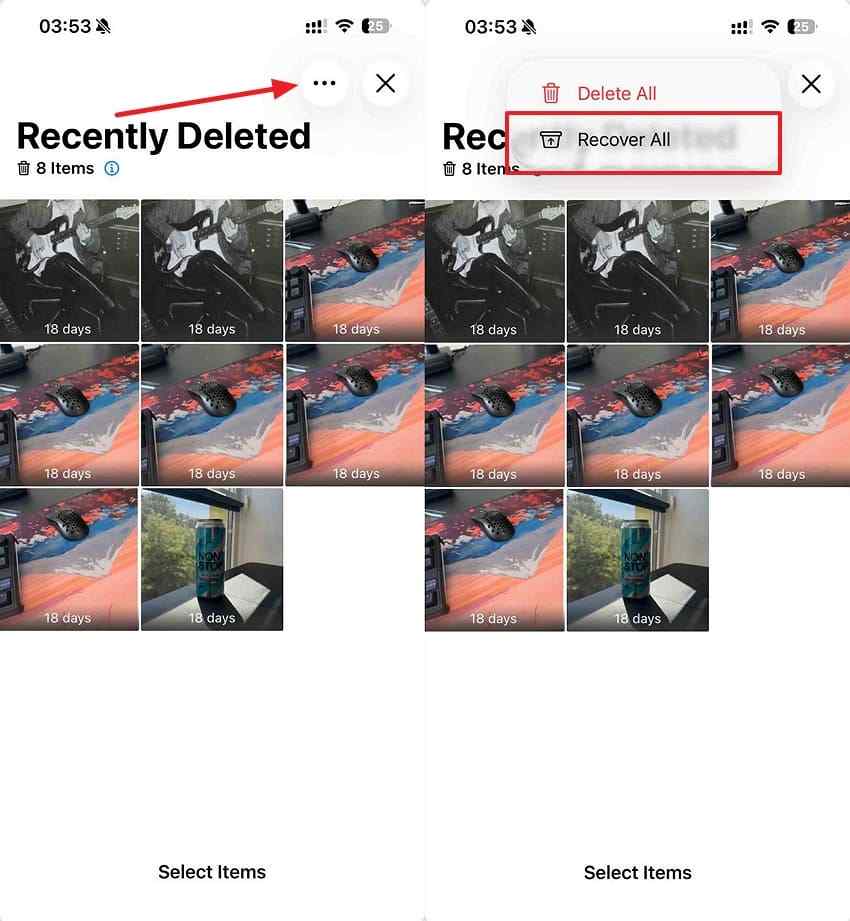
Step 2. After that, select the photos you want to restore > Tap “Three-Dots” > Choose “Recover.” To restore everything, choose “Recover All” instead.
Method 2. Retrieve Photos From iCloud Photos on the Web
If iCloud Photos was enabled, your synced photos may still remain in iCloud. This browser check requires no software and works without an iCloud device backup. To retrieve them, follow the steps below:
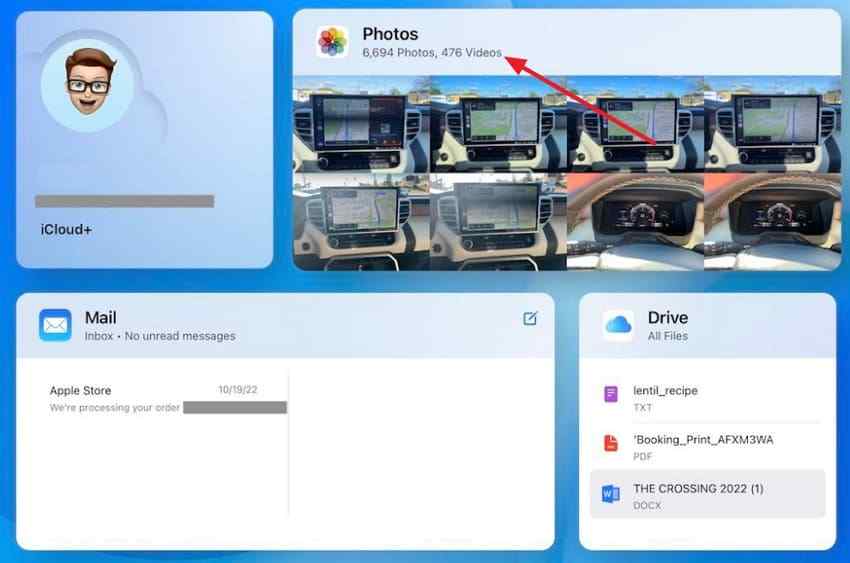
Step 1. Once you sign in to your iCloud, press the “Photos” icon.
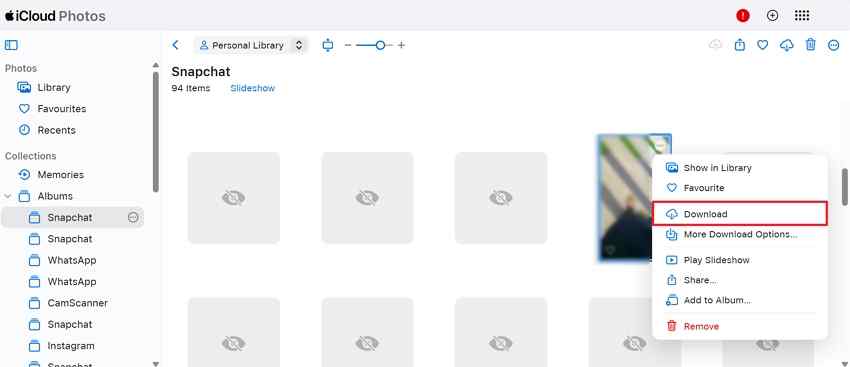
Step 2. Next, browse the library or enter a specific folder > Find the image > Right-click > Press “Download.” Use “More Download Options…” if you want the unmodified original or another available format.
Method 3. Check Hidden, Shared, and Album Locations
Photos can disappear from your main library without being deleted from your iPhone. They may remain hidden, stored in albums, or available through Shared Albums instead. Checking these locations can help you find missing photos before trying recovery methods. To find these missing photos, let’s check each location:
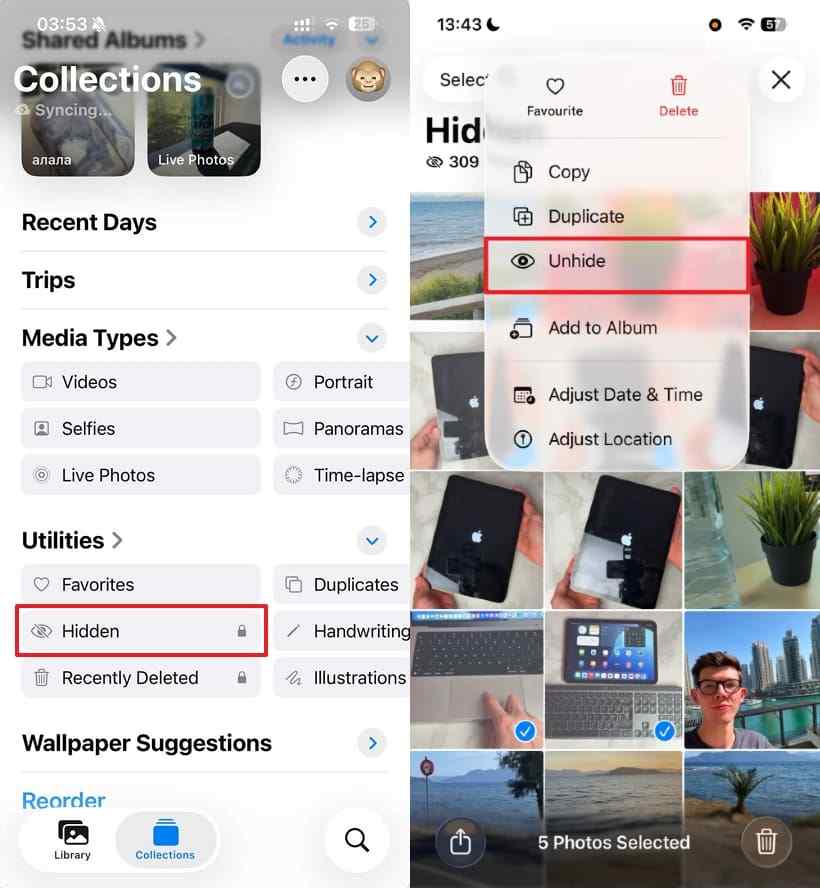
Step 1. In “Collections,” tap “Hidden.” If Hidden is not visible, go to “Settings” > “Apps” > “Photos” > Enable “Show Hidden Album.” Then, use Face ID to open the album. Tap “Select” > Choose photos > Press “Unhide.”
Step 2. Then, tap “Albums” > Open any album that may contain your missing photos.

Step 3. If you have created or joined any “Shared Albums,” open them under “Collections” and check for your missing photos.

Method 4. Look Inside Other Apps
Messaging apps can keep copies of photos shared through their conversations. This can help with how to recover photos from iCloud without backup. Some apps compress shared images, so recovered copies may have lower quality. Here is how you can check these apps:
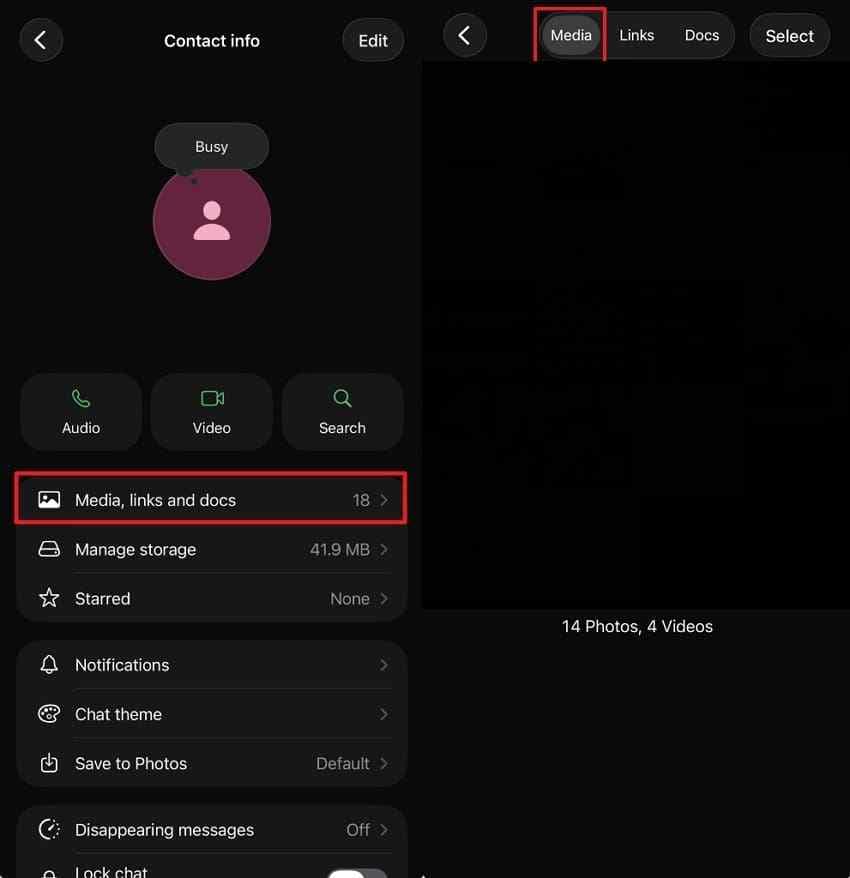
Step 1. First, open “WhatsApp” > Access a chat > Open its “Media, Links, and Docs” section. Then, check if you see missing photos in the “Media” section.
Step 2. Open “Messages” > Select the conversation where you shared or received the photo > Find the image in the chat > Press and hold it > Tap “Save” to restore a copy to Photos.

Part 3. Look for Copies Outside the iPhone and iCloud
Understanding how to recover photos from iCloud without backup starts with checking copies stored elsewhere. Below are 5 places where your missing photos may still exist outside your iPhone:
- Other Cloud Photo Services: Google Photos, OneDrive, Dropbox, and Amazon Photos all offer automatic upload. Many people switched one on years ago and forgot entirely, which makes these the first place to look.
- Check a Mac or Windows PC: The macOS Photos library, or a Windows import folder, often holds everything moved across during past sync sessions. Check both the app and the underlying folder.
- Downloads and Pictures Folders: Images saved from email or a browser collect here quietly. They never reach a photo app, so they rarely appear in any library search.
- External and Backup Drives: Manual copies onto a USB stick or portable disk often predate the loss by years, and usually hold full originals.
- Memory Cards and Readers: If photos were previously transferred through a memory card, another copy may remain there. Even after formatting, some deleted files may be recoverable if their data has not been overwritten.

Part 4. How to Recover Deleted Photo Copies With Wondershare Recoverit

Deleted photo copies can disappear from computers, external drives, USB drives, or cards. Without another copy, learning how to restore iPhone photos without backup becomes more difficult. This is where Recoverit for Mac comes in to search storage for deleted photo copies.
It supports computers, external drives, USB drives, memory cards, and common image formats. You can filter and preview found photos before choosing which ones to recover.
Note: Recoverit cannot scan locked iPhones or recover deleted photos from internal storage. Use it when photo copies exist on readable computers or external storage devices.
Key Features
- Photo Format Coverage: Supports HEIC, JPG, PNG, RAW, and other formats from iPhones and digital cameras.
- AI Search: Uses artificial intelligence to find specific photos across large groups of recovery results.
- Full-View Image Preview: Displays found photos before recovery, helping you identify the exact images you need.
- Separate Save Destination: Saves recovered photos to another location, helping prevent overwriting data on source storage.
How to Scan for Deleted Photo Copies
Now, follow the steps below to scan your storage and recover deleted photo copies:
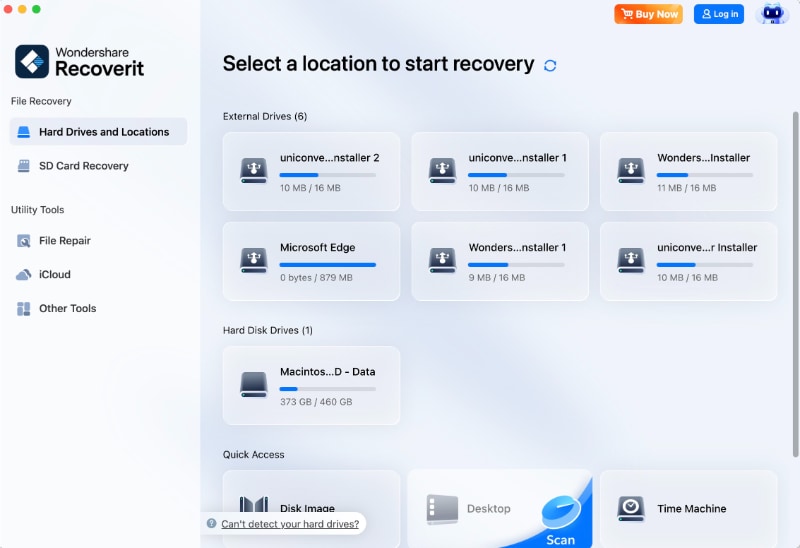
Step 1. Select the Disk to Scan
Once you open Recoverit, choose “Hard Drives and Locations” > Select a particular disk.
Step 2. Filter Out Images
Recoverit starts scanning the file. Choose the “Filter” option and set it to images > Type a short description if you are looking for one particular shot.

Step 3. Preview and Save the Scanned Images
After the scan completes, preview the images > Press “Recover” to save them to a safe location.
Recover Deleted Photo Copies With Wondershare Recoverit
Security Verified. Over 7,302,189 people have downloaded it.
Part 5. How to Recover Photos From a Broken iPhone Without iCloud
A broken iPhone screen does not always mean your stored photos are lost. Knowing how to recover photos from a broken iPhone without iCloud depends on access. A trusted computer may let you access and copy photos from the iPhone.
Confirm the iPhone Still Powers On
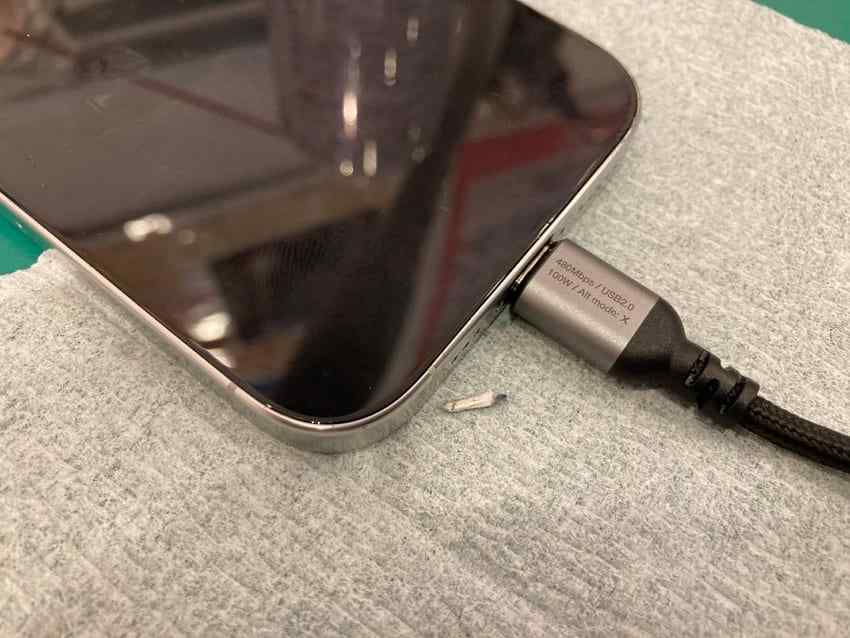
A damaged screen does not always mean photos stored on your iPhone are lost. The key difference is whether the iPhone still powers on despite screen damage. Sounds, vibrations, charging responses, or screen activity can indicate the device remains functional. No response at all may indicate hardware damage that requires professional repair service. To confirm its condition, use the checks below:
Instructions. Plug the iPhone into power for a few minutes > Press the Side button > Check for screen activity, sounds, or vibrations.
Connect It to a Previously Trusted Computer
A trusted computer can access iPhone photos, videos, and content, according to Apple. For users learning how to restore iPhone photos without backup, prior trust matters. A previously trusted computer improves your chances, but prior trust does not guarantee access. The iPhone may still require its passcode to unlock and establish a wired data connection. Here is how you can check computer access:
Step 1. First, connect your iPhone to a previously trusted computer with a data cable > Wait for the computer to recognize the device.
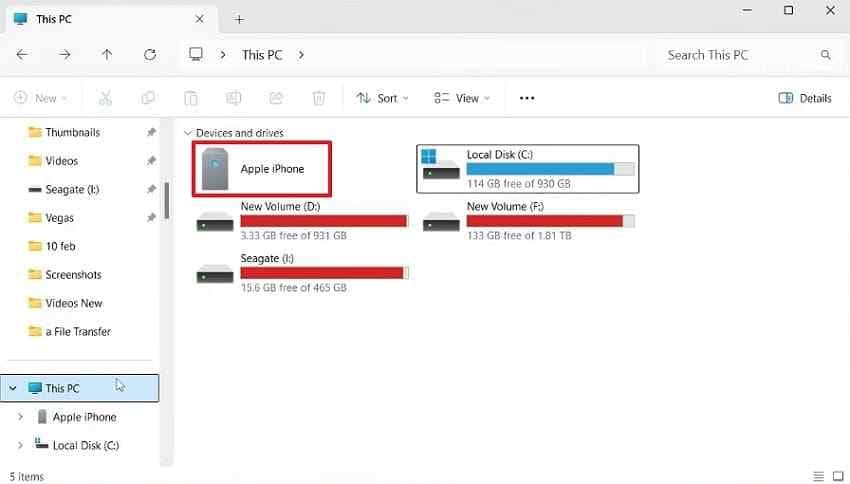
Step 2. Access “Internal Storage” > Open a folder with photos > Save the images directly to your PC.
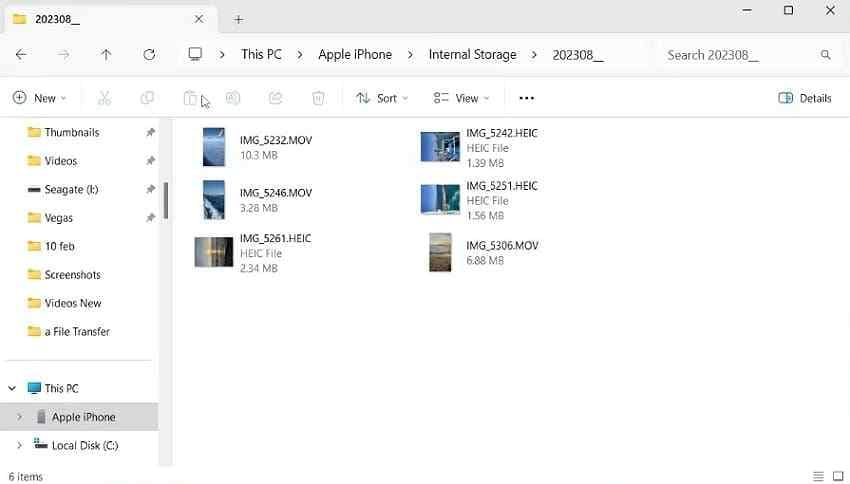
Note: This method only exposes photos that the iPhone makes available over USB. If “Optimize iPhone Storage” was used, some full-resolution originals may exist only in iCloud.
Import Photos With Image Capture or Microsoft Photos
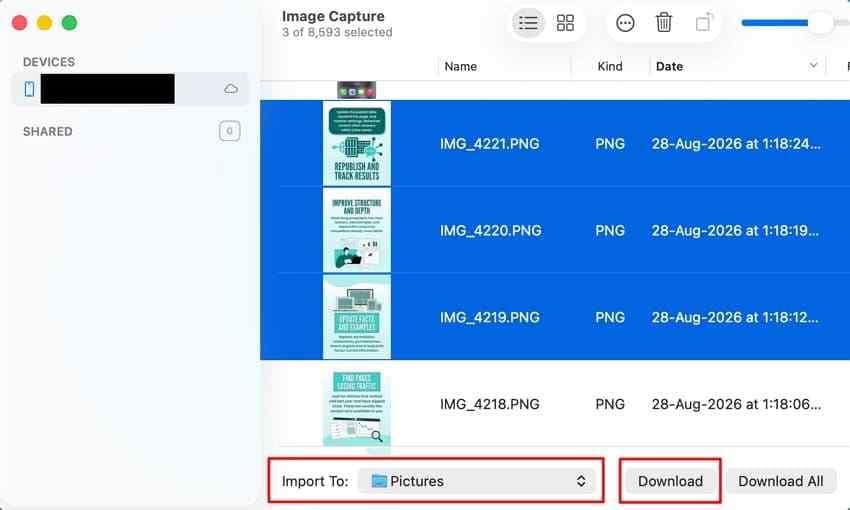
Image Capture lets Mac users import accessible photos from their connected broken iPhone. Microsoft Photos provides Windows users another way to transfer accessible iPhone photos. Both options let you select specific photos and save them onto your computer. Follow the instructions below for your computer system:
For Image Capture on Mac
First, connect your iPhone to your Mac using a data cable. Then, select your phone > Pick the images > Set “Import To” location > Press “Download.”
For Photos App on Windows
Step 1. Connect your iPhone to your Windows PC > Open “Photos” > Click “Import” > Choose your iPhone.
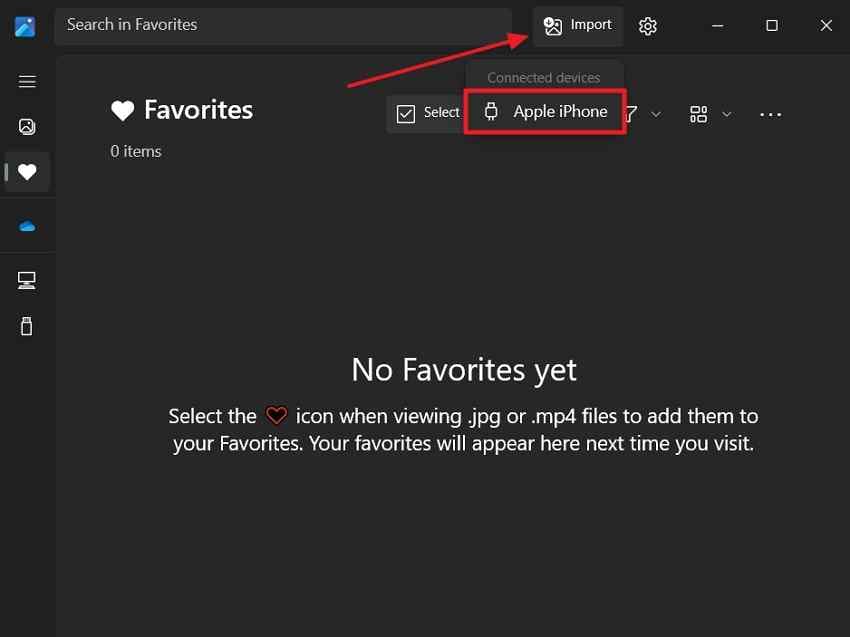
Step 2. Next, pick the images > Press “Add” > Choose a save location > Choose “Import” to save your photos.

Note: The iPhone may still need to be unlocked or authorized before Image Capture can access it.
If the Computer Was Never Trusted
A locked iPhone can prevent computer access when screen damage blocks required authorization. This limitation matters when learning how to recover photos from iCloud without backup.
Desktop recovery software cannot bypass iPhone security protections to access locked device data. If authorization cannot proceed, consider screen repair that preserves the existing phone data. Avoid resetting or erasing the iPhone because doing so can remove stored photos.
Part 6. Which Photo Recovery Option Fits Your Situation?
Understanding how to restore iPhone photos without backup starts with matching your current situation. The table below compares 6 recovery options and shows which route fits best:
| Situation | Best Option | Needs Reset | Main Limitation |
| Recently Deleted still Available | Method 1 | No | Expires at 30 days |
| iCloud Photos was Enabled | Method 2, the web view | No | Requires sync to have been on |
| Photos Exported Previously | Part 3 locations | No | Copies may be older or resized |
| iPhone Broken but Accessible | Part 5, trusted computer | No | Needs prior trust or a working screen |
| A Drive or Card Was Wiped | Part 4, run a storage scan | No | Depends what has not been overwritten |
| No Copy Exists Anywhere | None available | No | Nothing left to read |
Broken iPhone recovery depends on whether the device still allows access through trusted computers. Setting up computer trust beforehand can make photo access much easier after damage.
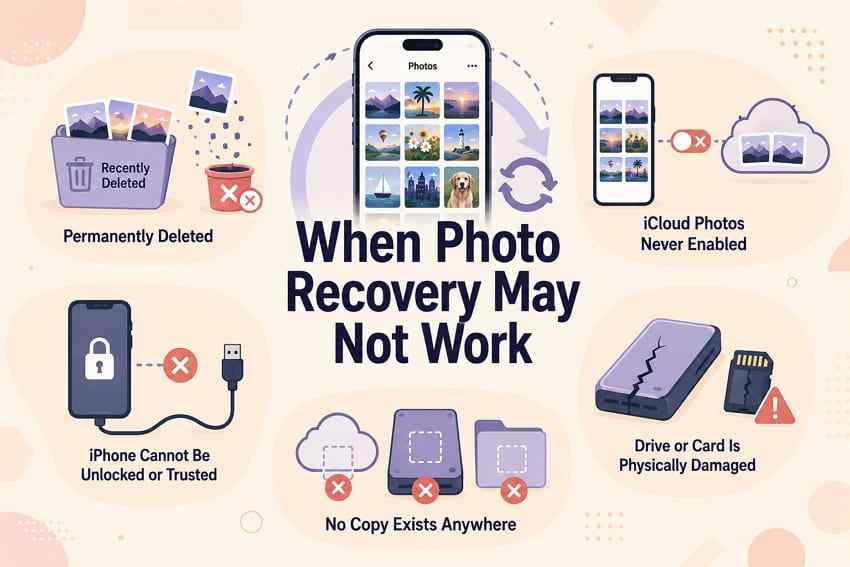
Part 7. When Recovery Without a Backup May Not Work
Some situations leave no practical way to recover photos without existing copies. Let’s review the cases where recovery may no longer remain an option:
- Permanently Deleted From Recently Deleted: Manually removing photos from Recently Deleted ends the 30-day recovery window. With iCloud Photos enabled, that deletion can sync across connected devices.
- iCloud Photos Was Never Enabled: If iCloud Photos was off, no synced iCloud Photos copy exists. However, another backup or cloud service may still contain the images.
- No Copy Exists Anywhere: If every location in Part 3 has been checked and no copy remains, there is no practical source left for photo recovery.
- The iPhone Cannot Be Unlocked or Authorized: A locked iPhone with an unusable screen may block USB access because the device may require unlocking or authorization before connecting.
- The Drive or Card Is Physically Damaged: Recovery software cannot scan storage that the computer cannot read. Severe physical damage may require professional data-recovery service.
Part 8. How to Avoid Losing iPhone Photos Again
Know how to recover photos from a broken iPhone without iCloud before damage occurs. Below are the 5 habits that protect your iPhone photos from loss:
- Keep iCloud Photos Enabled: iCloud Photos keeps your library synced across devices, but deletions also sync, so do not treat it as your only backup.
- Enable Automatic Device Backups: Regular backups preserve device data and settings that are not already synced through iCloud services.
- Keep Photos in More Than One Location: Store important photos in at least two places, such as iCloud Photos and a computer or external drive.
- Export Irreplaceable Photos: Save important originals to a computer or external drive to protect them from device failure, account issues, or sync problems.
- Check Recently Deleted Promptly: Review this album as soon as photos go missing because deleted items remain recoverable for only 30 days.
Conclusion
In conclusion, understanding how to recover photos from iCloud without backup requires finding copies elsewhere. Check iCloud Photos, Recently Deleted, other apps, computers, and storage for missing pictures. Broken iPhones may still provide photo access through computers that were trusted before the damage. If you lost photo copies from storage, Recoverit can scan them for recovery.
FAQ
-
Can iCloud Photos work even if iCloud Backup was never enabled?
Yes, iCloud Photos can sync your library without requiring an iCloud device backup first. This distinction helps explain how to restore iPhone photos without backup when copies exist. -
Can a broken iPhone be backed up after the screen stops working?
Possibly. A previously trusted computer may still recognize the iPhone, but iOS can require the device to be unlocked before establishing a wired connection. If the broken screen prevents passcode entry or authorization, creating a new backup may not be possible. -
Can permanently deleted iPhone photos remain on another Apple device?
An offline Apple device may still contain photos until the deletion reaches it. Connecting it to iCloud can sync the deletion and remove those remaining photos too. -
Does factory resetting a broken iPhone improve photo recovery?
No, factory resetting erases stored data and removes existing trusted computer relationships too. Avoid resetting the device when photos remain stored inside, and no backup exists elsewhere.


