 TL;DR:
Recover deleted screen recordings by immediately stopping device usage to prevent data overwriting, then restoring the files from local trash folders, system backups, or dedicated recovery software.
● Check the Windows Recycle Bin, macOS Trash, mobile Recently Deleted folders, or cloud bins (Google Drive, iCloud, OneDrive) first, as these locations temporarily hold deleted media for up to 30 days.
● Utilize Windows File History or macOS Time Machine to restore previous versions of your recordings, provided these system backup tools were actively enabled before the data loss occurred.
● Deploy a specialized recovery tool like Recoverit to deeply scan the storage drive for hidden files if the recordings were permanently deleted, the trash was emptied, or the drive was formatted.
Ask AI for a summary
 ChatGPT
 Perplexity
 Gemini
 Claude
 Grok
Grok
Deleted screen recordings can often be recovered, but the right method depends on where the video was saved before deletion. A recording from iPhone usually goes to Photos, Android recordings often appear in Gallery or Google Photos, Windows recordings may be in Videos or a screen recorder folder, and Mac recordings may be on the desktop or a custom save location.
Start with temporary deletion folders and backups before using screen recording recovery software. If the recording was permanently deleted from local storage, stop using that device or drive immediately so the deleted video data is not overwritten.


Part 1: Can You Recover Deleted Screen Recordings?
You can recover deleted screen recordings in many cases, but recovery is not guaranteed. The chance depends on whether the video is still in a temporary deletion folder, backed up to cloud storage, saved in a system backup, or still recoverable on local storage.
| Where the Recording Was Deleted | Check First | Recovery Chance |
| iPhone Photos app | Recently Deleted in Photos and iCloud Photos | High if still within the deletion retention window |
| Android Gallery or Google Photos | Trash in Google Photos or Gallery | High if not permanently deleted |
| Windows computer | Recycle Bin, File History, original recording folder | High if backups exist or the file was not overwritten |
| Mac computer | Trash, Time Machine, desktop, or custom save folder | High if Time Machine was enabled before deletion |
| SD card, USB drive, external drive | Scan the original storage device with Recoverit Data Recovery | Medium to high if no new files overwrote the data |
| Formatted or crashed storage | Recovery software or professional recovery service | Depends on damage level and overwrite status |
Part 2: How to Recover Deleted Screen Recordings?
There are many ways to recover deleted recordings.
Choose the Right Screen Recording Recovery Method
| Your Situation | Best First Method | Why |
| Deleted recently on iPhone or Android | Check Recently Deleted or Trash | The video may still be temporarily stored |
| Deleted from Windows or Mac | Check Recycle Bin, Trash, File History, or Time Machine | Built-in recovery is safest and fastest |
| Deleted from an SD card or external drive | Stop using the device and scan with Recoverit Data Recovery | Deleted data may still exist until overwritten |
| Lost after formatting or system crash | Use professional recovery software first | Temporary folders may no longer contain the file |
| Synced to cloud before deletion | Check Google Drive, Google Photos, iCloud, OneDrive, or Dropbox | Cloud trash or version history may still hold a copy |
Some methods use simple built-in tools, while others depend on recovery software or backup systems. The best part is that none of these methods are too technical. Anyone can follow them with basic computer knowledge.
These methods cover all situations—whether you deleted the file manually, formatted the drive, or lost it after a crash. You can use them for both computer and mobile devices. The steps below will show you how to recover deleted screen recorded videos on computer and also on Android phones.
Method 1: Use Recoverit Tool
Use Recoverit Data Recovery when a screen recording was permanently deleted from local storage, such as a Windows PC, Mac, SD card, USB drive, external disk, camera card, or phone storage that can be accessed from a computer.
- Stop using the device or drive where the deleted screen recording was saved.
- Install and open Recoverit Data Recovery on a Windows or macOS computer.

- Select the original folder, drive, SD card, USB drive, or external storage device.
- Click Scan and wait for recoverable video files to appear.

- Use file type filters such as
mp4,mov,mkv, oravito locate screen recordings faster. - Preview recoverable videos when available.

- Select the screen recordings you need and click Recover.
- Save the recovered files to a different drive or folder, not the original location.
You may be also interested in: Loom Recovery: How to Recover Lost Loom Videos?
Method 2: Check the Trash or Recently Deleted Folder
Temporary deletion folders should be the first place you check because they restore files without scanning or risking overwrite.
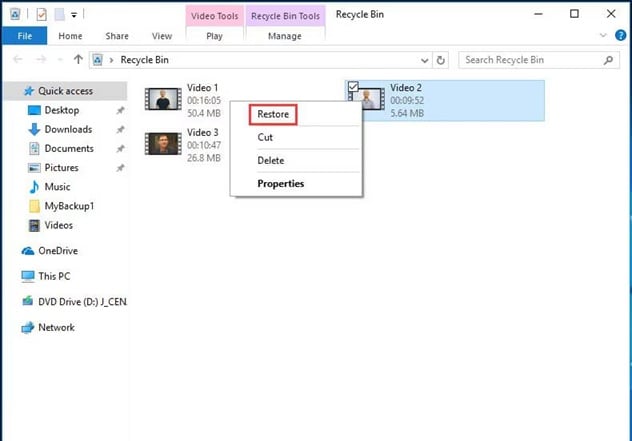
- On Windows, open Recycle Bin, locate the screen recording, right-click it, and choose Restore.
- On Mac, open Trash, select the recording, and choose Put Back.
- On iPhone, open Photos, go to Recently Deleted, unlock if prompted, and restore the video.
- On Android, open Gallery or Google Photos, then check Trash or Bin.
- After restoring, move the screen recording to a safer folder or back it up to cloud storage.
Method 3: Use File History or Time Machine (Windows/macOS)
File History on Windows and Time Machine on Mac can restore deleted screen recordings only if they were enabled before the file was deleted.
For Windows File History
- Open the folder where the screen recording was saved.
- Right-click the folder and check Restore previous versions, or open File History from Settings or Control Panel.
- Select a backup version created before the deletion.
- Restore the recording to its original folder or copy it to a safe location.
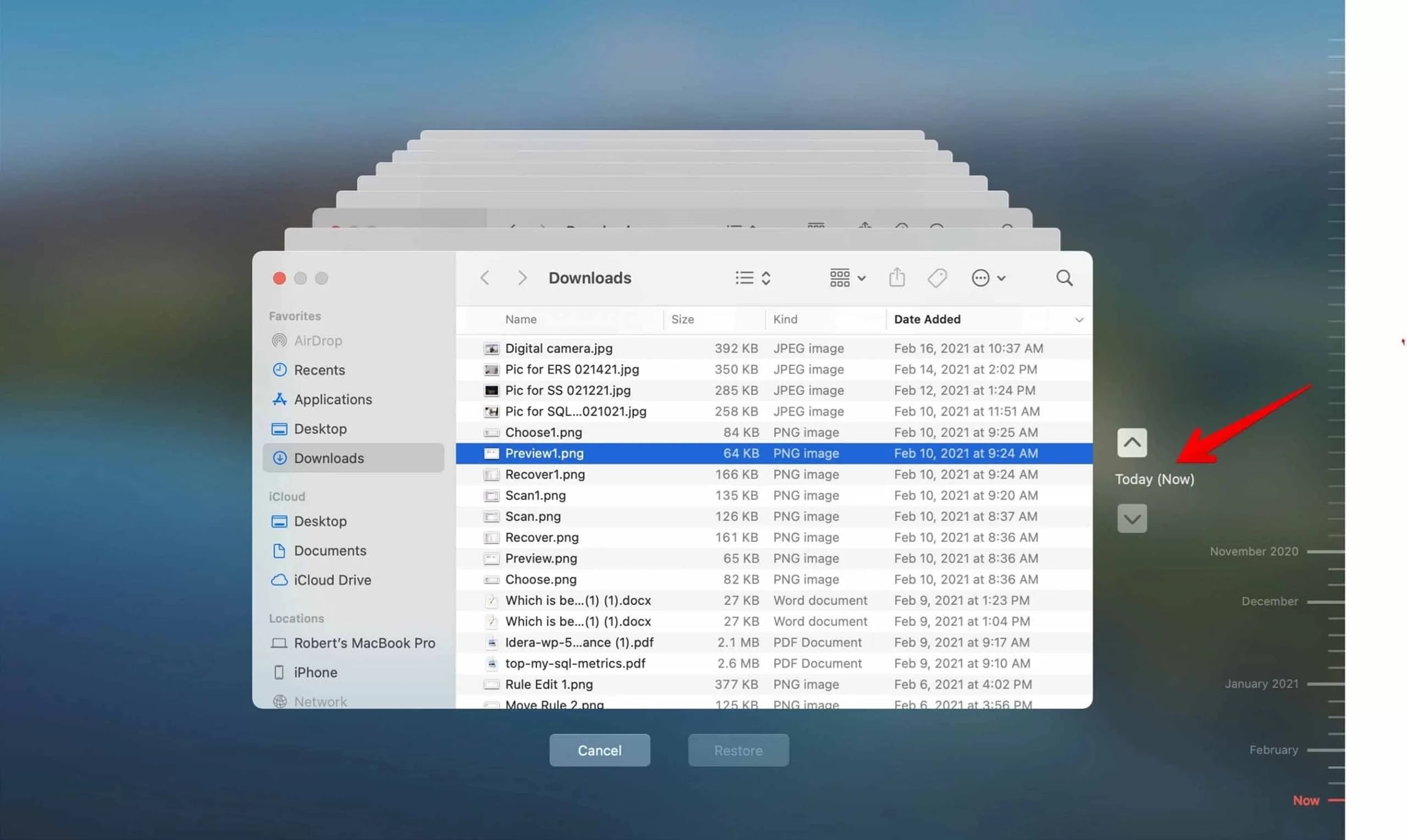
For Mac Time Machine
- Connect the Time Machine backup drive if needed.
- Open the folder where the screen recording was saved, such as Desktop, Movies, or a custom screen recorder folder.
- Enter Time Machine and browse to a date before the deletion.
- Select the recording and click Restore.
Method 4: Recover from Cloud Backup (Google Drive, iCloud, OneDrive)
Cloud backup can recover deleted screen recordings if sync or backup was enabled before the deletion. Check both the main library and the cloud Trash or Recently Deleted folder.
- Open the cloud service where screen recordings may sync, such as Google Photos, iCloud Photos, Google Drive, OneDrive, or Dropbox.
- Search by file type, date, recording name, or folder name.
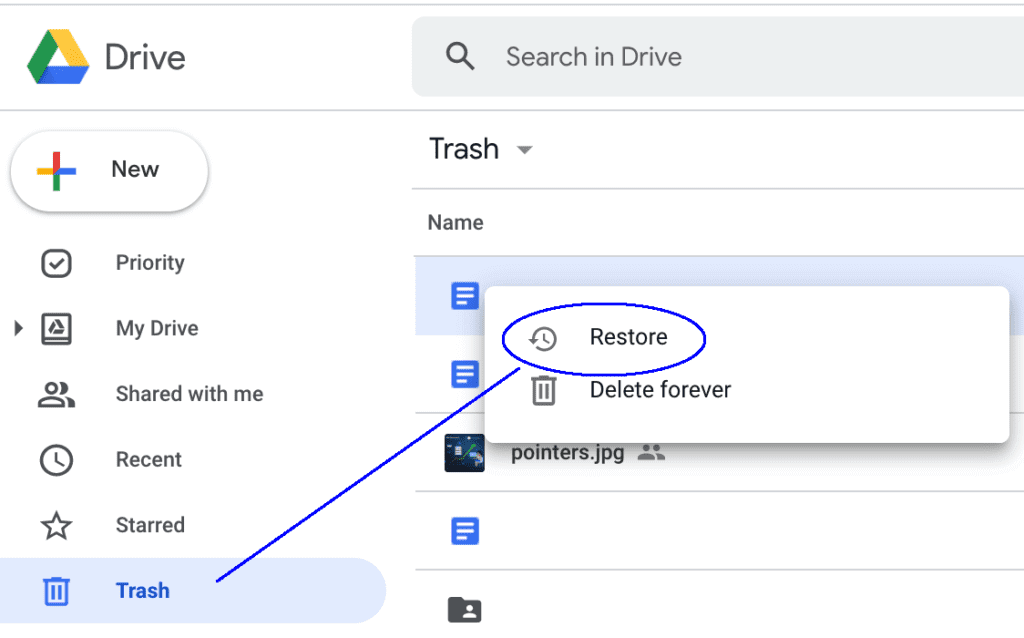
- Check Trash, Bin, or Recently Deleted.
- Select the screen recording and choose Restore or Download.
- Save a second copy to an external drive or another backup location.
Part 3: Pro Tips to Prevent Future Loss of Screen Recordings
Screen recordings are large files, so they need a clear storage and backup routine. Use the checklist below to prevent future loss.
- Back up immediately: Copy important recordings to an external drive, cloud folder, or computer after recording.
- Keep enough free space: Low storage can interrupt recording, corrupt videos, or trigger cleanup deletion.
- Use clear file names: Include the date, topic, class, meeting, project, or game session name.
- Enable cloud backup carefully: Use Google Photos, iCloud, OneDrive, or Google Drive, but understand how sync deletion works.
- Turn on system backups: Enable File History on Windows or Time Machine on Mac before data loss happens.
- Export recordings from apps: If a screen recorder stores videos inside the app, export important recordings to normal storage.
- Keep recovery software ready: Use Recoverit Data Recovery when a local recording is permanently deleted and no backup exists.
Conclusion
Recovering deleted screen recordings is easiest when you act quickly and follow the right order. Check Recently Deleted, Trash, Recycle Bin, and cloud backups first. If those options fail, use File History, Time Machine, or local recovery software.
For permanently deleted local recordings, Recoverit Data Recovery can scan the original drive, SD card, USB drive, or external storage device. Save recovered videos to a different location and create a backup immediately.
FAQs
-
Can I recover deleted screen recordings without software?
Yes, you can. Start by checking your Recycle Bin or Recently Deleted folder. If your file is there, restore it with one click. You can also use File History or Time Machine if backups were active. -
Is Recoverit safe for screen recorder video recovery?
Recoverit is completely safe. It does not harm your files or system. It scans your drive carefully and restores deleted videos without overwriting them. Many users trust it for how to recover deleted screen recording on computer and phone. -
What if I have no backup or recovery software?
If there is no backup, use recovery tools like Recoverit or Recuva. For phones, try a screen recorder video recovery app. These tools can search your device memory and bring back files that are not visible anymore.



