 TL;DR:
Lost screen recordings can be recovered by immediately checking your local or cloud trash folders, restoring from system backups, or using deep-scan data recovery tools like Recoverit for permanently deleted files.
● Check the local Recycle Bin, Trash, and cloud storage trash folders (Google Drive, iCloud, OneDrive) first, as large video files typically remain there until manually emptied.
● Utilize Windows File History or macOS Time Machine to restore older folder snapshots if the recording was saved previously but subsequently lost or replaced.
● Use deep-scan recovery software like Recoverit to retrieve permanently deleted MP4, MOV, MKV, or AVI files from formatted drives, provided you immediately stop saving new data to the affected drive to prevent overwriting.
Ask AI for a summary
 ChatGPT
 Perplexity
 Gemini
 Claude
 Grok
Grok
Screen recordings are useful for many tasks. People record meetings, lessons, tutorials, gameplay, and daily work. These videos help save time and capture important actions on the screen. Because they hold real value, losing them can be painful. Many users panic when they cannot find their recordings.
The good thing is that most deleted videos can be restored. Storage drives often keep hidden copies. Computers create backup versions. Cloud apps also save older files. With the right steps, you can bring back recordings in many cases. This guide explains how to recover lost screen recordings and shows many ways to bring back your lost files.
Try Recoverit to Recover & Repair Video/Photo/Docs etc.
 Security Verified. Over 7,302,189 people have downloaded it.
Table of Contents
How to Recover Lost Screen Recordings?
There are many ways to bring back deleted recordings. Some methods restore files within seconds. Others require a full scan. The right method depends on how the file was removed.
These steps help with How to recover deleted screen recordings, screen recorder deleted video recovery.
Method 1: Use Recoverit Data Recovery Tool
Recoverit is a trusted recovery tool for Windows and macOS. It scans deep areas of your storage, including hidden sectors that a normal search cannot reach. Many users choose this tool because deleted screen recordings often remain on the drive even after they no longer appear in folders. Recoverit helps you find those hidden files quickly.
The software can restore MP4, MOV, MKV, AVI, and other video formats. It can also rebuild corrupted video fragments. This makes it a strong choice for long screen recordings and large files. It works for formatted drives, SD cards, USB drives, and computer storage.

How it helps
- Deep scan finds old video files
- Recovers files after formatting
- Supports preview before saving
- Works well for long recordings
Steps
Step 1: Install and open Recoverit. Select the drive where you saved your video.

Step 2: Recoverit now runs a full scan automatically. Older versions could take minutes or even hours with large files, but the improved speed makes recovery much faster and saves you time.

Step 3: Preview the video and save it to a safe folder.

Method 2: Check the Recycle Bin or Trash
This is the fastest method. Many deleted files stay in the Recycle Bin or Trash until you empty it. If you deleted your video recently, you may find the recording still there. Users often forget to check the bin and think the file is gone forever.
This method works well for simple mistakes. You can check the bin within seconds and restore the file with one click. Because screen recordings are usually large, they often remain in the bin until cleared manually.
Steps
Step 1: Open the Recycle Bin or Trash.
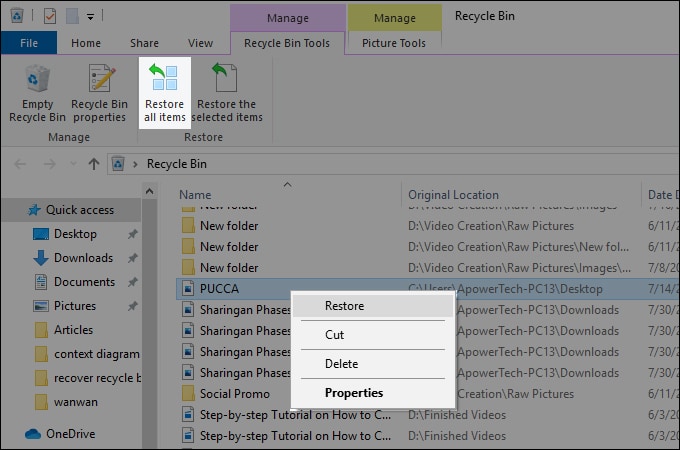
Step 2: Find your recording, right-click it, and choose Restore.
Method 3: Restore from Cloud Storage
Cloud apps like Google Drive, iCloud, and OneDrive keep copies of files for many days. Some even store older versions. If your screen recorder was set to auto sync, your file may already be in your cloud account. Cloud recovery is very useful when the device is lost, damaged, or reset.
Cloud storage also has its own trash bin. Files deleted locally may still be present in the cloud trash folder. This gives you more ways to recover deleted screen recording videos on any device.
Steps
Step 1: Log in to your cloud account. Check the trash or deleted files folder.
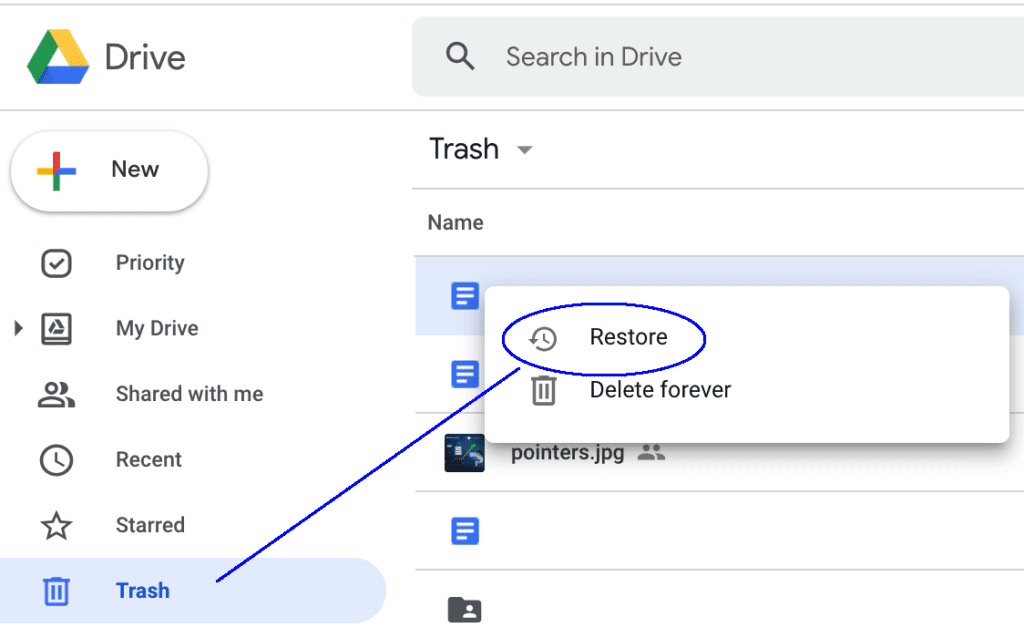
Step 2: Restore the recording and download it again.
Method 4: Recover from Backup Files or External Drives
Many people save screen recordings to external drives. This includes USB drives, SSDs, and backup hard disks. If you used any backup tool, you may find older versions of your files. Backup tools often store weekly or monthly copies.
This is also helpful when your main drive gets corrupted or damaged. You may not have the latest version, but you can still recover most of your work.
Steps
Step 1: Connect your backup drive or open your backup folder.
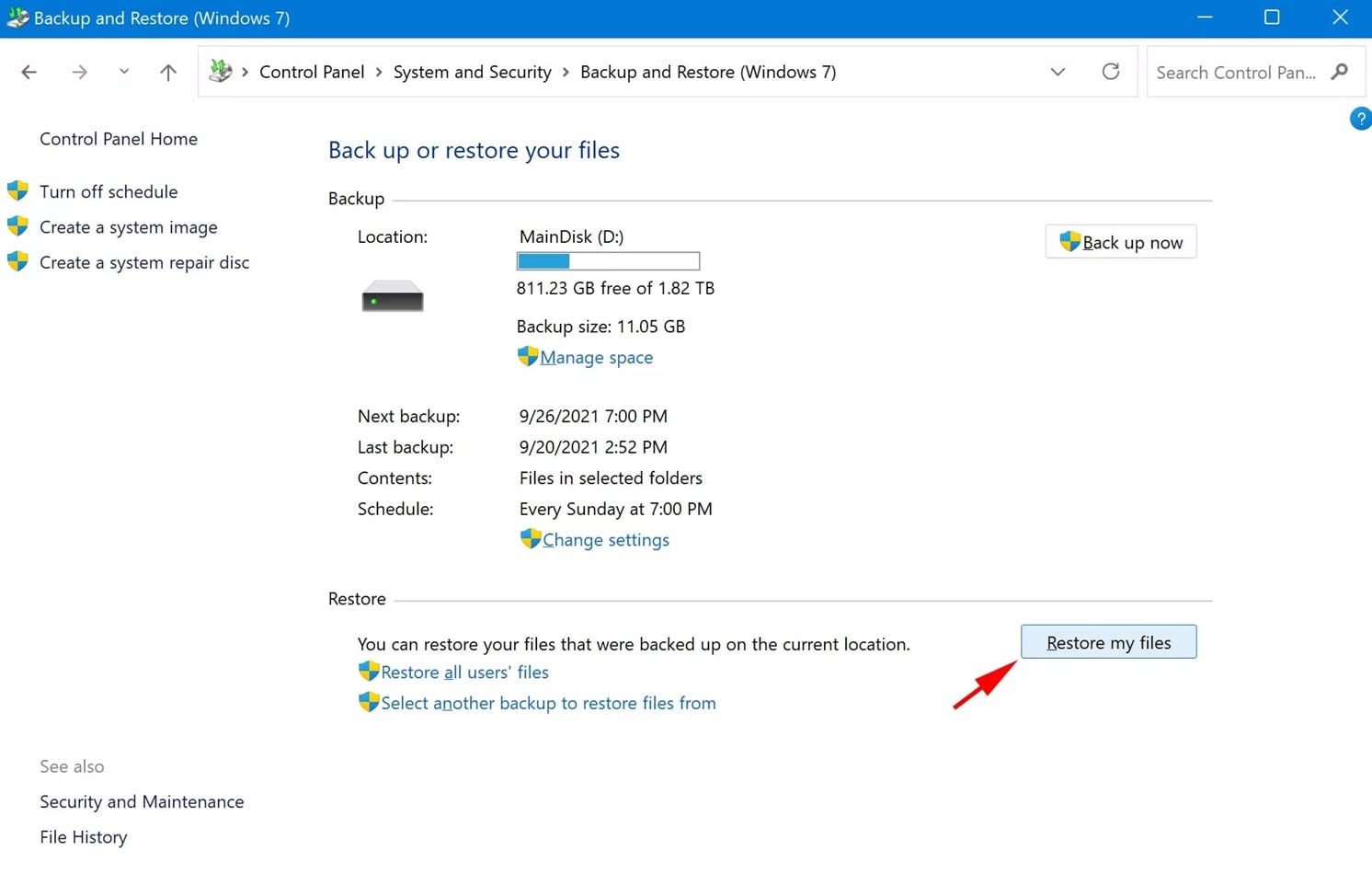
Step 2: Find the recording and copy it back to your device.
Method 5: Use File History or Time Machine
These tools save older versions of your files at regular intervals. File History is for Windows. Time Machine is for macOS. They store snapshots of your folders, even if you removed or replaced files. This makes them very helpful for screen record recovery.
If your recording existed in the folder at any point, File History or Time Machine may still have a copy. These tools can restore entire folders with one click, making them useful for users who record many videos.
Steps
Step 1: Open File History or Time Machine.
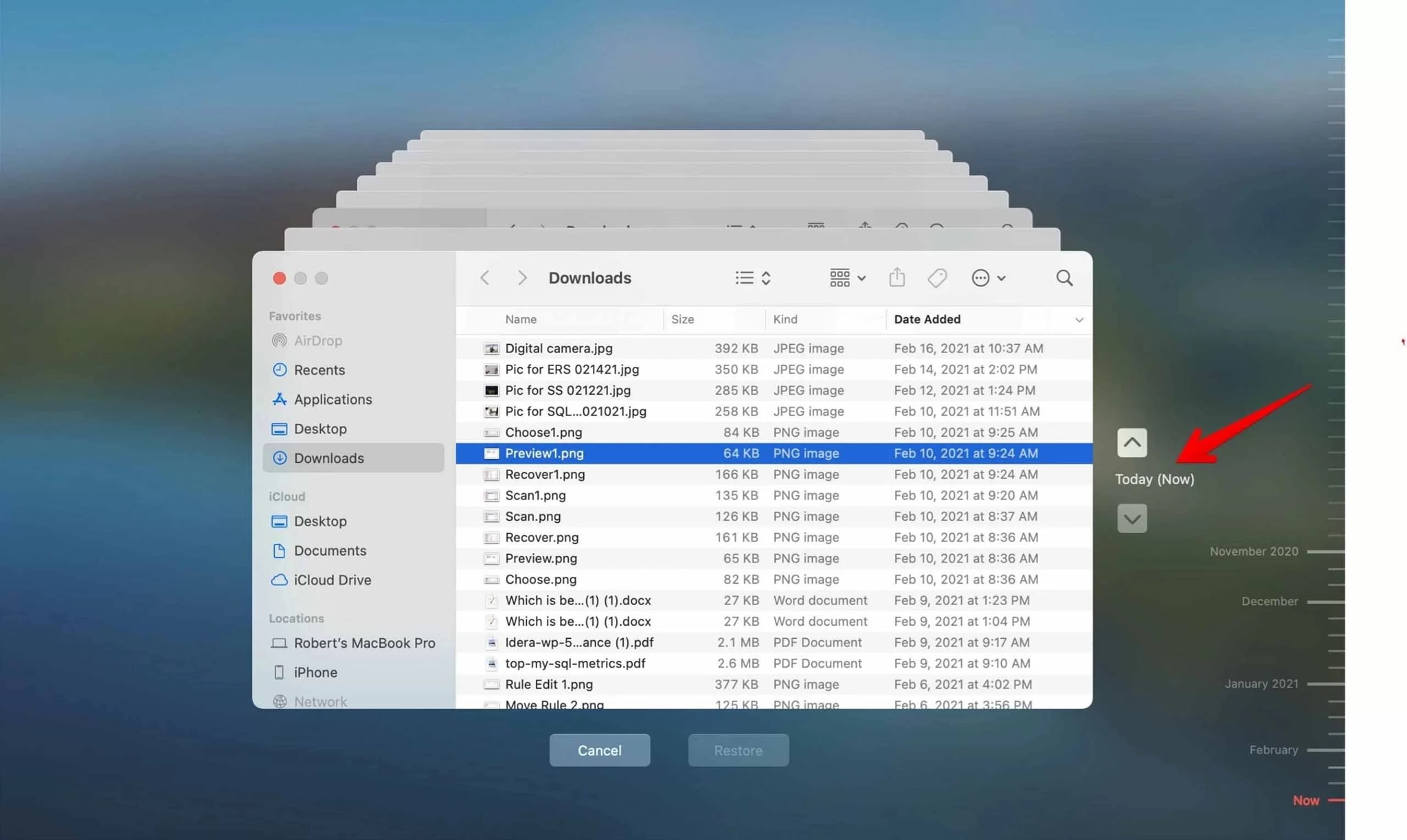
Step 2: Select the folder and recover the file version you need.
Method 6: Contact Device Support
If none of the above works, support teams can guide you through deeper steps. Some brands use advanced recovery tools that regular users cannot access. They can also diagnose storage issues and help restore files affected by hardware faults.
This is useful when recordings were stored on internal memory that is failing or corrupted. Support teams may also help recover files from locked devices or damaged drives.
Steps
Step 1: Contact your device brand or software support.
Step 2: Follow their recovery steps or send your device for repair if needed.
Pro Tips to Avoid Losing Screen Recordings
Good habits can protect your recordings. Simple steps like backups and cloud sync can reduce stress. You can also change a few settings in your recorder to avoid sudden file loss. These tips work well for all devices.
Tips:
- Keep one folder. Store all recordings in a dedicated folder so they’re easy to track and you don’t lose files in random locations.
- Enable cloud sync. Turn on cloud backup (Google Drive, OneDrive, Dropbox, etc.) to protect recordings from crashes and make them accessible across devices.
- Maintain free space. Keep enough storage available; low space can cause failed saves or corrupted files. Regularly clear out unused apps or downloads.
- Use clear names. Rename files with dates and topics (e.g., 2025-11-23_TeamMeeting) so you can quickly find what you need later.
- Update software. Install updates for your recording app and operating system. They often fix bugs and improve stability.
- Run malware scans. Regular scans help protect recordings from viruses or ransomware that could damage or lock your files.
- Back up regularly. Copy recordings to an external drive weekly or monthly. It’s a reliable safeguard for large collections.
- Shut down safely. Avoid force shutdowns while recording or saving. Sudden interruptions often lead to corrupted or incomplete files.
Conclusion
It is stressful when a screen recording disappears. But most files can be restored with the right method. Tools like Recoverit, cloud storage, and backup systems greatly improve your chances. Even if the file does not appear in your folders, the data may still exist on the drive.
Act fast and avoid creating new files on the same drive. This prevents overwriting. With regular backups, cloud sync, good storage habits, and updated apps, you can protect your recordings and avoid loss in the future.
FAQs:
-
1. Is it possible to recover recordings after formatting a drive?
Yes, it is often possible. When you format a drive, the old data is not always erased right away. Recovery tools can scan the drive and bring back video files. The chance of success depends on how much new data has been saved after the format. If you act quickly and avoid adding new files, recovery is more likely to work. -
2. Can I recover recordings from a phone screen recorder?
Yes, many phones give you ways to get back lost recordings. Deleted files may still be in cloud storage like Google Drive or iCloud, in the trash folder, or in local backups. If those do not help, recovery apps can scan the phone memory or SD card to bring back the videos. It is a good idea to check all these places before giving up. -
3. Does recovery reduce video quality?
Most of the time, recovered videos keep their original quality. Problems only happen if parts of the video were replaced by new data. In that case, the video may have missing frames or small errors. But in most cases, the recovered video plays normally without losing quality.


