

 TL;DR:
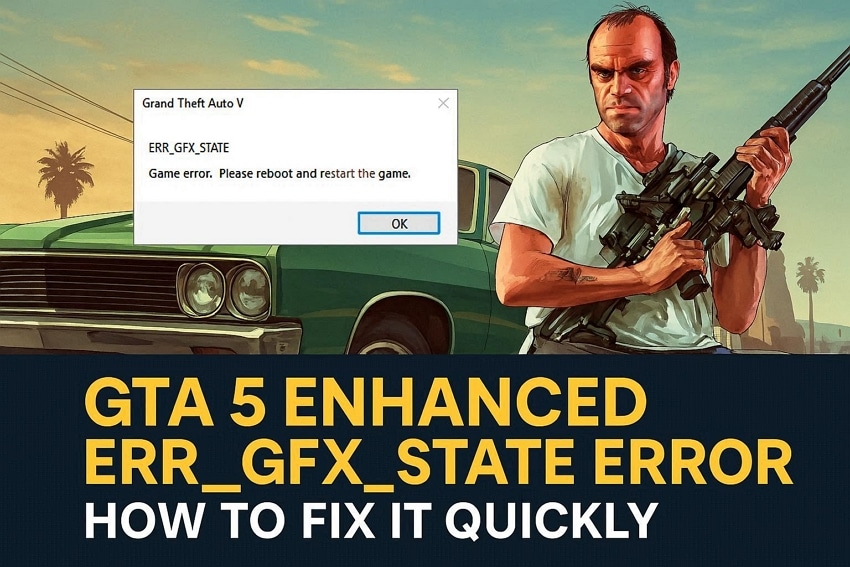
To resolve the ERR_GFX_STATE crash in GTA 5 Enhanced caused by hardware instability or corrupted data, you must update your graphics drivers, verify game files through Steam or the Rockstar Launcher, and reset any GPU overclocks to their default limits.
● Lower the in-game Texture Quality, Shadow Quality, and Extended Distance Scaling, or force the game to run in a different DirectX mode by adding "-dx12" to the Steam Launch Options.
● Temporarily move the "mods" folder out of the local GTA 5 directory to rule out custom file conflicts, and use MSI Afterburner to reset your GPU clock settings to default factory limits.
● If the error permanently corrupted or deleted your core game files, a dedicated recovery tool like Recoverit is required to restore the missing data without forcing a full game reinstallation.
Ask AI for a summary
 ChatGPT
 Perplexity
 Gemini
 Claude
 Grok
Grok
GTA 5 Enhanced brings better graphics, lighting, and a smoother gameplay experience for players. However, some players see crashes during missions or while exploring the world. The game may show an "ERR_GFX_STATE" error and close without a clear reason or warning. This problem can be annoying and sometimes stops players from enjoying the game.
The good news is that this error can be fixed using simple and safe steps. Most fixes include changing graphics settings, updating drivers, or checking game files. These solutions help the game run again without random crashes or interruptions.
Try Recoverit to Perform GTA 5 File Recovery
 Security Verified. 3,591,664 people have downloaded it.
In this article
-
- Restart GTA 5 and Your PC
- Update Graphics Card Drivers (NVIDIA, AMD, Intel)
- Verify and Repair Game Files Via Rockstar Launcher or Steam
- Lower In-Game Graphics Settings
- Disable Mods Temporarily To Check For Conflicts
- Check For System Overheating and Adjust Cooling
- Reinstall GTA 5 Enhanced Completely
- Adjust Overclock Settings Or Reset GPU to Default
- Run The Game In DirectX 10/11/12 Mode

Part 1. Introduction To ERR_GFX_STATE In GTA 5 Enhanced
ERR_GFX_STATE is a graphics error that appears in GTA 5 Enhanced. It shows when the game cannot work with your graphics card properly. This error can happen because of old drivers, high heat, or wrong settings. Mods, overclock settings, or damaged files can also cause this problem. The game stops to protect your system from more serious graphics issues.
How It Affects Gameplay: Crashes, Black Screens, or Freezing
This error can cause the game to crash during missions or open-world play. Players may see a black screen or the game may freeze suddenly. Sometimes, the game closes without warning and returns to the desktop screen. These problems stop progress and break the normal flow of the game. It makes GTA 5 Enhanced hard to play without fixing this issue.
Importance of Resolving the Error For a Stable GTA 5 Enhanced Experience
After understanding the risks, fixing this error becomes important for stable gameplay.
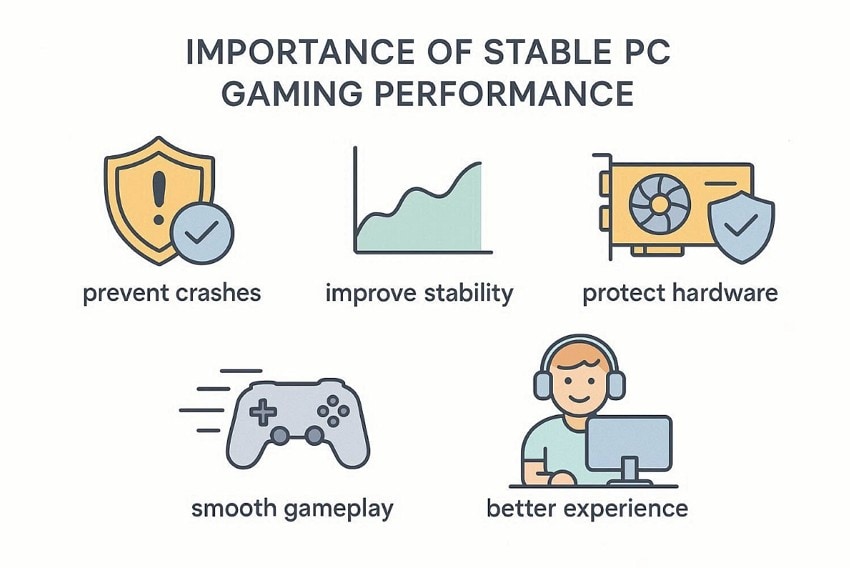
- Prevent Crashes: Fixing this error stops sudden crashes during missions or open-world gameplay. This helps players continue progress without unexpected game interruptions or data loss.
- Improve Stability: Resolving this problem helps the game run in a stable condition. It reduces freezing, black screens, and improves overall gameplay performance consistency.
- Protect Hardware: Fixing graphics errors reduces stress on the GPU and system components. This helps protect hardware from overheating and long-term performance-related damage.
- Ensure Smooth Gameplay: Removing this error allows GTA 5 Enhanced to run smoothly. Players can explore, complete missions, and enjoy the game without interruptions.
- Better Gaming Experience: A stable game improves player comfort and overall enjoyment level. It helps players focus on gameplay without worrying about sudden crashes.
Part 2. Top Reasons GTA 5 Enhanced ERR_GFX_STATE Error Occurs
Before fixing the error, you should know the most common causes first. Provided next are some basic causes why the GTA 5 Enhanced "ERR_GFX_STATE" error occurs in the first place:
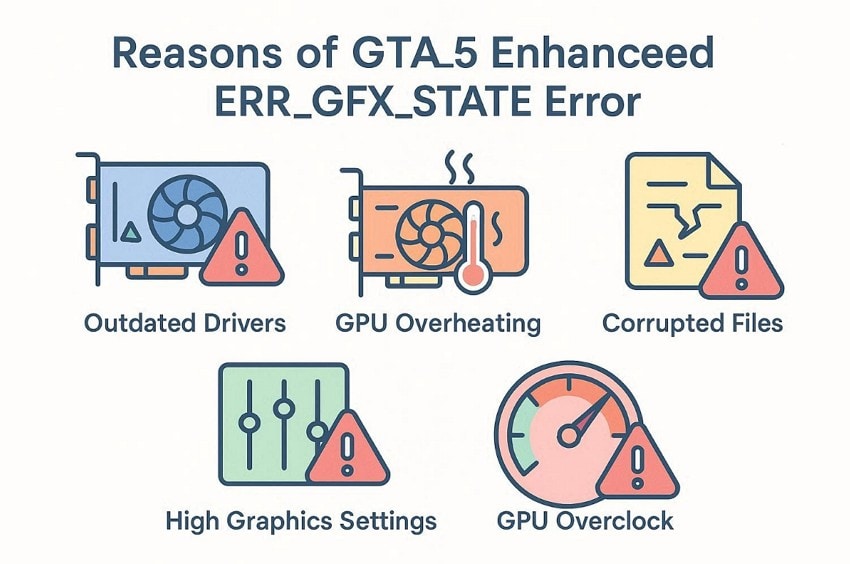
- Outdated Drivers: Old graphics drivers do not support GTA 5 Enhanced properly. Your graphics card cannot handle game graphics and may crash often.
- GPU Overheating: High temperatures affect your graphics card during long gameplay sessions. Heat buildup makes the system unstable and forces the game to stop.
- Corrupted Game Files: Missing or broken files stop the game from loading correctly. The game may freeze, crash, or close during gameplay sessions.
- High Graphics Settings: Very high settings put too much load on the graphics card. Your system may fail to handle graphics and crash suddenly.
- GPU Overclock: Overclock settings increase GPU speed beyond safe factory limits. Unstable speed can cause crashes and show the ERR_GFX_STATE error message.
Part 3. Step-By-Step Solutions For GTA 5 ERR_GFX_STATE Crashes
With the basics covered, let's move towards the fixes to resolve GTA 5 ERR_GFX_STATE Crashes.
1. Restart GTA 5 and Your PC
Sometimes, temporary system glitches cause the ERR_GFX_STATE error during gameplay sessions. Restarting the game and your computer clears memory conflicts and resets graphics communication. This simple action helps restore normal performance and removes minor system instability. Follow the steps below to restart GTA 5 and your PC properly for better stability:
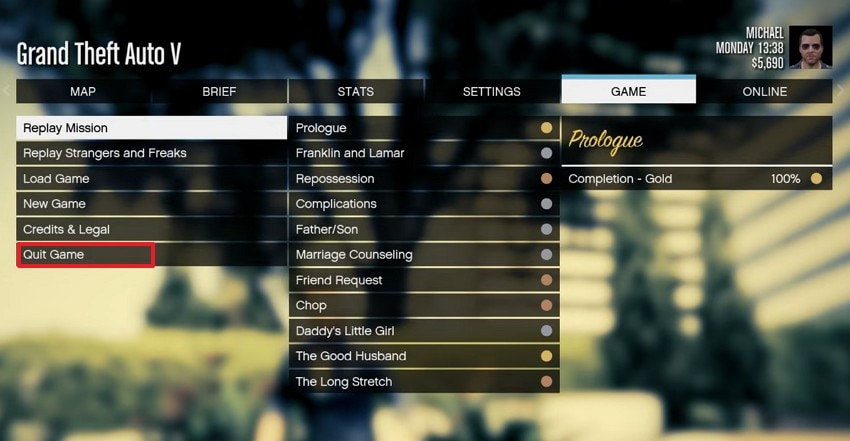
- First, press "Esc" on your keyboard, then navigate to the "Game" option to further select the "Quit Game" option.
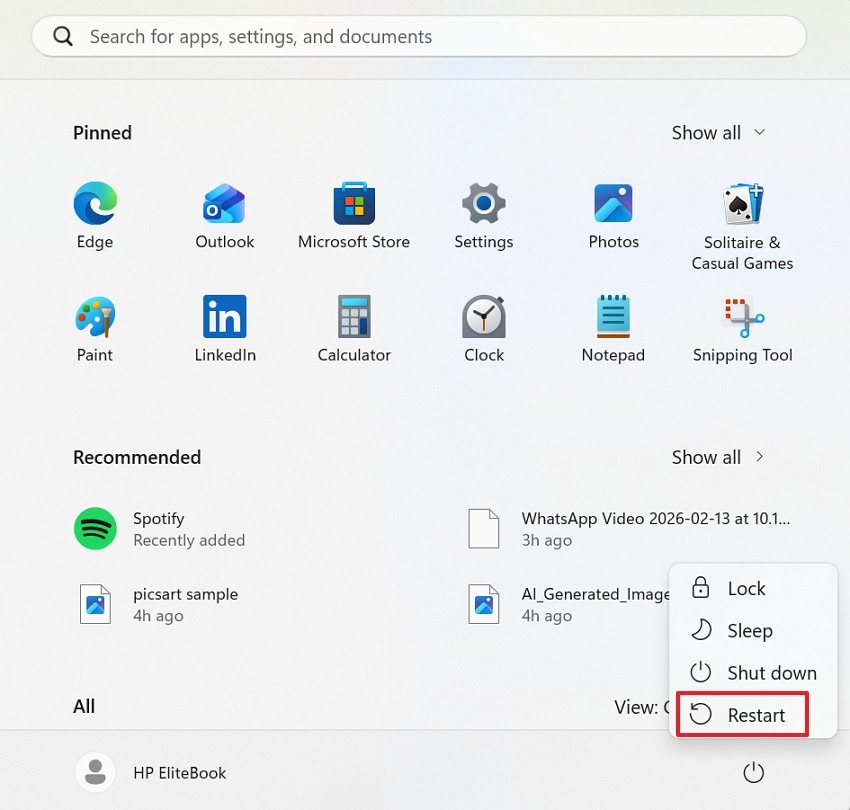
- Next in the Start Menu, click the "Power" icon to select the "Restart" option to reboot your computer.
2. Update Graphics Card Drivers (NVIDIA, AMD, Intel)
Graphics drivers help your system communicate with the GTA 5 Enhanced graphics engine properly. Old or missing drivers can cause crashes, freezing, or unstable gameplay performance. So, installing updated drivers improves compatibility, performance, and graphics stability. Refer to the guide below to update your graphics drivers using official GPU software:
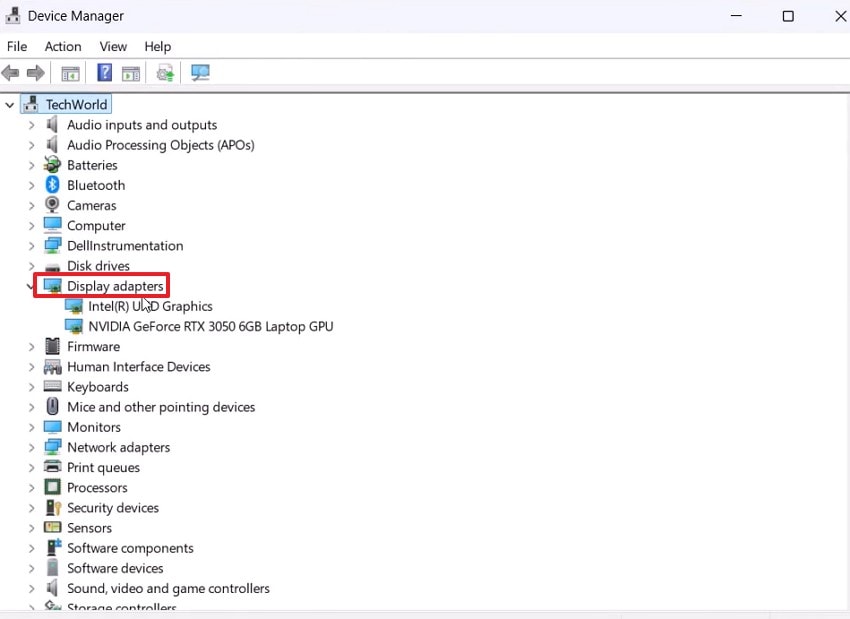
- To start, press "Windows + X" to further select "Device Manager." In Device Manager, navigate to "Display Adapter" and expand the menu to select the graphics.
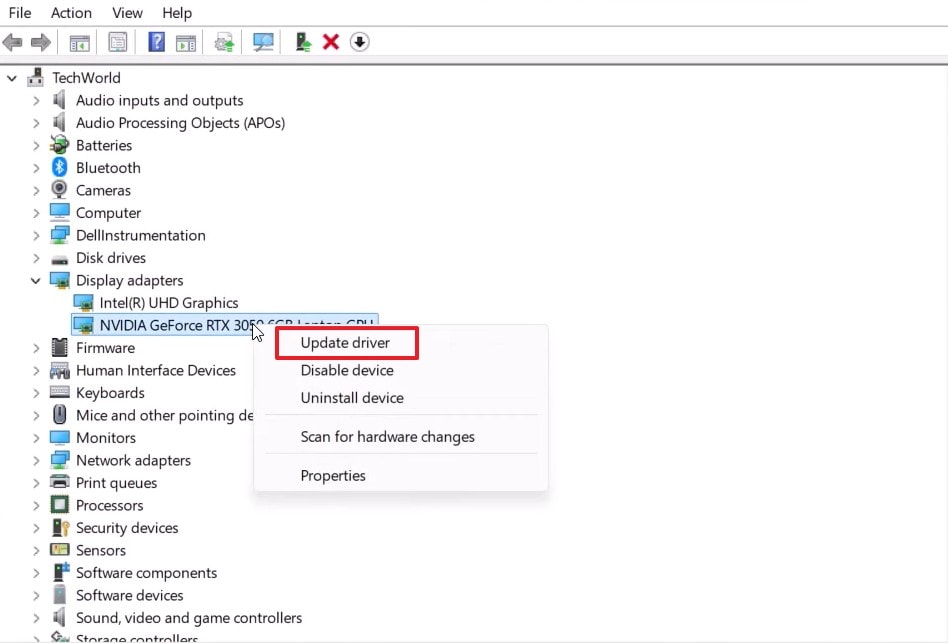
- Next, right-click the graphics card and choose "Update Driver" to proceed.
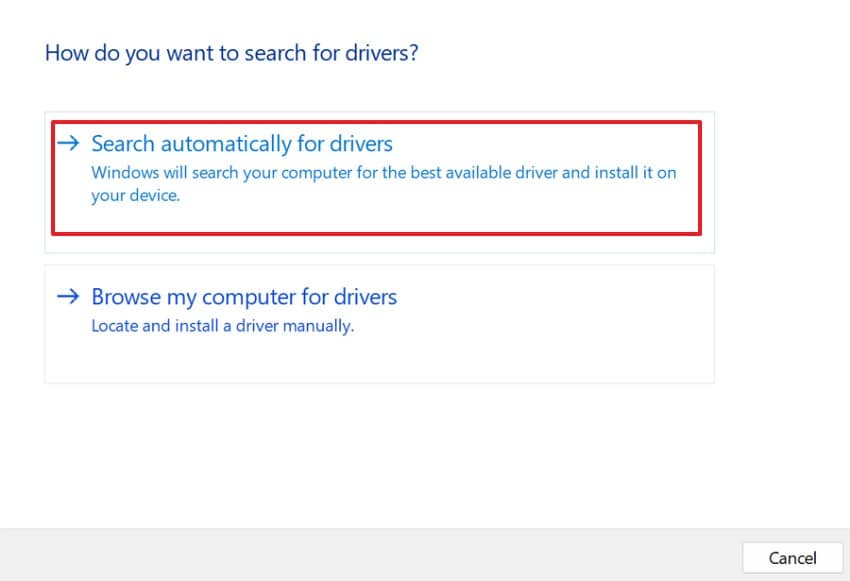
- Then, in the next window, choose "Search automatically for drivers" to update the drivers.
3. Verify and Repair Game Files Via Rockstar Launcher or Steam
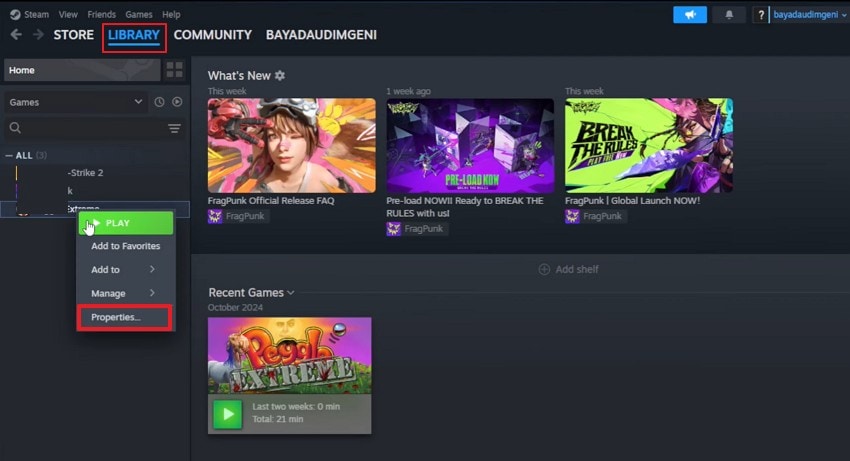
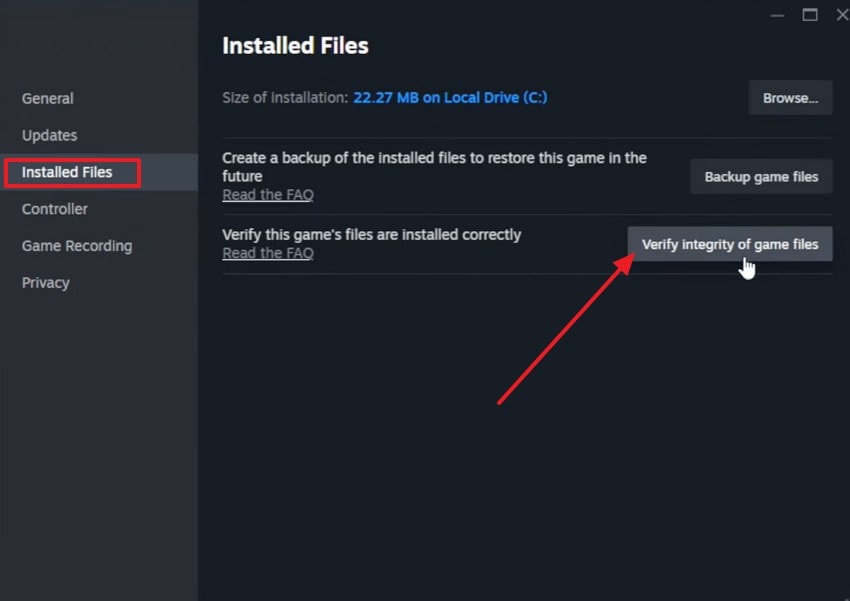
Corrupted or missing files often trigger the "ERR_GFX_STATE" error and cause game crashes. Repairing game files restores missing data and fixes broken file structure automatically. This process helps ensure stable loading, smooth graphics performance, and fewer gameplay interruptions. Use the instructions below to verify and repair game files using launcher tools:
- Upon accessing Steam, choose the "Library" option, and further right-click on the game to pick "Properties."
- Next, choose the "Installed Files" option and press "Verify integrity of game files."
4. Lower In-Game Graphics Settings
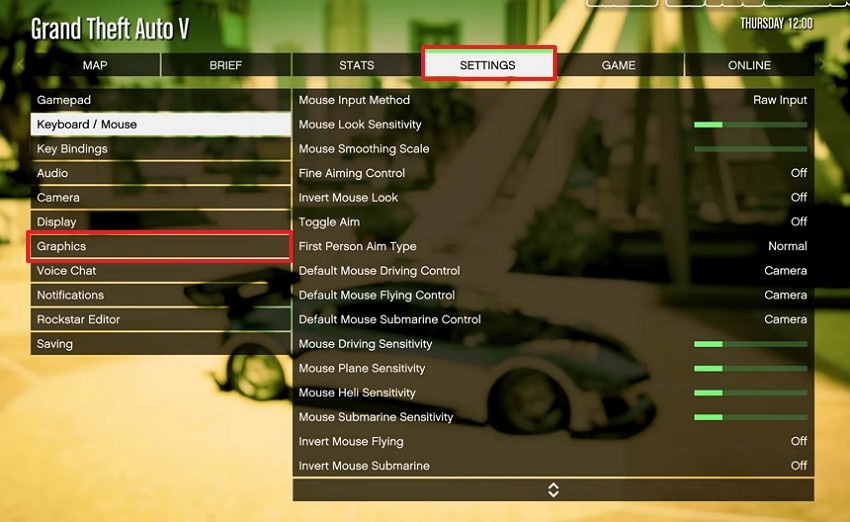
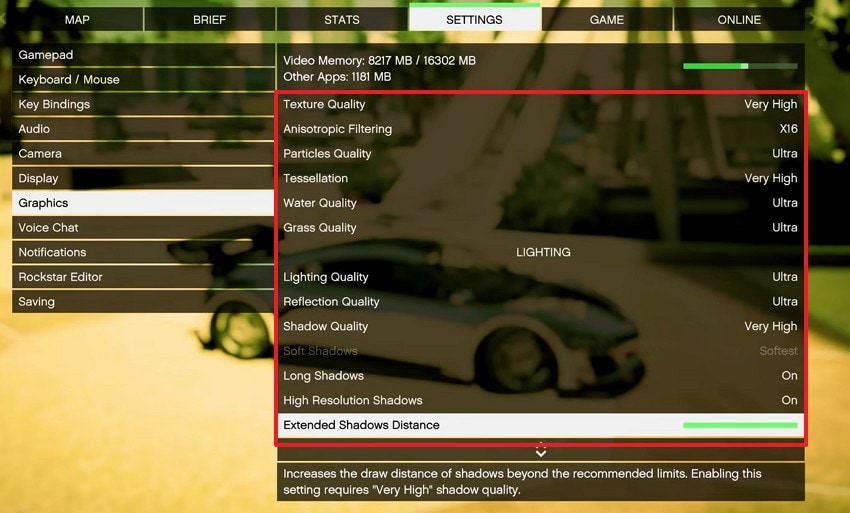
High graphics settings can overload your system while running GTA 5 Enhanced gameplay sessions. Thus, lowering settings reduces GPU load and improves overall game stability and performance. This helps prevent crashes, freezing, and unexpected shutdown during gameplay. Adhere to the steps below to adjust graphics settings:
- First, open GTA 5, then press "Esc" to access the menu settings. In menu settings, click on the "Settings" option, then select the "Graphic" tab.
- In the "Graphics" tab, lower "Texture Quality," "Shadow Quality," and "Extended Distance Scaling" to later press "Apply Changes."
5. Disable Mods Temporarily To Check For Conflicts
Mods can conflict with core game files and trigger the ERR_GFX_STATE error unexpectedly. Therefore, removing or disabling mods helps identify if custom files cause system instability. This step helps restore default game behavior and improves overall performance. Follow the guide below to disable mods and test game stability without modifications:
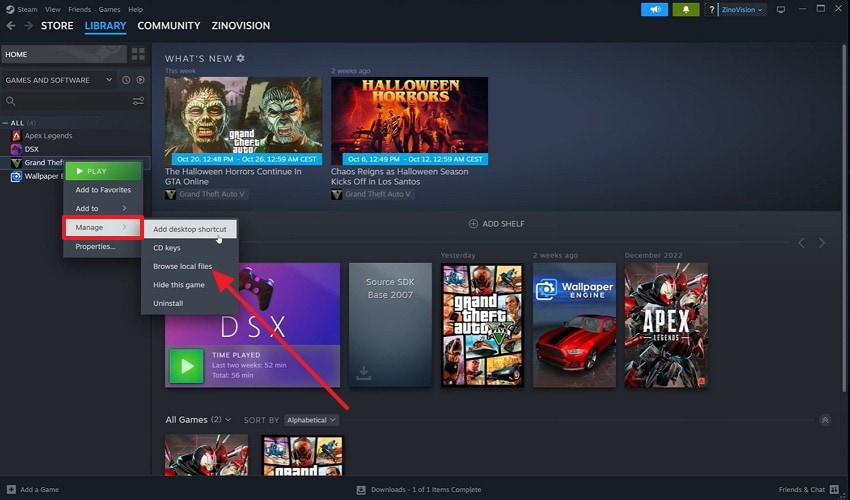
- To start, open "Steam > Library," then right-click on the game and choose "Manage" to pick "Browse local files."
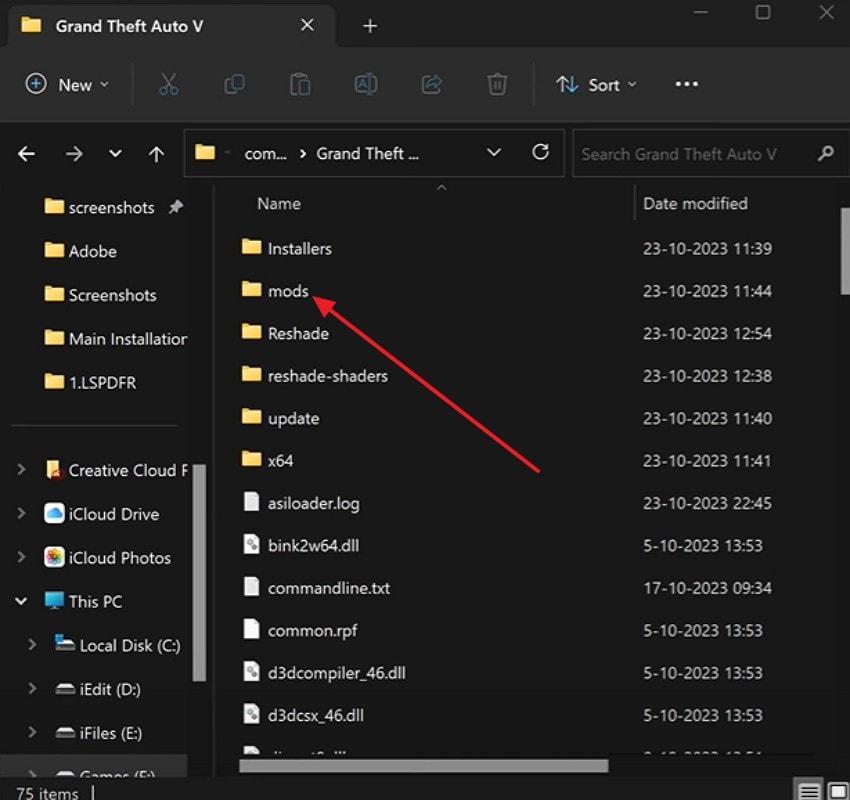
- Next, locate folders named "mods," then move these files to another folder outside the GTA 5 directory and restart the game.
6. Check For System Overheating and Adjust Cooling
Overheating affects system performance and may cause crashes while running GTA 5 Enhanced. Excess heat makes the GPU unstable and forces the game to close suddenly. Improving cooling helps maintain stable graphics performance and prevents hardware stress. To check temperature and improve system cooling, follow the steps below:
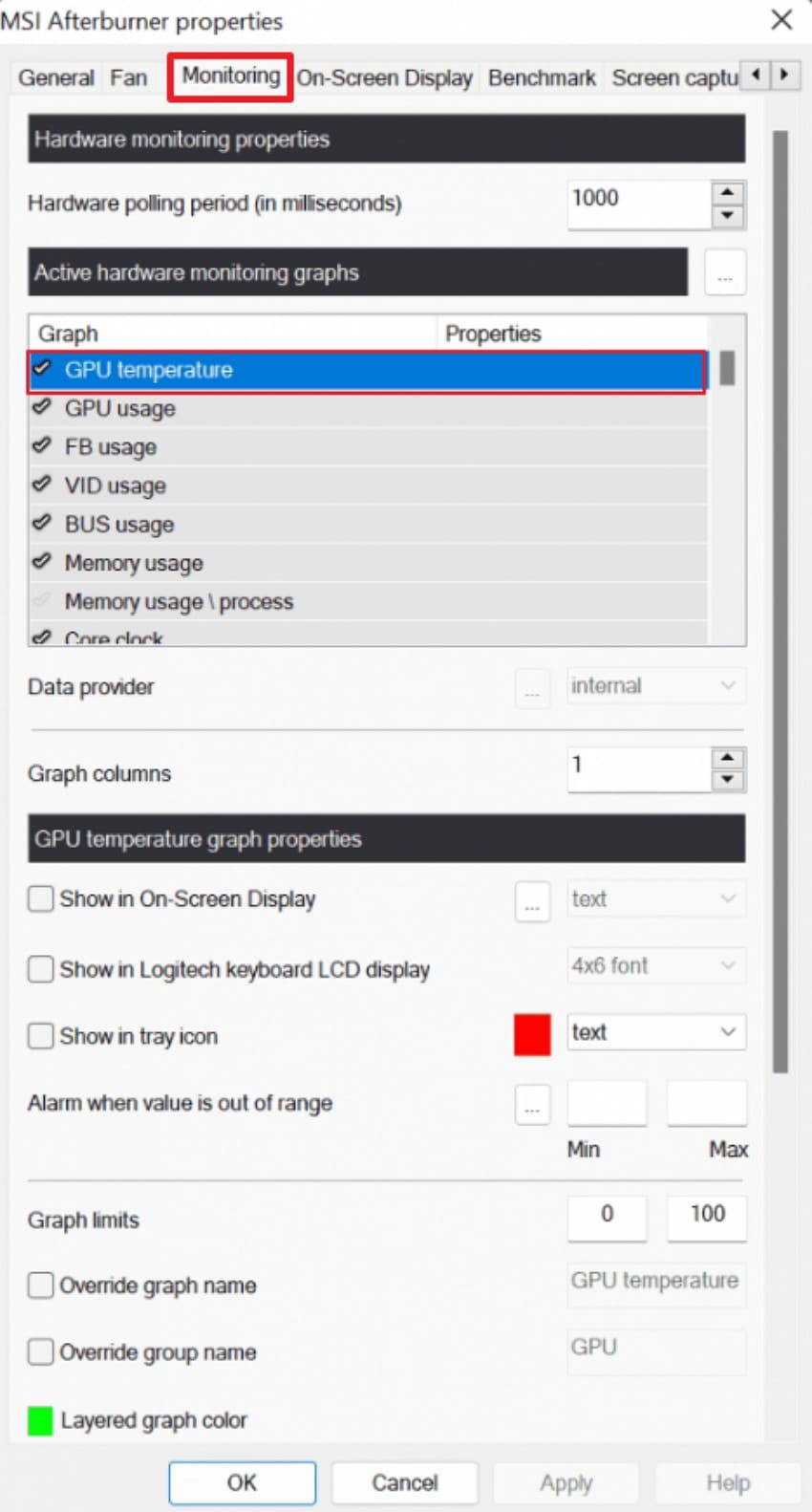
- First, open MSI Afterburner, then click the "Settings" icon, and after that choose the "Monitoring" tab. Next, scroll down and select GPU temperature and enable "Show in On-Screen Display" to monitor temperature during gameplay.
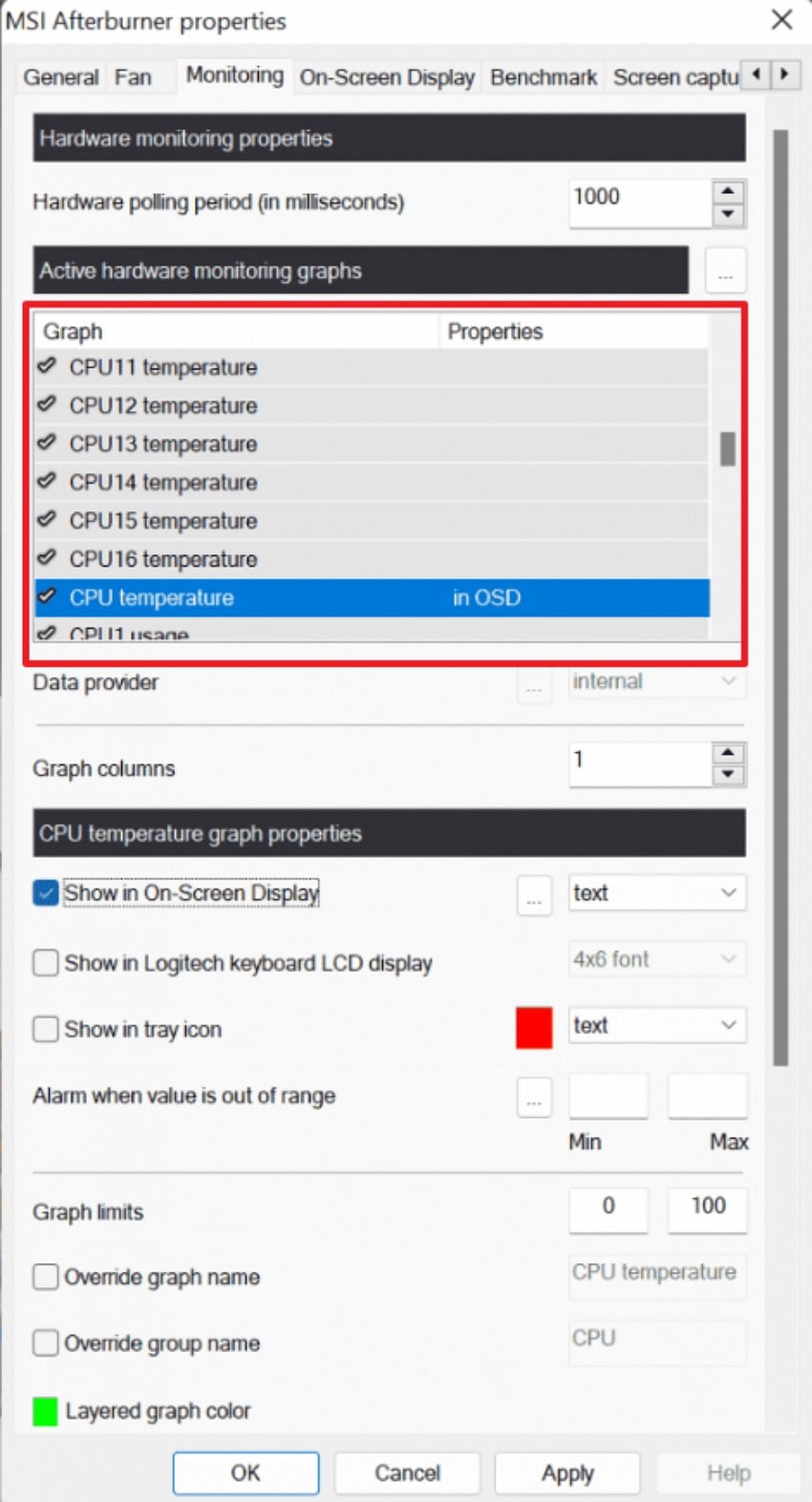
- Afterwards, select the "CPU temperature" option and enable "Show in On-Screen Display" to monitor temperatures while gaming.
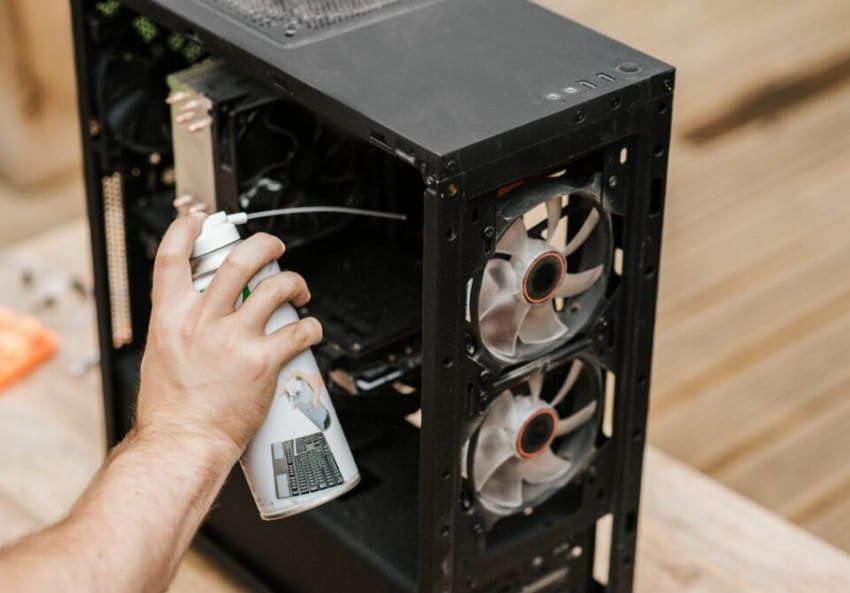
- Next, turn off your PC, open the case, and clean dust from the fans using compressed air to improve airflow and cooling performance.
7. Reinstall GTA 5 Enhanced Completely
Damaged installation files can trigger the "ERR_GFX_STATE" error and prevent stable game performance. So, reinstalling the game replaces missing files and restores the default system configuration properly. This helps fix persistent crashes and improves graphics stability significantly. Try the steps below to reinstall GTA 5 Enhanced and restore proper functionality:
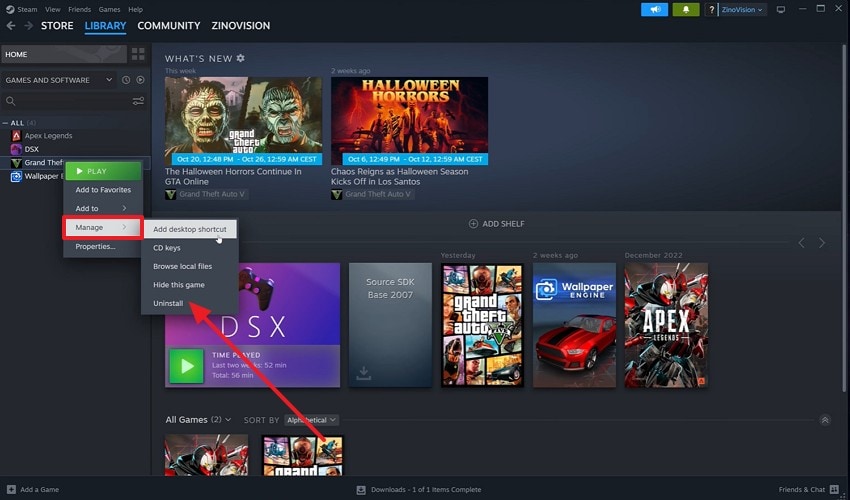
- First, access Steam, then choose "Library," then right-click on the game. After that, go to "Manage" to further choose the "Uninstall" option.
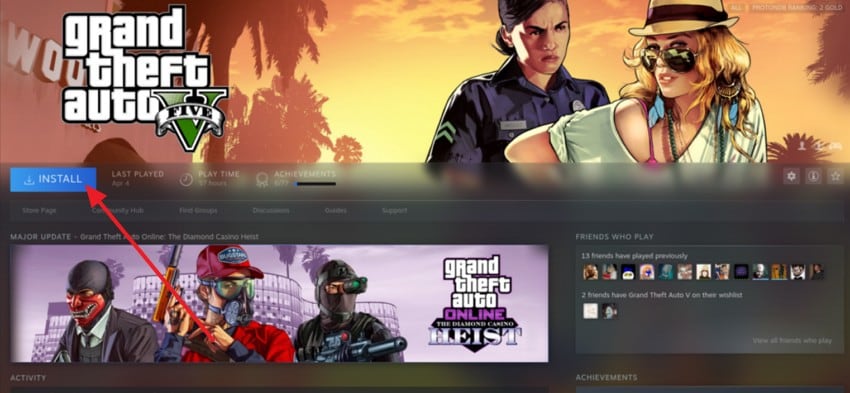
- Once uninstalled, navigate to your game launcher, select the "Game" and choose the "Install" button to reinstall it.
8. Adjust Overclock Settings Or Reset GPU to Default
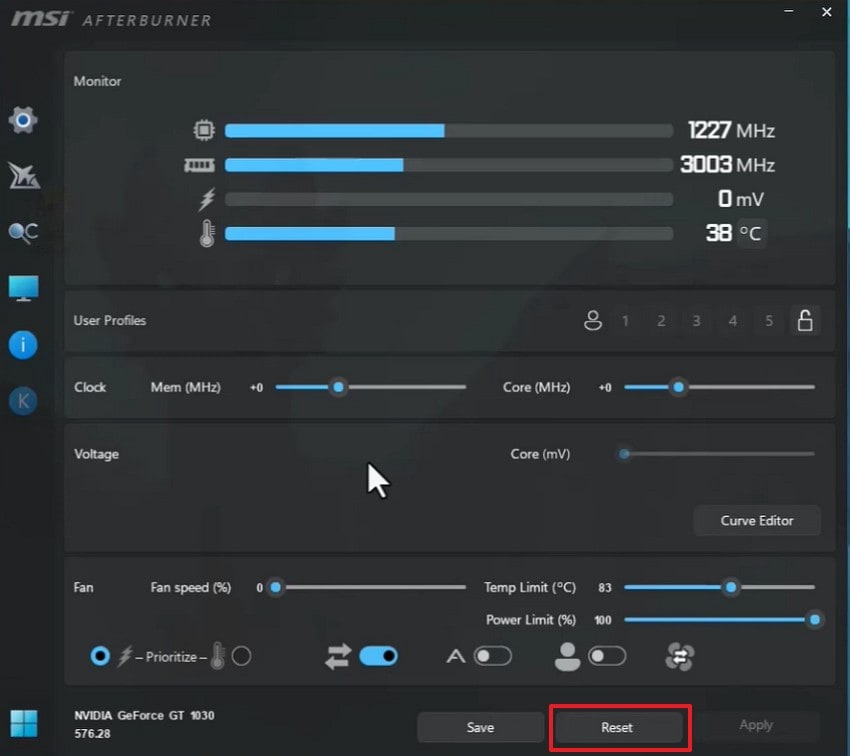
Overclock settings increase GPU speed and may cause instability in GTA 5 Enhanced gameplay. Hence, resetting the GPU to default settings improves system stability and prevents graphics crashes. This helps restore safe performance and removes unstable clock speed conflicts. Adhere to the steps below to reset GPU settings using overclock software:
- Start by opening MSI Afterburner from the desktop, then locate the "Reset" icon in the control panel.
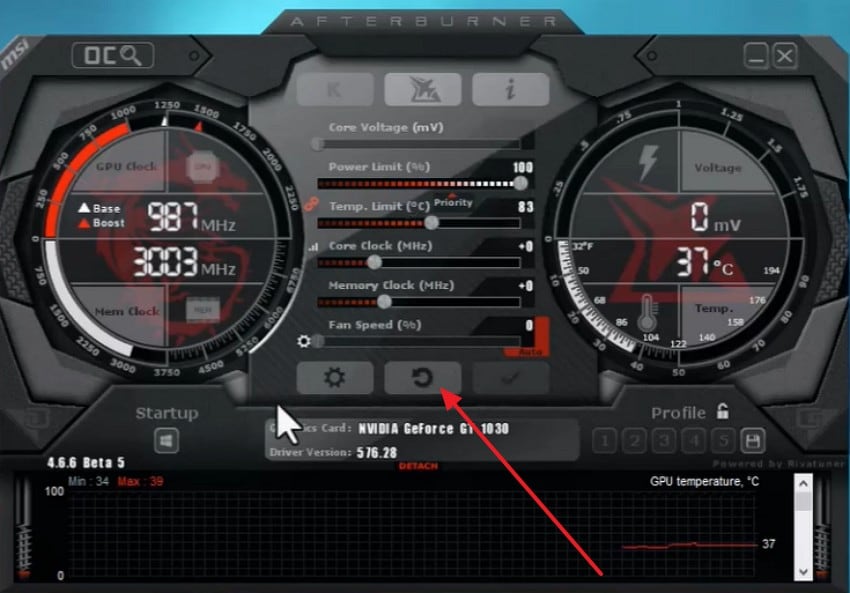
- Next, in the MSI Afterburner GPU overclocking and monitoring interface, pick "Reset" to restore default GPU clock settings.
9. Run The Game In DirectX 10/11/12 Mode
Incorrect DirectX settings can cause the ERR_GFX_STATE error and stop the game from running properly. Your graphics card may fail to work with the selected DirectX version. Thus, switching to another DirectX option helps your system use the correct graphics mode. This can reduce crashes and improve game performance. Use the steps below to change the DirectX version using Steam:
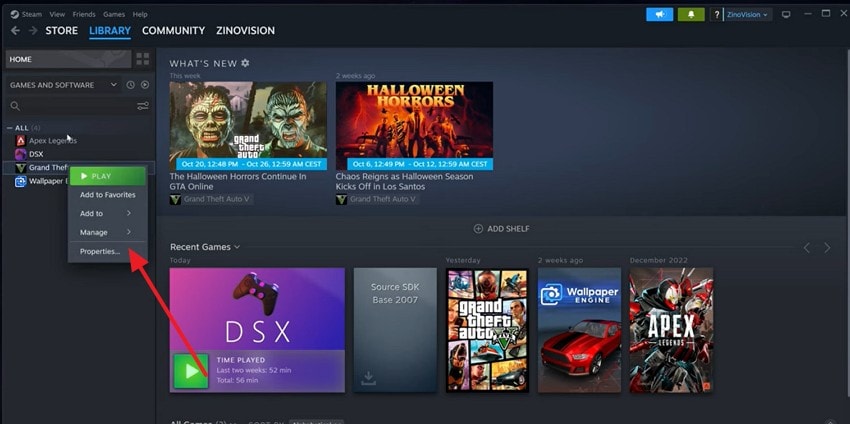
- First, right-click on the game in Steam and choose "Properties" to proceed.
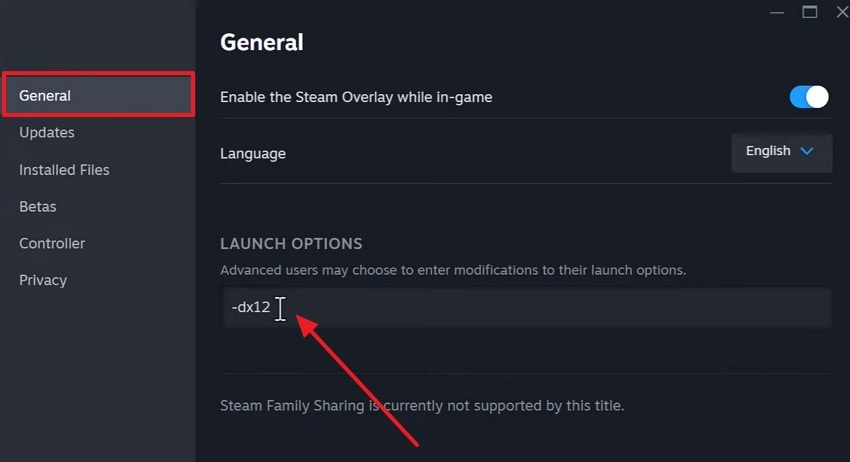
- Now, choose the "General" option and enter "-dx12" under the "Launch Options".
Pro Tip: Restore Corrupted Or Deleted GTA 5 Files After ERR_GFX_STATE
Sometimes, the ERR_GFX_STATE error can damage or delete important GTA 5 game files. Missing files may cause crashes, loading failures, or black screen problems during gameplay. Therefore, Recoverit helps scan your drive and find lost GTA 5 files safely. It restores deleted game data so your system can run GTA 5 without crashes again.
Furthermore, Recoverit offers a simple recovery process with clear scan and preview options. You can select specific GTA 5 files and restore them to their original folders. This saves time and avoids downloading the full game again. It helps return your GTA 5 installation to a working condition safely.
Key Features
- AI-Powered Recovery: Uses artificial intelligence to locate and restore GTA 5 Enhanced files automatically with up to 99.5% accuracy.
- Multi-Device Recovery: Recovers GTA 5 Enhanced files from HDD, SSD, USB, and external storage devices safely.
- Crash Recovery: Restores GTA 5 Enhanced files lost after system crash, corruption, or unexpected shutdown issues.
Guide to Recover Corrupted Or Deleted GTA 5 Files After ERR_GFX_STATE
Now, walk through the guide below to recover corrupted GTA 5 files with Recoverit:
1. Select the Target Storage Location in Recoverit
First, go to the "Hard Drives and Locations" section, then select the drive where the GTA 5 Enhanced files were lost. After that, click the selected drive to start the scanning process.

2. Scan and Identify Recoverable GTA 5 Enhanced Files
Now, wait for the scan to complete and view the recovered files list. Then, browse folders and select the required GTA 5 Enhanced files carefully.

3. Preview and Restore GTA 5 Enhanced Game Files
Lastly, double-click the file to preview and confirm the correct file selection. Then, click the "Recover" button and choose a safe folder location.

Part 4. How To Avoid ERR_GFX_STATE In GTA 5 Enhanced In The Future
To prevent ERR_GFX_STATE in the future, you should follow safe system and game practices. The following tips help maintain stable graphics performance and protect GTA 5 Enhanced from crashes:
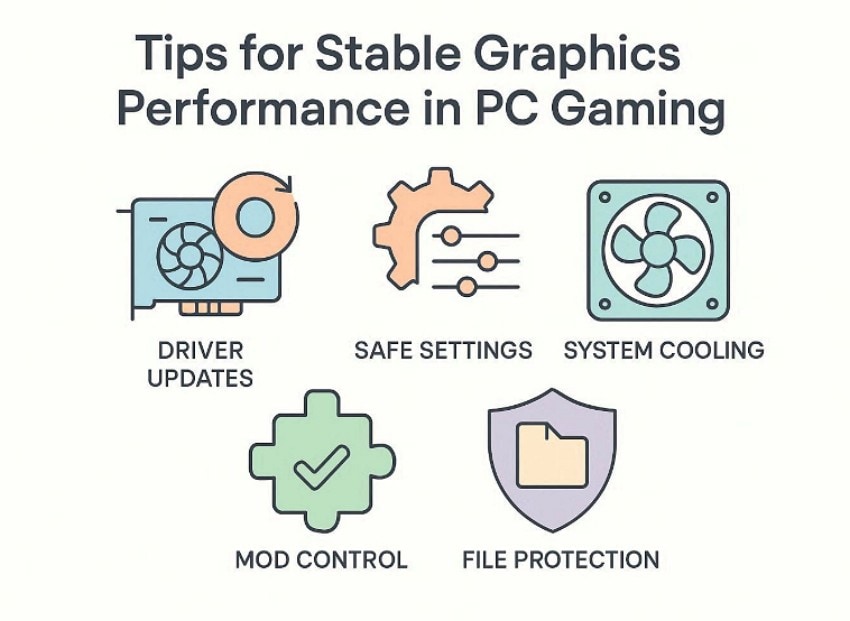
- Driver Updates: Always keep graphics drivers updated to support GTA 5 Enhanced graphics properly. Updated drivers fix compatibility problems and improve overall graphics stability and performance.
- Safe Settings: Use balanced graphics settings suitable for your system's hardware performance level. Lower settings reduce GPU stress and prevent graphics-related crash problems.
- System Cooling: Keep your computer clean and ensure proper airflow during gameplay sessions. Good cooling prevents overheating and protects the graphics card from stability problems.
- Mod Control: Install trusted mods and avoid using broken or outdated modifications always. Removing unstable mods helps maintain stable gameplay and prevents graphics conflicts.
- File Protection: Avoid deleting or changing important GTA 5 Enhanced game files accidentally. Protected files help maintain proper game function and prevent graphics errors.
Conclusion
To conclude, the ERR_GFX_STATE error can interrupt gameplay, but proper fixes restore stable performance quickly. Thus, updating drivers, repairing files, and adjusting graphics settings help prevent future crashes. Moreover, regular system maintenance also improves GTA 5 stability and prevents hardware-related problems. If important files become corrupted or missing, Recoverit provides a reliable way to restore GTA 5 data safely.
FAQ
-
1. What causes the ERR_GFX_STATE error in GTA 5 Enhanced?
Old drivers, corrupted files, overheating, or overclock settings can cause this error. These issues break communication between the game and the graphics card during gameplay sessions. -
2. Can updating graphics drivers fix the ERR_GFX_STATE error in GTA 5?
Yes, updated drivers improve compatibility between the graphics card and the GTA 5 Enhanced engine. This helps prevent crashes, freezes, and graphics-related performance stability problems. -
3. Does lowering graphics settings help prevent ERR_GFX_STATE crashes?
Lower settings reduce GPU load and improve overall system performance and stability. This prevents overheating and reduces the chances of sudden game crashes happening. -
4. Can Recoverit restore deleted GTA 5 files after the ERR_GFX_STATE error?
Yes, Recoverit scans storage and restores deleted GTA 5 Enhanced files safely. This helps fix crashes caused by missing or corrupted important game files.


