

 TL;DR:
To resolve the Rockstar Games "unable to handle your request" error, first confirm servers are online, then run "ipconfig /flushdns" in Command Prompt and sync your system's Time & Language settings to restore server communication.
● Clear persistent cache conflicts by fully restarting your device (for Xbox, unplug the power brick for at least 30 seconds) or by cleanly reinstalling the Rockstar Games Launcher.
● Refresh authentication tokens by logging directly into the Rockstar Social Club website and manually relinking your specific gaming platform under Account Settings.
● If connection errors or launcher crashes result in deleted game saves, Wondershare Recoverit can be used to scan deep directories and restore up to 500 MB of lost files for free.
Ask AI for a summary
 ChatGPT
 Perplexity
 Gemini
 Claude
 Grok
Grok
Imagine sitting down to play your favorite Rockstar Games title, excited for an evening of action, only to be met with the frustrating message: "Sorry, we are unable to handle your request at this time." Suddenly, your plans come to a halt, and you're left wondering what went wrong. This common error can disrupt gameplay, making even the simplest tasks, like logging into the launcher or accessing online features, seem impossible.
In this guide, we'll walk you through practical steps to overcome this issue efficiently, so you can get back to your games without unnecessary delays or frustration.
Try Recoverit to Perform File Recovery
 Security Verified. 3,591,664 people have downloaded it.
In this article

Part 1. Understanding The "Unable To Handle Your Request" Error
The message "Sorry, we are unable to handle your request at this time" appears when a system temporarily cannot process a user's action. It is not always indicative of a permanent problem, but rather signals a blockage in communication between your device and the server.
Users most commonly encounter this error while logging into Rockstar Games services, accessing the Social Club website, or launching games through desktop apps. It can appear across multiple platforms, including web browsers, game launchers, or mobile apps, interrupting gameplay and online interactions until the issue is resolved.
Why You See "We Are Unable To Handle Your Request"
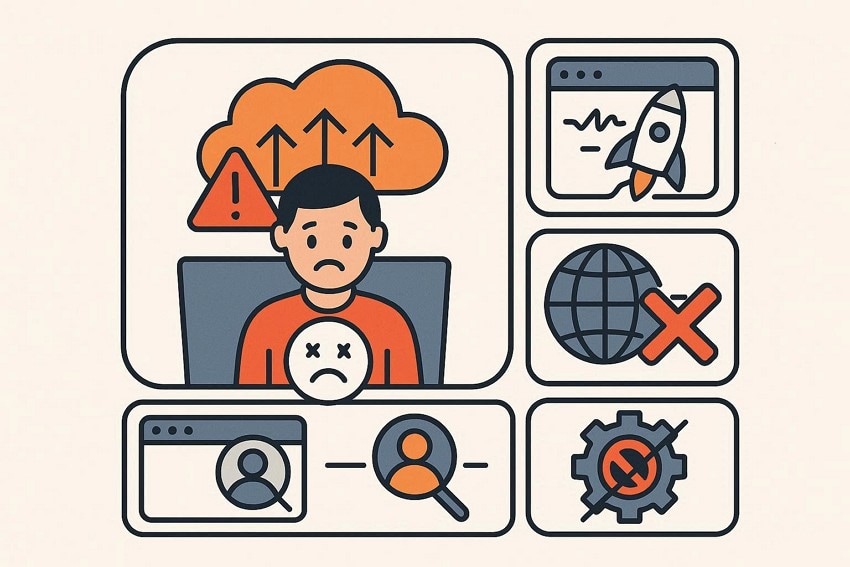
When you encounter the "we are unable to handle your request at this time" error, it can be confusing and disruptive. Understanding the common scenarios behind this message helps you identify the right fix and get back to your Rockstar Games experience faster. Here are the main reasons users see this error:
- Server Overload: High traffic on Rockstar servers can temporarily block requests. This prevents new logins or game actions until the servers stabilize.
- Launcher Glitches: The Rockstar Games Launcher may experience bugs or fail to sync properly. Restarting the launcher often clears these temporary issues.
- Connection Interruptions: Network disruptions can stop communication between your device and Rockstar servers. Even short outages can trigger the error message.
- Account Verification Delays: Pending verifications or login inconsistencies may cause requests to fail. Ensuring your account credentials and email verification are up to date usually resolves this.
- Software Conflicts: Firewalls, antivirus programs, or VPNs can interfere with server connections. Temporarily disabling these can allow your request to go through successfully.
Part 2. Troubleshooting Guide: "Sorry, We Are Unable To Handle Your Request"
Now that you understand why the "sorry we are unable to handle your request at this time" message appears, it's time to explore practical ways to fix it. This section will walk you through simple, effective steps to restore access to Rockstar Games services:
1. Check Servers And Account Status
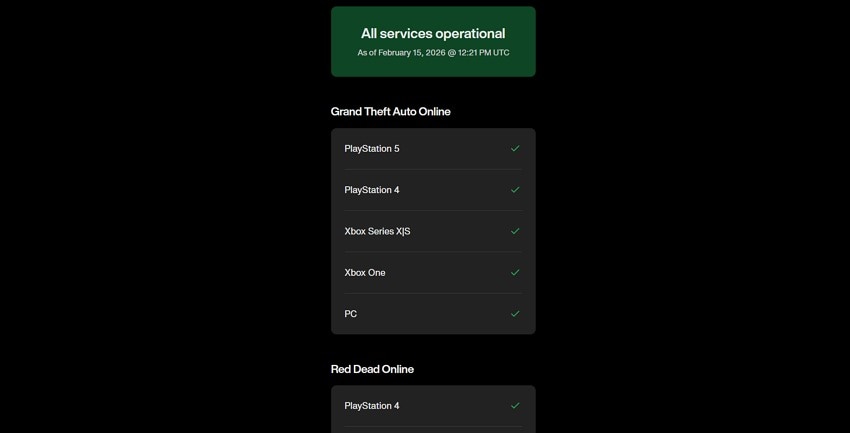
Before troubleshooting further, always verify if Rockstar's servers are online. Many users see that we are unable to handle your request at this time, simply because of server maintenance or high traffic. Checking official status pages and your account health helps determine whether the error is on your end or due to temporary server-side issues. Follow the instructions mentioned below to learn how to check the server status:
Instructions. Open your web browser and search for the official Rockstar service page. You can check the servers that are active and running on the page.
2. Fix Time And Time Zone Settings
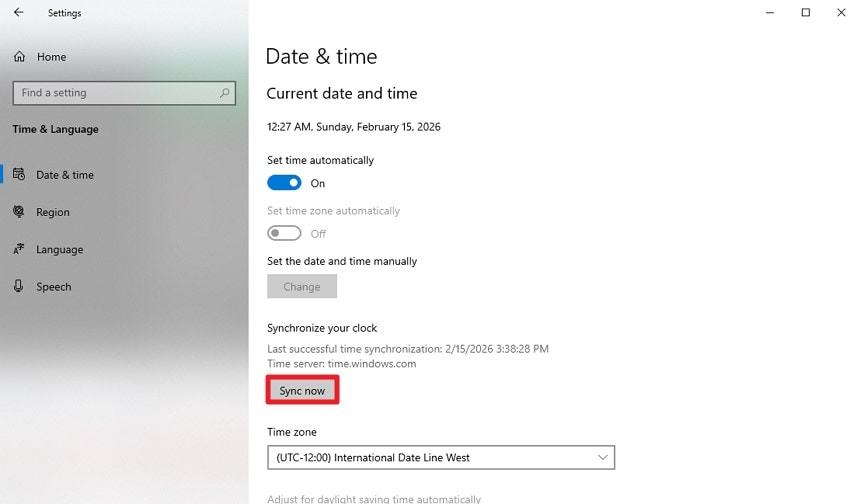
Incorrect system time or time-zone settings can trigger login errors. Aligning your device's clock often resolves the "Sorry, we are unable to handle your request at this time" message. Even minor discrepancies between your local time and Rockstar servers can prevent authentication, so ensuring accurate system settings is crucial for uninterrupted access. To learn how to sync the time on your device, read the steps provided next:
- Access your system's settings and click on the "Time & Language" option located within the interface.
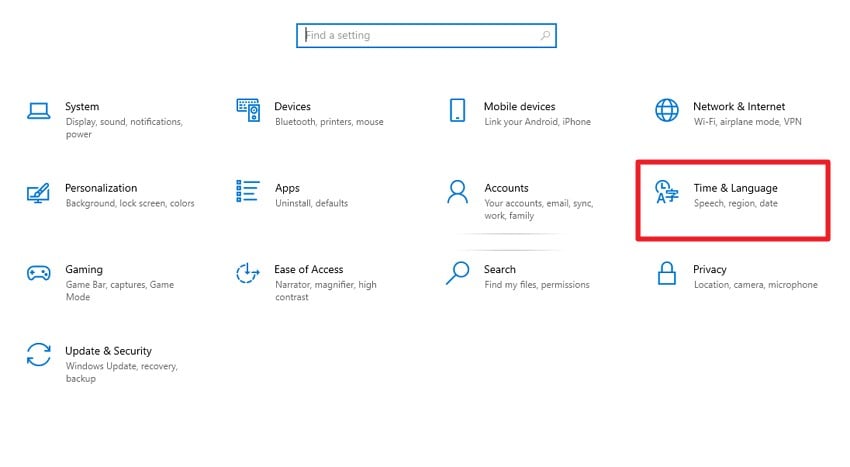
- In the following screen, locate the "Sync Now" button and click on it to let the time and time zone sync.
3. Clear Rockstar Cache And Local Data
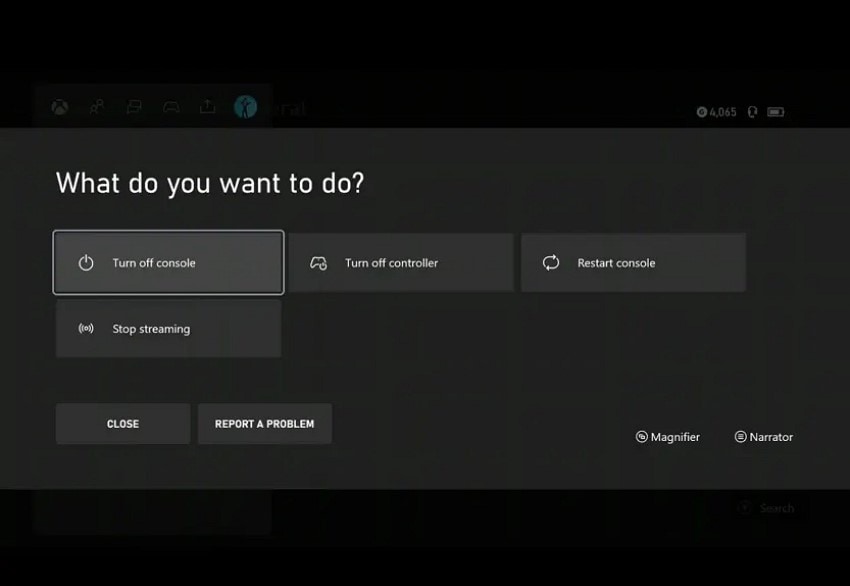
Overloaded or corrupted cache files can cause persistent errors. Removing the Rockstar Launcher cache and local data frequently fixes the "we are unable to handle your request at this time" error. Clearing stored temporary files allows the launcher to refresh its connection to servers, reducing conflicts that may block login or disrupt game access. Here is how you can clear the cache on the console for Rockstar games:
Instructions. To clear the cache on your Xbox One, hold the power button until the console shuts down completely. After all indicator lights turn off, unplug the power brick and wait at least 30 seconds. Reconnect the power cable, turn the console back on, and then launch the game again to check if performance improves.
4. Log In Via Website And Relink Accounts
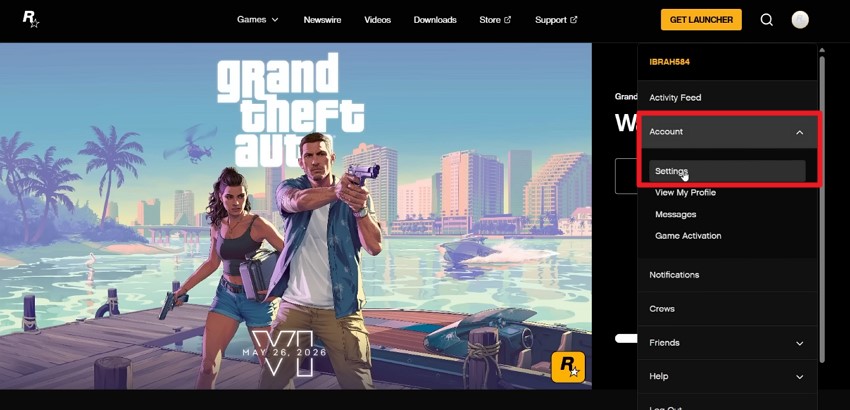
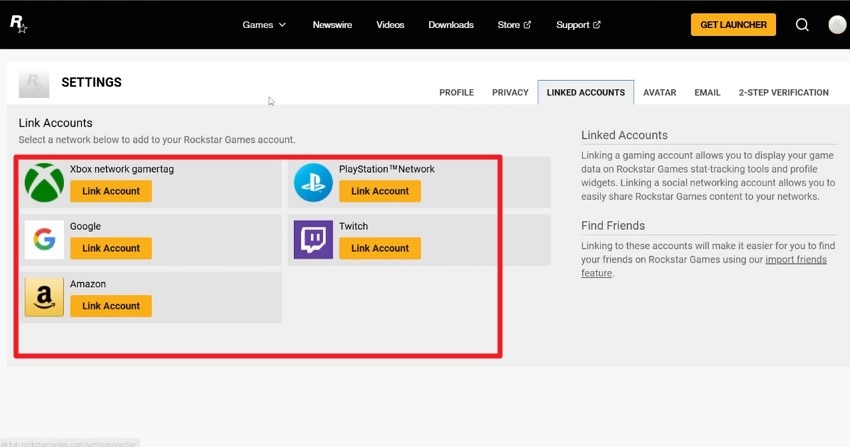
Sometimes, the issue is account-related rather than device-related. Logging into Rockstar's website and relinking your accounts can bypass the "Sorry, we are unable to handle your request at this time" message. This process refreshes authentication tokens, confirms account validity, and ensures proper connection between your Social Club profile and the game launcher. To learn how to perform this fix, read the steps provided next:
- Begin by accessing the Rockstar Games website on your browser and clicking the "Account" option located at the top right. Now, expand the "Account" option and click on the "Settings" option.
- Here, select the gaming platform you want to link or unlink and press the "Link/Unlink account" option.
5. Network And DNS Fixes
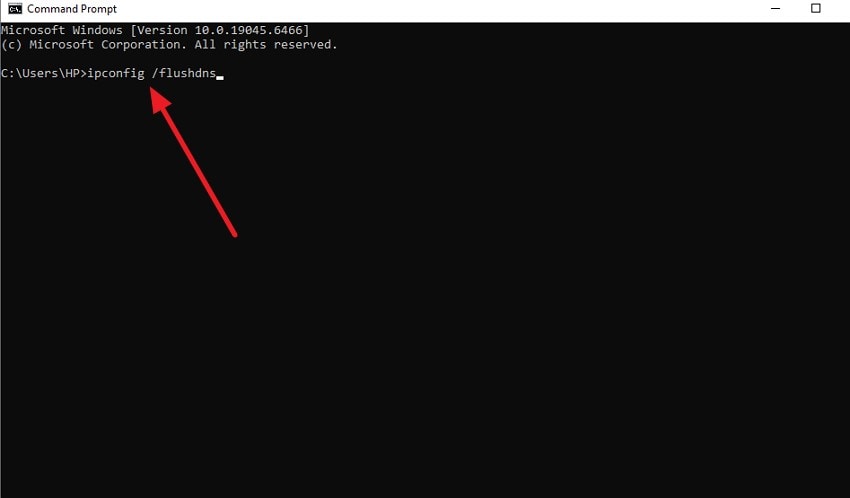
Network interruptions or DNS conflicts often prevent server communication. Adjusting your network or flushing DNS settings can resolve "we are unable to handle your request at this time" errors. A stable internet connection and proper routing allow your device to communicate with Rockstar servers without interference from blocked ports or misconfigured network settings. Read the instructions provided below to learn how to fix the DNS issue:
Instructions. Launch the Command Prompt on your device and run the following command: "ipconfig /flushdns." As soon as you press the Enter key, the system will flush the DNS settings and resolve the network issues if there are any.
6. Browser/Device Specific Steps
Errors may appear on specific browsers or devices due to compatibility issues. Trying alternative browsers or device settings can overcome the problem "Sorry, we are unable to handle your request at this time." This approach ensures that launcher updates, cookies, and security protocols align properly with Rockstar servers, reducing the chance of login failures.
7. Reinstall Or Reset The Launcher
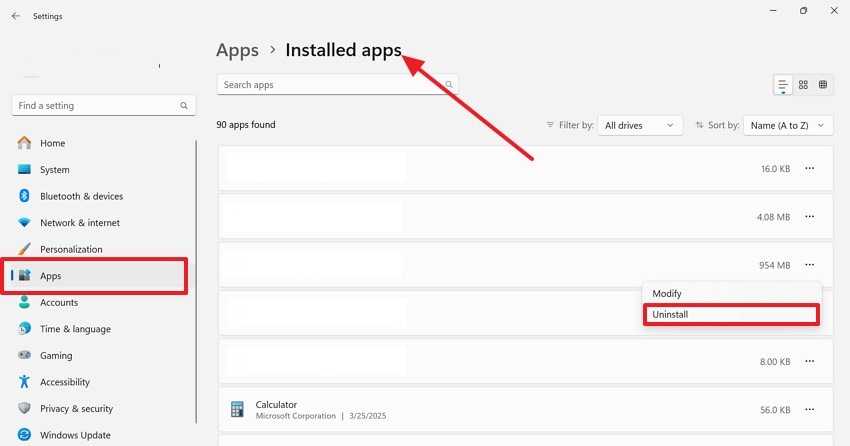
If the problem persists, reinstalling or resetting the Rockstar Launcher often works. Doing so can eliminate corrupted files that trigger "we are unable to handle your request at this time." A clean installation ensures the latest updates, fresh configurations, and restored connections, giving your launcher a reliable path to communicate with the servers. To know how to perform this fix, read the steps provided next:
- Open the "Apps & Features" option in your system settings and locate the Rockstar Games launcher from the list. Click on it and press the "Uninstall" button to successfully remove the program from your system.
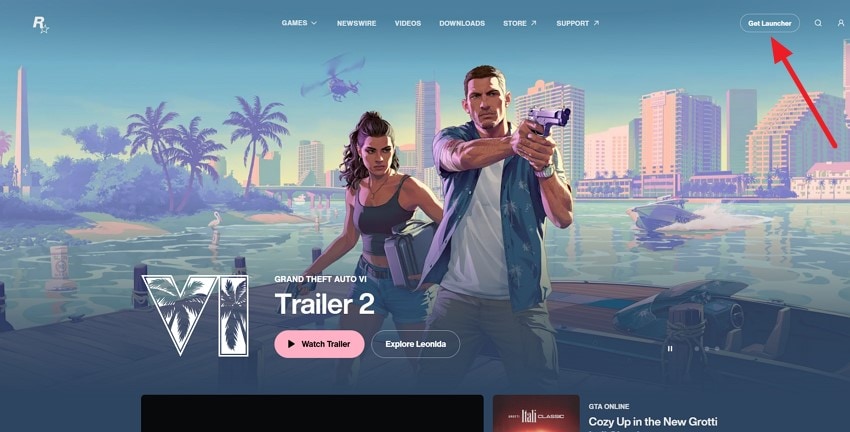
- Now, head to the official site of Rockstar and click the "Get Launcher" button to reinstall the launcher on your device.
8. Contact Rockstar Support
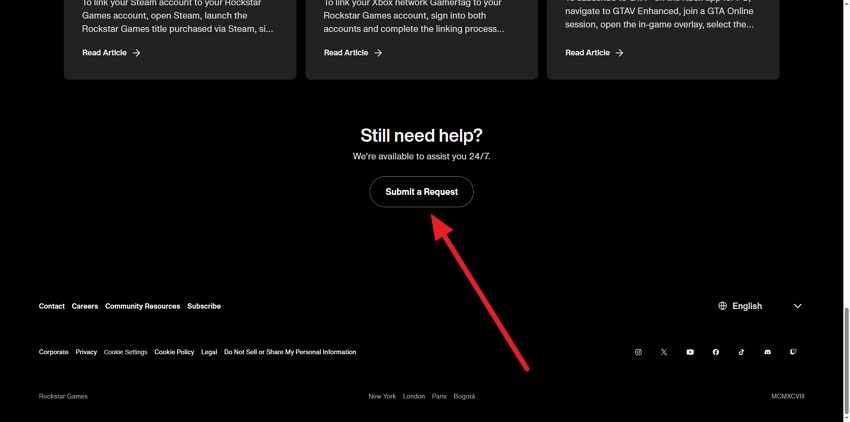
When all else fails, contacting support may be necessary. Reporting the issue helps if you continue seeing "Sorry, we are unable to handle your request at this time" despite troubleshooting. Rockstar support can investigate account-specific problems, server exceptions, or errors requiring backend fixes, ensuring you receive guidance tailored to your situation. Learn how to contact the Rockstar Support, follow the instructions provided next:
Instructions. Begin by accessing the website on your browser and opening the Support page. Scroll through the web page and locate the "Submit a Request" button to access the support center.
Pro Tip: Use Recoverit To Retrieve Deleted Files And Important Data
When you encounter frustrating errors like "we are unable to handle your request at this time" in Rockstar Games, it can sometimes result in lost files or unsaved game data. Recoverit offers a reliable solution to retrieve accidentally deleted files, corrupted game saves, or important documents. Its intuitive interface ensures even non-technical users can restore data quickly without risking further loss.
Beyond simple recovery, Recoverit supports multiple file types, including videos, images, documents, and system files. Whether the data was lost due to crashes, accidental deletion, or launcher errors, Recoverit scans deeply and recovers essential files efficiently. You're allowed to recover 500 MB of lost files at no cost. This makes it an indispensable tool for gamers and users facing unexpected interruptions or data access problems.
Key Features of Recoverit
- Batch Recover: Recoverit allows you to restore multiple deleted files at once, saving time and effort.
- Preview Before Saving: You can preview files before recovery to ensure you retrieve exactly what you need.
- Numerous Device Support: The software supports recovery from a wide range of devices, including PCs, USB drives, and external storage.
Steps for Retrieving Lost Rockstar Game Files Using Recoverit
When errors like "sorry we are unable to handle your request at this time" disrupt your gameplay, important game files or saved progress may get lost. Recoverit provides a fast, reliable way to retrieve these files. Here's how to restore your Rockstar game data step by step:
1. Select the Source Location
Launch Recoverit and choose the drive or folder where your Rockstar game files were originally stored. The software will perform a deep scan to locate deleted, corrupted, or misplaced files automatically.

2. Identify the Files to Recover
Once the scan completes, browse the list of found items to locate your missing game saves, settings, or mods. Select the files you want to restore and click "Recover" to begin the recovery process.

3. Preview and Secure Your Files
Use Recoverit's preview feature to verify your Rockstar game files are intact and playable. After confirmation, export the recovered files to a secure location on your device with the help of the "Recover" button.

Part 3. How To Reduce Chances Of Encountering This Request Error - 6 Tips
After experiencing the "we are unable to handle your request at this time" error, it's natural to want to prevent it from happening again. Implementing a few proactive measures provided below can minimize disruptions and keep your Rockstar Games experience smooth and uninterrupted:
- Monitor Server Status: Regularly check Rockstar server updates before logging in. Staying informed helps you avoid attempting connections during maintenance or high-traffic periods.
- Maintain Stable Internet: A reliable network reduces the chance of request errors. Avoid interruptions or sudden drops that can trigger we are unable to handle your request at this time.
- Keep Launcher Updated: Always use the latest version of the Rockstar Games Launcher. Updates often include bug fixes that prevent login or connection errors.
- Verify Account Credentials: Ensure your Social Club account details are correct and up to date. Proper verification helps avoid authentication problems that can block your requests.
- Manage Security Software: Configure firewalls, antivirus programs, and VPNs to allow Rockstar connections. Overly restrictive settings can lead to repeated we are unable to handle your request at this time.
- Regularly Clear Cache: Periodically remove cached data from your launcher and game directories. This prevents corrupted or outdated files from causing access failures.
Conclusion
To sum it up, this article provided a detailed guide on how to fix the "sorry we are unable to handle your request at this time" error in Rockstar Games, covering causes, troubleshooting, and preventative tips. For added security, using Recoverit ensures that any lost game files or progress can be quickly restored. The tool provides an in-depth scan to help you get back your lost or deleted data in no time.
FAQ
-
1. Why do I keep seeing "sorry we are unable to handle your request at this time" in Rockstar Games?
This error usually occurs due to server issues, account verification delays, or connection interruptions. Ensuring a stable internet and checking the Rockstar server status often resolves the problem. -
2. Can I fix this error without reinstalling the Rockstar Launcher?
Yes, many users resolve it by clearing cache, updating time settings, or relinking accounts. Reinstallation is only necessary if other fixes fail. -
3. What should I do if my game files get lost during this error?
You can use Recoverit to recover deleted or corrupted Rockstar game files quickly. It scans drives deeply and restores important files safely. -
4. Is Recoverit safe for retrieving sensitive game data?
Absolutely. Recoverit preserves file integrity while recovering data, ensuring your game saves and personal files remain secure. It supports multiple formats and storage devices.


