

 TL;DR:
Resolve the Xbox 0x8B0500B6 server communication error by performing a hard power cycle to clear the system cache, forcing account re-authentication, and reinstalling affected applications.
● Perform a hard reset by holding the console's power button for 10 seconds and unplugging the power cord for at least 30 seconds to completely flush the temporary cache blocking your downloads.
● Remove and re-add your Xbox profile via the "Profile & System" settings to reset cached credentials if the error specifically prevents you from signing in or syncing cross-platform progress.
● If the error or subsequent system crashes delete local game content, the Wondershare Recoverit software can scan the storage drive to restore up to 500 MB of missing save files or screenshots for free.
Ask AI for a summary
 ChatGPT
 Perplexity
 Gemini
 Claude
 Grok
Grok
You power on your Xbox, eager to play your favorite game, only to be stopped by the 0x8B0500B6 error. The screen freezes, and no amount of restarting or navigating menus seems to help. Frustration builds as progress is halted and online features remain inaccessible. For many gamers, encountering this error can disrupt multiplayer sessions, achievements, and saved data access.
Knowing how to troubleshoot it efficiently is crucial to restoring normal gameplay. This guide walks you through practical solutions and tips to resolve the error quickly. It will help you get back into the action without losing valuable time or progress.
Try Recoverit to Perform Xbox Data Recovery
 Security Verified. 3,591,664 people have downloaded it.
In this article

Part 1. What The 0x8B0500B6 Error Means On Xbox Consoles And Apps
The Xbox 0x8B0500B6 error occurs when your console or Xbox apps fail to complete a requested action, such as downloading updates, signing in, or accessing online services. This code indicates a disruption in communication between the device and Microsoft's servers, preventing normal functionality. Users may experience frozen screens, blocked game launches, or interrupted app usage until the issue is resolved, affecting both online and offline features.
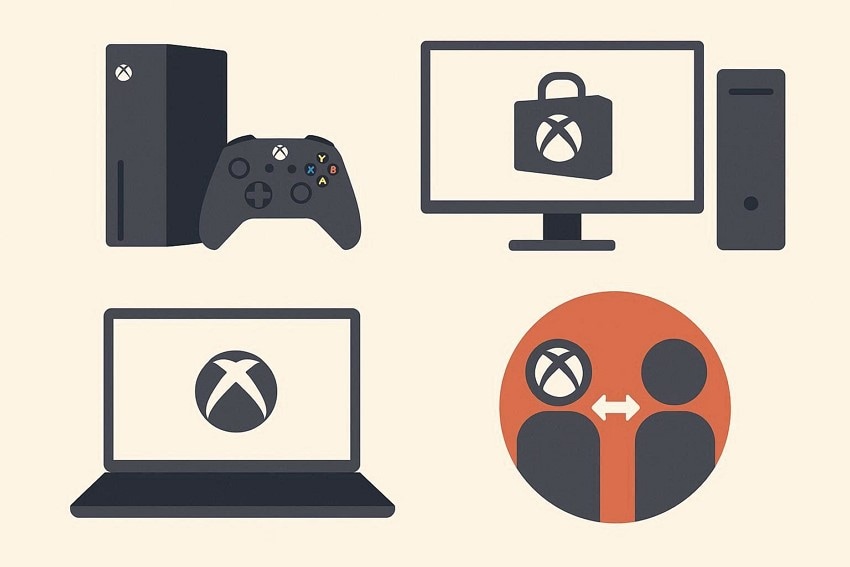
Common Platforms and Situations for the 0x8B0500B6 Error
- Xbox Consoles: The Xbox 0x8B0500B6 error can appear during console startup, game launches, or while accessing Xbox Live features. It often prevents signing in or downloading updates, temporarily blocking online gameplay.
- PC (Microsoft Store Games): On Windows PCs, this error may occur when launching Xbox-integrated games or apps downloaded from the Microsoft Store. Users might experience interrupted installations or failed sign-ins.
- Xbox App on Windows: The error can also appear in the Xbox app while attempting to sign in, access cloud saves, or launch games linked to the Microsoft account. Connectivity issues often trigger the message.
- Cross-Platform Activity: When syncing progress or achievements between console and PC, the Xbox 0x8B0500B6 error can appear if authentication or server communication fails, affecting multiple devices simultaneously.
How the 0x8B0500B6 Error Affects Downloads, Sign-Ins, and Updates
- Download Interruptions: The Xbox 0x8B0500B6 error can block game or app downloads by preventing your device from communicating properly with Xbox servers. Files may pause, fail, or become corrupted during the process.
- Sign-In Failures: Authentication processes rely on stable server connections. When the error occurs, users may be unable to sign into their Xbox account or the Xbox app, restricting access to games and cloud data.
- Update Blockages: System and game updates require verified connections to Microsoft servers. The error disrupts this verification, causing updates to stall or fail, which can prevent gameplay or introduce performance issues.
- Cross-Device Sync Problems: Progress and achievements shared between console and PC may not sync correctly. The Xbox 0x8B0500B6 error interrupts server communication, delaying updates and profile synchronization across devices.
Part 2. Why Xbox Shows Error 0x8B0500B6 During Downloads Or Updates
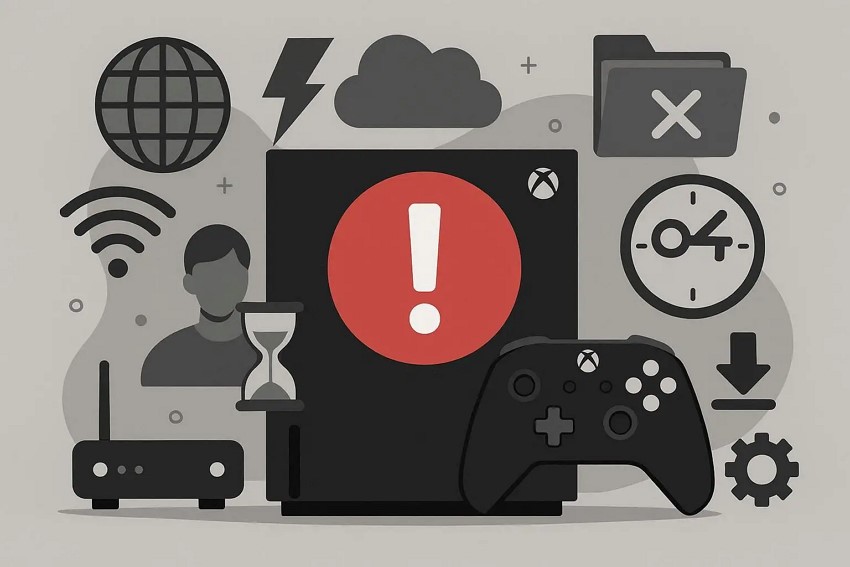
After understanding how the error affects gameplay and account access, it's important to explore why the Xbox 0x8B0500B6 message appears during downloads or updates. This error usually arises from connectivity, system, or account-related issues that prevent the console or Xbox app from completing tasks properly.
- Server Communication Disruptions: Temporary interruptions between your Xbox device and Microsoft servers can prevent updates or downloads from completing. The 0x8B0500B6 error appears when the system cannot verify or fetch required files.
- Unstable Internet Connection: Slow or inconsistent network connections can interrupt file transfers, causing downloads or updates to fail. Even brief connectivity drops can trigger this error.
- Account Authentication Delays: Xbox requires verification of user accounts before updates or downloads. If authentication times out or fails, the 0x8B0500B6 error may appear.
- Corrupted Local Data: Damaged or incomplete system or game files can block update processes. The console may repeatedly throw the error while attempting to repair or overwrite these files.
- Outdated System Software: Running an older version of Xbox firmware or app software can create compatibility issues with server protocols, leading to the 0x8B0500B6 error during updates.
Part 3. Easy Fixes For Xbox Error 0x8B0500B6 On Console And App
Below, we'll walk through simple and effective solutions you can apply directly on your console or through the app to resolve the 0x8B0500B6 error quickly:
1. Restart Your Xbox Console Or PC
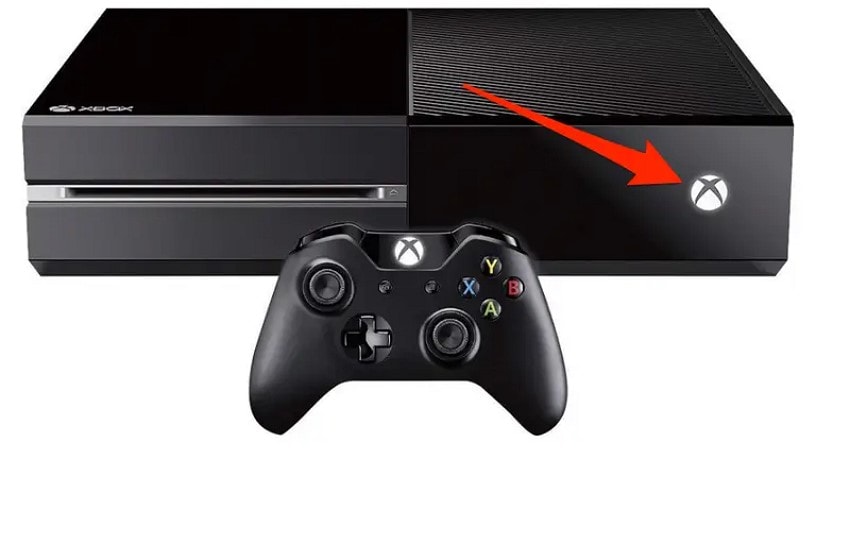
Restarting your device can resolve temporary glitches that trigger the 0x8B0500B6 error. A fresh reboot clears background processes and resets network connections, often restoring smooth updates or downloads. Many users report that simply restarting their console or PC resolves the Xbox 0x8B0500B6 issue without further troubleshooting. If you do not know how to restart your Xbox console, read the instructions provided below:
Instructions. Press and hold the Xbox button on the console's front for about 10 seconds until it completely powers down. After the console shuts off, wait a few moments, then press the Xbox button once more to turn it back on.
2. Check Xbox Live Server Status
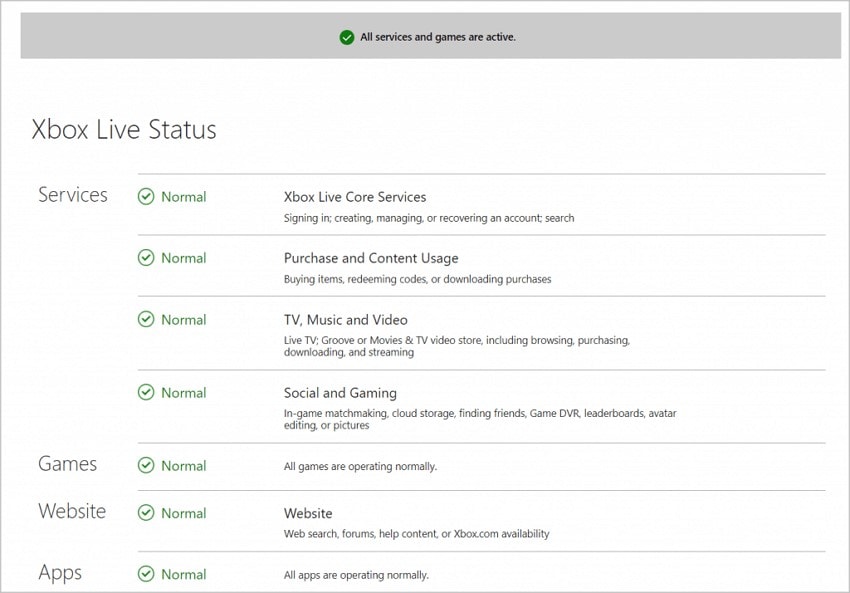
Server downtime or maintenance can cause the 0x8B0500B6 error during updates. Checking the Xbox Live server status ensures the problem isn't on Microsoft's end. If servers are down, waiting until service resumes can prevent repeated Xbox 0x8B0500B6 errors, saving unnecessary troubleshooting steps and avoiding potential data conflicts. To learn how to check the Xbox Live server status, read the instructions provided below:
Instructions. Open a web browser on your PC and go to the official Xbox Live status page: https://support.xbox.com/en-US/xbox-live-status. Review the list of services to see if any are experiencing outages or interruptions.
3. Clear The System Cache On Xbox
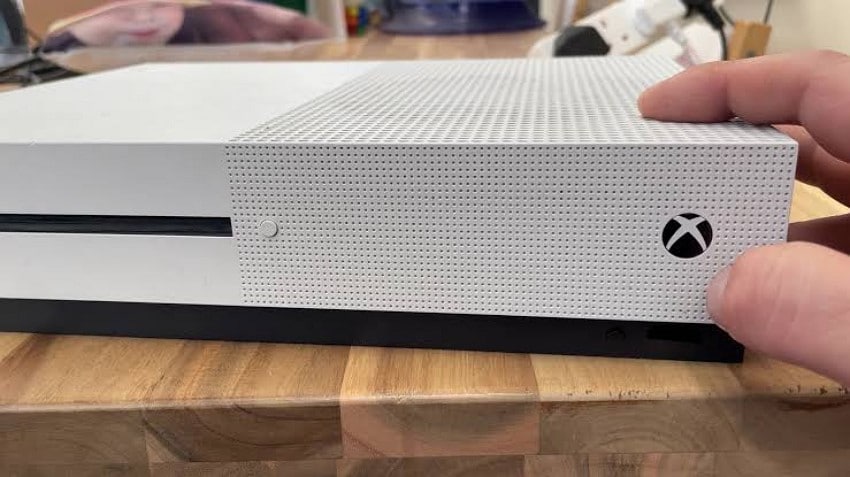
Clearing the system cache removes stored temporary data that causes the 0x8B0500B6 error. This process eliminates corrupted or outdated cache files, resets memory allocations, and allows the console to process downloads and updates without obstruction. Executing cache clearing directly addresses Xbox 0x8B0500B6 errors by refreshing system data used during app and game operations. Follow the instructions provided next to learn how to clear the system cache on Xbox:
Instructions. Turn off your Xbox console completely by pressing and holding the power button for about 10 seconds until it shuts down. Unplug the power cord from the back of the console and wait at least 30 seconds to ensure the cache is cleared. Plug the power cord back in and turn on the console by pressing the Xbox button.
4. Reconnect To a Stable Network or Switch To Wired Connection
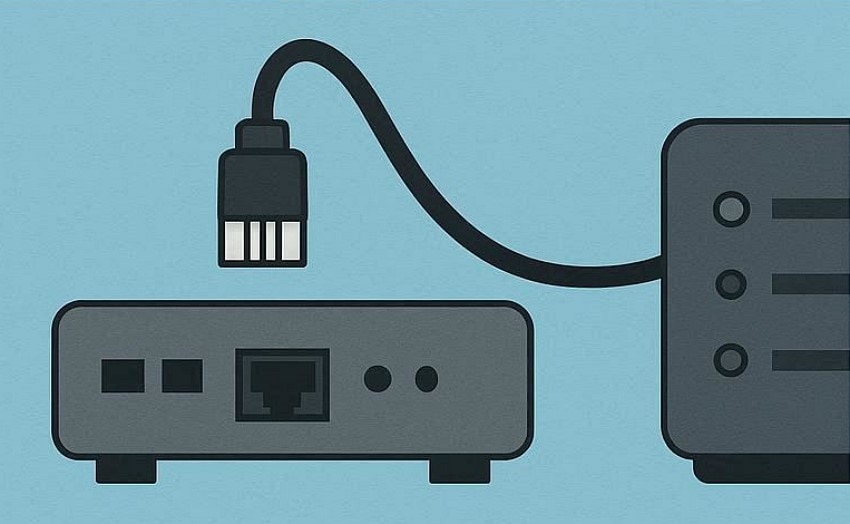
Network instability frequently causes the 0x8B0500B6 error. Connecting to a stable Wi-Fi or wired Ethernet ensures uninterrupted communication with Xbox servers. This adjustment prevents download or update failures and resolves issues caused by packet loss or latency, effectively correcting the Xbox 0x8B0500B6 error during game, app, or system content transfers.
5. Update Xbox Console, Game, Or App To Latest Version
Latest updates align software with server protocols, resolving the 0x8B0500B6 error. Updating the console, games, or apps fixes compatibility conflicts that block downloads or installations. Applying these updates ensures all system files and app components operate correctly. This directly removes Xbox 0x8B0500B6 errors and enables seamless functionality across all content and connected services. If you do not know how to update the Xbox console, read the steps provided next:
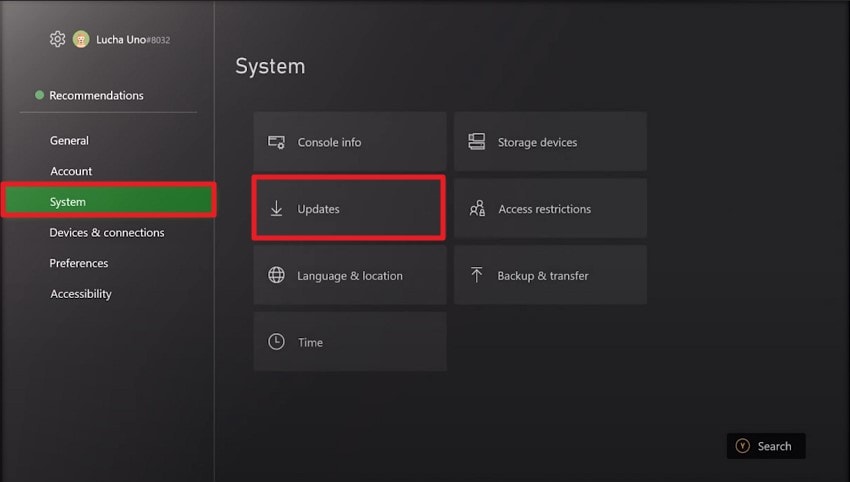
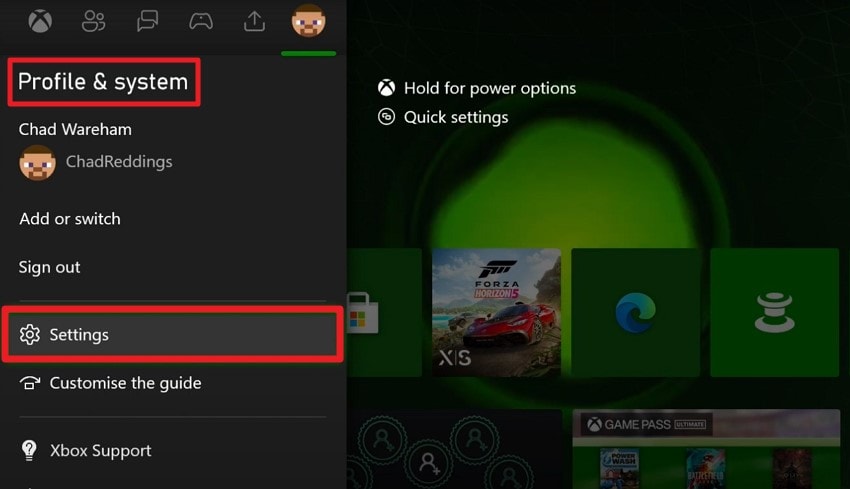
- Press the Xbox button on your controller to open the guide. Navigate to "Profile & System" and click on the "Settings" option located on the left.
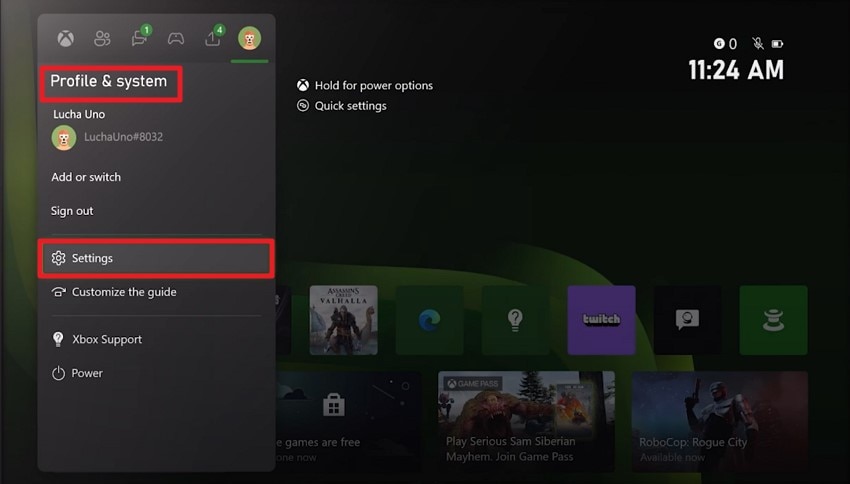
- In the following interface, enable the "System" section on the left and click on the "Updates" option.
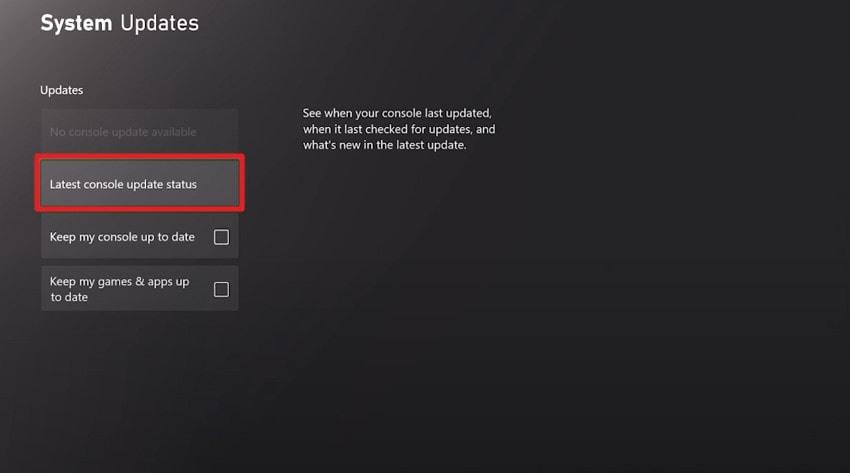
- Next, press the "Latest Console Update Status" option to check if there is any current update available.
6. Remove and Re-Add Your Xbox Profile
Refreshing the Xbox profile by removing and re-adding it resets cached credentials and synchronization settings, clearing the 0x8B0500B6 error. This procedure restores profile data used during updates, downloads, and server authentication. This effectively resolves Xbox 0x8B0500B6 errors caused by corrupted or unsynced account information and ensures proper access to all apps and games. Learn how to remove and re-add an account to your Xbox console by following the steps provided below:
Remove Account
- To remove an account, head to the "Profile & System" section and click on the "Settings" option.
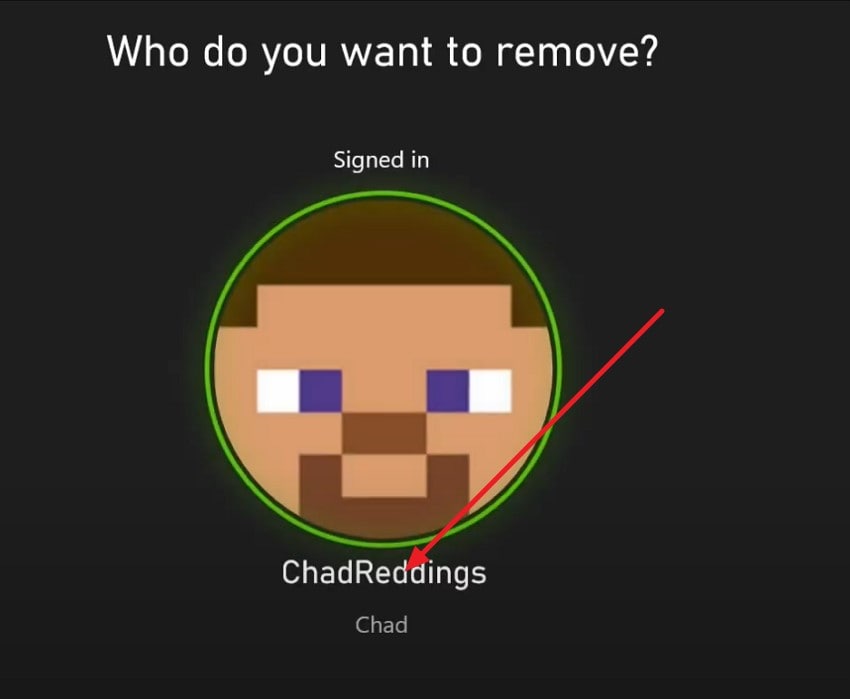
- Now, access the "Accounts" option on the left and locate the "Remove Account" option to click on it.
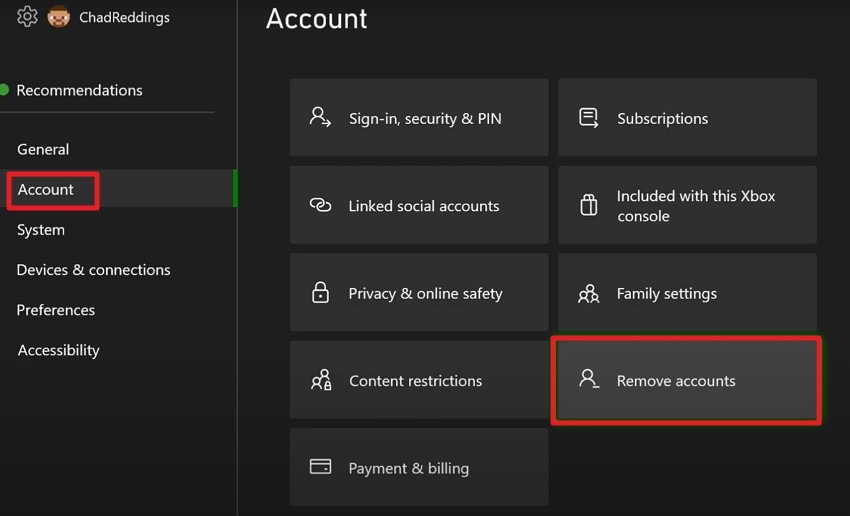
- Select the account that you want to remove by clicking on it. The system will successfully remove it from the console.
Add Account
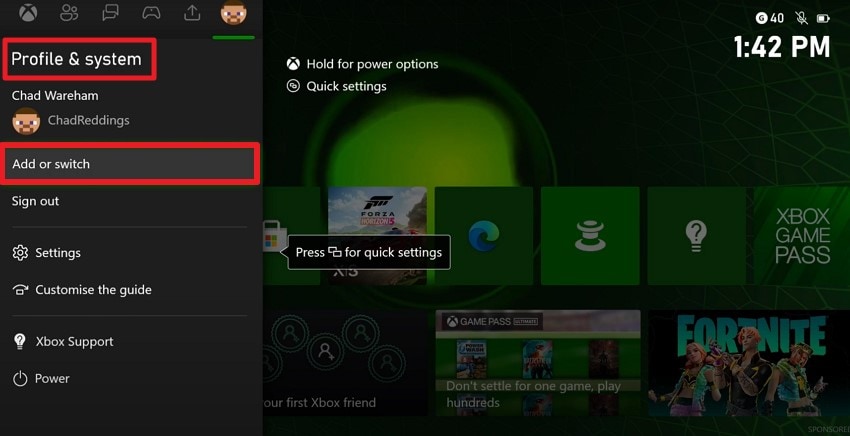
- To add an account, access the "Profile & System" section and click on the "Add or Switch" option.
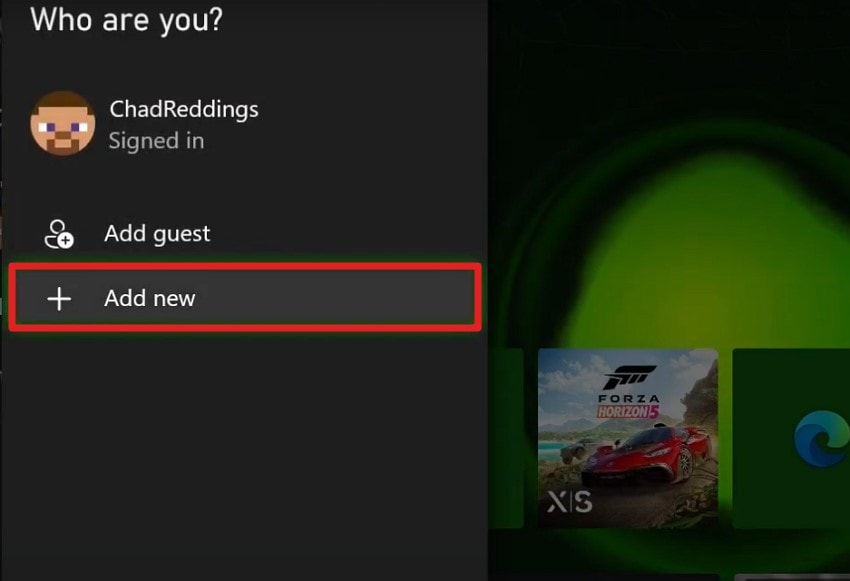
- Next, press the "Add New" option and successfully add the details to log in to the account again.
Part 4. Expert Fixes For Xbox Error 0x8B0500B6 When Quick Methods Fail
When the quick fixes don't resolve the issue, it's time to move on to more advanced solutions. Mentioned below are some of the expert fixes that you can try to resolve this error:
1. Hard Reset Or Power Cycle Your Console
A hard reset or full power cycle clears all temporary processes, refreshes system memory, and resets network connections, resolving the 0x8B0500B6 error. This action removes stalled tasks and corrupted session data, allowing downloads, updates, and apps to function correctly. Executing this procedure directly addresses Xbox 0x8B0500B6 issues without additional tools or configuration changes. Read the instructions provided next to learn how to hard reset your console:
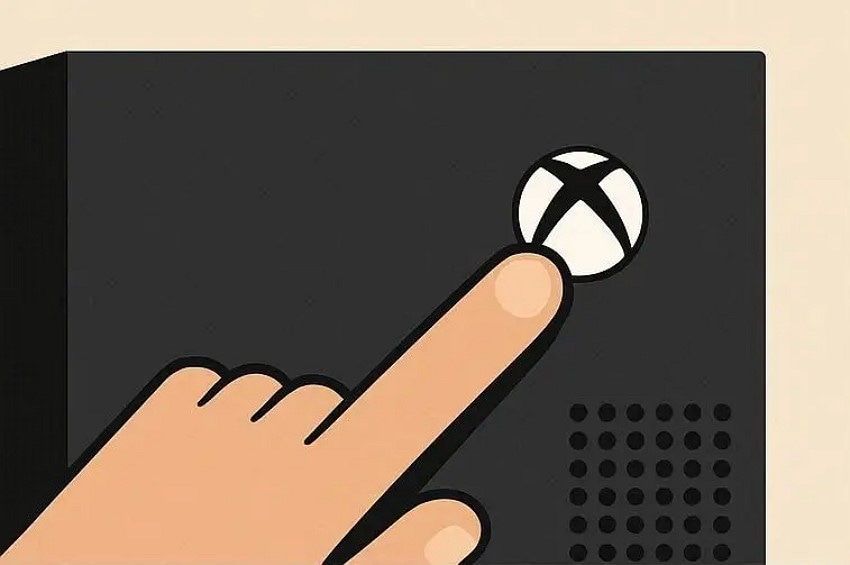
Instructions. Press and hold the Xbox power button on the front of the console for about 10 seconds until it fully turns off. Wait for at least 30 seconds to ensure all power is discharged and the temporary cache is cleared. Press the Xbox button again to turn the console back on.
2. Reinstall The Affected Game Or App
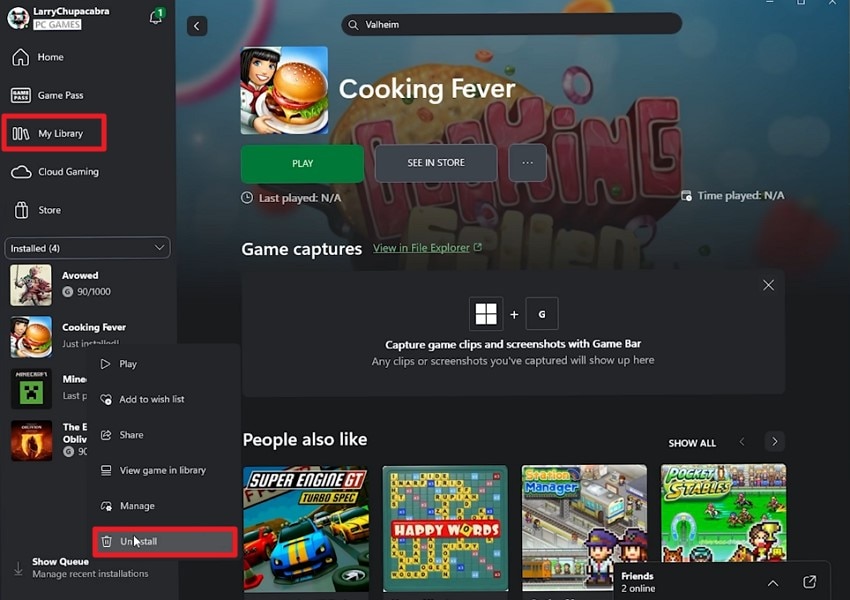
Reinstalling the affected game or app replaces corrupted or missing files that trigger the 0x8B0500B6 error. This process ensures all components align with current system protocols, restoring proper functionality for updates, downloads, and in-app operations. Executing a reinstall directly resolves Xbox 0x8B0500B6 errors caused by damaged content or incomplete installations. Read the steps provided next to learn how to uninstall and then reinstall a game:
Uninstall the Game
Instructions. To uninstall a game, access the Library on the console, and all the installed games will appear on the left. Press the menu button on the affected game to open a list of options. Next, click the "Uninstall" option to remove the game from the system successfully.
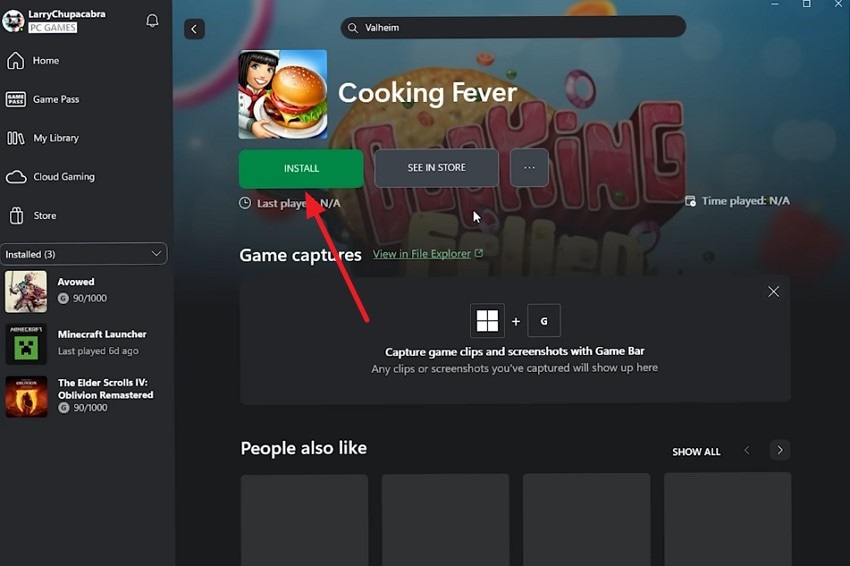
Reinstall the Game
- Search for the game in the library using the search bar and press the "Install" button located within the interface.
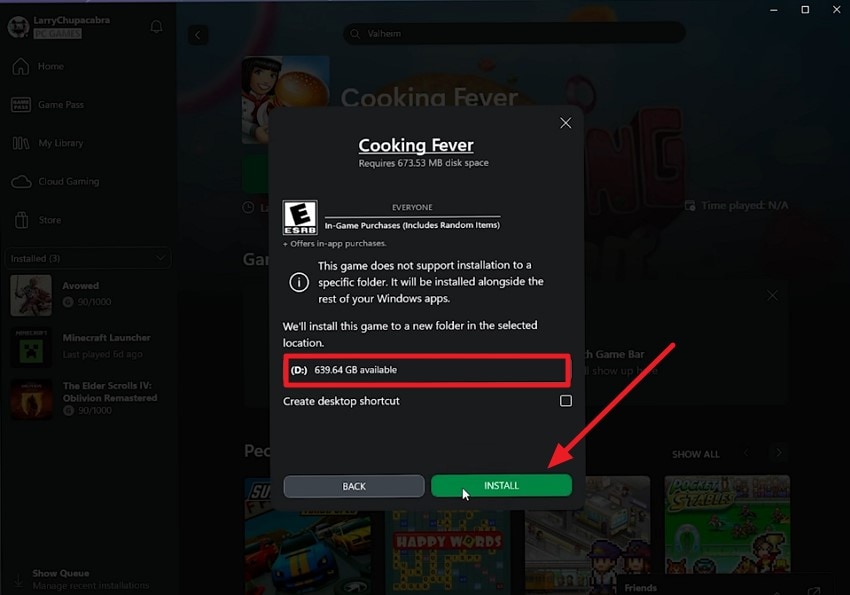
- Next, select the drive and press the "Install" button to begin the installation process successfully.
3. Contact Xbox Support If Issue Persists
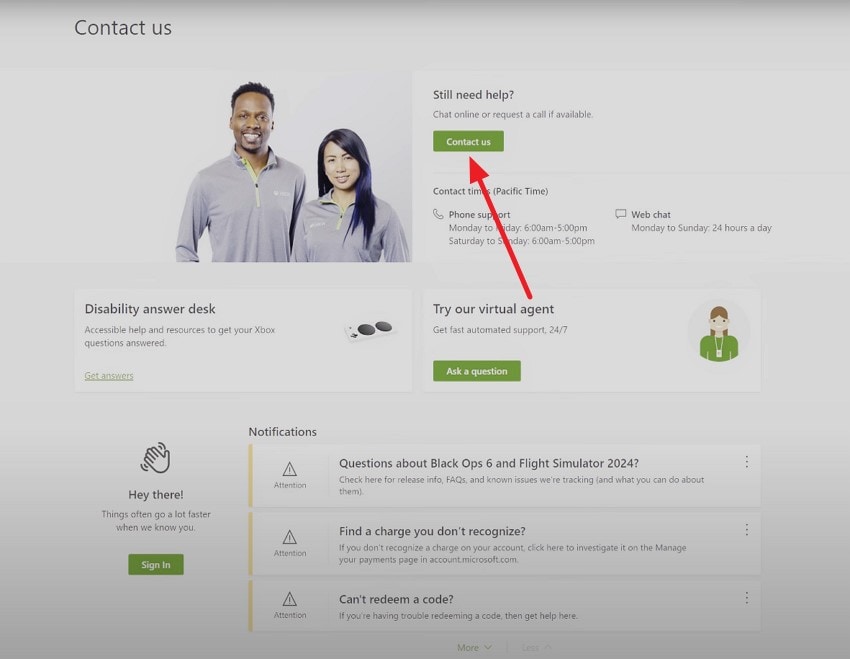
Contacting Xbox Support provides direct resolution for 0x8B0500B6 errors that remain after other fixes. Support can address account, server, or system-level problems, apply advanced troubleshooting, and implement targeted solutions. Engaging official support ensures that unresolved Xbox 0x8B0500B6 errors are corrected efficiently, restoring full functionality for downloads, updates, and app access. Here is how you can contact the Xbox support:
Instructions. Open a web browser on your PC and go to the official Xbox Support page: https://support.xbox.com. Now sign in with your Microsoft/Xbox account and press the "Contact Us" button to send your queries.
Pro Tip: Recover Missing Game Files After 0x8B0500B6 With Recoverit
When the 0x8B0500B6 error causes missing game files, Recoverit can scan your system to locate lost or corrupted content from updates, installations, or crashes. The tool identifies game files, temporary data, and associated folders, allowing users to restore essential content. With up to 500 MB of free data recovery, Recoverit ensures critical files are recovered quickly, minimizing downtime and interruptions caused by the Xbox 0x8B0500B6 error.
Recoverit also offers selective restoration, letting users preview and recover only the files they need, avoiding unnecessary clutter. The tool supports multiple storage locations, including internal drives and external devices, making it flexible for any gaming setup. By efficiently restoring lost game data, Recoverit provides a reliable way to address 0x8B0500B6–related disruptions and resume gameplay without complex manual troubleshooting.
Coherent Features Offered by Recoverit
- Batch File Recovery: Recoverit allows batch file recovery, restoring multiple lost or deleted files simultaneously to save time and streamline the recovery process.
- Advanced Recovery Mode: Its advanced recovery mode performs deep scanning to locate and recover files that are severely corrupted, formatted, or inaccessible.
- Start and Pause Scanning: Users can start and pause scanning at any time, providing flexibility to manage recovery without losing progress.
Step-by-Step Guide on How to Use Recoverit for Game Files Recovery
As discussed, Recoverit scans and retrieves lost or corrupted game content efficiently. To recover missing game files caused by the 0x8B0500B6 error, follow these steps carefully:
1. Select the Scan Location
Open Recoverit and choose the drive, folder, or storage path where the lost files were originally stored. The program performs a deep scan, automatically detecting deleted, corrupted, or inaccessible game files.

2. Identify the Files to Restore
After the scan completes, browse through the recovered items to locate missing save files or screenshots. Highlight the specific files you want to recover and press the "Recover" button.

3. Preview and Recover Safely
Use Recoverit's preview feature to confirm the files are intact and usable. Once verified, click "Recover" to save them to a secure location, ensuring your lost data is fully restored.

Conclusion
To conclude, this article provided a detailed step-by-step guide on resolving the 0x8B0500B6 error and recovering missing game files safely. When quick and expert fixes fail, Recoverit offers a reliable solution to restore lost or corrupted files efficiently. With its deep scan, preview options, and up to 500 MB of free recovery, Recoverit ensures essential data is recovered quickly.
FAQ
-
1. What causes the 0x8B0500B6 error on Xbox?
The 0x8B0500B6 error can occur due to network interruptions, corrupted files, outdated software, or server communication issues. Ensuring stable connections and updating your console, apps, or games can often prevent this error. -
2. Can I recover lost game files after 0x8B0500B6?
Yes. Recoverit can scan your system to restore deleted or corrupted game files safely. It allows up to 500 MB of free recovery, helping retrieve critical files without overwriting existing data. -
3. Is Recoverit safe to use for Xbox file recovery?
Absolutely. Recoverit provides secure scanning and selective file recovery, ensuring your system and existing files remain intact while restoring missing or corrupted game content caused by the 0x8B0500B6 error. -
4. How much data can I recover for free with Recoverit?
Users can recover up to 500 MB of lost data for free using Recoverit, making it a convenient solution for restoring essential game files without purchasing a license immediately.


