

 TL;DR:
Free Download Manager (FDM) accelerates large file and torrent downloads by splitting them into smaller parts, but to avoid manual URL errors, you must enable browser integration to capture links automatically.
● During the initial Windows or Mac installation from the official FDM website, manually enable the "Browser Integration" and "File Association" settings to allow the software to handle standard download types.
● To activate automatic link detection, you must install the Free Download Manager extension from the Chrome Web Store, which routes subsequent website download requests directly into the FDM dashboard.
● Because FDM lacks built-in virus scanning, keep a dedicated antivirus running and manually verify link destinations by hovering over download buttons to avoid downloading malicious mirror files.
Ask AI for a summary
 ChatGPT
 Perplexity
 Gemini
 Claude
 Grok
Grok
The process of downloading large files would be time-consuming, particularly when the internet is slow. This guide explains how to use Free Download Manager step by step, clearly. You will learn how to add files, manage downloads, and improve speed. These steps help you download files safely and avoid common download problems in daily use.
Try Recoverit to Perform Data Recovery
 Security Verified. 3,591,664 people have downloaded it.
In this article

Part 1. What Free Download Manager Is and Why You Should Use It
Free Download Manager is a file downloading tool that helps users download files faster and more safely. It supports videos, documents, software, and large files from websites, torrents, and direct links. This tool uses smart technology to split files into parts and download them faster. Moreover, it helps users pause, resume, and organize downloads easily without losing progress. Before exploring how to use Free Download Manager, you should know the key reasons why users prefer it:
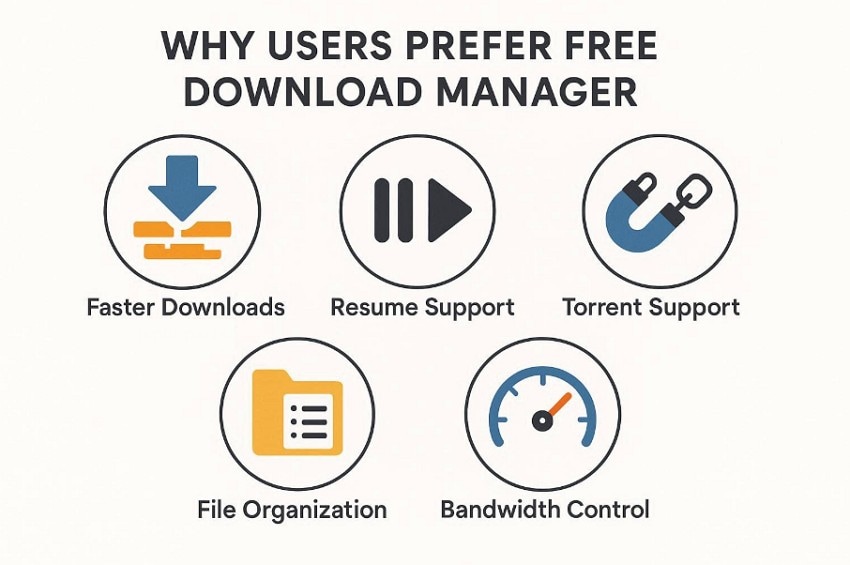
- Faster Downloads: Free Download Manager splits one file into many small parts. These parts download together, so the big files finish much sooner.
- Resume Support: Downloads can pause at any time and resume later from the same place. This helps when Wi-Fi stops or the computer turns off.
- File Organization: The program organizes your downloads into clear groups within a single list. This makes finding videos, apps, and documents much easier later.
- Torrent Support: Torrent files download through the Free Download Manager, so you need fewer tools. This keeps your screen simple and reduces extra program installs.
- Bandwidth Control: A speed limit can be set to keep the internet smooth. Calls, browsing, and videos work better while downloads run quietly.
Part 2. How To Download And Install Free Download Manager Safely
A secure way to download Free Download Manager is by using the official website. Software downloads can be found on many third-party websites, but they might contain altered files or malicious installers. Thus, you should always download Free Download Manager from the official site to safeguard your system and receive the latest version. This also helps you understand how to use Free Download Manager, so follow the installation guide below:
For Windows
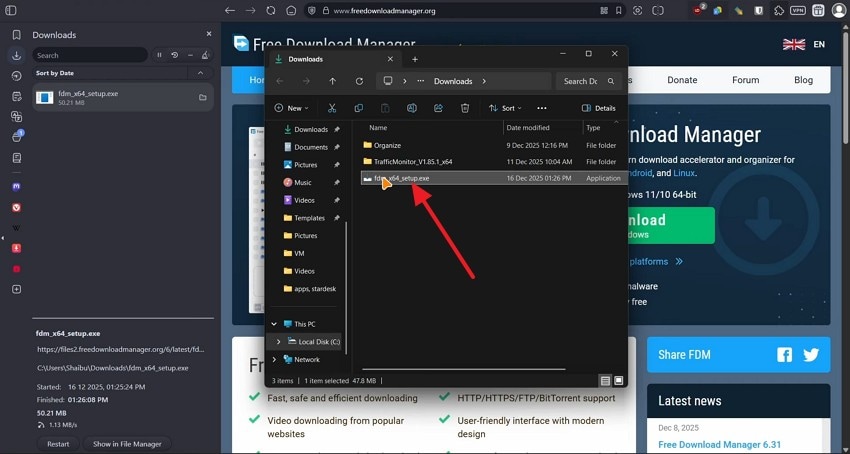
- First, open your "Downloads" folder and double-click the "Free Download Manager installer" file. This action starts the installation wizard and prepares your system for installation.
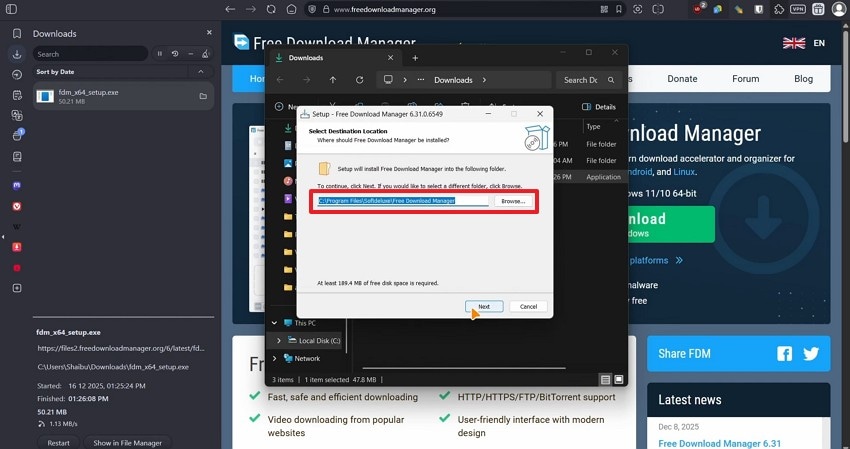
- Next, select "Yes" when Windows asks for permission to install the software. After that, choose the "Folder" where you want to install Free Download Manager.
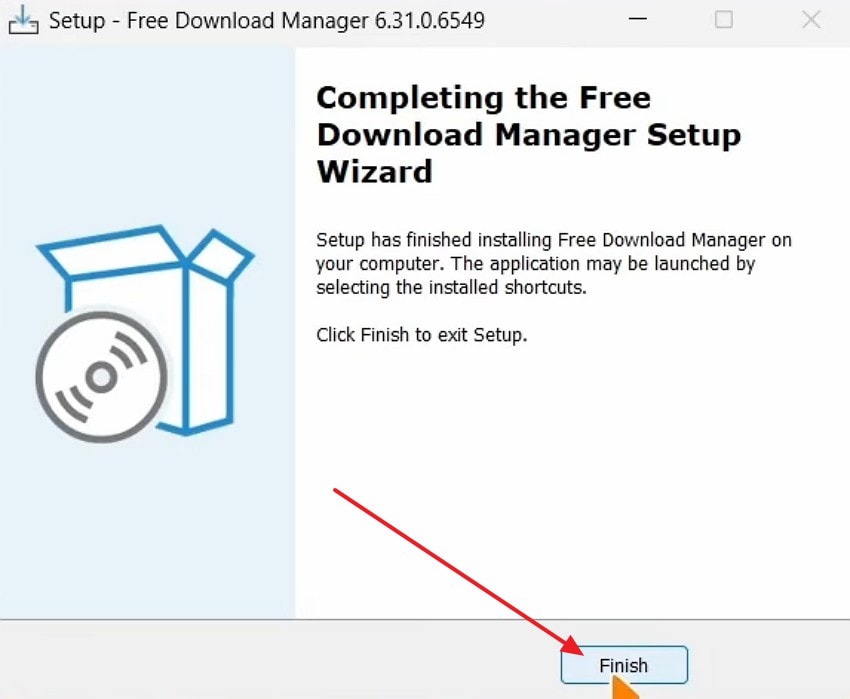
- Finally, click the "Install" button and wait for the process to finish. Once completed, press "Finish" to launch Free Download Manager successfully.
For Mac
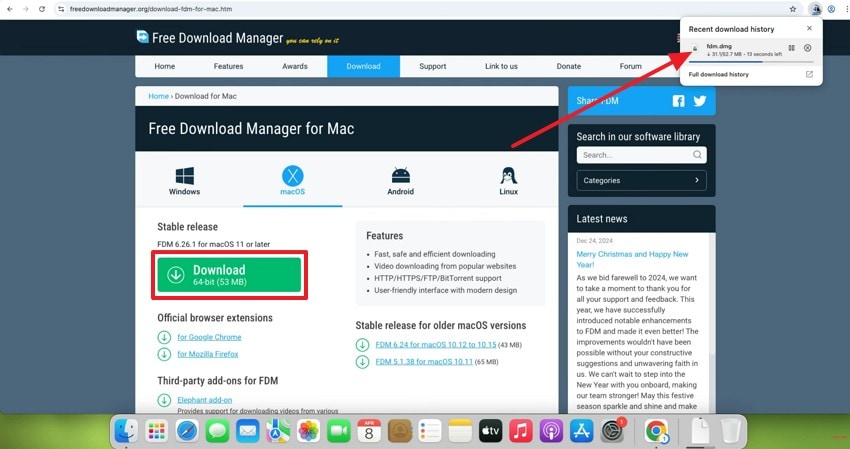
- First, open the Free Download Manager for Mac page, then click the "Download" button. After the download starts, access your browser downloads list to confirm "fdm.dmg" downloaded. Then, double-click "fdm.dmg" to open the installer window on your Mac screen.
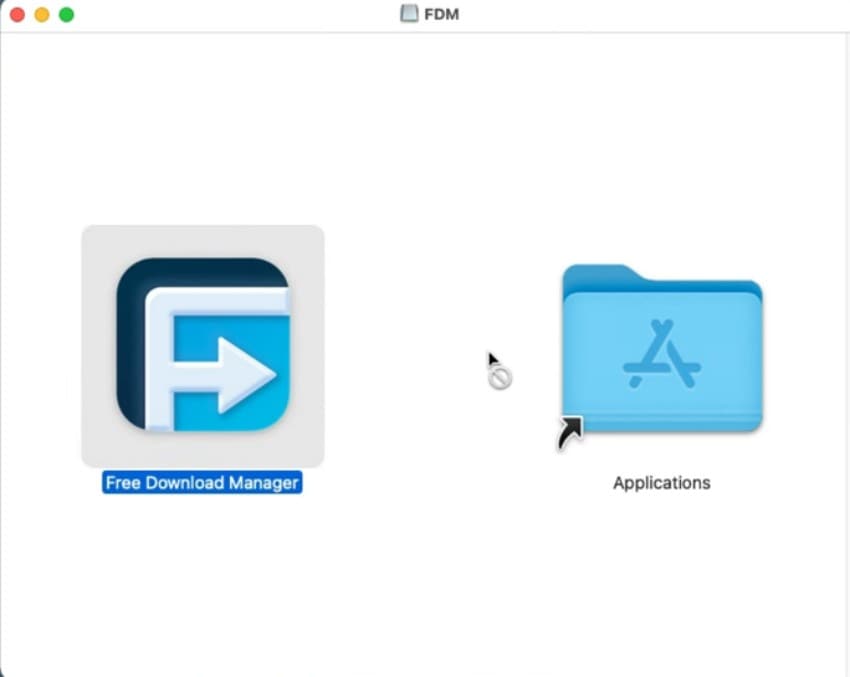
- Later, drag the "Free Download Manager" icon into the "Applications" folder.
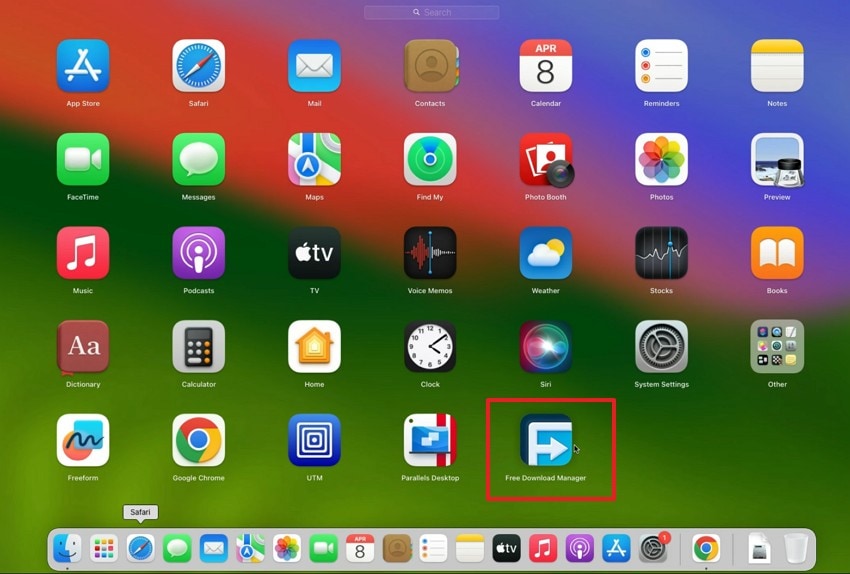
- After installation, access the "Applications" folder and choose "Free Download Manager."
Important Settings To Configure During Installation
Below are the important settings to configure during installation to improve download efficiency:
- Browser Integration: Enable browser integration when prompted during installation. This allows Free Download Manager to capture download links automatically and manage files efficiently.
- Startup Preferences: Choose whether the program starts automatically when your system boots. Enabling this helps manage downloads without manually opening the software.
- Download Folder Location: Select your preferred download folder for better organization and easy access. Thus, keeping files organized improves workflow and reduces file management confusion.
- File Association Settings: Allow Free Download Manager to handle common download file types automatically. This improves download handling and ensures faster file processing.
Part 3. Step-By-Step Guide To Adding Files To Free Download Manager
Free Download Manager makes downloading simple by automatically detecting download links from your browser. You do not need to copy and paste links manually every time. Once browser integration is enabled, the software captures downloads instantly and manages them in one organized dashboard. This automatic process helps users understand how to use Free Download Manager for smoother downloads. Review the guide below to add files to the free download manager:
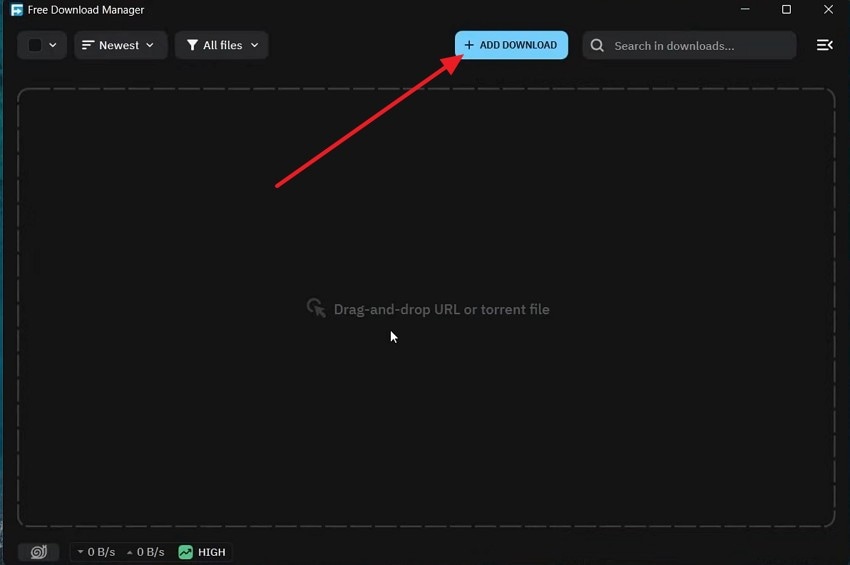
- Start by accessing Free Download Manager and locating the "ADD DOWNLOAD" button on the top bar. This button lets you add a link manually when auto-capture does not work.
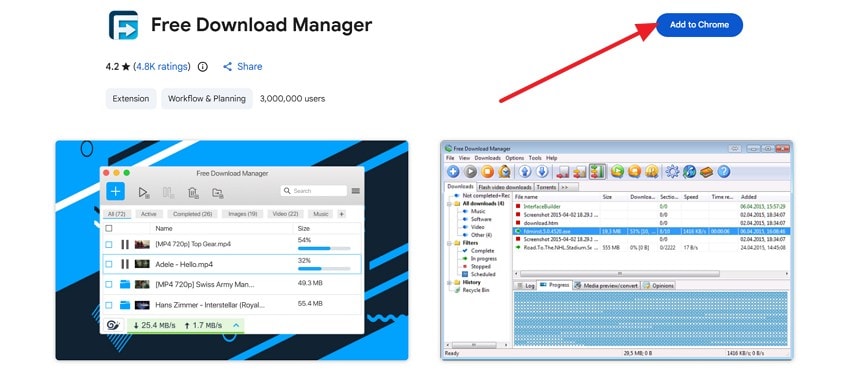
- Here, access the Free Download Manager extension page in the Chrome Web Store. Then, click "Add to Chrome" in the top-right corner, then confirm by selecting Add extension in the pop-up. This enables Free Download Manager to capture download links automatically from your browser.
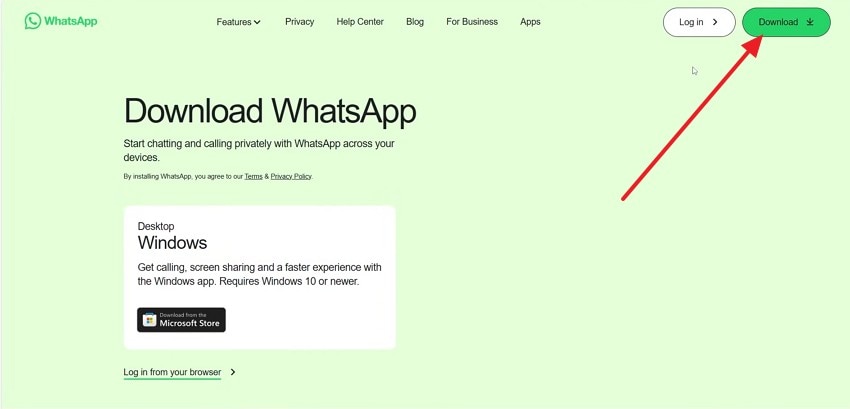
- Next, locate the file download page, then select the website "Download" button once. This action sends the download request to Free Download Manager automatically.
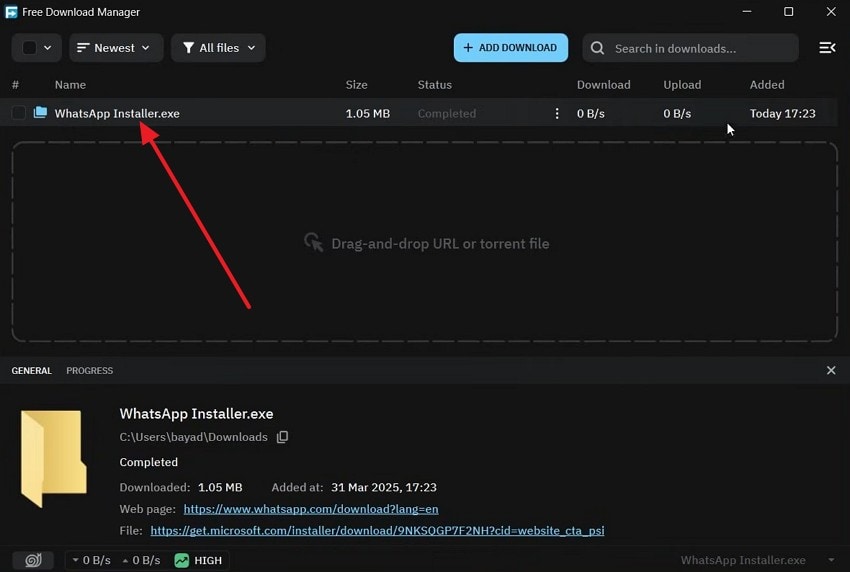
- Afterwards, switch back to Free Download Manager and check the downloads list. The file, such as "WhatsApp Installer.exe," should appear with status details like added time and completion.
Pro Tip: How To Use Recoverit To Recover Important Downloaded Files
Downloaded files can disappear unexpectedly because of power failures, system errors, or accidental removal. This can affect productivity, especially when files contain important software, videos, or academic materials. Therefore, Recoverit offers an advanced recovery option that locates and restores lost download data. Its deep scanning engine searches hidden sectors and rebuilds file structures without damaging existing system content.
Moreover, Recoverit also works when files vanish from external drives or SSDs. It supports modern storage technologies and handles complex data loss situations. Users can navigate the recovery interface easily and complete restoration without technical knowledge. This is especially helpful after learning how to use Free Download Manager. This is because Recoverit ensures your important downloaded files can be restored safely if they are lost or deleted.
Key Features
- System Crash Recovery: Restores downloaded files lost after operating system failure or unexpected shutdown events.
- Recycle Bin Recovery: Recovers permanently deleted downloads removed from the Recycle Bin or Trash folders.
- Path Reconstruction: Rebuilds the original download folder structure to restore files in their correct locations.
Guide To Use Recoverit To Recover Important Downloaded Files
Now, follow these steps below to use Recoverit and restore your important downloaded files:
1. Launch Recoverit And Select Location
Upon accessing Recoverit, select the Downloads folder or storage location in "Hard Drives and Locations."

2. Start Scanning And Preview Lost Files
After that, wait for a few minutes while Recoverit scans your selected location. The software will display all recoverable files in organized categories.

3. Recover And Save Files Safely
Finally, select your required files and click the "Recover" button to proceed. Then choose a different folder to save the recovered files.

Part 4. Avoid Downloading Suspicious Files With Free Download Manager - 6 Tips
To stay safe while downloading files, you should know how to use a Free Download Manager. These tips keep your computer safer while you download with Free Download Manager:
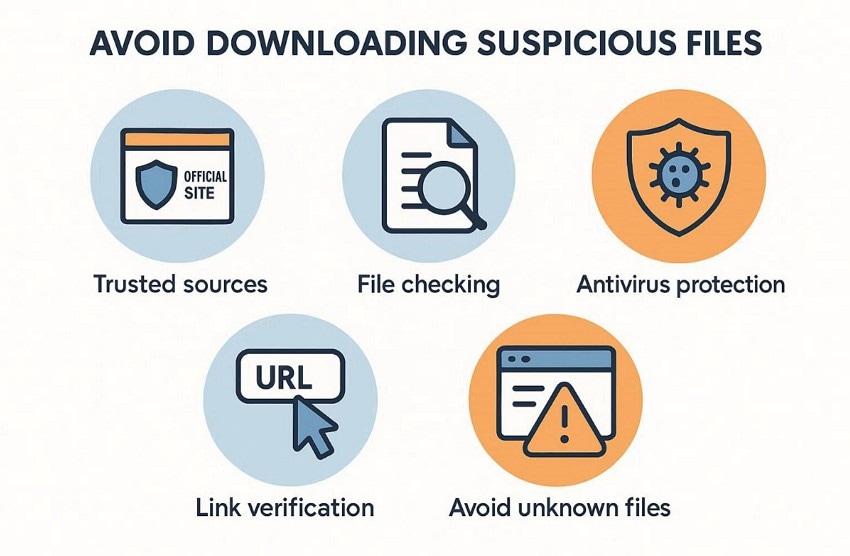
- Trusted Sources: Use official sites and known stores for every file you grab. Avoid random pages that add extras you never asked for.
- File Checking: Check the name, size, and type of the file before you start saving. Odd names or tiny sizes can signal a bad file.
- Antivirus Protection: Keep your antivirus running while the file comes to your device. It can stop threats before they reach your folders at once.
- Link Verification: Hover on the button and read the real link text first. If the link looks strange, do not add it to FDM.
- Avoid Unknown Files: Skip files from popups, forums, or unknown mirrors and hosts. These places often share fake installers that harm your system.
Conclusion
To conclude, Free Download Manager helps you download files faster and manage them with ease. So, learning how to use Free Download Manager helps avoid broken downloads and saves time. However, files can still get lost due to errors or mistakes. When this happens, Recoverit helps you find and restore lost files safely.
FAQ
-
1. What is Free Download Manager, and why should I use it?
Free Download Manager helps download files faster using advanced download acceleration technology tools. It also allows pause, resume, and organize downloads without losing progress. -
2. How do I add download links to Free Download Manager?
Copy the file download link and paste it into Free Download Manager. The software captures the link and starts downloading the file automatically, without any issues. -
3. Can Free Download Manager improve download speed and stability?
Yes, it splits files into parts and downloads them for faster speed. This improves stability and reduces the chances of download failure during interruptions. -
4. Is Free Download Manager safe for downloading files from internet sources?
Yes, it is secure in case of downloading files from reliable websites and sources. Never forget to scan the downloaded files, so that your system is not exposed to malware and threats.


