

 TL;DR:
To resolve the "Windows Security Center Service Can't Be Started" error on Windows 10, change the Security Center startup type to "Automatic (Delayed Start)" in the Services console or modify the `wscsvc` Registry "Start" value to "2".
● The Security Center heavily depends on the Remote Procedure Call (RPC) Endpoint Mapper and Windows Management Instrumentation (WMI) services, both of which must have their status confirmed as "Running" to prevent initialization failures.
● If the error persists due to a corrupted data repository, you must use an elevated Command Prompt to execute `winmgmt /salvagerepository` or `winmgmt /resetrepository` to repair WMI data access.
● In cases where severe system file damage or missing core components prevent the service from running, specialized recovery software like Wondershare Recoverit can be utilized to deep-scan and rebuild the corrupted internal files.
Ask AI for a summary
 ChatGPT
 Perplexity
 Gemini
 Claude
 Grok
Grok
At times, when you open your Windows PC ready to check your antivirus status, you find that the Security Center isn't responding. It can disrupt your workflow and create uncertainty about whether your device is fully protected. This guide will show you practical methods to fix and restore "The Windows Security Center Service Can't Be Started" issue quickly and securely.
Try Recoverit to Perform System File Recovery
 Security Verified. 3,591,664 people have downloaded it.
In this article
-
- Start The Security Center Service From Services
- Check Related Services (RPC and WMI)
- Fix The Security Center Service Via Registry
- Reconfigure The Service Account
- Repair or Reset The Windows Security App
- Use the Command Line To Fix And Start The Service
- Repair WMI Repository (Advanced)
- Clean Boot To Rule Out Conflicts
- Restore or Reset Windows If Nothing Works

Part 1. Understanding "Windows Security Center Service Can't Be Started"
The "Windows Security Center Service can't be started" error is a system-level issue where Windows fails to initialize the Security Center service. This security center is responsible for monitoring antivirus, firewall, and system protection statuses. When this service is inactive, the OS cannot track or report the state of security components. As a result, security notifications and automated protection features may be unavailable until the service is successfully launched.
Why Windows Security Service Fails to Start On Windows 10
Experiencing the error "The Windows Security Service Can't Be Started Windows 10" can be frustrating, especially when your system shows no clear reason. However, the following are some of the potential reasons why users face this error:
- Corrupted System Files: Damaged or missing system files can prevent the Security Center service from initializing. Running a System File Checker scan often helps detect and repair these issues.
- Disabled Security Center Service: If the Security Center service is manually disabled, it won't start automatically with Windows. You need to check the Services app and set it to automatic to restore functionality.
- Third-Party Antivirus Conflicts: Some antivirus programs can block or interfere with the Windows Security Center service. Temporarily disabling or uninstalling the conflicting software may allow the service to start.
- Registry Errors: Incorrect or corrupted registry entries can disrupt the startup of the Security Center. Editing or restoring the registry to its default values often resolves the problem.
- Pending Windows Updates: Unfinished or pending updates may prevent essential security services from running. Installing all available Windows updates and restarting your PC can fix this issue.
Part 2. How To Fix Security Center Service Won't Start Error - 9 Solutions
Now that we've explored why the Windows Security Service can't be started on Windows 10, it's time to take action. Below are 9 practical solutions that address this issue step by step:
1. Start The Security Center Service From Services
Launching the Services console allows you to manually start the Windows Security Center service. Setting its startup type to Automatic ensures that the service initiates at boot. This addresses scenarios where the "Windows Security Center service can't be started" due to service stoppages or misconfigurations in the Windows 10 Services management console. To learn how to perform this fix, read the steps provided below:
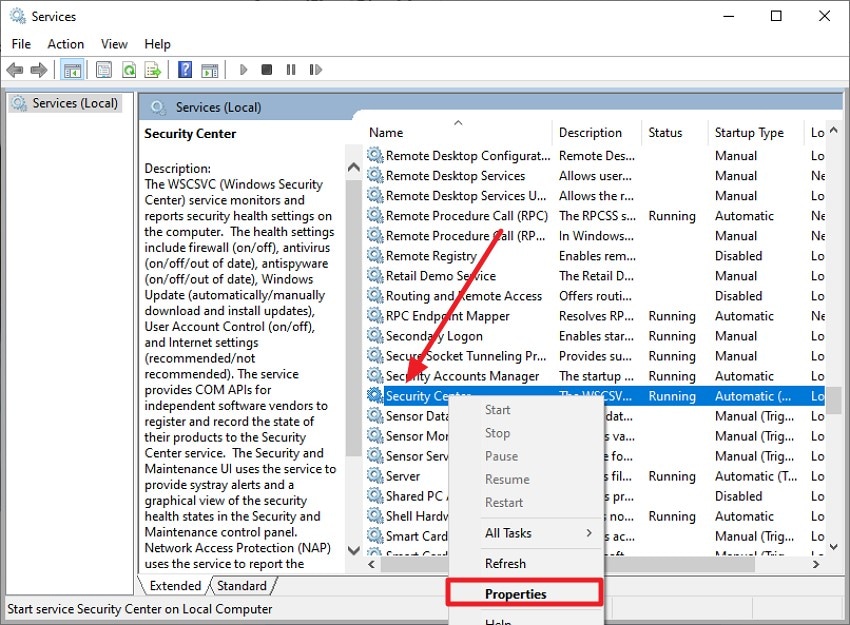
- Begin by entering "Windows + R" on your keyboard and typing "services.msc." Hit the enter key to open a new interface from where select the "Security Center" option. Right-click on it and press the "Properties" option.
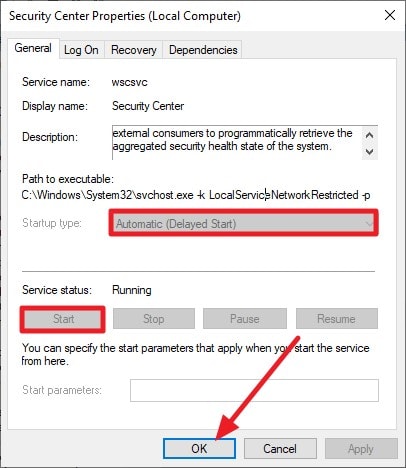
- Next, change the "Startup Type" to "Automatic (Delayed Start)" and press the "Start" button. Confirm your selection by pressing the "OK" button to start Security Center services from Services.
2. Check Related Services (RPC and WMI)
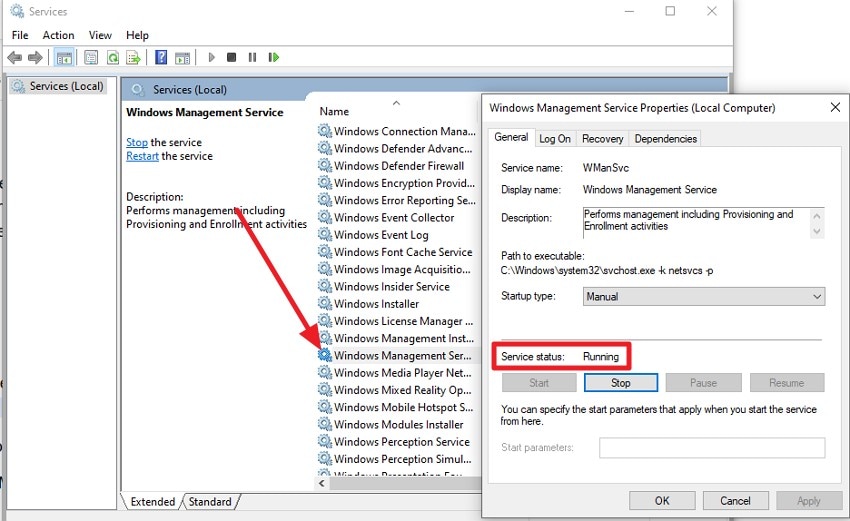
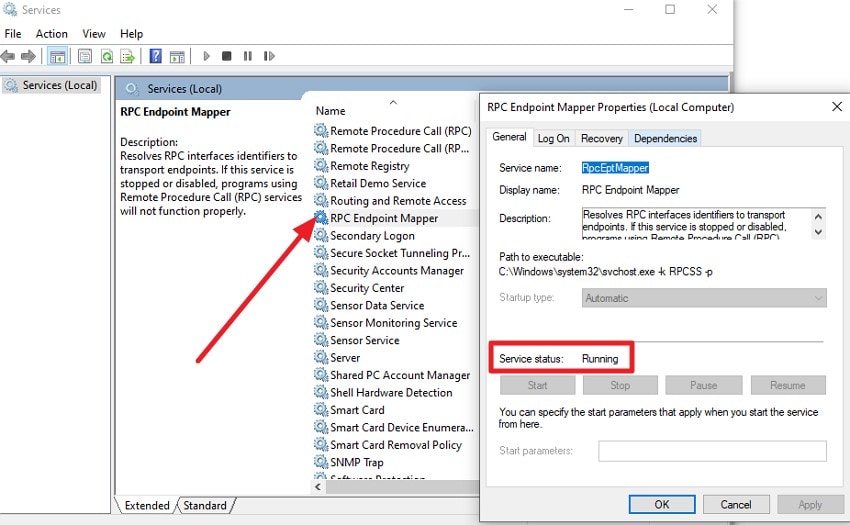
The Windows Security Service depends on Remote Procedure Call (RPC) and Windows Management Instrumentation (WMI) services. If these supporting services are stopped or misconfigured, the Windows security service can't be started. Ensuring both RPC and WMI are running allows the Security Center to initialize properly without errors in Windows 10. Follow the steps mentioned below to learn how to check whether both services are running or not:
- Head to the "Services" window and scroll through the options to find "Windows Management Instrumentation." Right-click on it and press the "Properties" option. From the properties window, check that the "Service Status" is "Running." If the service is not running, click on the "Start" button to run the service.
- Similarly, scroll through services and look for "RPC Endpoint Mapper." Open properties by right-clicking and check the "Service Status" as "Running." Press the "Ok" button once you are done checking.
3. Fix The Security Center Service Via Registry
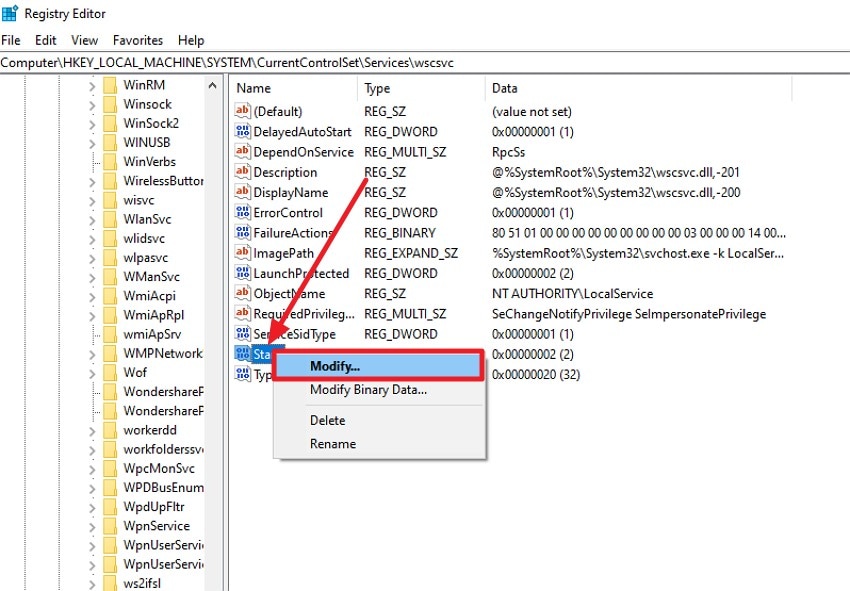
Registry entries control the operation of the Windows Security Service. Incorrect or missing values can cause the "Windows security service can't be started Windows 10" error. Updating or restoring registry keys can resolve startup failures and restore normal Security Center functionality. If you do not know how to perform this fix, read the steps provided next:
- Access the Registry with Admin privileges and navigate to this path: "HKEY_LOCAL_MACHINE\SYSTEM\CurrentControlSet\Services\wscsvc". Now, locate the "Start" option and right-click on it to press "Modify."
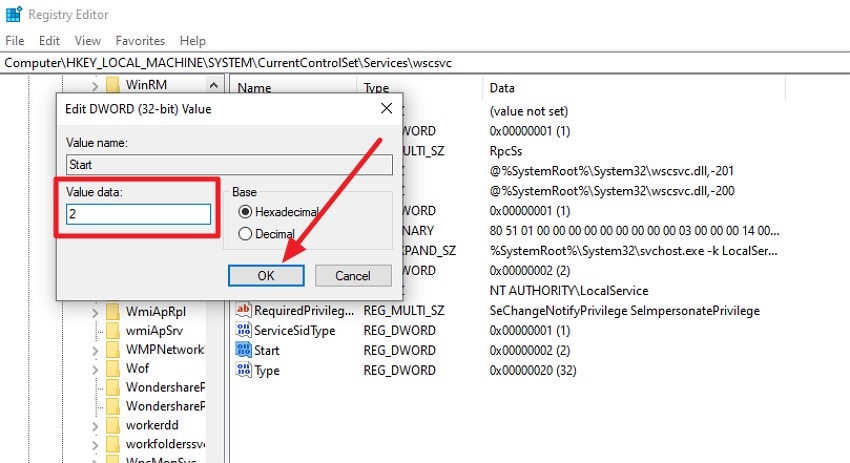
- Next, change the "Value Data" to "2" and press the "OK" button to successfully update the registry key.
4. Reconfigure The Service Account
The Windows Security Center service uses a specific system account for operation. Misconfigured permissions can prevent startup, causing the Windows security center can't be started. Adjusting the service logon account to Local Service or proper credentials ensures the Security Center launches without authentication errors. Follow the steps provided next to learn how to reconfigure the service account:
- Press Win + R, type "services.msc," and press Enter to open the Services console. Scroll through the list and right-click the service you want to configure. Press the "Properties" option from the expanded list to proceed.
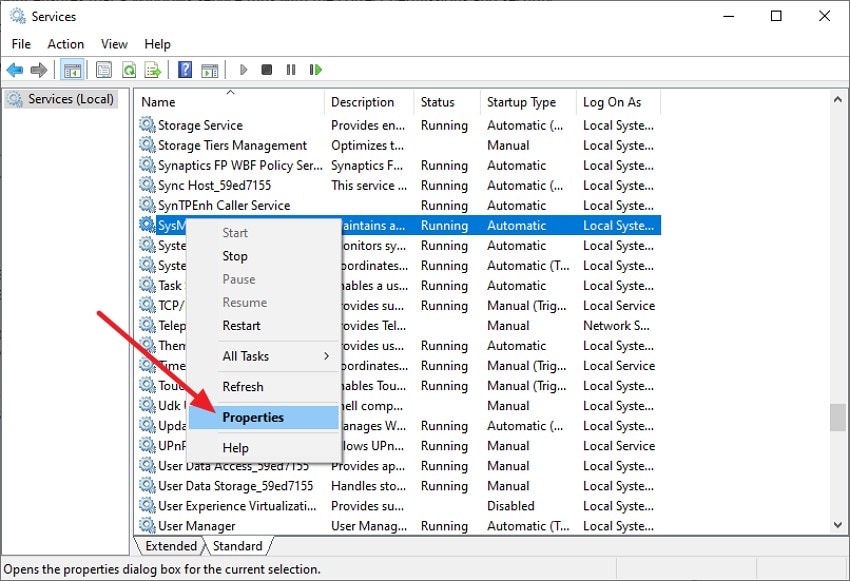
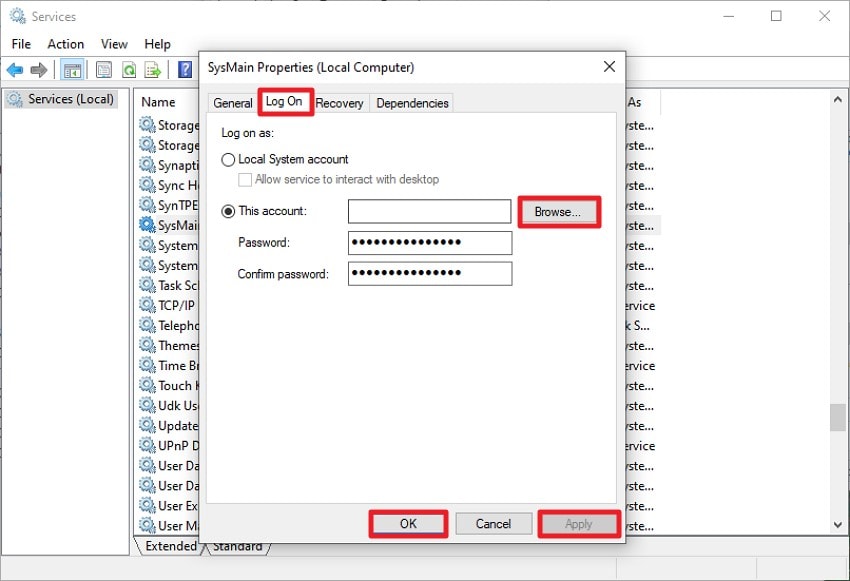
- In the service properties window, switch to the "Log On" tab. This is where you define which account the service runs under. Select "This account," click "Browse," enter the username, and set the password. Ensure the account has "Log On As" permission. Click "Apply," then "OK," and restart the service for changes to take effect.
5. Repair or Reset The Windows Security App
Corrupted app files can block the Security Center from initializing. Repairing or resetting the Windows Security app resolves issues where the Windows Security service can't be started by restoring core files and configurations. This allows antivirus and firewall components to report their status correctly. Follow the instructions provided below to learn how to perform this fix:
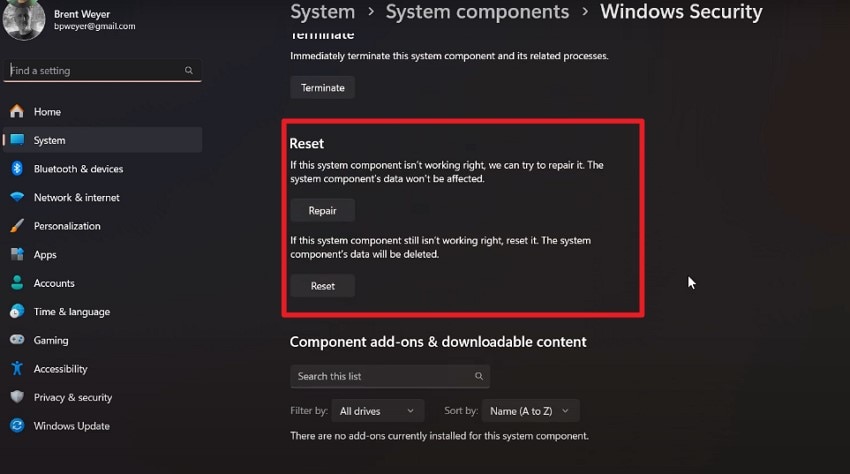
Instructions. Access the System Settings and navigate to "System > System Components > Windows Security." Here, scroll through the interface and locate the "Repair" and "Reset" buttons. Press one of these buttons to successfully perform this fix.
6. Use the Command Line To Fix And Start The Service
Command-line tools like "sc config and net start" allow direct control of the Security Center. Executing these commands can address the issue that the Windows security service can't be started on Windows 10 by re-registering the service. It also helps in resetting dependencies or forcing a manual start without GUI intervention. Read the instructions provided below to know how to perform this fix in no time:
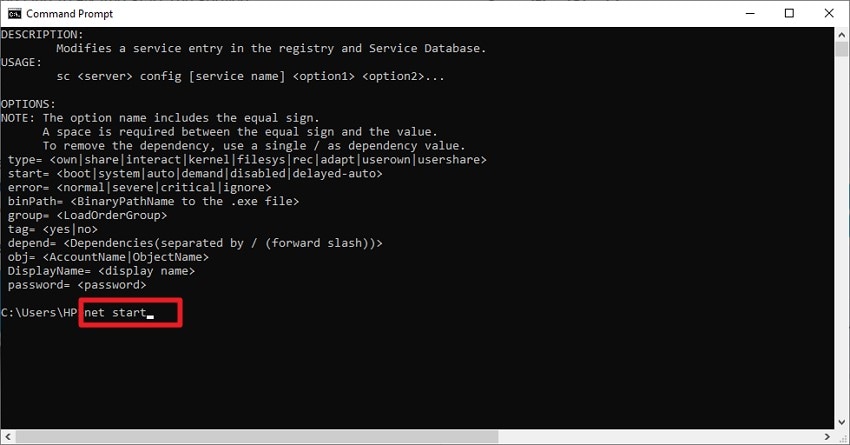
Instructions. Open the Command Prompt with admin privileges and enter the command "sc config" to fix the startup type if needed. Then, input the command "net start" and press the Enter key to initiate the service.
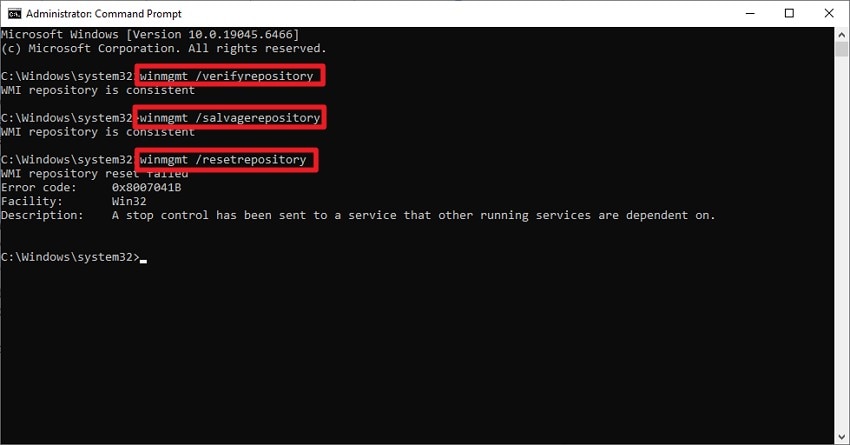
7. Repair WMI Repository (Advanced)
A corrupted WMI repository can block the Security Center from retrieving system status. Repairing the repository fixes errors where the Windows Security Center service can't be started, restoring data access for antivirus, firewall, and health monitoring components in Windows 10. To learn how to repair the WMI Repository, read the instructions provided below:
Instructions. Open Command Prompt as an administrator and run "winmgmt /verifyrepository" to check the repository status. If it is inconsistent, execute "winmgmt /salvagerepository" to attempt a repair without deleting data. If the issue persists, run "winmgmt /resetrepository" to rebuild it completely. Afterward, restart the Windows Management Instrumentation service or reboot the computer to apply the changes.
8. Clean Boot To Rule Out Conflicts
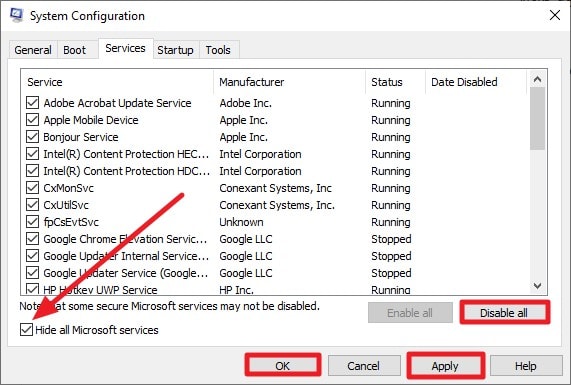
Startup programs or third-party software can prevent the Security Center from loading. Performing a clean boot isolates conflicts, resolving cases where the Windows security service can't be started by ensuring no external process interferes with service initialization. To learn how to perform a clean boot, read the instructions provided next:
Instructions. Open the System Configuration window on your computer. Under the Services tab, check "Hide all Microsoft Services," then click "Disable All" to turn off third-party services. Press the "Apply" and "Ok" options to successfully disable the services and restart your PC.
9. Restore or Reset Windows If Nothing Works
If all technical fixes fail, restoring or resetting Windows can fix persistent issues. A clean Windows environment addresses the root cause of the "Windows security center can't be started" error, reinstalling essential system services and dependencies automatically. Read the steps provided below to learn how to reset Windows if nothing else works:
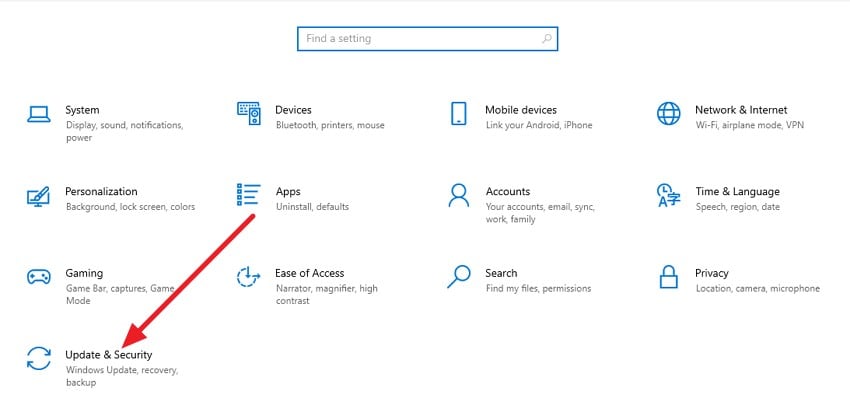
- Begin by opening your System settings and selecting the "Update and Security" option from the homepage.
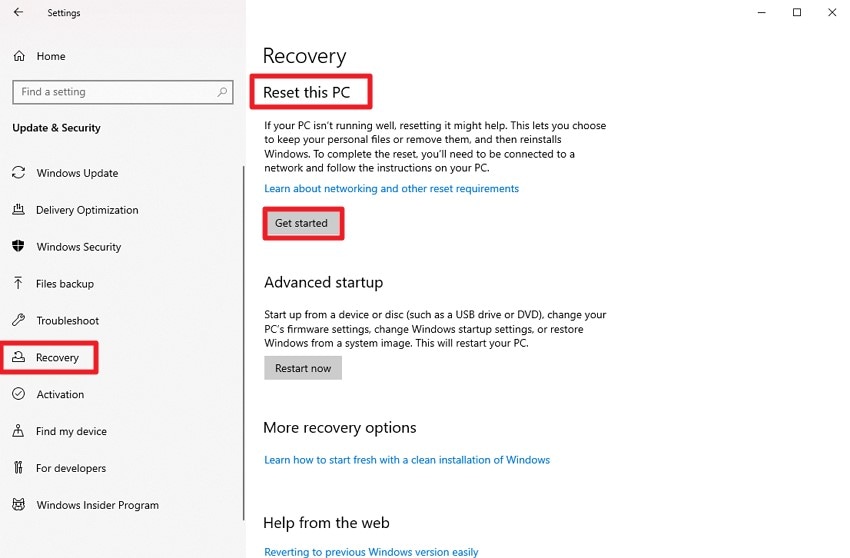
- Access the "Recovery" section from the left and click the "Get Started" button under the "Reset This PC" option to begin resetting.
Pro Tip: Recover Lost Or Corrupted System Files Easily With Recoverit
When critical Windows components are damaged, tools like Recoverit can perform deep-level file recovery using advanced scanning algorithms. It can detect fragmented, deleted, or corrupted system files stored on internal drives and rebuild recoverable data structures safely. In situations where the Windows Security Center service can't be started, restoring missing system files through a structured recovery process can help reestablish essential service dependencies without modifying unaffected data sectors.
Beyond simple file restoration, Recoverit analyzes file signatures and directory metadata to reconstruct usable system components. Its deep scan mode locates residual file entries that standard utilities may overlook, improving recovery accuracy. Moreover, it provides the ability to get back data up to 500 MBs for free.
Incredible Features Offered by Recoverit
- Search Filter: The search filter allows precise file identification by name, type, size, or modification date, improving recovery accuracy within large scan results.
- Batch Recovery: Batch recovery enables simultaneous restoration of multiple selected files, reducing processing time and maintaining directory structure integrity.
- Multiple Storage Device Support: Multiple storage device support allows data recovery from HDDs, SSDs, USB drives, SD cards, and other external storage media using unified scanning algorithms.
Comprehensive Steps to Recover Lost Or Corrupted System Files
After understanding its core capabilities, you can proceed with Recoverit to retrieve missing or damaged library files efficiently by following the process below:
1. Open Recoverit and Choose File Recovery
Start Recoverit and select the "Hard Drives and Locations" option from the main interface. Next, specify the drive or directory where the lost library files were originally stored to begin the scanning process.

2. Scan and Select Required Files
Allow the software to complete its scan of the chosen location. Once results appear, identify the library files you need and mark them for restoration using the "Recover" button.

3. Preview and Restore Files Safely
Use the preview function to confirm file integrity and ensure the correct items are selected. After verification, click "Recover" and save the restored files to a secure location on your system.

Part 3. 5 Best Practices To Keep Windows Security Service Running
When errors like "Windows security center can't be started" appear, they often highlight underlying maintenance or configuration gaps within the system. Implementing the following best practices helps maintain service stability and ensures Windows Security components operate without interruption:
- Keep Windows Updated: Regularly installing cumulative and security updates ensures service dependencies remain compatible with the latest system builds. Updates also patch vulnerabilities that may disrupt Security Center functionality.
- Maintain Service Startup Configuration: Ensure the Windows Security Center and its dependent services are set to Automatic startup. Proper configuration prevents manual or third-party changes from disabling essential services.
- Monitor System File Integrity: Periodic execution of System File Checker (SFC) and DISM commands helps detect and repair corrupted Windows components. This reduces the risk of service startup failures caused by damaged system files.
- Avoid Conflicting Security Software: Installing multiple antivirus solutions can interfere with Windows Security services. Maintain a single, compatible security suite to prevent service conflicts.
- Protect and Back Up the Registry: Avoid unauthorized registry edits and create backups before making system changes. Stable registry configurations ensure proper service initialization parameters remain intact.
Conclusion
To conclude, you learned how to fix the "Windows Security Center Service Can't Be Started" on Windows 10 in this article. By addressing service dependencies, repairing system components, and correcting configuration errors, you can restore full security functionality. If critical system files are missing or corrupted, Recoverit provides advanced recovery capabilities to safely retrieve and rebuild essential Windows files.
FAQ
-
1. Why does the Windows Security Center Service fail to start?
The service may fail due to disabled dependencies, corrupted system files, incorrect registry entries, or third-party antivirus conflicts. Verifying related services like RPC and WMI and checking system integrity using built-in tools can help resolve the issue. -
2. How do I fix the Windows Security Center Service Can't Be Started error on Windows 10?
You can restart the service from Services, repair system files using SFC/DISM, reset the Windows Security app, or correct registry settings. If essential system files are missing, Recoverit can help restore corrupted Windows components safely. -
3. Can corrupted system files prevent Windows Security from running?
Yes, damaged or missing system files can block service initialization and cause startup failures. In such cases, using a professional recovery tool like Recoverit can retrieve important Windows files and support proper service functionality. -
4. What should I do if the Windows Security Service still won't start after troubleshooting?
If all manual fixes fail, consider performing a system restore or Windows reset. Additionally, Recoverit can help recover lost or damaged system files before resetting your PC to prevent permanent data loss.


