

 TL;DR:
To resolve the Call of Duty: Black Ops 7 fatal error on PC, you need to bypass startup restrictions and hardware conflicts by modifying game launch parameters, adjusting Windows security protocols, and performing clean driver reinstallations.
● Force the game to utilize DirectX 11 by typing "-dx11" into the Steam Launch Options, and configure the game's executable file to run as an Administrator using Windows 7 or Windows 8 Compatibility Mode.
● Stop Windows from blocking critical game files by turning off Memory Integrity in the Core Isolation settings and manually adding the game to the Ransomware Protection Allowed Apps list.
● If standard troubleshooting fails, delete the "Activision" folder located in the hidden "AppData\Local" directory to reset corrupted configurations, and utilize Wondershare Recoverit if the fatal system reboots have permanently erased your local save data.
Ask AI for a summary
 ChatGPT
 Perplexity
 Gemini
 Claude
 Grok
Grok
A fatal error in Call of Duty: Black Ops 7 can stop the game before any level loads. Many PC players face crashes caused by damaged files, old drivers, or blocked game actions. These issues push the game back to the desktop and prevent a normal start. When this happens, the system needs clean files and stable settings to run the game again.
Furthermore, this guide shows fixes that refresh game data and repair key parts of the setup. You will also learn how to fix Call of Duty: Black Ops 7 fatal error by updating drivers, adjusting simple graphics options, and closing background tools that cause repeat crashes.
Try Recoverit to Perform Game Data Recovery
 Security Verified. 3,591,664 people have downloaded it.
In this article
-
- Fix 1. Verify Game Files
- Fix 2. Update Graphic Drivers
- Fix 3. Run as Administrator & Use Compatibility Mode
- Fix 4. Add Game to Ransomware Allowed Apps
- Fix 5. Change DirectX Version
- Fix 6. Optimize Graphics Settings
- Fix 7. Clean Install GPU Driver
- Fix 8. Increase Virtual Memory
- Fix 9. Disable Overclocking & Close Background Apps
- Fix 10. Toggle Memory Integrity Off
- Fix 11. Check for Dual Installations
- Fix 12. Delete Activision Folder
- Fix 13. Reinstall the Game

Part 1. What Causes The Call of Duty: Black Ops 7 Fatal Error on PC
When Black Ops 7 fails during launch, certain system issues usually trigger this fatal error. The causes below explain the exact faults that lead to these crashes on PC:
- Broken Files: Damaged game files block key startup actions and stop the game from loading. Moreover, missing assets or corrupt data interrupt memory calls and trigger sudden crashes.
- Driver Issues: Old GPU drivers fail to handle new shaders and create sharp crash points. Incompatible driver builds also cause rendering faults that break the game during launch.
- Security Blocks: Disabled Secure Boot stops needed checks and triggers the fatal error at launch. Missing security verification also prevents the game’s anti-cheat from loading correctly.
- App Conflict: Overlay tools interrupt core game actions and break tasks needed for smooth loading. Background software also blocks memory access and causes the game to shut down.
- Hardware Faults: Overheated parts lose stability and cause the system to crash under load. Unstable CPU or GPU behavior also breaks key processes during early game startup.
Part 2. Some Common Warning Signs to Note for Call of Duty: Black Ops 7 Fatal Error on PC
Before the crash occurs, the system often shows the following signs that a Call of Duty: Black Ops 7 fatal error is forming:
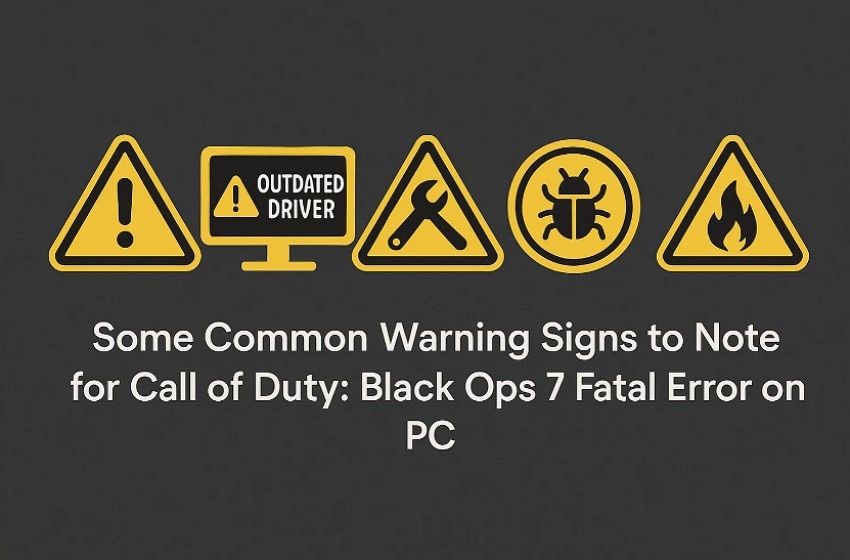
- Instant Crash: The game closes abruptly and returns players to the desktop without warning. This quick shutdown signals unstable behaviour that often leads to fatal errors.
- Stop Message: A pop-up appears saying the application stopped working during normal game tasks. This message suggests a major conflict affecting core files required for loading gameplay.
- Launch Freeze: If the game freezes during loading screens or active scenes, it stops responding. This freeze often warns that deeper system issues are disrupting essential tasks.
- System Reboot: The entire computer restarts suddenly when gameplay begins or heavy scenes load. This strong reaction indicates severe faults affecting hardware stability during game execution.
- Black Screen: A black screen appears after launch and leaves the game completely unresponsive. This condition shows early trouble preventing graphics output from reaching the display.
Part 3. How to Fix Call of Duty: Black Ops 7 Fatal Error on PC? [Fixed]
Before applying deeper repairs, you can start with the following reliable fixes that solve the most common triggers behind the error:
Fix 1. Verify Game Files
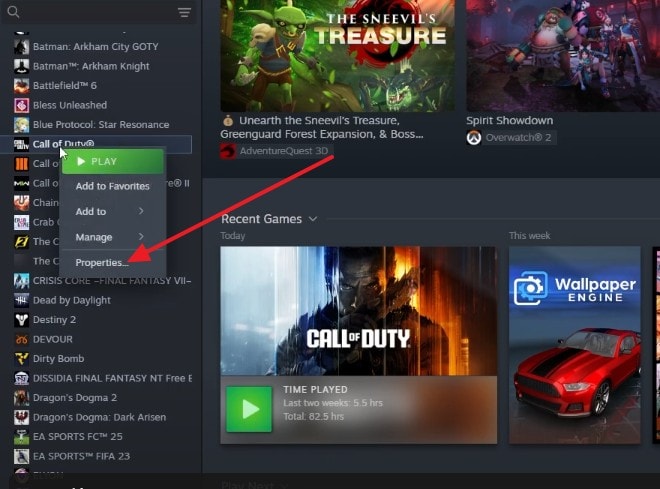
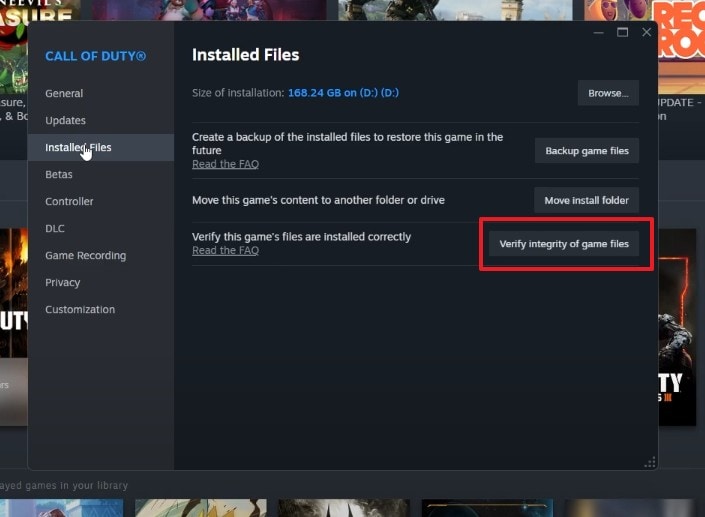
Broken or missing game files can trigger instant crashes during launch or gameplay. Using Steam’s repair tool checks file integrity and restores anything corrupted, helping the system load stable assets. This fix often resolves early crashes and prevents errors tied to damaged installation data in Call of Duty: Black Ops 7. Follow these steps to verify every game file correctly and restore stable loading:
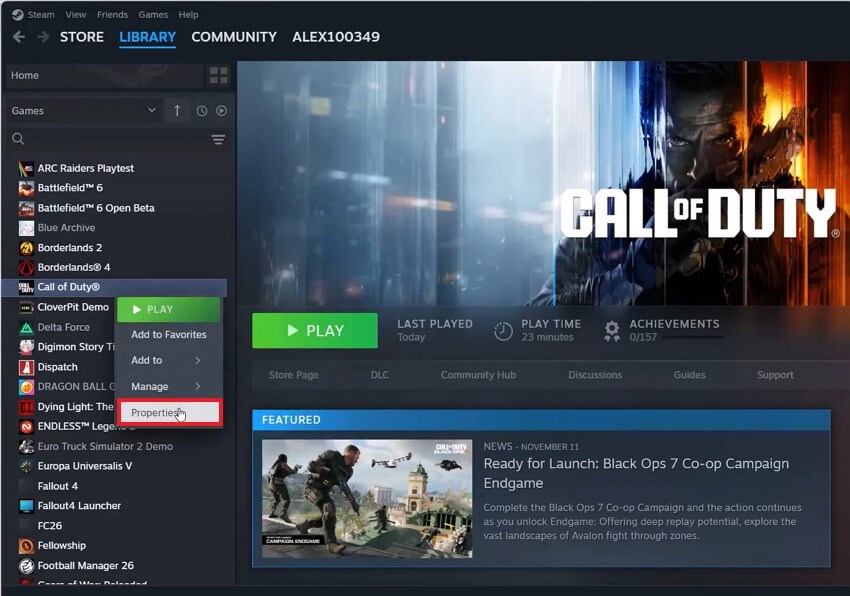
- First, go to "Steam," then right-click on the game and select the "Properties" option from the menu.
- In the next window, select the "Verify Integrity of Game Files" from the "Installed Files" option.
Fix 2. Update Graphic Drivers
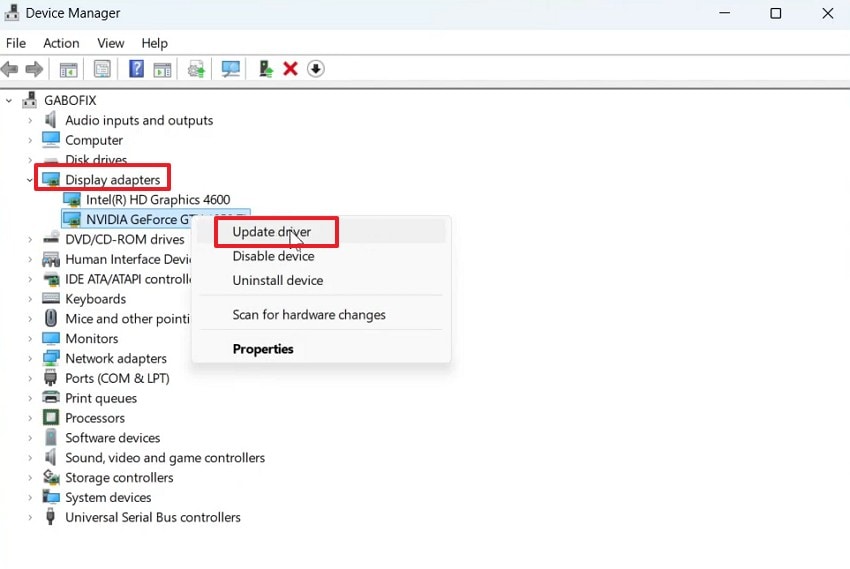
Outdated graphic drivers frequently fail to load shaders and can break heavy scenes. Updating NVIDIA, AMD, or Intel drivers ensures proper compatibility with the latest rendering paths. This update restores support needed for smoother graphics handling and prevents launch errors in Black Ops 7. Consider using these steps to update GPU drivers safely and avoid new crashes triggered:
- In the Disk Manager, click on the "Display Adapters," select your desired graphics, and choose the "Update Driver" option.
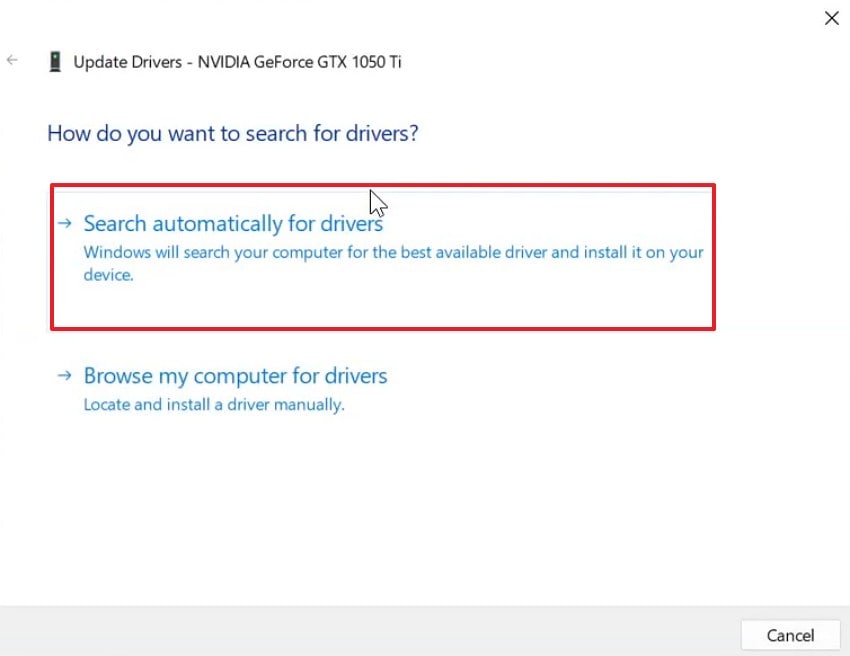
- Next, select the "Search Automatically for Drivers" option to update the driver.
Fix 3. Run as Administrator & Use Compatibility Mode
Running the game without elevated permissions can block required system calls. Admin mode ensures all background services load correctly. Compatibility mode helps older systems emulate stable environments for improved launch behavior. These changes reduce conflicts from restricted access paths and improve startup reliability for the Call of Duty: Black Ops 7 fatal error. Apply these settings correctly using the steps below to improve launch stability:
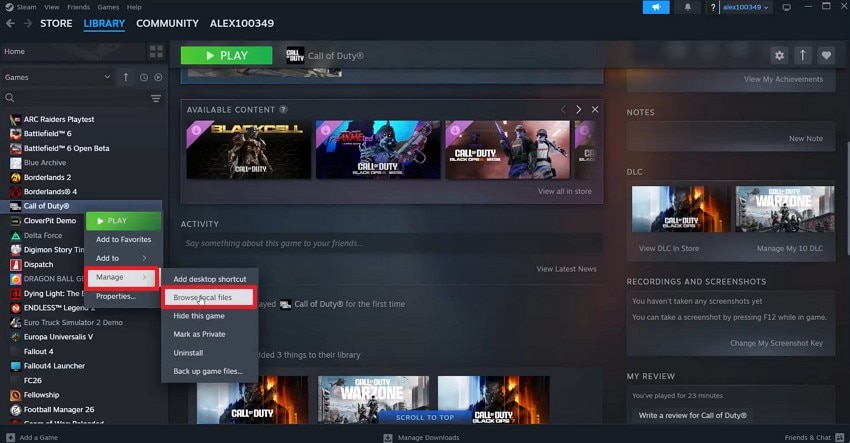
- First, right-click on the game in Steam and choose the "Manage" option. Then, select the "Browse Local Files" option from the menu.
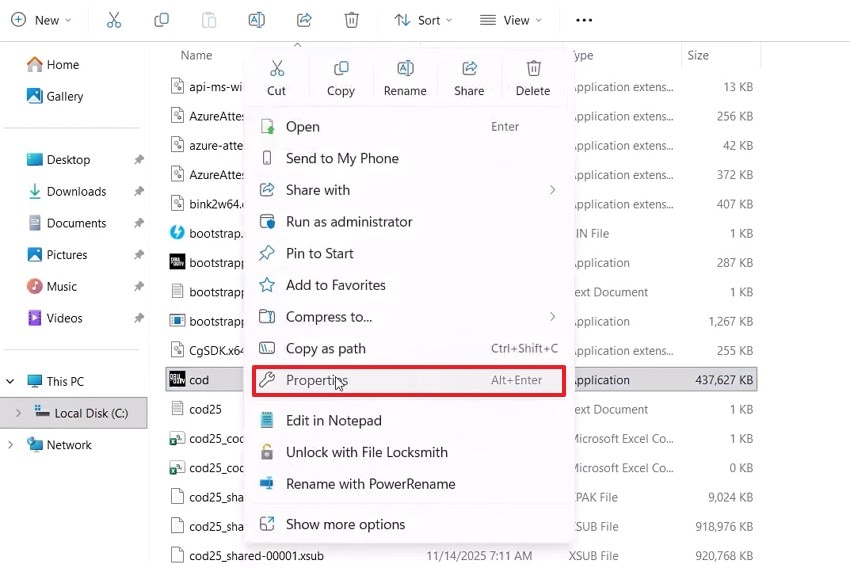
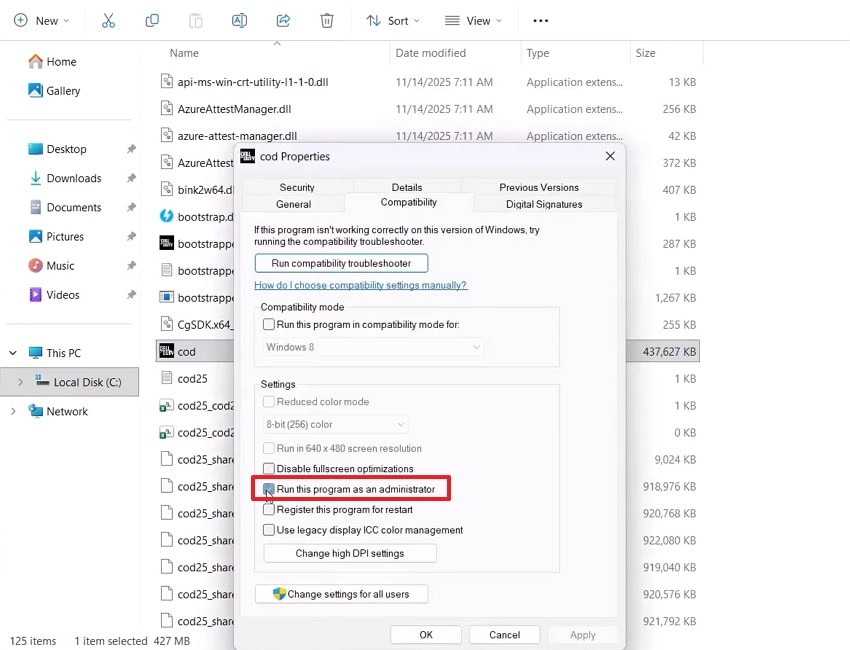
- Afterwards, right-click on your game file and hover over the "Properties" option.
- Then, choose the "Details Compatibility" tab to check further the "Run this Program as an Administrator" option.
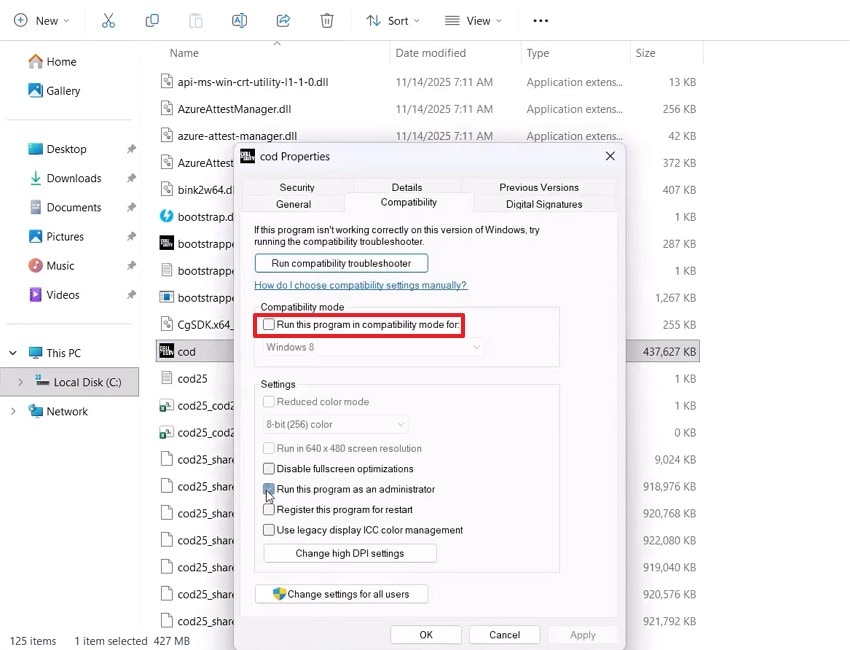
- If it is still not working, check the "Run this Program in Compatibility Mode for" and choose "Windows 8" or "Windows 7".
Fix 4. Add Game to Ransomware Allowed Apps
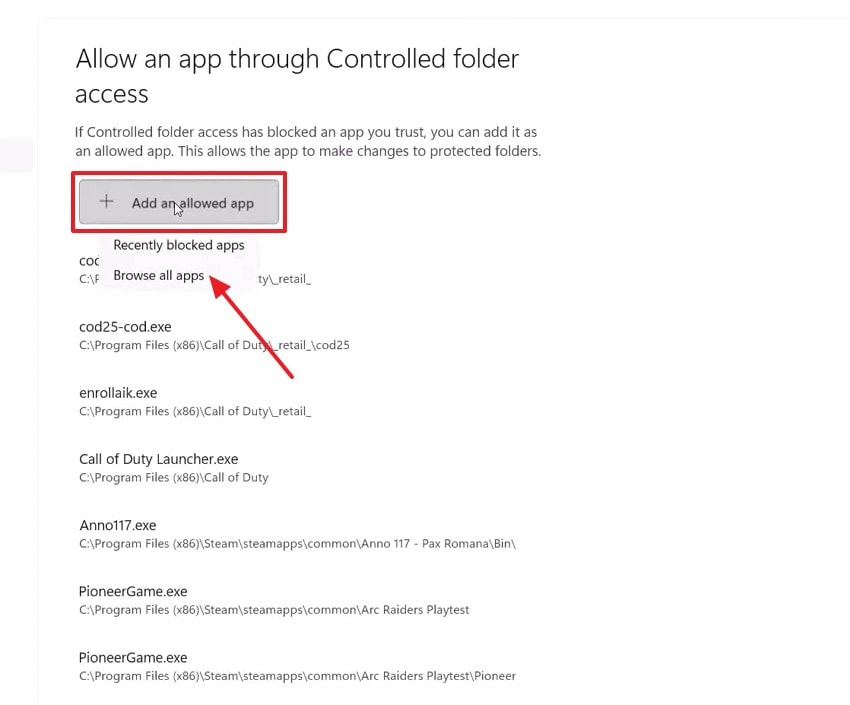
Windows' Controlled Folder Access sometimes blocks the game’s ability to read or write files. When this happens, crashes appear as early fatal errors. Also, adding the executable to the allowed list removes these silent restrictions. This step ensures smooth file access and eliminates disruptions caused by aggressive Windows security rules. Follow these simple steps below to add the game safely to the allowed list:
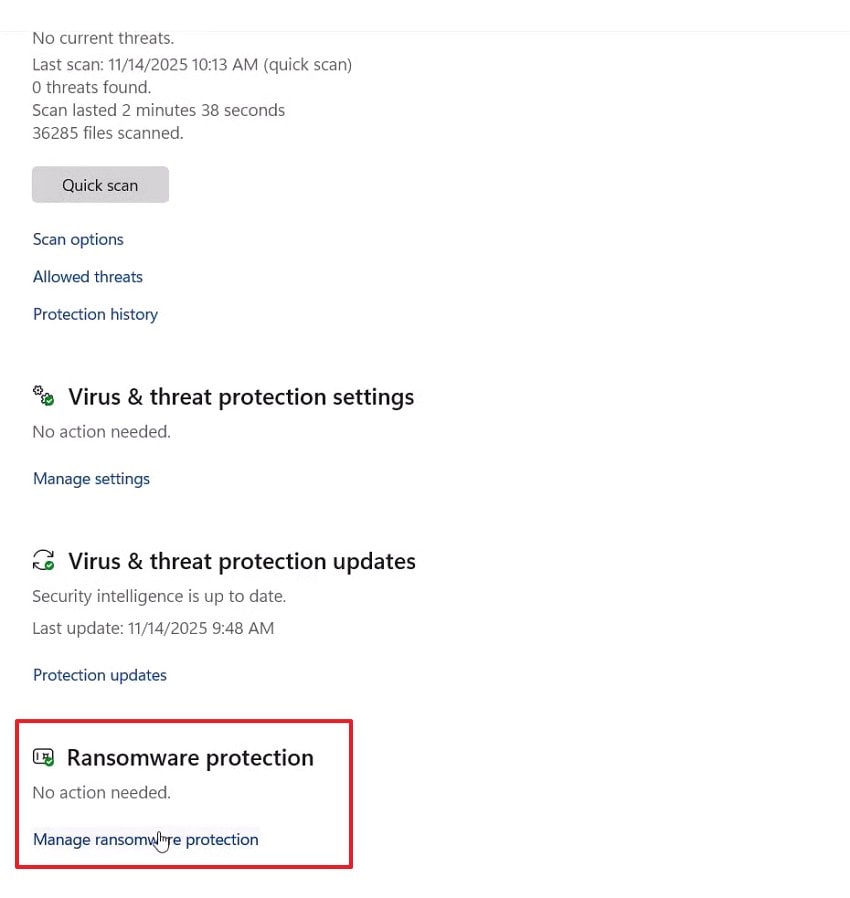
- In the "Virus & Threat Protection" Settings, navigate to "Ransomware Protection" to proceed further.
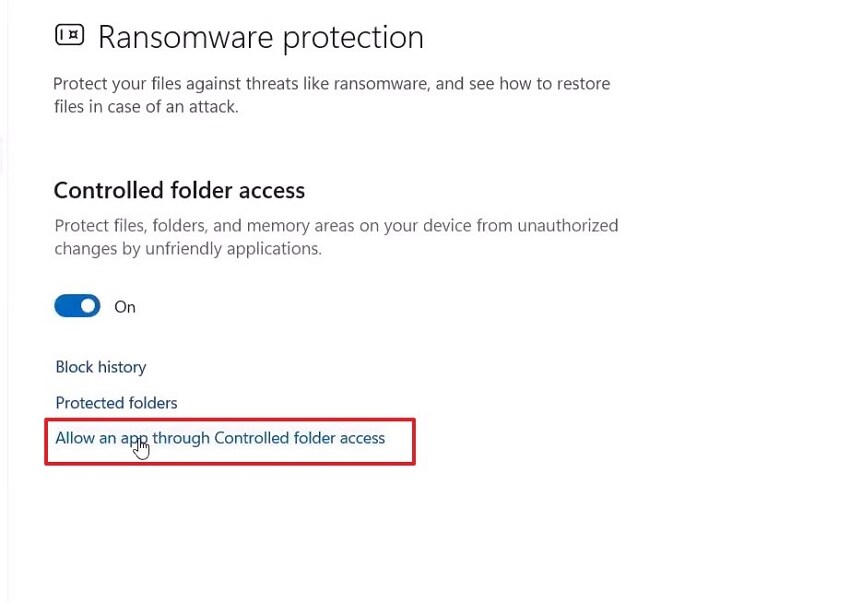
- In the next window, select the "Allow an App through Control Folder Access" option.
- Lastly, click on the "+ Add an Allowed App" to add a game to the Ransomware Allowed Apps.
Fix 5. Change DirectX Version
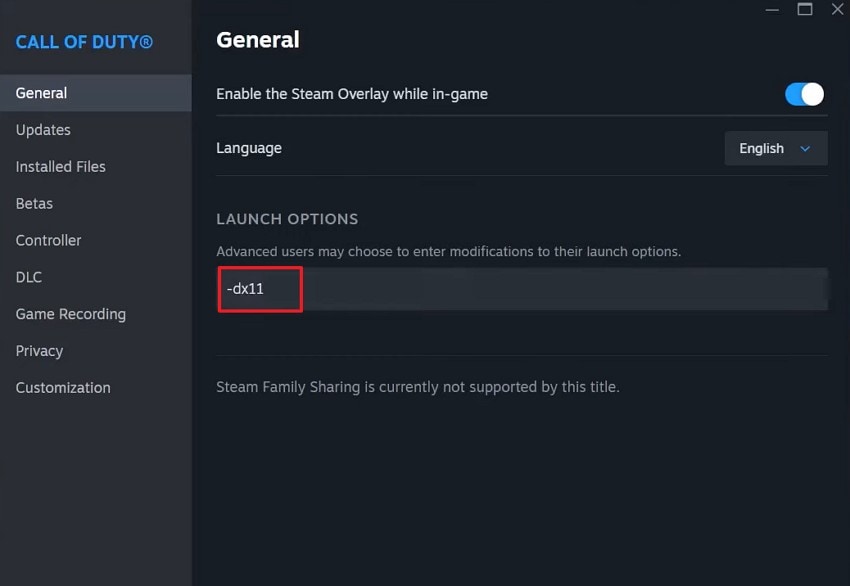
Some systems handle DirectX 11 better than DirectX 12, or vice versa. Switching the version can fix crashes tied to shader compilation or unsupported features. Moreover, these launch options allow quick toggling between DX11 and DX12. This fix removes compatibility faults that stop the game from reaching the main menu in Call of Duty: Black Ops 7. Adhere to the steps below to change the DirectX mode easily:
- Start by right-clicking on the game and choosing the "Properties" option to select the "General" option further.
- Here, in the "General" section, enter the "-dx11" command under the "Launch Option" to change the DirectX version
Fix 6. Optimize Graphics Settings
Overly aggressive graphics settings can overload hardware and cause the game to crash. Resetting power management, texture values, or driver overrides helps restore balance. Furthermore, using default settings lowers strain and prevents abrupt shutdowns during heavy gameplay scenes. This fix stabilizes resource handling and stops GPU bottlenecks that trigger frequent error loops in Black Ops 7. Adjust your settings using these steps to reduce system strain and gain stability:
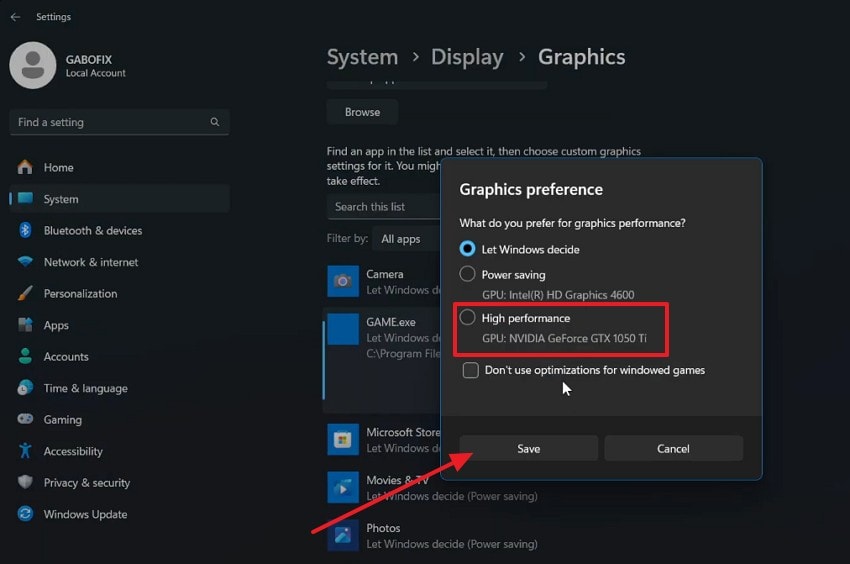
- In the "Graphics" setting, locate the "Game File" and select the "Options" button.
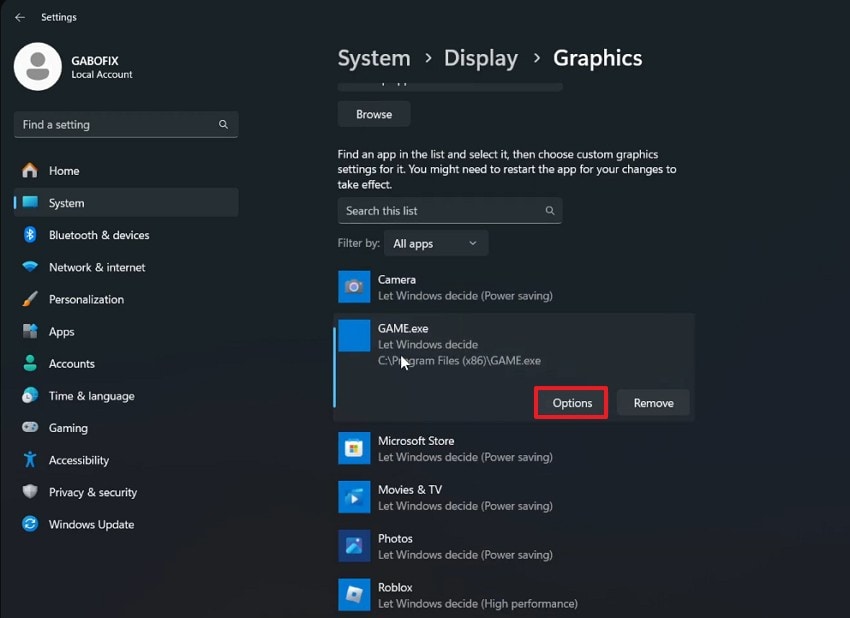
- In the options section, set the graphic preferences to "High Performance" and hit the "Save" button to apply changes.
Fix 7. Clean Install GPU Driver
Corrupted or incomplete driver installations can cause deep rendering faults. Using DDU to remove old files ensures a fresh foundation before installing the latest driver. Moreover, this fix solves hidden conflicts that normal updates miss. A clean install improves shader handling and reduces major crash risks linked to the Call of Duty: Black Ops 7 fatal error. Follow these steps to perform a clean GPU reinstall for maximum stability:
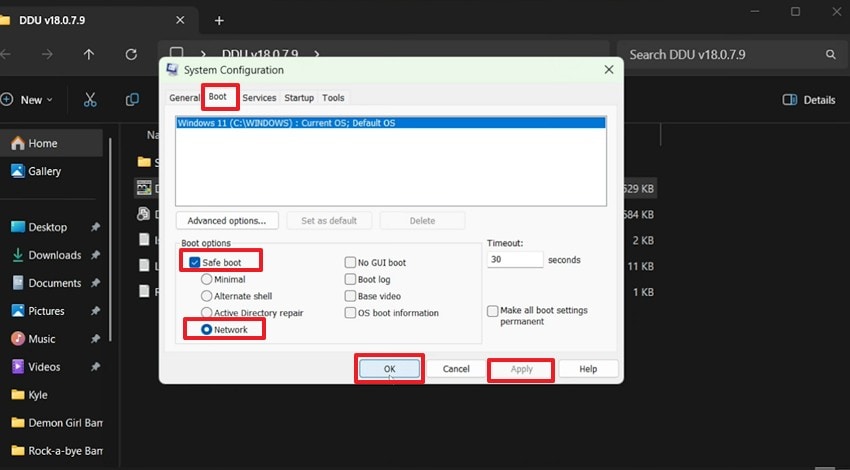
- First, in the "System Configuration," select the "Boot" option, then check the "Safe Boot" and "Network" options. Click on the "Apply" button to later select the "OK" button.
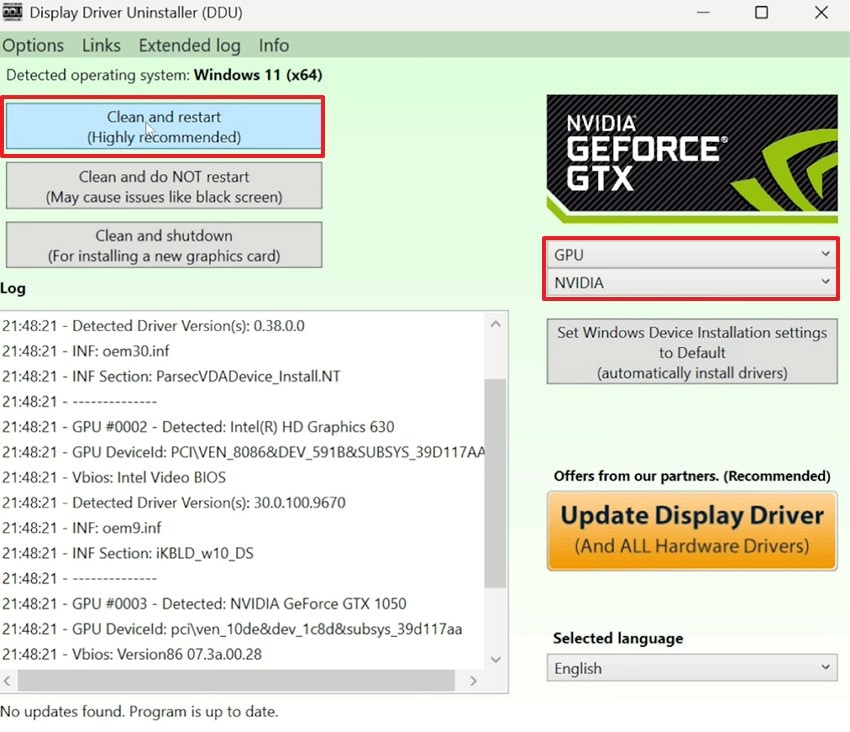
- Here, set your preferences and click on the "Clean and Restart" option to clean install the GPU Driver.
Fix 8. Increase Virtual Memory
Low virtual memory forces the system to run out of space during large missions. Increasing the page file gives Windows extra room to process heavy scenes. Above all, this prevents freezing, stuttering, and sudden desktop drops. It helps weaker RAM setups maintain stable performance in how to fix Call of Duty: Black Ops 7 fatal error cases. Use these steps to increase virtual memory and avoid heavy load crashes:
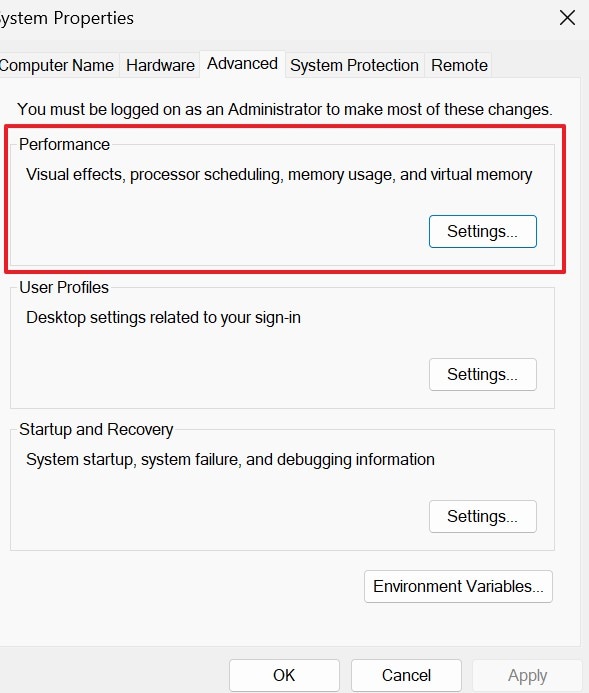
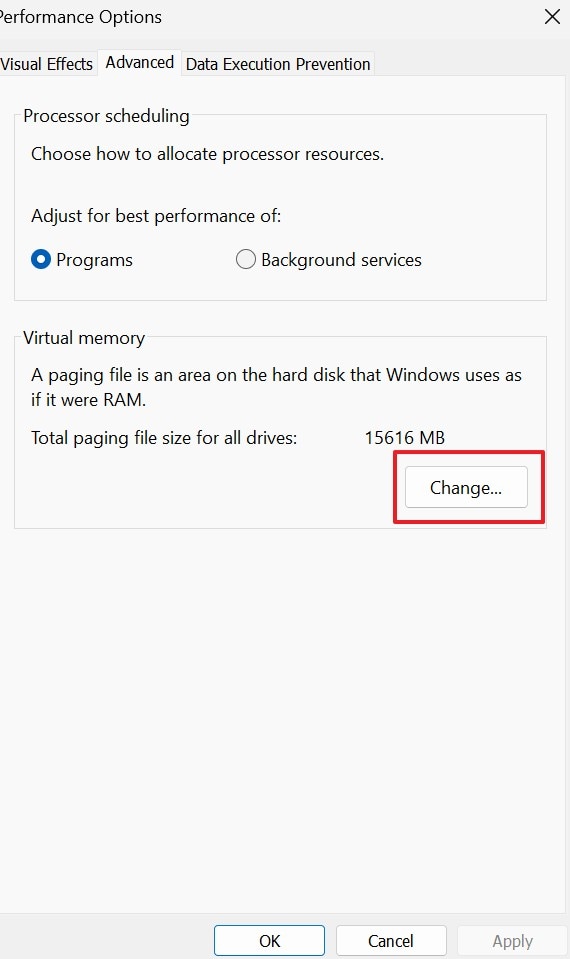
- First, in the "System Properties," navigate to the "Advanced" tab, then under the "Performance" section, click "Settings."
- Next, under the "Virtual Memory" tab, hit the "Change" button to proceed further.
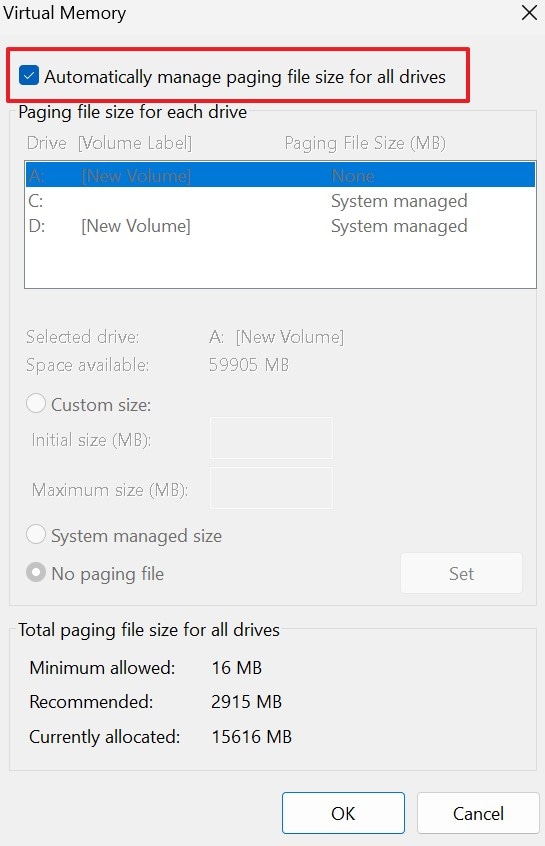
- Afterwards, uncheck the "Automatically manage paging file size for all drives" and click "Set" to further select the "OK" button.
Fix 9. Disable Overclocking & Close Background Apps
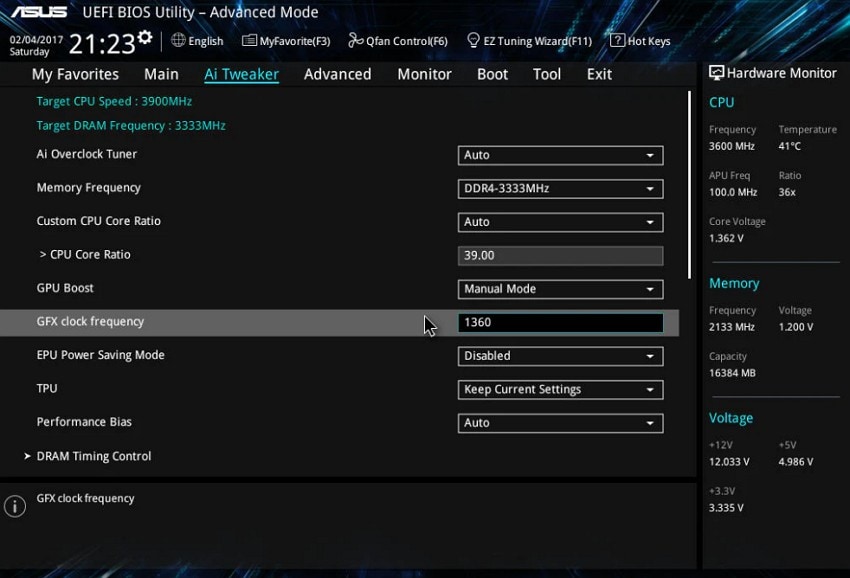
Overclocked hardware becomes unstable when the game pushes peak loads. Therefore, resetting clocks prevents voltage drops and sudden shutdowns. Background apps like overlays and RGB tools can also interrupt critical tasks. Closing them removes conflicts and restores smoother gameplay during intense scenes in Call of Duty: Black Ops 7. Follow these instructions to disable risky tweaks and clear conflicting background apps:
Disable Overclocking
Instructions. Restart your PC, open BIOS or UEFI, and access all hardware tuning menus. Reset every performance option to default values, save settings, and reboot your system.
Close Background Apps
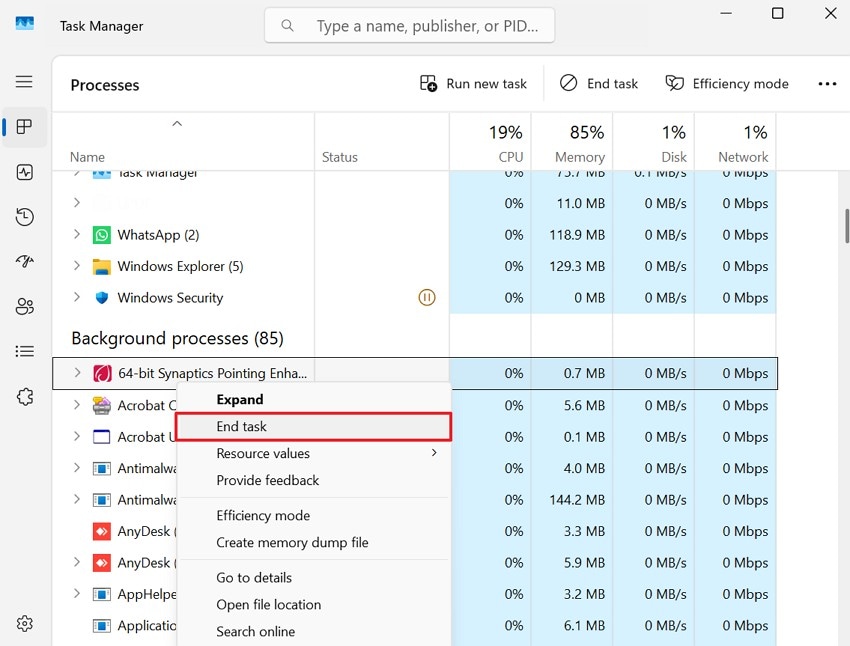
Instructions. To close the Background Apps, launch the "Task Manager" to proceed. Then, under the "Processes" tab, right-click on non-essential apps and choose the "End Task" option.
Fix 10. Toggle Memory Integrity Off
Memory Integrity blocks low-level drivers that some games still need. So when it is restricted, the game may crash before loading assets. Disabling it temporarily can remove this barrier and restore proper system communication. This fix helps systems facing stubborn startup loops in Black Ops 7. Stick to the following steps to switch Memory Integrity off without risking other settings:
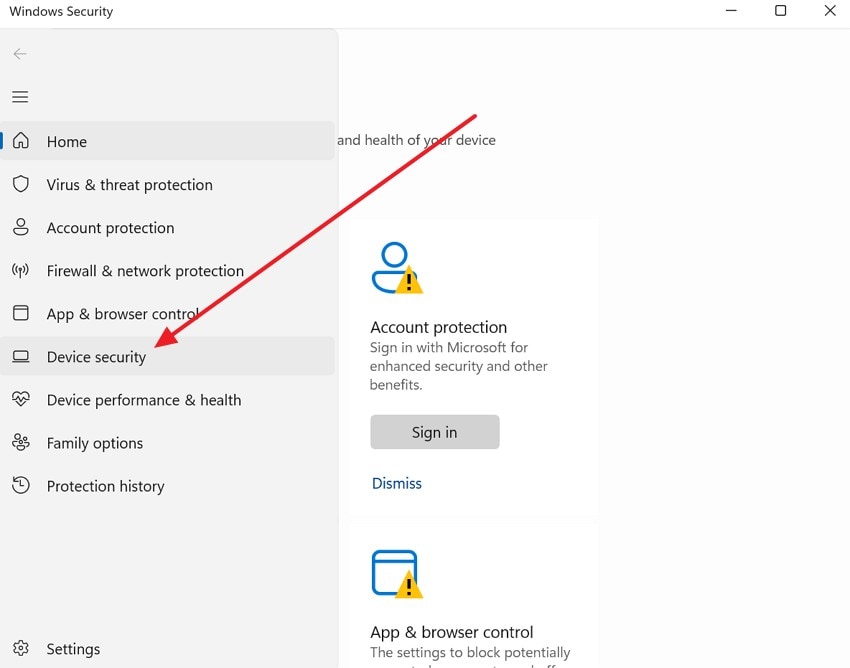
- In the "Windows Security" section, choose the "Device Security" option by clicking the Hamburger icon.
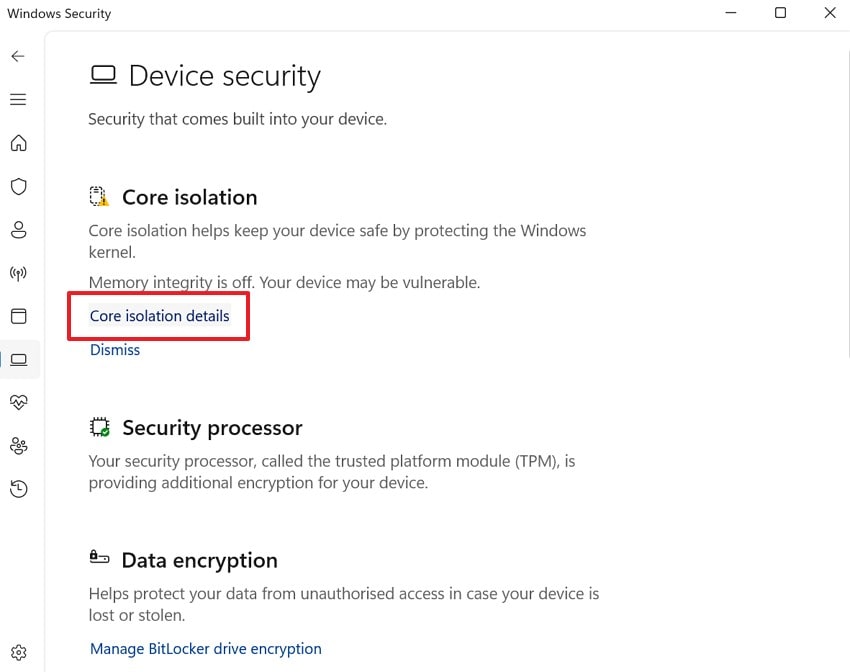
- Here, in the device security section, choose the "Core Isolation Details" option under the "Core Isolation" tab.
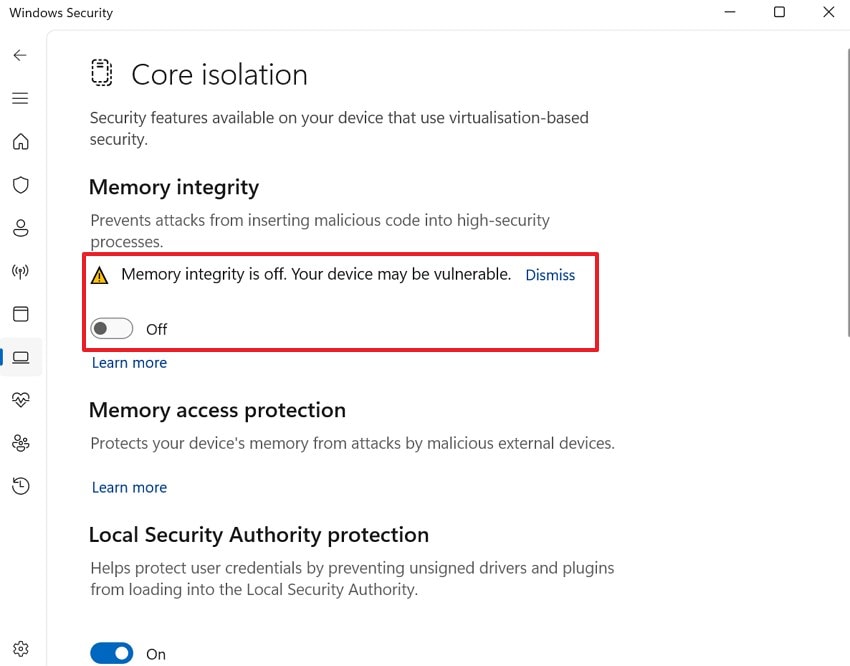
- Lastly, in the "Core Isolation" tab, toggle off the "Memory Integrity is off…" option.
Fix 11. Check for Dual Installations
Some players unknowingly install the game on multiple launchers, resulting in file mismatches. These mismatches confuse the system and create fatal errors before startup. Thus, removing one version ensures the correct files load. This fix eliminates conflict chains that commonly affect the Call of Duty: Black Ops 7 fatal error. Follow these instructions to remove extra installs and keep one clean version active:
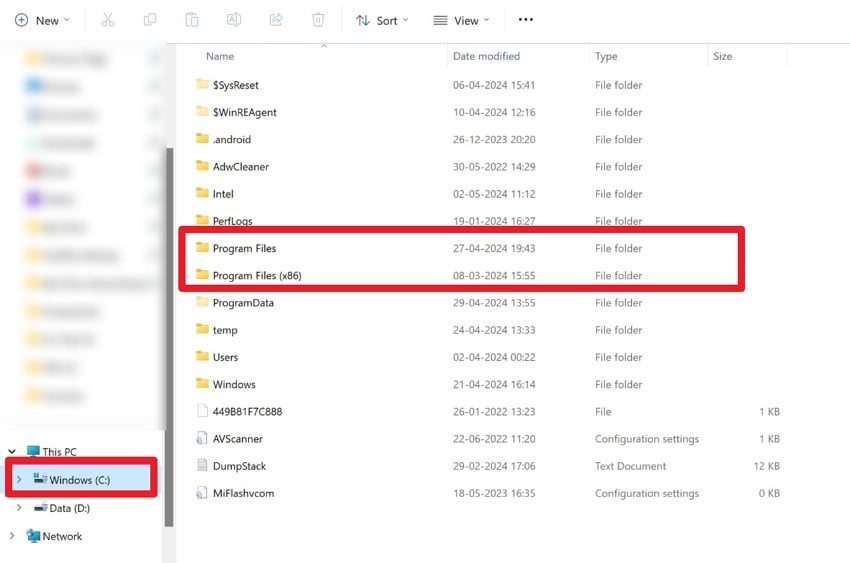
Instructions. First, open all launchers and check if Black Ops 7 appears more than once. Uninstall duplicate versions and remove leftover folders from "Program Files" or game directories. Restart your PC, then reinstall the game only through your chosen launcher to avoid conflicts.
Fix 12. Delete Activision Folder
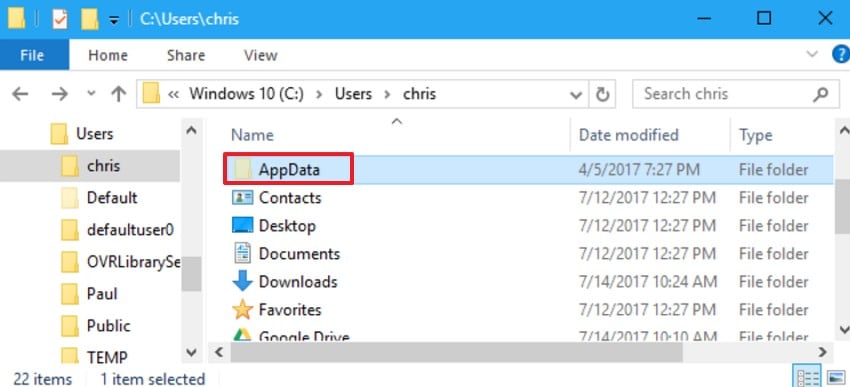
It is often a reliable fix for Call of Duty: Black Ops 7 when nothing conventional works. Deleting the Activision folder can remove some contradicting content that is holding the game from running. Use the following instructions to remove the folder safely and refresh your configuration:
Instructions. First, access the File Explorer and navigate to "AppData\Local", enabling hidden items if needed. Locate the Activision folder and delete it, then empty the Recycle Bin. Optionally, back up the folder first if you want to restore older settings later.
Fix 13. Reinstall the Game
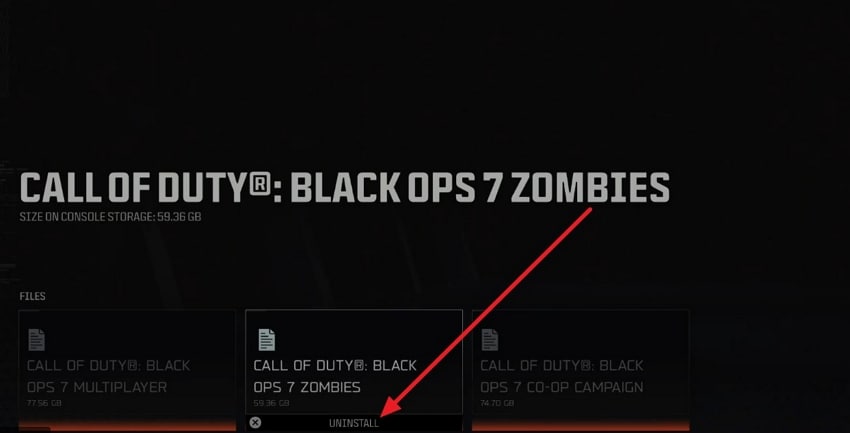
If all else fails, a clean reinstall removes every damaged file completely. This restores the game to a fresh state and removes leftover conflicts from previous installs. Additionally, using one launcher for reinstalling the game keeps all loading paths clean. It is often the final and most reliable fix for Call of Duty: Black Ops 7.
Part 4. Lost Your Black Ops 7 Game Data? Fix With Recoverit!
Many players lose Black Ops 7 game data after crashes, sudden shutdowns, or storage issues. Missing save files can block progress and force players to restart hours of gameplay. These losses often happen when corrupted folders break during updates or when the system removes key files. A reliable recovery tool becomes essential when normal methods fail.
Therefore, Recoverit helps restore lost game data even when files seem fully deleted or unreadable. It scans deep storage paths and recovers files damaged by crashes, system faults, or accidental removal. Moreover, its simple layout makes it easy for players to recover missing files without stress. This support becomes vital during urgent Black Ops 7 data loss situations.
Key Features
- Deep Recovery: Scans drives at the sector level to restore files lost due to crashes, deletions, or corruption.
- File Preview: Allows users to view recovered game data before restoring it, ensuring accuracy and saving time.
- Wide Support: Works with HDDs, SSDs, USBs, SD cards, and damaged partitions across major file formats.
Stepwise Guide to Recover Lost Game Data with Recoverit
Adhere to the steps below to bring back the lost game data with Recoverit:
- Choose the Location for Recovery
Start by accessing the "Hard Drives and Locations" option in the left sidebar to initiate the Recovery.

- Start the Scanning Process
After the scan starts, all recoverable files will appear under the "File Location" tab, in the "Name of Lost Files" folder.

- Preview and Recover the Data
Lastly, preview the files and hit the "Recover" button to complete the Recovery.

Part 5. Preventing Call of Duty: Black Ops 7 Fatal Error on PC - Some Important Tips
Before the next crash appears, you can follow these simple habits that help prevent future errors and keep gameplay stable:
- Driver Updates: Updated drivers remove bugs that often cause crashes during heavy gameplay sessions. Fresh Windows patches also fix system faults that interrupt game tasks without warning.
- BIOS Security: Secure Boot protects key files needed for the game’s anti-cheat system. TPM support ensures required checks run smoothly and prevents errors during startup.
- Stable Cooling: High temperatures reduce hardware stability and create sudden shutdowns during intense scenes. Lower heat levels keep system parts steady and prevent stress-induced freezes.
- Background Control: Extra apps interrupt game processes and block needed memory during loading actions. Closing these programs stops conflicts and keeps the game running smoothly overall.
- File Checks: Corrupt files break loading steps and disrupt stable gameplay during certain missions. Regular verification ensures missing files get replaced before new crashes appear.
Conclusion
To conclude, the main issue arises when a Call of Duty: Black Ops 7 fatal error stops the game from loading properly. In this article, we explored causes, warning signs, and practical fixes that restore stable gameplay on PC. If crashes also remove saves or corrupt folders, a recovery tool like Recoverit can help restore missing game data safely.
FAQ
-
1. Why does Call of Duty: Black Ops 7 show a fatal error?
The fatal error appears when system files break and prevent normal game loading. It also occurs when drivers fail or background apps interrupt the game startup. -
2. Can outdated drivers trigger Black Ops 7 fatal error issues?
Old GPU drivers struggle with new shaders and create serious launch conflicts instantly. Updated drivers maintain stable graphics tasks and prevent sudden crashes during early loading. -
3. How do I know my Black Ops 7 files are corrupted?
Instant crashes, black screens, or freezing during launch usually indicate broken files. Verification through the launcher helps detect missing assets and replace damaged data quickly. -
4. Can background apps cause Black Ops 7 to crash repeatedly?
Overlay tools can interrupt memory access and trigger shutdowns during heavy tasks easily. Closing these apps reduces conflict chains and keeps the gameplay experience stable throughout.


