

 TL;DR:
Missing "Call of Duty: Black Ops 7" save files usually result from corrupted updates, cloud sync failures, or antivirus interference, and can be restored by repairing the platform's file structures or utilizing local drive recovery tools.
● PC players using Steam should open the game's "Properties" menu and select "Verify the Integrity of the Game" to automatically replace damaged components that disconnect the application from the local save folder.
● PS5 users facing missing saves due to entitlement conflicts must navigate to "Users and Accounts" under system settings and select "Restore Licenses" to re-authenticate ownership rights and regain access to the linked data.
● Reinstalling the game will not retrieve permanently deleted progress; if saves are completely absent from the storage due to manual deletion or drive errors, users must use data extraction software like Recoverit to scan the specific HDD or SSD.
Ask AI for a summary
 ChatGPT
 Perplexity
 Gemini
 Claude
 Grok
Grok
A late-night gaming session can turn stressful when Call of Duty: Black Ops 7 suddenly shows missing save files. Hours of progress seem lost, and the game offers no clear explanation. This issue is more common than players realize, often caused by various reasons.
The good news is that most missing save files can be recovered with the right steps. This guide explains the causes, shows effective solutions, and helps you protect your game data in the future. Read the article till the end to learn the most effective solutions.
Try Recoverit to Perform Game Data Recovery
 Security Verified. 3,591,664 people have downloaded it.
In this article
-
- Way 1. Check Game Save Location
- Way 2. Restore Licenses (Console Exclusive)
- Way 3. Reinstall or Repair Game Files
- Way 4. End Launcher Tasks & Restart
- Way 5. Modify, Install, and Update
- Way 6. Delete and Redownload Files
- Way 7. Check DLC and Content Packs
- Way 8. Recover Lost Save Files with an Innovative Solution!

Part 1. Why is "Call of Duty: Black Ops 7 Save Files Missing" a Serious Issue?
"Call of Duty: Black Ops 7 Save Files Missing" is a serious issue because players lose mission progress, unlocked gear, and custom setups. This setback forces repetitive gameplay and wastes valuable time. It also disrupts online ranking, affecting competitive performance. Corrupted or missing saves may indicate deeper system or game installation problems. These risks make quick diagnosis and recovery essential for a smooth and stable gaming experience.
Part 2. Why Do Call of Duty: Black Ops 7 Save Files Go Missing From Your System?
Before you try recovering your data, it helps to understand why these Steam game save files disappear in the first place. Many of these issues develop silently, and knowing the exact cause makes troubleshooting far more effective. Mentioned below are some of the reasons why the game files go missing:
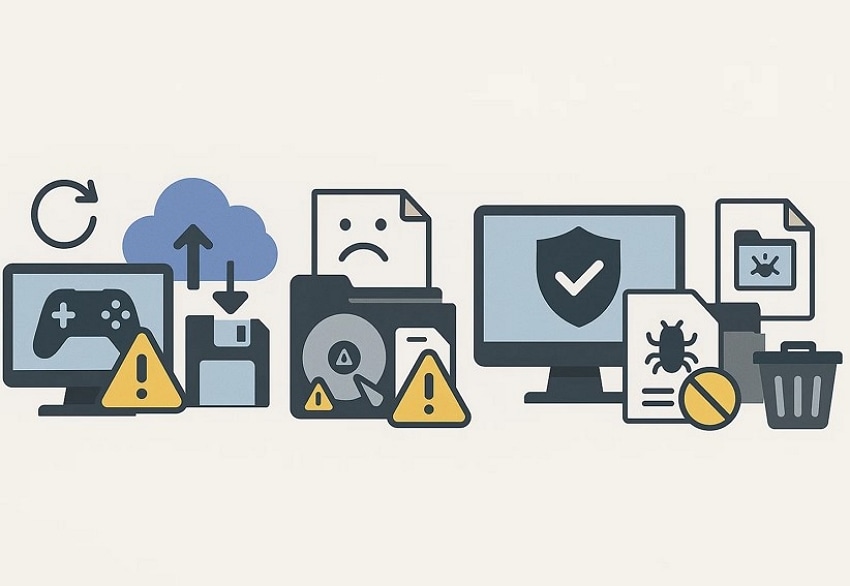
- Corrupted Game Updates: When patches fail midway, they can damage or overwrite existing save data. This often leaves the game unable to load your progress.
- Cloud Sync Conflicts: Cloud services may replace your latest save with an outdated version during sync errors. This mismatch usually happens after network interruptions.
- Damaged Local Storage: Failing HDD or SSD sectors can corrupt essential game folders. Once this happens, your system can’t read the save data properly.
- Third-Party Software Interference: Antivirus or cleanup utilities sometimes flag game files as suspicious. They may quarantine or delete saves without warning.
- Manual File Deletion: Players may unintentionally remove save folders while managing mods or clearing space. The game then launches without finding any valid progress data.
Part 3. 8 Ways to Handle Call of Duty: Black Ops 7 Save Files Missing Instantly
Having learned about the reasons, let us have a look at the top solution to resolve the Steam game file location missing error:
Way 1. Check Game Save Location
Checking the game’s save location helps confirm whether files are missing or simply placed in an unintended directory. Sometimes updates or reinstallations generate new folders, making the game load data from an empty path. Verifying the correct folder ensures the system reads the intended save files without confusion. Here is how to check the game save location in your system:
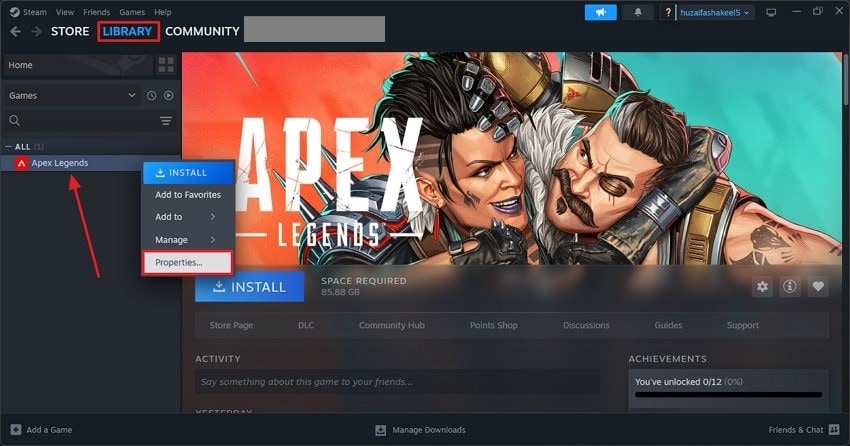
- After launching Steam, access your desired game from the "Library" section. Now, right-click on the game’s name and press the "Properties" option from the list.
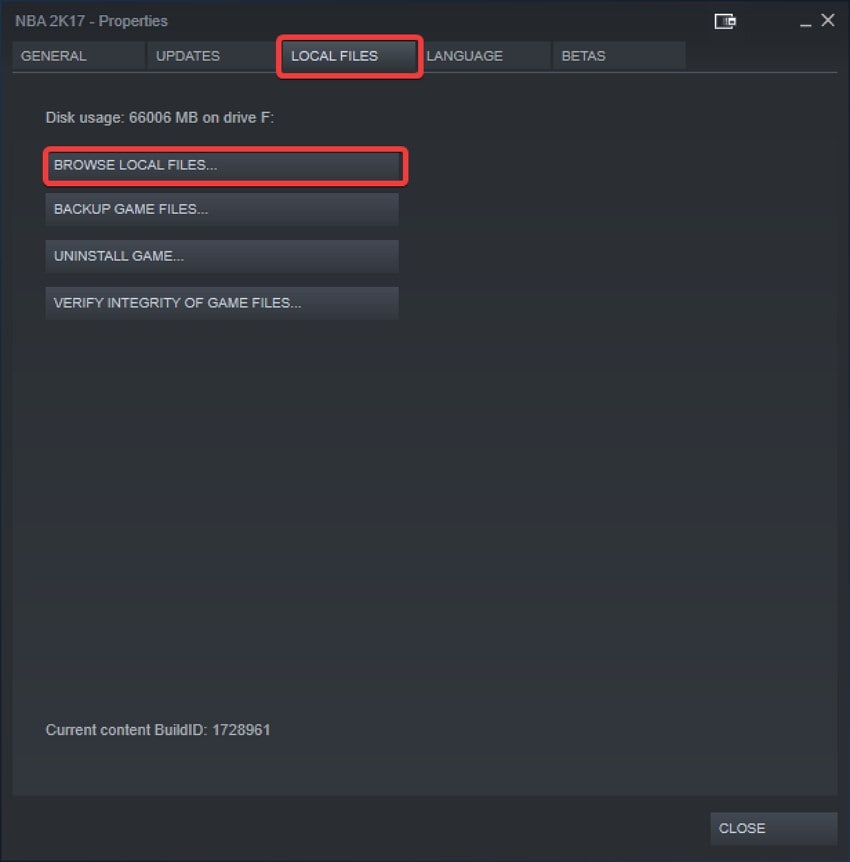
- Next, enable the "Local Files" section and press the "Browse Local Files" option to check the exact location of the game.
Way 2. Restore Licenses (Console Exclusive)
Restoring licenses on consoles helps fix save-related issues caused by permission or entitlement conflicts. Sometimes the system fails to verify your ownership, preventing access to linked save data. Refreshing licenses forces the console to recheck game rights. Additionally, it prevents repeated loading errors caused by outdated or corrupted license information. Follow the steps mentioned below to learn how to restore the Black Ops 7 license in your PS5:
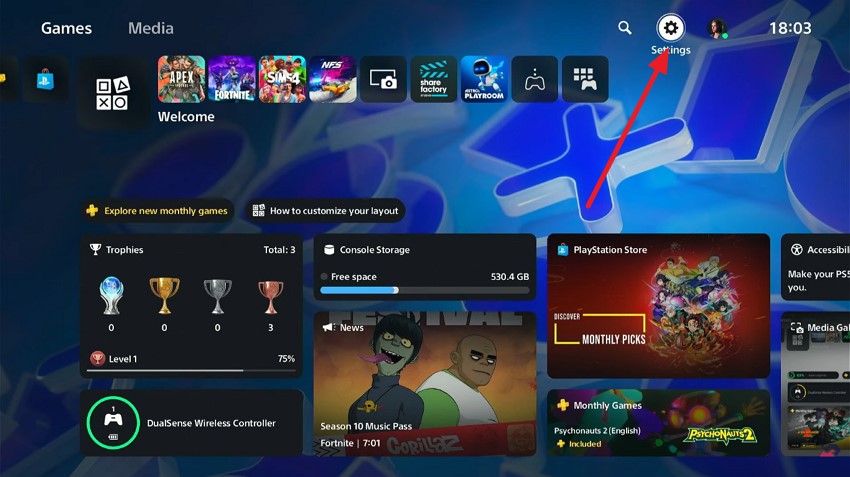
- Begin by selecting the "Settings" option located at the top-right corner of the interface.
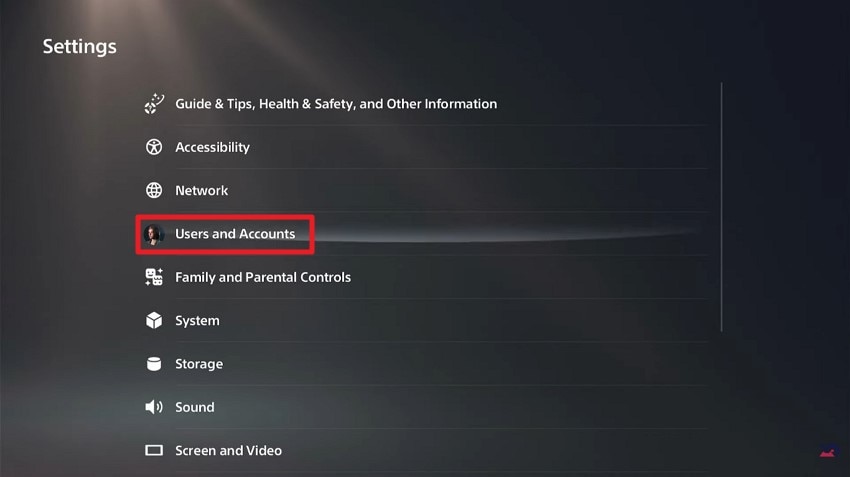
- In the following interface, click on the "Users and Accounts" option.
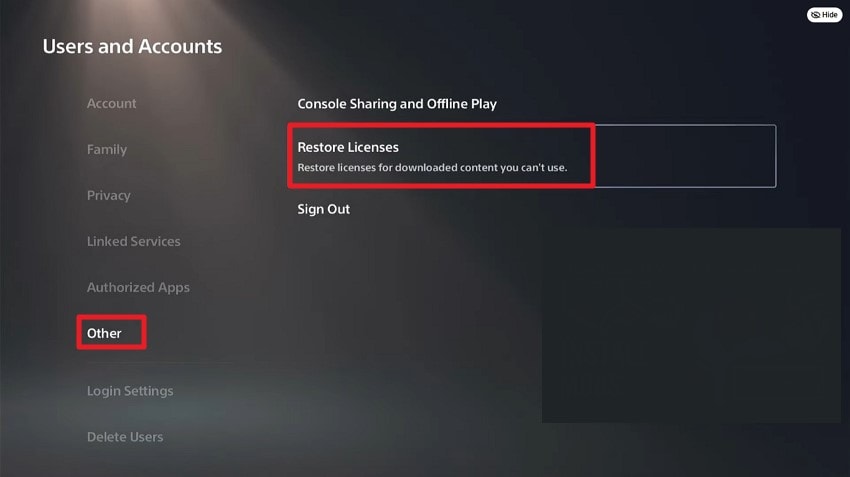
- Next, enable the "Other" section on the left and press the "Restore Licenses" option located within the interface.
Way 3. Reinstall or Repair Game Files
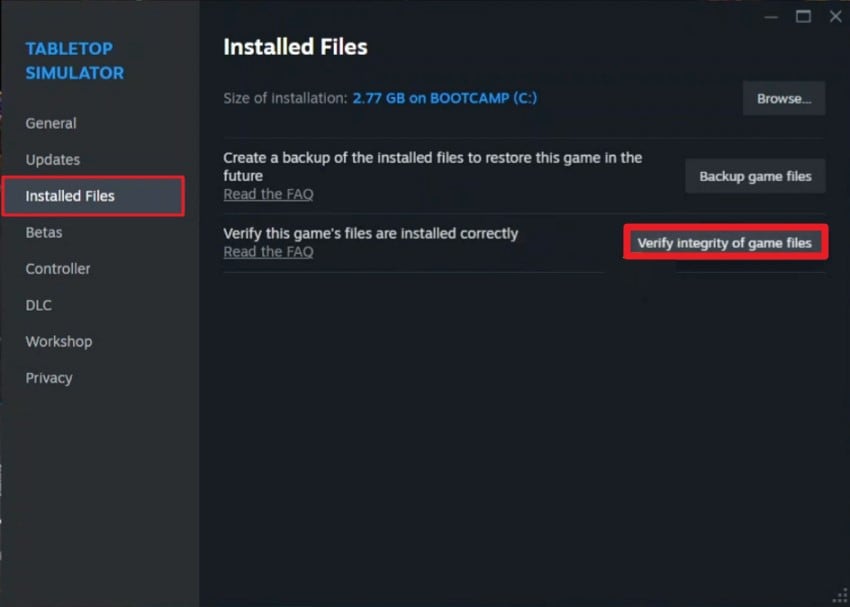
Reinstalling or repairing game files helps fix damage that prevents the system from detecting your save data. Corrupted installations often break the connection between game folders and Steam game save file location. A clean repair replaces missing components and restores proper file structures. This process also removes faulty updates that may disrupt save loading. Read the steps mentioned next to repair the game by verifying its integrity:
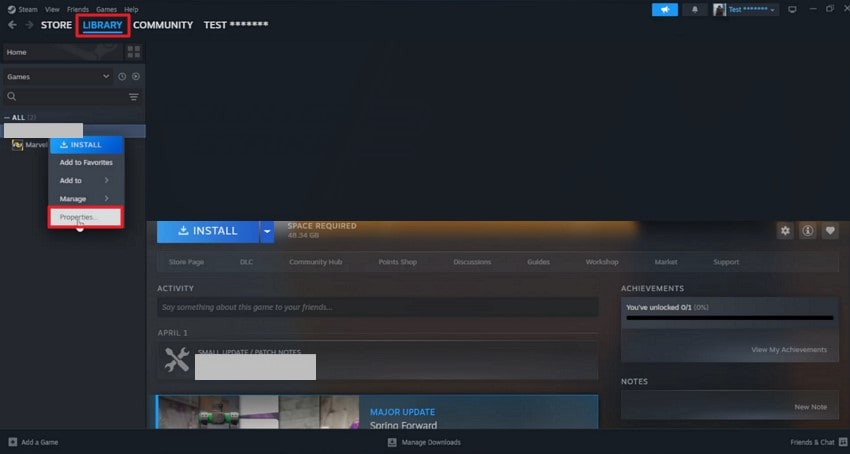
- After accessing the game under the "Library" section on Steam, right-click on it. Next, locate the "Properties" option and click on it.
- Access the "Installed Files" section from the left and press the "Verify the Integrity Of the Game" option located within.
Way 4. End Launcher Tasks & Restart
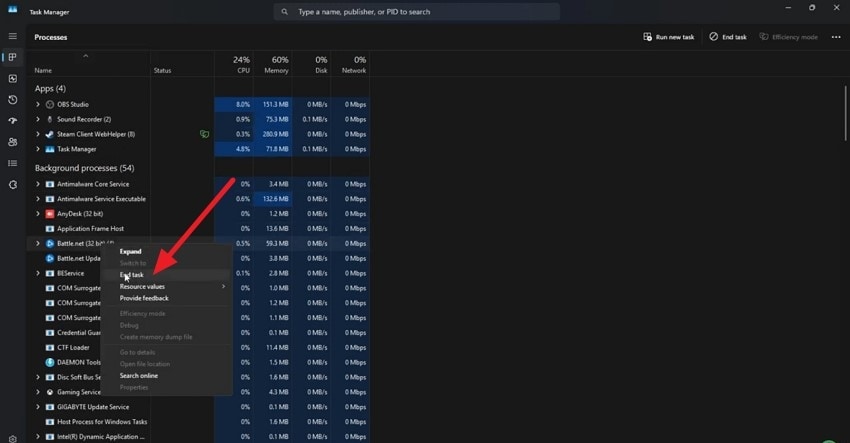
Ending launcher tasks and restarting the application helps reset temporary conflicts that block save file detection. This method ensures the system loads the required resources without leftover errors. Additionally, a clean restart refreshes memory usage for smoother performance. Follow the instructions mentioned next to learn how to perform the method:
Instructions. Acquire the Task Manager on your system and locate the Black Ops 7 game file running as one of the tasks within the program. Right-click on the game name and press the "End Task" option to successfully end the program task. Now, launch the game again by heading to its folder and clicking on it.
Way 5. Modify, Install, and Update
Modifications, installations, or updates to game components can resolve issues that prevent the system from recognizing the Steam game file location. Updated modules restore compatibility with the latest game version. Reinstallation of missing or corrupted elements rebuilds essential data paths required for proper progress loading. Applying updates ensures all dependencies function correctly and prevents future conflicts.

Way 6. Delete and Redownload Files
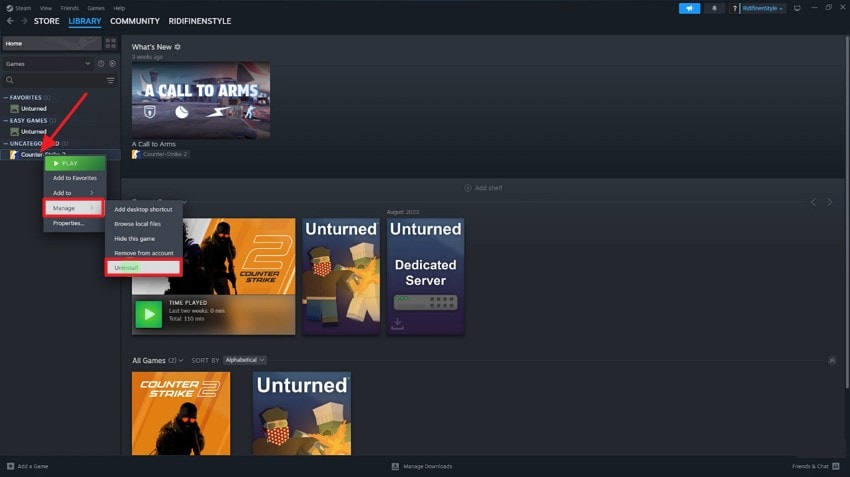
Deleting and redownloading game files can fix corruption that prevents the system from recognizing save data. Removing damaged Black Ops 7 files clears broken links and allows a fresh copy to replace them. Redownloading ensures all components are intact and compatible with the current game version. To learn how to uninstall and then install the game, read the steps mentioned below:
- After accessing the game under the "Library" section, right-click on the game name. Next, expand the "Manage" option and select the "Uninstall" option from the list.
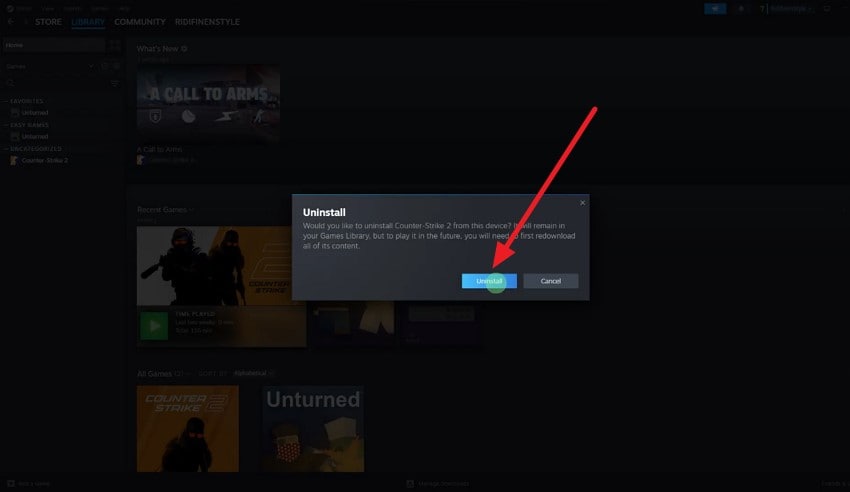
- A confirmation dialogue box will appear for you to press the "Uninstall" button. This will successfully uninstall the game from your system.
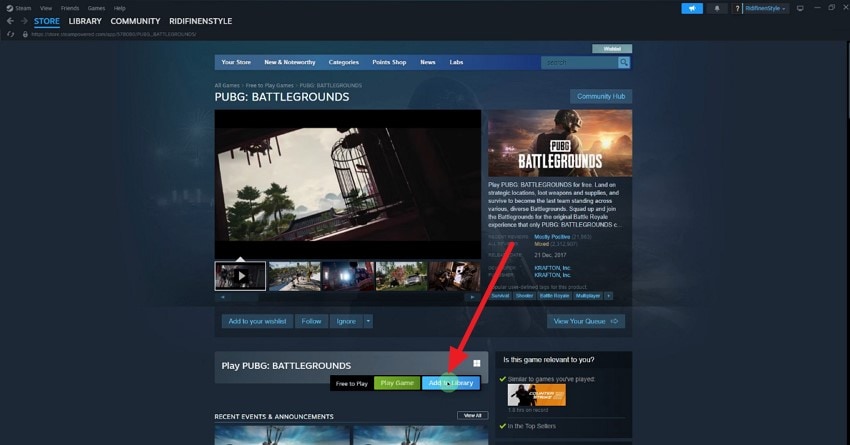
- Next, access the game within the Steam application and right-click on it to press the "Add to Library" button.
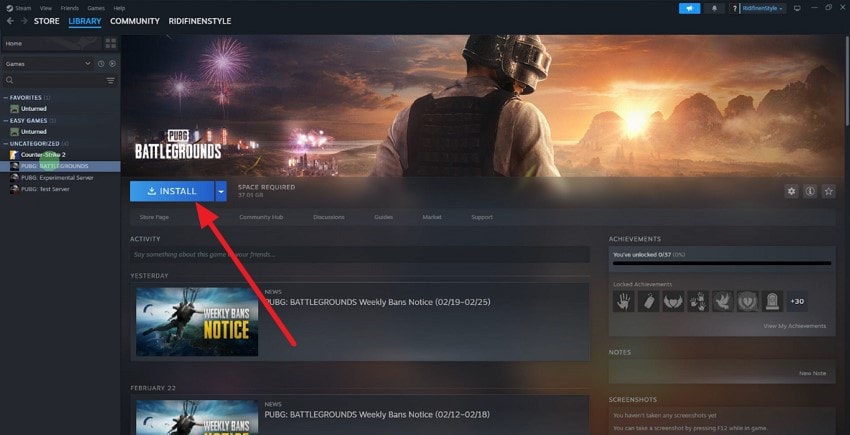
- Once the game is in the library, press the "Install" button to successfully install the game again within your system.
Way 7. Check DLC and Content Packs
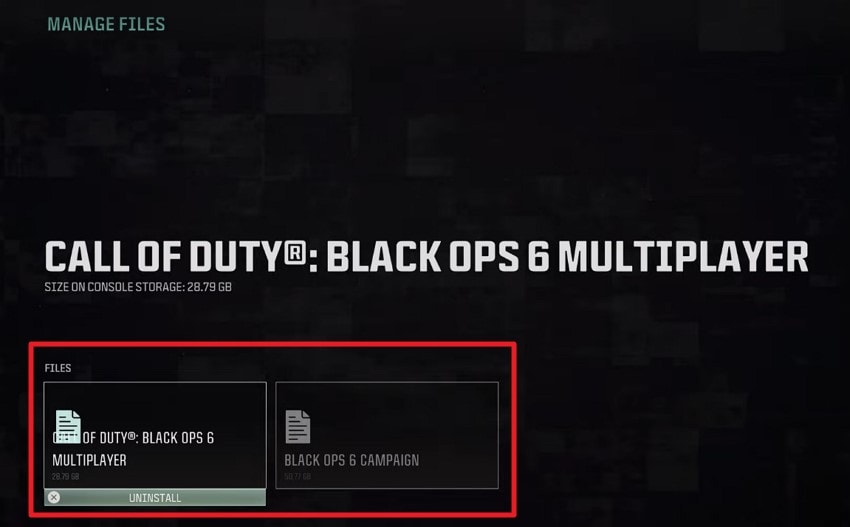
Another method is to verify DLC and content packs on PS5 to ensure all additional game files are properly installed and recognized. Missing or incomplete packs can prevent save data from loading correctly. Checking each pack confirms compatibility with the current game version and restores any lost features. Here is how you can perform this method on your console to resolve the Call of Duty: Black Ops 7 save file missing error:
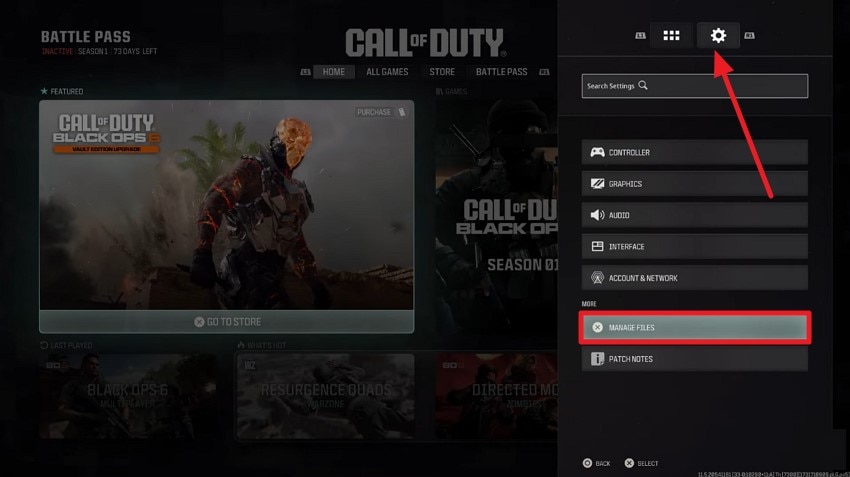
- Access the game's settings on your console and press the "Manage Files" option located within the interface.
- In the following interface, select the game by clicking on it and press the "Manage Files" option.
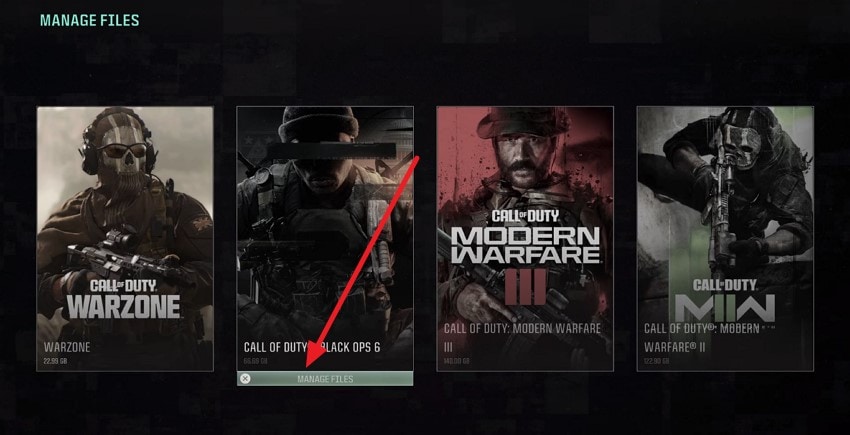
- Now, check in the following interface that all the game files are properly installed and available.
Way 8. Recover Lost Save Files with an Innovative Solution!
Frustrated after losing hours of progress in Call of Duty: Black Ops 7 due to missing save files, many players search for a reliable recovery method. Tools like Recoverit provide an advanced solution to scan your storage and restore all lost files efficiently. Users can pause and resume the scanning process as needed, giving full control over recovery.
Beyond game saves, Recoverit supports over 1000 file types, including videos, images, and documents. It can even recover corrupted or zipped folders with its deep scan function. Users can choose the destination for recovered files, keeping everything organized.
Incredible Features Offered by Recoverit
- Multiple Files Recovery: Recoverit allows batch recovery, letting users restore multiple saved files at once, saving time and effort.
- Various Device Support: It supports recovery from over 1M+ storage devices, including SSDs, external drives, and memory cards.
- Preview Before Saving: Users can preview recovered save files in the tool before saving them to the desired location.
Step-by-Step Guide on How to Recover Missing Call of Duty Save Files
If your Call of Duty progress is lost due to corrupted or misplaced save files, Recoverit can help retrieve them. Follow these steps to recover your files efficiently:
- Begin By Selecting a Location
Launch Recoverit and select the drive where your game files are stored. Once selected, the scanning process will start automatically.

- Select Files To Recover
After the scan finishes, pick the save files you want to restore and click the "Recover" button at the bottom of the interface.

- Preview the Results and Save
Preview all recovered Call of Duty save files in the interface, then save them to your preferred location using the "Recover" button to restore your game progress successfully.

Conclusion
All in all, this article provided a complete guide on recovering missing Call of Duty: Black Ops 7 save files. From identifying causes to exploring practical solutions, every method was covered in detail. For a reliable and efficient recovery, tools like Recoverit stand out, helping players restore lost progress quickly and safely. Using such solutions ensures your hard-earned game data remains secure and accessible.
FAQ
-
1. How do I know if my Call of Duty save files are really missing?
Check the game’s Steam game save file location on your device or cloud storage. If files are absent or corrupted, they may be lost. -
2. Can I recover deleted Call of Duty save files on my PC?
Yes, deleted save files can often be restored. Recoverit scans your storage and retrieves lost or accidentally deleted game files efficiently. -
3. Will reinstalling the game restore missing save files?
Reinstalling may replace corrupted files but usually won’t recover lost progress. Using Recoverit is a safer option to restore your original save files. -
4. Are cloud saves safe from disappearing?
Cloud saves are generally secure, but sync errors can cause loss. Recoverit can help recover local copies if cloud files fail to load.


