

 TL;DR:
Missing Cyberpunk 2077 save files caused by system crashes or sync errors can typically be restored by retrieving platform cloud backups, relocating local autosaves, or utilizing data recovery tools.
● Manually verify your default local directories first; Windows saves are stored at C:\Users\yourusername\Saved Games\CD Projekt Red\Cyberpunk 2077, while Mac and Linux files are located within the Steam compatdata/1091500 directory path.
● If the main save is unreadable, check the local AutoSave folder to copy recent temporary files back into your primary save directory, or force a cloud save download via your Steam or GOG launcher settings.
● For files completely wiped by storage failure or accidental deletion, stop using the drive immediately to prevent data overwriting and run the Windows System Restore rstrui command or third-party software like Recoverit before attempting a full game reinstall.
Ask AI for a summary
 ChatGPT
 Perplexity
 Gemini
 Claude
 Grok
Grok
Missing or corrupted game files often result from crashes, updates, cloud sync issues, or accidental deletions. In a choice-driven RPG like Cyberpunk 2077, lost saves can erase decisions that shaped your journey. Thankfully, missing save files are frequently recoverable using built-in backups, cloud storage, or recovery tools. Keep reading until the end to learn how to find, restore, and protect the Cyberpunk 2077 save file location.
Try Recoverit to Perform Game Data Recovery
 Security Verified. 3,591,664 people have downloaded it.
In this article
- Fix 1: Check Default Save Locations on Your System
- Fix 2: Restore Save Files From Cloud Backup (Steam/GOG/Console)
- Fix 3: Look in Temporary or Auto-Save Folders
- Fix 4: Recover Deleted or Lost Saves Using System Restore
- Fix 5: Use a File Recovery Tool (e.g., Recoverit)

- Fix 6: Verify Game Files Through Launcher (Steam/GOG)
- Fix 7: Reinstall the Game as a Last Resort
Part 1. Why Cyberpunk 2077 Save Files Are Crucial for Gameplay
Save files play a far bigger role in Cyberpunk 2077 than many players initially realize. They quietly store every decision, upgrade, and story outcome that defines your unique version of Night City.
- Story Progress Preservation: Save files record every mission completed, dialogue choice made, and the branching storyline you influence. Without them, your narrative path resets, erasing hours of character-driven decisions.
- Character Build Data: Your attributes, perks, cyberware, and skill progression are all stored inside save data. Losing this means rebuilding V from scratch, including combat style and playstyle customization.
- World State Changes: Choices you make affect factions, side characters, and available quests throughout the city. Save files maintain these world alterations so Night City reflects your past actions.
- Inventory and Gear Storage: Weapons, armor, crafting materials, and rare iconic items are tied directly to your save. Missing data can wipe hard-earned loot gathered from missions and exploration.
- Checkpoint and Location Access: Save files track discovered fast travel points and mission checkpoints across the map. Without them, players must replay large sections just to return to previous progress points.
Part 2. Default Cyberpunk 2077 Save File Locations
The first step towards finding missing files should be searching your device manually. The following section reveals the Cyberpunk 2077 save file missing location on various devices:
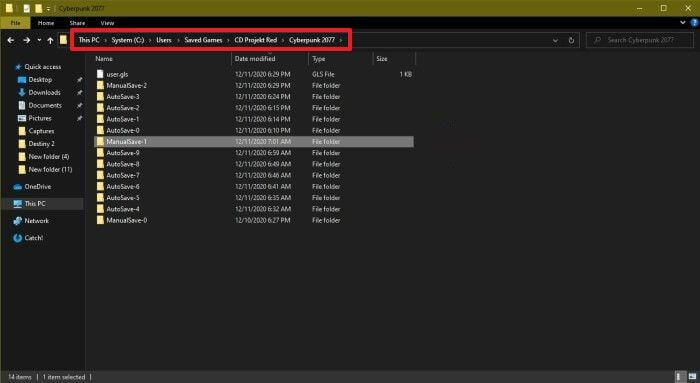
Windows
To find the Cyberpunk 2077 game files on Windows, follow this pathway:
"C:\Users\yourusername\Saved Games\CD Projekt Red\Cyberpunk 2077"
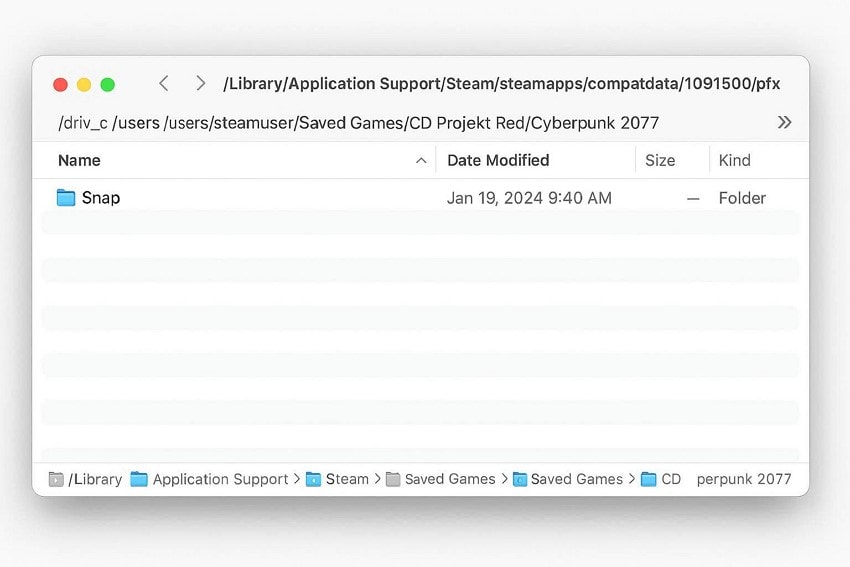
Mac
Follow this navigation on your MacBook to look for the missing game files of this game:
"~/Library/Application Support/Steam/steamapps/compatdata/1091500/pfx/drive_c/users/steamuser/Saved Games/CD Projekt Red/Cyberpunk 2077/"
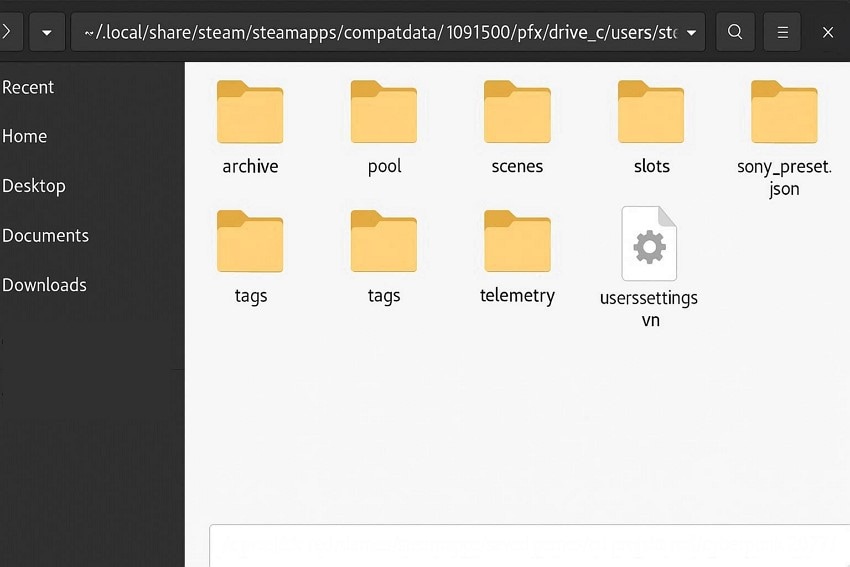
Linux
The following pathway must be followed to look for the Cyberpunk 2077 game files on your Linux devices:
"~/.local/share/Steam/steamapps/compatdata/1091500/pfx/drive_c/users/steamuser/Saved Games/CD Projekt Red/Cyberpunk 2077/"
Differences Between Local and Cloud Saves
Understanding how your game data is stored can help prevent permanent progress loss. The table below highlights the key differences between local and cloud saves for Cyberpunk 2077:
| Feature | Local Save | Cloud Save |
|---|---|---|
| Storage Location | Stored directly on your device's hard drive or console storage. | Stored on remote servers managed by the game platform or service. |
| Internet Requirement | No internet is needed to access or load saved progress. | Requires the internet to sync, upload, or download save data. |
| Risk of Data Loss | Vulnerable to device damage, corruption, or accidental deletion. | Safer from hardware failure, but can be affected by sync errors. |
| Accessibility | Usually limited to a single device where the game is installed. | Can be accessed across multiple devices using the same account. |
Part 3. 5 Common Reasons Save Files Go Missing
Cyberpunk 2077's save file location can disappear for several reasons, often without warning to the player. Understanding the common causes can help you prevent future data loss and recover faster:
- Game Crashes or Forced Shutdowns: Sudden crashes while the game is saving can corrupt or interrupt file writing. This may leave the save unreadable or completely missing from the folder.
- System or Game Updates: Updates sometimes overwrite directories or create compatibility issues with older save formats. This can cause the game to stop recognizing existing save files.
- Cloud Sync Errors: Failed synchronization between local and cloud storage can replace good files with incomplete versions. In some cases, newer saves may be overwritten by outdated cloud data.
- Accidental Deletion: Players may unintentionally remove save folders while clearing storage or organizing files. Deleted files can also be lost when uninstalling the game without backups.
- Storage Drive Issues: Bad sectors, failing hard drives, or corrupted SSDs can damage saved data. Hardware problems often cause files to vanish or become inaccessible.
Part 4. How to Fix Missing or Lost Cyberpunk 2077 Save Files - 7 Fixes
A Cyberpunk 2077 save file missing can feel devastating, especially after hours of story progress and character building. The fixes below move from simple checks to advanced recovery methods, helping you restore lost data safely and efficiently:
Fix 1: Check Default Save Locations on Your System
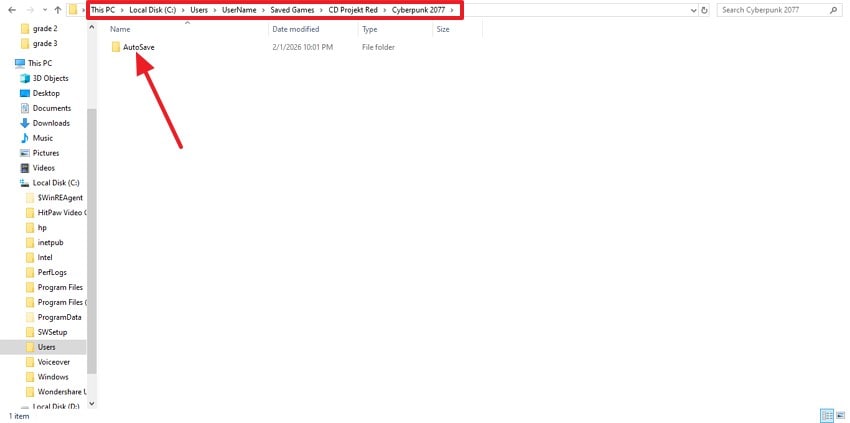
Sometimes, save files aren't deleted, just stored in a different or newly created directory after updates or system changes. Checking the official save folder paths ensures you don't attempt risky recovery methods before confirming the files simply weren't misplaced. To learn how to check default save locations on your PC, follow this guide:
Instructions: On your PC, follow the navigation below and look for the "AutoSave" folder.
"C:>Users>YourUsername>Saved Games>CD Projekt Red>Cyberpunk 2077"
Fix 2: Restore Save Files From Cloud Backup (Steam/GOG/Console)
Cloud services often keep backup copies even when local saves disappear due to crashes or deletions. Restoring from the cloud can quickly recover recent progress, making this one of the safest and fastest solutions without risking file corruption. Follow the guide below to learn how to restore Cyberpunk 2077 save files from cloud backup on:
Steam
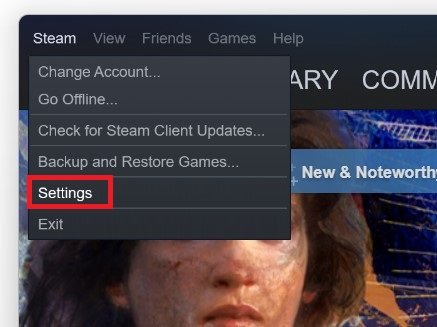
- On Steam, access the "Steam" option from the top and press "Settings."
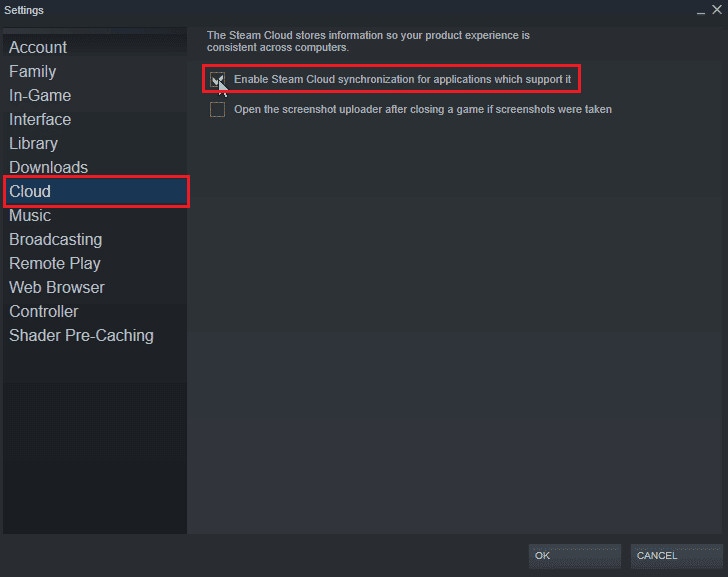
- Enable the "Cloud" section from the left and tick the checkbox for the "Create Steam Cloud" option.
GOG
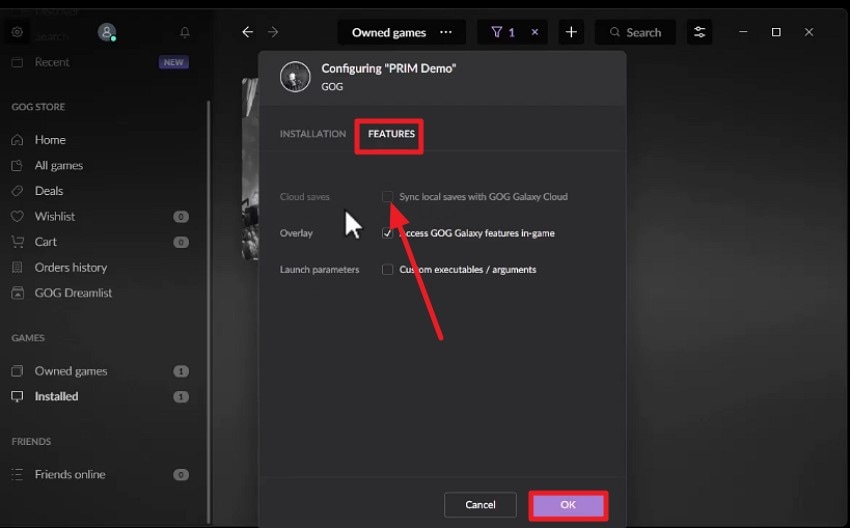
- To start the process, open GOG Galaxy and select the game to choose the "Manage Installation" option. Next, click the "Configure" option in the following list.
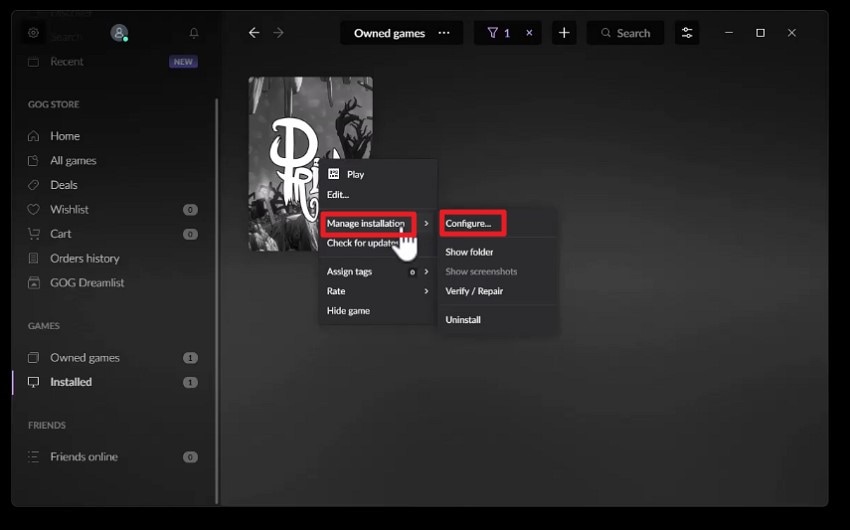
- Under the "Features" section, enable the "Cloud Saves" option and press the "OK" button.
Console
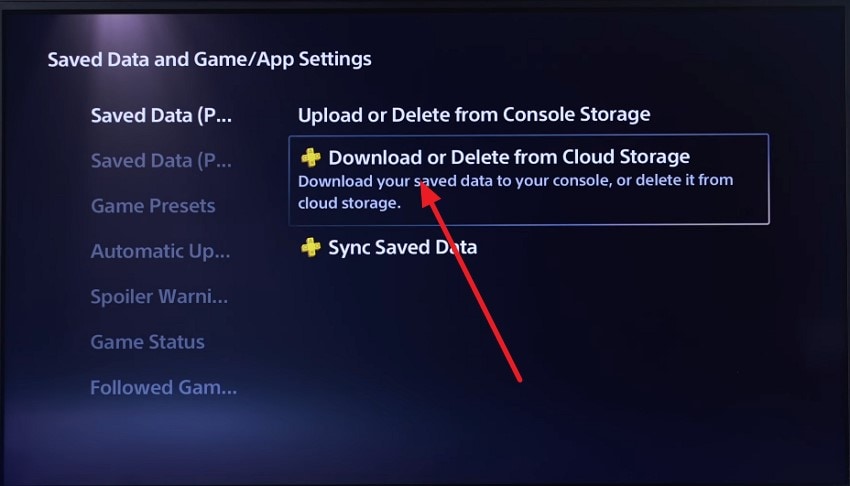
Instructions. On your gaming console, go to "Saved Data and Game settings" and press the "Download or Delete from Cloud Storage" option.
Fix 3: Look in Temporary or Auto-Save Folders
Games frequently create temporary or autosave versions that remain even if manual saves go missing. The Cyberpunk 2077 save file missing may not appear in the main menu, but it can be copied back, helping recover partial progress instead of restarting entirely. To learn how to look in the Auto-Save folder, follow the guide below:
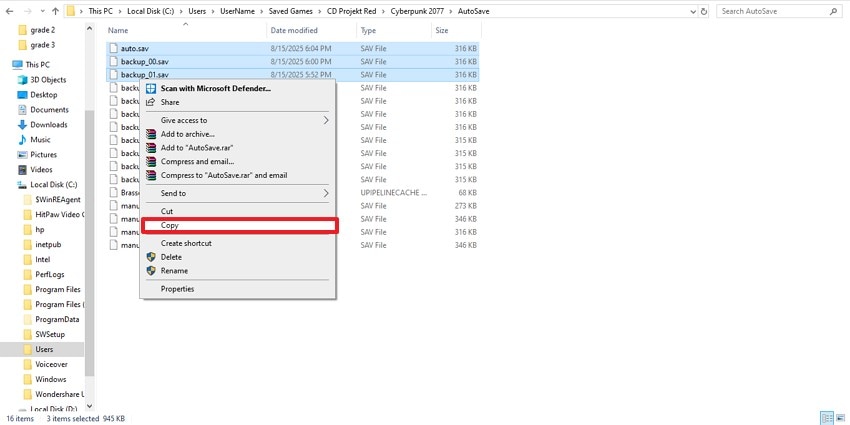
Instructions. To start, access the "Auto Save" folder on your device and select the recent game files. Now, "Copy" these files and paste them into the main save folder.
Fix 4: Recover Deleted or Lost Saves Using System Restore
System Restore can revert your computer to a previous state where Cyberpunk 2077 save files still existed. This method is helpful when files were removed during software changes, though it should be used carefully to avoid affecting recently installed programs. The steps below explain how to recover deleted or lost saves using System Restore:
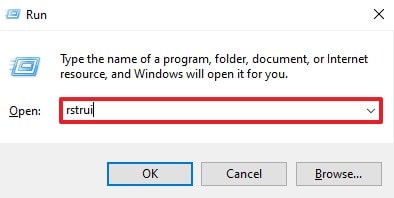
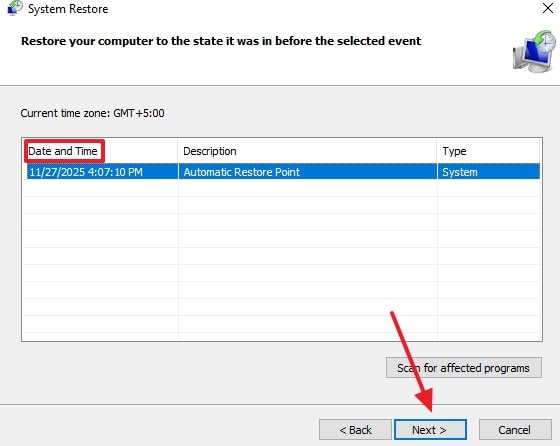
- Enter the "Windows + R" keys and give the "rstrui" command in the Run dialogue.
- Using the System Restore window, select the date and time you need to go back to and click the "Next" button to execute the system restore.
Fix 5: Use a File Recovery Tool (e.g., Recoverit)
A dependable way to recover missing game data is by using recovery software such as Recoverit. It applies advanced scanning algorithms to search your storage thoroughly and locate lost files. Users can pause or resume scans anytime, giving more control over the recovery process. Its clean interface also makes it easy to narrow searches using filters to find specific files quickly.
Recoverit isn't limited to game saves, as it supports restoring over 1,000 file types, including photos, videos, and documents. It can even repair and extract data from corrupted or compressed folders through deep scanning, while offering 500MB of free data recovery for starters. Another helpful feature is the option to choose where recovered files are saved, preventing accidental overwriting.
Key Features
- Batch File Recovery: Recoverit allows multiple files to be restored in one session, saving time compared to recovering items individually.
- Wide Device Compatibility: The software supports data recovery from more than a million storage devices, including SD cards, USB drives, and external hard disks.
- File Preview Option: Users can preview recoverable files inside the program before restoring them, ensuring the correct data is selected.
Step-by-Step Guide to Recovering Missing Game Files With Recoverit
Follow the guide below and learn how to recover missing game files using Recoverit:
- Choose the Storage Location
Open Recoverit and select the drive where your game files were stored. The scanning process will begin automatically once the location is chosen.
- Select the Files for Recovery
After scanning finishes, browse the results and mark the files you want to restore. Click the "Recover" button to proceed.
- Preview and Save the Files
Preview the recovered files to confirm they are intact, then "Save" them to a secure location on your device.
Fix 6: Verify Game Files Through Launcher (Steam/GOG)
Launcher verification checks for Cyberpunk 2077 save files missing, which might prevent saves from appearing correctly. While it doesn't directly restore saves, it fixes file mismatches that can make existing save data unreadable to the game. If you want to learn how to verify the integrity of game files on Steam, follow the guide below:
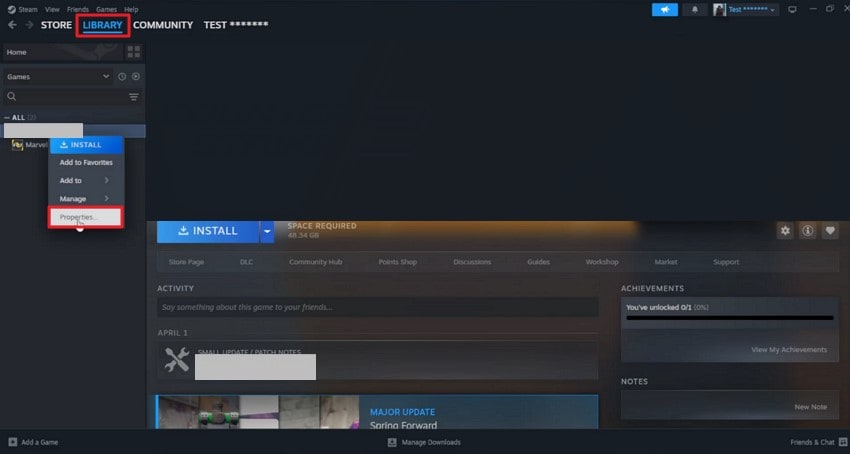
- Open Steam and go to your "Library." Find the game you want, right-click on it, and select "Properties" from the menu that appears.
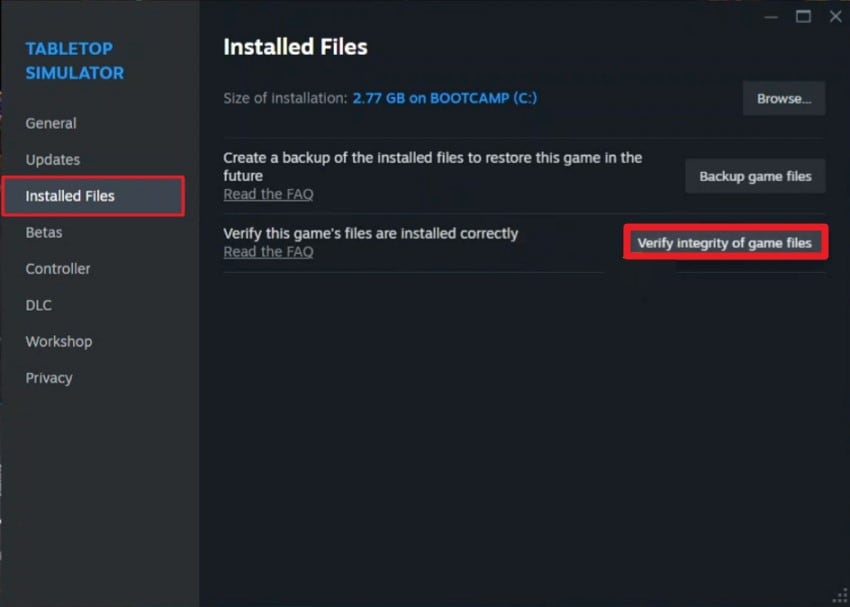
- Within the "Properties" window, click the "Installed Files" tab on the left. Then press "Verify Integrity of Game Files" to start the verification process.
Fix 7: Reinstall the Game as a Last Resort
Reinstalling can resolve deep corruption or installation conflicts preventing safe recognition. This should only be done after backing up any remaining files, as the process may overwrite directories and permanently remove recoverable data if performed carelessly. The following steps explain how to reinstall Cyberpunk 2077 on your system:
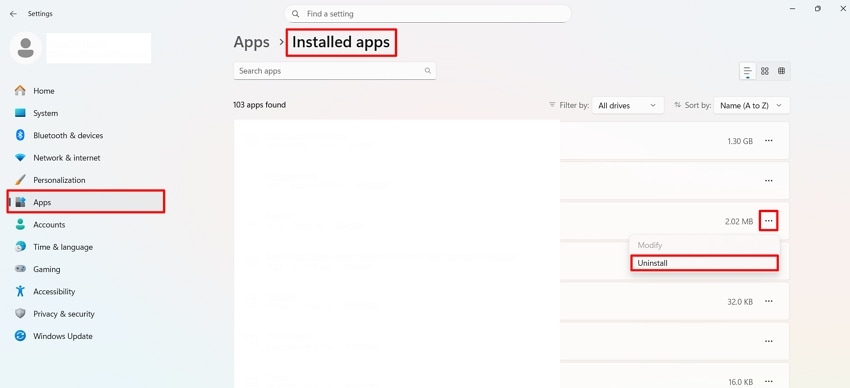
Instructions. Navigate into your device's "Settings," access the "Apps" section, navigate to "Installed apps" and find your installed game. Click on the "three-dots" and select "Uninstall" to proceed with removing it from your device. Once done, visit the official website to download the installer once again.
Part 5. How to Prevent Losing Cyberpunk 2077 Save Files - 5 Tips
Saved file loss is frustrating, but a few smart habits can protect your Cyberpunk 2077 save files from missing progress long-term. These prevention tips reduce risks from crashes, hardware issues, and accidental deletions:
- Enable Cloud Save Synchronization: Turn on cloud saves through Steam, GOG, or your console to keep automatic backups online. This ensures your progress stays safe even if your local files are damaged or removed.
- Create Manual Backups Regularly: Copy your save folder to an external drive or another location on your system. Regular backups give you restore points that don't rely only on the game or platform.
- Avoid Force-Closing the Game: Shutting down during saving can corrupt files before they finish writing. Always exit properly through the menu to reduce the risk of broken or incomplete saves.
- Keep Your Storage Drive Healthy: Run disk checks and ensure your drive has enough free space for smooth performance. A failing or overloaded drive increases the chances of file corruption.
- Use Reliable Antivirus Protection: Security software can prevent malware from damaging or encrypting important files. Make sure game folders are not falsely flagged or quarantined by overly aggressive scans.
Conclusion
In conclusion, losing game files can be really frustrating, as it erases your in-game progress. This article was a complete guide on finding and restoring Cyberpunk 2077 save files location on your computer. We looked into local device methods and a third-party tool for efficient game file recovery. If the local techniques fail to regain access, use Recoverit to dive deep into your system and find the missing game files.
FAQ
1. Why did my Cyberpunk 2077 save file suddenly disappear?
Save files can go missing due to crashes, sync failures, updates, or accidental deletion. Corruption during shutdown or storage issues can also make saves unreadable.2. Where are Cyberpunk 2077 save files stored on PC?
They are usually located inside the user's saved games folder under the game's directory. The exact path may vary depending on your platform, like Steam or GOG.3. What should I do if my save folder is completely empty?
Stop using the drive immediately to prevent overwriting deleted data. Then use a recovery program like Recoverit to search for lost save files.4. Can reinstalling Cyberpunk 2077 bring my saves back?
Reinstalling fixes game files, but usually does not restore deleted saves. Use backup services or a recovery tool like Recoverit before reinstalling.


