

 TL;DR:
Escape from Tarkov startup crashes and launch failures are typically caused by outdated graphics drivers, resource shortages, or corrupted files, which can be directly resolved by verifying game integrity in Steam, updating drivers, and adjusting Windows compatibility settings.
● Ensure your hardware meets the minimum system requirements, specifically Windows 10, an AMD Ryzen 5 3600 CPU, 16 GB of RAM, and a GTX 1660 GPU, as failing to meet these thresholds directly triggers freezing and application shutdowns.
● Repair essential game dependencies by selecting "Modify" and "Repair" on the Microsoft Visual C++ Redistributable in your Windows Apps settings, and force the game to use DirectX 11 by typing "-dx11" into the Steam launch properties.
● Prevent Windows Security from blocking or deleting required launcher processes by adding the Escape from Tarkov installation folder to the Antivirus Exclusions list, or use Wondershare Recoverit to restore the necessary game data if critical files are already missing or corrupted.
Ask AI for a summary
 ChatGPT
 Perplexity
 Gemini
 Claude
 Grok
Grok
A player boots up Escape from Tarkov, only to face an unexpected crash before the raid even begins. This frustrating moment is more common than many think, especially after major updates or hardware changes. When the game refuses to launch, stutters on startup, or closes mid-session, it disrupts both progression and the overall experience.
The good news is that most of these issues stem from fixable system conflicts, outdated drivers, or corrupted game files. In this guide, you'll find fast, reliable solutions to solve Escape from Tarkov crashing or Escape from Tarkov not launching, so you can return to the intensity of every raid.
Try Recoverit to Perform Game Data Recovery
 Security Verified. 3,591,664 people have downloaded it.
In this article

Part 1. Understanding Why Escape from Tarkov Crashes or Fails to Launch
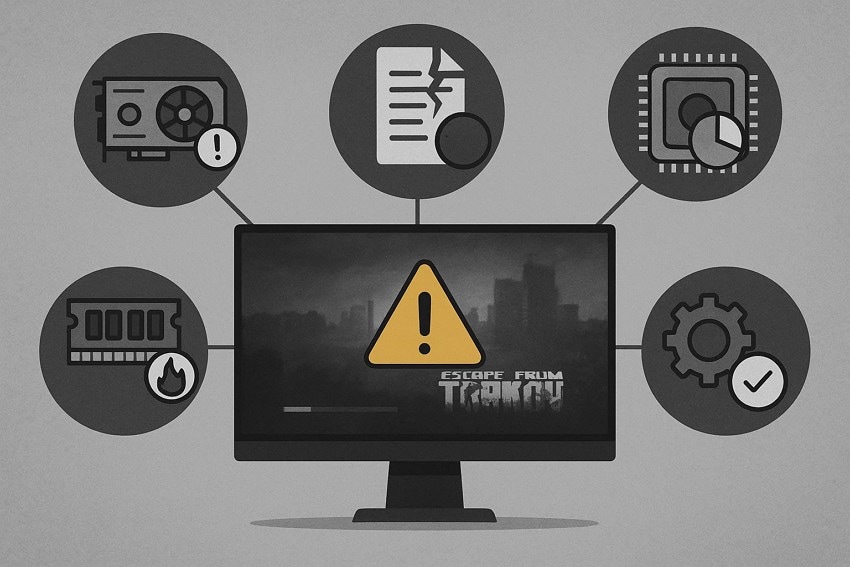
Before applying any fixes, it helps to understand what's causing Escape from Tarkov crashing or failing at launch. Identifying the root cause makes troubleshooting faster and ensures you choose the right solution:
- Outdated Graphics Drivers: When GPU drivers fall behind, they struggle to handle newer game updates and features. This mismatch often leads to startup crashes or failures during loading screens.
- Corrupted Game Files: Missing or damaged files disrupt the game's ability to load assets properly. As a result, Escape from Tarkov may close instantly or refuse to launch.
- Insufficient System Resources: If your RAM or CPU is heavily used by background tasks, the game can't access the power it needs. This resource shortage commonly causes stuttering, freezing, or sudden crashes.
- Conflicting Overlays: Overlays from Discord, Steam, or Nvidia can interfere with Tarkov's rendering pipeline. These conflicts often trigger performance drops or complete application shutdowns.
- Windows or Driver Updates: Recent updates sometimes introduce compatibility issues that affect the game's stability. These changes can cause crashes until a patch or rollback is applied.
Part 2. Check System Requirements and Game Updates
Checking your system specifications ensures that your CPU, GPU, and RAM meet the minimum requirements needed for stable performance. If your hardware struggles to keep up, you may encounter the Escape from Tarkov not launching issue. Mentioned below are the system requirements of the game that your machine must comply with:
| Minimum Requirements | Recommended Requirements | |
|---|---|---|
| OS | Windows 10 | Windows 11 |
| Processor | AMD Ryzen 5 3600 or similar | Intel Core i7-14700F or better |
| Memory | 16 GB RAM | 64 GB RAM |
| Graphics | GTX 1660 or similar | RTX 4070 or better |
| Storage | 80 GB available space | 80 GB available space |
Part 3. Step-by-Step Fixes for Tarkov Not Launching on Your PC
Once you've confirmed your system meets the requirements and the game is fully updated, it's time to move on to hands-on troubleshooting. The following step-by-step fixes will help you pinpoint the problem and restore a smooth startup on your PC for Escape from Tarkov:
1. Run as Administrator
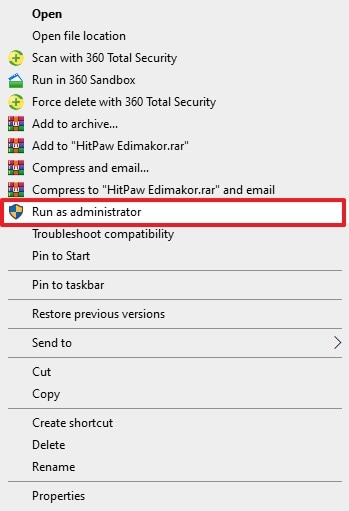
This is one of the simplest fixes because running Escape from Tarkov as an administrator gives the game full permission to access required system files and services. Without these privileges, the launcher may fail to initialize, causing the game to crash or not open at all. Let us have a look at how to run the game as an administrator:
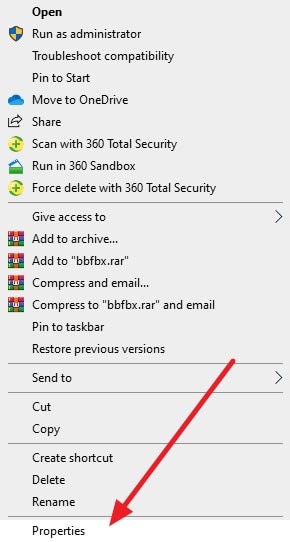
Instructions. Once you find the game file in File Explorer, right-click on it to reveal the available actions. From the menu that appears, select the "Run as Administrator" option. Windows will then request your permission; simply choose "Yes" to allow the program to launch with administrative privileges on your PC.
2. Verify Integrity of Game Files
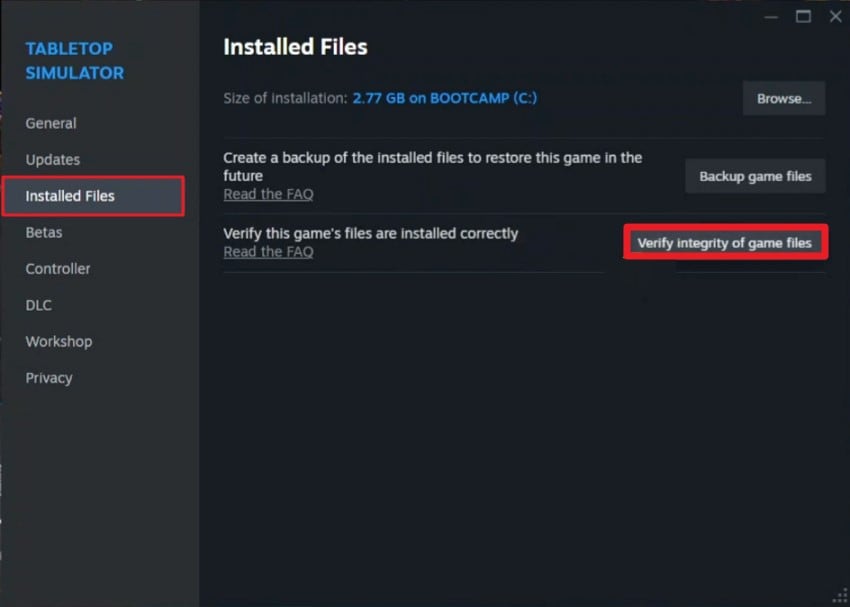
Verifying game files detects and repairs missing or corrupted files that prevent Escape from Tarkov not launching. This process quickly restores stability by replacing damaged or outdated files with fresh copies. Regularly checking file integrity prevents crashes, freezes, and startup failures, ensuring smoother gameplay. Follow the steps mentioned below to learn how to verify the game integrity within Steam:
- Once you've found the game in your Steam library, right-click on it and choose "Properties" from the menu that appears.
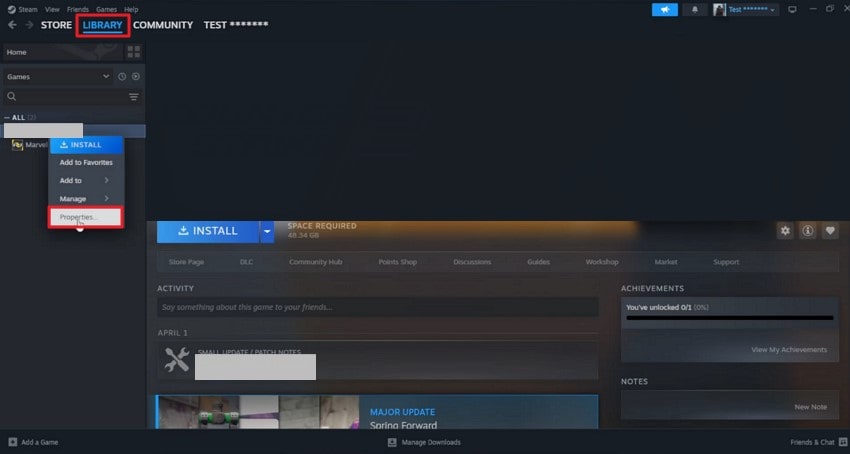
- Next, navigate to the "Installed Files" tab and click "Verify Integrity of Game Files" to allow Steam to check that all game files are complete and functioning correctly.
3. Update Graphics Drivers
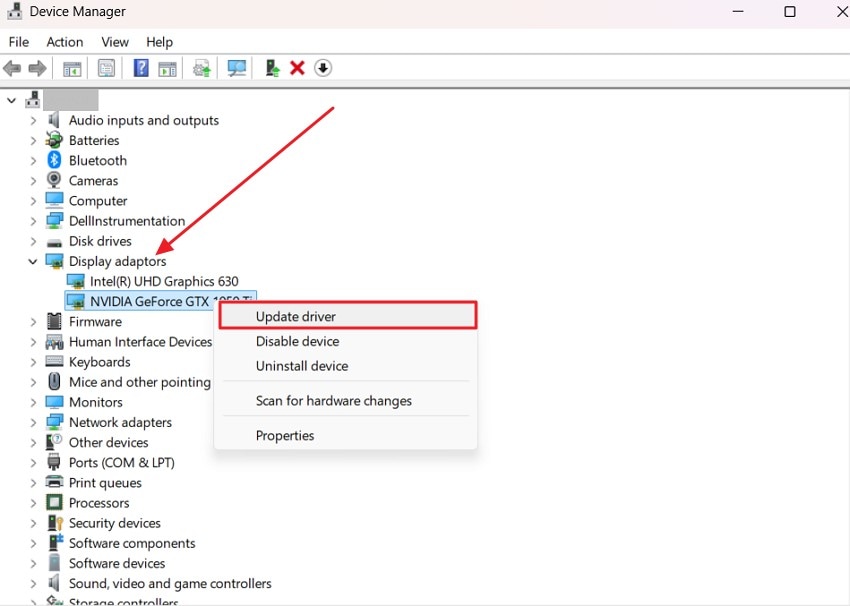
Keeping your GPU drivers up to date ensures Escape from Tarkov runs smoothly and avoids crashes. Outdated drivers often cause startup failures, stuttering, or graphical glitches. Updating your drivers improves performance, compatibility with the latest game updates, and stability during raids. To learn how to update your graphics driver, read the steps provided next:
- Open your system's "Device Manager" and expand the "Display Adapters" section from the side panel. Locate your installed GPU driver, right-click on it, and select "Update Driver" to initiate the update process.
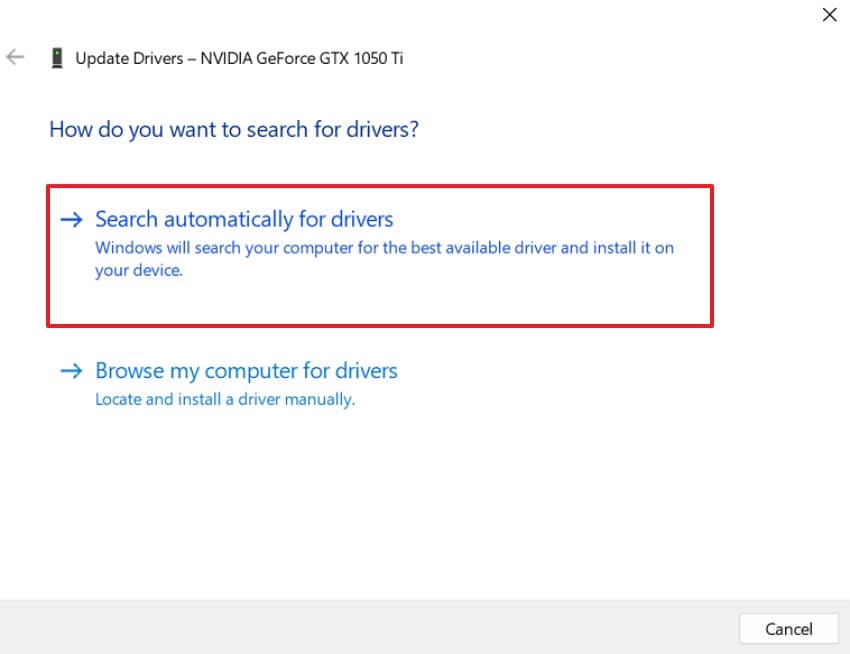
- In the following window, choose "Search Automatically for Drivers," so the system can automatically download and install the latest graphics driver updates.
4. Clear Launcher/Game Cache
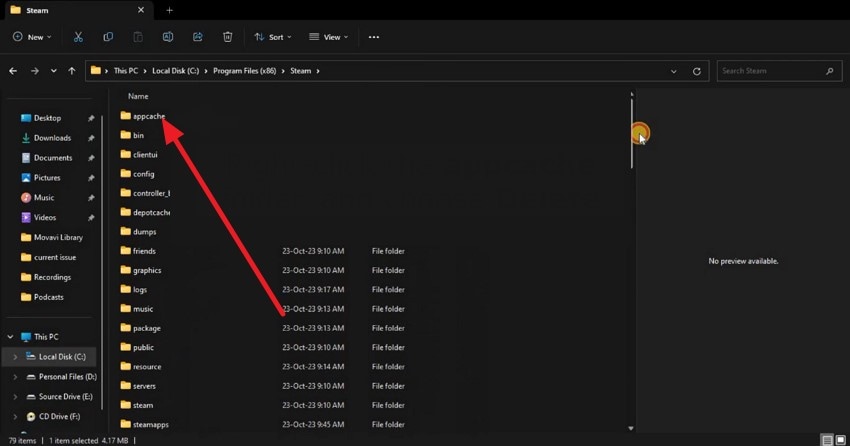
Another effective solution is clearing the game or launcher cache. Clearing corrupted temporary files can prevent the Escape from Tarkov crashing issue. This process refreshes stored data and settings, often resolving crashes, freezes, or startup errors. Regularly clearing the cache helps maintain game stability and ensure smoother loading. If you do not know how to clear the cache, refer to the section below:
Instructions. Navigate to the Steam folder and locate the "appcache" directory. Right-click on it and choose "Delete" to clear the cached files, which helps eliminate temporary data that could be affecting game performance.
5. Disable Fullscreen Optimizations
A helpful step is disabling full-screen optimizations, which can improve Escape from Tarkov's performance. Windows' full-screen optimizations sometimes cause stuttering, crashes, or display problems. Turning this feature off allows the game to access system resources directly, enhancing stability and reducing both launch failures and in-game errors. If you do not know how to disable the full-screen optimization, read the steps mentioned below:
- Open the game in the file explorer and right-click on it. Now, locate the "Properties" option in the list and click on it.
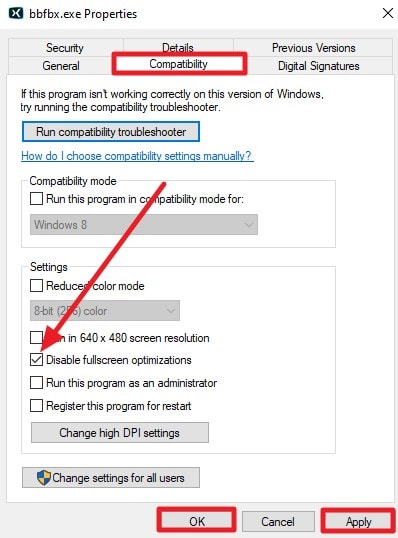
- Access the "Compatibility" tab and tick the checkbox with the "Disable Fullscreen Optimizations" option. Press "OK" then "Apply" to save the compatibility setting changes.
6. Reinstall Game and Launcher in New Folders
Reinstalling the game and launcher in new folders can fix the persistent Escape from Tarkov not launching issue. Sometimes corrupted files or incorrect installation paths prevent the game from starting properly. Installing fresh copies in separate folders ensures all files are intact, eliminating conflicts and improving overall stability. Follow the steps to learn how to reinstall the game in a new folder:
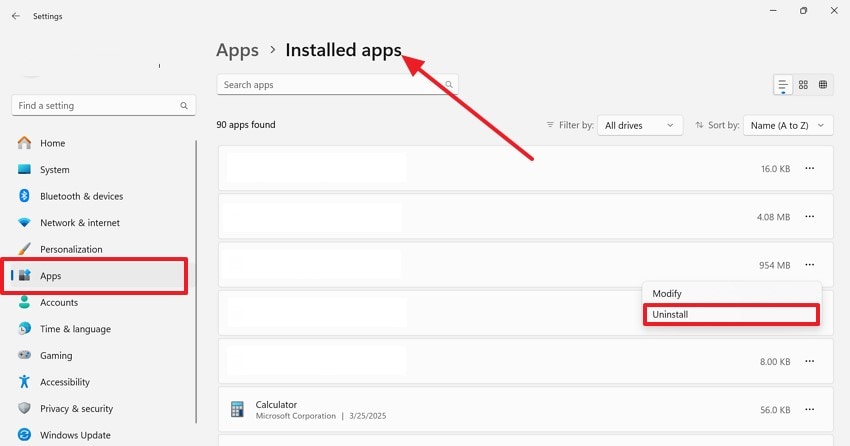
- Go to your device's "Settings" and open the "Apps" section to access the "Installed Apps" list. Locate Escape from Tarkov to uninstall the game or choose Steam to uninstall the launcher. Press the "Uninstall" button to successfully remove the program from the system.
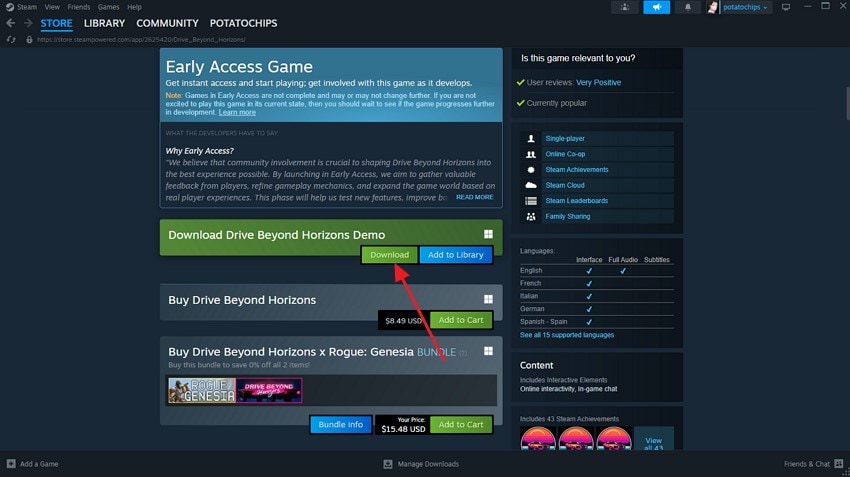
- Open Steam, use the search bar to find Escape from Tarkov, and click "Download" to reinstall the game fresh on your device.
7. Restart PC and Update Windows
A simple yet effective step is restarting your PC and updating Windows. This ensures all system files, drivers, and security patches are current, which can resolve compatibility issues with Escape from Tarkov. Keeping Windows up to date also improves stability, reduces crashes, and ensures smoother gameplay during both startup and in-game sessions. Read the steps provided next to know how to perform this fix for smoother gameplay:
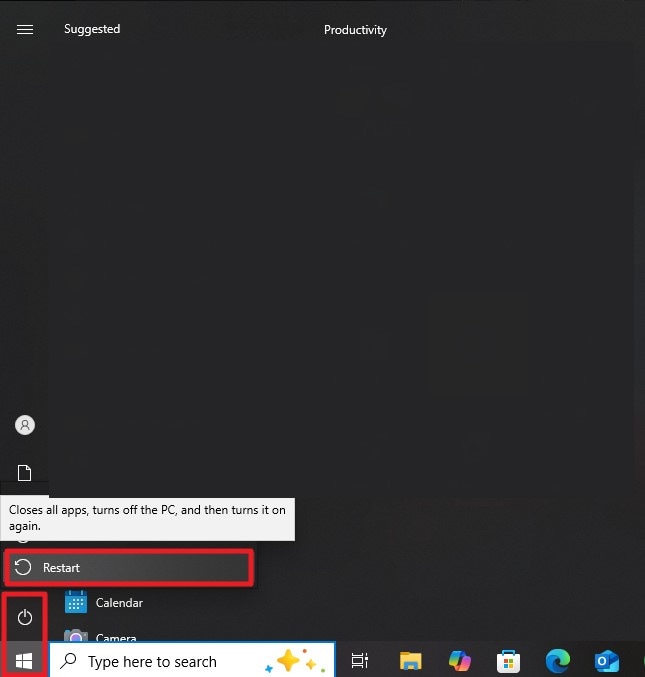
Restart the PC
Instructions. Click the Windows icon at the bottom-left corner of your screen, then select the "Power" icon. Choose "Restart" to close all running tasks and reboot your system.
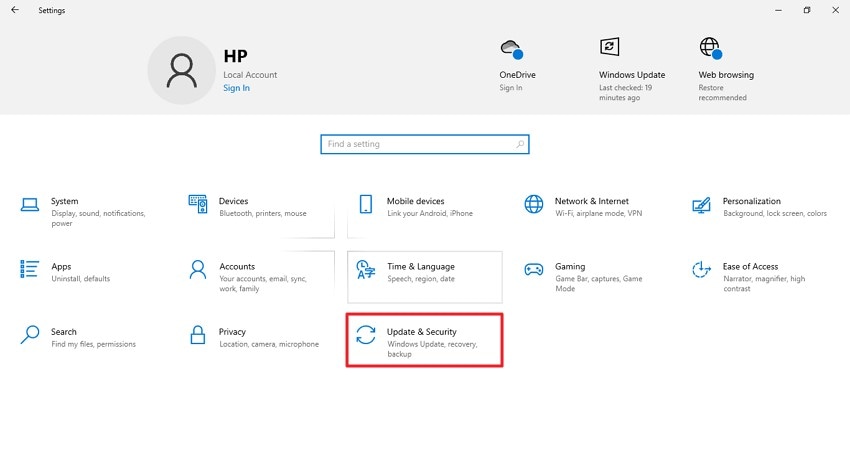
Update Windows
- Open the "Settings" window, scroll down, and click on the "Update & Security" section.
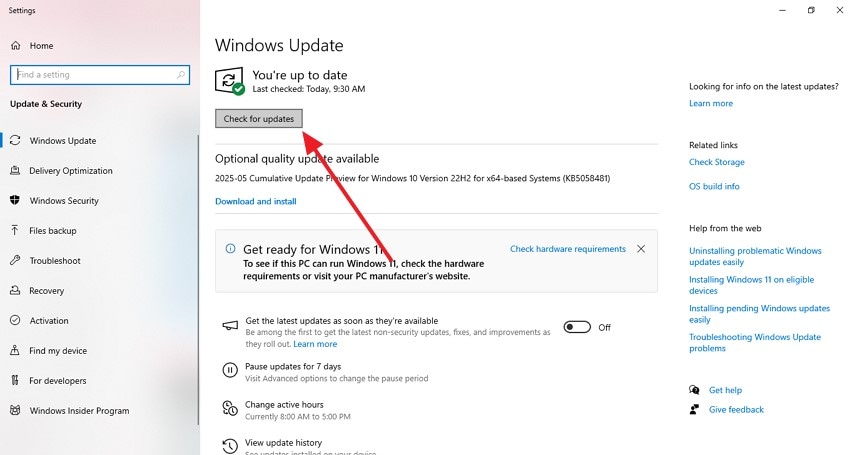
- Press the "Check for Updates" button to start downloading and installing any available Windows updates on your system.
8. Add Exceptions for Antivirus/Firewall
Adding exceptions for your antivirus or firewall can resolve the Escape from Tarkov crashing error. Sometimes security software mistakenly flags game files or launcher processes as threats, causing crashes or launch failures. By whitelisting the game and its launcher, you ensure uninterrupted access to system resources. If you do not know how to add the game as an exclusion in an antivirus, read the steps provided below:
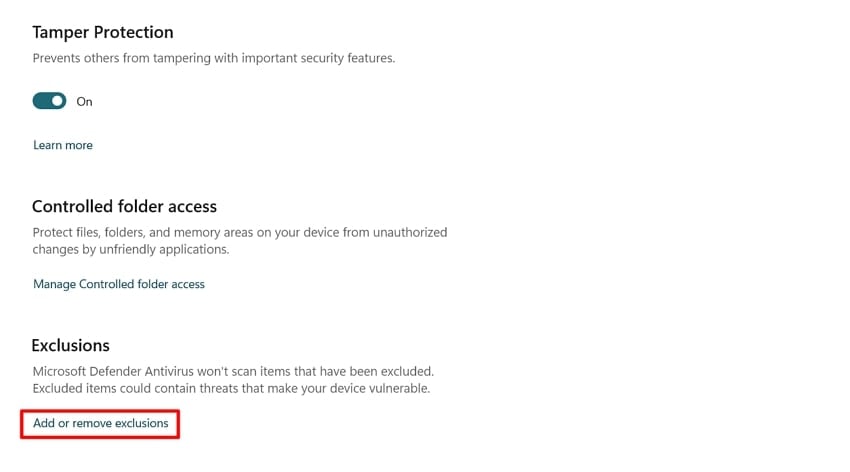
- Launch Windows Settings and go to the "Windows Security" section. Click on "Virus & Threat Protection" and choose "Manage Settings" within its settings to adjust your security options.
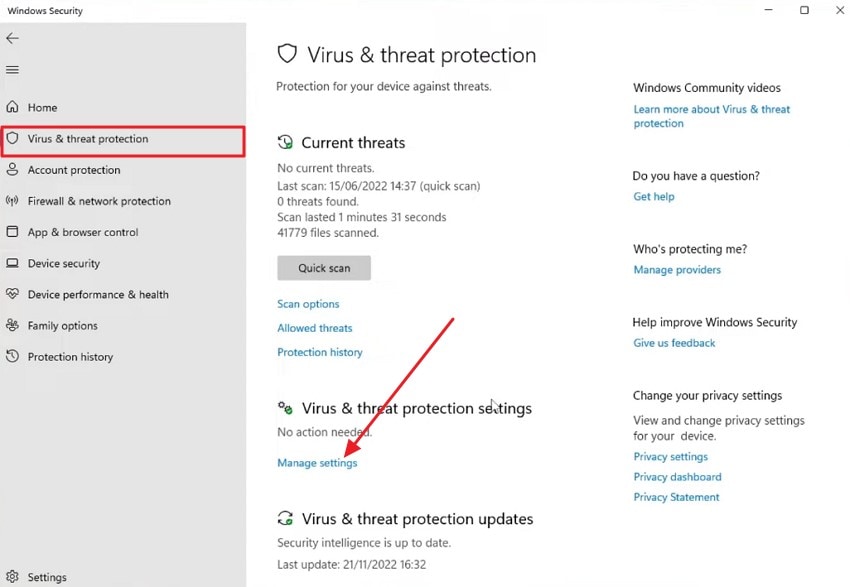
- Scroll down to the "Exclusions" section and click "Add or Remove Exclusions."
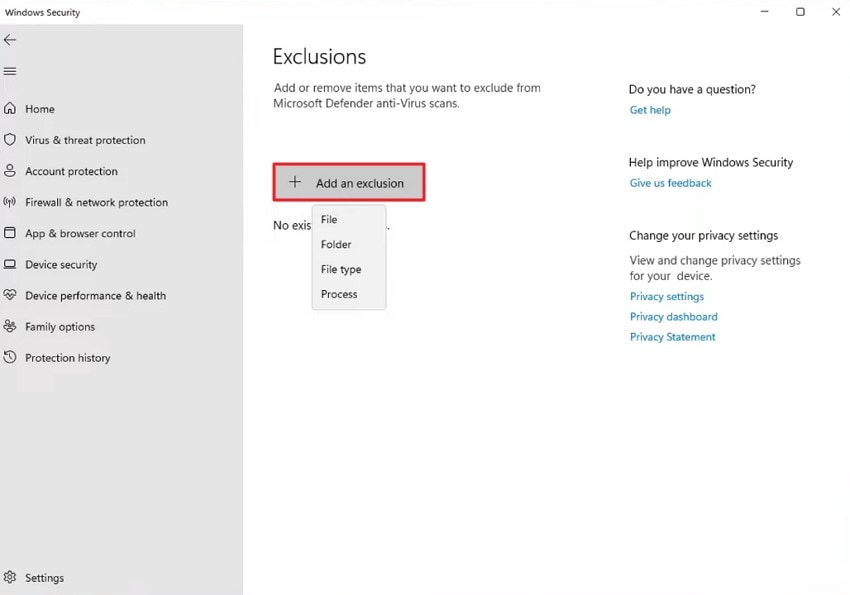
- Press "Add an Exclusion" and choose the specific file or folder you want Windows Security to exclude from scanning.
9. Repair Visual C++ and DirectX
Last but not least, repairing Visual C++ and DirectX fixes Escape from Tarkov launch problems. These runtime libraries are essential for the game, and damaged files often cause crashes. Repairing them restores stability and ensures the game starts and runs smoothly without errors. Follow the steps mentioned next to learn how to repair Visual C++ and DirectX:
Repair Visual C++
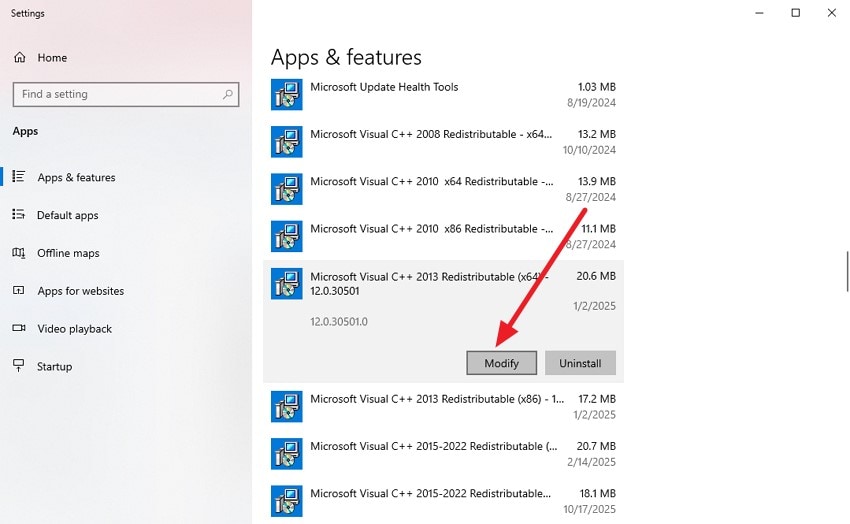
- Open the "Apps" section in your device's settings and find Microsoft Visual C++ Redistributable, where you need to click the "Modify" button to continue.
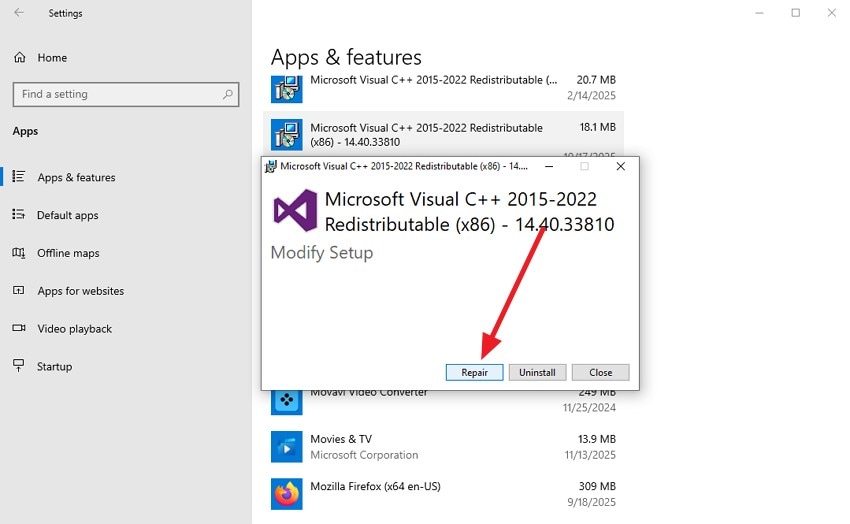
- In the pop-up window, select "Repair" to let the tool automatically fix any errors or issues within the program.
Repair DirectX in Steam
- Open Steam and go to your "Library" to start the process. Find the game, right-click on it, and select "Properties" from the menu to access its settings.
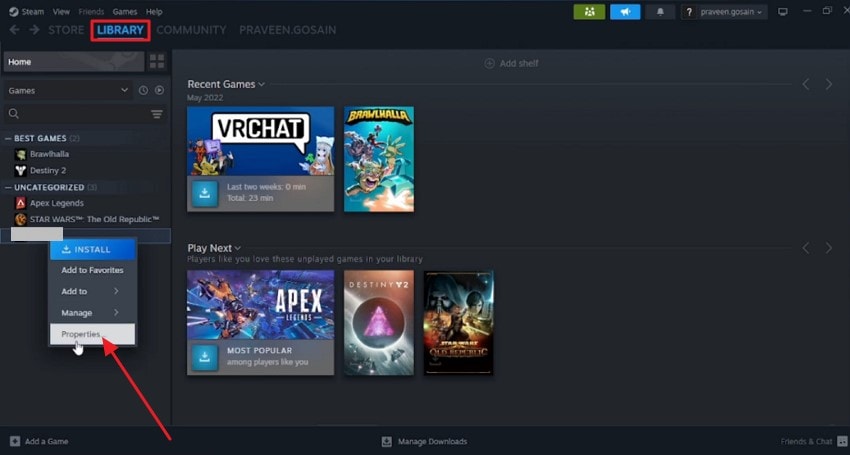
- In the "General" tab, type "-dx11" into the designated field to apply the command for modifying DirectX.

Pro Tip: Restore Broken or Corrupted Tarkov Files Effortlessly With Recoverit
If Escape from Tarkov not launching due to missing files, you can easily restore them using Recoverit. This powerful file recovery solution enables users to retrieve various lost files, including images, videos, and game files. It scans your system's folders efficiently and restores files using advanced recovery technology.
Once the recovery is complete, the original format and settings of the files remain intact. Supporting over 1000 file types, Recoverit makes the recovery process simple and convenient. Users can pause and resume scans according to their needs, and also choose the storage location for saving the recovered files.
Prominent Features of Recoverit
- Batch Recovery: Recover multiple files simultaneously, as the tool supports batch file recovery.
- Multiple Device Support: Scan and recover files from more than 1 million storage devices, including Windows PCs and MacBooks.
- Preview Before Saving: Check and preview recovered files before saving them to your system.
Step-by-Step Guide to Recover Escape from Tarkov Files Using Recoverit
As discussed, Recoverit provides a complete solution for users to get back their lost or damaged files in no time. Let us have a look at the step-by-step guide on how to use this tool to recover Escape from Tarkov game files:
1. Launch Recoverit and Select the Location
Open Recoverit on your computer and choose the folder containing the missing game files from the homepage.

2. Scan to Retrieve Your Missing Game Files
After selecting the folder, Recoverit will scan it and display all recoverable files. Find your Escape from Tarkov file and click the "Recover" button at the bottom.

3. Save Your Recovered File to Your System
Once the recovery is complete, a success message will appear. Click "OK" to confirm and save the retrieved file to your system.

Conclusion
To summarize, this article provided a comprehensive guide on how to fix Escape from Tarkov crashing or Escape from Tarkov not launching. By covering these effective solutions, players can resolve most startup and performance issues. However, for recovering any corrupted game or system files that prevent launch, using Recoverit can be a reliable solution.
FAQ
1. Why does Escape from Tarkov keep crashing on startup?
Crashes often occur due to outdated drivers, corrupted game files, or insufficient system resources. Using Recoverit can help repair any corrupted game files that may prevent the game from launching.2. Can antivirus or firewall software prevent Escape from Tarkov from opening?
Yes, some security software can block the launcher or game files. Adding exceptions or temporarily disabling the firewall often resolves this issue.3. What should I do if my graphics drivers are outdated?
Updating your GPU drivers ensures better compatibility and smoother performance. Head to your Device Manager on your system and update your graphics driver.4. How to get back lost game files?
You can use tools like Recoverit to get back your game files in no time with minimum effort. This advanced data recovery tool allows users to retrieve lost and corrupted files while keeping the quality intact.


