


 TL;DR:
To resolve the "The type of the file system is RAW" error without permanent data loss, you must prioritize extracting your files using recovery software before attempting command-line repairs or formatting the unreadable drive.
● Use data recovery tools like Wondershare Recoverit via Quick or Deep Scans to extract inaccessible files, because Windows will typically require a destructive format to make the RAW drive usable again.
● Execute the `chkdsk [drive letter]: /f` command in CMD to repair logical file system errors, but avoid this step if the disk is severely corrupted as it can worsen the issue without a prior data backup.
● Attempt non-destructive system fixes first by updating the disk drivers within Device Manager or assigning a new drive letter via Disk Management to rule out basic recognition or connection failures.
Ask AI for a summary
 ChatGPT
 Perplexity
 Gemini
 Claude
 Grok
Grok
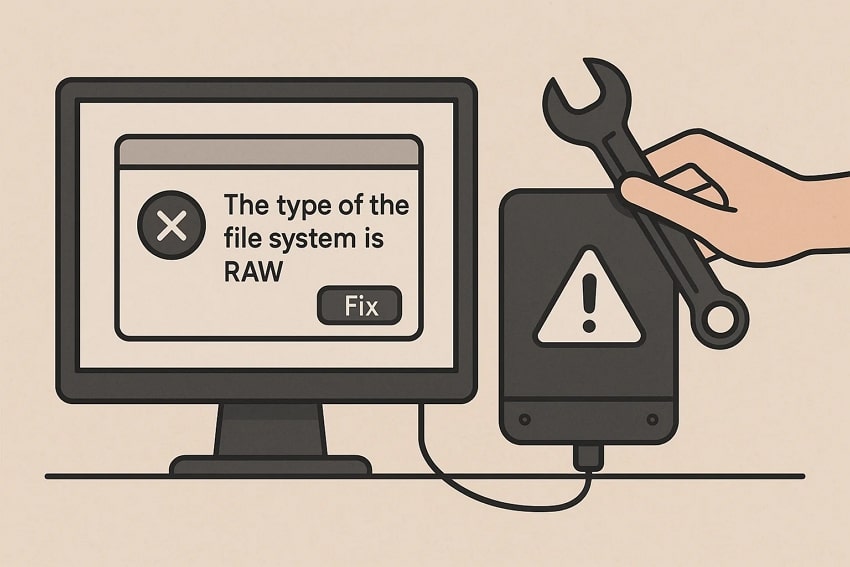
When your file system gets deleted or damaged, your PC may fail to recognize it. In such cases, you will potentially lose important files unless the drive is repaired or reformatted. There are various Windows built-in and third-party solutions to resolve this issue. This article explores the top 5 ways to fix the type of the file system is raw error.
Try Recoverit to Perform Data Recovery
 Security Verified. 3,591,664 people have downloaded it.
In this article

Part 1. What Does “Fix The Type of the File System is RAW” Mean?
“Fix the type of the file system is RAW” means repairing a storage drive whose file system has become unreadable or corrupted. When a drive turns RAW, the operating system can’t recognize its structure, preventing access to stored data. Fixing it involves restoring the original file system or recovering data before reformatting, so the drive becomes usable again without losing important files.
Part 2. Common Reasons You Need to Fix the Type of the File System is RAW
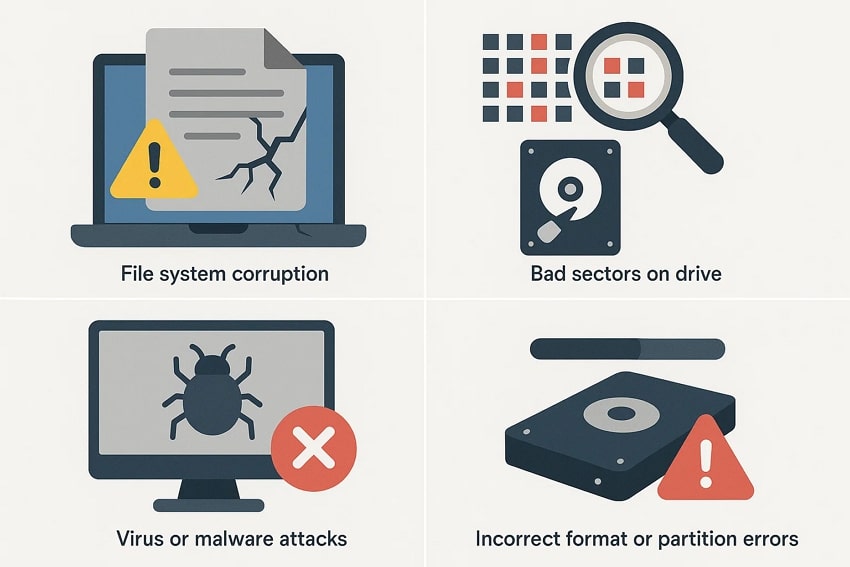
Whether you need to fix the issue or prevent it from happening again, knowing its cause is important. The following section explores the common reasons you might be facing the chkdsk the type of file system is raw issue:
- File System Corruption: Corruption often occurs due to sudden power loss, improper ejection, or system crashes during file operations. These interruptions damage the file structure, making the system unable to recognize it.
- Bad Sectors on the Drive: When storage sectors become unreadable, vital file system information can get lost. Over time, physical wear or manufacturing defects can cause these bad sectors.
- Virus or Malware Attacks: Certain malicious programs target disk structures and modify or delete file system data. This can result in a drive showing as RAW instead of its original format.
- Incorrect Format or Partition Errors: Improper formatting or interrupted partition changes can cause file system mismatch errors. As a result, the operating system fails to detect a valid format on the drive.
Part 3. Signs You Need to Fix: The Type of the File System is RAW on Windows
Without any symptoms, it is hard to identify or fix a problem, like the type of this file system is raw. Read into the following part to learn about the signs you need to fix in this error:
- Inaccessible Drive or Partition: When you click on the drive, Windows may show a message saying “Drive is not accessible.” This indicates the system cannot read the file system properly, needing you to fix it.
- Missing or Unreadable Files: You might notice missing folders, corrupted data, or files that refuse to open. These are signs of damaged file structure or lost indexing information.
- Prompt to Format the Drive: Windows often asks to format the drive before use when it detects a RAW state. This happens because it cannot identify any valid file system.
- Disk Check or Access Errors: Running CHKDSK or accessing the drive may result in errors like “The type of the file system is RAW.” Such errors confirm that the drive’s structure is unreadable.
Part 4. How to Fix The Type of the File System is RAW Without Losing Data
Now that we know the causes and the signs, it is time to explore how the problem can go away. The following section explains how you can prevent the chkdsk the type of file system is raw problem, while preserving the data:
Way 1. Recover Data First Using Data Recovery Software
If the general approaches to retrieving your files feel irrelevant, using third-party software is the most effective option. Recoverit is a robust recovery tool that caters to over 10,000 lost file scenarios. With a success rate of 99.5%, Recoverit ensures effective recovery results. For maximized productivity of the process, Recoverit offers a batch recovery option and caters to multiple files per task.
It can be used with increased flexibility as it supports both Windows and Mac. Although the file scan process is automated, the users are free to add a custom search filter. In case you are not able to find the intended file through the Quick Scan, find it through Deep Scan. When the file recovery process is finished, your retrieved documents will have a preserved quality.
Key Features
- File Preview Feature: Before you save the recovered file in a secure location, use the preview feature to verify the results.
- Format Support: You can retrieve more than 1,000 types of documents and multimedia files in order to get the most productivity.
- Compatible Devices: Recoverit supports over 1M+ storage devices, including hard drives, memory cards, and flash drives.
How to Use Recoverit to Retrieve Missing Files
Now that we know the capabilities of Recoverit, let’s see how it can help you restore files. The steps below feature a guide on using this data recovery software:
- Select the Location of a Missing File
To begin with, open Recoverit and select the location of your missing file from the left panel.

- Choose the Missing Files and Recover
When the missing files appear on the next interface, select them and click “Recover” to retrieve.

- Preview the Recovered File
As the files are recovered, preview them and hit the “Recover” button to save it.

Way 2. Run CHKDSK Command (With Caution)
Using the CHKDSK command scans and repairs logical file system errors that prevent access to the drive. It can restore damaged sectors or rebuild lost file structures. However, if the disk is severely corrupted, using CHKDSK without a data backup might worsen the issue, so caution is necessary. The following section explores how you can run the CHKDSK command to fix this problem:
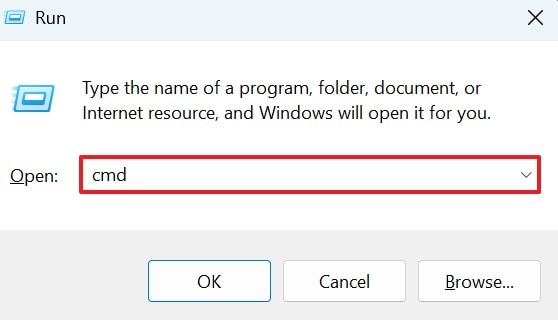
- Using your keyboard, hit the “Win+R” keys and type “CMD” in the Run command window.
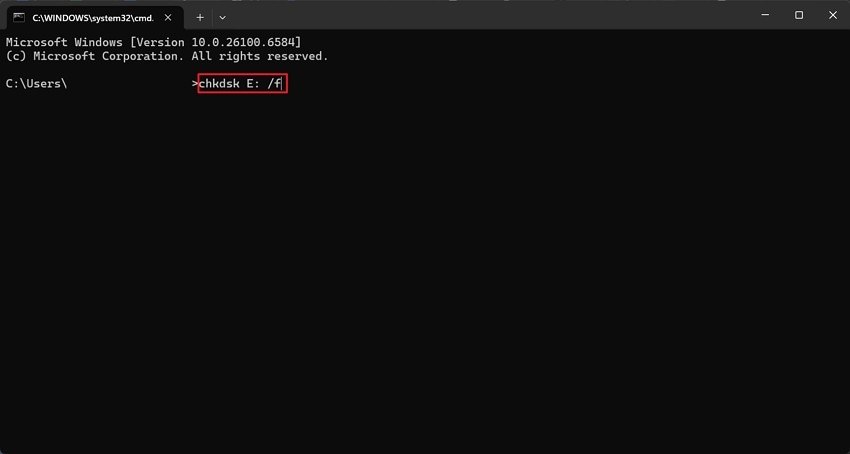
- At this point, the CMD window will appear, where you will enter the command “chkdsk (your drive letter): /f,” and press “Enter.” In case your files are available, their names will be shown in the field below.
Way 3. Update Disk Drivers
Outdated or faulty disk drivers can stop Windows from recognizing storage devices correctly. Updating them ensures stable communication between your system and the drive. This often resolves issues caused by compatibility errors or missing driver files. Follow this guide and learn how to fix the RAW file problem by updating the disk drivers:
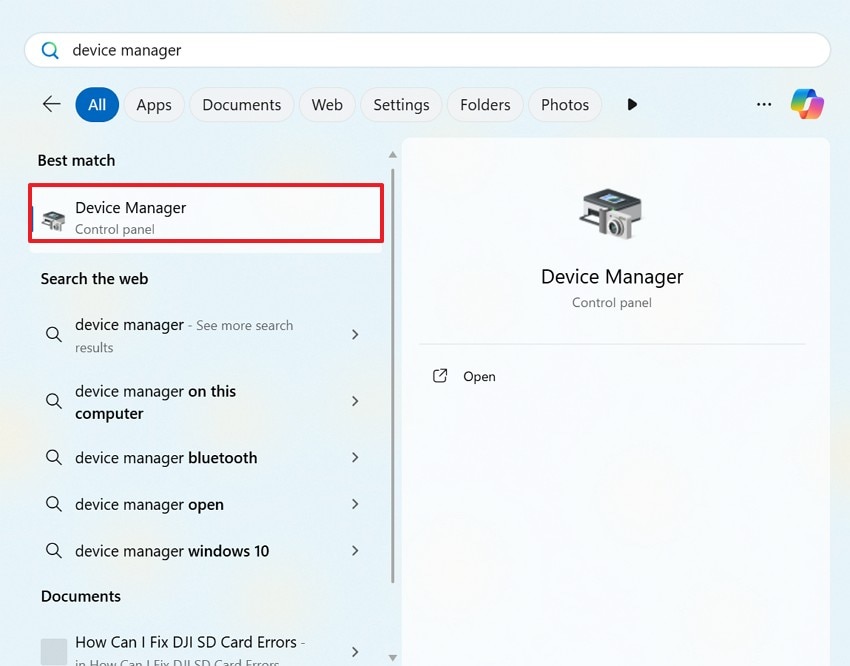
- Start the process by entering the “Start” menu and selecting “Device Manager“.
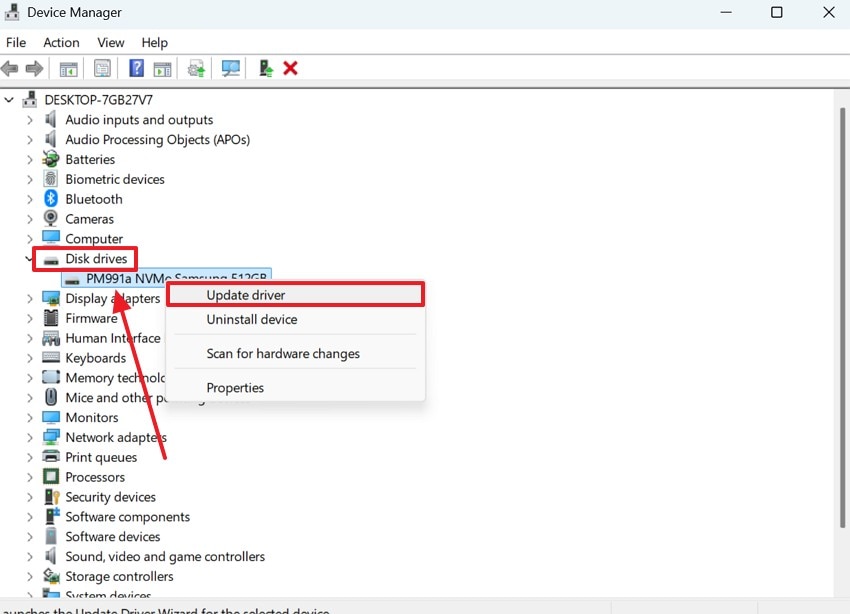
- In the next window, expand the “Disk Drives” menu and select the driver you are using. From the next menu, click “Update Driver” to update the disk driver on your PC.
Way 4. Avoid Formatting Until Data is Secured
Formatting erases all data, even though it can restore drive usability. Before formatting, use recovery tools to retrieve your files safely. Acting too quickly with formatting can make data recovery impossible later. Formatting should only be done after confirming that all important data has been backed up or recovered successfully to avoid permanent loss.
Way 5. Assign a New Drive Letter or Connect to a Different USB Port
Sometimes the issue is as simple as a system recognition error. Assigning a new drive letter or switching to another USB port can re-establish the connection. This quick step helps Windows detect and access the drive properly without complex repairs. The steps below feature a detailed guide on using this method to resolve the type of the file system is raw error:
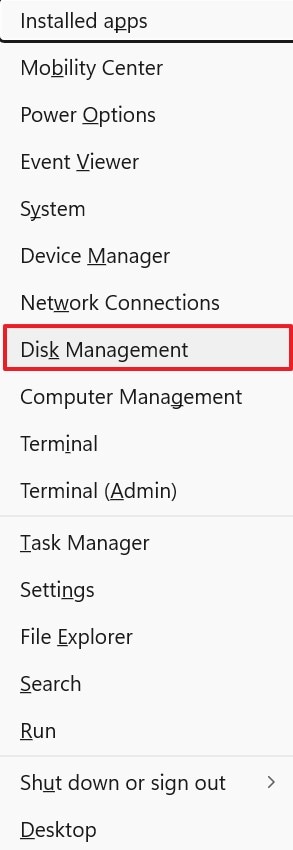
- To start, use the “Win+X” keys on your keyboard and select the “Disk Management” option from the pop-up menu.
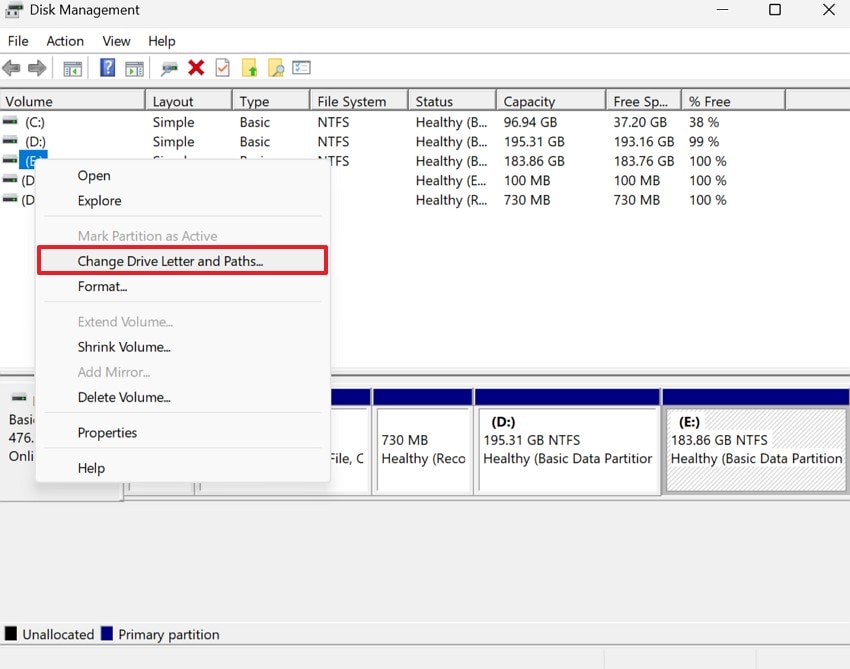
- In the next window, select your drive and right-click on it to click “Change Drive Letter and Paths.”
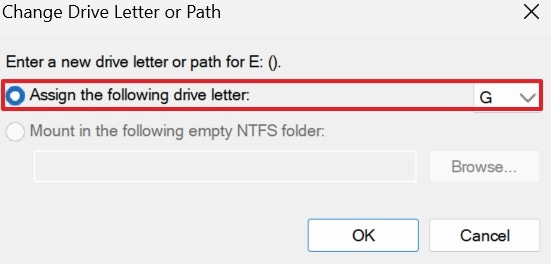
- Using the following window, click the “Change” option, and you will be directed to a new window.

- As the next window appears, assign a new letter to your drive from the relevant menu and check if the card shows up in File Explorer.
Part 5. Prevent Future “Fix The Type of the File System is RAW” Issues
We know that fixing the file error issues is not easy and takes up a lot of time. Therefore, we have listed the tips to prevent the issue from happening again:
- Safely Eject External Drives: Always use the “Safely Remove Hardware” option before unplugging USB or external drives. This prevents sudden interruptions that can corrupt the file system.
- Keep Regular Backups: Maintain copies of your important data on another drive or cloud storage. Backups ensure you can recover files easily if corruption occurs.
- Use Reliable Antivirus Protection: Install a trusted antivirus program and keep it updated to block malware. Viruses can damage disk structures and trigger RAW file system errors.
- Monitor Drive Health Regularly: Use built-in tools like CHKDSK or third-party software to check for bad sectors. Early detection of drive issues helps prevent sudden file system failure.
Conclusion
Encountering the type of the File System is RAW error means that the PC fails to recognize your file system. This article explored multiple methods to fix the type of the file system is raw error. After reviewing the built-in Windows methods, we recommended Recoverit as a useful third-party tool for file recovery. In addition to restoring files from your PC, this tool recovers documents from over 1 million storage devices.
FAQ
-
1. Can I access my data if the drive shows as RAW?
You usually cannot access files directly when a drive turns RAW. However, data recovery tools can often retrieve files before reformatting. -
2. What causes a file system to become RAW?
Common causes include sudden power loss, unsafe ejection, virus attacks, or bad drive sectors. These issues corrupt the file structure and make it unreadable. -
3. What can I do if I lost a file due to the RAW files error?
If you lost a file to the RAW file issue, use Recoverit to restore it. With its smart AI, this tool scans your device for missing files and restores them efficiently. -
4. How can I locate a missing file if Recoverit fails to find it?
If Recoverit cannot find a missing file on your device through the all-around scan, use the deep scan options to find it and restore it.


