

 TL;DR:
To fix the Failed to load WHGame.dll launch error in Kingdom Come Deliverance II, verify your Steam game files to restore missing dependencies or manually overwrite the broken DLL using the official files already located in your game directory.
● The quickest manual fix is navigating to your local KCD2 Bin folder, copying all files from the Win64Shared directory, and pasting them directly into the Win64MasterSteamPGO folder.
● The game engine requires intact Microsoft Visual C++ redistributables to initialize; if these system runtimes are broken or missing, Windows will instantly terminate the startup sequence.
● If verifying files fails, temporarily disable your antivirus real-time protection or unsubscribe from Steam Workshop mods, as security software and third-party scripts frequently block or falsely flag the core game DLLs.
Ask AI for a summary
 ChatGPT
 Perplexity
 Gemini
 Claude
 Grok
Grok
While playing Kingdom Come Deliverance II, it starts showing "Failed to load the Game DLL WHGame.dll" error. It feels like the game is faulty, and nothing you click will make it launch. This startup failure usually means the game can't correctly load one of its core DLL components.
Thus, if you are also facing the issue in the Kingdom Come Deliverance II game, this guide is for you. In this article, we have narrowed down the 10 most efficient fixes to resolve this error.
Try Recoverit to Perform KCD2 File Recovery
 Security Verified. 3,591,664 people have downloaded it.
In this article
- Fix 1: Verify Game Files via Steam or Game Launcher
- Fix 2: Reinstall the Game Completely
- Fix 3: Update Graphics Drivers and DirectX
- Fix 4: Run the Game as Administrator
- Fix 5: Disable Antivirus or Security Software Temporarily
- Fix 6: Check for Windows Updates and System Files
- Fix 7: Re-download/Copy Missing WHGame.dll from Official Source
- Fix 8: Remove Conflicting Mods or Third-Party Plugins
- Fix 9: Clear Game Cache or Temporary Files
- Fix 10: Adjust Compatibility Settings for Older Windows Versions

Part 1. Understanding the WHGame.dll Error
Before diving into the exact fixes, it's essential to understand what this KCD2 Error means and how it affects the gameplay:
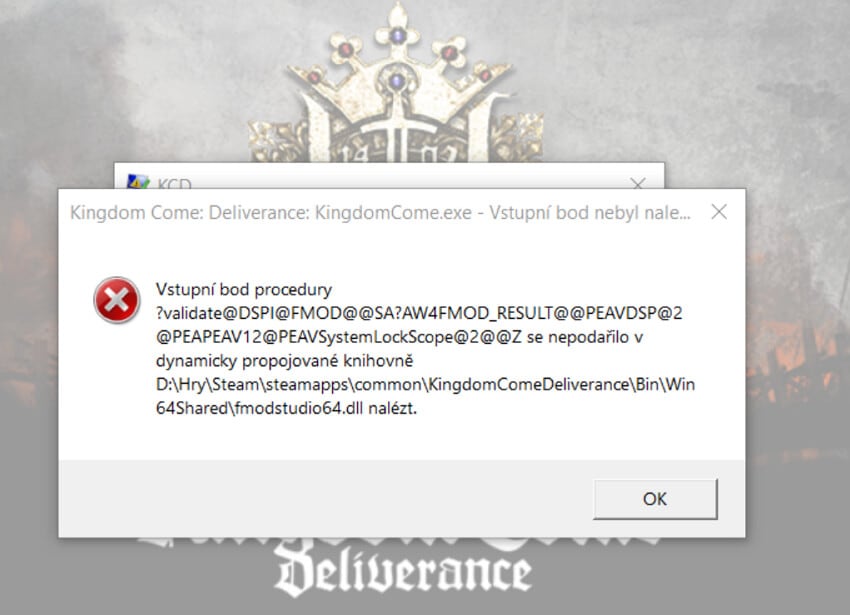
What Does "Failed to Load Game.dll" Mean In KCD2
When KCD2 shows this error, it means that the game's executable asked Windows to load a core game library. In simple terms, a critical file that KCD2 needs at the very first step of launching is missing or corrupted. However, sometimes it can also be caused by the blocking of the wrong Visual C++ runtime, so the start‑up sequence stops instantly, and the game closes.
Why is WHGame.dll Important For the Game To Run
- Core Role: dll contains critical code that KCD2 uses to initialize the game engine, load assets, and start core systems. If it's missing or damaged, Windows stops the process before the main menu can appear.
- System Component Dependency: It relies on system components such as Visual C++ to function correctly. If those runtimes are not installed or are corrupted, the DLL fails to load, and the entire game refuses.
Overall, it is part of the official game installation, and simply deleting or bypassing WHGame.dll is not an option.
How Does This Error Affect Gameplay and Game Launch
As this WHGame.dll file is utilized at the start-up phase, it can cause various errors within the game. Initially, it stops the game from launching and often closes immediately after opening the file. So, until the underlying error is fixed, you won't be able to reach the main menu or access any gameplay features.
Part 2. 5 Common Causes of KCD2 WHGame.dll Error
With the basics covered, it's time to identify the key factors that commonly trigger the error in Kingdom Come: Deliverance II:
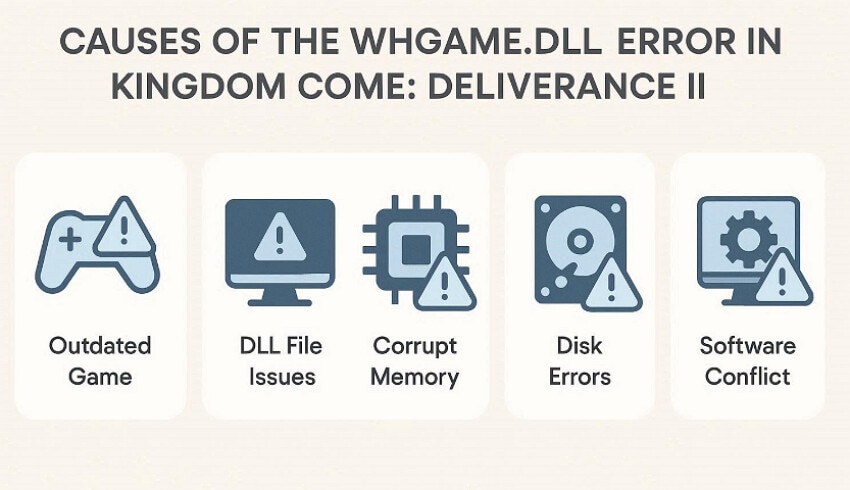
- Missing or Misplaced Files: Sometimes, the WHGame.dll file is missing from the KCD2 "Bin" or "Win64" folder due to incomplete transfers. Manual file moves can place the file in the wrong directory or remove it entirely.
- Corrupted Game Files: Interrupted downloads, power cuts, or crashes during updates can corrupt key game data. When these files are damaged, the launcher might still start, but Windows blocks the game.
- Broken Visual C++ Redistributable: KCD2 relies on specific Microsoft Visual C++ runtime packages. Thus, if these are missing or broken, it can't load properly, and Windows terminates the game during startup.
- Overlays or Security Software: Overlays and third-party tools can sometimes conflict with game DLLs and block them. Furthermore, an antivirus may falsely flag WHGame.dll as suspicious, resulting in errors.
- Outdated Windows Drivers: Outdated Windows drivers can create compatibility issues that stop core DLLs. Furthermore, system-level errors or OS corruption can also interfere with file access.
Part 3. Step-by-Step Fixes for Failed to Load Game DLL in KCD2
Now that the causes are clear, let's walk through the step-by-step fixes to resolve this "KCD2 Error":
Fix 1: Verify Game Files via Steam or Game Launcher
If you are facing errors while playing the games, start by validating the games via the "Steam" server. It automatically checks for missing, corrupted, or changed files with the actual original files. The foremost part is that it replaces only the broken or missing files instead of making you redownload the entire game. Overall, this method often fixes launch issues, crashes, and missing‑DLL errors, so let's explore its guide below:
- Upon entering the tool, right-click the game and choose the "Properties" option from the pop-up menu.
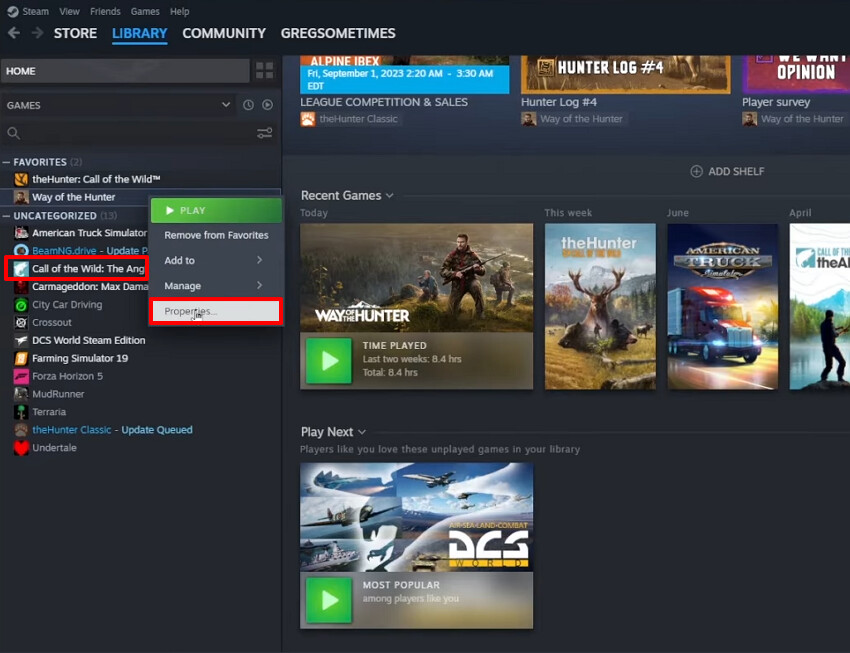
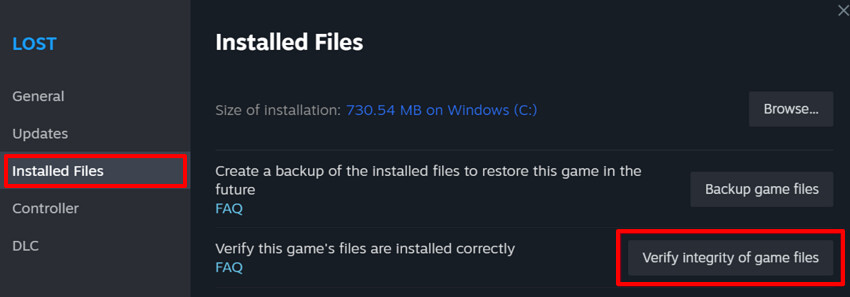
- Lastly, choose the "Installed Files" section from the left sidebar and choose the "Verify Integrity of Game Files" button.
Fix 2: Reinstall the Game Completely
To fix this error, reinstalling the game wipes out a potentially broken or incomplete installation and downloads a fresh copy of every game file. This method removes leftover DLLs, mods, and config files that may still linger after the uninstall method. Upon hearing its key features, let's explore a detailed guide to fix "failed to load the game dll whgame.dll" error:
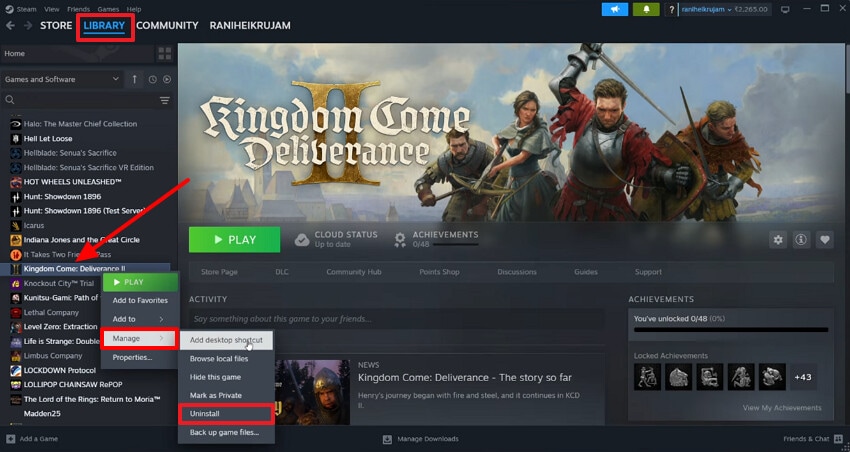
- Initiate by opening the "Steam" interface and going to the "Library" menu. Afterwards, right‑click the desired game, choose the "Manage" option to select the "Uninstall' option. At this point, it is also recommended to delete any game-related data from the "File Explorer."
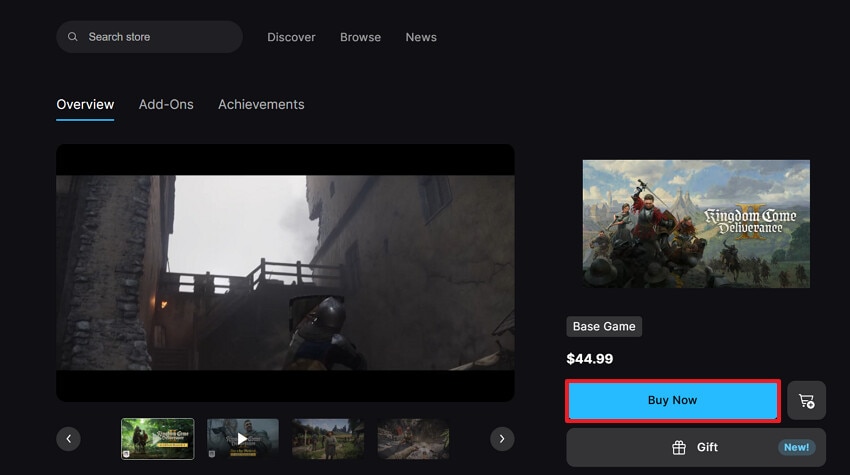
- Now, go to the game's official website and re-download the file by clicking on the "Buy Now" button.
Fix 3: Update Graphics Drivers and DirectX
Sometimes the main reason behind the Kingdom Come Deliverance II error is outdated drivers or DirectX. You should ensure that your drivers are up-to-date to run the latest game engine code and graphics features. This improves overall stability and performance in newer games by fixing various errors with new updates. To get yourselves aware of this method, have a look at its detailed guide below:
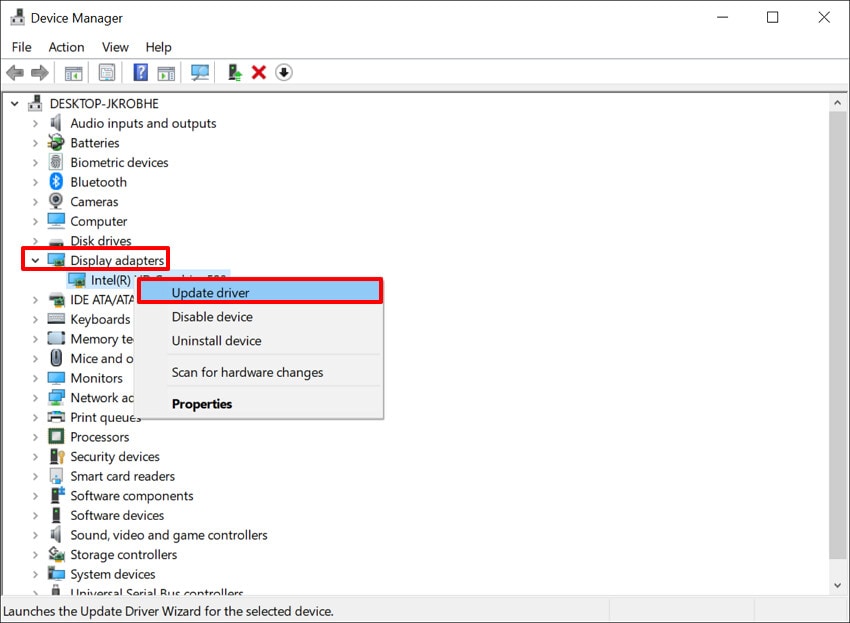
- Start by opening the "Device Manager" interface and expanding the "Display Adapters" menu. Afterwards, right-click the faulty driver and select the "Update Driver" option from the pop-up menu.
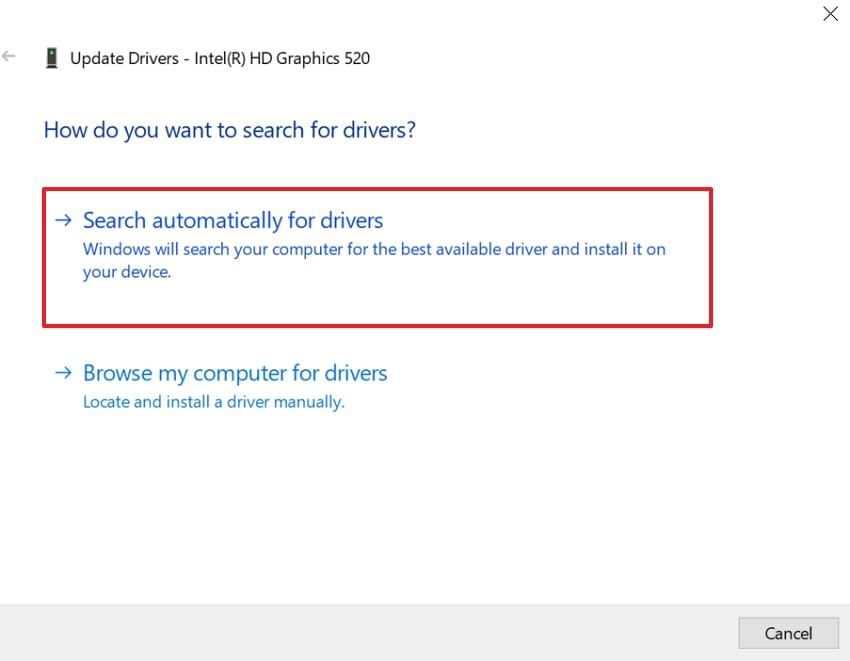
- Here, click on the "Search Automatically for Drivers" option to let it start updating automatically.
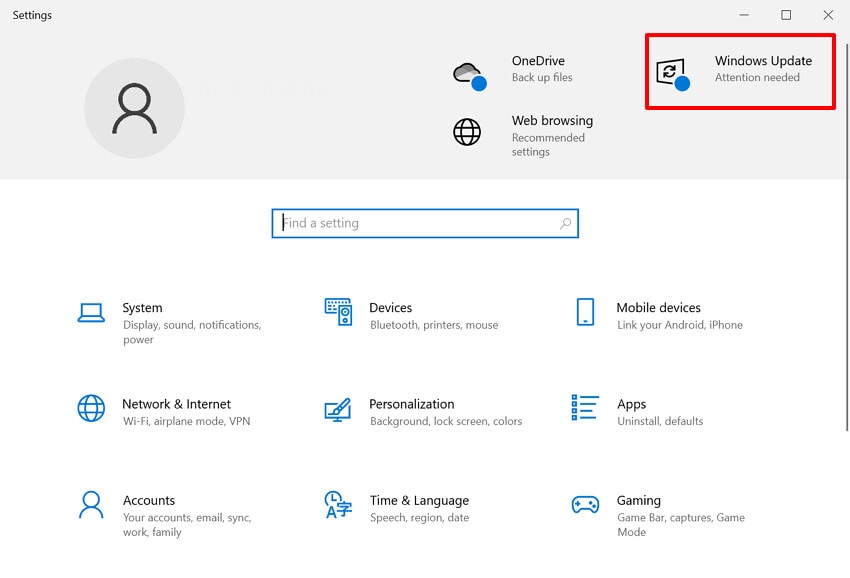
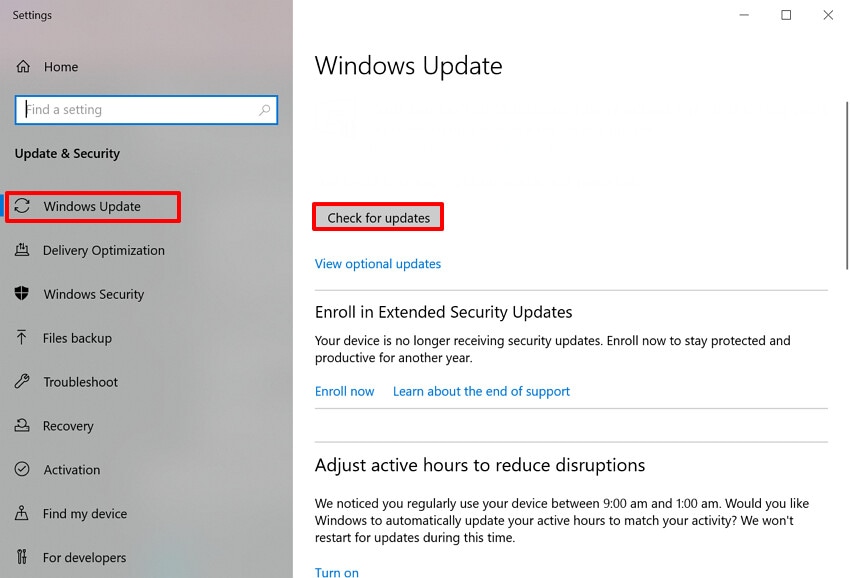
- Now, move to the "Settings" interface and choose the "Windows Update" option from the top right corner.
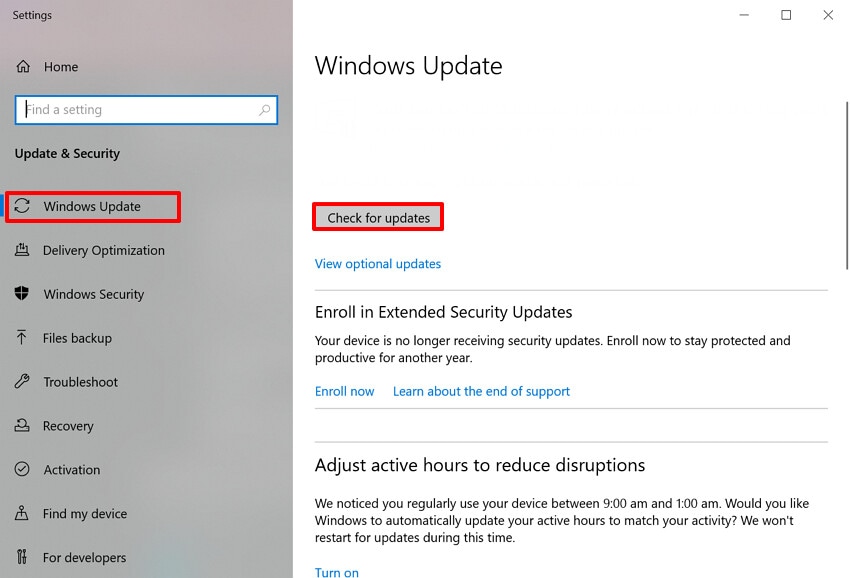
- Here, click on the "Check for Updates" button to download the latest Windows version.
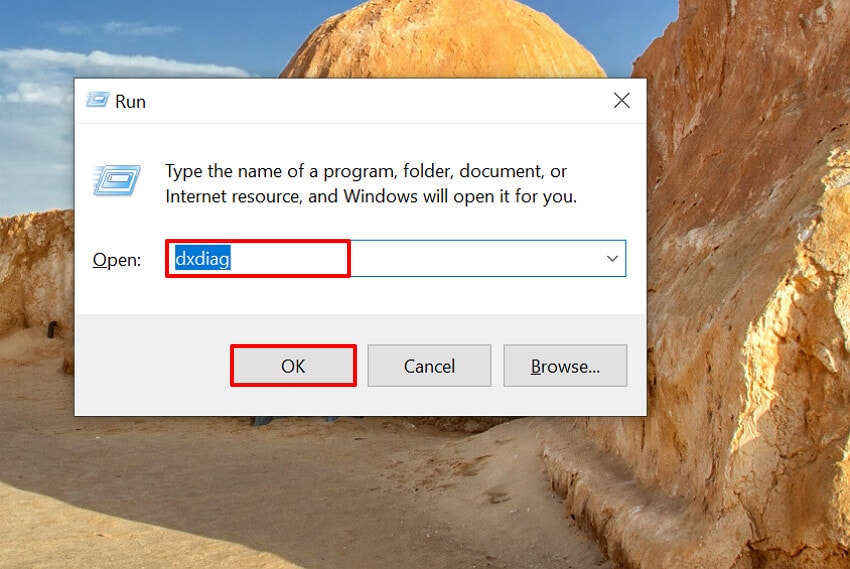
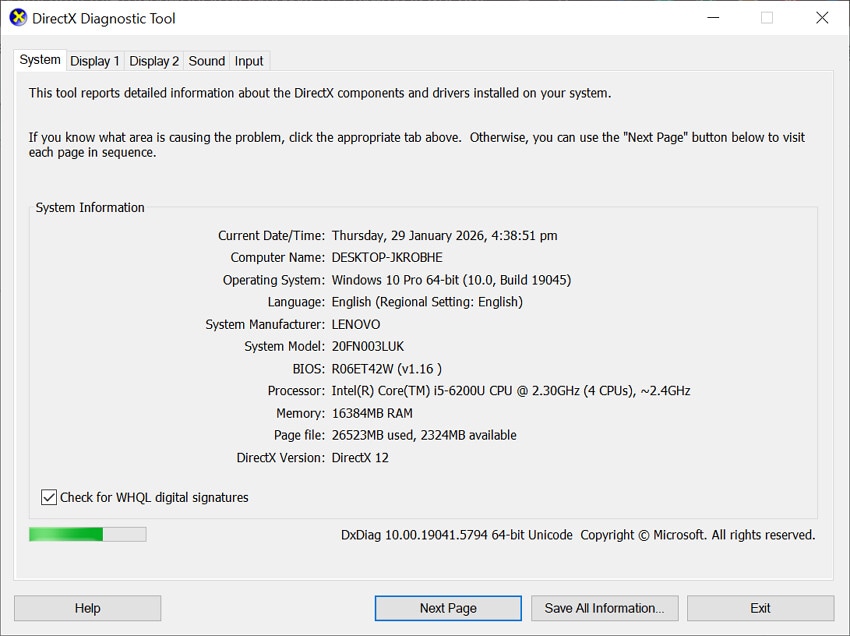
- Following this, press the "Windows + R" keys on the keyboard to access the Run program, enter "dxdiag" in the "Open" tab, and hit "OK."
- Here, examine that your PC is up-to-date and has all the necessary latest updates.
Fix 4: Run the Game as Administrator
To fix "KCD2 Error," you can turn your targeted game to "Run as an Administrator." By doing so, it gives the game higher permission to read/write in protected folders. It also fixes bypass permission‑related issues where Windows or another app is silently stopping the game. Moreover, it can resolve errors in setups that use anti‑cheat systems, mods, or tools, so have a look at its guide below:
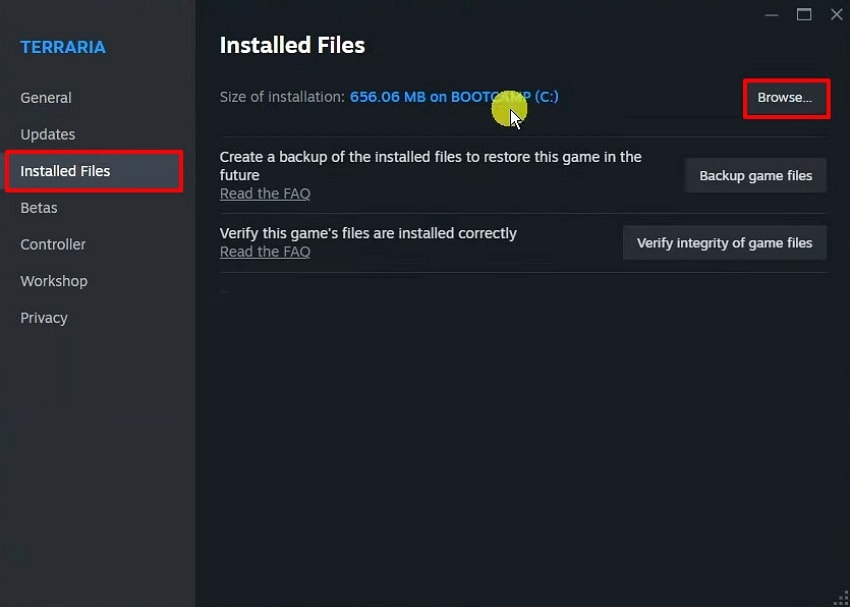
- With the Steam tool running, open the "Library" option. Choose the "Installed Files" option from the left tab and select the "Browse" button.
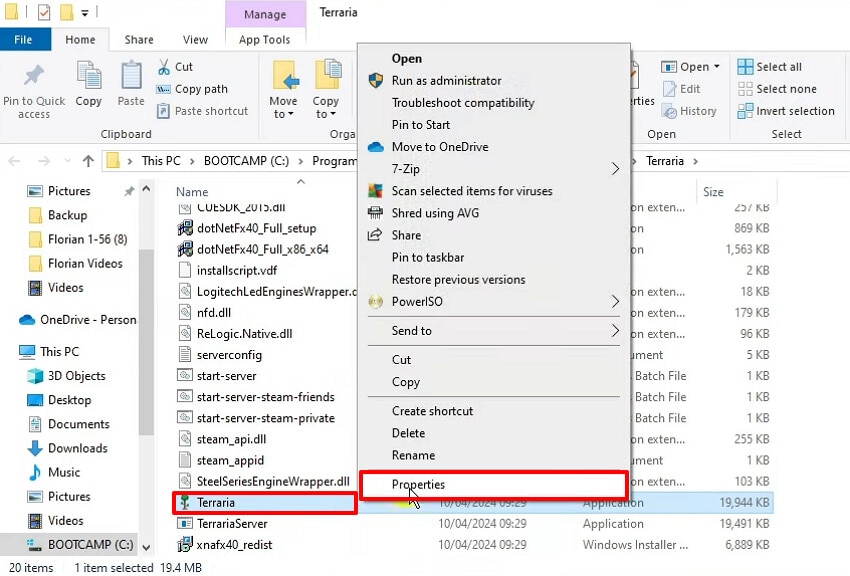
- Now, select the desired game file and select the "Properties" option from the pop-up.
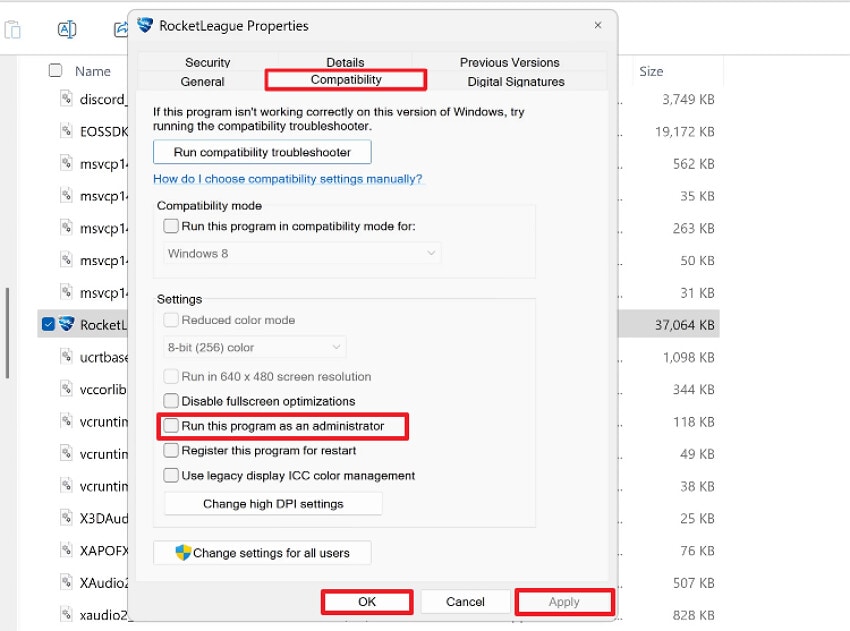
- At the end, choose the "Compatibility" tab and enable the "Run the Program as Administrator" option. Following this, select the "Apply" button and then hit the "OK" button to confirm all changes.
Fix 5: Disable Antivirus or Security Software Temporarily
This method is beneficial as it lets you check if your antivirus is falsely flagging the "failed to load the game DLL whgame.dll" error. It removes real‑time scanning overhead while you test, preventing the antivirus from locking or blocking DLLs. Plus, it helps to identify the conflicts where security tools interfere with game launchers. The foremost part is that you can reverse this setting anytime, so follow the given steps:
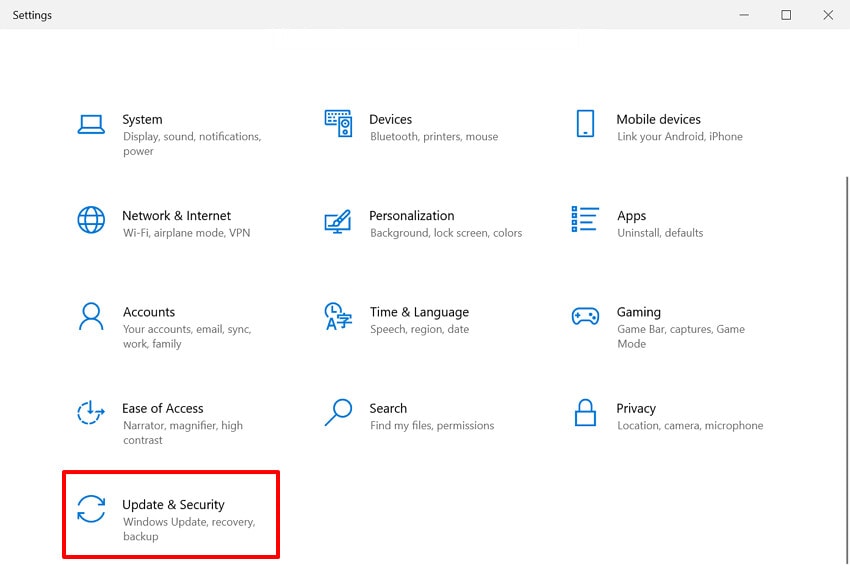
- As you enter the "Settings" interface, choose the "Update & Security" option.
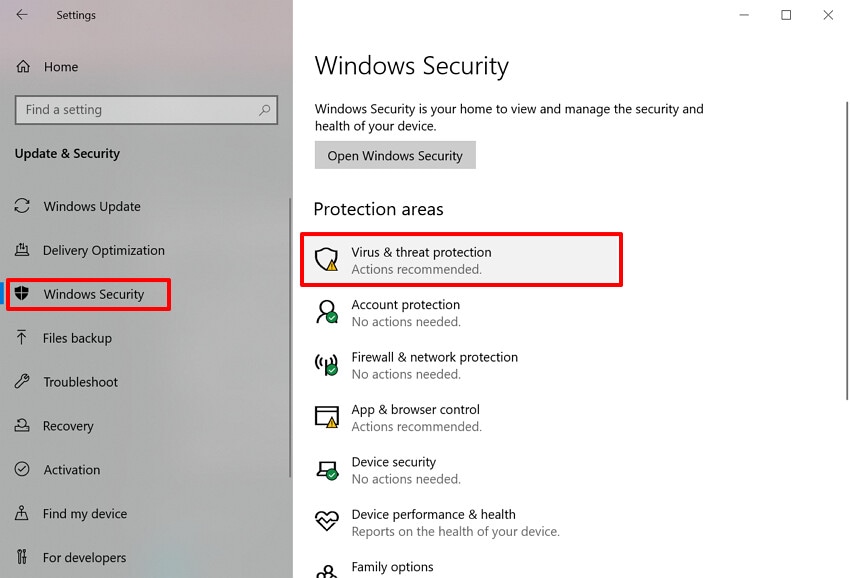
- Following this, select the "Windows Security" option and choose the "Virus & Threat Protection" option.
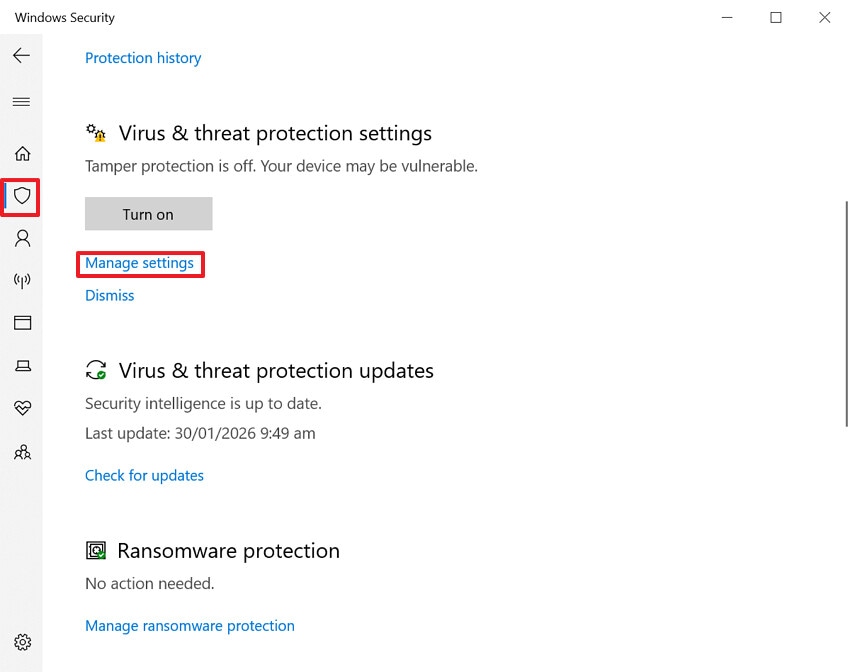
- Here, choose "Manage Settings" under the "Virus & Threat Protection Settings."
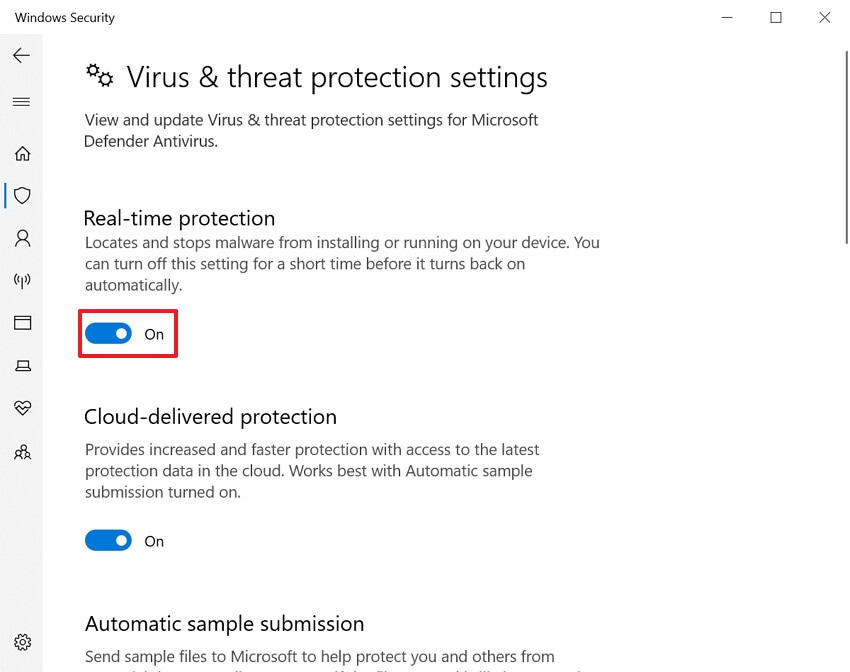
- At the end, disable the "Real-time protection" feature available in this interface.
Fix 6: Check for Windows Updates and System Files
To avoid any KCD2 Error, ensure that your system is updated to the latest version. It updates the underlying framework that can indirectly affect how game DLLs load. Moreover, you can use DISM and SFC to scan for and repair corrupted or missing core system files. This is considered the safest, Microsoft‑supported way to fix deep OS‑level issues before you blame the game, so explore this guide:
- At first, click on the "Check for Updates" button in settings to ensure the latest available version.
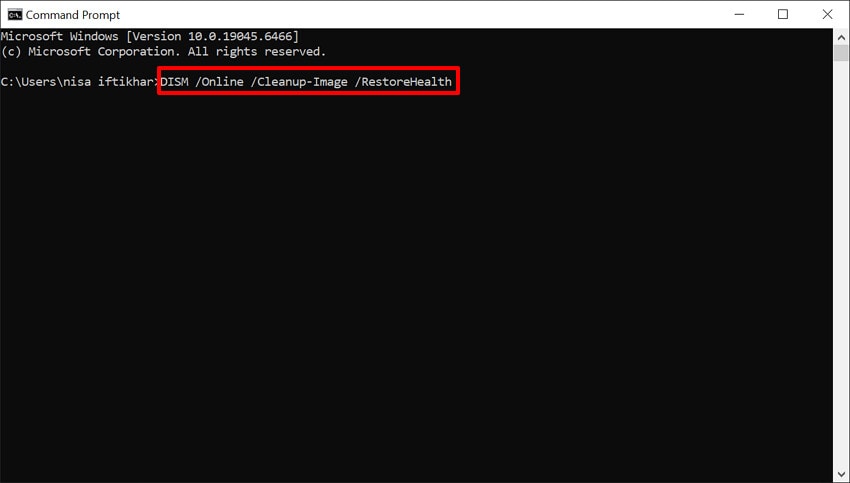
- Following this, launch CMD as an administrator, enter the "DISM /Online /Cleanup-Image /RestoreHealth" command and press "Enter."
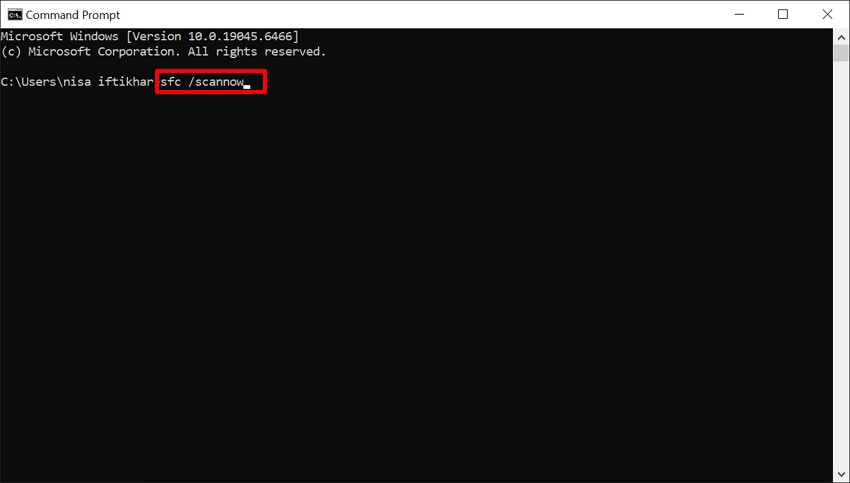
- Afterwards, use the "sfc /scannow" command and hit the "Enter" button to repair the missing files
Fix 7: Re-download/Copy Missing WHGame.dll from Official Source
Redownloading missing files ensures you get the exact WHGame.dll version that matches your KCD2 build. It avoids security risks from third‑party DLL websites, which can host outdated, modified, or even malicious versions. Furthermore, you can fix corruption or bad edits by overwriting WHGame.dll with a clean copy from the original installation. Upon hearing its key features, have a look at its guide to fix Kingdom Come Deliverance II:
- At first, open the Steam app, click on the "Library" menu, and right-click the desired game. Afterwards, choose the "Manage" option to navigate towards the "Browse Local Files" option.
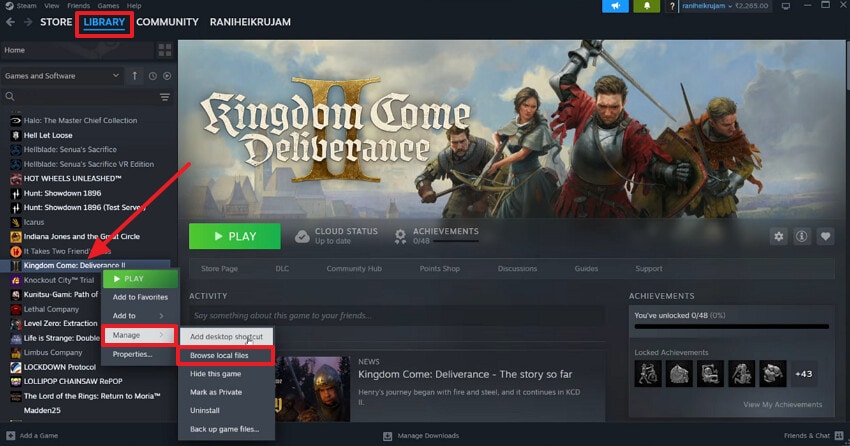
- Choose the "Bin" folder to jump into the next screen.
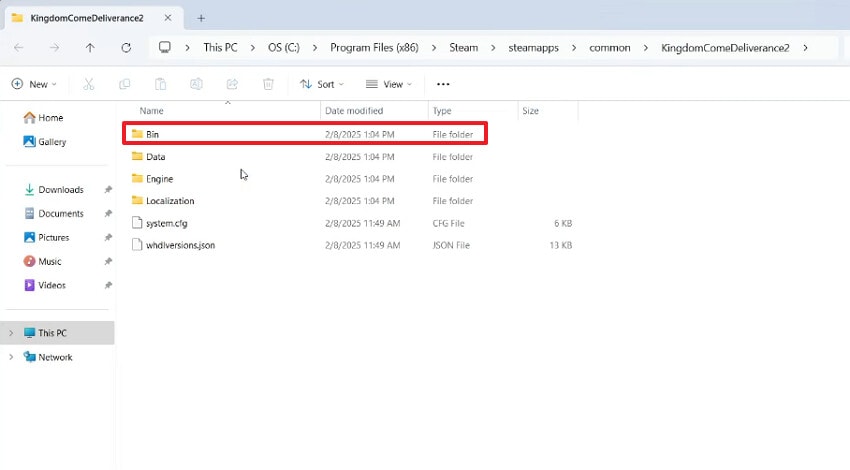
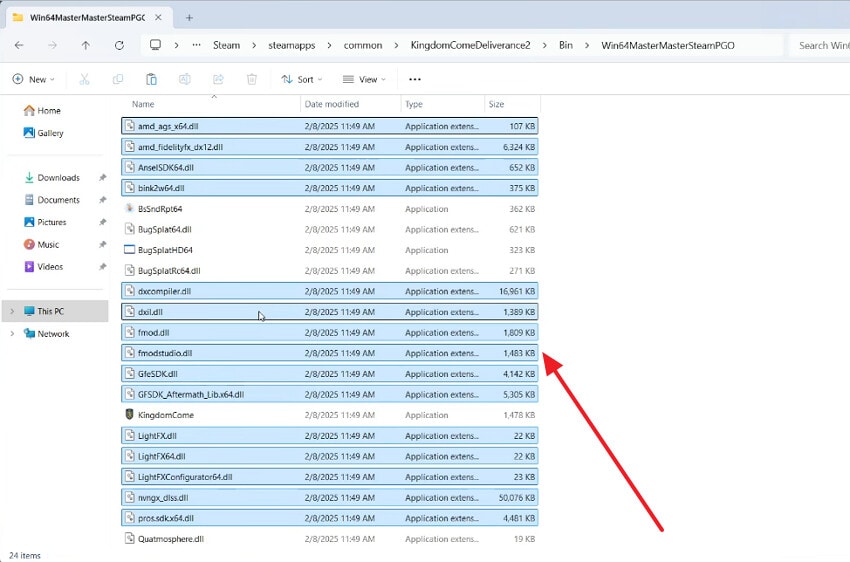
- Following this, select the "Win64Shared" folder across the next window.
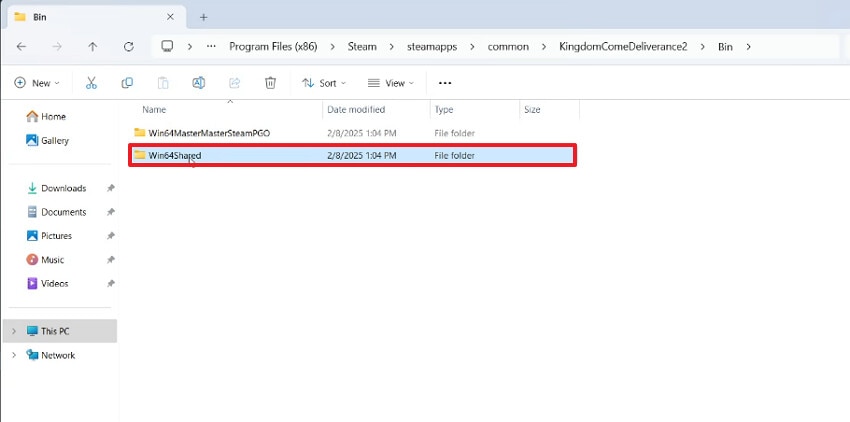
- Now, select all the available files and hit the "Copy" option. At this point, make sure you have pasted the copied file into another backup folder.
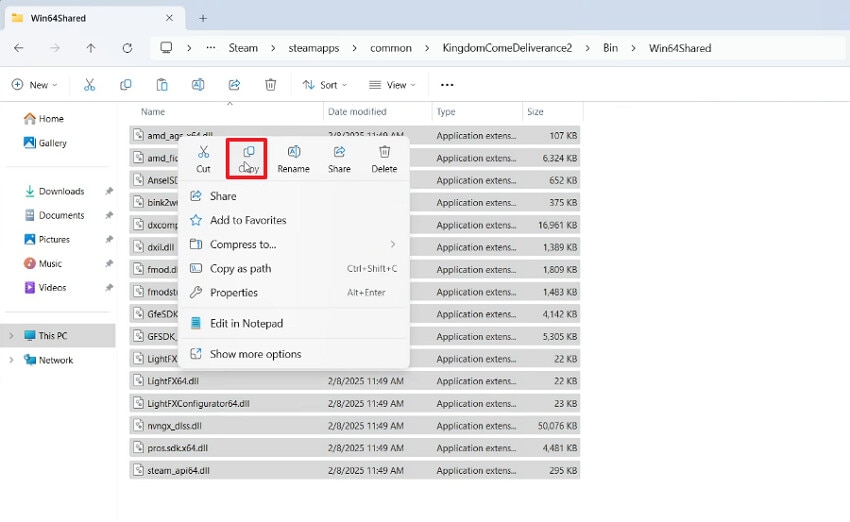
- Afterwards, come back to the previous window and open the "Win64MasterSteamPGO" folder.
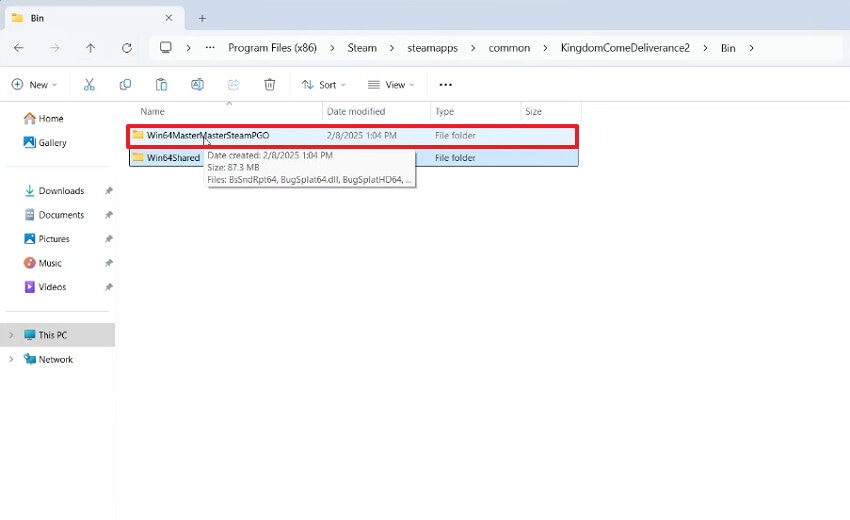
- Here, paste all the copied files into the folder, which will replace the broken WHGame.dll with the proper version bundled with KCD2.
Fix 8: Remove Conflicting Mods or Third-Party Plugins
Users can opt for this method as it eliminates custom DLLs, scripts, and modified game files that can cause "failed to load the game dll whgame.dll" error. It helps you quickly isolate whether the problem is with the base game or a specific mod by testing KCD2. Furthermore, it allows the launcher's file verification to properly restore original assets, since leftover mod files are removed.
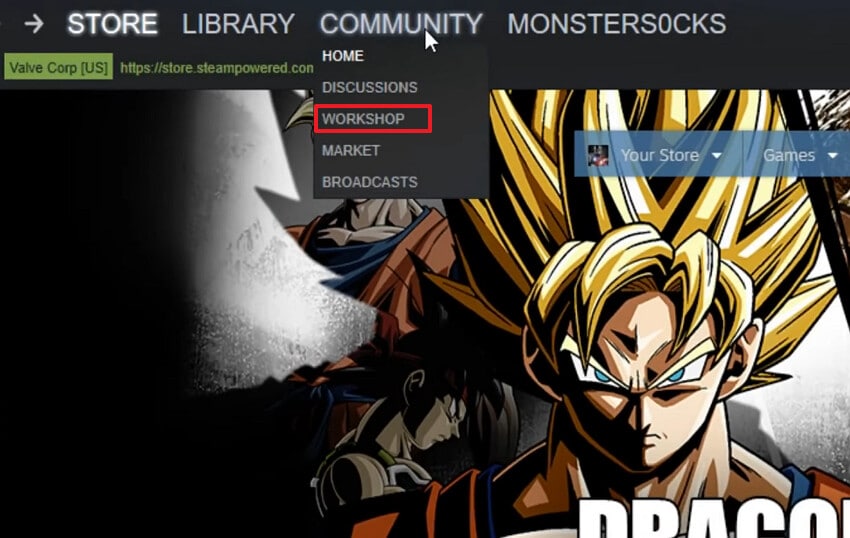
- As you enter the Steam platform, click on the "Community" menu and choose the "Workshop" option from the drop-down menu.
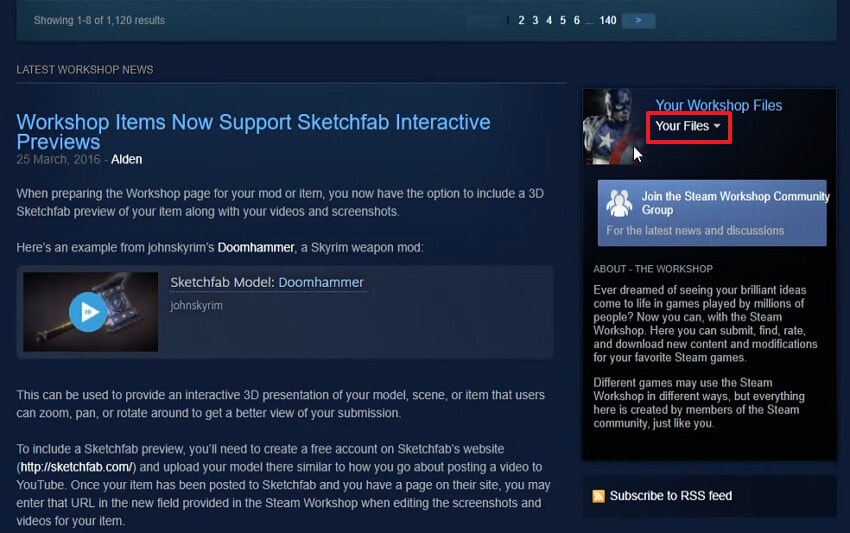
- Here, click on the "Your Files" option located under the "Your Workshop Files" section.
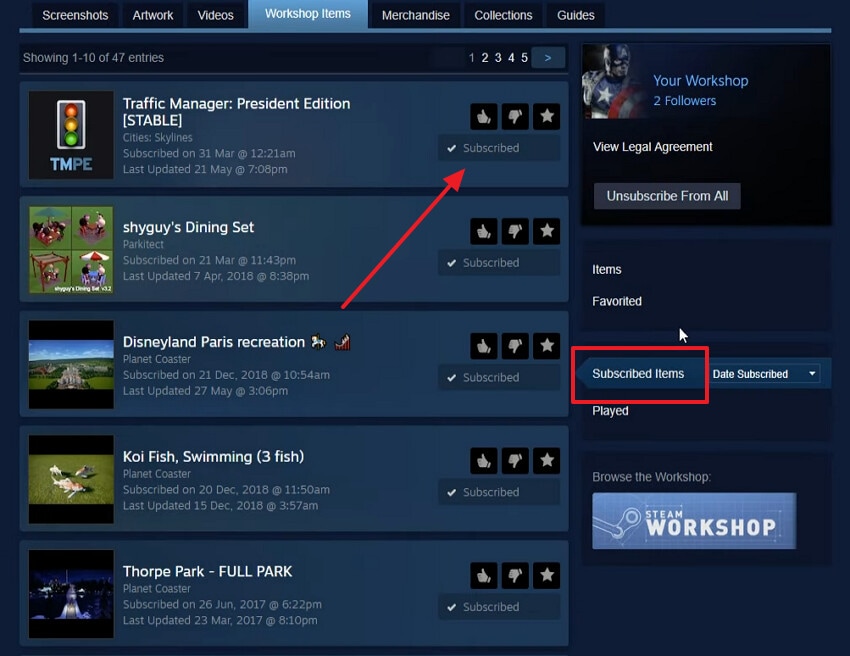
- Choose the "Subscribed Items" to access all the subscribed modes. Now, unsubscribe from the desired modes that are conflicting with the game.
Fix 9: Clear Game Cache or Temporary Files
If no other method works, you can try clearing extra cache or temporary files that can block the proper loading of fresh games. Stream tool rebuilds cache from clean-up-to-date data, which can fix stuck launches and odd errors. Most importantly, it frees up disk space occupied by large temporary folders, which can improve overall system performance. After getting aware of its features, let's resolve KCD2 Error:
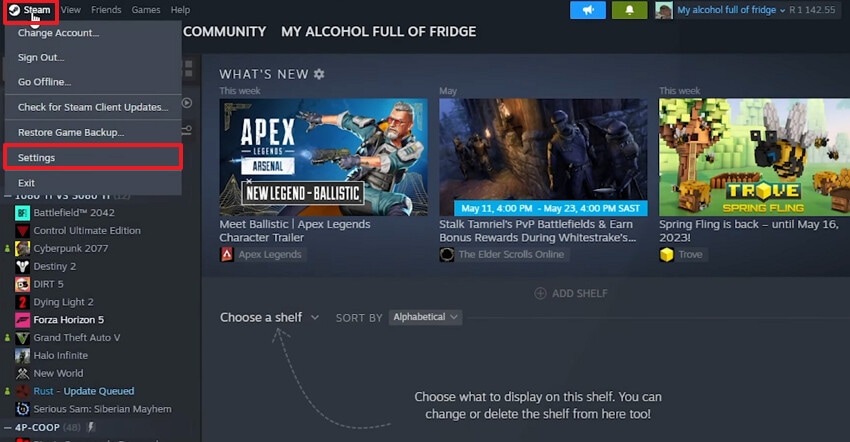
- Upon entering the Steam interface, click on the "Steam" menu from the top left corner and select the "Settings" option from the menu.
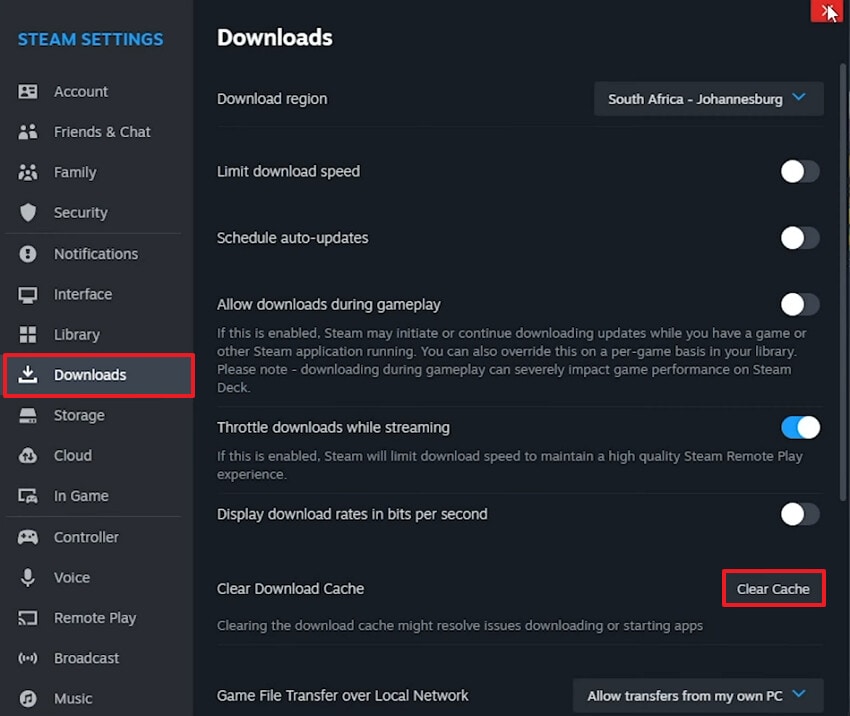
- Select the "Downloads" option from the left menu and choose the "Clear Cache" button to delete all unnecessary data.
Fix 10: Adjust Compatibility Settings for Older Windows Versions
This method forces Windows 10/11 to emulate earlier versions' behavior, which can fix issues in games. It lets you toggle options such as disabling full-screen optimizations and DPI scaling. Furthermore, it resolves crashes, black screens, or odd display issues at launch. Overall, it is a non-destructive method that can quickly enable compatibility mode, so have a look at its guide:
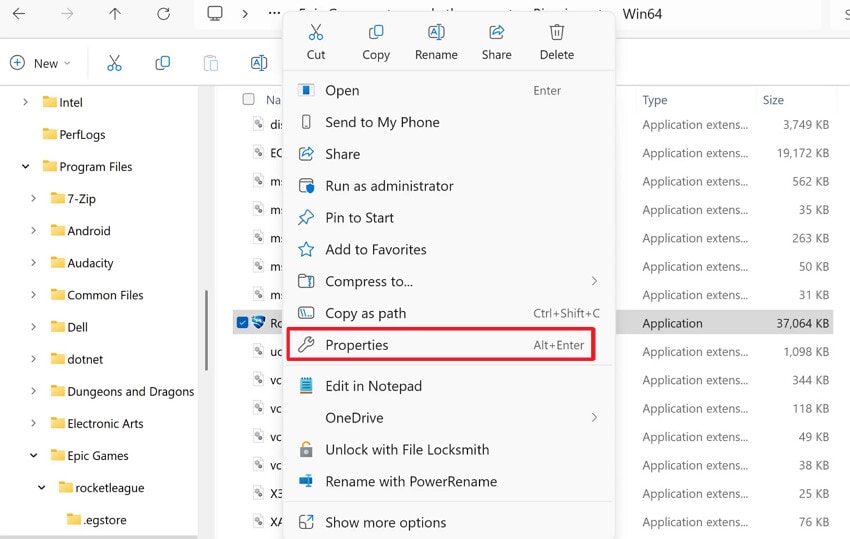
- Start by right-clicking the game file and choosing the "Properties" option from the pop-up menu.
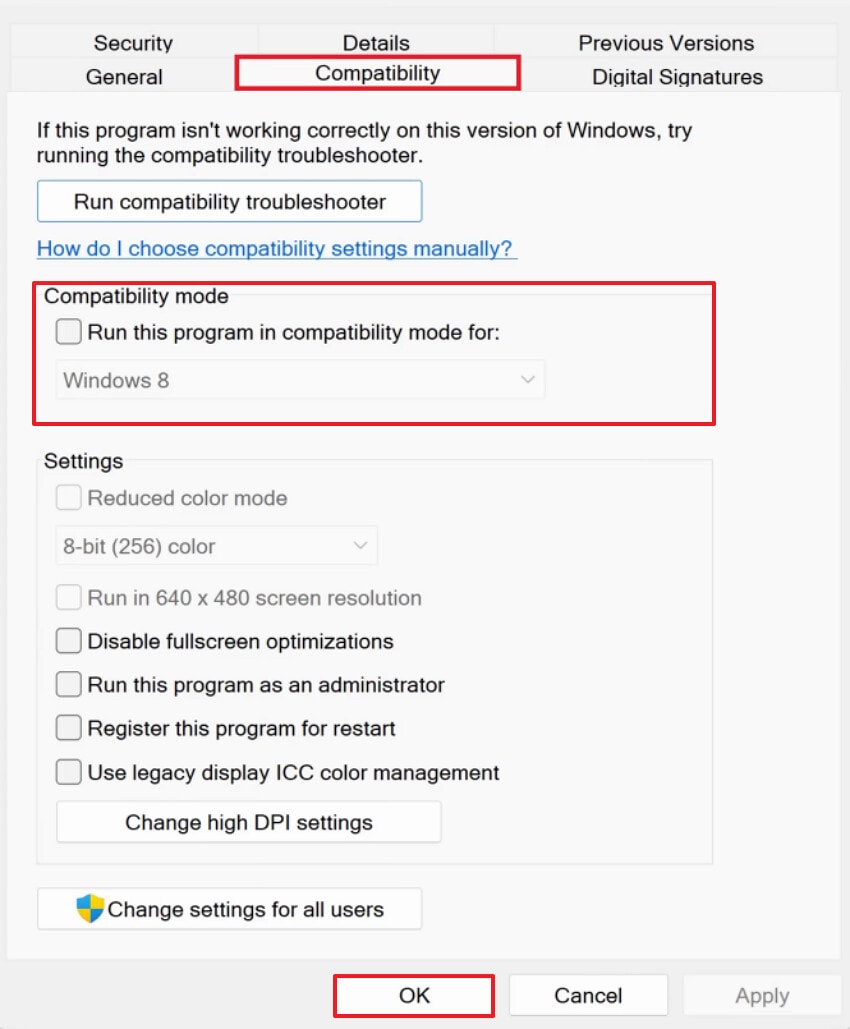
- Select the "Compatibility" tab and enable the "Run this Program in Compatibility Mode for." Afterwards, choose the desired Windows version that you want to set for the game to operate.
Pro Tip: Know How Recoverit Helps Recover KCD2 Files After Failed Launches
Imagine you are playing a game, and it crashes, showing "failed to load the game dll whgame.dll" error. After a failed installation or a bugged update, you found out that the main file was deleted. Rather than panicking, we recommend using Recoverit, which lets you retrieve data with complete accuracy, along with 500MB of free data recovery.
You simply choose the desired data location, and the scanning process will begin. It offers multiple scanning modes, including both quick and deep scanning modes. Moreover, users can access its batch processing system to recover multiple files simultaneously.
Key Features
- Data Loss Scenarios: It can recover data lost due to multiple scenarios, including sudden power outages or accidental deletions.
- Preview Feature: Users can also preview the recovered outcome to ensure its completeness and accuracy.
- Pinpoint Files: To speed up the workflow, you can even pinpoint files by their names, sizes, and folder names.
Guide to Recover KCD2 Game Files Using Recoverit
Upon hearing its extensive features, let's dive into its detailed guide below to recover lost data effortlessly:
- Choose the Location in Hard Drives and Locations
While the tool is running, click the "Hard Drives and Location" option in the left tab. Then, choose the desired location under the "Quick Access" tab.
- Start the Scanning Procedure to Restore Files
Now, it will automatically initiate the "Quick Scanning" procedure to retrieve files. However, you can also pinpoint the lost files by their "File Name and File Types."
- Examine the Recovered Files to Restore Them
Lastly, preview the recovered files and hit the "Recover" button to complete the procedure.
Part 4. Preventing WHGame.dll Errors in the Future - 5 Tips
After fixing the KCD2 Error, the next step is ensuring it doesn't happen again. To ensure no loopholes are left behind, here are 5 practical prevention tips:
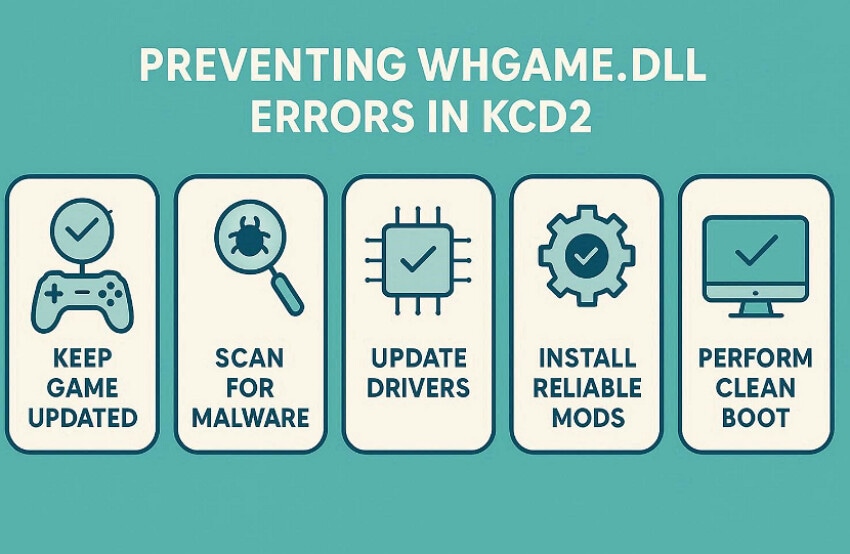
- Keep KCD2 E-launcher Updated: Install new game and launcher updates as soon as they are released, so critical bug and stability fixes are applied. This reduces the risk of incomplete patches breaking core files, such as WHGame.dll.
- Regularly Verify Game Files: Verify installed game files regularly to detect and redownload missing or corrupted DLLs. This simple check often fixes problems before they turn into full launch errors.
- Keep Windows and Drivers Current: Update Windows, GPU drivers, and Visual C++ redistributable to their latest stable versions. A fully updated system is far less likely to conflict with KCD2's engine and DLL dependencies.
- Careful With Mods and Third‑party Files: Only use trusted mods and avoid downloading standalone DLLs from random websites. Keeping a clean, unmodded copy of the game makes it easy to roll back if a mod causes WHGame.dll issues.
- Back Up Saves and Key Folders: Regularly copy your saves and important KCD2 folders to another drive or cloud storage. If something goes wrong, you can restore your setup instead of starting over from scratch.
Conclusion
In conclusion, users can now easily resolve errors related to the Kingdom Come Deliverance II game. In this article, we have narrowed down the most efficient ways to fix this error, with detailed guides. Furthermore, if you lost your game files, we recommend using Recoverit, which offers maximum accuracy when recovering files.
FAQ
1. Why is KCD2 showing "Failed to load the Game DLL 'WHGame.dll"?
This error appears when the game can't properly load one of its core libraries. It can also be caused by the wrong folder or by a broken dependency, such as the Visual C++ redistributable.2. What's the quickest fix most players report?
The fastest and most reliable fix for many players is to copy all files from the bin and paste them into another folder. This replaces a bad WHGame.dll with working versions that are already included with the game.3. Is verifying game files in Steam/Epic worth trying?
Absolutely, verifying or repairing game files will scan your KCD2 install and automatically redownload missing files. Overall, this is a safe, low‑effort step that often fixes the problem without requiring a full reinstall.4. What to do if you lost essential game files due to corruption?
If you lost important game files due to the KCD2 Error, we recommend using Recoverit. This tool lets you restore multiple files simultaneously using both Quick and Deep scanning modes.


