


 TL;DR:
To bypass the Windows 11 setup screen when the "Next" button is greyed out, execute the Out-Of-Box Experience bypass command to skip the network requirement and continue with an offline installation.
● Disconnect the internet connection, press Shift + F10 to open the Command Prompt, type oobe\bypassnro, and press Enter to allow local account creation.
● Open Task Manager and select "End Task" on the "Network Connection Flow" process to force Windows to refresh and reload the frozen network module.
● If the system fails to detect your Wi-Fi adapter, manually install the required network drivers through Device Manager or connect directly using an Ethernet cable to trigger immediate network detection.
Ask AI for a summary
 ChatGPT
 Perplexity
 Gemini
 Claude
 Grok
Grok
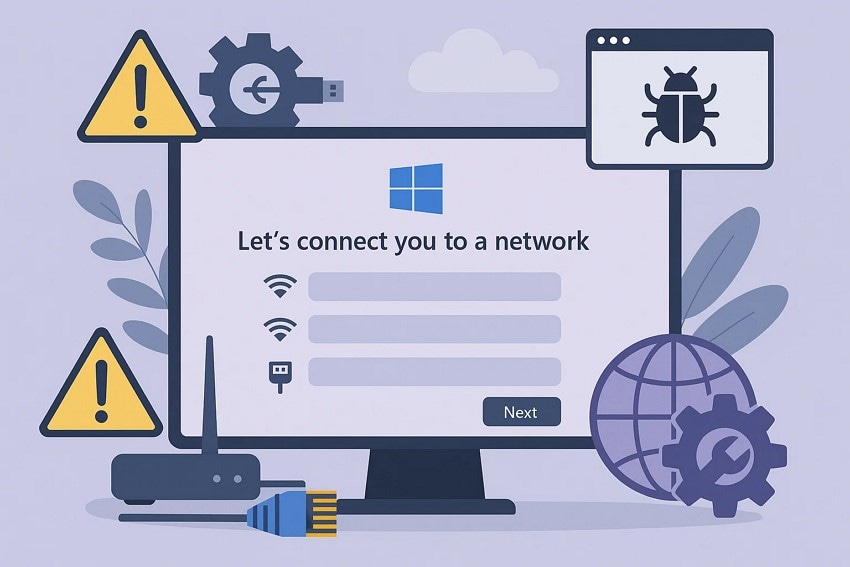
A user just upgraded to Windows 11 but finds the setup stuck, unable to proceed because the “Next” button is greyed out. This common issue occurs during the network connection step, leaving many unsure how to continue. Often, it is caused by system glitches, driver problems, or incorrect network settings.
Without a proper fix, the Windows setup cannot complete, delaying productivity and access to essential features. In this guide, we will explore practical methods to resolve the let's connect you to a network problem efficiently. By following these methods, users can regain full setup functionality quickly.
Try Recoverit to Perform Windows Data Recovery
 Security Verified. 3,591,664 people have downloaded it.
In this article

Part 1. Why Windows 11 Gets Stuck on “Let’s Connect You to a Network” Screen
Several system and network-related factors can trigger this issue, preventing the Next button from being clickable. Knowing the root causes helps in applying the right fix effectively. Mentioned below are some of the reasons why users might face the let's connect you to a network windows 11 issue:
- Network Driver Issues: Outdated or corrupted drivers can prevent Windows from detecting networks properly. Without proper drivers, the system may freeze during the network setup process.
- Wi-Fi or Ethernet Glitches: Temporary problems with your Wi-Fi adapter or Ethernet cable can stop the setup from progressing. These glitches often resolve with a simple restart, but can sometimes persist.
- Incorrect Network Settings: Misconfigured IP addresses, DNS, or proxy settings may block Windows from connecting to available networks. This can make the “Next” button unresponsive during setup.
- Windows Update Bugs: Pending updates or installation errors can interfere with system functions, including the network setup screen. Certain bugs may prevent Windows from recognizing connected networks.
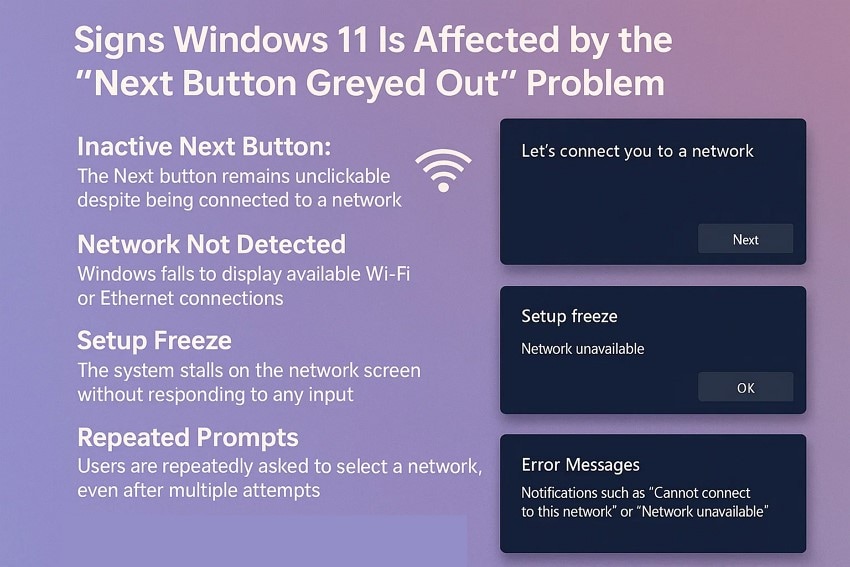
Signs Windows 11 Is Affected by the “Next Button Greyed Out” Problem
Mentioned next are some of the signs that will indicate the Next button is greyed out in let's connect you to a network windows 11 problem:
- Inactive Next Button: The Next button remains unclickable despite being connected to a network.
- Network Not Detected: Windows fails to display available Wi-Fi or Ethernet connections.
- Set up Freeze: The system stalls on the network screen without responding to any input.
- Repeated Prompts: Users are repeatedly asked to select a network, even after multiple attempts.
- Error Messages: Notifications such as “Cannot connect to this network” or “Network unavailable” appear.
Part 2. 5 Basic Fixes for Windows 11 Stuck on “Let’s Connect You to a Network”
Having learned about the reasons and signs of the Windows 11 let's connect you to a network issue, let us have a look at the methods to resolve it. Mentioned below are some of the handy ways to fix this problem effortlessly:
1. Use OOBE Bypass Command
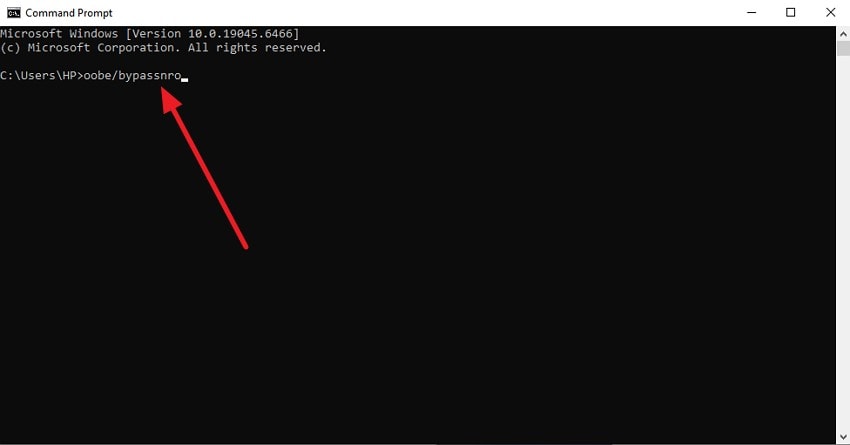
The OOBE bypass command allows you to skip Windows' initial network requirement and continue setup without a network connection. This method modifies the Out-Of-Box Experience behavior to enable local account creation and complete installation offline. It's useful when the Next button remains greyed out, and network options are unresponsive in windows 11 let's connect you to a network. To learn how to perform this, read the instructions provided in the following section:
Instructions. Start by disconnecting your system from the internet connection and then enter the keys “Shift + F10.” Now, in the command prompt, type “oobe\bypassnro” and hit the Enter key.
2. End Task for Network Connection Flow
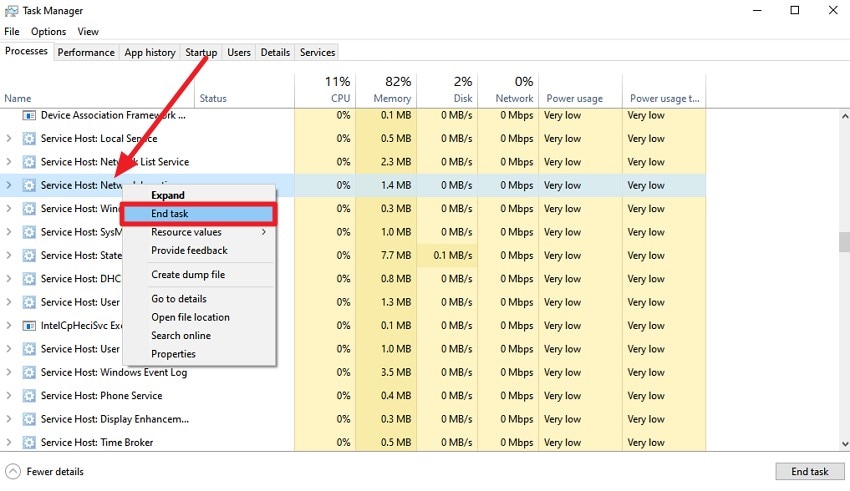
Ending the Network Connection Flow task forces Windows to refresh the setup process when the Next button stays greyed out. This method closes the frozen network module and allows Windows to reload it correctly. It’s helpful when the setup becomes unresponsive or repeatedly fails to detect available networks. After the task ends, the setup screen often responds normally again. Follow the instructions below to learn how to use this fix:
Instructions. Access the Task Manager on your Windows 11 device and locate the “Network Connection Flow” task running in the background. Right-click on it and press the "End Task" option to successfully end the task.
3. Connect via Ethernet or Mobile Hotspot
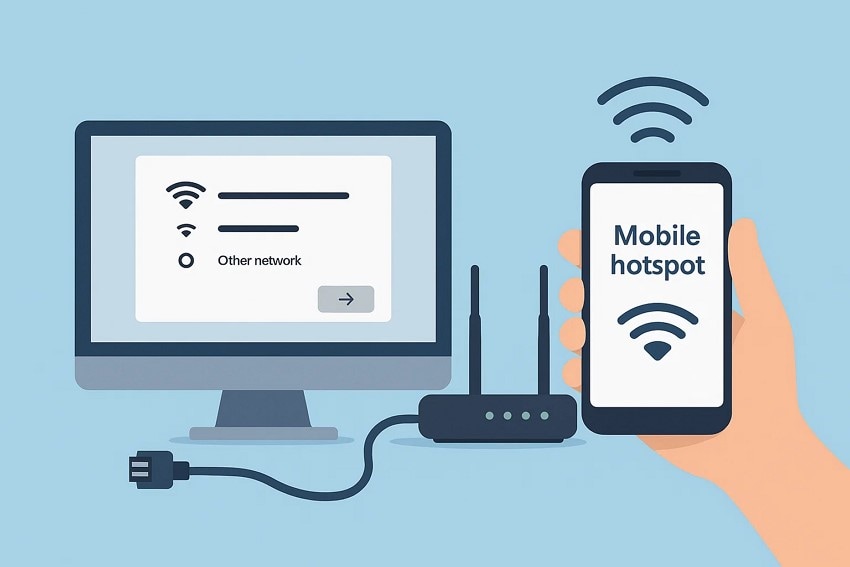
Using an Ethernet cable or a mobile hotspot offers a direct workaround when the Wi-Fi screen becomes unresponsive. Connect an Ethernet cable to your PC and router to establish an instant, stable link. If Ethernet isn't available, enable your phone's hotspot and join it from the setup screen. Both methods force Windows to refresh network detection and activate the Next button while resolving let's connect you to a network windows 11 issue.
4. Manually Install Network Drivers
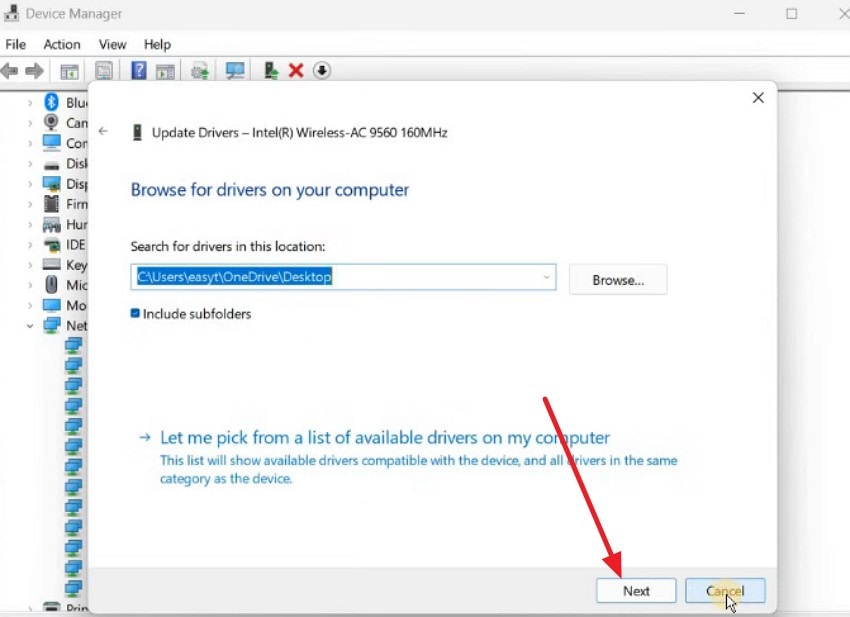
Manually installing network drivers helps Windows recognize your Wi-Fi or Ethernet hardware when the setup screen fails to load available networks. This method replaces missing or corrupted drivers that prevent the Next button from activating. You simply provide Windows with the correct driver files so the system can reinitialize the network adapter. Here is how you can install the network adapter that you have downloaded to your system:
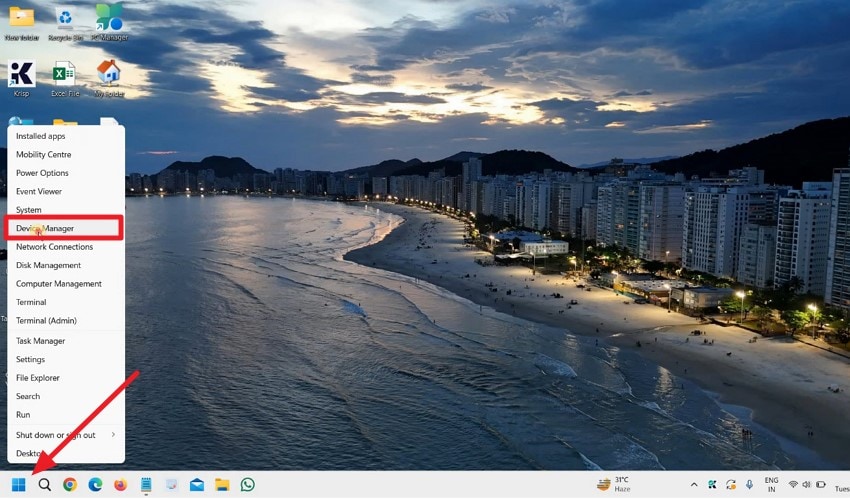
- Start by accessing the "Start" option from the bottom-left corner of the screen and choosing the "Device Manager" option to resolve let's connect you to a network
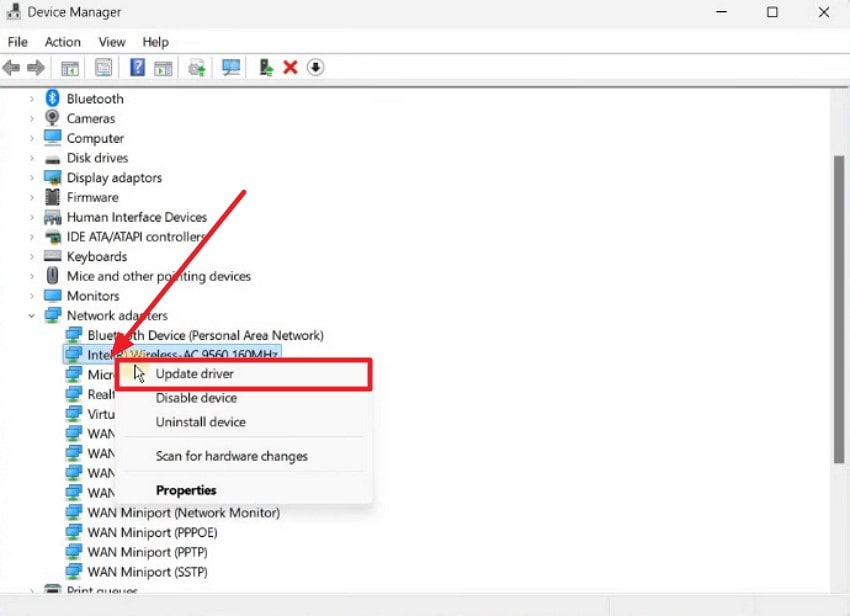
- In the following interface, expand the "Network Adaptors" option and select your wireless device. Right-click on it and press the "Update Driver" option from the expanded list.
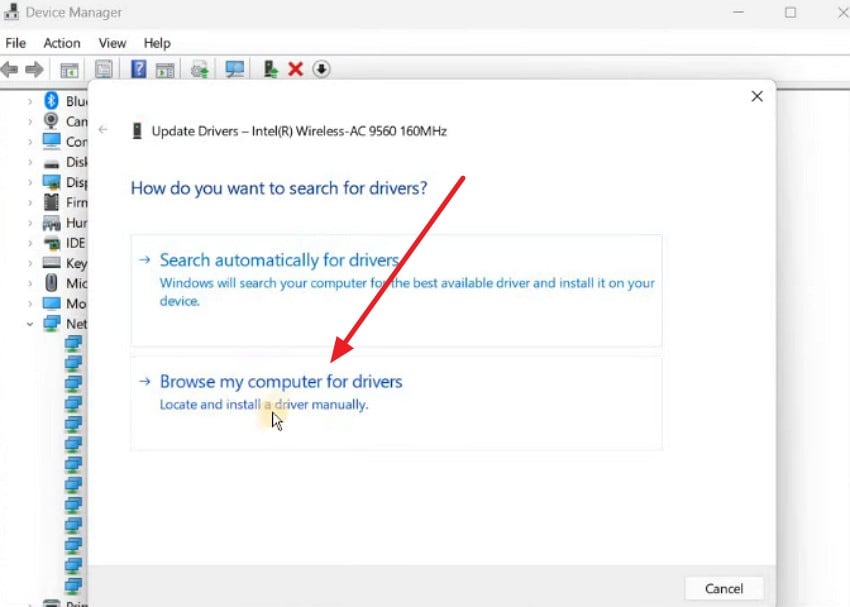
- Choose the “Browse My Computer For Drivers” option to let the program search for the downloaded driver.
- Once done, press the "Next" button to successfully install the network driver on your system and resolve the issue.
5. Check for Hidden “Skip” Option
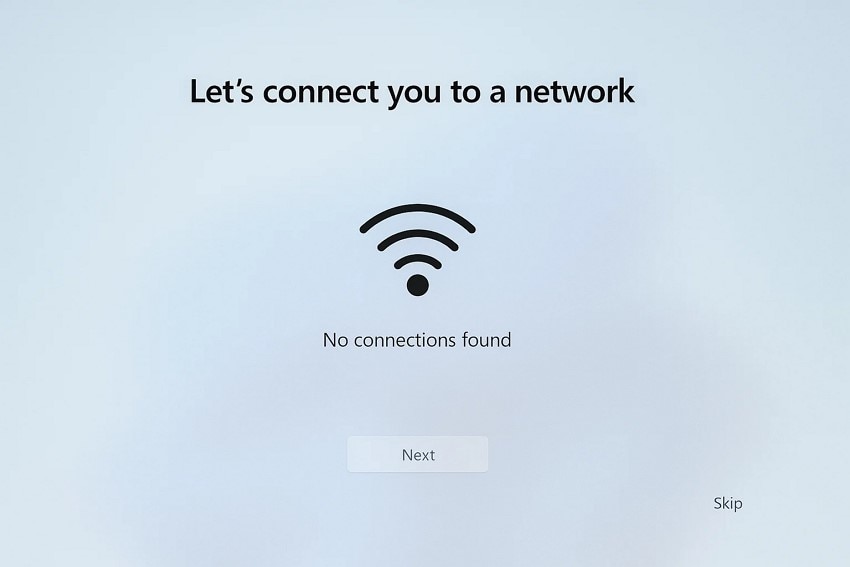
Another method is to check for the hidden "Skip" button, as it can help you move past the network screen when the Next button stays greyed out. Some Windows 11 builds include a small or faint skip link that appears only after waiting a few seconds. Once selected, Windows proceeds with offline configuration, resolving let's connect you to a network windows 11 issue.
Pro Tip. Use Recoverit to Retrieve Lost Files During Windows 11 Network Setup Issues
Often, Windows 11 fails to complete the setup properly because some essential files are missing, causing the “Next” button to be greyed out. In such cases, tools like Recoverit can help you retrieve these missing files effortlessly and allow the setup to proceed smoothly. This advanced recovery software uses deep scanning technology to search your storage thoroughly and recover all retrievable files efficiently.
You can pause and resume the scan at any time. Its intuitive interface includes a search bar for quickly locating specific files, helping fix the let's connect you to a network issue. Additionally, users can preview recovered files before saving them to ensure the correct content is restored.
Key Features of Recoverit
- Wide File Format Support: Recoverit recovers files in over 1000 formats, including system and configuration files.
- Multiple File Type Recovery: It can repair files of various types, such as PDF, PPT, JPEG, and PNG.
- Deep Scan Mode: Advanced recovery mode performs a thorough scan to restore severely corrupted or missing files.
1. Select the Storage Location
After launching Recoverit, locate the drive or folder where the missing Windows 11 setup files might be stored.

2. Scan and Recover Files
Once the location is selected, Recoverit begins scanning and lists all recoverable files. Click on the desired file and press “Recover.”

3. Preview and Save Recovered File
Preview the recovered file to confirm its content and click “Recover” to save it securely to your device.


Part 3. Preventing Future Windows 11 “Let’s Connect You to a Network” Issues
After fixing the windows 11 let's connect you to a network issue, it's crucial to take steps to prevent it from recurring. Implementing the below-mentioned preventive measures ensures a smoother Windows 11 setup:
- Keep Network Drivers Updated: Regularly update Wi-Fi and Ethernet drivers to ensure Windows recognizes networks correctly. Outdated drivers often cause setup freezes.
- Check Network Stability: Ensure your internet connection is stable and uninterrupted during setup. Fluctuating connections may freeze the network screen.
- Disable Third-Party Security Temporarily: Turn off firewalls or antivirus software during Windows installation. Security tools can mistakenly block network access.
- Run Windows Update Regularly: Install all system updates to prevent bugs affecting setup. Pending updates can interfere with network detection.
- Reset Network Settings: Periodically reset network settings to avoid misconfigurations. Incorrect IP or DNS settings often block network recognition.
Conclusion
To sum it up, this article provided a detailed guide on fixing Windows 11 stuck on the network screen. Understanding causes and recognizing signs helps users resolve the issue quickly and efficiently. For missing or corrupted system files, Recoverit offers a reliable solution to recover essential files. Using Recoverit ensures a smoother setup and prevents future let's connect you to a network problems in Windows 11.
FAQ
-
1. Why is the “Next” button greyed out during Windows 11 setup?
The “Next” button is greyed out due to missing or corrupted system files, network misconfigurations, or outdated drivers. Recoverit can help restore essential files quickly within your system storage. -
2. Can I fix the issue without using third-party tools?
Yes, you can update drivers, reset network settings, or temporarily disable antivirus software. However, missing files may require a tool like Recoverit for recovery. -
3. How does Recoverit help with Windows 11 setup issues?
Recoverit performs deep scanning of storage to recover lost or corrupted system files. This ensures the setup completes smoothly without network screen interruptions. -
4. Should I update Windows regularly to avoid this problem?
Yes, regular updates fix bugs and prevent errors like the greyed-out Next button. They ensure network drivers and system files stay compatible.


