

 TL;DR:
You can restore missing Where Winds Meet save files on PC by verifying Steam game file integrity, loading local backups, or manually unhiding the designated system directory to find unrecognized data.
● Access the local save path directly by pressing Win+R, typing %AppData%, and navigating to the Roaming folder to find the Where Winds Meet directory, ensuring hidden items are enabled in your File Explorer settings.
● Fix cloud sync conflicts or corrupted components by right-clicking the game in your Steam Library, selecting Properties, opening the Installed Files tab, and executing the Verify Integrity of Game Files process.
● Do not manually uninstall the game during troubleshooting to avoid permanently erasing recoverable save data traces, which dedicated tools like Recoverit can still retrieve if a sudden system crash deleted the files.
Ask AI for a summary
 ChatGPT
 Perplexity
 Gemini
 Claude
 Grok
Grok
Where Winds Meet save file missing is a frustrating issue that can disrupt progress and cause players to lose hours of gameplay. This problem may occur due to corrupted game data, improper installation, or unexpected system shutdowns.
Understanding why save files disappear is crucial for preventing permanent data loss and restoring your progress effectively. In this guide, we explore causes, fixes, and prevention tips to help you recover missing saves and continue your adventure smoothly.
Try Recoverit to Perform Game Data Recovery
 Security Verified. 3,591,664 people have downloaded it.
In this article

Part 1. Where Winds Meet Save Files Missing: Causes
Missing save files in Where Winds Meet can disrupt progress and cause serious player frustration instantly. Understanding the common causes, as follows, helps prevent data loss and ensures smoother gameplay continuity overall:
- Corrupted Game Installation: Damaged or incomplete installation files may prevent the game from properly storing or retrieving save data. This often happens after interrupted updates, unstable connections, or unexpected errors during initial installation.
- Cloud Sync Conflicts: Cloud synchronization conflicts can overwrite local saves or create mismatched versions between devices and servers. Logging into different accounts or unstable internet connections frequently triggers these disruptive synchronization problems, resulting in Where Winds Meet save file missing.
- Incorrect Save Directory Path: Incorrect save directory paths cause the game to search wrong folders, making existing files appear missing. This usually results from manual file relocation, system changes, or modified installation settings.
- Antivirus or Security Software Interference: Overprotective antivirus or security software may block game access to save file locations unexpectedly. Quarantined files or restricted permissions often stop proper saving and loading processes entirely.
- Sudden System Shutdown or Crash: Sudden system shutdowns or power failures can interrupt saving processes and corrupt essential data files. Repeated crashes increase the risk of permanent loss or incomplete save file creation.
Part 2. 8 Checks To Fix “Where Winds Meet Save Files Missing” on PC
There are various practical methods to retrieve a missing game file. Look into the following section and explore your Steam game save file location on your device:
1. Use the Dedicated Recovery Tool - Recoverit
The first method to recover a missing game file is using a reliable recovery tool like Recoverit. Using its advanced technology, it scans your device to locate the missing file and restores it. You can decide when to start and end the file scan for a tailored experience. Users can also ensure a precise search by adding the relevant search filters to find the game save files.
In addition to game save files, Recoverit has the ability to restore files of more than 1,000 formats, including photos and videos. This tool also has the ability to retrieve zipped folders on your devices through its deep scanning features. At the end of the process, Recoverit gives you the liberty to save the game file in your desired folder on your device.
Incredible Features Offered by Recoverit
- Multiple Files Recovery: This tool has a handy batch processing feature that lets you retrieve bulk save files in a single go.
- Various Device Support: Recoverit enables its users to retrieve documents from more than 1 million storage devices, be it an SD card or an external hard drive.
- Preview Before Saving: To be sure you have retrieved the right save file, benefit from the Preview feature that allows file analysis before users download it.
Step-by-Step Guide on How to Recover Missing Game Files
If you cannot locate your game documents in the expected Steam deck save file location, Recoverit will find them and recover them. Follow the steps below and learn how to retrieve missing game files using Recoverit:
- Begin By Selecting a Location
After launching Recoverit, select the game file location drive by clicking on it. As soon as you select the location, the tool will begin scanning it.

- Select Files To Recover
Once the scan is completed, select the files you want back by clicking on them and hit the “Recover” button located at the bottom.

- Preview the Results and Save
Check the recovered game files within the tool’s interface and save the result to your device successfully.

2. Locate Save File Folders
Locating save file folders helps confirm whether Where Winds Meet save file missing still exists on your system. This method identifies the correct directory paths used by Where Winds Meet for storing data. It also allows manual restoration when files remain present but are unrecognized by launcher software. The following guide explores how you can explore the save file folders:
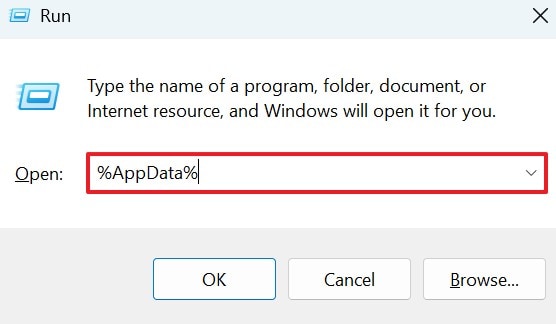
- Using the “Win+R” keys, open the Run window and enter the “%AppData%” command.
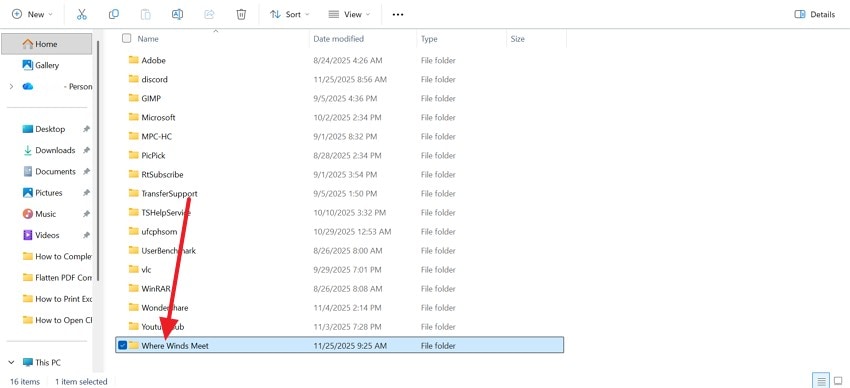
- Following this command, the system will open your “Roaming” folder, where you will be able to locate the “Where Winds Meet” folder.
3. Reveal Hidden Folders
Revealing hidden folders exposes directories that may contain missing Where Winds Meet save data. Many systems conceal these areas by default to prevent accidental user modifications and damage. Making them visible ensures important files are not overlooked during troubleshooting or recovery steps. Follow this guide to learn how to discover the Steam game save file location to retrieve missing save files:
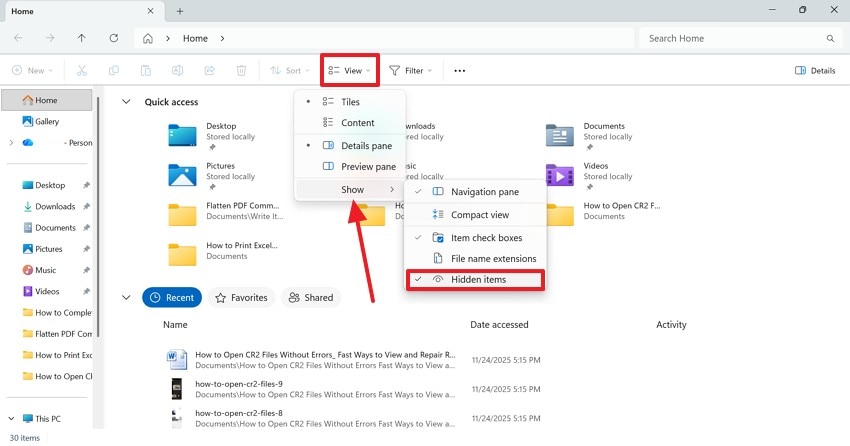
Instructions. Use the “Win+E” keys and open the File Explorer on your PC. Here, expand the “View” menu and hover the mouse over “Show.” From the extended menu, choose “Hidden Items” and reveal the hidden folders on your device.
4. Restore from Backup
Restoring from backup ensures previously saved progress can be recovered after unexpected data loss. This method provides a reliable safety net when original files become corrupted or deleted. Regularly updated backups guarantee that your progress remains secure during technical failures or crashes. The following guide features instructions on restoring the Steam game file location from backup:
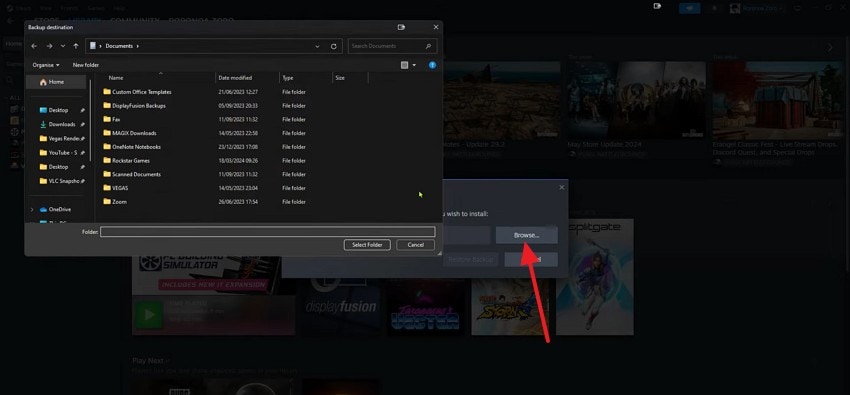
- Access the game within the Steam interface, head to the top-left corner, and press the “Steam” option. Now, click on the “Restore Game Backup” option from the expanded list.

- Click the browse button and select the folder where you want to save the backup. Press “Select Folder” to successfully save the Steam backup to your device.
5. Verify Game File Integrity
Verifying game file integrity scans for missing or corrupted components affecting save functionality directly. This process repairs damaged files and restores proper communication with save directories automatically, ensuring. Consistent integrity checks improve stability and preserve long-term game performance for reliable enjoyment. Follow these instructions on finding the Steam deck save file location by verifying game integrity:
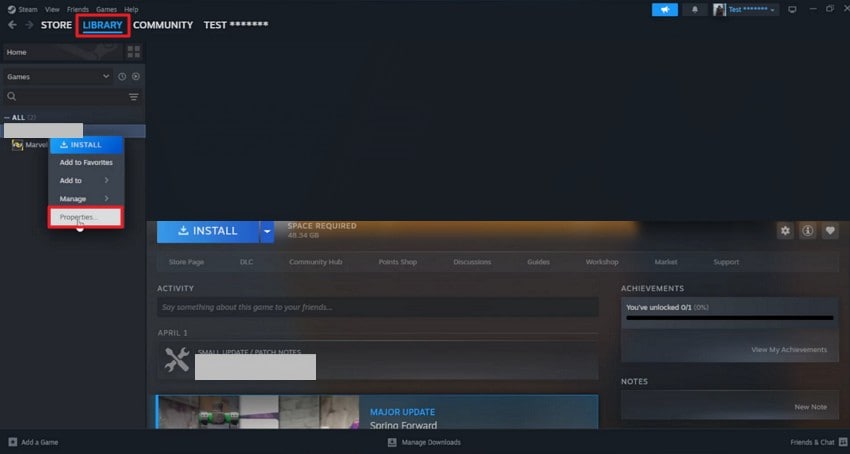
- Launch Steam and navigate to your game “Library.” Locate the desired game, right-click on it, and choose “Properties” from the context menu.
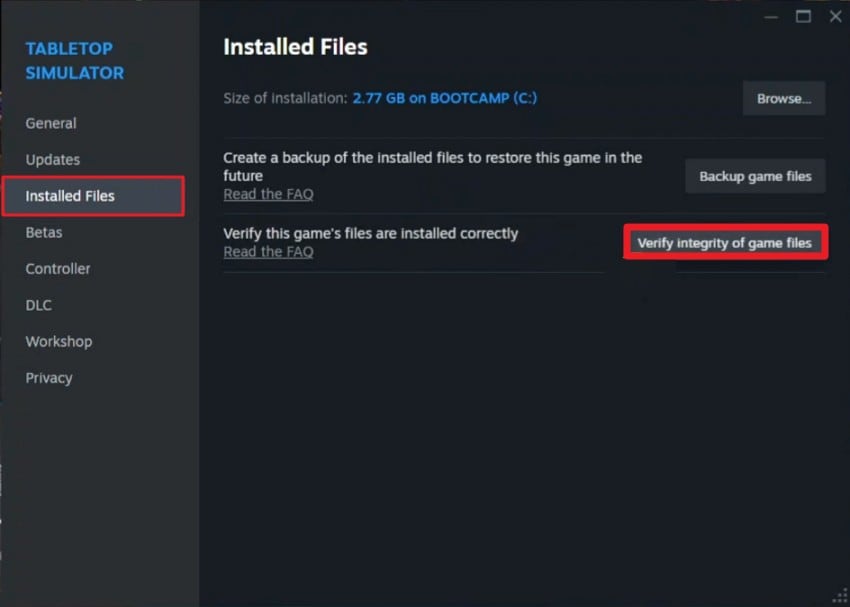
- In the “Properties” window, select the “Installed Files” tab on the left side. Then, click on the “Verify Integrity of Game Files” button to initiate the verification.
6. Check for Server Issues
Checking for server issues determines whether saved files problems originate from online service interruptions. Temporary outages can prevent synchronization of local and cloud save data, causing apparent loss. Server diagnostics help avoid unnecessary system changes that worsen the situation for users prematurely.
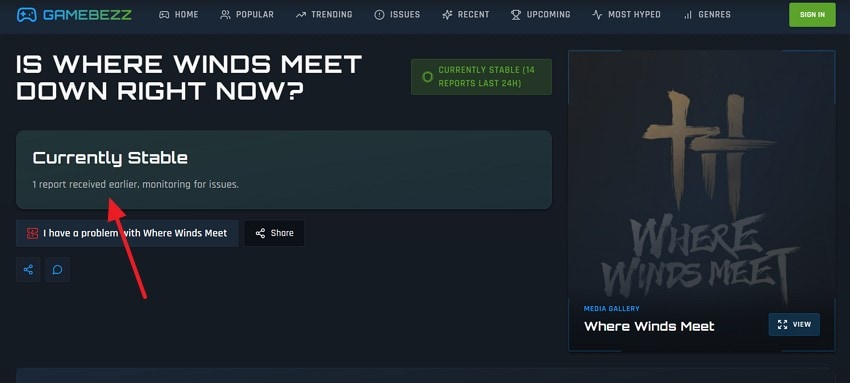
Understanding server status supports informed decisions and calmer troubleshooting responses during unexpected connectivity disruptions. Follow this guide and learn how to check for server issues to restore Where Winds Meet save file missing:
Instructions. On your browser, search for “Where Winds Meet Server Status” and find a website that provides the relevant information.
7. Avoid Manual Uninstall/Reinstall
Avoiding manual uninstall or reinstall prevents accidental deletion of remaining save file traces completely. This method protects partially intact data that automated tools might still recover successfully later. Maintaining existing installations allows safer diagnostic checks and controlled repair attempts without risking progress. This precaution preserves critical information while exploring less destructive solutions for stable recovery planning.
8. Contact Support
Contacting support connects players with experts familiar with Where Winds Meet technical issues resolution. They provide guided solutions based on specific game configurations and error patterns experienced previously. Their expertise ensures long-term stability and restored access to your progress without confusion. Follow the guide below and learn how to contact support for the retrieval of your Steam game save file location:
Instructions. On the official game website, scroll to the end and find the contact details beside the “Join the Community” call to action.

Part 3. Prevent Future “Save Files Missing” Issues in Where Winds Meet
Preventing Where Winds Meet save file missing protects progress and maintains consistent gameplay performance. Following proactive steps reduces errors and ensures your game data remains safe and accessible:
- Regular Save File Backups: Regularly back up save files to an external drive or secure cloud storage location. Frequent backups guarantee quick recovery if corruption or accidental deletion ever occurs.
- Maintain Stable Cloud Synchronization: Ensure stable internet connectivity when enabling cloud synchronization to avoid incomplete upload processes. Consistent connections prevent sync mismatches that may overwrite or remove important saved progress.
- Avoid Interrupting Save Processes: Avoid force-closing the game during saving sequences or system update operations. Allow sufficient time for completion to protect data integrity and stability always.
- Adjust Antivirus Software Settings: Configure antivirus software to whitelist the game and related save file directories. This prevents unwanted blocking, quarantining, or deletion of vital game data unexpectedly.
- Verify Game Files Regularly: Periodically verify game files through the launcher to detect and repair potential issues. Verification ensures corrupted components never interfere with proper save file functionality again.
Conclusion
To conclude, many circumstances can end up in a missing game save file. This article explained the best methods to locate a Where Winds Meet save file missing. However, if your save file got intentionally or accidentally deleted, you can use Recoverit to regain access to it. With its batch recovery features, this tool is capable of retrieving multiple missing documents in a single go.
Next: Where Winds Meet Fatal Error on PC: Causes, Fixes & Prevention Guide
FAQ
-
1. Why are my Where Winds Meet save files missing after launching the game?
Save files may disappear due to corrupted directories, permission issues, or interrupted synchronization with cloud services. This usually happens after crashes, forced shutdowns, or sudden updates affecting game storage access. -
2. Can antivirus software hide or remove Where Winds Meet save data?
Aggressive security programs may quarantine or block folders containing game save information. Excluding the game directory prevents accidental deletion or restricted file access issues. -
3. Is it possible to restore missing game files from my PC?
Using a recovery tool like Recoverit, it is possible to retrieve a lost save file. This platform has the ability to restore documents from over 1 million storage devices, including PCs, flash drives, and more. -
4. How can I be sure if I have recovered the right game file?
To be sure that you have restored the right file, use Recoverit. This tool offers a Preview feature that helps you peek at the file before it is downloaded on your device.


