

 TL;DR:
The Windows 10 Orange Screen of Death is a critical system failure primarily caused by faulty graphics drivers, hardware malfunctions, or corrupted system files, which can typically be resolved by isolating software conflicts in Safe Mode.
● To repair missing or damaged Windows components triggering the error, open the Command Prompt and sequentially run the "sfc /scannow" and "DISM /Online /Cleanup-Image /RestoreHealth" commands.
● Mitigate display conflicts and hardware stress by updating or rolling back display adapters in Device Manager, disabling hardware acceleration in browser settings, and reverting overclocked CPU, GPU, or RAM components to default speeds.
● Seek professional technical assistance if Safe Mode becomes inaccessible or hardware emits abnormal noises, and utilize Wondershare Recoverit if the sudden crashes result in missing or corrupted files.
Ask AI for a summary
 ChatGPT
 Perplexity
 Gemini
 Claude
 Grok
Grok
A smoothly running device is essential for productivity, entertainment, and completing everyday personal or professional tasks efficiently. When errors like the Orange Screen of Death in Windows 10 appear, even simple tasks can become impossible. This unexpected screen crash often interrupts work, causes system freezes, and creates anxiety about potential data loss. Whether it occurs during gaming or regular use, the error significantly disrupts workflow and overall system reliability.
That is why identifying the root cause and applying the right fix becomes critically important. Effective solutions not only restore system stability but also help prevent recurring crashes in the future. Read this article to understand the causes and apply proven solutions to resolve the Orange Screen issue permanently.
Try Recoverit to Perform Orange Screen Recovery
 Security Verified. 3,591,664 people have downloaded it.
In this article
-
- Boot in Safe Mode
- Update or Roll Back Graphics Drivers
- Run SFC and DISM to Repair System Files
- Uninstall Recent Programs or Updates
- Check for Overheating or Failing Hardware
- Update BIOS or Firmware
- Perform System Restore to Previous State
- Reset or Reinstall Windows 10
- Turn Off Hardware Acceleration for Specific Applications
- Disable Overclocking

Part 1. What is an Orange Screen of Death in Windows 10
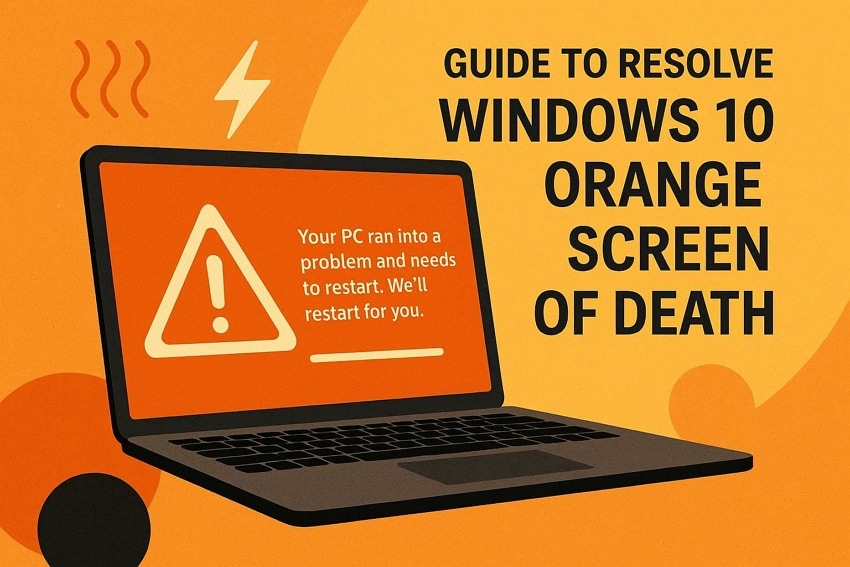
The Orange Screen of Death (OSOD) in Windows 10 is a rare system error that signals a critical software failure, similar to the more common Blue Screen of Death (BSOD). It usually appears as an orange screen with an error message, often caused by faulty graphics drivers, incompatible software, or system file corruption. Immediate troubleshooting, driver updates, or hardware checks are required to prevent data loss or system instability.

Part 2. "Why is My Screen Orange?": 5 Common Causes Behind the Orange Screen of Death
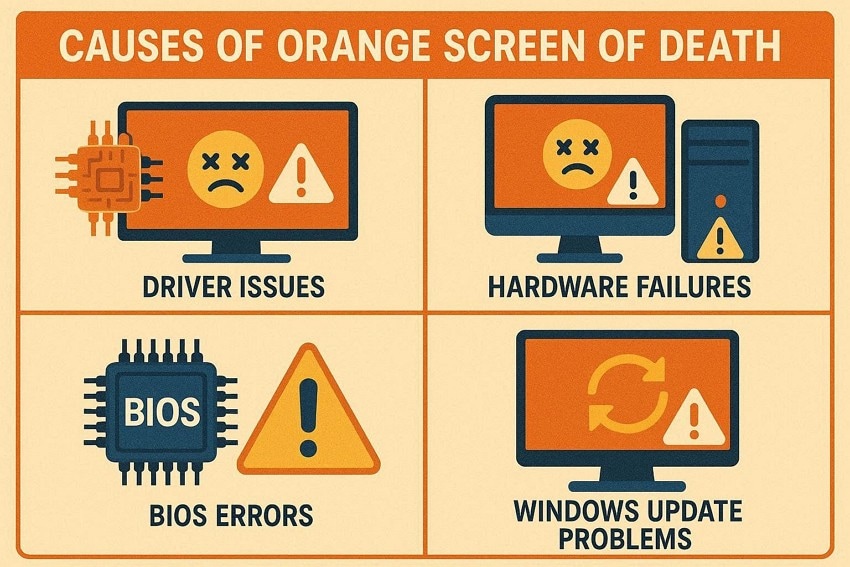
Orange screen Windows 10 can be alarming, as it prevents normal system operation. You may ask, "Why is my screen orange?" Knowing the common causes helps in troubleshooting and preventing recurring errors.
- Faulty Graphics Drivers: Outdated or incompatible GPU drivers often provoke sudden Orange Screen crashes. Display conflicts emerge when graphics drivers fail under heavy workload conditions.
- Hardware Malfunctions: Defective RAM modules silently corrupt operations, destabilizing the Windows performance system. Aging GPUs may misprocess data, triggering critical Orange Screen failure events.
- Corrupted System Files: Missing Windows files interrupt startup routines, forcing abrupt Orange Screen appearances. File damage commonly follows interrupted updates or unsafe shutdown sequences.
- Third-Party Software Conflicts: Recently installed applications may clash with drivers, destabilizing core system behavior. Plus, background services from incompatible software disrupt normal Windows resource handling processes.
- Overheating or Power Issues: Excessive heat stresses components, causing abrupt graphical failures and orange screens. Voltage fluctuations prevent stable operation, causing abrupt crashes in display pipelines within systems.
Part 3. Fixed: 10 Solutions to Resolve OSOD in Windows 10
An Orange Screen PC can disrupt work and cause data loss. Applying the right troubleshooting methods helps restore system stability and prevent recurring crashes.
1. Boot in Safe Mode
Booting in Safe Mode allows Windows to run with only essential drivers and services, isolating potential software conflicts. This helps identify whether third-party programs or startup items are causing the Orange Screen of Death. It provides a safe environment for troubleshooting and applying fixes without risking further system instability. Follow this guide and learn how to resolve this error by booting in safe mode:
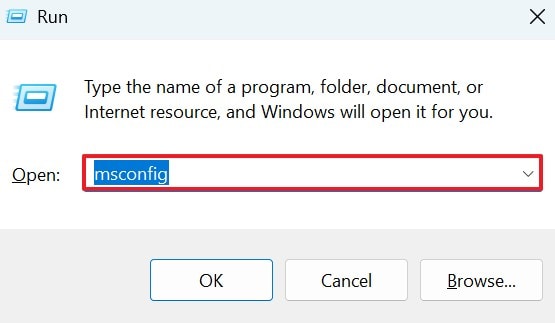
- Using the "Win + R" keys, enter the "msconfig" command in the Run window to proceed.
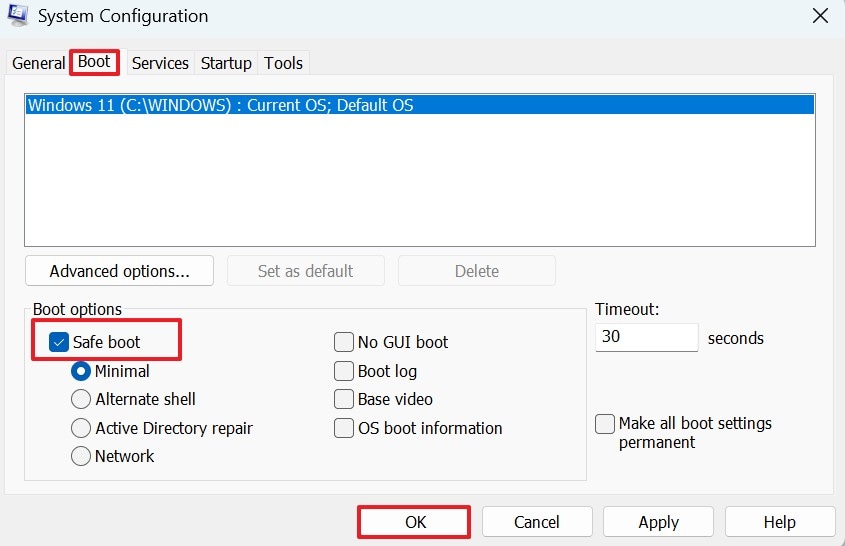
- Next, locate the "Boot" tab to further select the "Safe Mode" radio button and hit "OK" to switch to Safe Boot.
2. Update or Roll Back Graphics Drivers
Keeping graphics drivers up to date ensures compatibility with Windows and prevents display-related crashes. Rolling back drivers can also fix issues introduced by recent updates. Proper driver management improves overall system stability, enhances performance, and reduces the likelihood of OSOD caused by GPU conflicts. Follow this guide and learn how to update graphics drivers to resolve Orange Screen of Death issue:
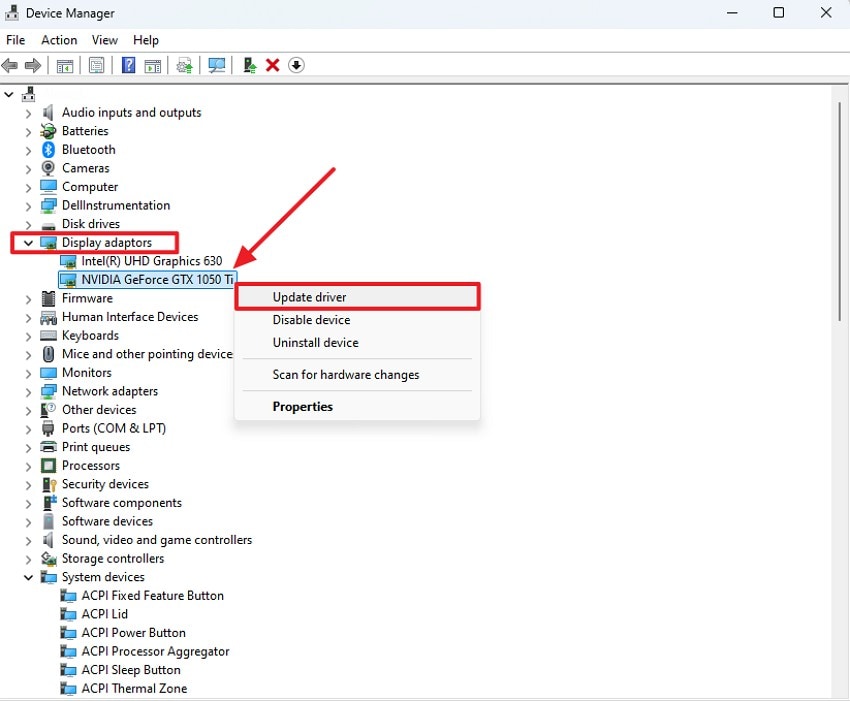
- Open "Device Manager" on your PC and expand the Display adapters section. Next, right-click your graphics card and choose Update driver from the context menu.
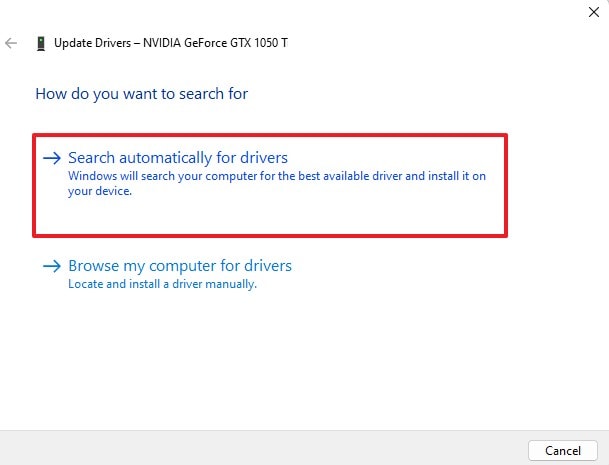
- In the prompt that appears, select Search automatically for drivers so Windows can find and install the latest available update on its own.
3. Run SFC and DISM to Repair System Files
Using SFC and DISM repairs corrupted or missing system files that often trigger critical errors. These tools restore essential Windows components without affecting personal files. By maintaining system integrity, they reduce system crashes, prevent OSOD recurrence, and improve overall Windows 10 reliability. The guide below explains how to run SFC and DISM on Windows 10 to resolve the Orange Screen laptop error:
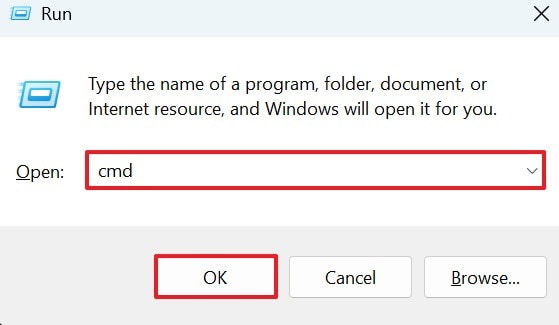
- Begin by pressing "Windows + R" on your keyboard to open the Run dialog. Type "cmd" in the field and press Enter to launch the Command Prompt.
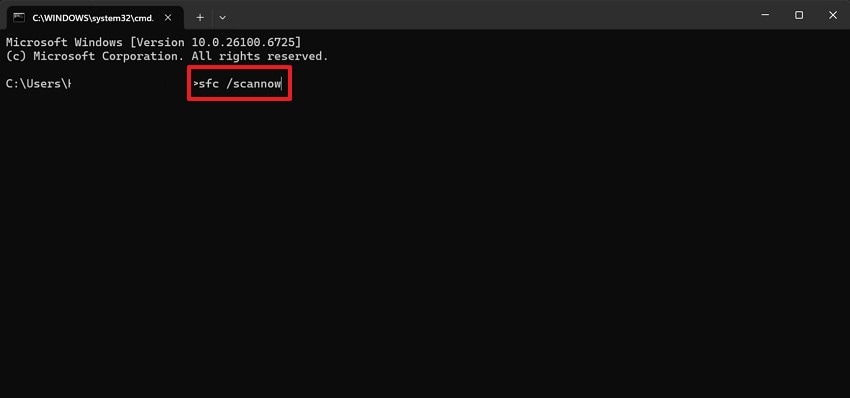
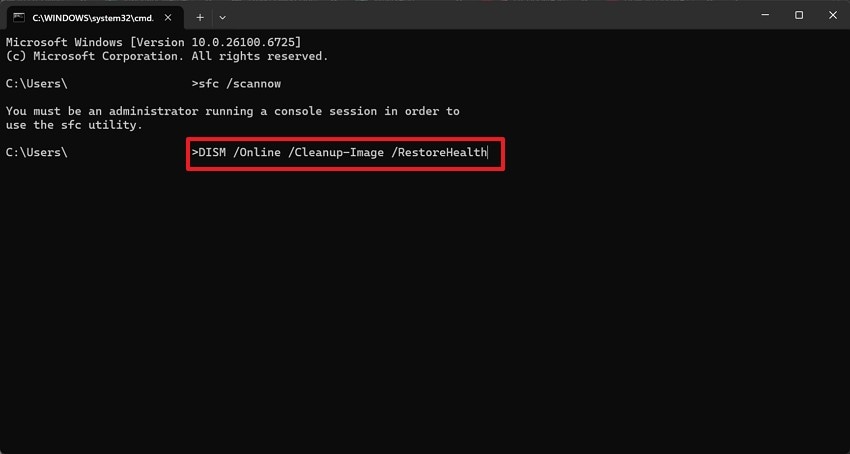
- Once the Command Prompt window appears, type "sfc /scannow" and press Enter. Allow the scan to complete, as it will check for and repair corrupted system files.
- If Windows detects errors that cannot be fixed automatically, enter the following command and press Enter: "DISM /Online /Cleanup-Image /RestoreHealth". Wait for the process to finish, then restart your computer to see if the error is resolved.
4. Uninstall Recent Programs or Updates
Removing recently installed software or Windows updates can eliminate conflicts causing OSOD. This approach targets unstable or incompatible programs directly without affecting the rest of the system. It restores stability, ensures smoother operation, and allows you to isolate problematic software safely. The following instructions are about uninstalling recent programs or updates to resolve the Orange Screen Windows 10 error:
Instructions. Open "Settings" on your device and go to the "Apps" section from the left panel. Locate the problematic application in the Installed apps list, right-click it, and select "Uninstall' to remove it completely from your system.

5. Check for Overheating or Failing Hardware
Checking for overheating or failing hardware is a diagnostic fix for Orange Screen of Death errors. It involves monitoring GPU, CPU, and RAM temperatures and stability during system operation. This check helps identify thermal throttling, power irregularities, or degrading components. Detecting hardware stress early explains sudden crashes and graphical failures, helping isolate OSOD causes and preventing repeated system instability during work.
6. Update BIOS or Firmware
Updating BIOS or firmware improves compatibility between system hardware and software. It resolves conflicts that may trigger OSOD and enhances overall system stability. Regular updates also optimize hardware performance, ensuring Windows operates efficiently with minimal critical errors. Update BIOS or firmware by following the guide below, and resolve the Orange Screen of Death Windows 10:
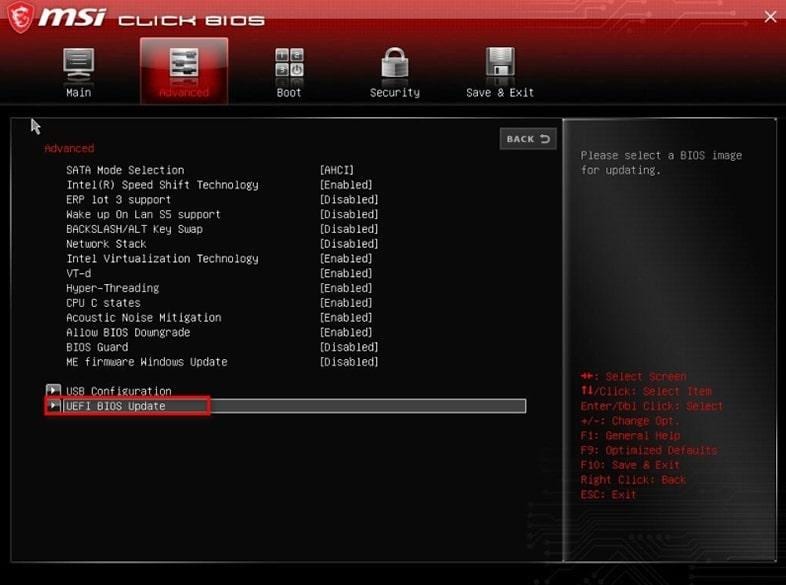
- Restart your PC and repeatedly press the "Del" key to access the BIOS menu. Once inside, open the "Advanced" tab, select "UEFI BIOS Update", and press "Enter" to continue.
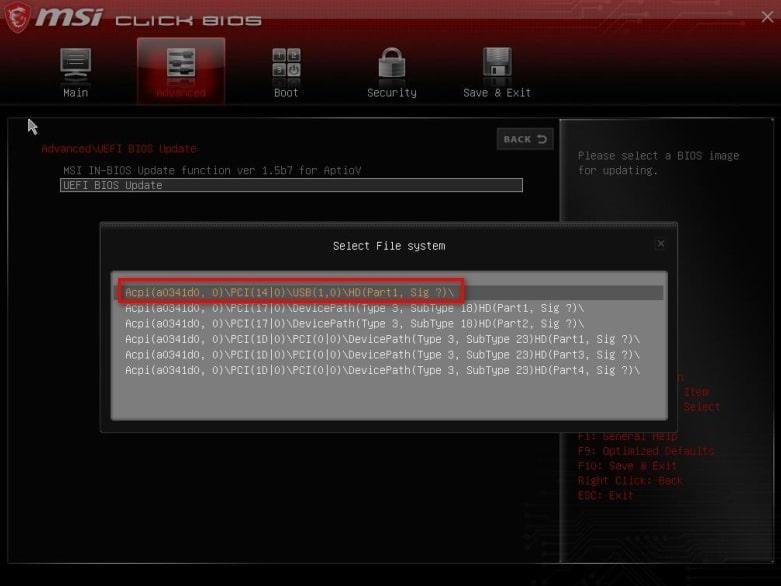
- When the "Select File System" window appears, choose the storage location containing the BIOS update file and press "Enter." After that, highlight the BIOS file and confirm by pressing "Enter" again.
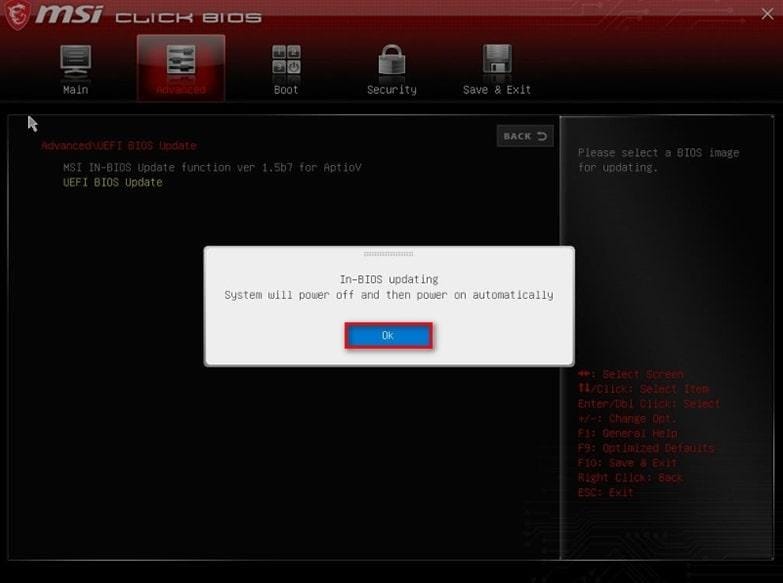
- Confirm the update by selecting "Yes" in both on-screen confirmation prompts. The system will restart automatically and complete the flash update, after which the BIOS will be updated to the latest version.
7. Perform System Restore to Previous State
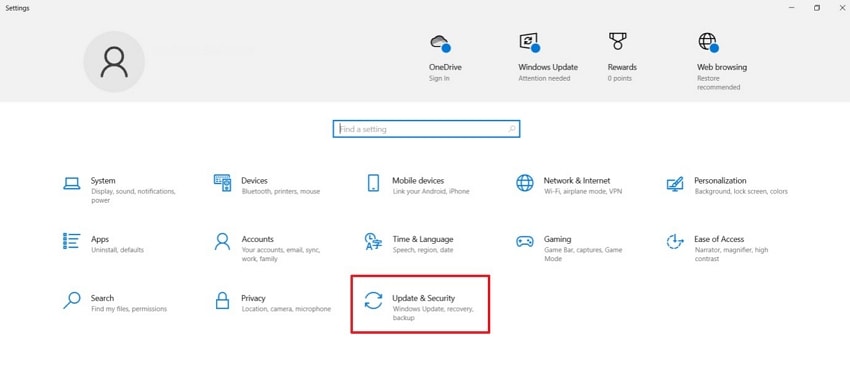
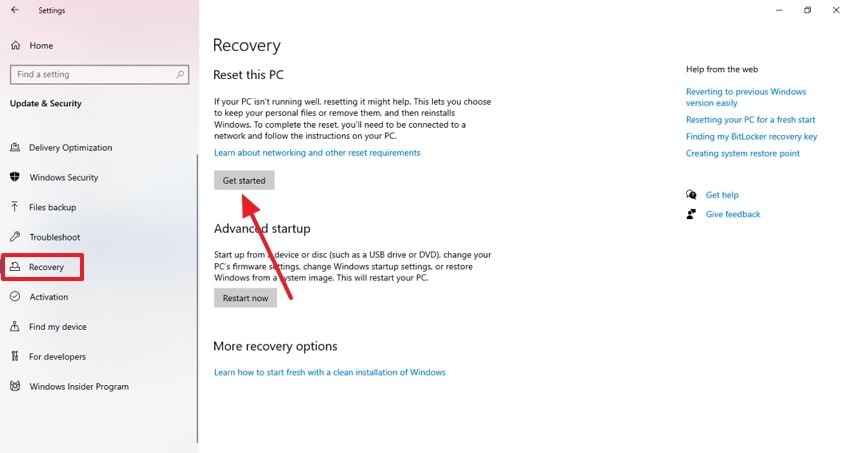
System Restore reverts Windows to a stable configuration from a prior point in time. This eliminates errors caused by recent updates, software installations, or settings changes. It restores normal operation quickly without affecting personal files, reducing the likelihood of recurring orange screen crashes. Perform a system restore to the previous state by following the guide below:
- In your Windows PC, open the "Update & Security" tab to proceed.
- From the left sidebar, select the "Recovery" option and click the "Get Started" button to reset your PC.
8. Reset or Reinstall Windows 10
Resetting or reinstalling Windows provides a fresh system environment free from corrupted files or persistent errors. It eliminates software-related OSOD issues and ensures optimal performance. Backing up data beforehand allows a clean start while preserving important personal files. Adhere to the guide below and learn how to reinstall Windows 10 to resolve the Orange Screen PC error:
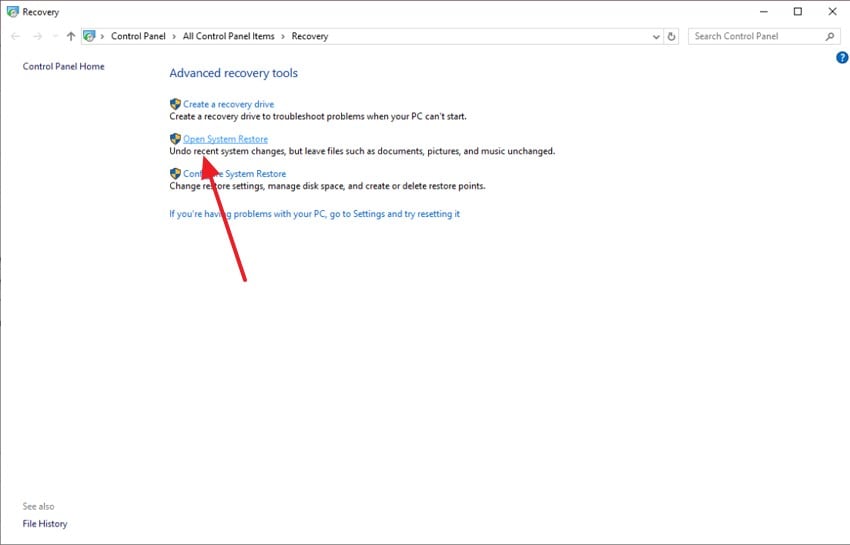
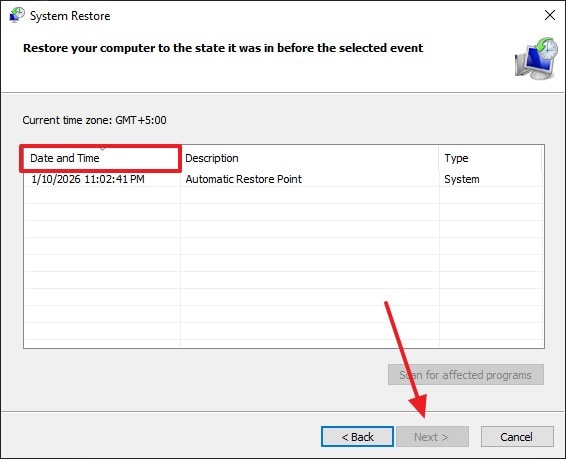
- To begin with, open the "Control Panel" and click the "Open System Restore" option.
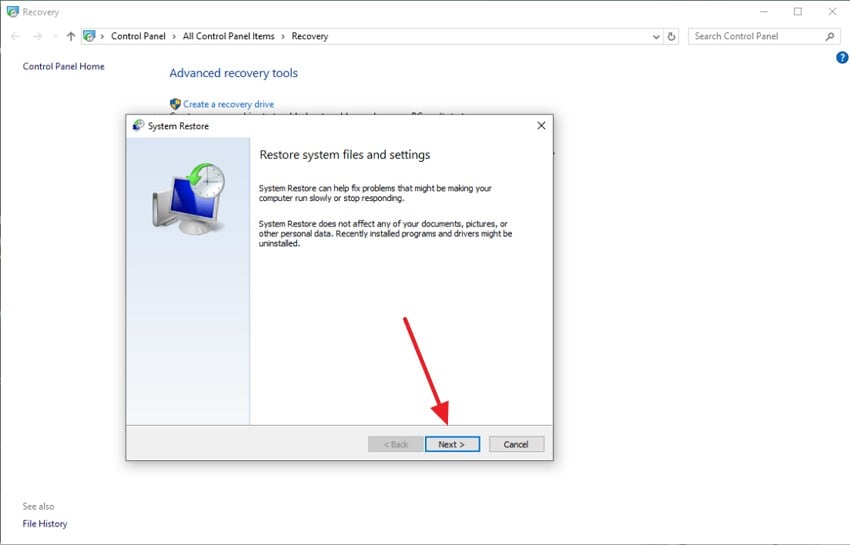
- Using the next dialogue box, click "Next" to proceed with the process.
- Now, select the time to which you want to restore and click "Next" to make it effective.
9. Turn Off Hardware Acceleration for Specific Applications
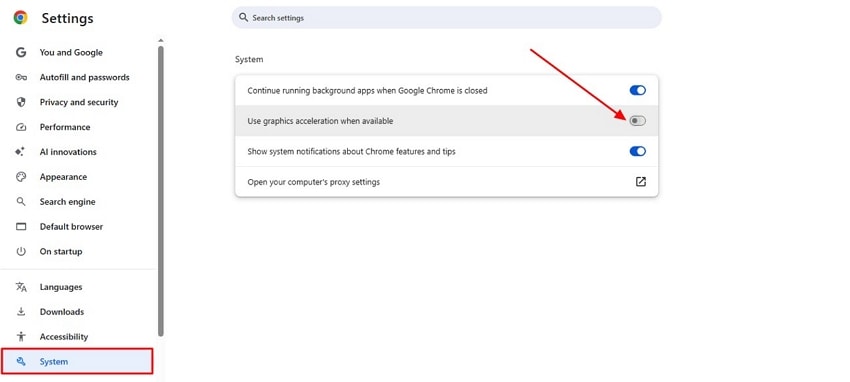
Disabling hardware acceleration reduces the load on the GPU for applications that may cause display conflicts. This prevents Orange Screen of Death caused by graphics rendering issues. It improves stability, ensures smoother application performance, and avoids crashes linked to hardware-dependent tasks. Stick to the instructions below and learn how to turn off hardware acceleration for some applications:
Instructions. Open your browser and click the three-dot menu to access Settings. From there, go to the System section, find the "Use graphics acceleration when available" option, and turn it off using the toggle provided.
10. Disable Overclocking
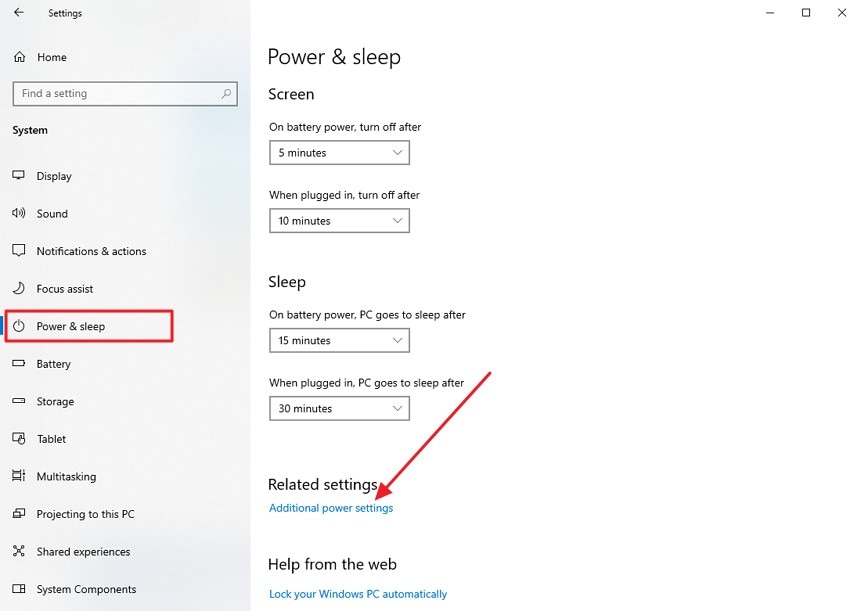
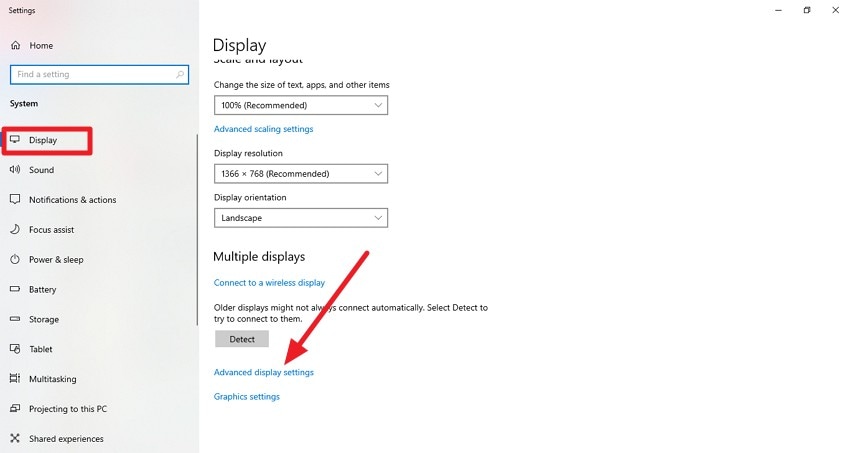
Turning off CPU, GPU, or RAM overclocking prevents system instability and critical errors. Overclocked components may operate beyond safe limits, triggering OSOD. Reverting to default clock speeds ensures reliable performance, reduces system stress, and maintains long-term hardware health. To disable overclocking to fix the Orange Screen laptop error on Windows 10, follow the steps below:
- Launch "Settings" on your PC and go to "Power & Sleep" from the left-side menu. Scroll to the Related settings area and select "Additional power settings" to open advanced power options.
- In the "Power Options" window, locate your currently active power plan and click "Change plan" settings next to it to view and modify detailed settings.
Part 4. When to Seek Professional Help
If the Orange Screen of Death continues despite basic fixes, the following scenarios indicate when professional technical help is required:
- The Windows 10 Orange Screen of Death keeps appearing after completing all troubleshooting steps.
- System crashes repeat frequently, especially during startup or graphics-intensive tasks.
- Hardware warning signs appear, including abnormal noises, overheating, or sudden shutdowns.
- Safe Mode cannot be accessed, preventing further diagnosis or recovery actions.
- Important data is at risk, or system reinstallation becomes unavoidable without expert handling.
Part 5. Tips to Prevent Future Orange Screen of Death Errors
Preventing the Orange Screen on Windows 10 is easier than dealing with repeated system crashes. With a few proactive measures, you can maintain system stability and avoid unexpected display-related errors:
- Keep Graphics Drivers Updated: Outdated or incompatible graphics drivers are a common cause of orange screen errors. Regular updates ensure better compatibility, improved performance, and fewer system crashes.
- Avoid Overclocking Hardware: Overclocking GPUs or CPUs can cause overheating and system instability. Running hardware at recommended settings helps prevent display-related errors and sudden crashes.
- Install Windows Updates Regularly: Microsoft updates often include bug fixes and performance improvements. Keeping Windows 10 updated reduces the risk of known issues triggering the orange screen.
- Monitor System Temperature: Excessive heat can damage components and cause screen errors. Using monitoring tools and proper cooling helps maintain safe operating temperatures.
- Use Reliable Software Only: Unverified or poorly coded applications can conflict with system drivers. Installing trusted software minimizes compatibility issues and improves overall system reliability.
Recoverit Tip. Restore Files Lost After OSOD or System Fixes
Repeated Orange Screen of Death errors can seriously affect system performance and may even result in missing or corrupted files. Recoverit is a robust data recovery solution built to manage more than 10,000 data-loss scenarios, including crashes caused by system errors. With a high recovery success rate, it offers a dependable way to restore lost files efficiently. Its batch recovery feature further saves time by allowing multiple files to be recovered simultaneously.
Moreover, Recoverit works seamlessly on both Windows and macOS, making it suitable for cross-platform users. The software automatically scans selected locations, while built-in filters help refine results quickly. If the initial scan does not find your files, Deep Scan performs a more comprehensive search. All recovered files retain their original structure and quality for safe use.
Key Features
- File Preview: Check recoverable files in advance to ensure accuracy before restoring them.
- Wide Format Support: Recover over 1,000 file formats, including documents, images, videos, and archives.
- Extensive Device Compatibility: Supports recovery from more than 20,000 storage devices, including HDDs, SSDs, USB drives, and memory cards.
Recovering Missing System Files After an OSOD Error
Recoverit makes it easy to retrieve lost or deleted system files caused by unexpected crashes.
- Choose the File Location
Launch Recoverit and select the drive or folder where the missing system file was previously stored.
- Scan and Select Files
Once the scan completes, locate the required system files from the results list, then click the "Recover" button.
- Preview and Save Files
Preview the recovered files to confirm they are intact, then save them to a secure location of your choice.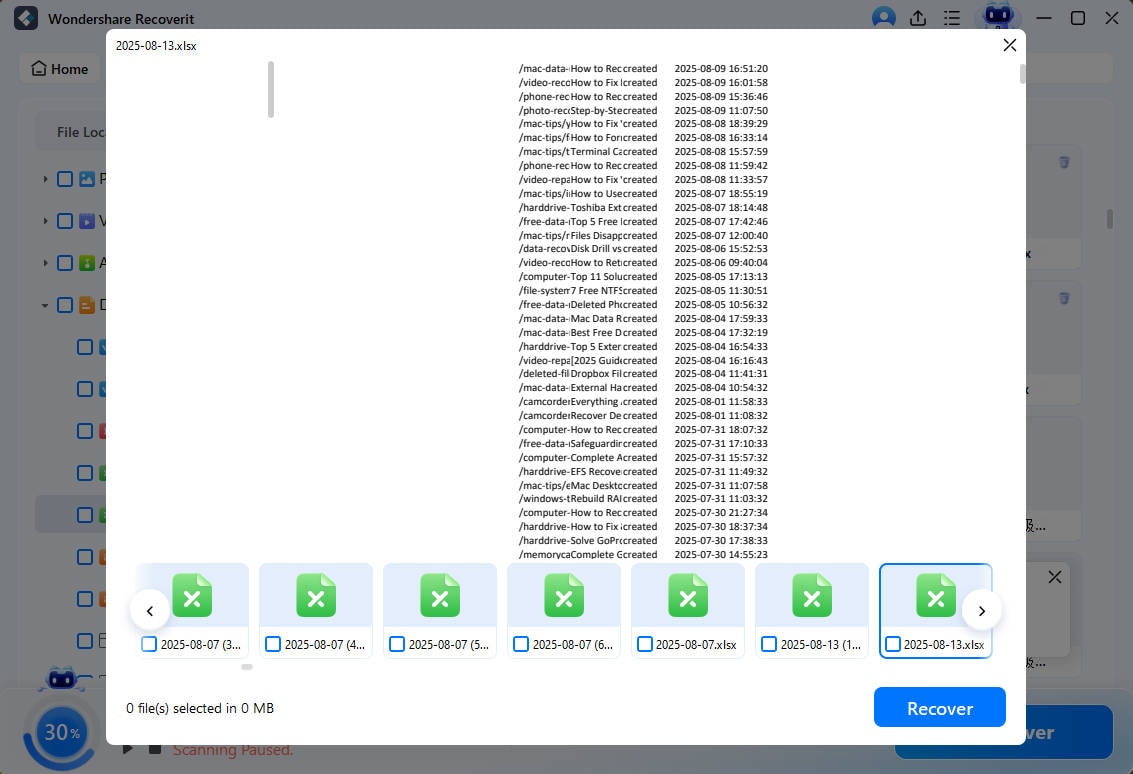
Conclusion
To conclude, the orange screen of death Windows 10 error disrupts many tasks on a PC. Therefore, this article was a detailed guide to resolving this error on your computer. Once you have fixed this issue, you may encounter missing or deleted files on your system. To retrieve the lost files, use Recoverit as it offers a batch recovery feature to restore multiple files in a single go.
FAQ
-
1. What causes the Orange Screen error in Windows 10?
This error is often caused by outdated graphics drivers, overclocking, faulty hardware, or incompatible software. Corrupt system files can also trigger unexpected orange screen crashes. -
2. Can a graphics driver update fix the Orange Screen issue?
Yes, updating or rolling back graphics drivers resolves the issue in many cases. Stable drivers improve compatibility and reduce display-related system crashes. -
3. Is it safe to boot Windows 10 in Safe Mode to troubleshoot OSOD?
Safe Mode is a secure environment that loads only essential drivers and services. It helps identify whether third-party software or drivers are causing the orange screen error. -
4. Can the Orange Screen of Death lead to data loss?
Sudden system crashes can sometimes result in missing or corrupted files. If data loss occurs, tools like Recoverit can help restore lost files safely.


