
 TL;DR:
Deleting the 100MB-500MB System Reserved Partition prevents Windows from booting due to missing Boot Manager files, but you can rebuild it via Command Prompt using a Windows installation USB or recover it directly with partition restoration software.
● To manually rebuild the partition without losing data, boot from a Windows 11/10/8/7 installation media, press Shift + F10 to open Command Prompt, use diskpart to create a 500MB primary NTFS partition, and restore boot records using the bcdboot C:\Windows /s S: /f ALL and bootrec commands.
● Users lacking command-line expertise can utilize Wondershare Recoverit to scan and restore the deleted partition, while complex scenarios involving inaccessible BitLocker-encrypted drives should be directed to data recovery professionals.
● Prevent future accidental deletions by keeping the partition hidden through the removal of its drive letter in Disk Management, and strictly reserve clean Windows reinstallations as a final option since the process will completely wipe the hard drive.
Ask AI for a summary
 ChatGPT
 Perplexity
 Gemini
 Claude
 Grok
Grok
If you have ever faced the "System Reserved Partition deleted" issue, this guide explains how to recover and rebuild it. A System Reserved Partition holds vital Windows startup files that help your PC boot properly. When it gets deleted, your system may fail to start, or you might lose access to important data. Review the given solutions, determine their importance, and ensure Windows can start smoothly again without losing your valuable files or system stability.
Try Recoverit to Perform Partition Recovery
 Security Verified. 3,591,664 people have downloaded it.
In this article

Part 1. What is "The System Reserved Partition" And Why is it Important
Before you look for ways to restore system reserved partition, do you know what it is? System Reserved Partition is a small, hidden portion of your drive that Windows creates automatically during installation. It does not have a driver letter, so you cannot see it in the File Explorer, but it is displayed in Disk Management. Additionally, it changes in size with each version of Windows, ranging from 100MB to about 500MB.
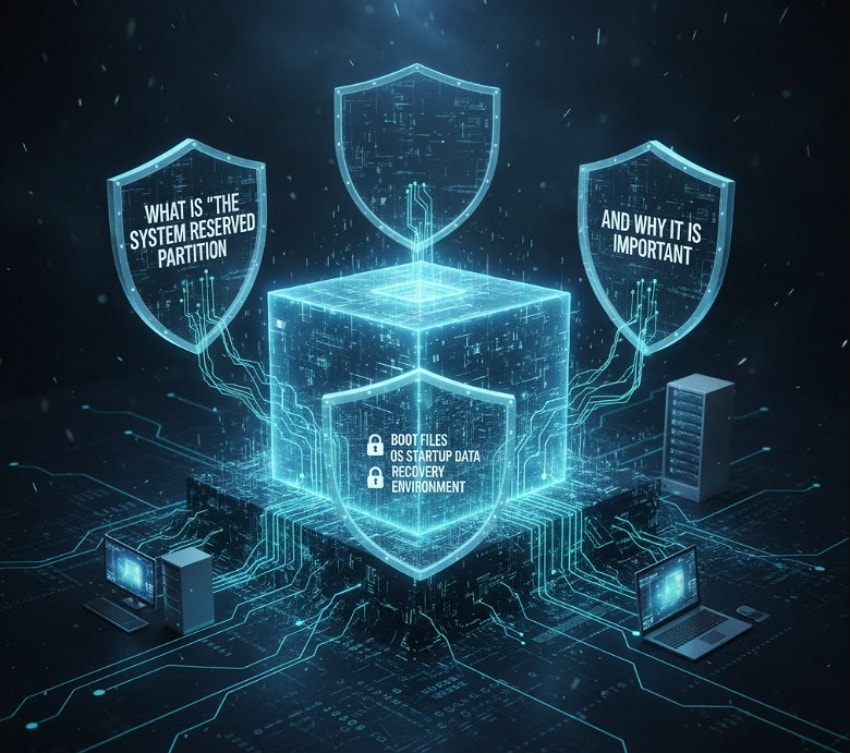
The partition holds key files that help Windows start safely and protect your data. Also, it stores the Boot Manager and startup details that let your PC load Windows, as well as BitLocker files that keep your drive secure before the system opens. Above all, it may also include recovery tools that help fix boot errors or restore the system when problems appear.
Common Reasons Users May Accidentally Delete It
To know why users intentionally or accidentally deleted system reserved partition windows 10, review the listed points:
- Disk Cleanup Mistake: Many users try to clear space and see the small System Reserved Partition in disk tools, thinking it's useless and that deletion will free up space. This small part holds key files that help Windows start and recover, so deleting it can stop the system from booting.
- Drive Setup Error: When setting up dual-boot or reinstalling Windows, users may delete all partitions. They think Windows will make new ones, but this also removes the System Reserved Partition.
- Boot File Move Error: Some users move boot files from the System Reserved Partition to the main C: drive to gain space. If done wrong, Windows loses needed files and fails to start.
- Backup Confusion: While making or restoring backups, users may skip or delete the System Reserved Partition by mistake. This often leads to boot errors and loss of recovery tools.
- Third-Party Tool Error: Most of the time, partition tools show hidden system parts. Users may delete them while cleaning drives, not knowing they are vital for boot and recovery.
Part 2. Symptoms Indicating System Reserved Partition Deleted
If you have accidentally deleted system reserved partition windows 10, here are some signs that show its absence:
| Symptom | Description |
|---|---|
| Windows fails to boot | PC displays "No boot device," a black screen, or requests boot media at startup. |
| Boot Manager errors | Messages such as "BOOTMGR is missing" or "Boot Configuration Data (BCD) error." |
| Cannot restore or repair the system | System Restore, System Repair, or Recovery Options fail or are unavailable. |
| Data encryption issues (BitLocker) | BitLocker-protected drives cannot be unlocked, or decryption fails. |
| Windows upgrade/update errors | Errors like "We couldn't update the system reserved partition" occur during OS updates. |
| Loss of advanced boot options | Safe Mode, Startup Repair, or Command Prompt from recovery is not accessible. |
| Missing partition in Disk Management | "System Reserved" is gone/not visible in Disk Management or partition tools. |
Part 3. Risks After System Reserved Partition Deleted
When someone tends to remove system reserved partition, here are some risks that they will face:

- Boot Failure: The computer cannot find or load the Windows boot files, causing startup errors or a blank screen.
- Missing Boot Manager: You may see errors like "Bootmgr is missing" because essential boot data is lost.
- BitLocker Issues: Encrypted drives may not unlock, leading to loss of access to protected data.
- System Instability: Without this partition, the system becomes unstable and may crash or fail to restart properly.
- Data Loss Risk: Deleted or corrupted boot and recovery files can cause data loss on the main drive.
- Harder Troubleshooting: Fixing startup or encryption errors becomes complex without this partition's recovery support.
Part 4. Methods to Fix System Reserved Partition Deleted Without Data Loss
For those who seek to restore system reserved partition, follow the simple 5 solutions listed in this section:
1. Partition Recovery Software - Recoverit
Use partition recovery solutions like Recoverit, since this solution supports Encrypted NTFS, FAT32, exFAT, BTRFS, XFS, BFS, EXT4 partitions. It can easily recover data regardless of the cause of partition loss. In terms of usage, the tool is intuitive and requires no technical skills to restore the partition. While doing so, the tool allows you to restore various data types, including images, video, and Office files.
In addition, it can recover deleted partitions from any storage devices, including HDD, SSD, SD card, TF/CF card, etc. From Primary partition to Extended and Logical, all types of recovery are possible with Recoverit. With support for 1000+ data recovery, the tool performs Quick and Deep scans to make recovery seamless.
Key Features
- Resume Scanning Process: The tool offers complete control to restore the accidentally deleted system reserved partition with the Pause Scan option.
- Preview Recovered Data: After the partition is restored, users can preview and choose the data they seek to restore.
- Save the Scan Result: The tool also allows you to save the scanning result for future use when you have no time to preview or restore the data.
Extensive Guide to Restore the System Reserved Partition - Recoverit
To know how you can use this tool to restore the system reserved partition, review the 3 simple steps listed below:
- Access the Recovery Tool and Locate the Lost Partition Location
To begin with, locate the location for the lost partition under the "External Driver" or "Hard Disk Drivers" tab.
- Filter the File Location to Restore Them
After that, press the "Start" button, and the tool will automatically start the scanning process. While it's done, you can filter and pinpoint the files that you want to recover by stretching the menus for "File Status," " File Type," or "File Size."
- Preview the Restored Data to the Device
When the scanning ends, preview the data, and click the "Recover" button to save it to the device.
2. Rebuild System Reserved Partition via Command Prompt
When you have accidentally deleted system reserved partition windows 10, try to rebuild it via Command Prompt. It restores boot files like Boot Manager and BCD so Windows can start again without a full reinstall. This method keeps your data safe because it does not erase files or programs. It also brings back BitLocker and recovery tools that protect and repair your system, once rebuilt via the given guide:
- Start your computer using the Windows installation USB or disc for Windows 11, 10, 8, or 7, then press "Shift + F10" to open Command Prompt. In Command Prompt, type "bootrec /fixmbr" and press "Enter" to repair the master boot record. If the message "Element not found" appears, you must first set the boot partition as active by using diskpart in Command Prompt.
Now, in the Command Prompt, type:
diskpart
list disk
select disk 0 (or the disk where Windows is installed)
list partition
create partition primary size=500
select partition X (replace X with the number of the new partition)
format fs=ntfs quick
assign letter=S
active
exit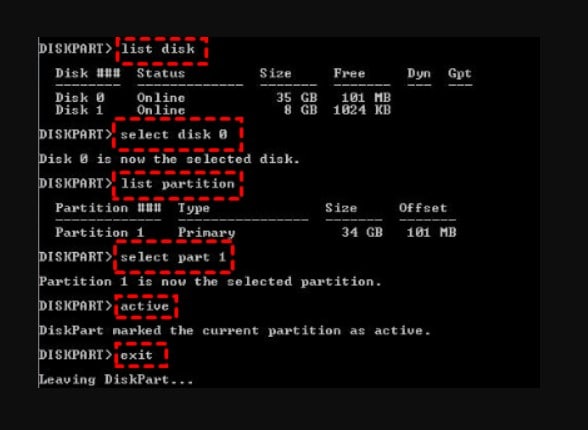
- Copy the Windows boot files to the new System Reserved Partition and replace the C: drive letter with the letter of your Windows installation, if different.
bcdboot C:\Windows /s S: /f ALL
Run these commands to ensure boot records are in place:
bootrec /fixmbr
bootrec /fixboot
bootrec /scanos
bootrec /rebuildbcd
Close the Command Prompt and take out the installation USB or disc. Restart your computer, and if the steps worked, Windows will start normally.
3. Use Bootable Recovery Media
When the "System Reserved Partition deleted" issue occurs, use the Bootable Recovery media. It lets you start your PC from a USB or DVD when Windows does not load. This method works on most computers and does not need the original recovery files. It also keeps your data safe since it restores the system without erasing your drive.
Prerequisites
- A Windows installation media (USB flash drive or DVD) for your version of Windows, created using the Media Creation Tool on a working PC.
- The affected computer is set to boot from the recovery media (you may need to change the boot order in the BIOS/UEFI settings)
Boot your computer from the Windows installation media and navigate through the initial setup screens. Select your preferences and choose "Repair Your Computer. "After that, select "Troubleshoot", then "Advanced Options", and finally "Command Prompt."
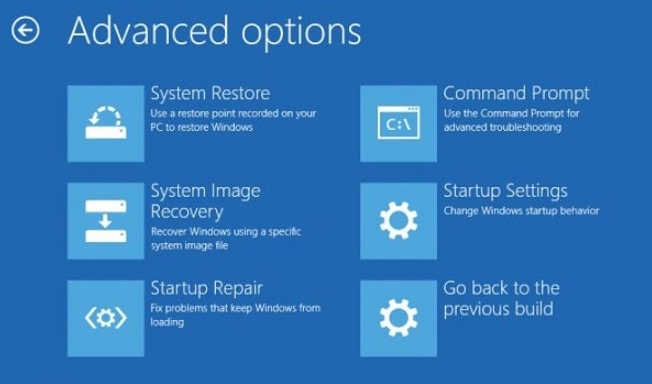
Once done, "Recreate and Format the System Reserved Partition." by following the above-listed steps in Fix 1.
4. Seek Professional Help
If the above solutions fail to restore the accidentally deleted system reserved partition windows 10, get expert help. Professionals can find the real cause, repair boot files, and recover the lost partition with the right tools. They also use advanced data recovery methods to restore your files and protect them from loss. Experts know how to handle complex cases with BitLocker, damaged drives, or multi-boot setups safely.
5. Avoid Reinstallation (as Last Resort)
Avoid a full Windows reinstall after the "System Reserved Partition deleted" issue if at all possible, to keep your data safe and save time. Reinstallation is only recommended after all less-drastic recovery methods have failed.
A clean reinstall will fix severe issues by installing Windows anew and creating a fresh System Reserved Partition for proper startup and recovery. It resets all contents to default, ensures full functionality, and provides a stable start. This process erases all data on the computer, so follow the listed prerequisites:
- Back up all personal files to an external drive or cloud storage.
- Keep Windows and software license keys, or link them to a Microsoft account.
- Create a bootable Windows USB or DVD with the Media Creation Tool.
- Download device drivers for printers, graphics cards, and other hardware devices.
- Ensure the system drive has enough free space for installation.
Part 5. Tips to Prevent System Reserved Partition Deleted Accidents
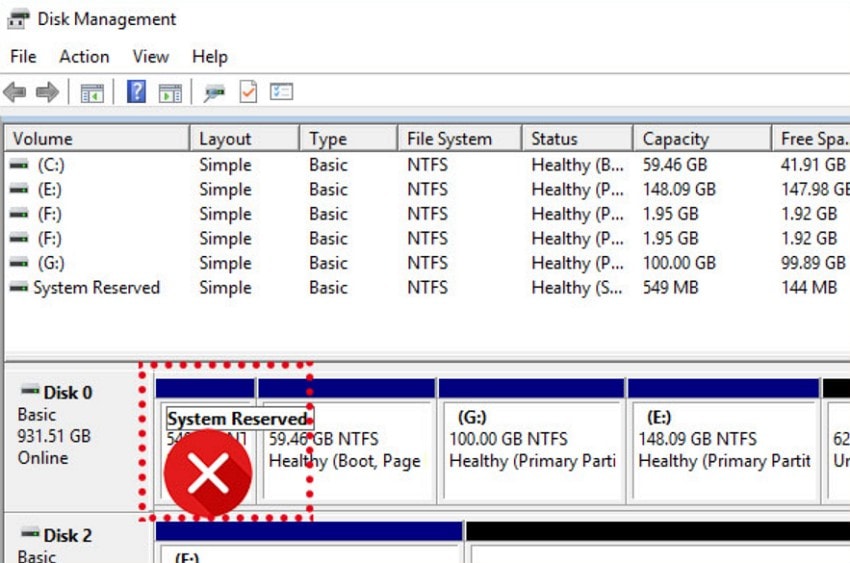
- Hide the System Reserved Partition: Open Disk Management and remove the drive letter linked to the System Reserved Partition. This step hides it from File Explorer and prevents unwanted access or changes.
- Avoid Assigning a Drive Letter: Windows keeps the System Reserved Partition without a drive letter by default. Leave it that way and never add one manually, as it can make the partition visible and easy to delete by mistake.
- Use Disk Management with Care: In Disk Management, check each partition carefully before any edit or delete action. Always read the partition name and size to confirm it is not the System Reserved one.
- Limit Admin Access: Allow administrator rights only to users who understand system settings. This helps prevent accidental use of disk tools that could remove or damage the partition.
- Keep Regular Backups: Create full backups that include all system and boot partitions before any disk work. This ensures recovery is possible if the System Reserved Partition gets deleted or corrupted.
Conclusion
Summing up, if you have ever faced the "System Reserved Partition deleted" issue, this guide has offered solutions to restore it. Thus, review the listed ways and determine how you can avoid this accident in the future via the expert's tips. Among all solutions, it's recommended to use a Partition Recovery solution, Recoverit, since the tool is easy to use and ensures zero data loss.
FAQ
1. Can Windows run without the System Reserved Partition?
Windows cannot start without it, as it holds boot files and startup data. Manual setup of boot files on another partition can make it work again.2. How large is the System Reserved Partition usually?
It stays between 100 MB and 550 MB based on the Windows version. Newer Windows versions often create a slightly larger reserved partition.3. Can data recovery software access deleted System Reserved Partitions?
Yes, advanced tools can detect and restore deleted or lost partitions. They rebuild partition data so Windows can find it again after recovery.


