

 TL;DR:
To resolve the "Windows cannot find uninstall.exe" or "unins000.exe" error, you must either reinstall the application to regenerate the missing executable or force the software removal using built-in command-line tools and manual registry edits.
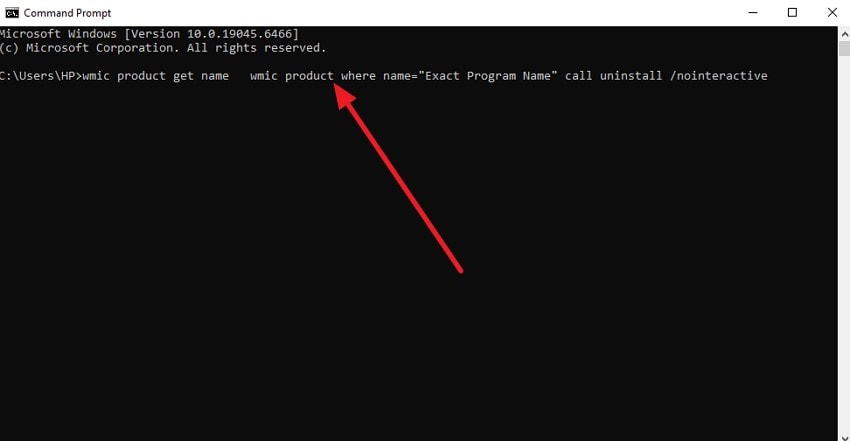
● For MSI-based applications, you can bypass the missing executable path by opening Command Prompt and executing the command `wmic product where name="Exact Program Name" call uninstall`.
● If you manually delete the application's installation folder, you must also remove the broken uninstall references by deleting the program's specific keys under `HKEY_LOCAL_MACHINE\SOFTWARE\Microsoft\Windows\CurrentVersion\Uninstall` in the Registry Editor.
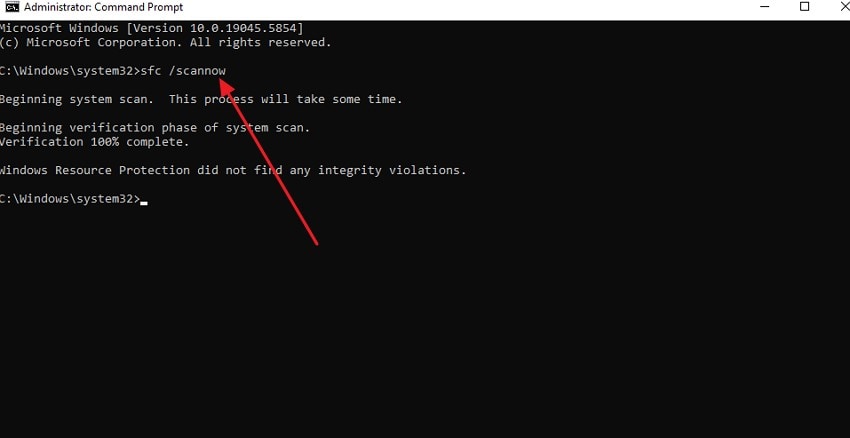
● Run the `sfc /scannow` command to repair damaged system files managing uninstall operations, or use a recovery tool like Wondershare Recoverit to retrieve the uninstaller executable if it was mistakenly deleted or quarantined by antivirus software.
Ask AI for a summary
 ChatGPT
 Perplexity
 Gemini
 Claude
 Grok
Grok
A routine cleanup turns frustrating when an error interrupts the process and stops you from removing unwanted software. Instead of completing the task, your screen displays a "Windows cannot find uninstall.exe" message, leaving the program stuck on your system. Multiple attempts through Settings or Control Panel lead to the same message, preventing you from freeing up storage or keeping your PC organized.
What should have been a simple uninstall quickly becomes a technical roadblock. In this guide, you'll learn clear, practical steps to resolve the issue and successfully remove stubborn applications from your computer.
Try Recoverit to Perform Missing File Recovery
 Security Verified. 3,591,664 people have downloaded it.
In this article

Part 1. Introduction to Uninstall.exe/unins000.exe Errors
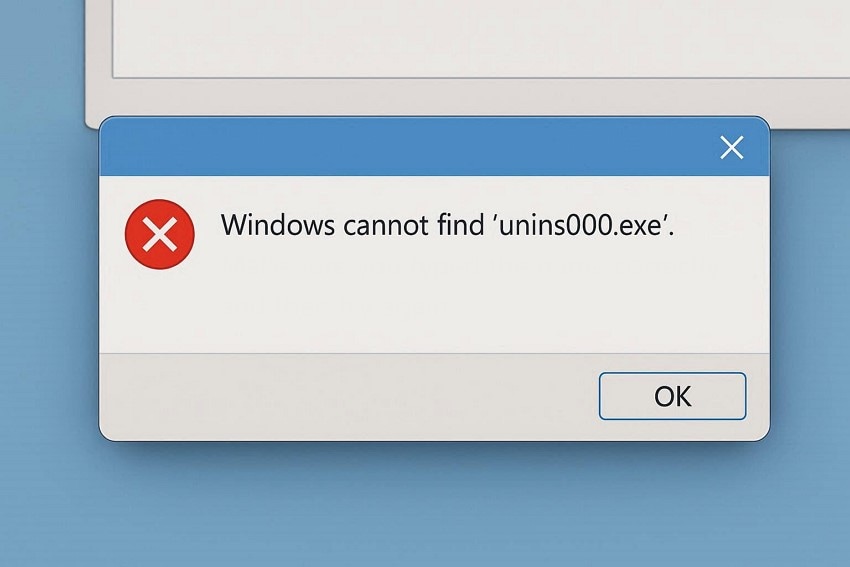
The "Windows cannot find unins000 exe" error indicates that the operating system cannot locate the executable file referenced in the application's uninstall registry entry. During removal, Windows attempts to execute the defined uninstall command path, but the specified executable is inaccessible or missing. As a result, the uninstallation process terminates, and the program cannot be removed through standard system tools.
Impact on Program Uninstallation
When Windows cannot find unins000.exe, the system is unable to launch the application's built-in uninstaller. This prevents users from removing the program via Control Panel or Settings, leaving leftover files, registry entries, and shortcuts on the computer. The error disrupts routine maintenance, consumes storage unnecessarily, and can interfere with system performance.
Importance of Resolving the Issue for System Cleanup and Stability
- Freeing Up Storage: Removing programs stuck due to Windows cannot find unins000.exe clears disk space, allowing room for new files and applications.
- Preventing Registry Clutter: Proper uninstallation ensures leftover registry entries are removed, reducing system errors and improving performance.
- Enhancing System Performance: Eliminating stubborn software prevents slowdowns, crashes, and conflicts with other applications.
- Maintaining Software Organization: Resolving the error keeps installed programs manageable and avoids confusion.
- Supporting Security: Fully removing outdated or unwanted software reduces potential vulnerabilities and security risks.
5 Common Causes of Missing Uninstall.exe/unins000.exe
When Windows cannot find the uninstall.exe, it usually points to underlying issues preventing the system from locating the required uninstaller. Understanding these causes helps in applying the right fixes:
- Accidental Deletion: The uninstall executable may have been removed manually or by mistake. Without this file, Windows cannot execute the uninstallation process.
- Corrupted Installation: Incomplete or corrupted program installations can result in missing uninstall files. This prevents the system from properly removing the application.
- Antivirus Interference: Security software may quarantine or delete uninstall executables, misidentifying them as threats. As a result, the uninstaller becomes inaccessible.
- Moved Program Folder: Relocating the application folder without updating registry paths breaks the uninstall reference. Windows then cannot locate the uninstall executable.
- Failed Updates: Updates that fail or are interrupted can overwrite or remove essential uninstaller files. This causes the system to display the error when attempting removal.

Part 2. Try 5 Quick Ways To Fix Windows Cannot Find Uninstall.exe Error
After understanding the causes and impact of the "Windows cannot find unins000 exe" error, it's time to focus on solutions. The following quick fixes will guide you step by step, helping you remove stubborn applications safely and restore your system's cleanliness:
1. Reinstall, Then Uninstall The Program
Reinstalling the application restores missing files and repairs corrupted components. Once restored, the "Windows cannot find unins000 exe" error can be resolved. This method ensures that the uninstaller executable is recreated and registry entries are corrected. This allows Windows to execute the removal process without encountering file-not-found errors. Follow the steps below to learn how to remove a program through Control Panel and Settings:
Via Settings
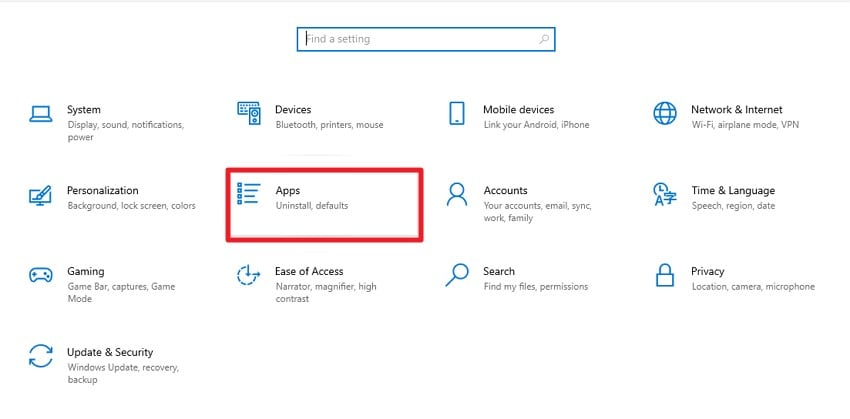
- Start by accessing your system settings and locating the "Apps" option from the homepage.
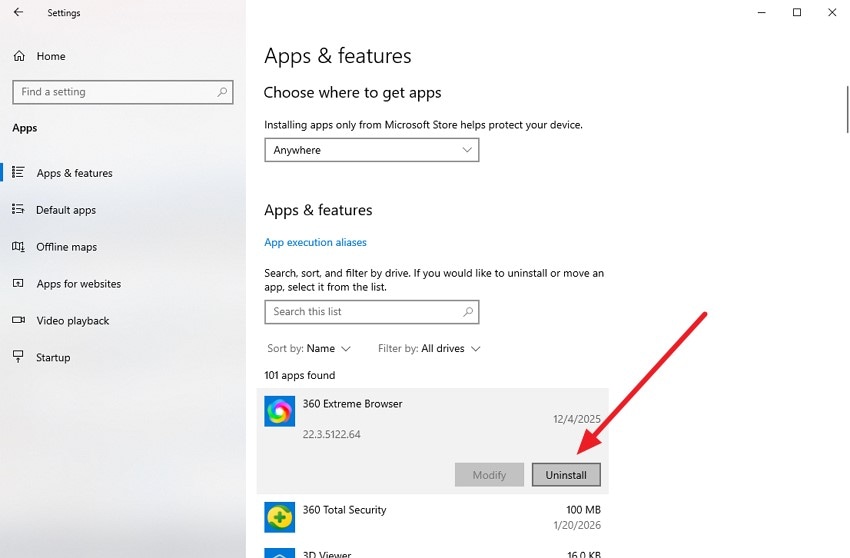
- Scroll through the list or use the search bar to find the program you want to uninstall. Once located, click on the program and choose the "Uninstall" button.
Via Control Panel
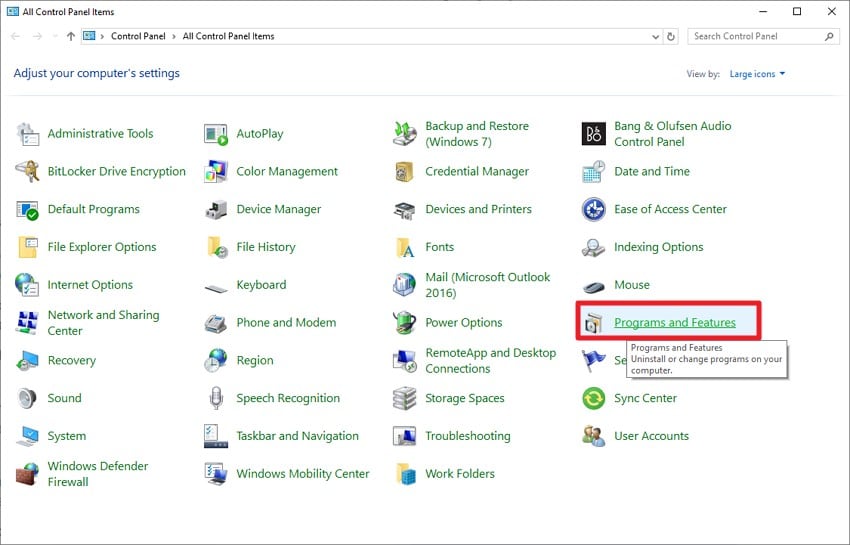
- Click on the "Programs and Features" option located on the homepage of the Control Panel.
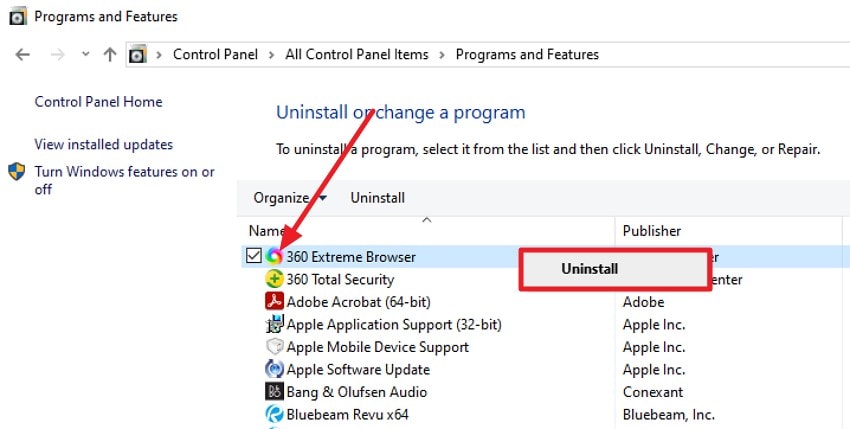
- Browse the list to find the program you want to uninstall, right-click on it, and then click "Uninstall" to successfully remove the app.
2. Manually Remove Via Installation Folder
Directly deleting the program folder can remove remaining files when standard uninstallation fails. If Windows cannot find the uninstall.exe, manually removing directories and associated subfolders eliminates residual data. This method targets the core installation location and ensures that executables, libraries, and configuration files no longer occupy system storage. If you do not know how to manually remove the program from the folder, read the instructions mentioned next:
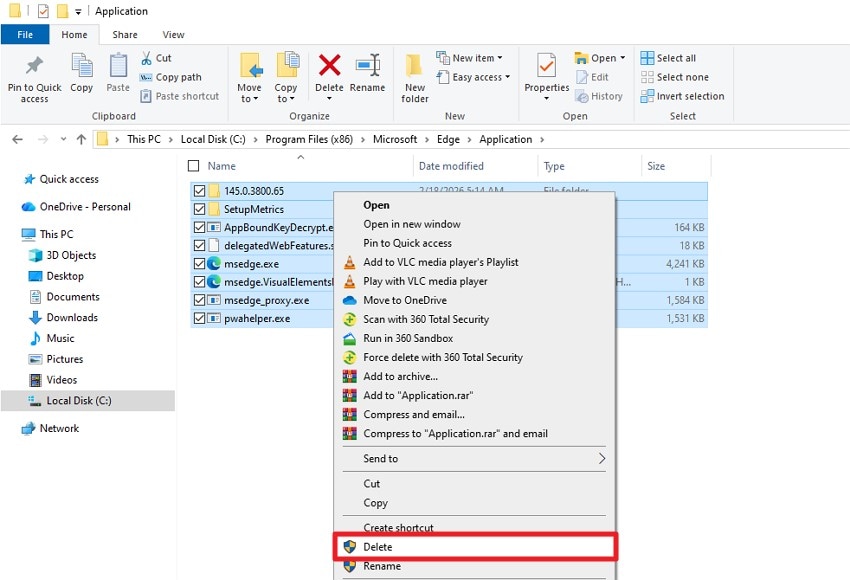
Instructions. Navigate to the folder where the program file is saved. Access its application folder and select all the components. Now, right-click and hit the "Delete" button to remove the program successfully.
3. Clean Up The Registry Uninstall Entry (Advanced)
Editing registry entries corrects broken uninstall references that trigger the "Windows cannot find unins000 exe" error. This ensures the system no longer points to missing executables. It restores uninstall functionality and prevents errors when accessing Control Panel or Settings to remove software. Follow the instructions provided below to learn how to clean up the registry:
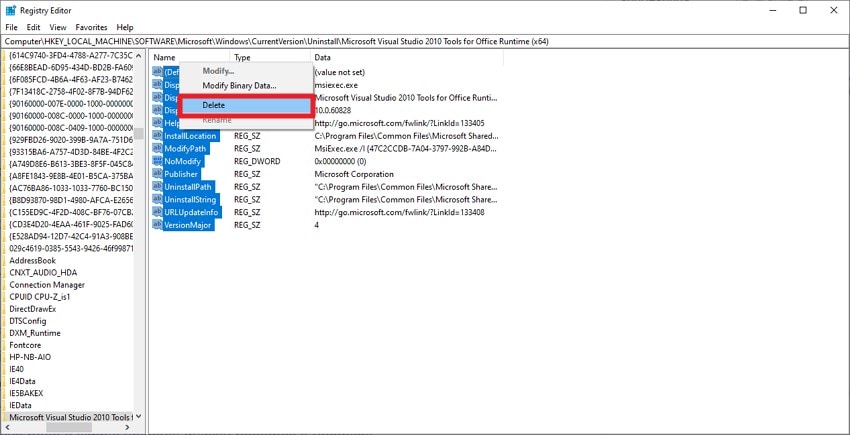
Instructions. Open the Registry Editor and access the following path: "HKEY_LOCAL _MACHINE\SOFTWARE \ Microsoft\ Windows\ CurrentVersion\Uninstall." Now, select the program by clicking on it and select all its keys. Right-click and press the "delete" button to remove all the keys.
4. Run SFC/DISM If System Files Are Damaged
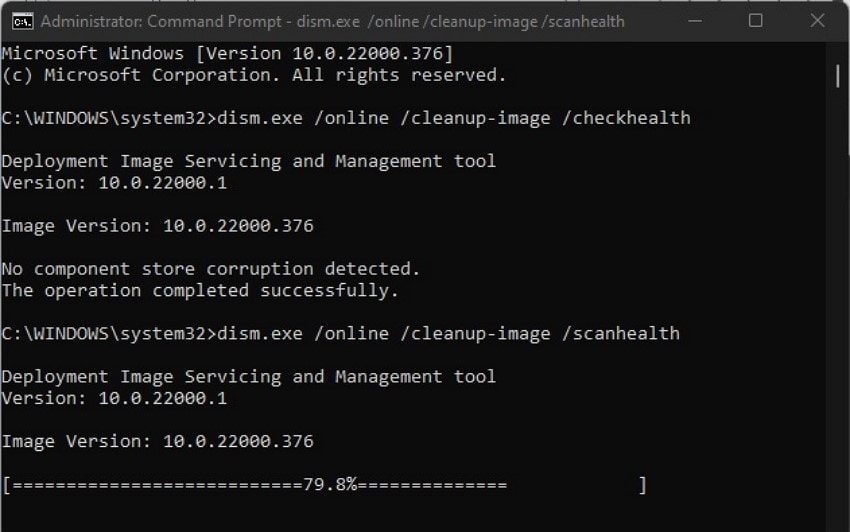
System file corruption can lead to "Windows cannot find the uninstall.exe" errors during uninstallation. Running SFC and DISM repairs damaged or missing system files, restoring the integrity of Windows components that manage uninstall operations. Once repaired, programs can be uninstalled without triggering executable-not-found errors. If you do not know how to run the SFC and DISM scan, follow the instructions below:
SFC Scan
Instructions. Open Command Prompt as an administrator, enter "sfc /scannow," and press Enter. The System File Checker will begin examining your system for damaged or missing system files.
DISM Tool
Instructions. In Command Prompt, type "dism.exe /online /cleanup-image /healthcheck" and press Enter to quickly assess the system image for any signs of corruption. After that, enter "dism.exe /online /cleanup-image /scanhealth" and press Enter again to perform a deeper analysis.
5. Use WMIC/PowerShell to Force Uninstall (for MSI apps)
WMIC and PowerShell allow command-line removal of MSI-based applications when the "Windows cannot find unins000.exe" issue occurs. Using these tools bypasses missing executable paths by referencing product GUIDs directly. This forces Windows to unregister and delete program files, remove registry keys, and complete the uninstallation process without relying on standard uninstallers. Follow the instructions provided below to learn how to perform this fix:
Instructions. Open the command prompt and execute the command below to display a complete list of MSI-based applications: "wmic product get name." After identifying the precise application name, enter the command below and substitute "Exact Program Name" with the name exactly as it appears in the generated list. Run the command to execute the process: "wmic product where name="Exact Program Name" call uninstall."
Bonus Tip: Safeguard Your Programs By Recovering Missing Uninstallers
When Windows cannot find the uninstall.exe, missing installer components may have been accidentally deleted or corrupted. Recoverit performs a deep scan of the selected drive to locate lost executable files, including uninstallers stored within program directories. It reconstructs recoverable data structures, allowing users to restore essential .exe files and related components required for proper software removal without altering other system configurations.
In cases where Windows cannot find unins000.exe, Recoverit analyzes file signatures and directory remnants to retrieve previously deleted uninstaller executables. After scanning, it enables preview and targeted restoration of the specific file back to its original or secure location. Additionally, the tool allows users to effortlessly recover up to 500 MB of data for free.
Coherent Features Offered By Recoverit
- Multi-Device Compatibility: Wondershare Recoverit supports recovery from internal drives, external HDDs, SSDs, USB flash drives, and other storage media, ensuring flexible data retrieval across different devices.
- Simultaneous File Restoration: The software enables batch recovery, allowing multiple deleted or lost files to be restored in a single operation, reducing recovery time and maintaining file structure integrity.
- Advanced File Search & Filter: Wondershare Recoverit provides built-in search and filtering options that allow users to quickly locate specific file types.
Step-by-Step Guide to Recover Missing Uninstaller Files
After exploring how this recovery solution works, the next step is applying it to restore important data. Follow the streamlined process below to retrieve damaged or missing files efficiently:
1. Choose the Affected Location
Launch Recoverit and select the drive or specific folder where your data was previously saved. Once selected, the software automatically initiates a comprehensive scan to detect lost, deleted, or corrupted browser-related files.

2. Review and Select Target Files
When scanning completes, examine the displayed results carefully. Identify the relevant files using the "Recover" button.

3. Verify and Recover Files Securely
First, preview your files to ensure they are complete and that you've selected the correct ones. After confirming, hit "Recover" and choose a secure location on your system to save them.

Identifying causes and applying fixes for the 0xc000007b application error.
Conclusion
All in all, this article provided a detailed guide on "Windows cannot find unins000 exe" errors and restoring proper program removal functionality in Windows. From built-in tools to advanced command-line methods, each solution targets specific technical causes. For cases involving deleted or missing uninstaller files, Recoverit offers a reliable way to retrieve essential executables and safeguard system stability.
FAQ
-
1. What does the "Windows cannot find uninstall exe" error mean?
This error indicates that Windows cannot locate the executable file referenced in the program's uninstall registry path. As a result, the system cannot initiate the removal process through Control Panel or Settings. -
2. Can I uninstall a program if the uninstaller file is missing?
Yes, you can use alternative methods such as reinstalling the application, using WMIC/PowerShell for MSI apps, or manually removing registry entries. If the executable was deleted, Recoverit can help restore the missing uninstaller file. -
3. Is it safe to delete the program folder manually?
Manually deleting the installation folder removes core files, but it may leave behind registry entries and system references. For a cleaner solution, consider recovering the original uninstaller using Wondershare Recoverit before proceeding. -
4. What should I do if the antivirus software removes the uninstaller?
Check your antivirus quarantine and restore the file if it was flagged incorrectly. If the file is permanently deleted, Recoverit can scan the affected drive and retrieve the missing executable.


