


 TL;DR:
To resolve the Your credentials could not be verified (status: 0xc000006d) error in Windows 11/10, bypass the login block using an alternative sign-in method to reset your PIN or boot into Safe Mode to run system repairs.
● Repair corrupted authentication files by opening Command Prompt and executing the sfc /scannow and DISM /Online /Cleanup-Image /RestoreHealth commands.
● If you are using a managed domain or work device, open certmgr.msc and check the Trusted Root Certification Authorities folder to ensure your security certificates are valid and not expired.
● Troubleshooting credential configurations carries a risk of data loss, for which the guide recommends using Wondershare Recoverit to scan and retrieve any files missing after applying the system fixes.
Ask AI for a summary
 ChatGPT
 Perplexity
 Gemini
 Claude
 Grok
Grok
The error "your credentials could not be verified" disrupts secure access and delays critical workflow progress significantly. Users often face interruptions, repeated login failures, and reduced productivity across essential systems and applications during processes. This issue hinders daily tasks by blocking timely data access and preventing successful account verification.
Without proper resolution, users struggle to maintain efficiency and meet operational deadlines consistently. This article explains the fixes to this error and ensures reliable system access restoration.
Try Recoverit to Perform Data Recovery
 Security Verified. 3,591,664 people have downloaded it.
In this article

Part 1. Understanding the ‘Your Credentials Could Not Be Verified’ Error
If you encounter this error while working on your PC, the first thing is to understand it. The following section explains what this error means:
- Authentication Failure Overview: This error appears when system authentication cannot validate the entered login credentials properly. It indicates a disruption between user input verification and secure server confirmation processes.
- Impact on System Access: Users experience blocked access to accounts and restricted functionality across protected applications and services. This limitation directly affects productivity and creates delays in routine operational procedures.
- Security Protocol Interference: The "your credentials could not be verified windows 11" error often results from mismatched security protocols and outdated authentication configurations. These inconsistencies prevent systems from approving legitimate user access requests efficiently and consistently.
- User Experience Disruption: Frequent verification failures frustrate users and degrade overall digital interaction quality significantly. Repeated interruptions reduce confidence in platform reliability and security performance over time.
Part 2. Common Causes of the Error: ‘Your Credentials Could Not Be Verified’
Now that you understand the meaning of this error, the next step would be exploring its causes. The section below enlists the common causes of the "your credentials could not be verified windows 10" error:
- Incorrect Login Credentials: Mistyped usernames or passwords commonly trigger verification failures during login attempts. Minor typing errors can prevent successful system authentication validation processes entirely.
- Expired or Locked Accounts: Accounts may become locked after multiple failed attempts or prolonged inactivity periods. Expired credentials stop users from completing normal authentication sequences successfully and securely.
- Network and Server Issues: Poor network connectivity disrupts communication between client systems and authentication servers frequently. Server downtime also contributes to unsuccessful verification and access failure occurrences regularly.
- Outdated Software or Cache Conflicts: Outdated software versions can interfere with modern authentication verification protocols and standards. Corrupted cache data may block proper credential validation and response handling processes.
Part 3. 8 Basic Troubleshooting Steps: ‘Your Credentials Could Not Be Verified’
After knowing the meaning and causes of the credentials could not be verified error, let’s take a look at the fixes. The following section includes the top troubleshooting steps for the issue:
1. Restart and Retry Login
Restart and retry login refreshes background processes and clears temporary authentication glitches, disrupting secure system access. This method reinitializes communication between your device and authentication servers for accurate credential validation. It resolves minor software conflicts affecting sign-in stability and overall performance reliability. The steps below explain restarting and logging in to make the error go away:
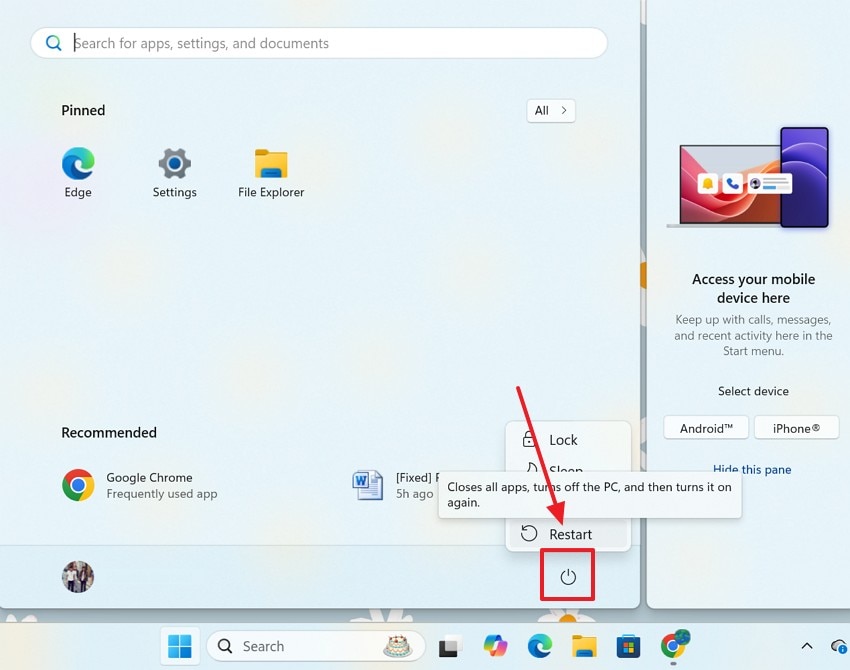
- To start, close all apps and enter the Start menu to select the "Power" button. Using the pop-up menu, click "Restart" to proceed.
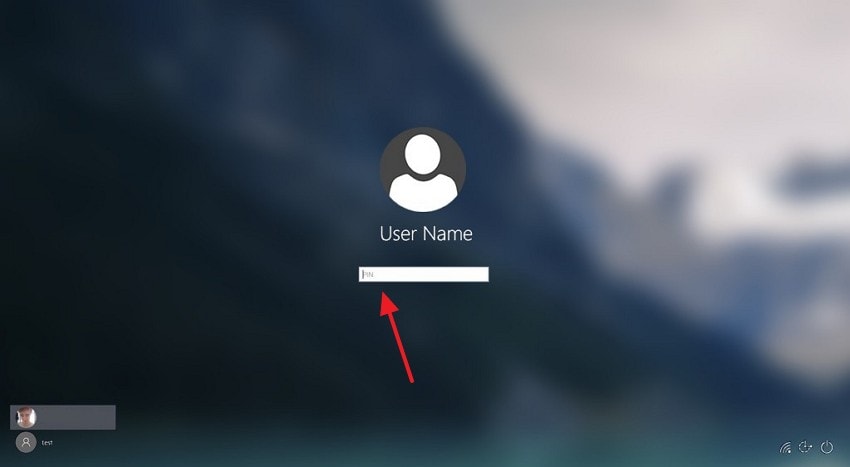
- When the login screen appears, carefully re-enter your correct username and password or PIN.
2. Check Internet Connection
Checking the internet connection ensures stable communication between your device and remote authentication verification servers. Maintaining a strong network supports uninterrupted authentication processes and accurate server responses. Reliable connectivity prevents timeouts and repeated login verification disruptions. The following steps include a guide to checking the internet connection for fixing the your credentials could not be verified windows 11 error:
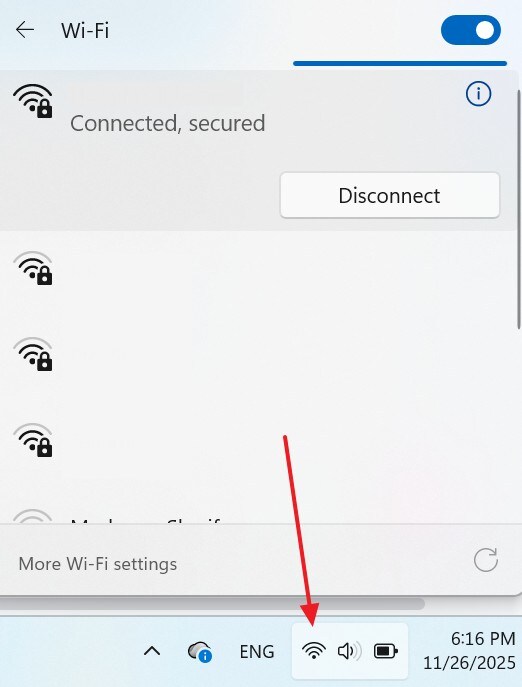
Instructions. To check your internet connection, enter the "Wi-Fi" settings from the bottom right and explore.
3. Try the Alternative Login Method
Trying an alternative login method bypasses faulty authentication channels and restores system accessibility efficiently. This approach allows verification through backup options such as email codes or biometric recognition. It helps identify whether the issue is specific to one authentication method. This flexibility ensures continuous access, a smoother user experience, and reliability.
4. Boot into Safe Mode
Booting into Safe Mode isolates critical system components and disables conflicting third-party authentication software. This environment minimizes interference impacting secure login verification and credential processing functions. Safe Mode helps identify problematic drivers or applications causing verification delays.
This method simplifies resolving deeper authentication issues affecting normal login operations. Follow the steps below and learn how to boot into Safe Mode to resolve the "your credentials could not be verified windows 10" error:
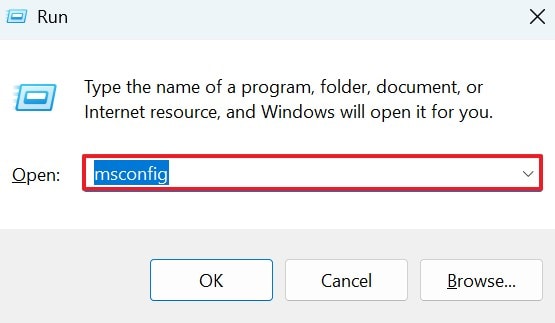
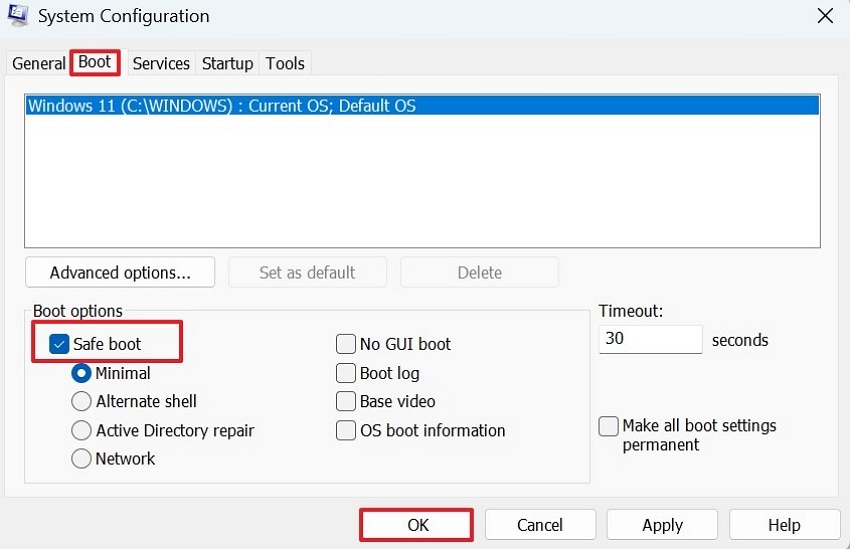
- Using the "Win+R" keys, enter the "msconfig" command in the Run window to proceed.
- Using the "Boot" tab, select the "Safe boot" radio button and hit "OK" to switch to Safe Boot.
5. Reset PIN Credentials
Resetting PIN credentials removes corrupted data, causing repeated authentication verification failures during login attempts. This process refreshes associated security information and restores proper functionality. A new PIN eliminates conflicts from compromised or outdated credential configurations. Resetting ensures smoother, secure access and consistent login verification accuracy. Follow the steps and learn using this method to fix the credentials could not be verified issue:
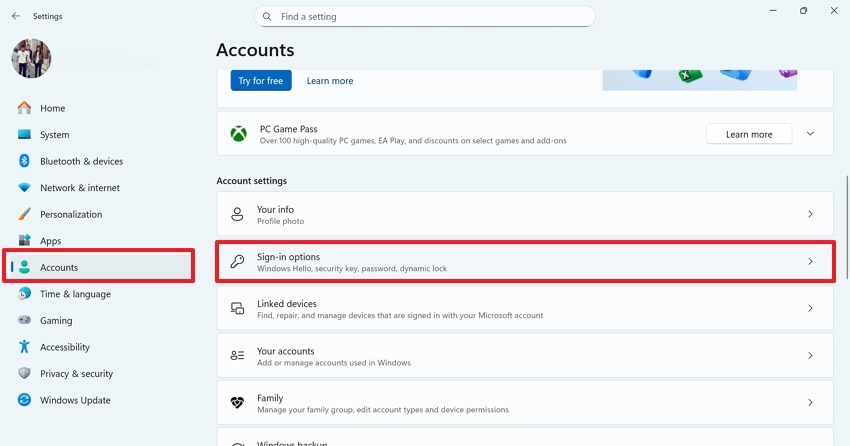
- In the "Settings" window, enter the "Accounts" tab from the left panel and select "Sign-In Options."
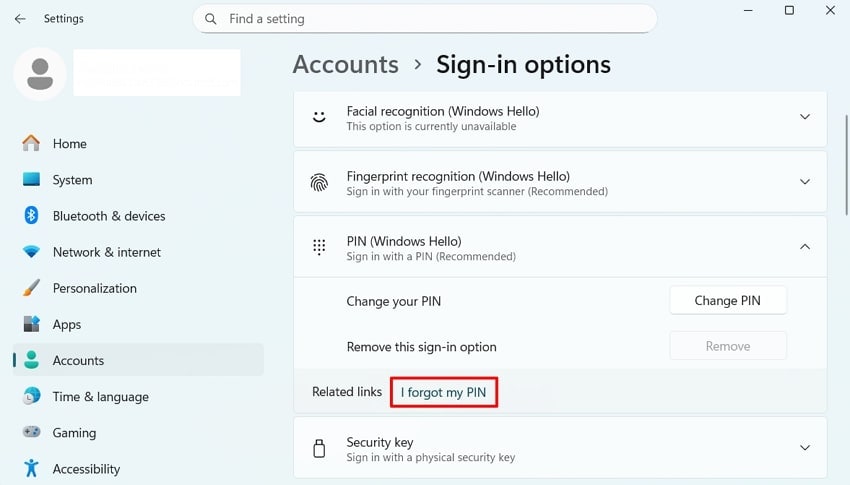
- In the "PIN" tab, select the "I forgot my PIN" button to access the following window.
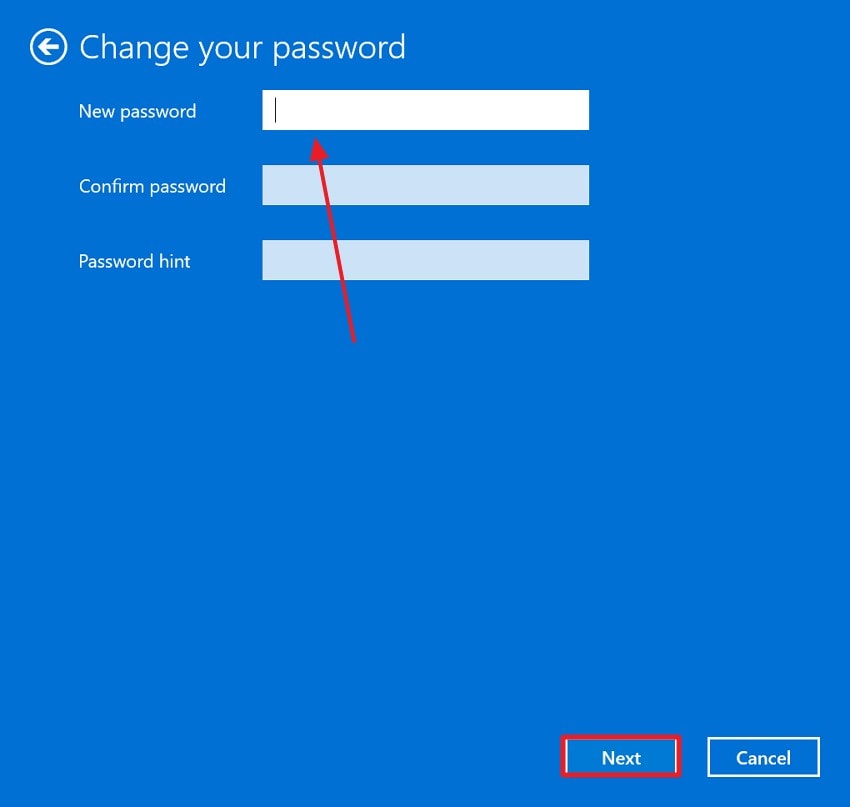
- After following the necessary verifications, enter the required information to reset the password.

6. Repair System Files
Repairing system files restores damaged components responsible for authentication and secure verification operations. Corrupt files disrupt essential communication channels required for proper credential validation. System repairs rebuild integrity and recover missing dependencies affecting login functionality. Read into this guide to resolve the "your credentials could not be verified 0xc000006d" error through this method:
- To start, use the "Win+R" keys on the keyboard and enter the "CMD" command.
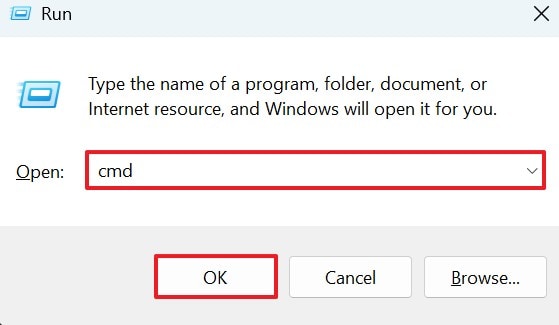
- When the command prompt window opens, enter the "sfc /scannow" command and hit the "Enter" key.
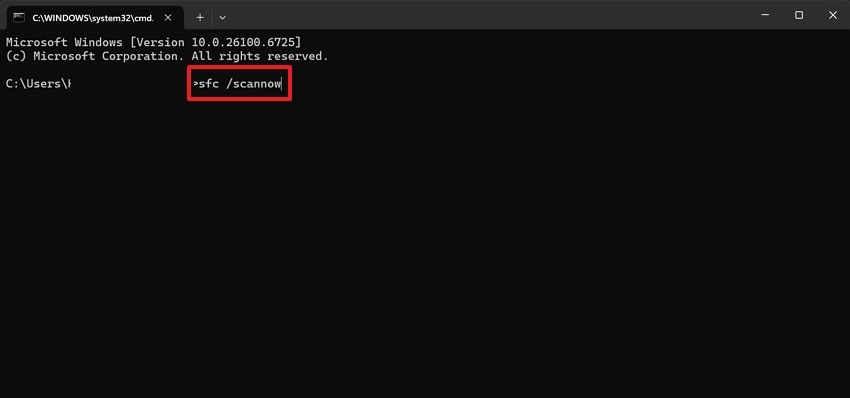
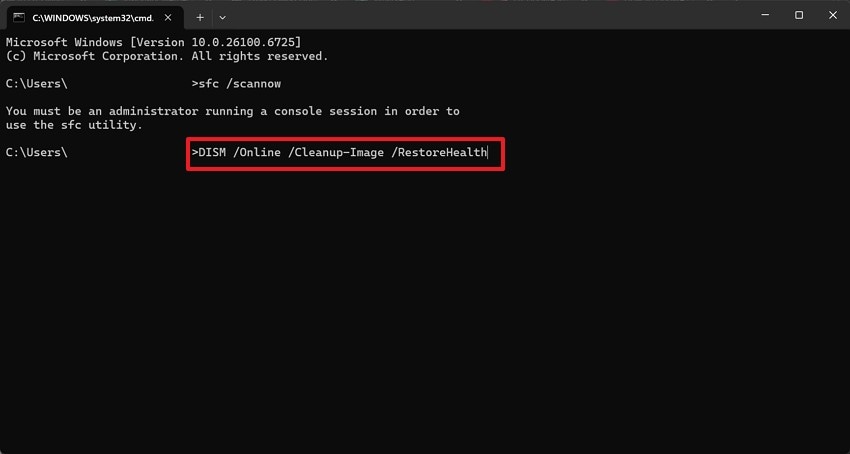
- If the system reports any issues, give the "DISM /Online /Cleanup-Image /RestoreHealth" prompt and wait. Now, reboot and restart your PC to fix this error.
7. Check Certificate Trust (For Domain/Work Devices)
Checking certificate trust ensures secure communication between domain devices and authentication servers. Invalid or expired certificates disrupt validation processes and block proper credential verification. Verifying trust strengthens secure relationships within managed enterprise networks. Proper configuration improves secure access reliability and compliance standards. If you want to learn how to execute this method to fix the "your credentials could not be verified" error, follow the guide below:
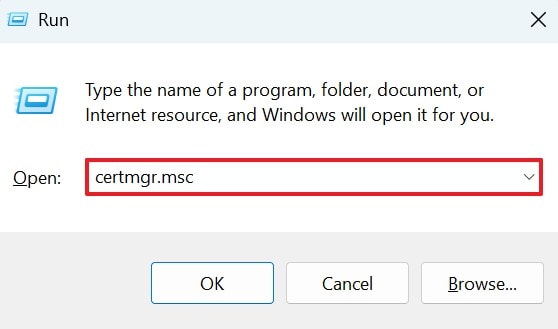
- To start, enter the Run window using the "Win+R" keys and enter the "certmgr.msc" command to open a new window.
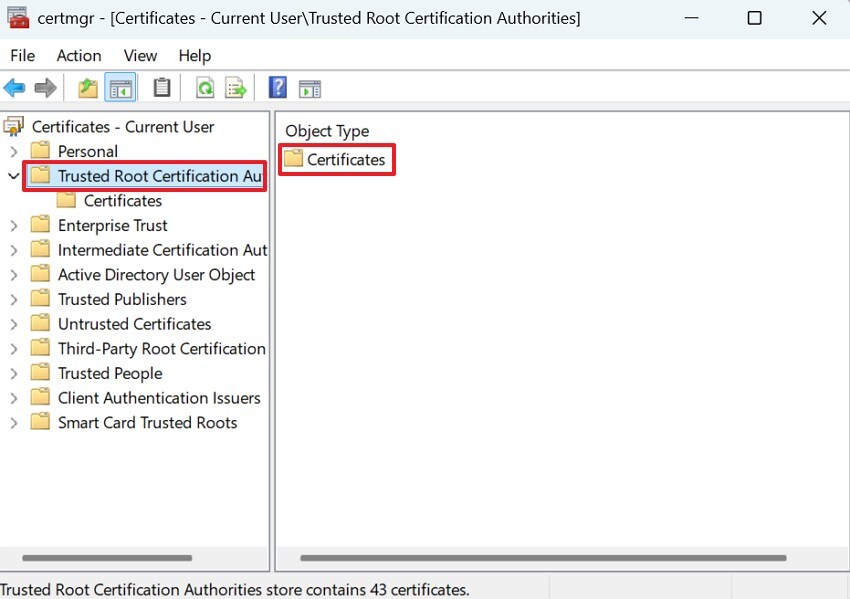
- In the next window, select the "Trusted Root Certification Authorities" menu to open "Certificates".
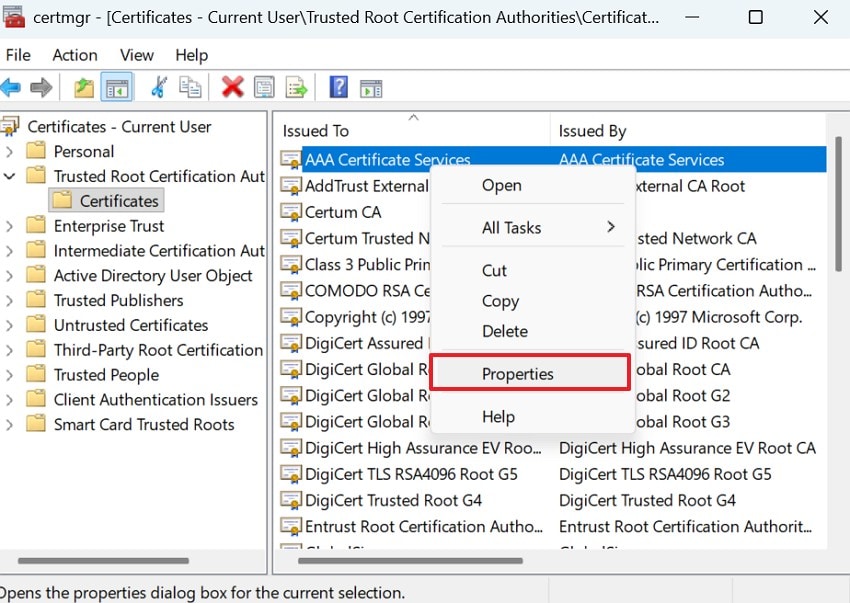
- In the "Certificates" window, right-click on the desired certificate and enter "Properties" to view its details.
8. Enable the Built-in Administrator Account
Enabling the built-in administrator account grants elevated access for deeper authentication troubleshooting processes. This account bypasses restrictions preventing normal credential verification completion. Administrative privileges allow correction of permission conflicts affecting secure login functionality. The steps below feature a guide to using this method for resolving the "your credentials could not be verified windows 11" error:
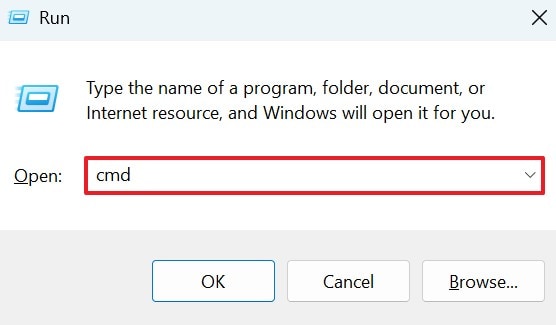
- In the Run window, enter the "CMD" command to open the Command Prompt window.
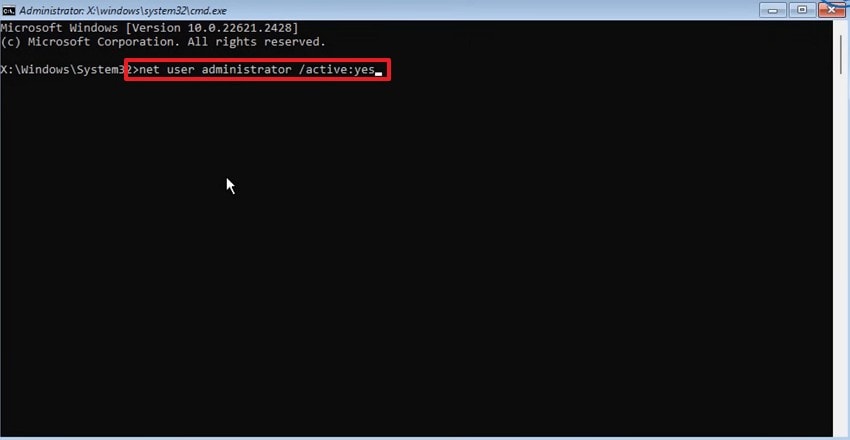
- In the CMD window, give the "net user administrator /active:yes" command and hit the "Enter" button to activate the account. Now that your administrator account has been activated, execute your desired troubleshooting process.
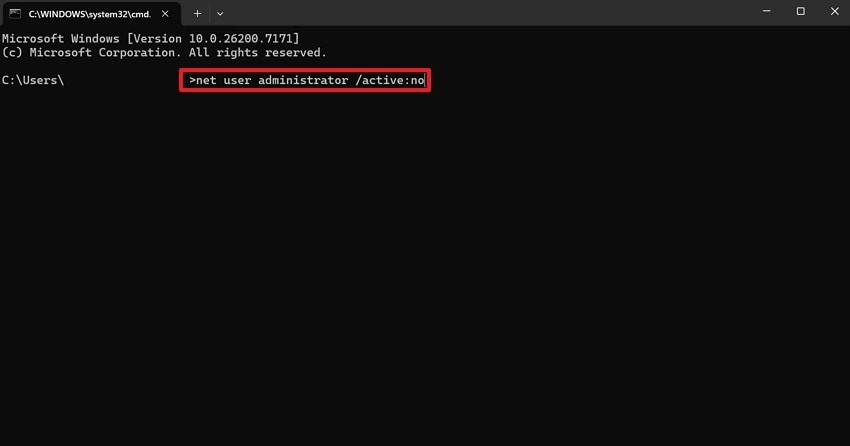
- After troubleshooting is completed, open the Command Prompt window again and give the "net user administrator /active:no" command to maintain security.
Pro Tip: Shield Your Data First: Let Recoverit Guard Your Files Before You Fix Credentials
If you fix the "credentials could not be verified" error in your computer, you might end up with lost files. To avoid data loss on your device, you will have to recover all lost documents using an effective tool. Recoverit is an ideal file recovery tool that caters to over 10,000 scenarios for missing files. Having a 99.5% success score in file retrieval, this tool ensures you can access missing files.
Using this recovery tool on Windows and Mac devices, you can ensure enhanced compatibility. Before you save the recovered file in a secure location, use the preview feature to verify the results. If the Quick Scan fails to deliver results, you can use the Deep Scan to take a deep dive into the system to find the files.
Key Features
- File Scan Filter: It provides an automated file scan to find lost files while allowing you to add a custom search filter.
- Format Support: Users can restore over 1,000 types of documents and multimedia files with this tool to maximize productivity.
- Compatible Devices: Recoverit supports over 1M storage devices, including hard drives, memory cards, and flash drives.
Using Recoverit to Restore Missing Files
After exploring the file recovery skill of Recoverit, it is now time to explore its features. The following steps are a detailed guide to using this tool for recovering files before you run into the "your credentials could not be verified" error:
1. Select the Folder Where the Missing File was Last Seen
To start the process, open Recoverit and select the location of your missing file from the left panel.

2. Locate the Missing Files and Recover Them
When the missing files appear on the next interface, select them and click "Recover" to retrieve them.

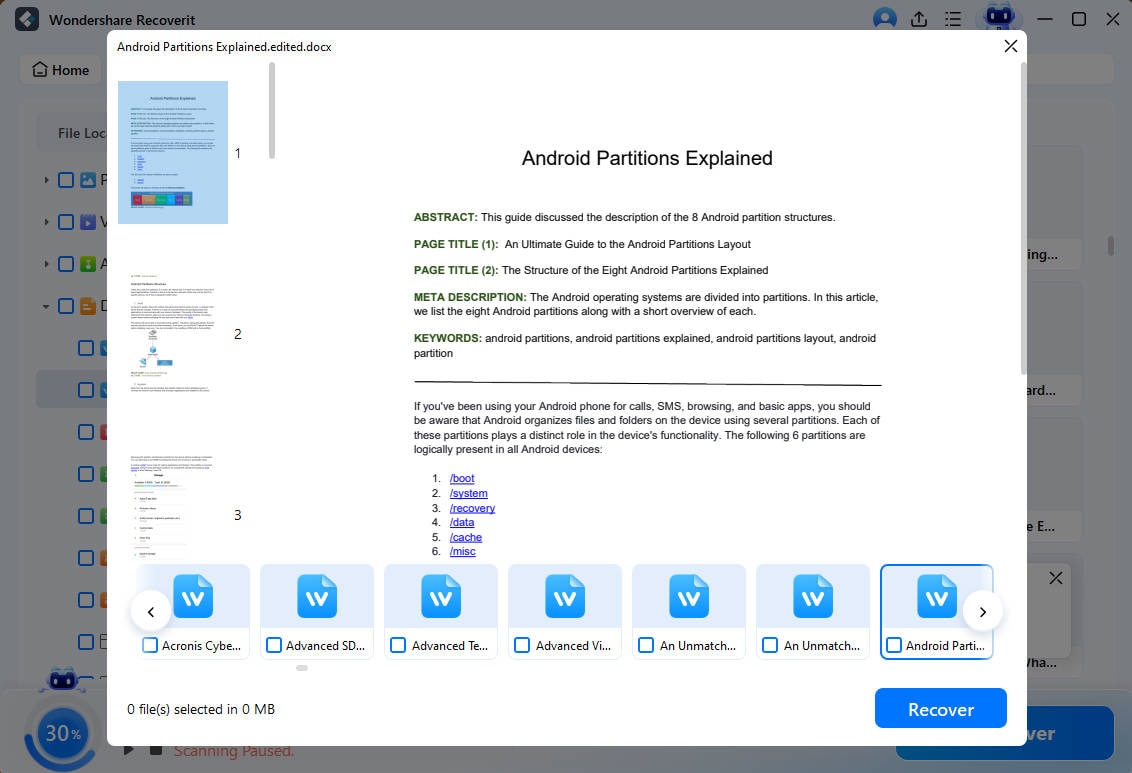
3. Preview the Recovered File Before Saving
As the files are recovered, preview them and hit the "Recover" button to save them.
Conclusion
Encountering the "your credentials could not be verified" error means hindrances in your routine tasks on the PC. This article explored the top methods of resolving this issue and their detailed guides. Fixing the error could subject important files on your system to loss. Recoverit is a robust file recovery tool that caters to over 1,000 file formats of lost files. Hence, this tool can be used to retrieve lost files before fixing this error.
FAQ
-
1. Can restarting the system fix this credential verification error?
Restarting your computer refreshes background services and clears temporary glitches affecting authentication processes. This simple action often resolves minor verification problems without requiring advanced technical intervention. -
2. How do incorrect login details trigger this error?
Incorrect passwords or usernames frequently trigger this verification error during Windows login attempts. Carefully re-entering credentials ensures accurate authentication and reduces repeated access failures significantly. -
3. Is there a way to recover a missing file that was lost during the error troubleshooting?
To recover a missing file that went missing while troubleshooting, use Recoverit on the desktop. This platform has a success rate of 99.5%, ensuring the retrieval of important lost documents. -
4. Which file recovery tool is reliable for retrieving batch files?
If you want to recover batch files, Recoverit is the most reliable tool. Besides batch recovery features, this tool offers a Preview feature that lets you analyze the results before downloading a recovered file.


