

 TL;DR:
To resolve gaming hardware overheating and keep CPU and GPU temperatures within the safe 60-85°C zone, you must restore physical airflow and actively reduce system processing loads.
● Lower hardware strain by capping your in-game frame rate, enabling sync, and changing the "Maximum Processor State" to below 100% within the Windows Advanced Power Settings.
● Restore internal ventilation by cleaning dust from fans monthly, reapplying thermal paste between the chip and cooler, or using external cooling pads directed at the intake vents.
● If temperatures consistently exceed 90-95°C despite lowered graphics settings, your hardware has reached its cooling limit, risking thermal throttling, FPS drops, or sudden crashes that may require data retrieval tools like Recoverit.
Ask AI for a summary
 ChatGPT
 Perplexity
 Gemini
 Claude
 Grok
Grok
Many gamers run into the same frustrating issue of their laptop getting hot. Overheating often manifests as stuttering, random shutdowns, or palm rest issues. In severe cases, it can also cause system crashes, leaving users concerned.
The good news is that you can fix the laptop overheating while gaming issue by using efficient approaches. This article covers the most efficient ways to prevent your PC from overheating.
Try Recoverit to Perform Data Recovery
 Security Verified. 3,591,664 people have downloaded it.
In this article

Part 1. Why Your Rig's Getting Hot: Understanding Gaming Overheating
To solve the computer overheating while gaming issue, let's first identify the key reasons behind it:
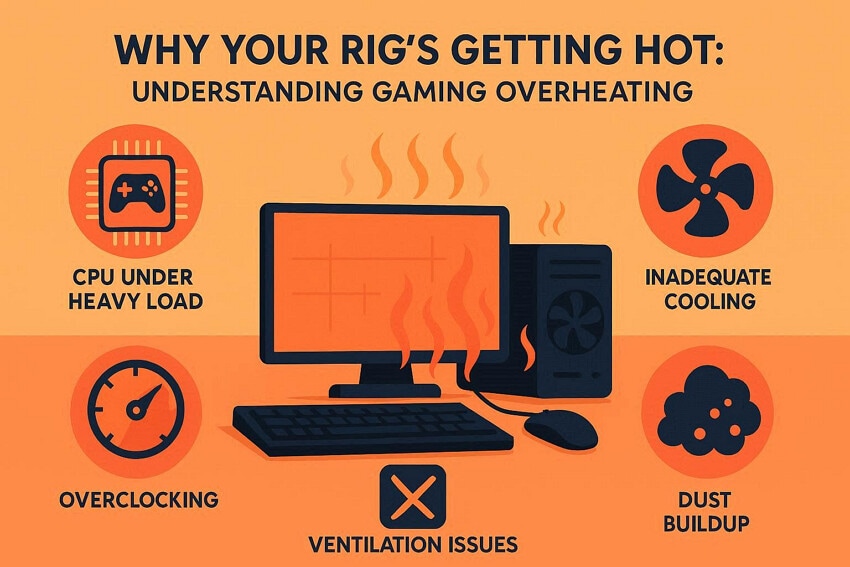
- CPU Under Heavy Load: Modern games push the CPU to high clock speeds, which naturally generate excessive heat. When usage sites near 100% for hours, the temperatures climb instantly.
- Compact Designs: Nowadays, slim laptops pack powerful components into a compact case with no room for ventilation. Thus, internal temperatures rise faster and stay higher under gaming loads.
- Dust Buildup: Over time, dust builds up on the fans and vents, blocking airflow. The dust will act as insulation, forcing the fans to work harder to achieve cooling performance.
- Hot Room: Working in hot rooms reduces heat dissipation due to temperature differences. Laptop heat escapes poorly, causing internal components to retain more heat.
- High Settings: Higher settings, such as high resolution, keep the CPU and GPU working at higher levels. Due to this, apps are always running in the background, causing heat and excessive power draw.
Safe Heat Zone: How Hot is Too Hot?
The "Safe Heat Zone" is the temperature range where your CPU and GPU can run without harming performance. For gaming performance, a CPU operating in the 60-80°C range under heavy load and a GPU with a 65-85°C range are fine. However, if you consistently cross the 80°C's or the past 90°C, especially during long sessions, you will cross the safer zone.
Part 2. Hot Hardware, Slow Performance: Signs Your System is Overheating
Once the causes are clear, the next step is recognizing the warning signs for laptop overheating while gaming:
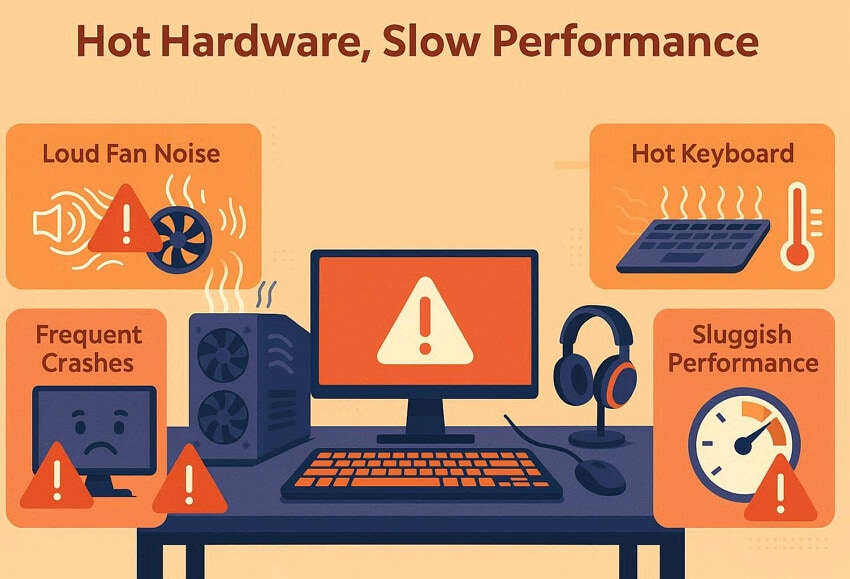
- Loud Fan Noise: When your system is heating up, your cooling fans often reach maximum speed. The consistent, loud jet-engine sound is a clear warning sign that the device is heating up.
- Hot Keyboard: An overheating laptop or desktop can feel uncomfortably hot to the touch. While gaming, you can't touch it comfortably due to excessive heat.
- FPS Drop and Shuttering: Thermal throttling kicks in when components get too hot, slowing the CPU or GPU. At first, the game runs smoothly, but gradually it starts dropping FPS and stuttering.
- Sudden Crashes: Severe overheating can cause random game crashes or full system freezes with no clear error. These issues tend to occur more often in games that require more powerful processing.
Pro Tip: Recoverit Helps Restore Files Lost Due to System Overheating
One day, you are playing a game when your laptop suddenly starts creating weird sounds. The screen freezes for a while and instantly shuts down. After restarting your PC, you realized the last folder saved in your game data is missing. Rather than panicking, we recommend using Recoverit, which lets you retrieve your essential data using its advanced AI algorithms.
This efficient tool lets you restore unlimited data by selecting the lost data location. It is capable of recovering data from almost all data loss scenarios, including power outages or system crashes. Moreover, this tool lets you preview the generated outcome to ensure its accuracy. To save time, users can use its batch processing system to restore all files at once.
Key Features
- Recovery Types: Recoverit offers various data recovery options, including NAS, Linux, hard drives, and external devices, making it an ideal choice.
- Advanced Scanning Modes: Users can easily choose between Quick and Deep scanning modes depending on their data loss scenarios.
- Media Device Support: This tool provides efficient recovery for a wide range of media devices, including cameras, drones, and GoPro devices.
Extensive Guide on How to Use Recoverit for Data Retrieval
If you also want to recover files after a computer overheating while gaming, then read the guide below:
1. Choose the Location to Start Recovery
Upon accessing the tool, click on the "Hard Drives and Locations" option from the left side tab. Afterwards, choose the desired data loss location under the "Quick Access" tab.

2. Scan the Location to Find Lost Data Files
Here, it will automatically start the "Quick Scan" to find lost files. Here you can also find the file by writing the file name in the "Search File" bar.

3. Preview the Recovered Files to Complete the Procedure
Lastly, examine the retrieved files to check their completeness and accuracy. After this, click the "Recovery" button to complete the recovery procedure and begin saving the selected files.

Part 3. Beat the Heat: Fast Solutions for Overheating
Are you exploring ways to fix laptop overheating while gaming? Here we have listed some efficient solutions to fix this issue:
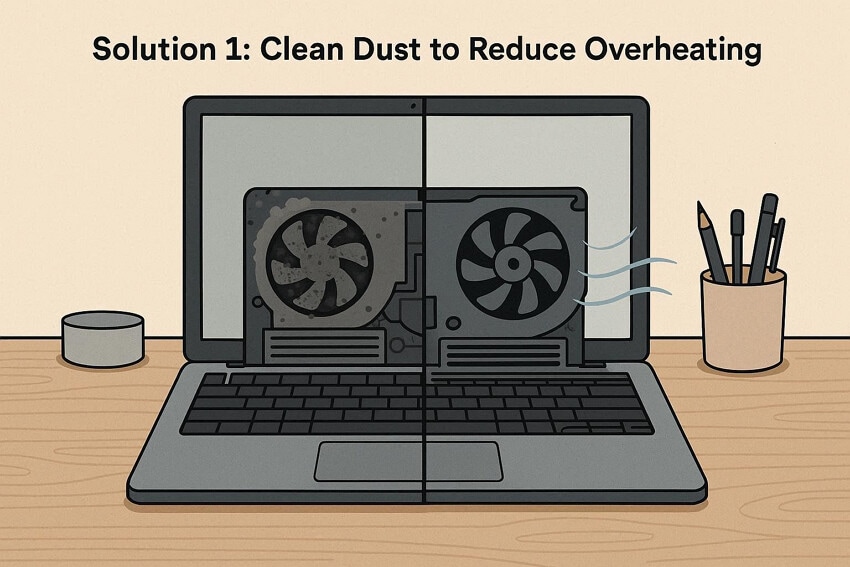
Solution 1. Clean Dust
Most users have never cleaned the dust from their fans and outlets, which clogs the vent fans. So, cleaning dust is one of the fastest ways to reduce high temperatures. Removing that layer instantly restores clear air paths, so cool air can get in, and hot air can get out. Overall, it is recommended to clean your dust monthly to avoid heat-up issues, all for free.
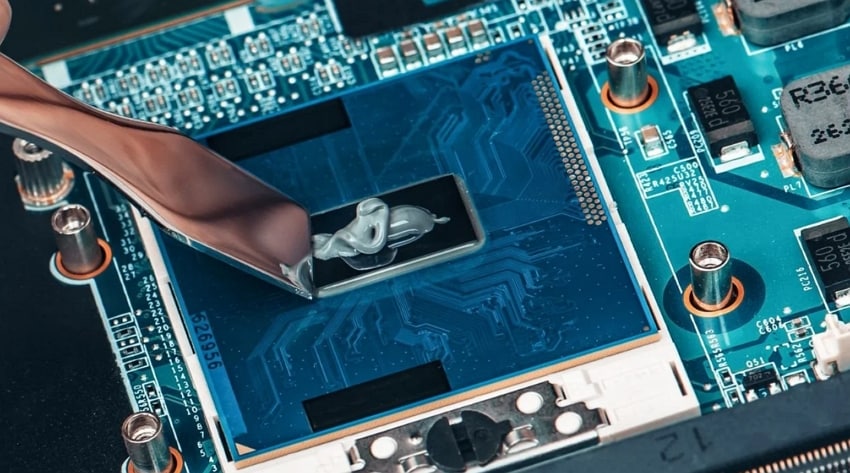
Solution 2. Reapply Thermal Paste
To fix the computer overheating while gaming issue, you can try re-applying the thermal paste. Thermal paste fills the gap between the chip and the cooler, trapping the air from going out. Users can apply this method, especially after removing the excessive dust. It helps to keep the fan noise down and maintain the maximum speed. Moreover, it reduces long‑term thermal stress on components, which supports better performance.
Solution 3. Use Cooling Pads
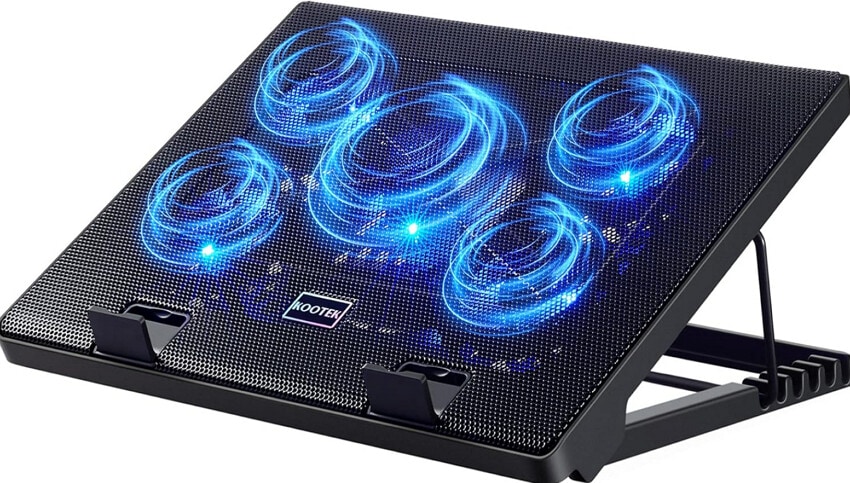
Using cooling pads is another efficient way, as they provide a laptop with a built-in cooling system. A good cooling pad uses one or more fans and a ventilated surface to blow directly into your laptop system. With this addition, users have noticed significant reductions, helping keep CPU/GPU within a safer range under heavy load.
Solution 4. Add External Fans
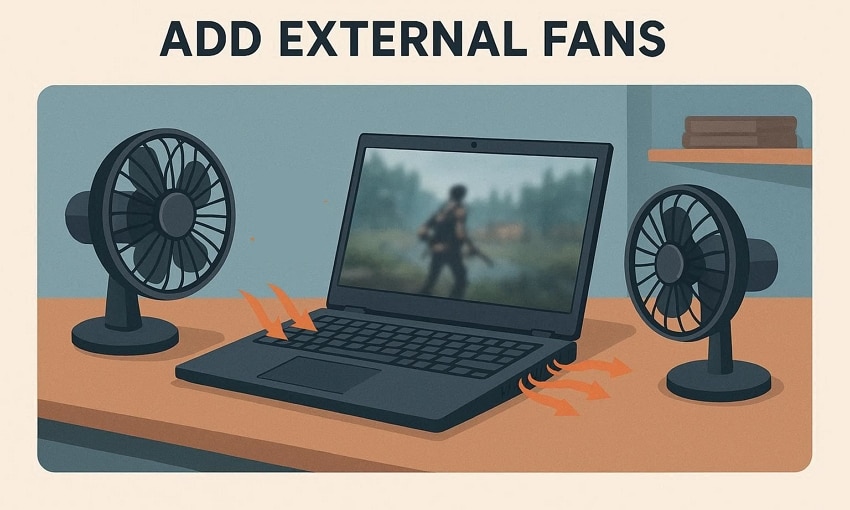
Besides the cooling pad, you can also add external fans to boost the overall airflow around your rig. This method is helpful for cases with limited ventilation areas and laptops running in tight spaces. By directing an external fan, you can point it directly at intake vents to improve overall cooling. Furthermore, external fans are an inexpensive way to fix the laptop overheating while gaming issue.
Solution 5. Adjust Power Settings
Users can easily switch between their battery settings with just a few clicks. With this method, internal fans do not need to run at maximum speed constantly, so the system gets quieter. Furthermore, you can switch to a cooler profile and back to a higher profile when needed. So, if you want to fix the computer overheating while gaming issue, then read the following:
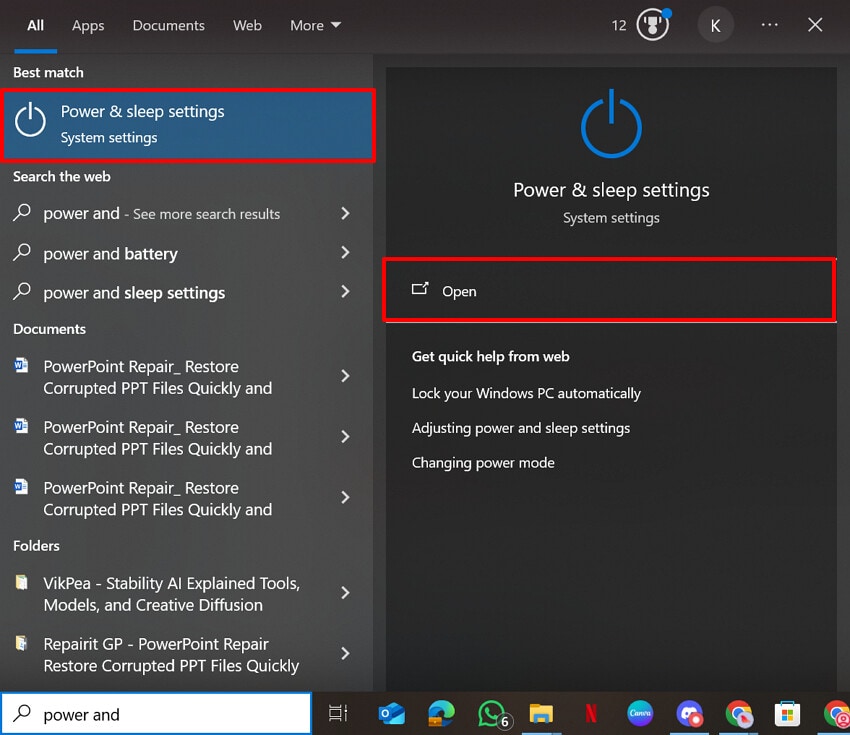
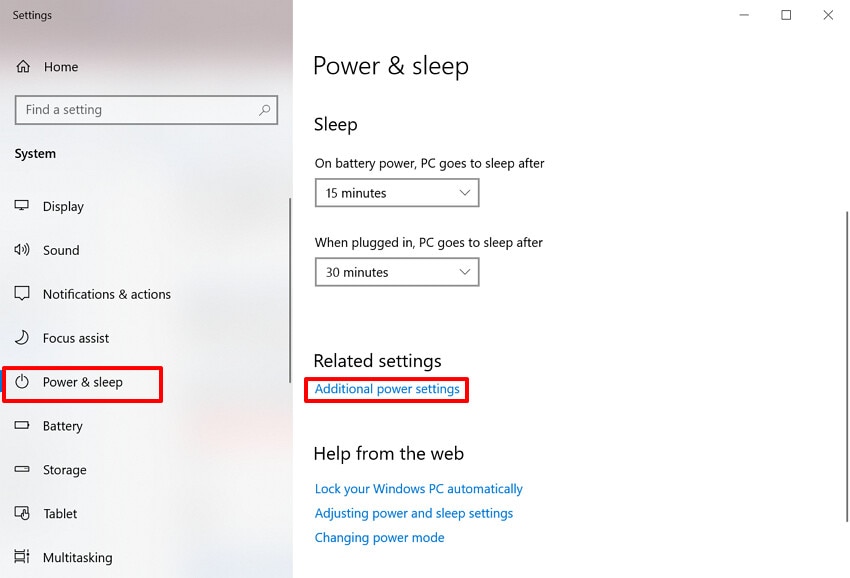
- Initiate by searching for the "Power & Sleep Setting" option and hit the "Open" option to enter its interface.
- Here, choose the "Power & Sleep" option from the left tab and access the "Additional Power Settings" option under the "Related Settings" option.
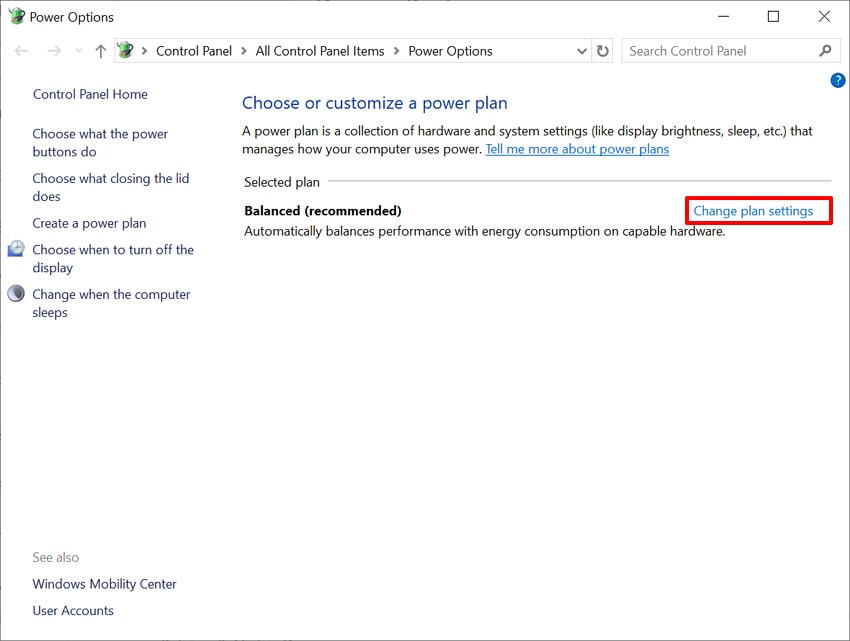
- Here, click on the "Change Plan Settings" option adjacent to the "Balanced (Recommended)" option.
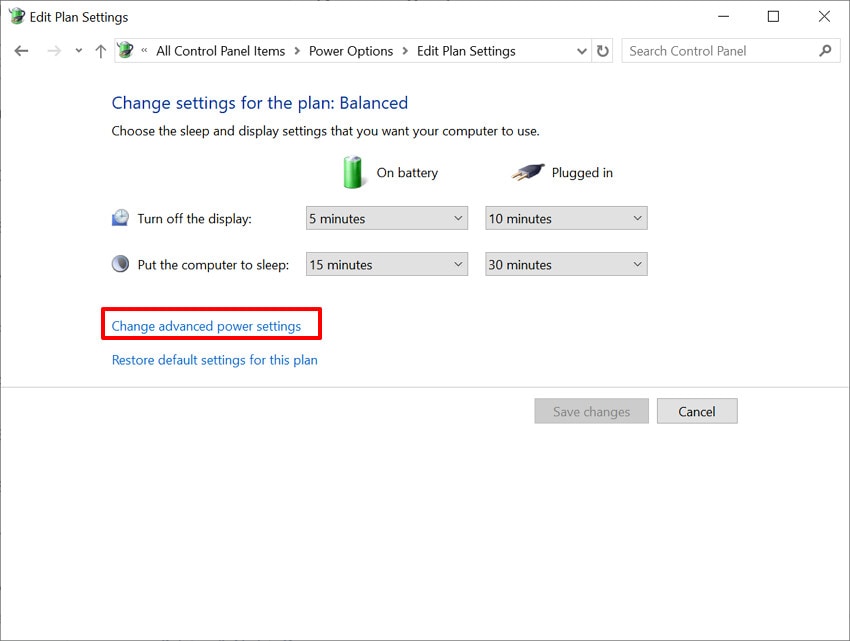
- Following this, choose the "Change Advanced Power Settings" option to jump to the next screen.
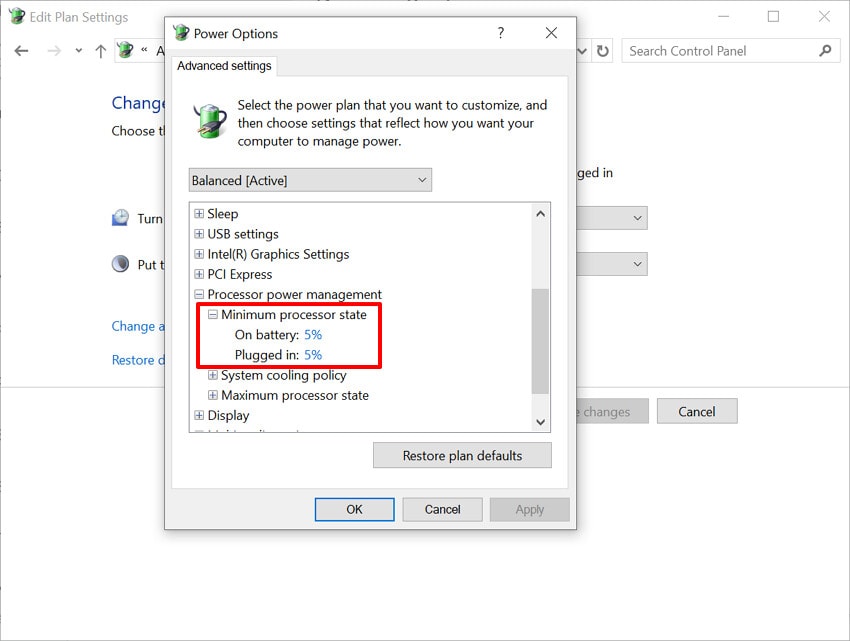
- Lastly, select the "Processor Power Management" option and set the "Maximum Processor State" to below 100.
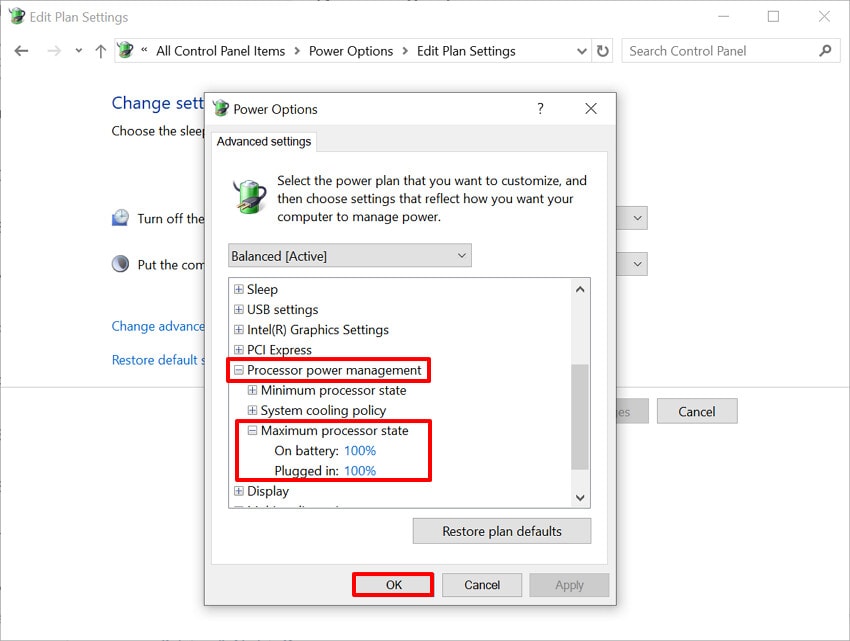
- Here, ensure that the "Minimum processor state" is also less than to 100%.
Solution 6. Close Unnecessary Programs
Running unnecessary apps in the background can also lead to computer overheating while gaming. It is always recommended to close all extra software when using heavy software on your laptops. By reducing the overall load from CPU and GPU, it reduces the shutter and stabilizes the overall FPS. Plus, it can noticeably draw the temperature by a few degrees, so let's dive into its detailed guide:
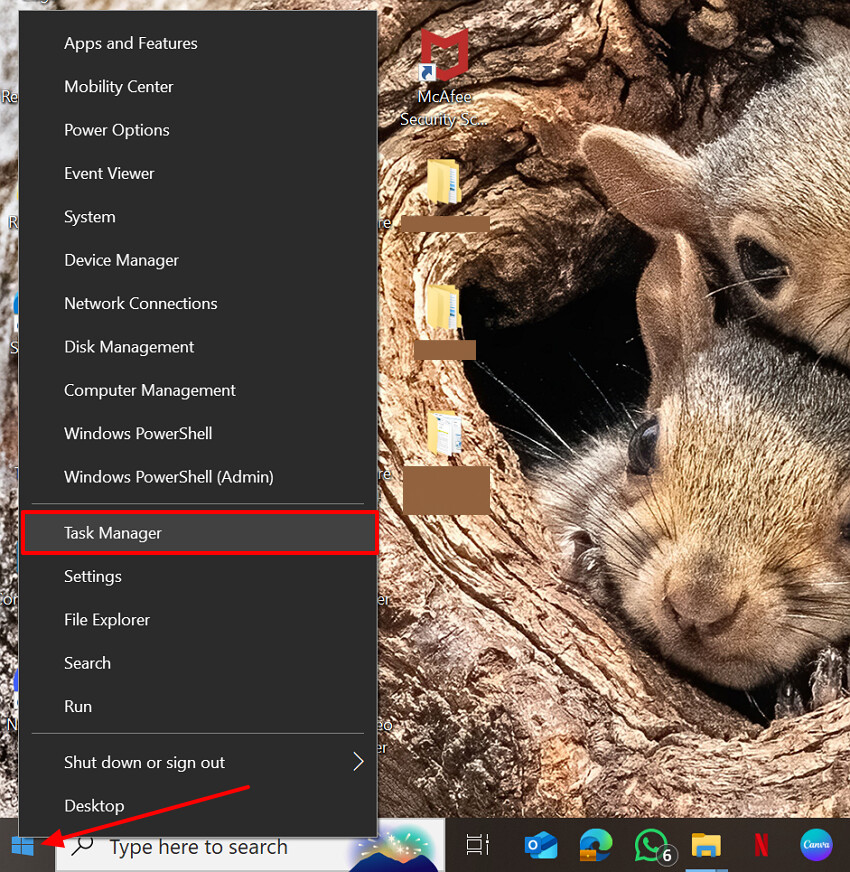
- Initiate by right-clicking the "Windows" icon and selecting "Task Manager" from the pop-up menu.
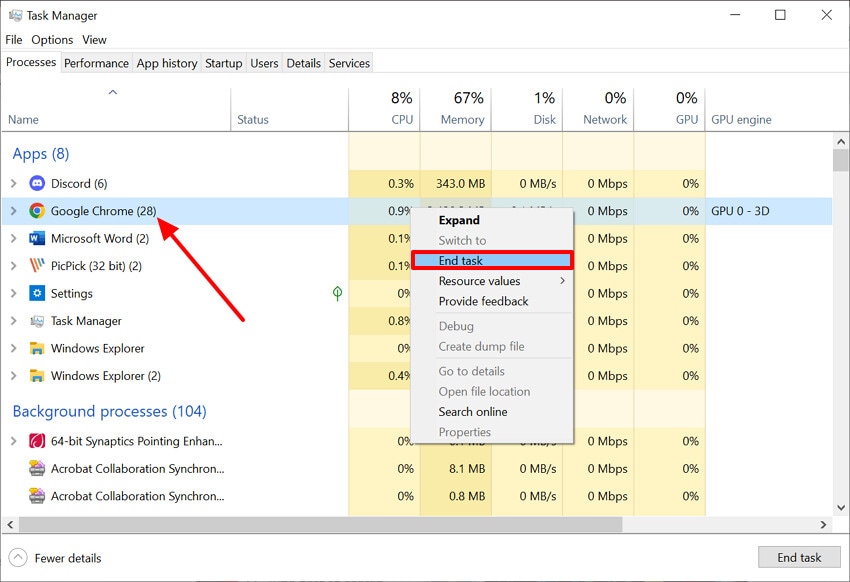
- Here, review all the running apps, right-click the desired targeted app, and select "End Task."
Solution 7. Lower Game Graphics
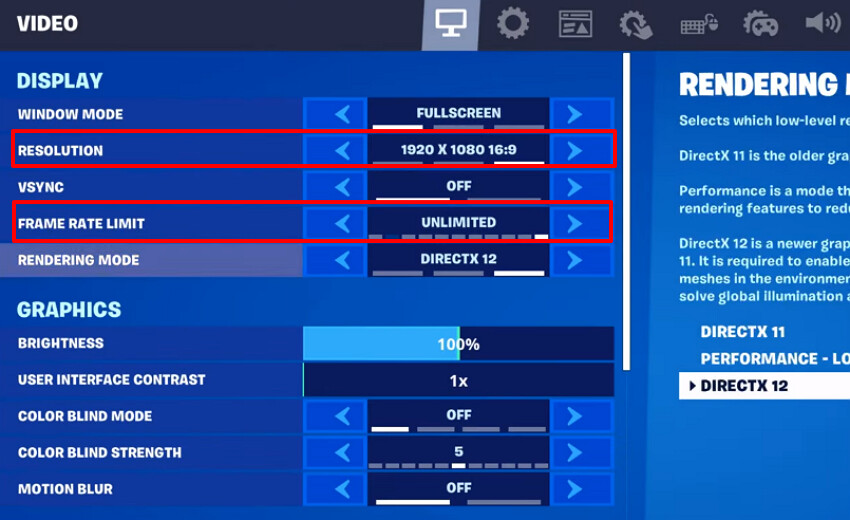
Users can try lowering the game's graphics by adjusting the screen resolution and the framerate cap. It will directly reduce excess power consumption and heat dissipation while playing. Without requiring any third-party tool, you can adjust these settings in the game to resolve laptop overheating while gaming. Moreover, you can even change the settings to default anytime, so have a look at its guide:
- With the game running, hit the main menu and then choose the "Settings" option.
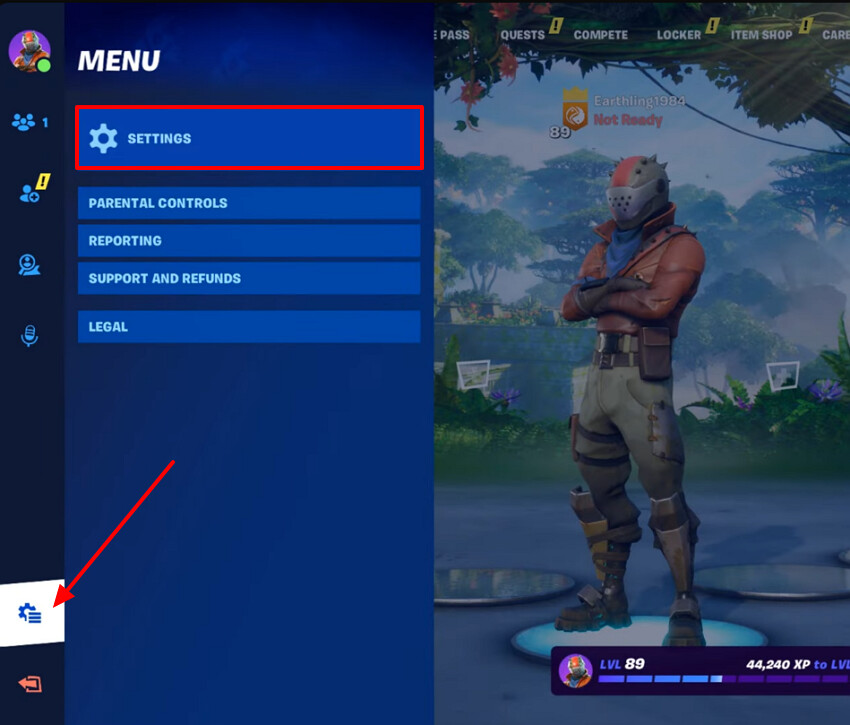
- Here, choose the desired options of "Resolution" and "Frame Rate Limit" to lower the game graphics.
Solution 8. Change In-Game Settings
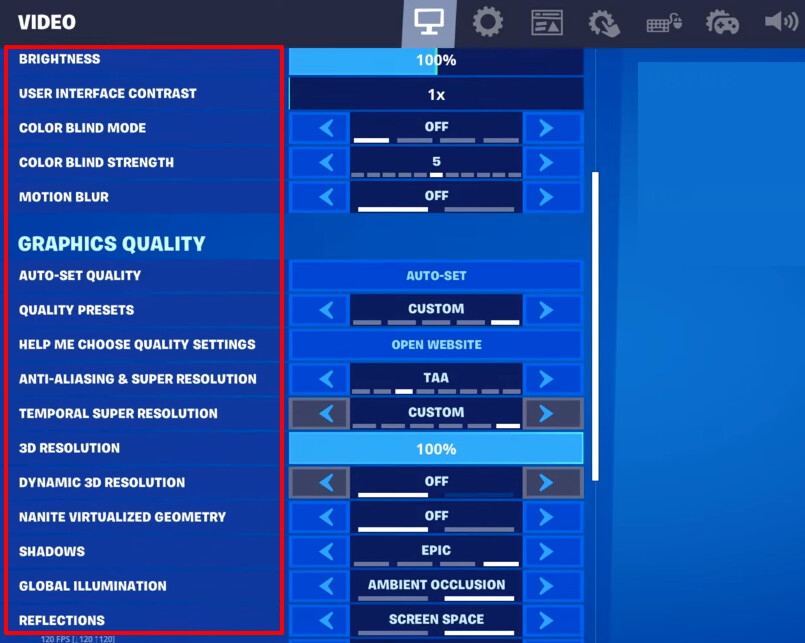
To avoid the computer overheating while gaming, you can tweak your game's built-in settings. Rather than using the general settings for the whole system, it will directly target the game issue. Adjusting the desired settings will reduce workload and heat on both components. Upon hearing what the method offers, let's explore its detailed guide:
Instructions. As you enter the settings of the desired game, choose the desired settings of the game based on your requirements.
Solution 9. Update Drivers
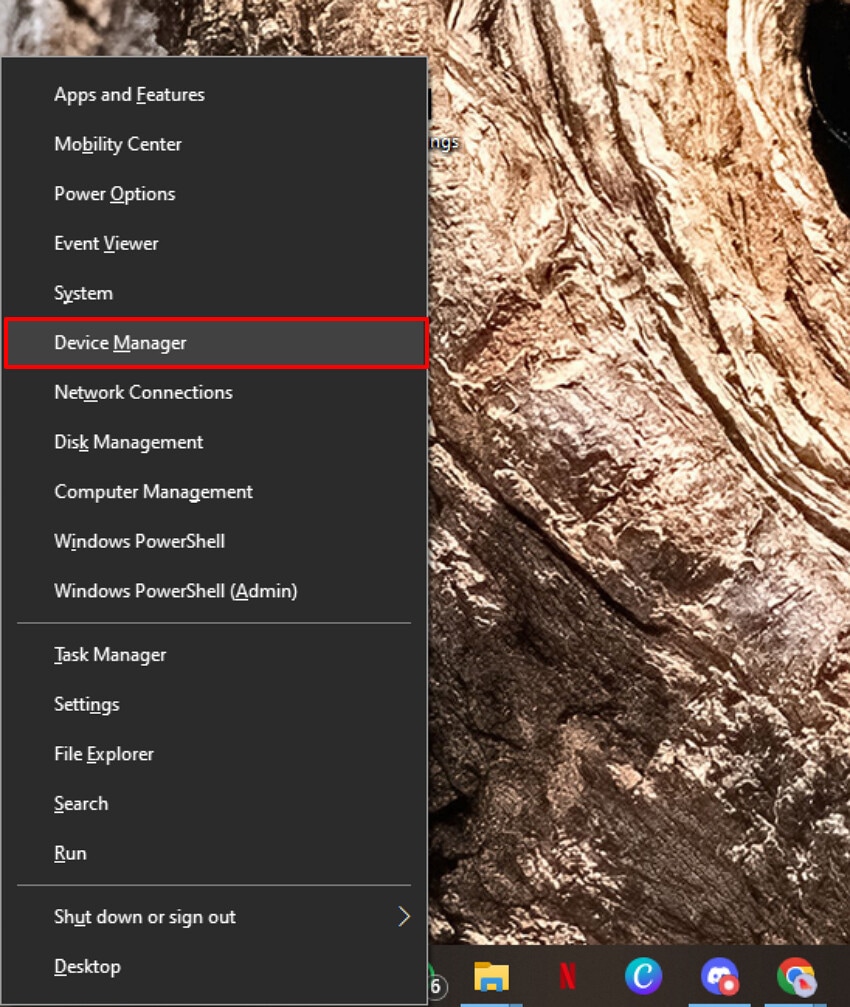
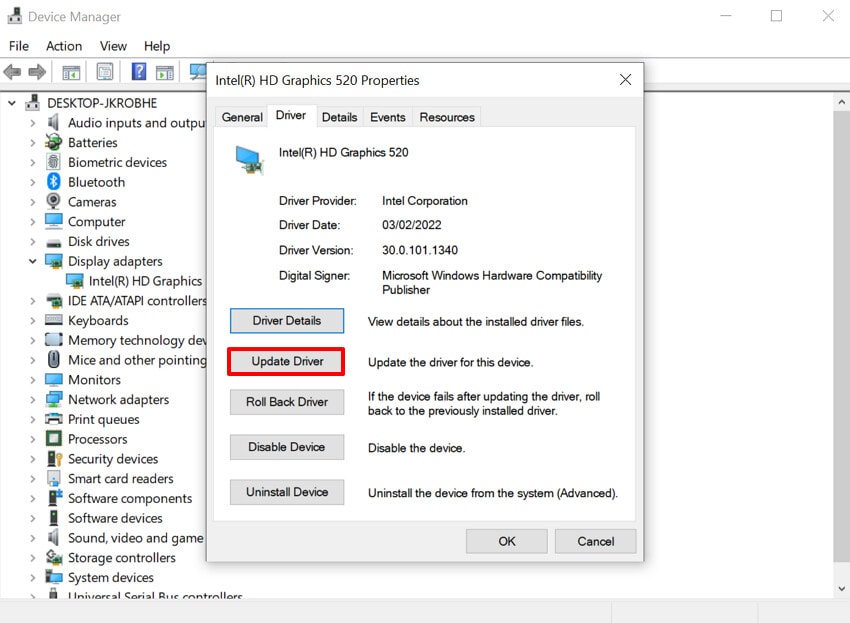
Sometimes, the main reason behind laptop overheating while gaming is outdated drivers. Drivers act as translators between hardware and your games, so ensure they are always up to date. By updating these drivers, you fix all bugs, crashes, and inefficient behavior that can waste power and generate excess heat. Plus, it can help your GPU do the same work with fewer errors and smarter scheduling, so go through the following guide:
- Start by pressing the "Windows+X" keys on the keyboard to choose the "Device Manager" option.
- Upon entering the interface, select the "Display Adapters" and choose the "Properties" option.
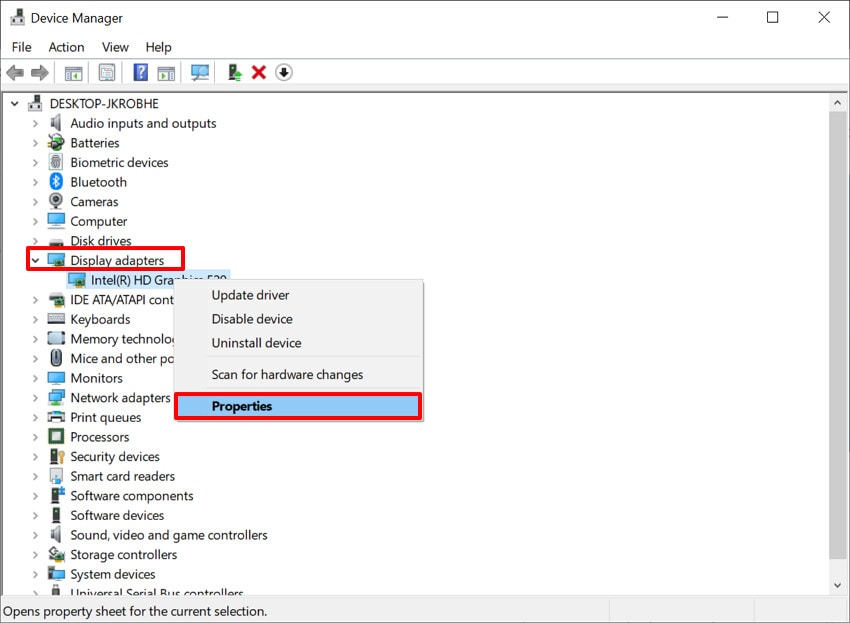
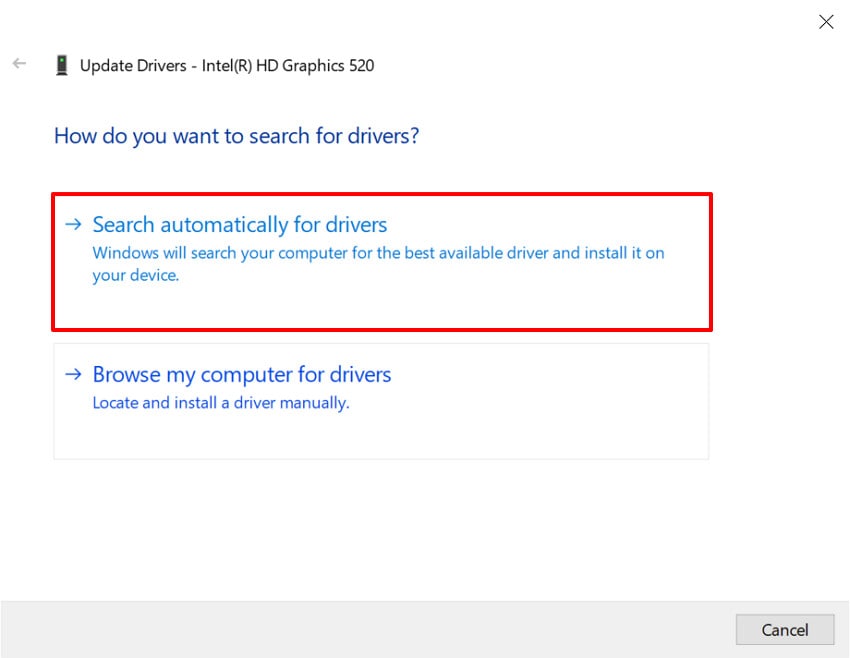
- Here, choose the "Driver" tab and select the "Update Driver" button to enter the next interface.
- At the end, select the "Search Automatically for Drivers" option to let the system automatically start the updating procedure.
Part 4. When to Upgrade: Hardware That Handles Heat Better
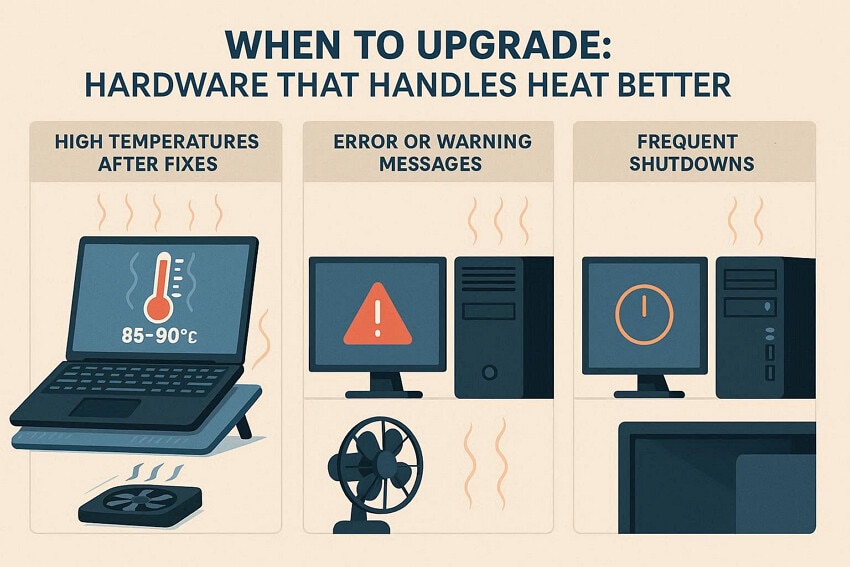
When basic fixes are no longer enough for resolving computer overheating while gaming, the next step is to know when hardware is needed:
1. Temperature Still Too High After Fixes
Suppose your CPU or GPU is still sitting around 85-90°C or higher in games, even after cleaning dust. You noticed that the current hardware and cooling design are likely at their limit. In this scenario, an external fan or cooling pad is required to cool down the PC.
2. Settings Already as Low as You Can Tolerate
In case your laptop is slim and has limited cooling potential by design. You tried fixing the laptop overheating while gaming issue by altering settings, but failed. Here, you need to upgrade to a new, high-powered laptop or add fan mounts.
3. Settings Already as Low as You Can Tolerate
Sometimes you already have lower graphics settings, and still, your laptop is getting hot. The hardware is struggling to keep up with modern titles at safe temperatures. To address this issue, you will need a newer graphics card that can handle higher settings at lower relative load and temperature.
Part 5. Some Software-Based Tips to Avoid Laptop & Computer Overheating
If your computer overheating while gaming, a few smart software tweaks can help balance performance and temperature:
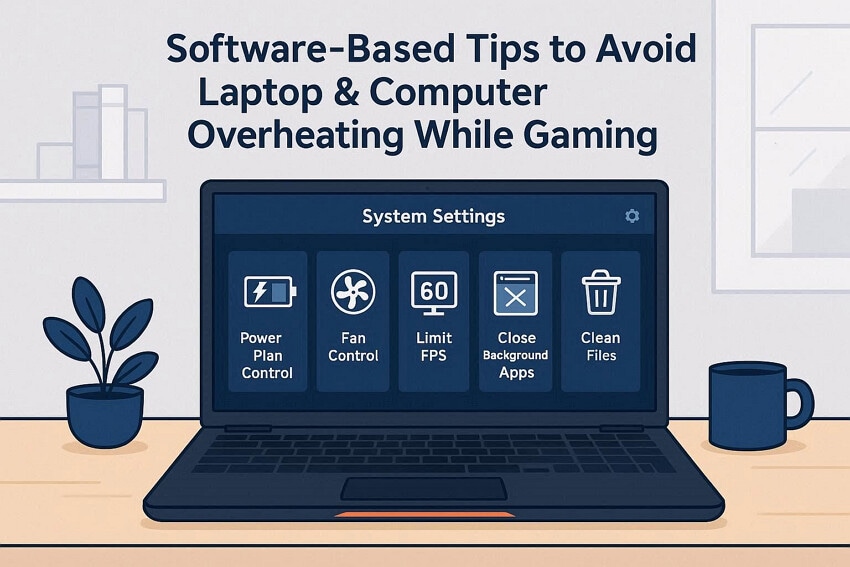
- Use Cooler Plans: Ensure you switch from high performance to balanced or power saver mode. It will reduce the power draw and heat during everyday use and gaming.
- Limit Maximum Processor State: Users should lower the maximum processor state in advanced power settings. Furthermore, it will drop the temperature several degrees with minimal FPS loss.
- Cap FPS and Enable Sync: Setting the in-game frame rate or turning on sync, the GPU stops rendering. It will reduce the unnecessary workload and excessive heat generation.
- Use Built‑In Performance Profiles: Many laptops and prebuilt PCs include Quiet, Eco, or Balanced modes. So, adjust fan curves to keep temperatures lower during long sessions.
- Monitor Temperatures Regularly: Users should ensure to regularly monitor the overall device temperature. This move will help to spot overheating early and then adjust power plans.
Conclusion
In conclusion, users can now instantly fix the laptop overheating while gaming issue using appropriate approaches. This article has narrowed down the 9 most efficient solutions to fix the specific error. Furthermore, we recommend using Recoverit to recover important data that may be lost during troubleshooting or overheating incidents.
FAQ
-
1. Is it normal for my laptop or PC to get hot while gaming?
Yes, it is normal for the temperature because the CPU and GPU are working consistently in the background. However, consistently running near or above about 85-90°C under load is a warning sign for your device's health. -
2. How hot is too hot for my CPU and GPU?
Most gaming CPUs and GPUs are comfortable in roughly the 60-80°C range under load. Regularly hitting the 90-95°C is the main reason behind the computer overheating while gaming issue. -
3. Can overheating permanently damage my laptop or PC?
Modern hardware has thermal protection and will throttle or shut down to avoid instant damage. So, keeping temps in a safe range helps preserve performance and lifespan. -
4. Is it possible to restore data lost during instant device crashes?
Yes, it is easily possible to retrieve essential data using advanced tools like Recoverit. This tool offers you various scanning modes to cater to various data loss scenarios.


