

 TL;DR:
You can regain access to your locked Pinterest account by triggering a reset link to your registered email, authenticating through a linked third-party provider, or submitting a Help Center contact form if your inbox is completely inaccessible.
● The Google and Facebook login recovery methods bypass email access issues but exclusively function if those specific providers were connected to your Pinterest profile prior to the lockout.
● If you experience continuous Captcha or login loops during a password reset, browser extensions or VPNs are likely blocking the flow, requiring you to request a fresh, unexpired link and open it in an Incognito window.
● While the Recoverit software provides a 500MB free tier to retrieve deleted Pinterest downloads from your device's local storage, it cannot repair or restore missing image thumbnails directly inside the Pinterest application itself.
Ask AI for a summary
 ChatGPT
 Perplexity
 Gemini
 Claude
 Grok
Grok
A Pinterest sign-in issue can interrupt access to boards, messages, and saved content. In many cases, you can restore access by verifying your account details and using Pinterest’s recovery options. This guide explains how Pinterest password recovery helps you avoid lockouts by confirming your email, phone, and login devices.
Moreover, you will learn when to reset a forgotten password and when to change a password you still know. We address common issues, including missing verification codes, outdated contact details, or blocked browsers. Finally, we’ll help you apply practical security steps to protect your boards, pins, and messages afterward.
Try Recoverit to Perform Data Recovery
 Security Verified. 3,591,664 people have downloaded it.
In this article

Part 1. Why Pinterest Account Security Matters
Pinterest accounts hold private boards, messages, and saved ideas across many devices. Before you change your password on Pinterest, the reasons below explain why strong account security matters:
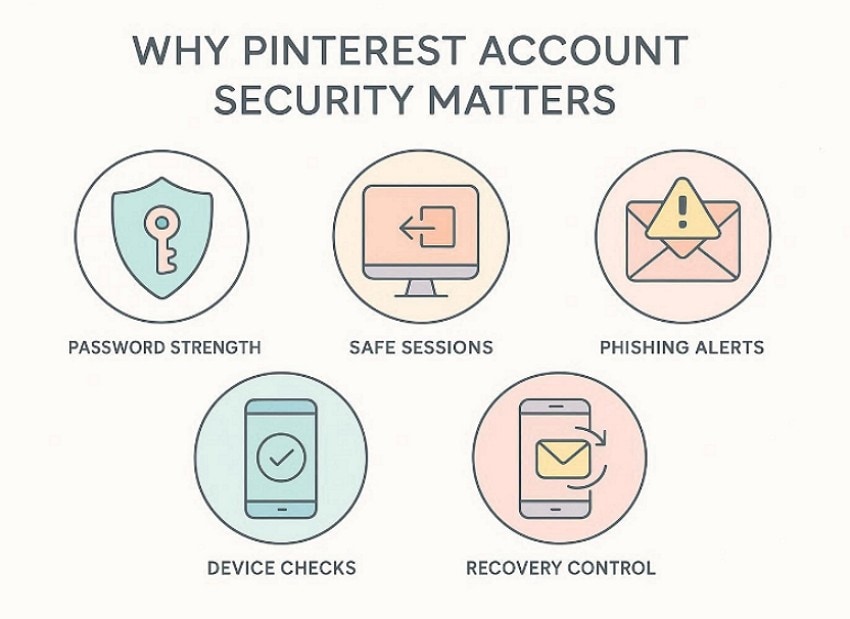
- Password Strength: Strong passwords stop hackers from guessing and protect your Pinterest profile at all times. Use a long passphrase, and skip names, dates, and repeats.
- Safe Sessions: Staying logged in can be risky on shared or public devices. Always log out after use and avoid saving passwords publicly.
- Phishing Alerts: Fake emails and pages trick users into sharing login details. Check sender addresses carefully and never enter passwords from strange links.
- Device Checks: Unknown devices can keep access even after a password change. Review login activity often and remove devices you do not recognize.
- Recovery Control: Updated email and phone details make recovery faster and safer. Keep recovery options current and verify them whenever you change numbers.
Part 2. How to Recover a Pinterest Password if Forgotten
If you forgot your Pinterest password, you could still regain access in minutes. Follow the methods below and choose the option that matches your login setup:
Recover via Email (Web, Android, iOS)
Email recovery suits accounts linked to an active, reachable inbox. Pinterest sends a reset message to confirm you own that email. Try email recovery when you sign in with an email/username rather than a connected provider. So, use this Pinterest password recovery when you know the account email/username but cannot remember the password. Thus, follow the steps mentioned below to try this method:
For Web
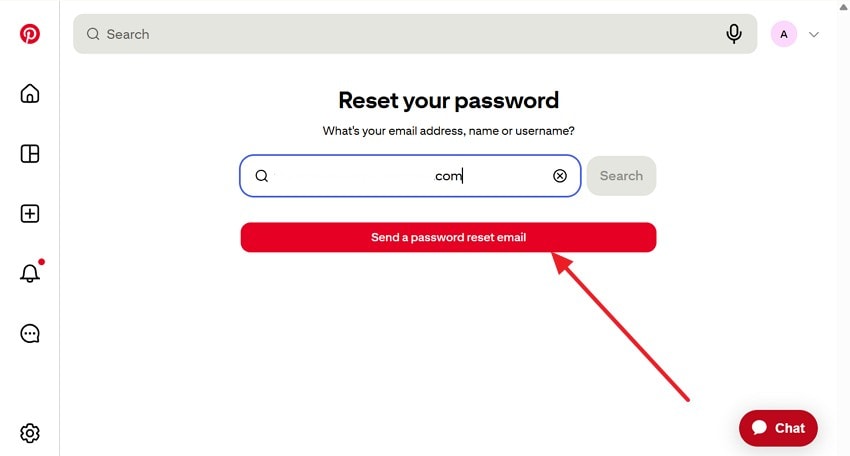
- To start, open the Pinterest password reset page in a desktop or mobile web browser. Then enter your email, name, or username, and click “Search.” Afterwards, choose the “Send a password reset email” option to proceed further.
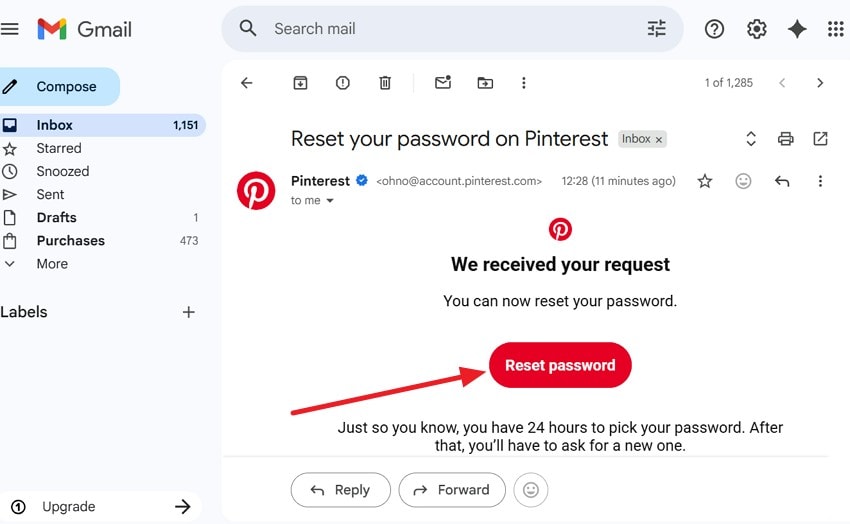
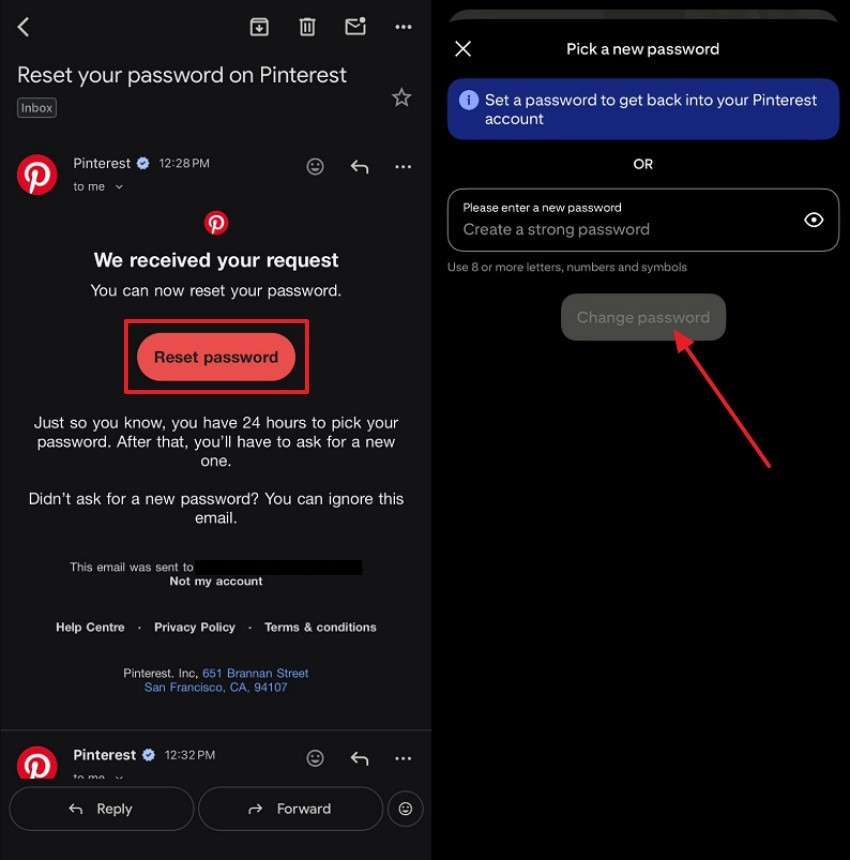
- Now, open your reset “Email” and press the “Reset Password” button.
- Next, enter the “New Password” and choose the “Change Password” option.
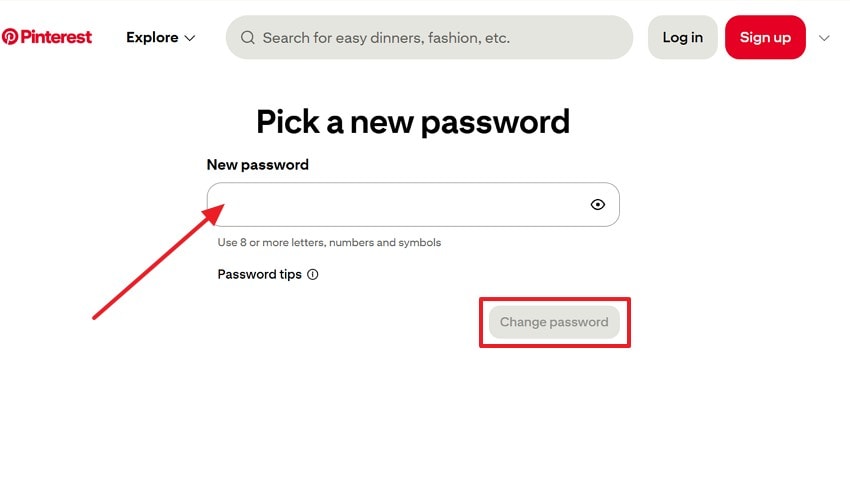
For Android
- Here, open the Pinterest password reset page in your Android and enter “Email” and pick “Forgotten password” to continue. After that, a dialog box appears with the prompt “Password reset email sent,” and press “OK” to continue.
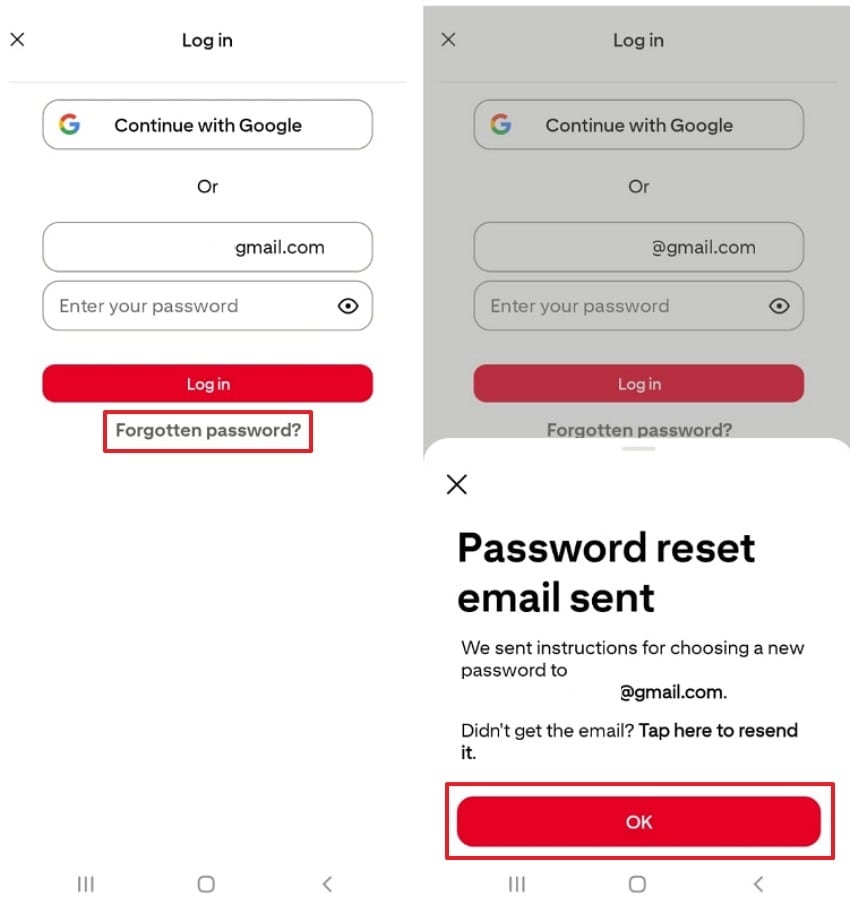
- Now look for the “Reset Email” in the Mail inbox and pick “Reset Password.” Later, add your “New Password” and press “Change Password” to complete the reset.
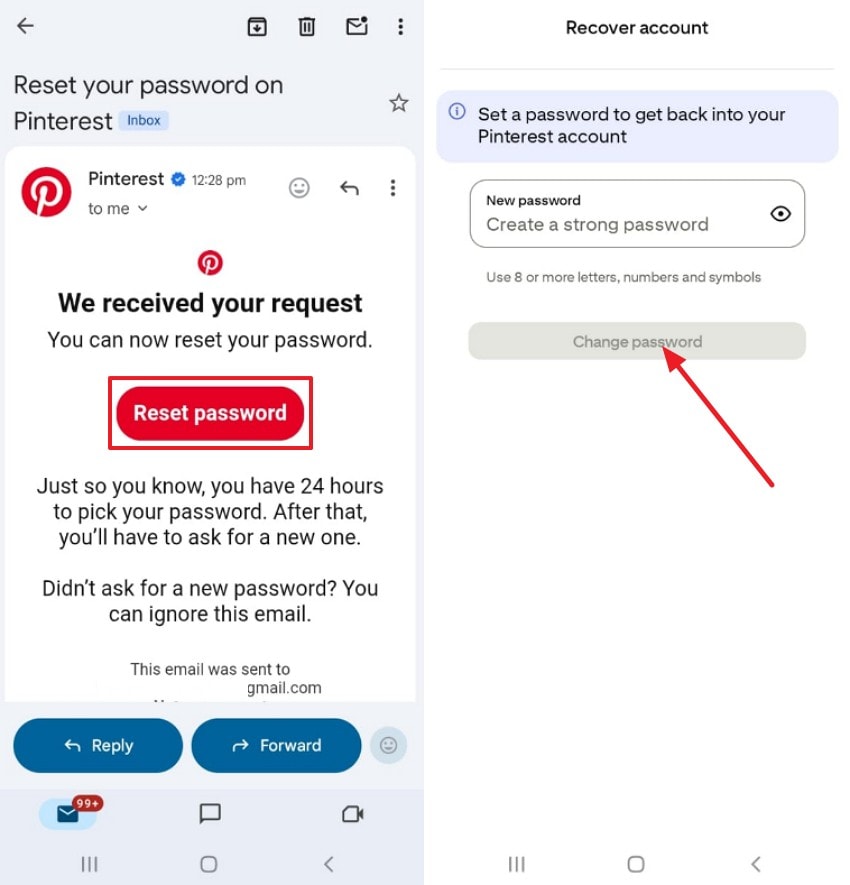
For iOS
- Start by navigating to the Pinterest password reset page on your iOS device. Then tap on the “Forgotten password” option after adding the email. Following this, a dialog box appears, pick “Resend email” or “Send email” to continue.
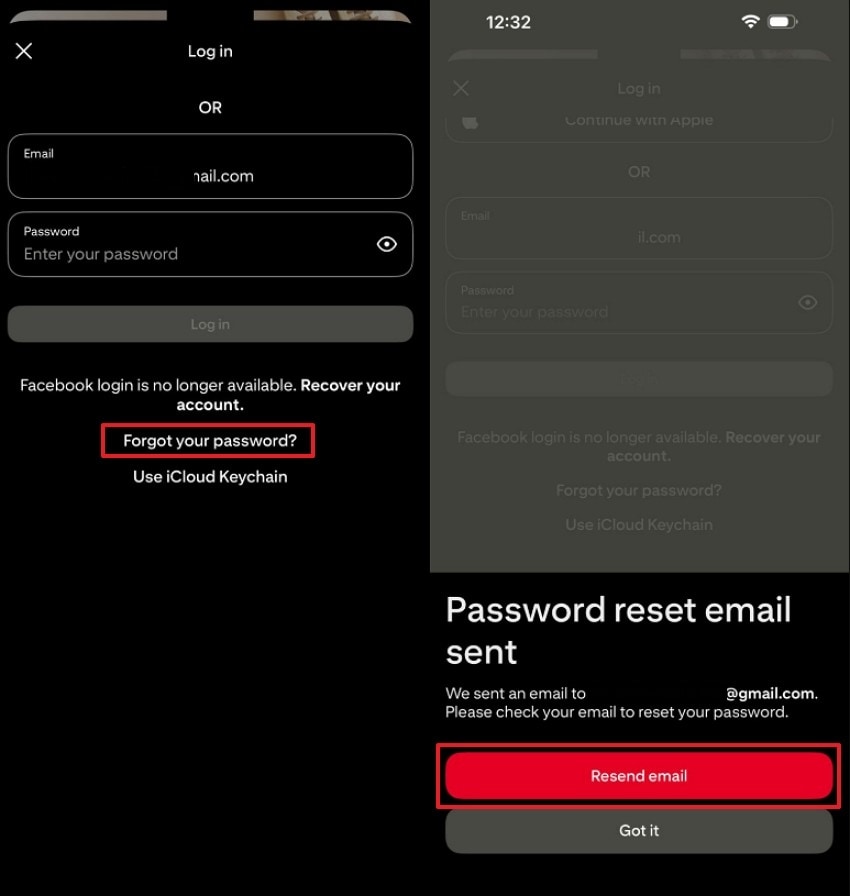
- Afterwards, tap the “Reset password” button in the reset email. Then enter a “New Password” and press “Change Password” to reset.
Recover via Google or Facebook (Web, Android, iOS)
You can use this option when your Pinterest account is linked to a Google or Facebook login. It restores access through your connected provider, so you avoid email access problems. Choose it when you forgot the Pinterest password, but still sign in to Google. Plus, this Pinterest password reset method does not work if the provider login is not connected, so adhere to the steps below for your device:
For Web
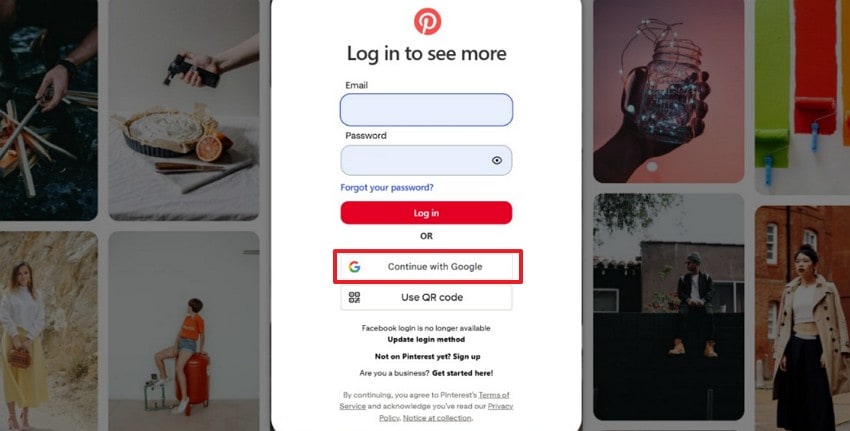
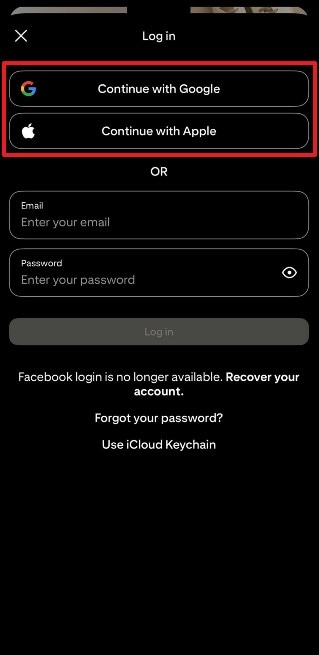
- To start, pick “Continue with Google” on the login page on the web.
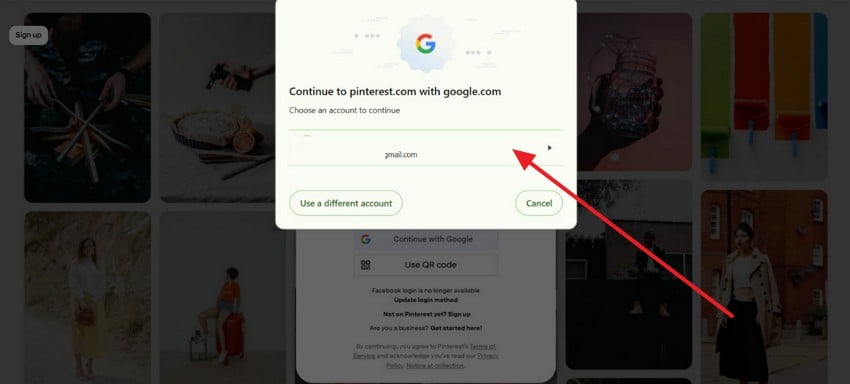
- Next, sign in to that Google or Facebook account and follow the prompts. If it fails, confirm Pinterest is allowed as a connected app in that provider.
For Android
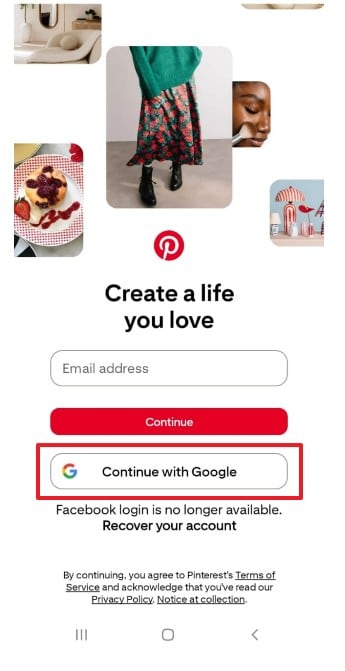
Instructions. Start by accessing the login page and choosing “Continue with Google.” After that, sign in to that Google account and follow the prompt.
For iOS
Instructions. First, on the login screen, tap on “Continue with Google” and complete the provider sign-in prompts on your device. Moreover, you can also select “Continue with Apple” if you linked it with your Apple account.
Contact Pinterest Support
When nothing works, support helps you troubleshoot account details and access issues. Thus, use the Help Center contact form when your email is unknown, locked, or mistyped. Mention your username and what you already tried. After you regain access, then try the “change password on Pinterest” to secure the account.
What If You Need to Update Your Pinterest Passcode Quickly? (Change Password)
When you are already logged in, updating your password is the fastest security fix. It is useful after a shared device login, a reused password, or suspicious alerts. This option keeps your account stable because recovery is not required. Furthermore, use the “change password on Pinterest” when you still know your current password. Adhere to the steps below for your device to change your Pinterest password:
For Web
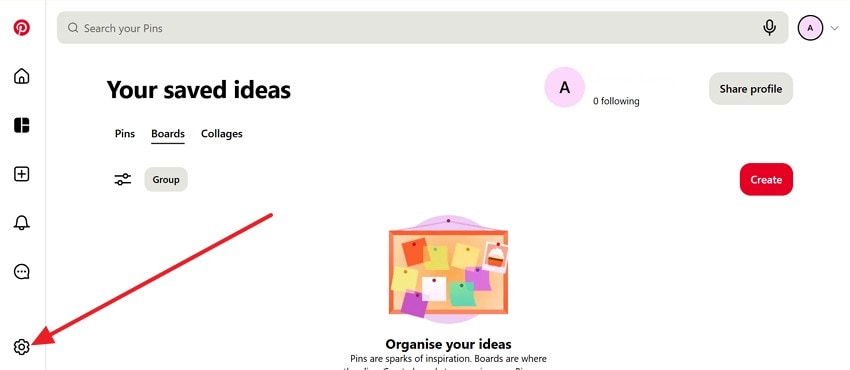
- Upon accessing Pinterest on the web, navigate to “Your saved ideas,” click the “Gear” icon at the bottom-left sidebar.
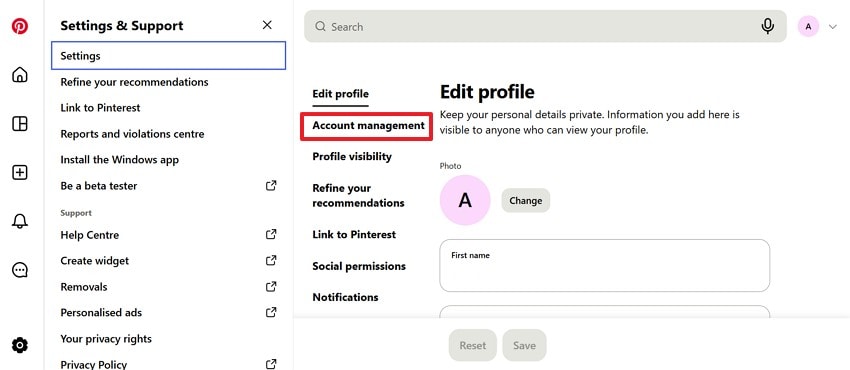
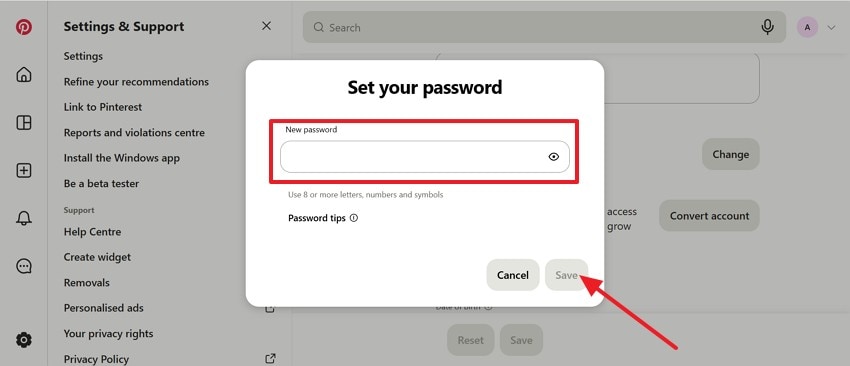
- Next, in the “Settings & Support,” open “Settings” to further select the “Account management” option.
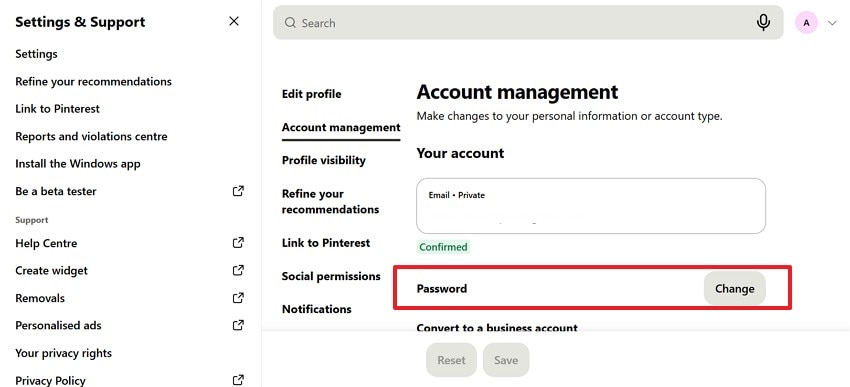
- Afterwards, on the “Account management” page, find the “Password” option, then click “Change” to continue.
- In the “Set your password” pop-up, enter your “New password” and press “Save” to update your Pinterest passcode.
For Android
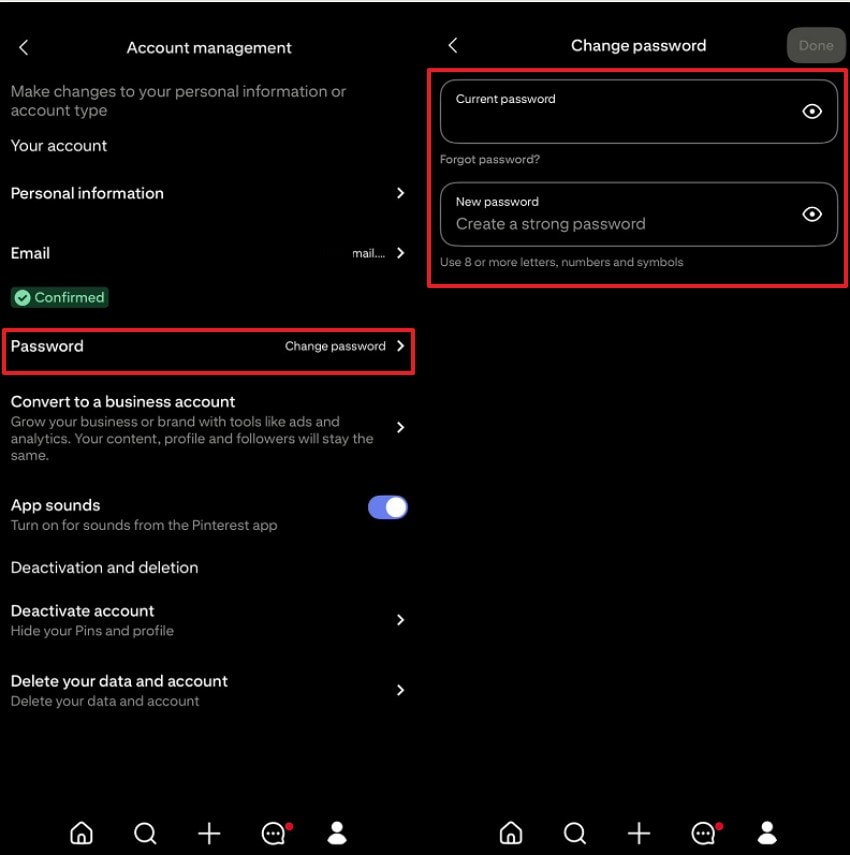
- To start, tap your “Profile” icon at the top-left of the Pinterest screen. Afterwards, choose “Account management” from the “Your account” settings menu.
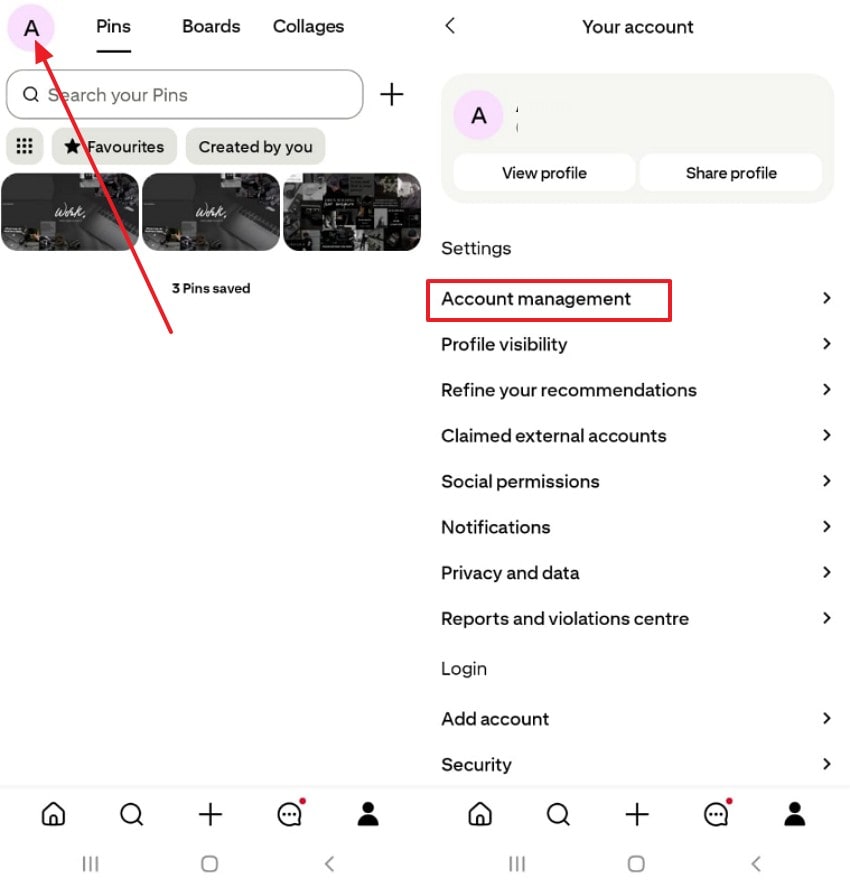
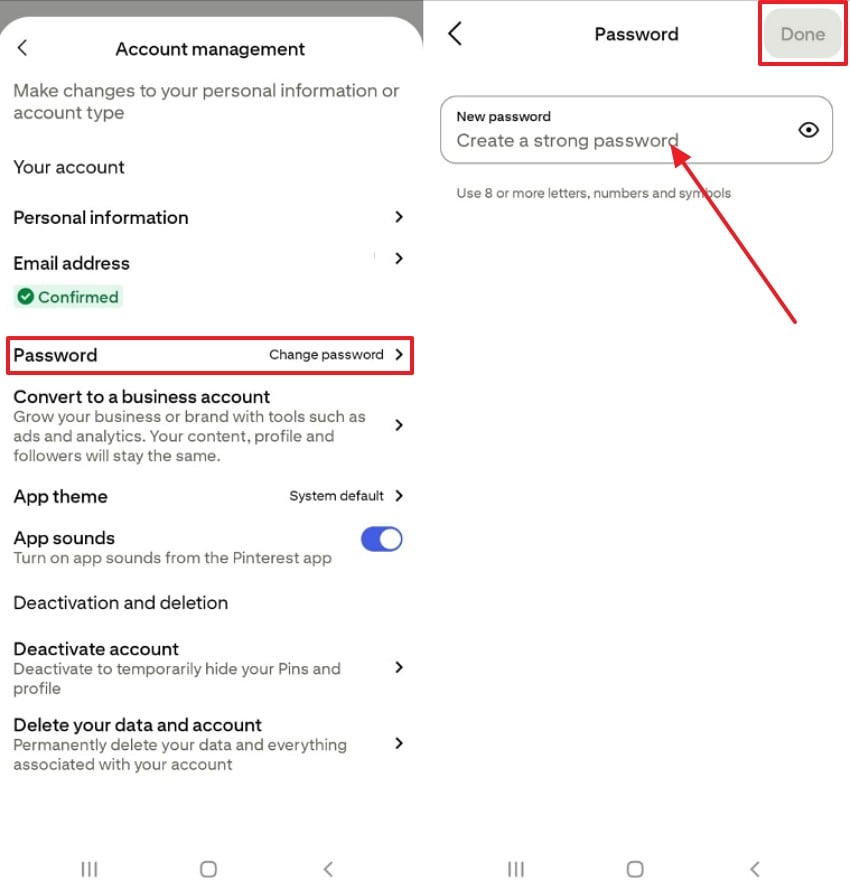
- Later, pick the “Password” option, then select “Change password” to open the field. Enter your new password and tap “Done” to save changes.
For iOS
- First, tap your “Profile” icon on the top-left of your saved ideas. Then, select “Account management” from the settings list to proceed.
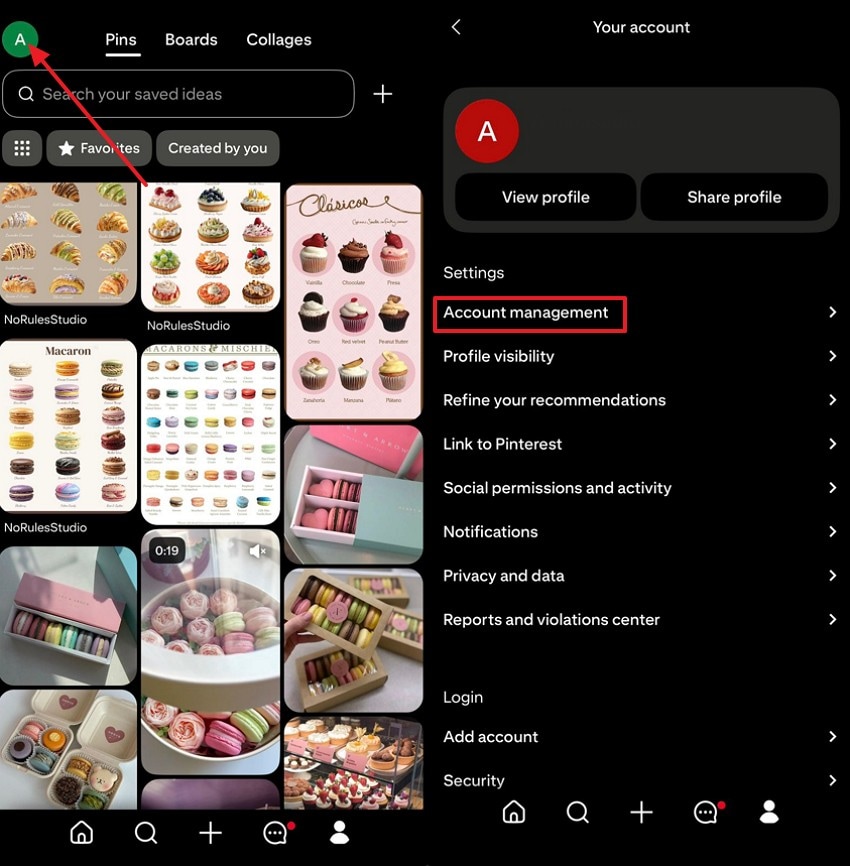
- Next, tap “Password” inside “Account management,” and open “Change password.” After that, enter your current password and new password, and tap “Done.”
Part 3. 5 Tips for Creating a Strong Pinterest Password
After Pinterest password recovery, build a stronger password to stop future login trouble. Below are the five tips to create a secure Pinterest password:
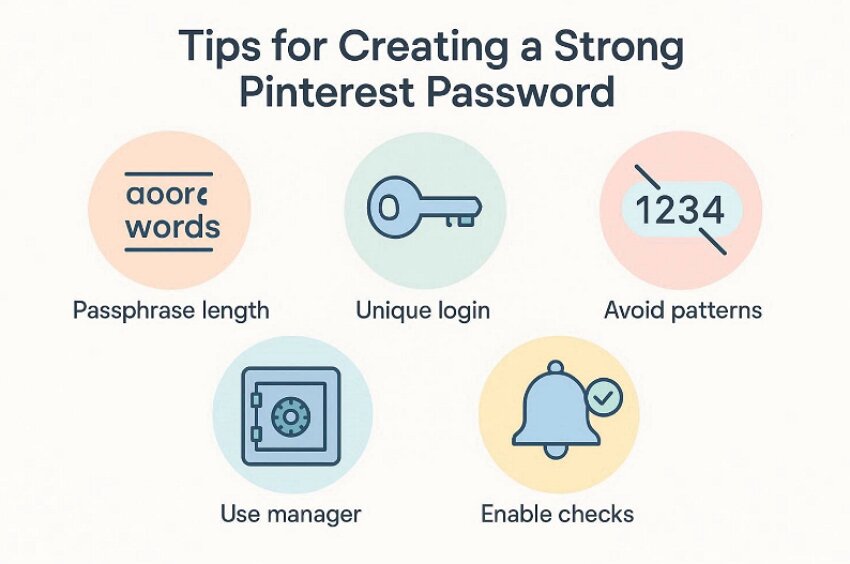
- Passphrase Length: Use four random words to form one long passphrase. Longer passwords resist guessing attacks and protect your account from takeovers.
- Unique Login: Never reuse this password on other apps or email accounts. Reuse makes one breach spread fast across your connected accounts.
- Avoid Patterns: Skip birthdays, names, and simple number patterns like 1234 always. Predictable details make your password easier to guess and crack.
- Use Manager: A password manager stores strong logins and fills them safely. It reduces typing mistakes and prevents weak password reuse over time.
- Enable Checks: Review login alerts and remove devices you do not trust. Regular checks help you spot threats early and stay secure.
Part 4. 5 Common Pinterest Password Issues and How to Fix Them
Even after a reset, some Pinterest login problems can still block access. Then use the fixes below to solve the most common password issues:
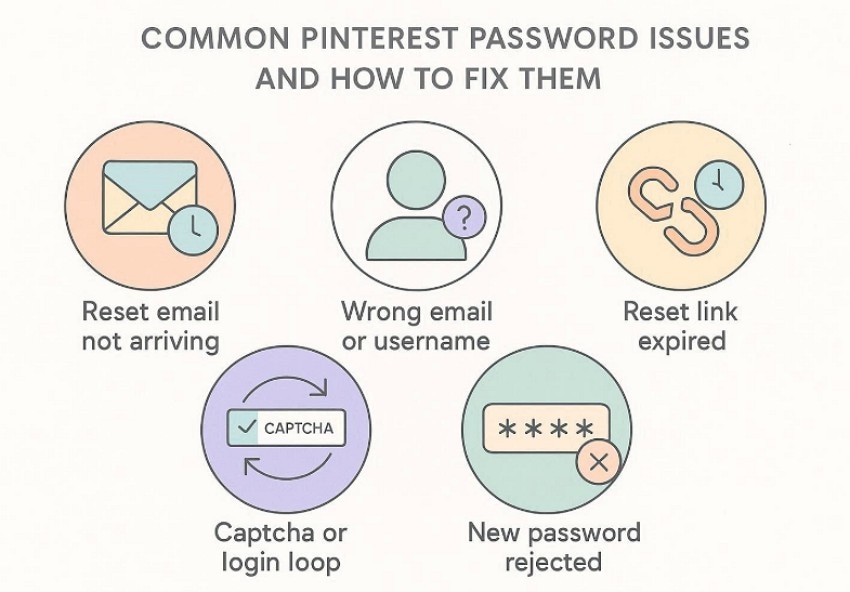
1. Reset Email Not Arriving
The reset email may be delayed by your email provider's filtering rules. It can land in Spam, Promotions, or Updates folders silently. Sometimes, you are checking a different inbox than Pinterest uses.
Solution: To solve this issue, search “Pinterest,” check Spam folders, then request a new email.
2. Wrong Email or Username Used
The email you enter may not match your Pinterest account. Many users have multiple emails and forget the signup address. This makes the reset request go to the wrong inbox completely.
Solution: Try other emails, and search old Pinterest messages for clues.
3. Reset Link Expired or Already Used
Reset links can expire after some time for security reasons. Links can also stop working after one successful password change. Thus, using multiple devices/browsers can cause the reset session to fail or loop.
Solution: Request a new link and open it immediately in a single browser.
4. Captcha or Login Loop Keeps Repeating
Sometimes cookies, cache, or extensions can block the login flow. VPNs and ad blockers may trigger extra checks or failed redirects. The page reloads again and again, without completing the sign-in properly.
Solution: To fix this problem, use Incognito, disable extensions, and try another browser.
5. New Password Rejected
Most of the time, Pinterest can reject passwords that are too short, commonly used, or recently used on the same account. Thus, short passwords and common patterns often fail to meet security requirements.
Solution: So, use a longer passphrase, then run a Pinterest password reset again.
Part 5. Recoverit Guide: Restore Missing Pinterest Images Quickly
Sometimes, downloaded Pinterest images may be deleted after a crash, cleanup, or formatting. In that case, a recovery tool can help restore files from local storage. This does not repair missing Pinterest thumbnails inside the app, but it can recover previously saved downloads on your device. This where Recoverit helps you scan drives and retrieve them safely.
Moreover, the software offers a preview to help users confirm matches and avoid duplicate restores later, while featuring a 500MB free data recovery. It handles USB drives, memory cards, and internal storage reliably today. Furthermore, integrity checks reduce corruption risk, keeping recovered files usable after the restoration process.
Key Features
- Path Filtering: Filters results by folder location, helping you find Pinterest downloads faster during scans.
- Deep Scan: Finds deleted Pinterest photos by searching hidden traces across your storage for results.
- Safe Read Mode: Scans drives without writing data, reducing overwrite risk and protecting recoverable files.
Guide to Restore Missing Pinterest Images with Recoverit
Let’s walk through the steps below to recover missing Pinterest images during Pinterest password recovery with Recoverit:
- Select the Recovery Location to Proceed

To start off, look for the appropriate location where your Pinterest images were saved within “Hard Drives and Locations” section.
- Scan and Filter Image Results

Upon selecting the location, Recoverit starts scanning and displays the results. Filter them out across the “File Type” and look for your lost photos.
- Preview Photos and Complete Recovery

Lastly, double-click any thumbnail to open the preview window and confirm the image. Next, select the photos you want and press “Recover” to complete the process.
Conclusion
To conclude, getting locked out can feel frustrating, but the right checks make recovery simple. Use Pinterest password recovery to regain access, then reset or change your password safely. Keep your email, phone, and devices updated to prevent repeat lockouts later. If Pinterest downloads go missing after crashes or deletions, Recoverit can help restore them reliably
FAQ
1. What if the Pinterest reset email does not arrive?
Check Spam and Promotions, then search Pinterest, and wait a few minutes first. If nothing appears, request another link and confirm you entered the correct email.2. Can I sign in using Google or Facebook instead of resetting?
Yes, choose Continue with Google or Facebook if your Pinterest account is linked. If the provider login fails, use email recovery or update your connection settings there.3. Why does Pinterest reject my new password during reset?
Pinterest blocks weak passwords, common patterns, and recently used passwords for safety reasons. Use a longer passphrase, avoid dates, and try the reset again after saving.4. How can I restore missing Pinterest images after logging back in?
If downloads vanished, scan the original drive and preview images before recovery starts. Save recovered files to a different folder, then reupload them to Pinterest boards.


