

 TL;DR:
Resolve the "Rainbow Six Siege synchronization failed" error by verifying game files, clearing the launcher's local cache, or adjusting network permissions to restore proper server communication.
● Clear corrupted temporary files by typing "%appdata%" in the Windows Run dialog, navigating to the "Local\Ubisoft Game Launcher\cache" directory, and deleting all files within this folder.
● Bypass background network restrictions by temporarily switching the Microsoft Defender Firewall toggle to "Off" within Windows Security, disabling active VPNs, or launching Ubisoft Connect via the "Run as Administrator" option.
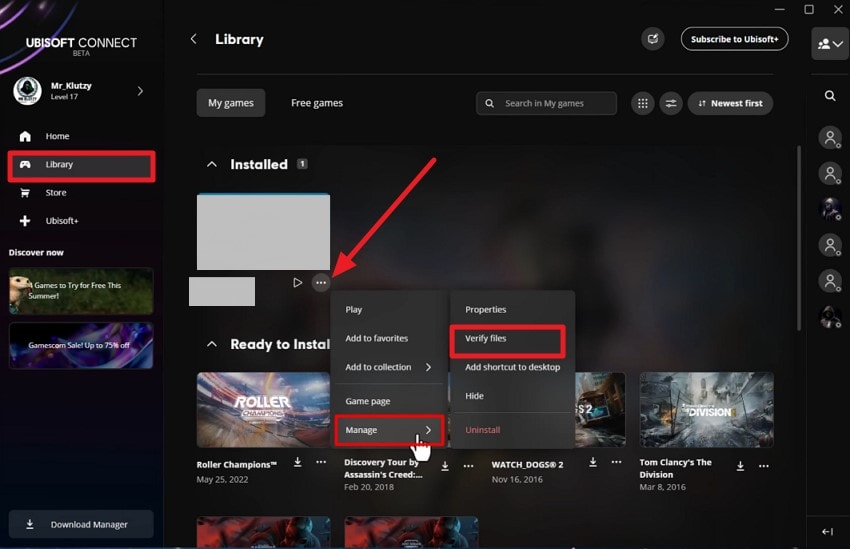
● Repair damaged game components directly by selecting the "Three Dots" icon on the Rainbow Six Siege thumbnail in your Ubisoft Connect Library, expanding the "Manage" menu, and clicking "Verify Files."
Ask AI for a summary
 ChatGPT
 Perplexity
 Gemini
 Claude
 Grok
Grok
You launch Rainbow Six Siege, ready for an intense gaming session, but the game halts with a synchronization failed message. This interruption can be especially aggravating during ranked matches or timed events. Understanding how to tackle the error efficiently ensures that you can get back into the game quickly. Read the article till the end to learn everything about the "Rainbow Six Siege synchronization failed" error and how to fix it.
Try Recoverit to Perform Game Data Recovery
 Security Verified. 3,591,664 people have downloaded it.
In this article
-
- Restart The Game And Ubisoft Connect
- Check Your Internet Connection And Restart the Router
- Clear Game Cache Or Temporary Files
- Run Ubisoft Connect as Administrator
- Disable VPN, Proxy, Or Firewall Temporarily
- Switch To A Wired Connection If Using Wi-Fi
- Verify and Repair Game Files via Ubisoft Connect
- Reinstall the Game If Files are Corrupted
- Log Out of Ubisoft Connect

Part 1. Introduction To Rainbow Six Siege Synchronization Failed Issues
The Rainbow Six Siege synchronization failed message indicates that the game is unable to properly sync player data with online servers. This may affect profile updates, match results, rewards, loadouts, or progression tracking. As a result, players may notice missing progress or temporary access restrictions.
When and Where It Occurs
- PC Platforms: The error may appear while launching the game on Windows, especially during account verification or after finishing an online match. It can interrupt progress syncing before returning to the main menu.
- PlayStation Consoles: Players on PlayStation may see the message during startup or when results are being uploaded after multiplayer matches. This can temporarily block access to ranked updates or rewards.
- Xbox Consoles: On Xbox systems, the issue may surface when reconnecting to online services or syncing profile data. It often appears before matchmaking resumes or progression updates are confirmed.
- Ubisoft Connect: The message may also show while the game communicates with Ubisoft Connect to verify cloud saves, update player stats, or confirm account synchronization across devices.
Easily Retrieve Your Lost/Deleted Game Files!
Why It Matters for Online Gameplay
- Ranked Match Progression: Synchronization ensures that ranked match results are properly recorded and reflected in your competitive standing. When "Rainbow Six Siege synchronization failed" occurs, rank updates may be delayed or temporarily unavailable.
- Seasonal Rewards Tracking: Online seasons rely on accurate stat syncing to calculate rewards and unlockables. Failed synchronization can postpone access to earned items or battle pass progression.
- Account Data Consistency: Player loadouts, operators, and statistics must sync correctly across sessions and devices. Without proper synchronization, progress may not immediately reflect in your profile.
- Online Access Stability: Seamless syncing supports matchmaking and server communication. When it fails, players may experience interruptions in joining matches or accessing online features.
Part 2. Why Synchronization Failed Occurs In Rainbow Six Siege
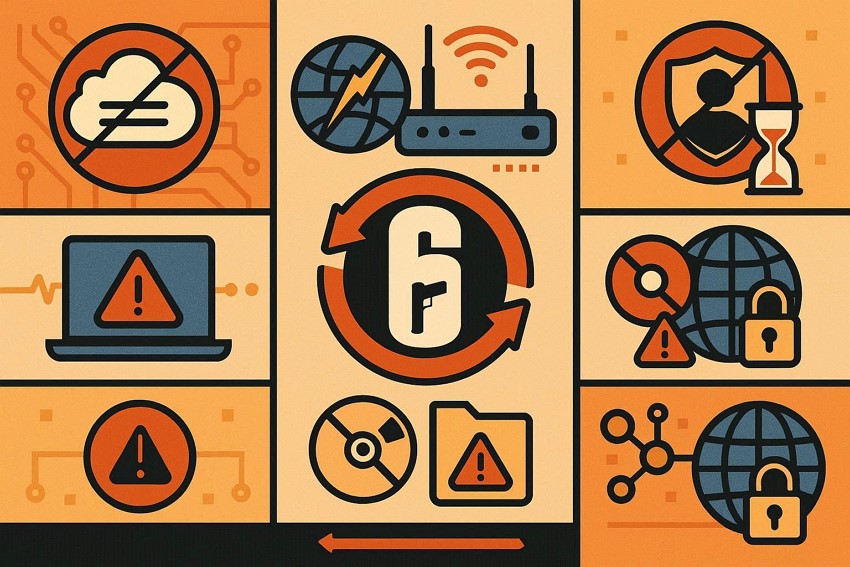
After understanding how the issue affects gameplay, it's important to explore why the "Rainbow Six Siege synchronization failed" message appears in the first place. Mentioned below are some of the most common reasons:
- Server Communication Interruptions: Temporary disruptions between the game and online servers can prevent proper data syncing. When communication breaks mid-process, match results or profile updates may fail to register.
- Unstable Internet Connection: Fluctuating or slow internet speeds can interrupt data transfer during synchronization. Even brief drops in connectivity can trigger a failed sync notification.
- Account Authentication Delays: Problems verifying account credentials may block cloud data updates. If authentication takes too long or times out, synchronization cannot complete successfully.
- Outdated Game Version: Running an older version of the game may cause compatibility issues with current servers. This mismatch can stop the system from syncing player progress properly.
- Corrupted Local Game Files: Damaged or incomplete game files can interfere with data updates. When essential files fail to function correctly, syncing attempts may repeatedly fail.
- Background Network Restrictions: Firewalls, strict NAT types, or network security settings may block certain online communications. These restrictions can prevent the game from fully connecting to required services.
Part 3. Troubleshooting Rainbow Six Siege Sync Failed With Quick Fixes
Now that the possible triggers are clear, the next step is applying practical solutions. Refer to the following section to learn how to fix this error effortlessly:
1. Restart The Game And Ubisoft Connect
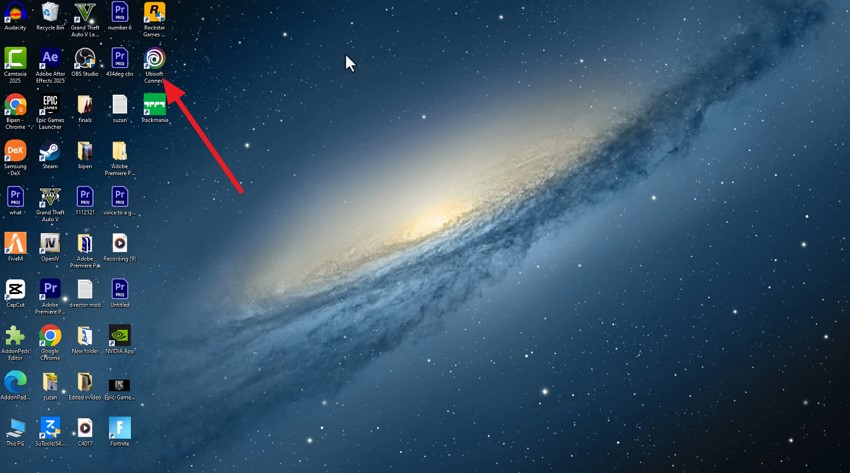
Often, a simple restart can resolve the Rainbow Six Siege synchronization failed error by refreshing the connection between the game and online services. Closing both the game and Ubisoft Connect resets temporary session data, allowing the system to attempt a clean synchronization without lingering background conflicts. Here is how you can perform this fix:
Instructions. Exit Rainbow Six Siege completely and make sure no background processes are running. Fully close the Ubisoft Connect launcher. On Windows, right-click the icon in the system tray and select Exit, ensuring no background processes remain. Now, open Ubisoft Connect again from your desktop and sign in if required.
2. Check Your Internet Connection And Restart the Router
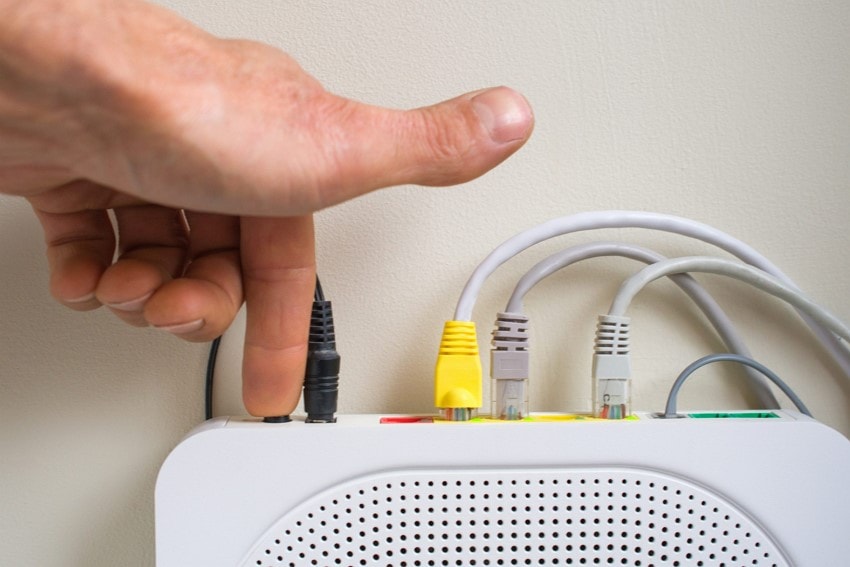
Network stability plays a major role when the Rainbow Six Siege synchronization failed message appears. Restarting your router and confirming a steady internet connection can refresh data routing, reduce packet loss, and restore proper communication between your device and the game's online servers. Power off your router, wait 30-60 seconds, then turn it back on. This refreshes your network settings, clears temporary issues, and can restore a stable connection.
3. Clear Game Cache Or Temporary Files
Accumulated temporary files may interfere with syncing processes and trigger the "Rainbow Six Siege synchronization failed" notification. Clearing cache data removes outdated or conflicting local files, allowing the game to regenerate fresh system data and reconnect to cloud services more effectively. Follow the steps mentioned below to learn how to clear the game cache:
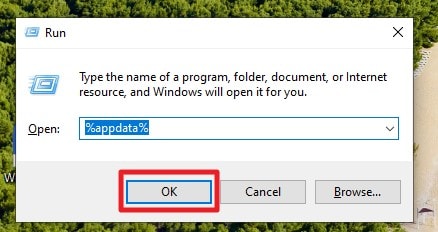
- Press the "Win+R" keys on your keyboard to open the Run dialog. Type "%appdata%" in the field and click "OK."
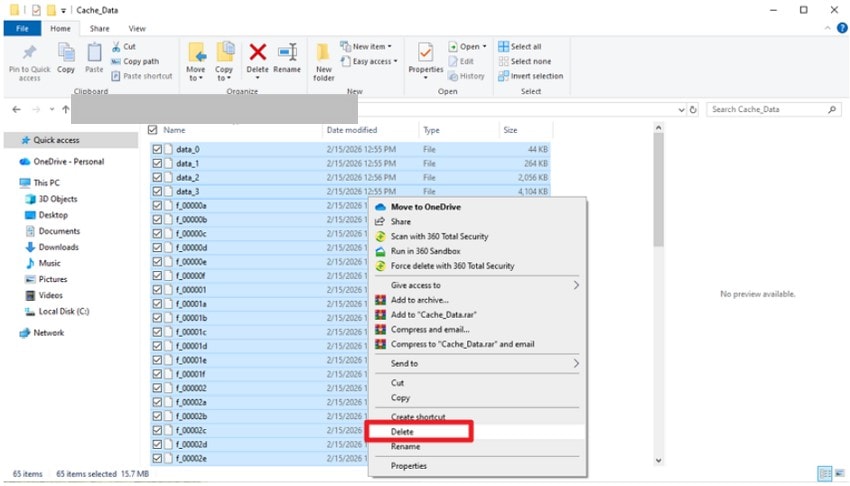
- Navigate to the Rainbow Six Siege cache folder, usually located at: "C:\Users[YourUsername]\AppData\Local\Ubisoft Game Launcher\cache". Select all files within this folder, right-click, and choose "Delete" to remove old or corrupted cache data that may be causing the synchronization failed error.
4. Run Ubisoft Connect as Administrator
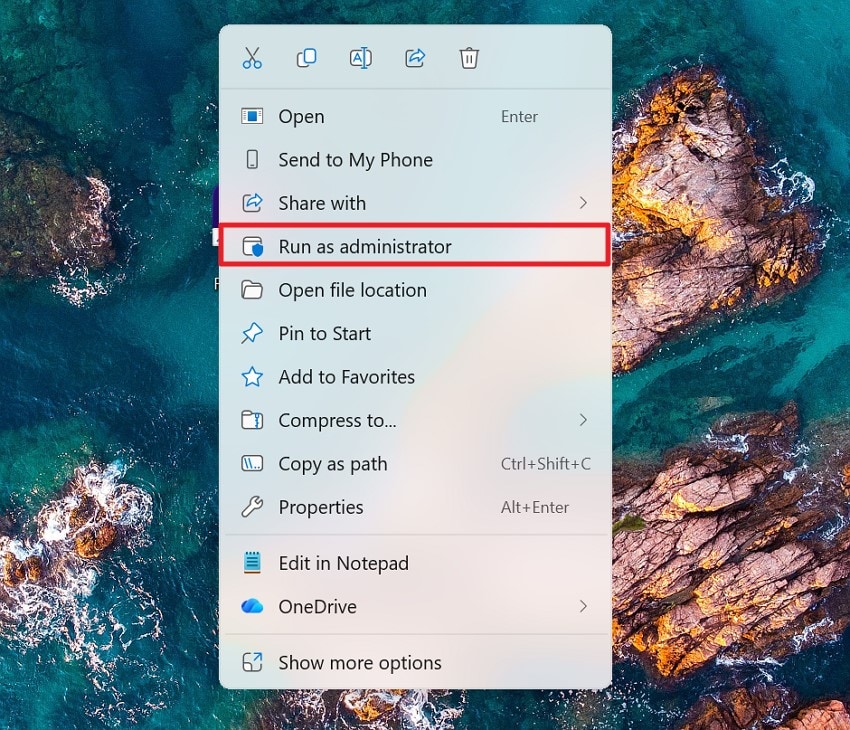
Granting administrative privileges can resolve permission-related conflicts that lead to Rainbow Six Siege synchronization failed errors. Running the launcher with elevated access ensures it can properly manage game files, update cloud data, and communicate securely with online authentication systems. To learn how to run the launcher as admin, read the instructions provided below:
Instructions. Access the program in the file explorer and right-click on it to enable a list of options. Next, locate the "Run as Administrator" option to launch the program with admin privileges.
5. Disable VPN, Proxy, Or Firewall Temporarily
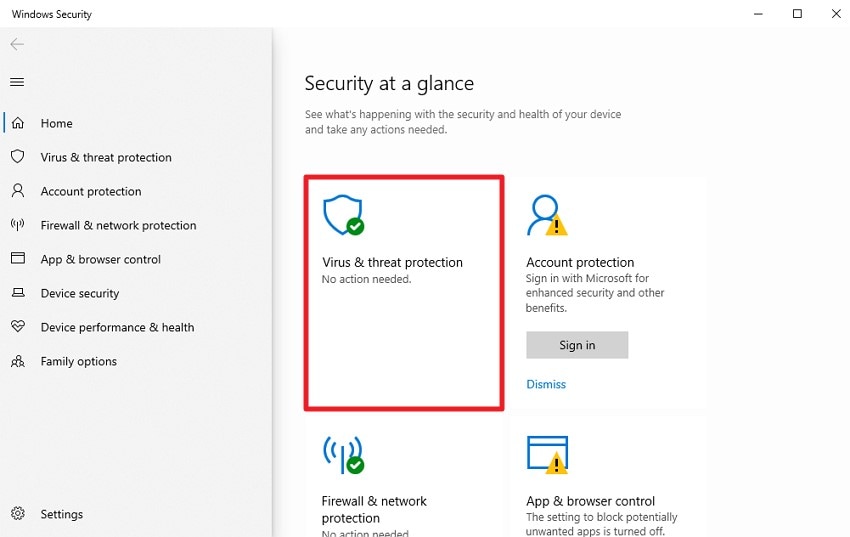
Security tools and network masking services can sometimes block required ports, resulting in the Rainbow Six Siege synchronization failed message. Temporarily disabling VPNs, proxies, or restrictive firewall rules helps determine whether network filtering is interrupting server communication during gameplay synchronization. Read the steps provided next to learn how to disable the firewall within the system:
- Open Windows Security on your PC and go to "Virus & Threat Protection." Choose the active network from the list of available networks to access its settings.
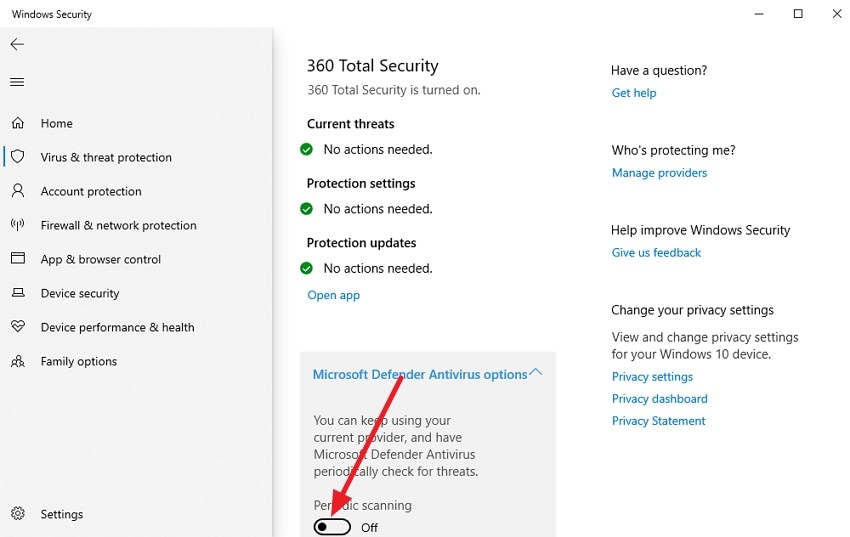
- In the network settings, locate "Microsoft Defender Firewall" and switch the toggle to "Off" to temporarily disable the firewall.
6. Switch To A Wired Connection If Using Wi-Fi
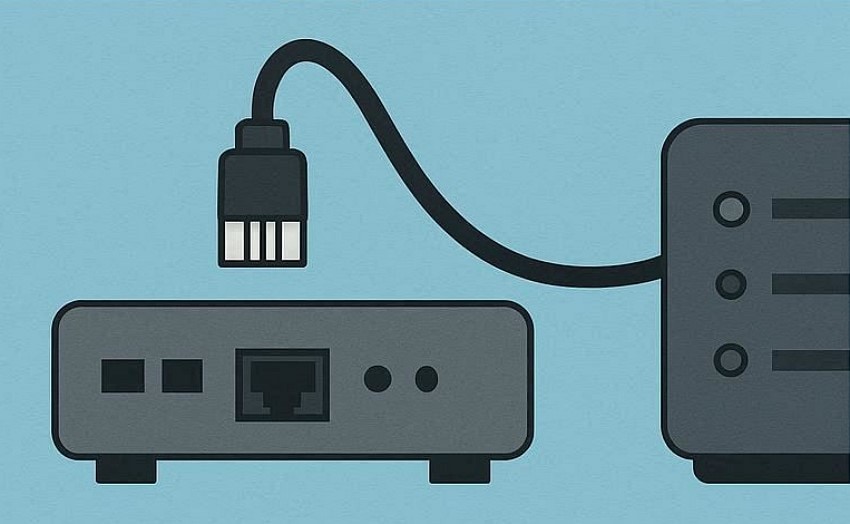
Wireless connections can experience instability that contributes to Rainbow Six Siege synchronization failed issues. Switching to a wired Ethernet connection provides a more consistent data stream, reducing latency and connection drops that may interrupt progress syncing during or after matches. Here is how you can switch to a wired connection:
Instructions. First, ensure your PC or console has an available Ethernet port, then connect one end of a high-quality Ethernet cable to your router or modem and the other end to your device. Confirm the wired connection is active in your network settings, and optionally disable Wi-Fi to avoid conflicts. Once connected, launch Rainbow Six Siege through Ubisoft Connect.
7. Verify and Repair Game Files via Ubisoft Connect
Corrupted or missing game files may prevent successful data syncing, triggering the Rainbow Six Siege synchronization failed error. Using the file verification and repair feature within Ubisoft Connect scans for inconsistencies and restores damaged files, improving overall system stability and synchronization reliability. To learn how to verify game files in Ubisoft Connect, read the instructions provided next:
Instructions. Begin by launching Ubisoft and accessing the "Library" from the left. Now, select the game and press the "Three Dots" icon on its thumbnail. From the list, expand the "Manage" option and click on "Verify Files" to begin verification and repair.
8. Reinstall the Game If Files are Corrupted
In more persistent cases, reinstalling the game can eliminate deep file conflicts responsible for the "Rainbow Six Siege synchronization failed" problem. A fresh installation replaces all local components, ensuring the system runs a clean, updated version compatible with current servers. To learn how to reinstall the game, read the steps provided next:
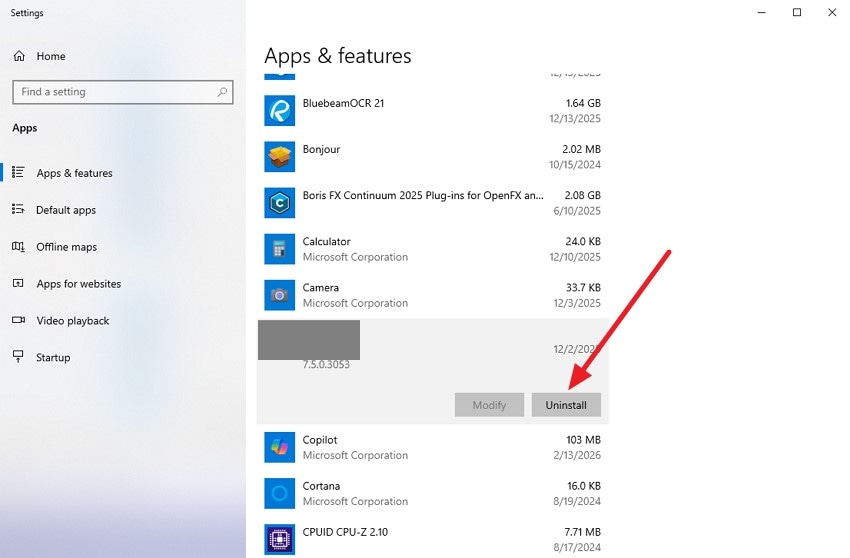
- Open "Apps & Features" on your PC and scroll to locate Rainbow Six Siege. Click on the game and select "Uninstall" to remove it completely from your system, clearing any corrupted files that may be causing the synchronization failed error.
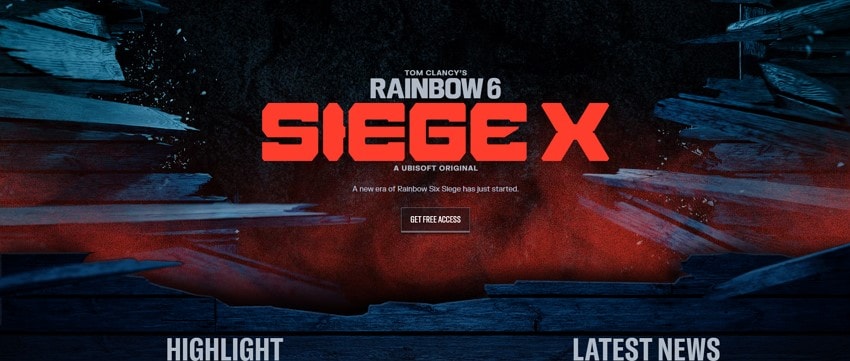
- Visit the official Ubisoft website and download the latest version of Rainbow Six Siege. Install the game on your system, ensuring all files are fresh and up to date.
9. Log Out of Ubisoft Connect
Account session conflicts can sometimes cause the Rainbow Six Siege synchronization failed notification to appear unexpectedly. Logging out and signing back into Ubisoft Connect refreshes account authentication tokens, helping the system re-establish proper cloud synchronization and verify player data accurately. Read the instructions provided next to learn how to logout from Ubisoft:
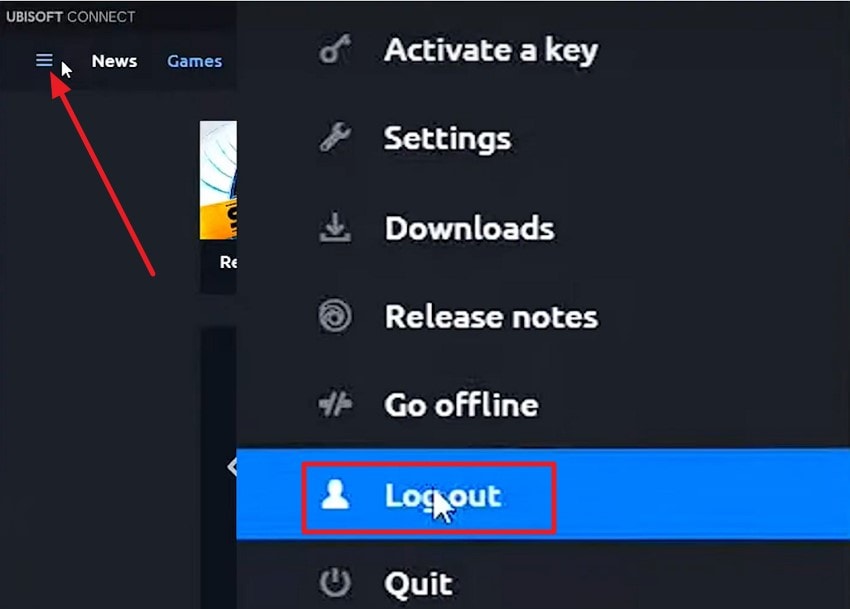
Instructions. After accessing Ubisoft Connect, click on the "Three Bars" icon located on the top-left corner. Next, click on the "Log Out" option from the list to successfully log out.
Pro Tip: Recover Lost Rainbow Six Siege Files Using Recoverit
When a "Rainbow Six Siege synchronization failed" error prevents access to your game or interrupts downloads, important files such as saved progress, settings, or custom loadouts may become inaccessible. Recoverit is a powerful data recovery tool designed to retrieve lost or corrupted files from your PC, external drives, or cloud-synced folders, ensuring that your gaming data can be restored quickly and securely.
Recoverit also provides a safe and reliable way to handle large game files, including save data, screenshots, and custom settings. Its advanced recovery algorithms ensure that even files lost due to a Rainbow Six Siege synchronization failed error or accidental deletion can be restored intact. With Recoverit, you can take advantage of 500 MB of free data recovery with no charges involved.
Key Features Offered by Recoverit
- Selective File Preview: Recoverit allows users to preview files before recovery, ensuring only the necessary Rainbow Six Siege data is restored.
- Multiple File Formats: The software supports a wide range of file types, including game saves, images, videos, and documents, covering all common Rainbow Six Siege files.
- Start and Pause Scanning: Users can start, pause, and resume the scanning process at any time, giving flexibility when recovering large or multiple game files.
Steps to Recover Lost Rainbow Six Siege Files Using Recoverit
Follow these steps to recover lost Rainbow Six Siege files safely, ensuring your progress, custom loadouts, and saved matches are restored without overwriting existing data:
1. Choose the Location to Scan
Launch Recoverit and select the drive, folder, or storage path where your Rainbow Six Siege files were originally saved. The program will perform a deep scan, detecting deleted, corrupted, or inaccessible game files automatically.

2. Locate the Files You Need
After the scan completes, review the recovered items to find your missing save files, mods, screenshots, or settings. Highlight the specific files you wish to restore and press the "Recover" button.

3. Preview and Recover Securely
Take advantage of Recoverit's preview feature to ensure the files are intact and usable. Once verified, click "Recover" to save them to a secure location on your device.

Conclusion
To sum it up, this article provided a detailed guide on how to resolve "Rainbow Six Siege synchronization failed" errors, covering common scenarios, reasons, quick fixes, advanced solutions, and preventative measures. For players who lose game files, save data, or custom settings during such interruptions, Recoverit is highly recommended. Its deep scanning, selective file preview, and multi-format support ensure lost Rainbow Six Siege content is safely and efficiently restored.
FAQ
-
1. What does "Rainbow Six Siege synchronization failed" mean?
This error occurs when the game cannot properly sync your account data with online servers. It may block access to saved progress, custom loadouts, or online matchmaking until the issue is resolved. -
2. Can I recover lost Rainbow Six Siege game files after this error?
Yes, lost game files, save data, or settings can be restored using Recoverit. Its deep scanning and selective file preview features allow you to safely recover missing files without overwriting existing content. -
3. How can I prevent synchronization failures from happening again?
Keep the game updated, maintain a stable internet connection, clear cache regularly, and configure security software properly. These best practices minimize the chance of encountering repeated Rainbow Six Siege synchronization failed issues. -
4. What should I do if basic fixes don't work?
If restarting, reconnecting, or clearing the cache doesn't resolve the error, using Recoverit can help retrieve lost files. Additionally, verifying or repairing game files through Ubisoft Connect may restore proper functionality.


