

 TL;DR:
Excel freezes during copy-paste operations when the application's memory allocation is overloaded by massive datasets, conflicting third-party add-ins, or excessive conditional formatting, which can be resolved by isolating system resources and optimizing the workbook data.
● Clear overlapping conditional formatting rules, unmerge cells to restore original grid alignment, and use the Ctrl + G shortcut to locate and remove embedded complex objects that strain the internal rendering engine.
● Launch the application in Safe Mode by typing Excel/safe in the Windows Run dialog to isolate and remove malfunctioning COM add-ins, clear the Office Document Cache, and disable the Windows default printer management to prevent network driver communication hangs.
● If an unexpected crash occurs during clipboard operations resulting in deleted or lost workbooks, Wondershare Recoverit can be utilized to retrieve the files from the local drive using its Quick or Deep scanning modes.
Ask AI for a summary
 ChatGPT
 Perplexity
 Gemini
 Claude
 Grok
Grok
Are you frustrated with Excel freezing whenever you try to copy and paste data? You are definitely not alone; everyone gets frustrated when their workflow is disrupted in the middle. Excel’s massive data sets and background processes can sometimes overload your system’s memory, making even simple actions like pasting feel impossible.
Now you don't have to worry about Excel freezing when copying and pasting, or wasting time rebooting every few minutes. In this guide, we have narrowed down the 11 most efficient methods to fix this issue while keeping your essential data intact and safe.
Try Recoverit to Perform Excel Data Recovery
 Security Verified. 3,591,664 people have downloaded it.
In this article
-
- Method 1. Restart Excel and Your Computer
- Method 2. Check for Merged Cells
- Method 3. Update Excel and Windows
- Method 4. Clear Conditional Formatting
- Method 5. Restart With Add-ins Disabled (Safe Mode)
- Method 6. Disable or Remove Problem Add-ins
- Method 7. Clear Excel Cache Files
- Method 8. Check System Resource Usage
- Method 9. Change Default Printer
- Method 10. Repair Microsoft Office
- Method 11. Remove or Rebuild Complex Objects

Part 1. Common Reasons Behind Why Excel Freezes on Copying & Pasting
Before you jump into fixes, let's uncover the most common reasons that cause the “Excel 365 freezes when copying and pasting” error:

- Large or Complex Data Sets: Copying large tables, formulas, or pivot data can overload Excel’s memory allocation, leading to a hang.
- Excessive Conditional Formatting: Being one of the standard triggers, excessive use of conditional formatting slows down Excel’s internal rendering engine.
- Outdated Excel or Office Versions: Sometimes uncompleted or missing updates often lead to instability, bugs, or incompatibility with newer Windows versions.
- Conflicting Add-Ins: Third-party add-ins can conflict with Excel’s clipboard handler or background calculations, causing Excel to freeze.
- Corrupted Workbook Data: Damaged or partially corrupted spreadsheets can trigger application errors during copy-paste operations, leading to unexpected shutdowns.
Part 2. Best Solutions to Fix Excel File Freezing Issues
Let's dive into practical fixes that can get your spreadsheets running smoothly again after the Excel copy and paste not working error:
Method 1. Restart Excel and Your Computer
It is one of the simplest methods to fix the Excel freezing issue, in which you simply shut down the Excel file and restart the computer. This process will directly reset the computer and resolve the freezing issue by removing temporary glitches. Sometimes, these apps keep running in the background even after closing them, so restarting the PC will eliminate them.
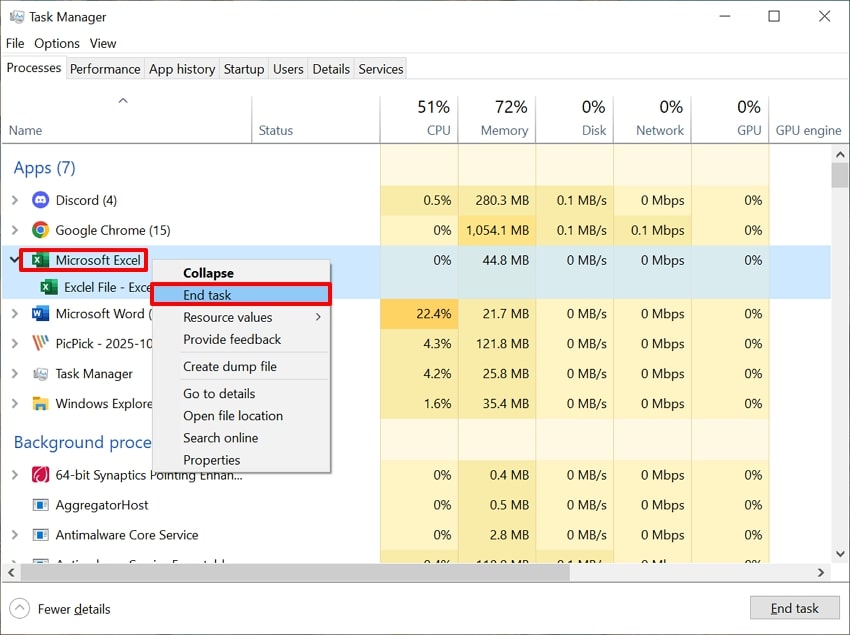
- Initiate by pressing “Ctrl + Shift + E” on your keyboard to open the “Task Manager” interface. Navigate to the “Microsoft Excel” option and right-click it to select the “End Task”.
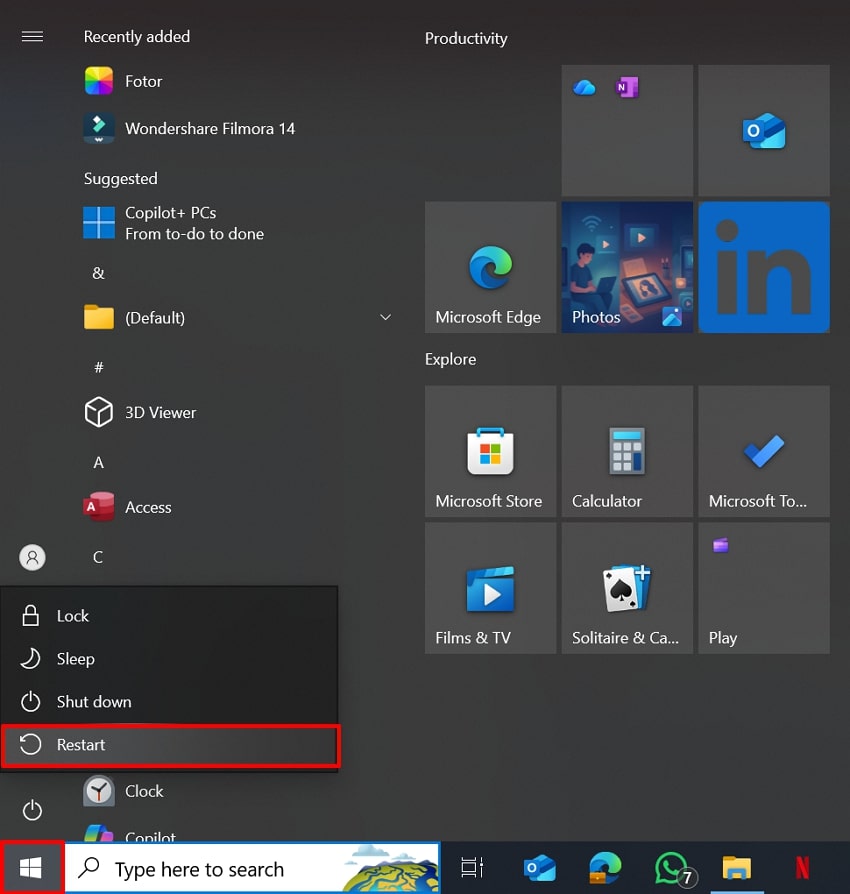
- Click on the “Windows” icon at the bottom left of the screen. Afterwards, select the “Restart” button to start the PC's restart procedure instantly.
Method 2. Check for Merged Cells
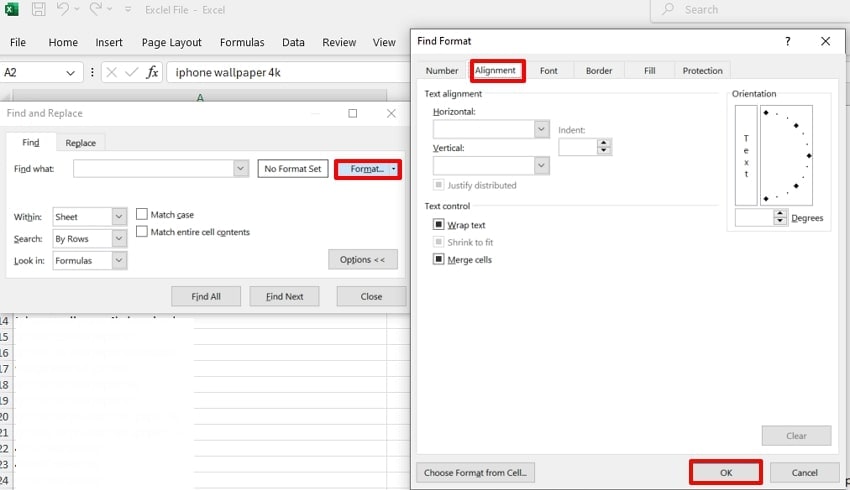
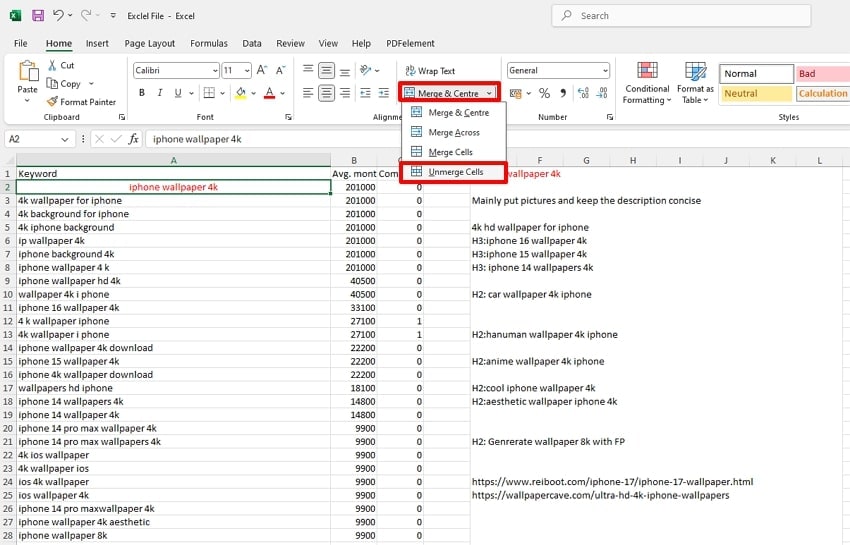
Merged cells often lead to Excel freezing or malfunction during copy‑paste operations because they disrupt the program’s cell alignment. Unmerging cells restores the original grid alignment, ensuring Excel can manage each cell independently. Furthermore, it will reduce error margins in autofill data, so let's access this guide:
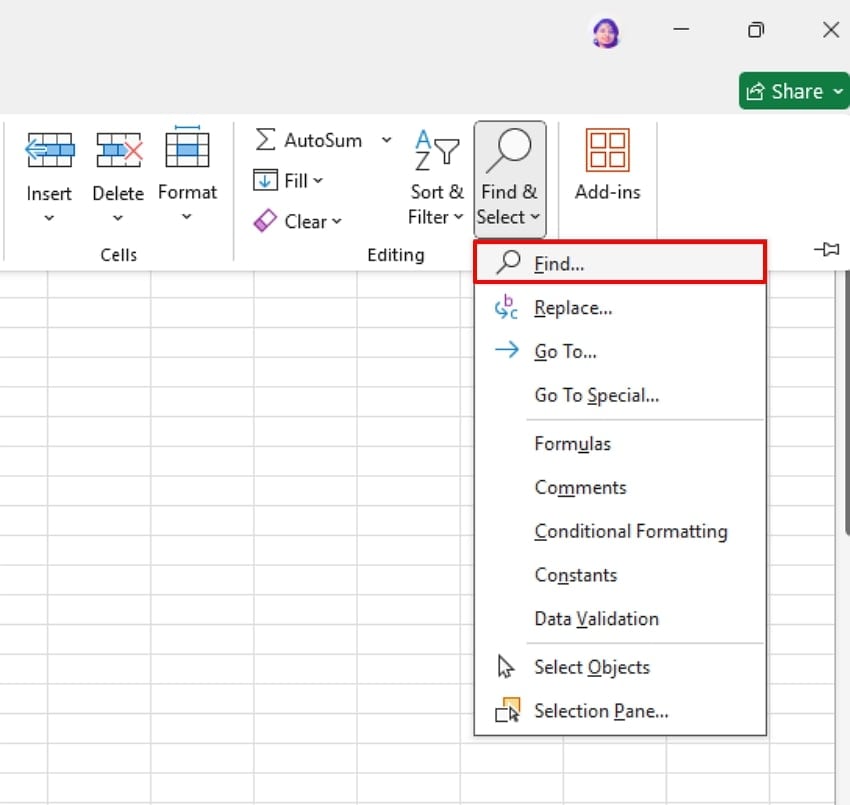
- Open the Excel file, click on the “Home” tab, and navigate to the “Find & Select” option to choose the “Find” option.
- Here, click on the “Format” button and choose the “Alignment” tab to find any merged cells in your Excel file.
- Select the “Merge & Center” button and choose “Unmerge Cells” to unmerge all of them.
Method 3. Update Excel and Windows
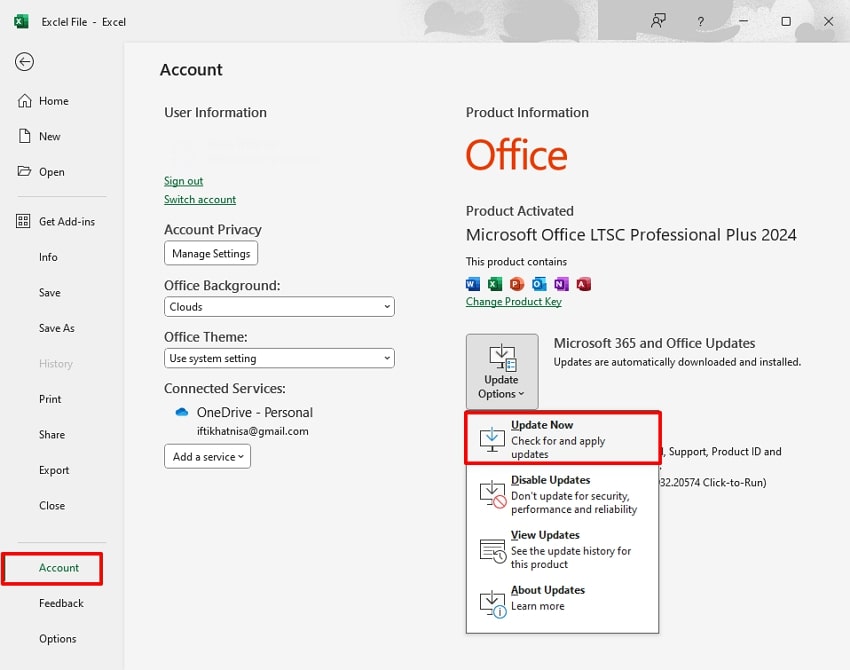
To fix the Excel 365 freezes when copying and pasting issue, users can try updating their Excel app and Windows. Updating Windows identifies and patches issues that cause Excel to freeze during basic functions. It will ensure that Excel and Windows will operate seamlessly together. Furthermore, compatibility fixes in updates prevent resource conflicts between system files, drivers, and Office apps.
- Click on the "Files" option and lead into the "Account" option. Afterwards, click on the "Updates" option and select the desired update to start the updating procedure.
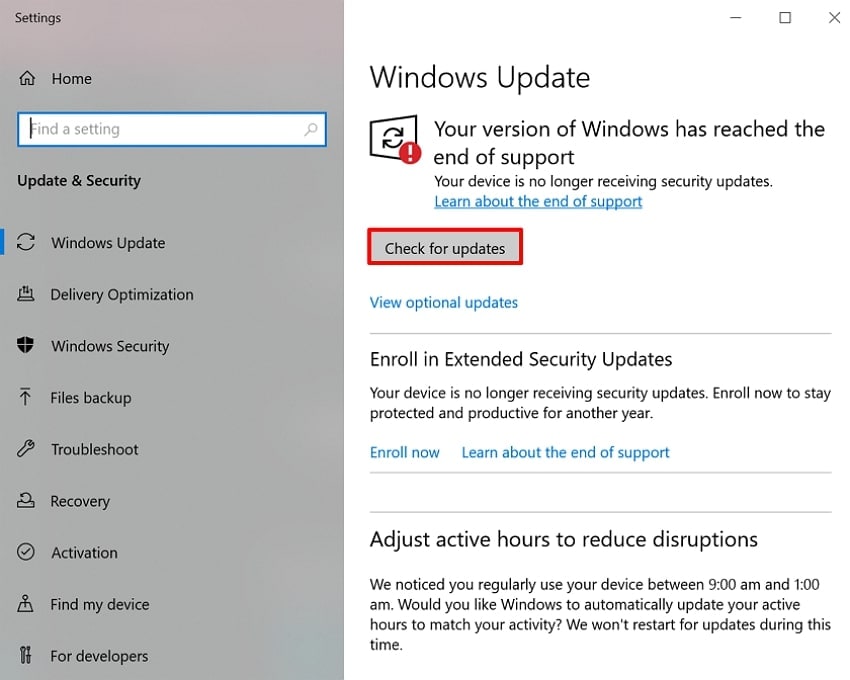
- Following this, access the “Settings” app and choose the “Windows Update” option to access the update settings.
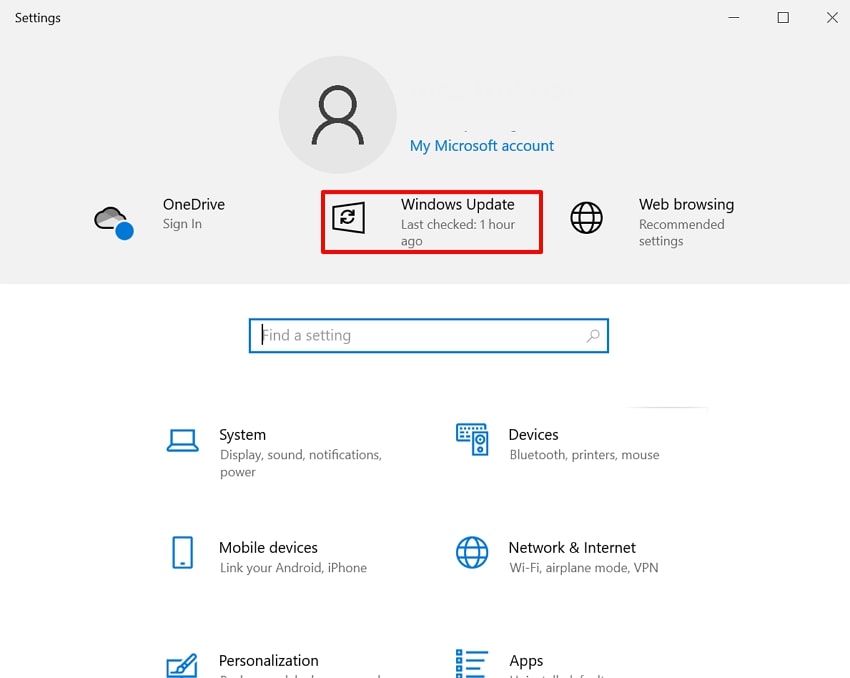
- Here, click on the “Check for Updates” button to check for new updates available and install them.
Method 4. Clear Conditional Formatting
This method is essential because conditional formatting, while useful for visual data analysis, can significantly slow Excel down. Clearing redundant formatting can cut extra time and make copy-paste, filtering, and sorting faster. When conditional formatting includes overlapping, it leads to Excel freezing during clipboard operations. If you are exploring using this method to fix Excel copy and paste not working, then read the following:
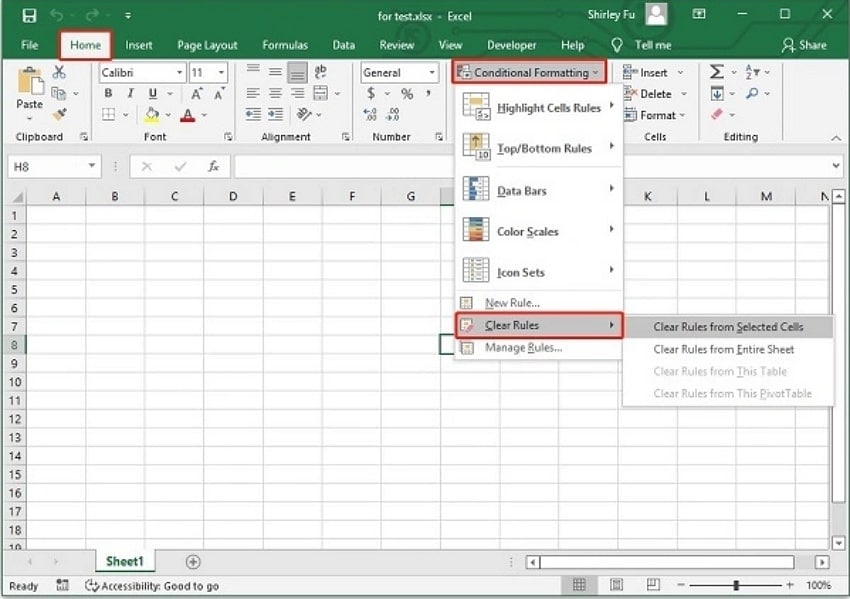
Instructions. Access the corrupted Excel file and expand the “Home” tab from the top of the interface. Afterwards, click on the "Conditional Formatting," select the "Clear Rule" option, and choose "Clear Rules from Selected Files."
Method 5. Restart With Add-ins Disabled (Safe Mode)
By using this method, safe mode simply isolates Excel’s default components by disabling extra tools that often interfere. Afterwards, disable the Add-ins, as many copy-pasting errors occur due to malfunctioning COM add-ins, outdated plugins, or incompatible macros. Running this method helps confirm whether the problem is internal or add-in related, saving time and preventing repetitive crashes. So, let's explore this guide to fix Excel 365 freezes when copying and pasting:
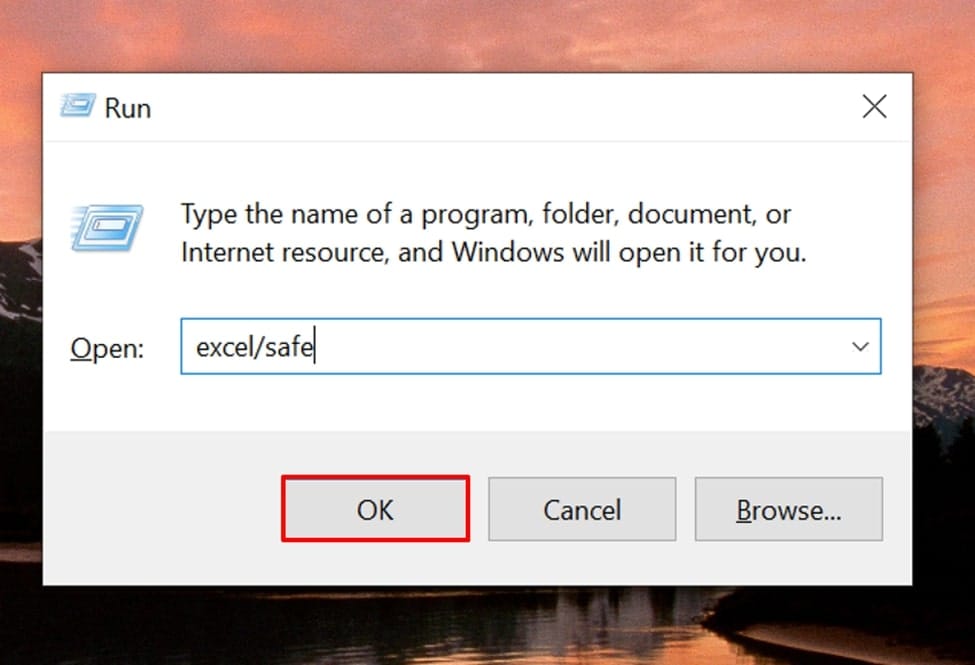
- Initiate by typing "Windows + R" keys on the keyboard to open the command line interface. Here, type the "Excel/safe" command and hit the "OK" button. Afterwards, select the desired error file and hit the "Open" button to access it in safe mode.
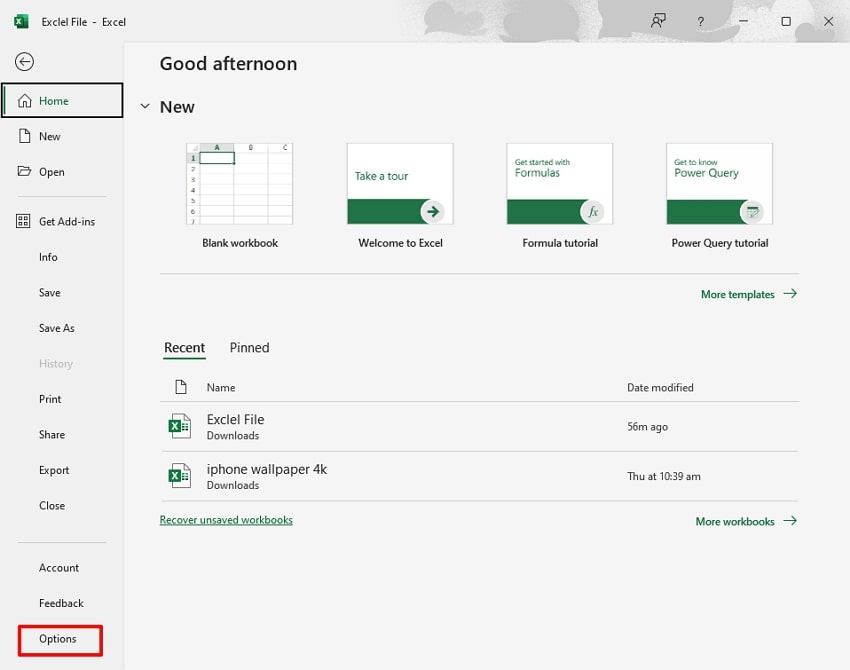
- Now, click on the “File” menu and select the "Options” button to access its further settings.
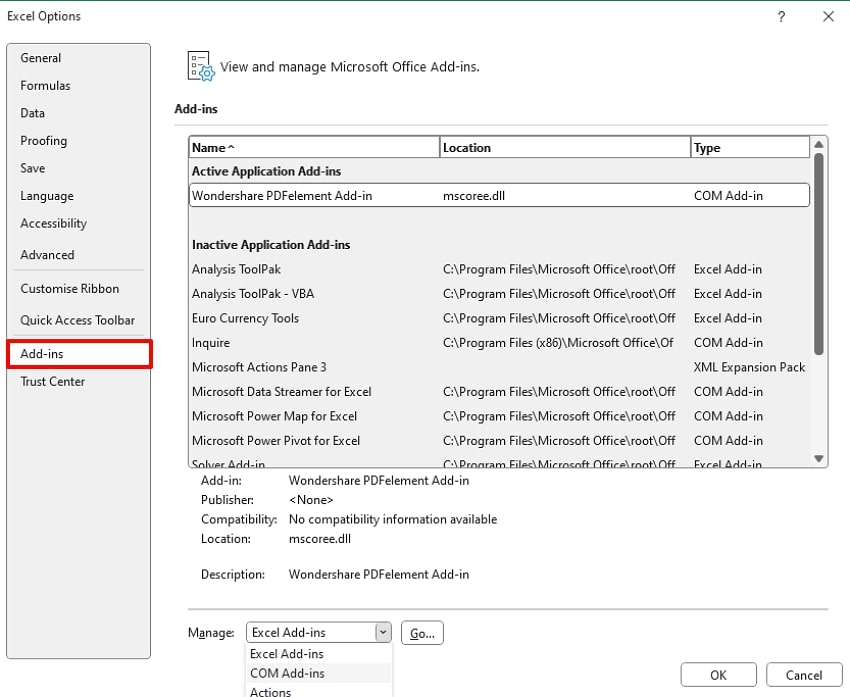
- Here, tap on the “Add-ins” menu from the left tab and select the “Com Add-ins” by expanding the Manage menu. Afterwards, click on the “OK” button and restart the application to resolve the error.
Method 6. Disable or Remove Problem Add-ins
Add-ins, especially third-party or outdated ones, can consume excessive resources, create startup delays, or clash with Excel updates and clipboard operations. By removing problem add-ins, a faulty extension prevents the problem from recurring after future restarts or updates. Upon hearing its features, let's dive into its detailed guide to remove problematic Add-ins to fix Excel copy and paste not working:
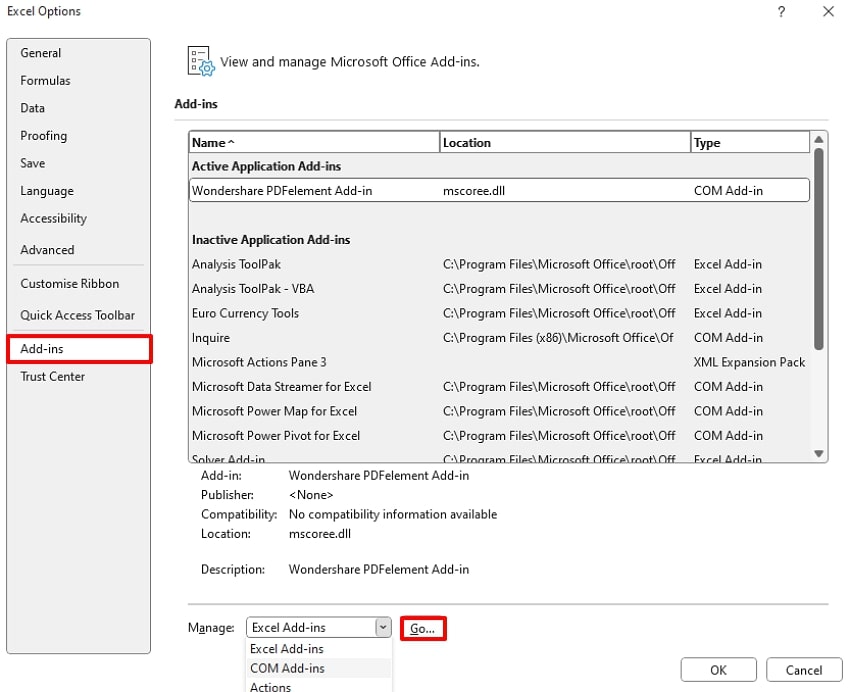
- Navigate to the “Files” section and select the "Options" option to open further settings. Access the “Add-ins” interface, choose the problematic "Add-in", and hit the "Go" button.
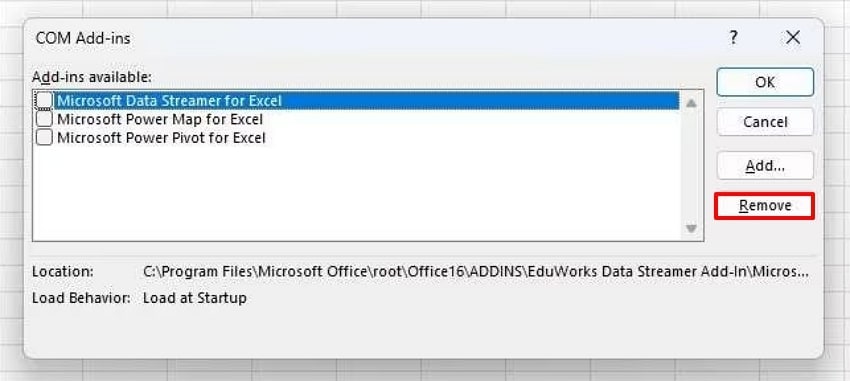
- Select the desired file and click on the "Remove" button to remove the desired Add-in from Excel.
Method 7. Clear Excel Cache Files
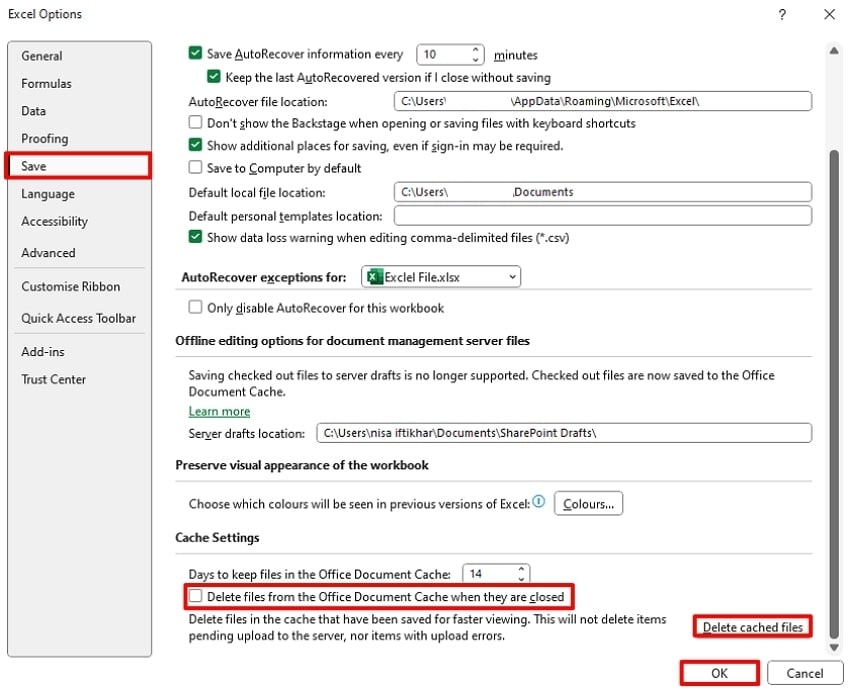
Clearing Excel cache files is a vital maintenance step that helps restore performance and resolve freezing during copy-paste operations. This method is especially beneficial when someone is using OneDrive or SharePoint, as files can get stuck due to syncing errors. Like rebooting a program, clearing cache lets Excel start fresh with uncorrupted temporary files, so have a look below:
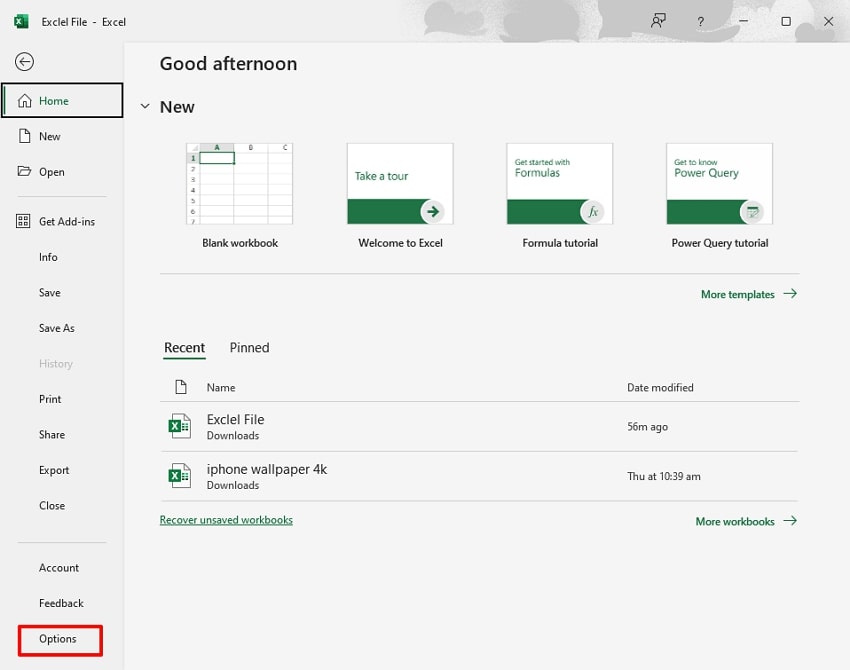
- From the “File” menu, click on the “Options” option at the bottom of this interface.
- Here, choose the “Save” menu from the left interface and navigate to the "Cache Settings" tab. Toggle the "Delete Files from the Office Document Cache When They Are Closed" option. Afterwards, select the "Delete Cache File" button and hit the "OK" button to save the changes to the Excel file.
Method 8. Check System Resource Usage
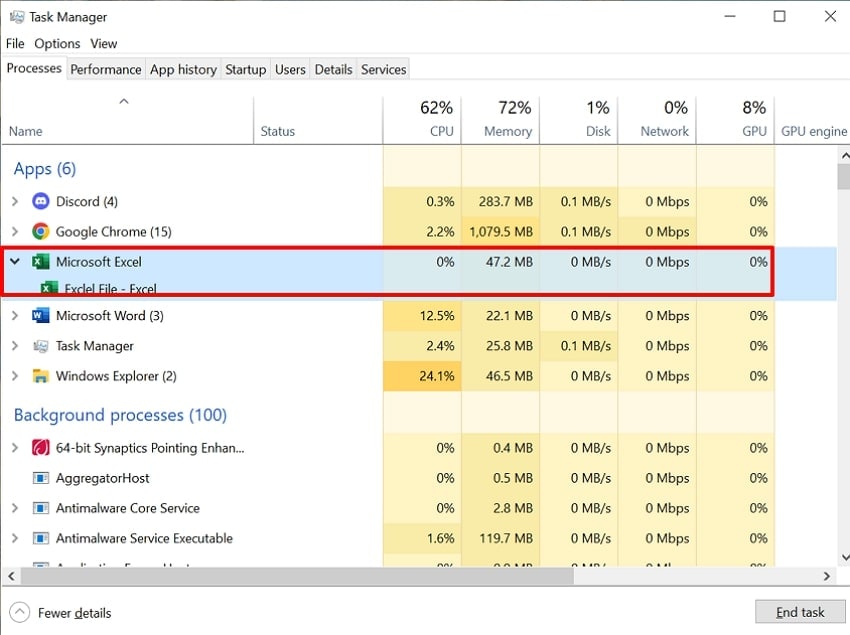
Using this method is essential, as most of the time, Excel freezing when copying and pasting errors occur due to system overload. When CPU, RAM, or disk usage spikes, Excel struggles to allocate resources for processing copy-paste commands. This step helps you to determine whether the freezing is caused by insufficient RAM, high CPU usage, or background processes. These adjustments improve Excel’s efficiency, so let's go through the following:
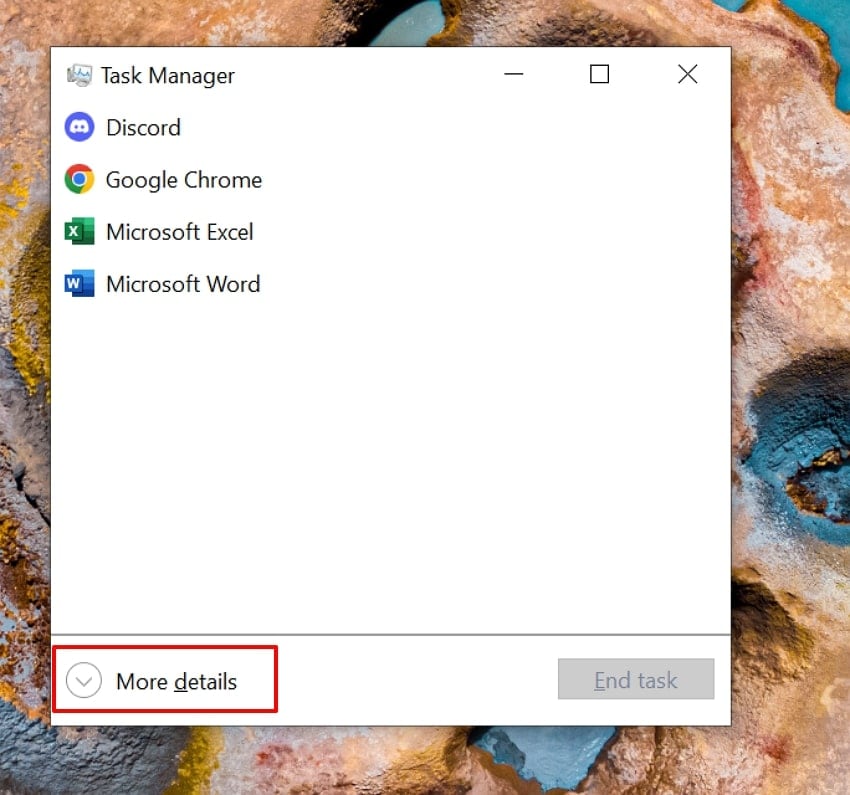
- Initiate by pressing Ctrl + Shift + Esc or right-clicking the taskbar and clicking on “More details” to choose "Task Manager."
- Here, click on the "Processes" tab, and choose "Microsoft Excel" to examine the settings for examining the issue.
Method 9. Change Default Printer
To fix the Excel 365 freezes when copying and pasting errors, the Change Default Printer method is recommended, as Excel relies on the system’s active printer. If your default printer is offline, network-based, or has corrupted drivers, Excel may hang while trying to communicate with it. By stopping this, it will speed up these formatting tasks and reduce micro-freezes in large spreadsheets.
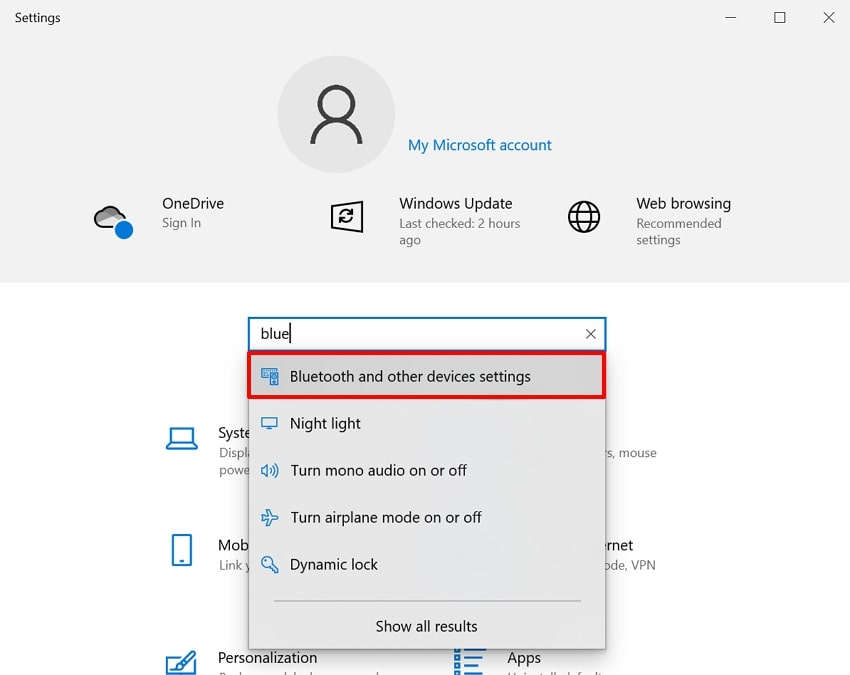
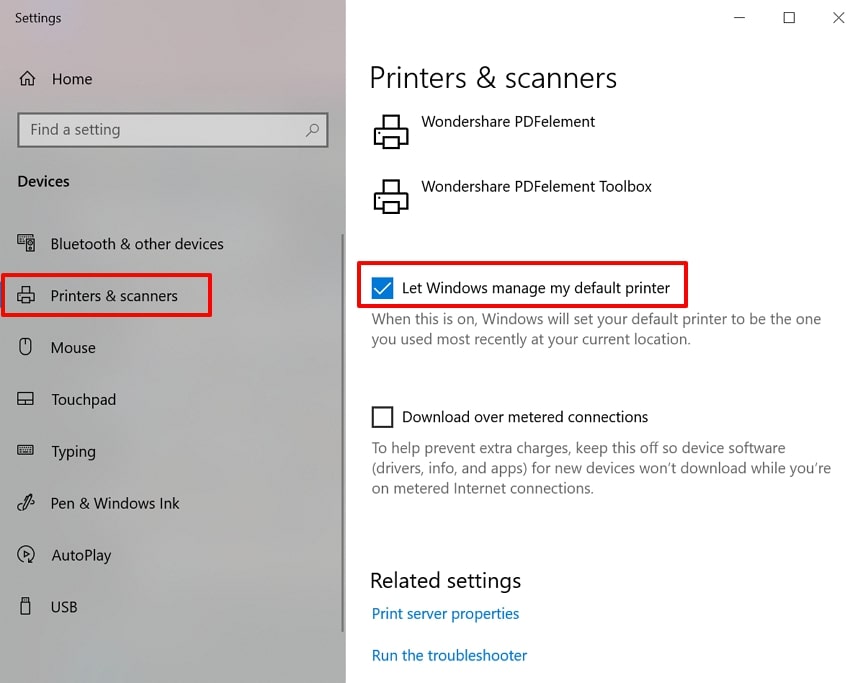
- Access the “Settings” app and click on the “Bluetooth and Other Device Settings” option.
- Following this, choose the “Printers & scanners” option from the left tab and untoggled the “Let Windows manage my Default Printer.”
Method 10. Repair Microsoft Office
Using the Repair Microsoft Office method is one of the most effective ways to eliminate persistent Excel freezing and crashing issues. This process refreshes the Office suite without deleting personal data or custom settings. Unlike opting for the full re-install option, it keeps personal files, settings, templates, and preferences intact. So, have a look at the guide to fix a simple excel sheet keeps freezing when copy and pasting:
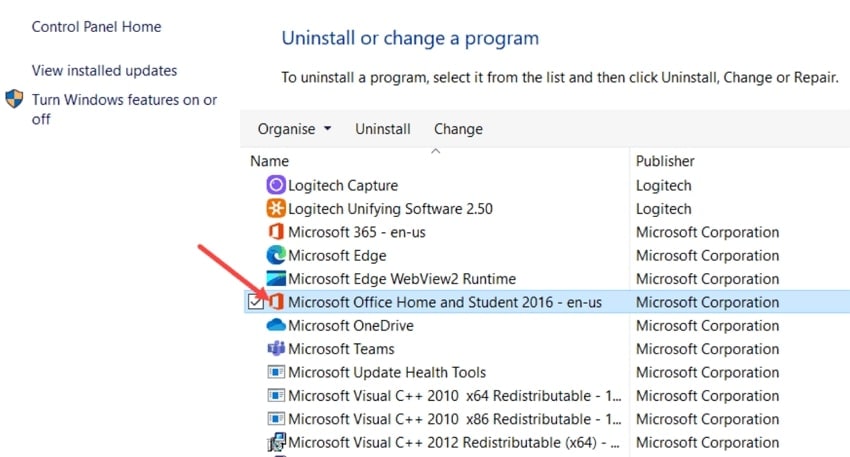
- Press “Windows + I”, go to Settings, select the “Apps” tab, and choose “Installed Apps.” Afterwards, navigate to the Microsoft suite and right-click it.
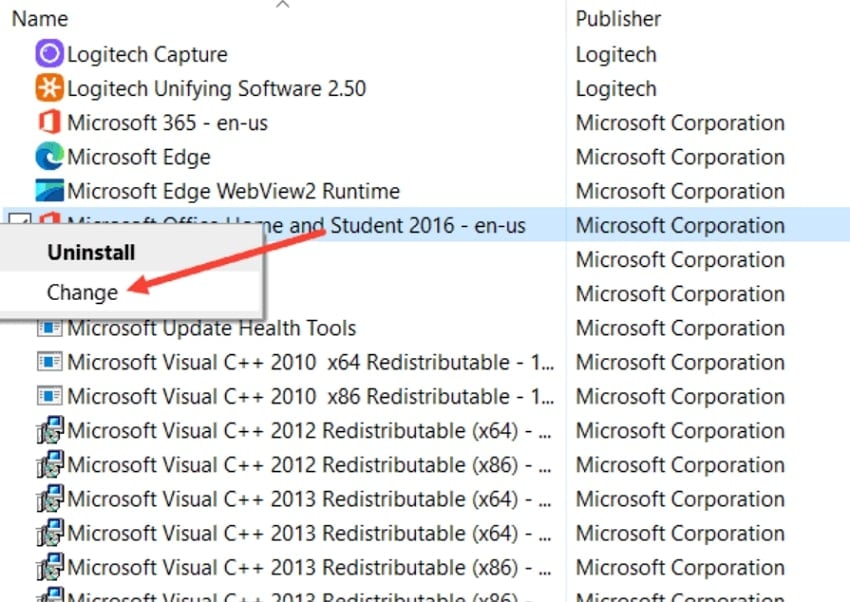
- Here, click on the "Change" option in the pop-up menu to access its further settings.
- Enable the “Quick Repair” option and hit the “Repair” button to let the system start the repair procedure instantly.

Method 11. Remove or Rebuild Complex Objects
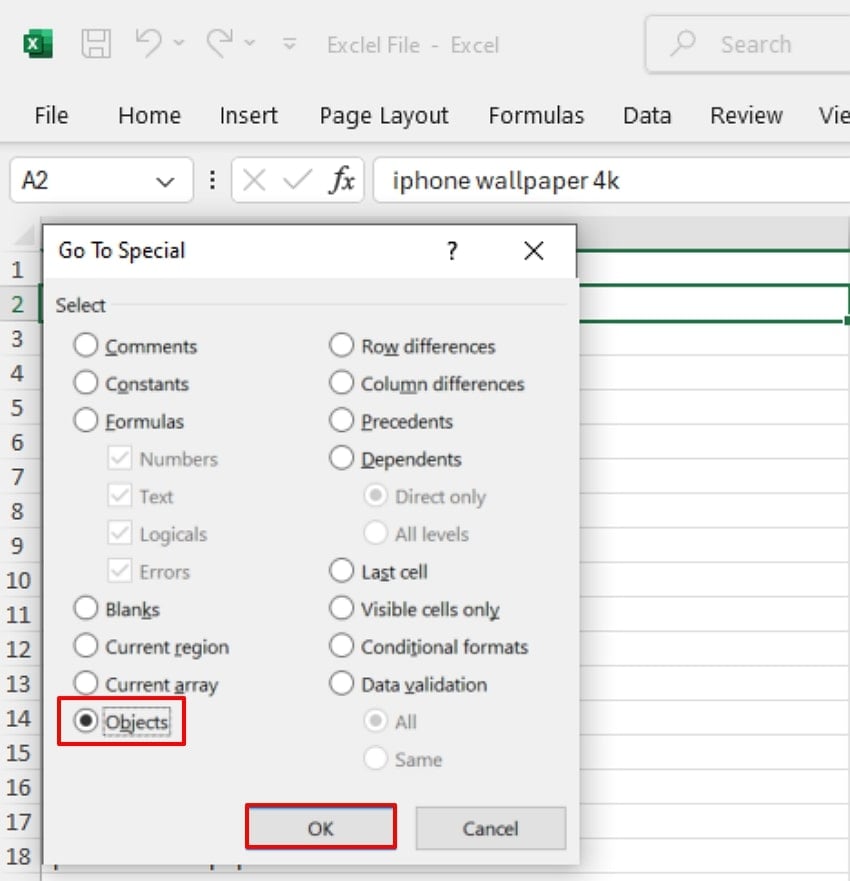
Sometimes Excel freezing when copying and pasting because the spreadsheet contains complex objects. Removing these embedded objects will free memory and shorten load, save, and paste times. Furthermore, it prevents this strain on Excel's rendering engine, allowing smoother clipboard operations. Users simply have to find embedded objects and delete them for a smoother process, so let's dive into the guide:
- Use Ctrl + G to open the “Go To” window and click on the “Special” button to access the settings.
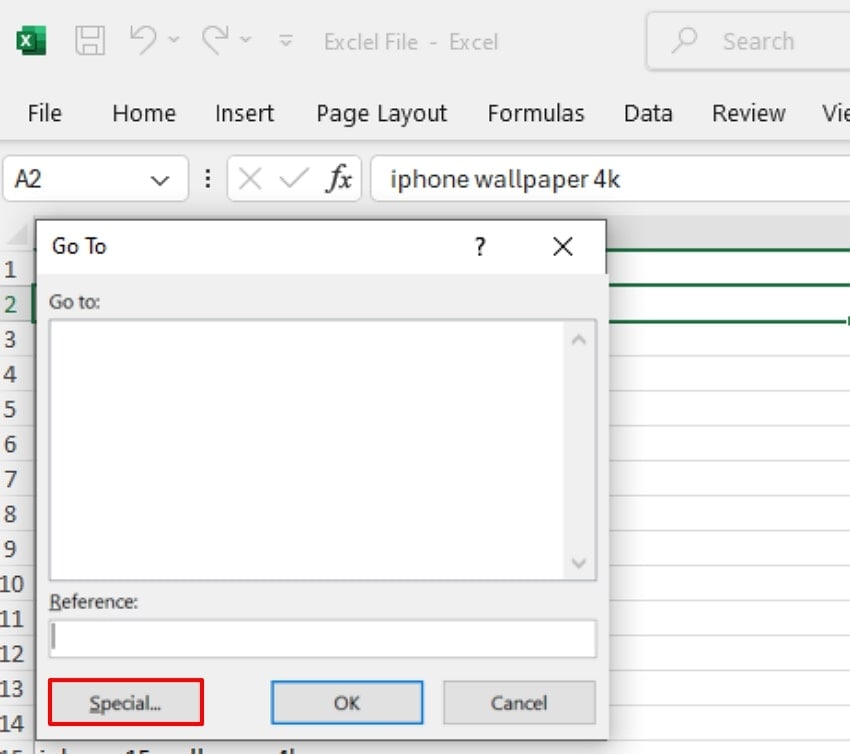
- Here, enable the "Objects" option and click on the "OK" button to find embedded objects.
Pro Tip. What If Excel Freezes and You Lose Work? Try Recoverit
Suppose you’re a financial analyst working late on a sales report built in Excel. You’ve been updating figures manually for hours without saving, and suddenly, Excel stops responding. This leads to file deletion, so instead of starting over again, we recommend using Recoverit, which lets you retrieve lost data with 99.9% accuracy.
This tool offers a wide range of recovery modes, including support for all major operating systems. Furthermore, it lets users preview the retrieved file to examine its completeness and accuracy. It's capable of recovering files from any data loss scenario and all standard devices.
Key Features
- Batch Processing: This tool provides you with a batch processing system to restore all your lost files in a single go to save your time efficiently.
- Scanning Options: Recoverit provides both Quick and Deep scanning options, allowing users to choose according to their data loss scenarios.
- Compatibility: One can access this tool on all operating systems, including Windows, Mac, and Linux, to provide broader compatibility.
Expert Guide to Use Recoverit For Recovering Excel Files
If you have lost your data due to Excel freezing when copying and pasting, and want to restore it, then follow the given guide:
- Choose the Hard Drives and the Location to Select the Location
After entering the tool, click on the "Hard Drives and Locations" tab on the left-hand side. Then choose the desired location of the lost file under the "Quick Access" tab.

- Access the Scanning Mode for Data Recovery
Here, it will automatically start the “Quick Scanning” mode to recover your lost file. However, you can search it manually by using the “File type” or “File size” options.

- Preview and Render the Restored Outcome
As your file is restored, you can preview it to ensure its accuracy and hit the “Recover” button to get it exported to the device.

Part 3. Tips To Avoid Freezing Excel File When Copying & Pasting
Now that you have explored how to fix the simple excel sheet keeps freezing when copy and pasting, here are some tips to avoid this error again:

- Limit the Data Range: Instead of copying and pasting the whole data, opt for smaller parts, as it will help Excel process clipboard operations more efficiently.
- Clear Excess Conditional Formatting: Remove unnecessary formatting rules from your worksheet, as excessive rules will cause files to hang.
- Disable Live Preview & Clipboard Options: Ensure you disable User Interface and clipboard preview effects in Excel Options for a smoother and streamlined procedure.
- Ensure Latest Software Updates: Keep Excel and your operating system updated, as every new patch improves clipboard stability and fixes bugs.
- Check System Resource Usage: One can use Task Manager to ensure your computer’s CPU and RAM have enough headroom while Excel is open.
Conclusion
Summing up, anyone can fix Excel freezing when copying and pasting issue by using the appropriate method. In this article, we have narrowed down the most efficient methods that both professionals and beginners can opt for when repairing Excel. However, if you lost your essential files while fixing errors, then we recommend using Recoverit, which ensures 99.5% accuracy while recovering lost data.
FAQ
-
1. Can changing my printer settings really help fix Excel freezing?
Yes, as your Excel always checks for printer default settings even if you are not printing the desired spreadsheet. So, if your default printer is offline or slow, Excel may hang, so switching to a virtual printer may resolve this specific error. -
2. How can I avoid losing unsaved work if Excel crashes in the middle of copy-paste?
To avoid losing your essential files, always opt for Auto Recover and try to save files frequently. However, if you still lose a file, we recommend using Wonderhare Recoverit, which provides you with both Quick and Deep scanning modes. -
3. Is there a way to speed up copy-paste operations in very large spreadsheets?
Absolutely, to avoid simple excel sheet keeps freezing when copy and pasting, you can break the task and limit complex cell formatting. Furthermore, you delete extra cache data, and system resources are available before proceeding. -
4. Can antivirus software or other background programs freeze Excel during data paste?
Yes, sometimes antivirus software or other programs scan the file and assume it is a corrupted file, resulting in the file hanging. So, temporarily disable such programs when running heavy Excel tasks for smoother performance.


