

 TL;DR:
When Excel freezes without crashing, wait a few minutes to allow background calculations to finish, and if it remains unresponsive, hold the Ctrl key while launching the application to enter Safe Mode and disable problematic COM add-ins.
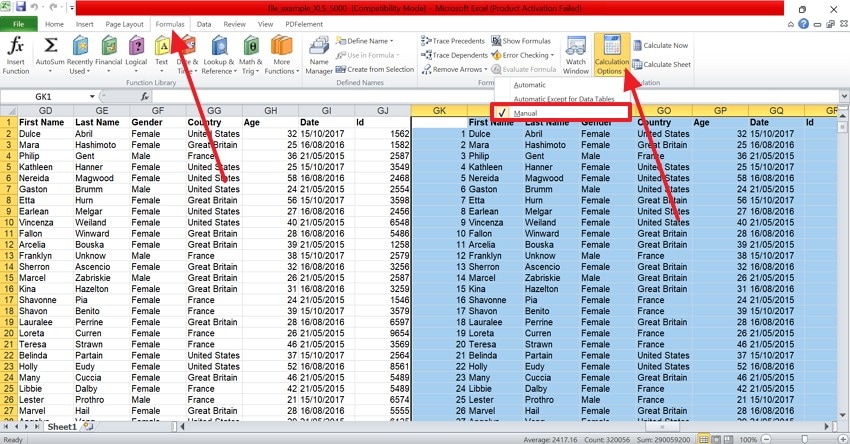
● Switch the workbook calculation setting from Automatic to Manual to prevent heavy formulas from hanging the system, and press the F9 key to trigger updates manually.
● Retrieve unsaved progress by pressing Win+R to access the %temp% folder, locating recent temporary files, and renaming their extensions to .xlsx.
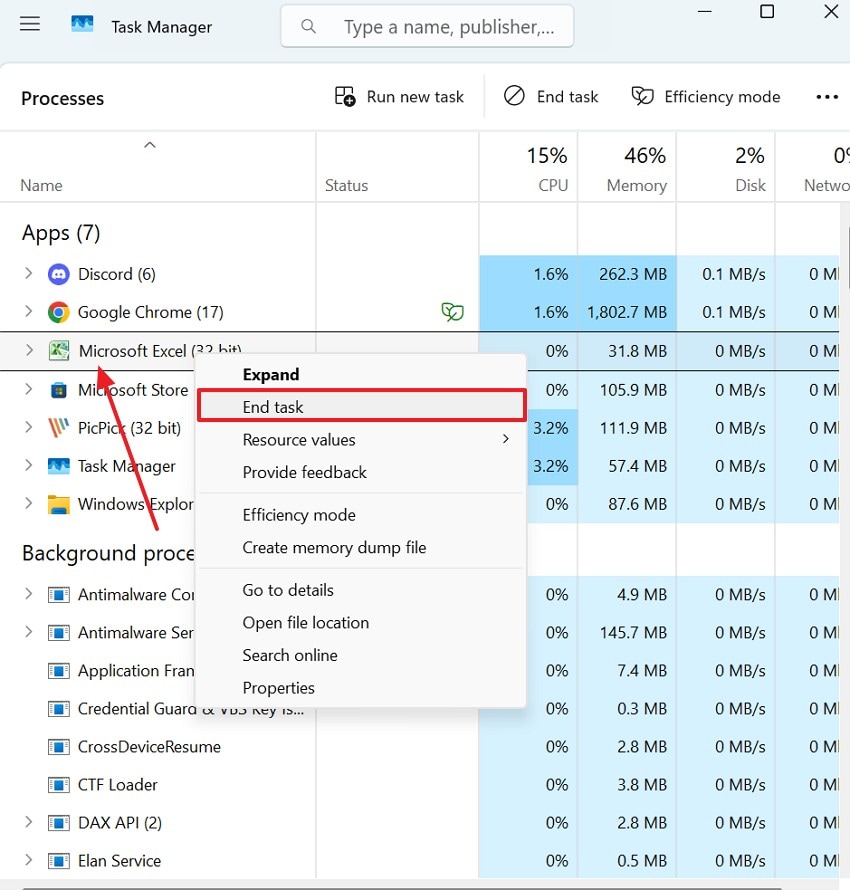
● Press Ctrl+Shift+Esc to force quit via Task Manager if the application completely locks up, using AutoRecover or a recovery tool like Recoverit to restore lost documents.
Ask AI for a summary
 ChatGPT
 Perplexity
 Gemini
 Claude
 Grok
Grok
A frozen spreadsheet means potentially losing all crucial data for good. Exploring a solution for this issue is necessary to keep your sensitive information intact. There are various built-in ways of recovering a file when Excel frozen but not crashed. This article aims to help you retrieve the stuck screen of your spreadsheet document.
Try Recoverit to Perform Excel Data Recovery
 Security Verified. 3,591,664 people have downloaded it.
In this article
-
- Close Heavy Background Applications
- Open Excel in Safe Mode
- Disable Problematic Add-ins
- Remove Conditional Formatting Rules
- Update Excel and Windows
- Repair Microsoft Office
- Run the Inspect Workbook Tool
- Disable the "When Calculating this Workbook" Option
- Enable/Adjust AutoRecover for Next Time
- Use Task Manager to Force Quit (If Nothing Works)

Part 1. Quick Checklist for Frozen Excel Files
If your Excel sheet is hanging, you must remember to do the following things to prevent damage:
1. Identify the Cause Before Any Fix
Before taking any action, try to determine what’s making Excel freeze. It could be due to a huge file or formulae in the sheet. Knowing the underlying cause will make you adopt the appropriate technique of troubleshooting without jeopardizing the information.
2. Give it a Minute Before Finding a Way to Take Charge
There are cases when Excel frozen and yet it is still trying to do a huge operation or re-calculate formulas in the background. The delay of several minutes will ensure a crash-free completion of the job by the program. Do not press it to shut down before it has saved all the changes, because it can corrupt the file or destroy unsaved changes.
3. Save Progress if Excel Starts to Respond
If Excel suddenly becomes responsive again, immediately save your file to prevent losing any recovered progress. Use “Save As” to create a backup version in case the freeze recurs. This quick action ensures you can restore your work later, even if Excel locks up again.
4. Add-ins or Background Tasks Check.
Excel can be frozen at times because of incorrect add-ins or opposing background programs. One can also disable the unwanted add-ins or shut down other applications that are running, which will restore normalcy. These settings should also be checked regularly to ensure the stability of Excel, particularly with complex data or automation.
5. Restart Excel in Safe Mode
In case Excel keeps freezing and is unresponsive after several attempts to open, open it in Safe Mode to isolate troublesome items. Safe Mode also activates add-ins and custom settings to simplify tracking of the underlying cause. After Excel starts operating normally, it is possible to re-enable functions one by one to determine the exact point at which it stops.
Part 2. How To Fix Excel Frozen But Not Crashed: Stepwise Fixes
Once you have prepared for file recovery, follow these methods to fix the frozen system:
1. Close Heavy Background Applications
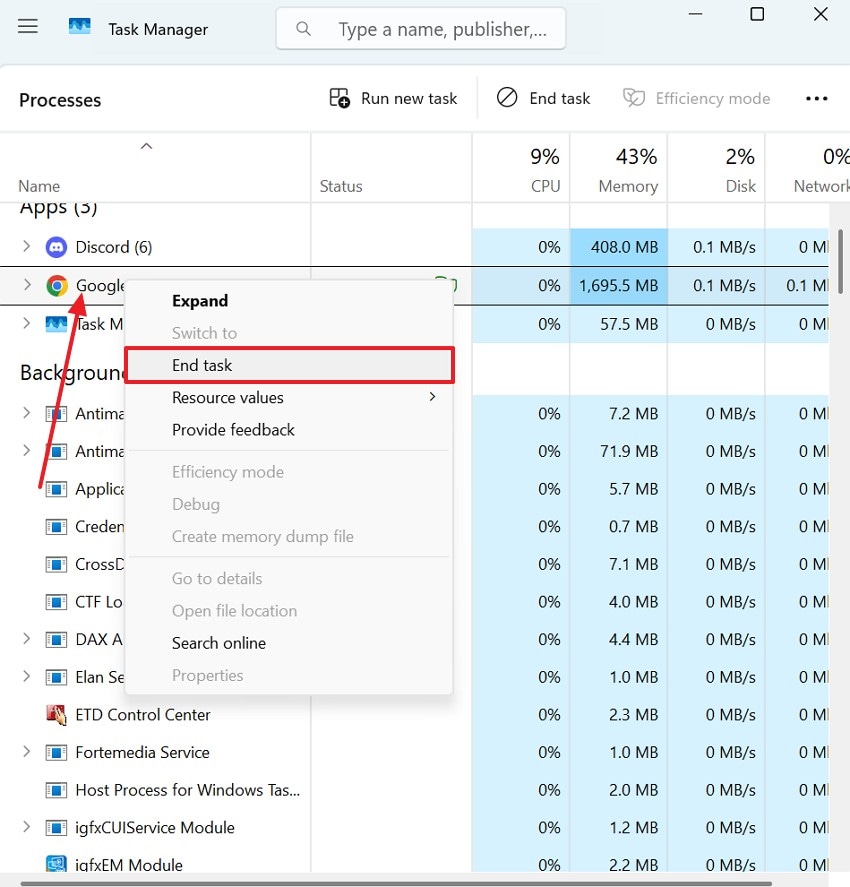
When Excel freezes but hasn’t crashed, start by closing heavy background applications that consume high CPU or memory. Programs like browsers, design software, or video players can interfere with Excel’s operations. Freeing up system resources helps Excel process calculations faster and reduces the chances of future freezes. The following guide covers how you can close heavy background applications:
Instructions. To begin with, access the “Task Manager” by pressing the “Ctrl+Shift+Esc” keys. When the new window opens, select the program taking up the maximum CPU memory and right-click on it. Using the pop-up menu, select the “End Task” option to stop the background process.
2. Open Excel in Safe Mode
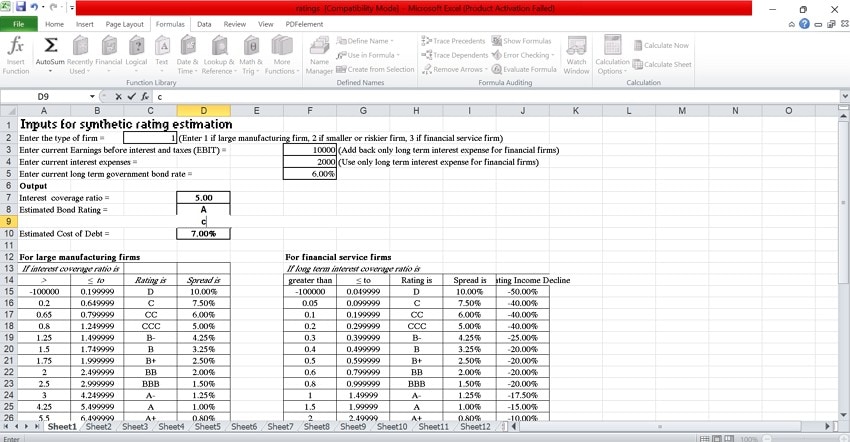
Safe Mode disables add-ins and macros that might block large files from opening. Manual Calculation Mode pauses heavy formula recalculations on startup. Together, they let you open and fix frozen Excel without triggering performance issues. Follow these instructions to learn how to open a large Excel file in Safe mode:
Instructions. When the Excel file opens, hold the “Ctrl” key, and you will automatically enter Safe mode.
3. Disable Problematic Add-ins
Add-ins often enhance Excel’s functionality but can also trigger freezing or lagging when outdated or incompatible. Go to the Add-ins menu and disable all non-essential extensions temporarily. Re-enable them individually to pinpoint which one causes performance issues and remove or update it permanently. Follow this guide to learn how to disable problematic add-ins to fix the frozen Excel sheet issue:
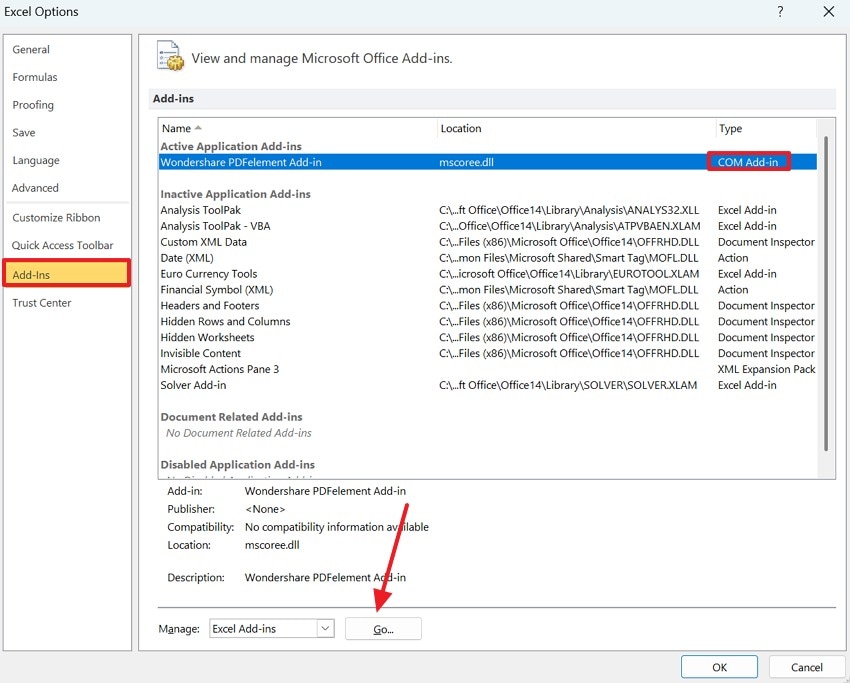
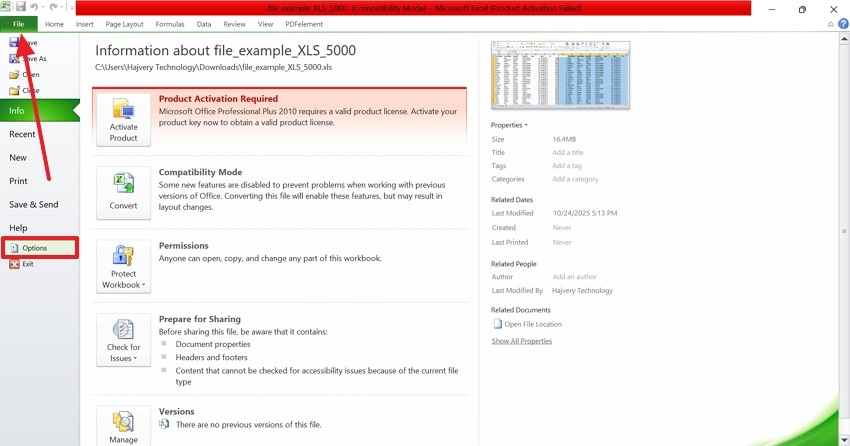
- Access the “File” menu from the top left and enter the “Options” tab.
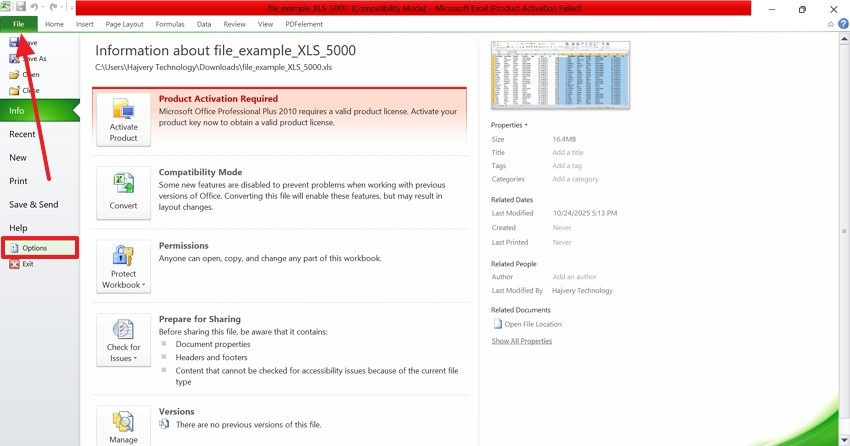
- Once the next window opens, select the “Add-Ins” option from the left and look for the “COM Add-In” option from the list of add-ins. Now, click “Go” to see the available add-ins in the next window.
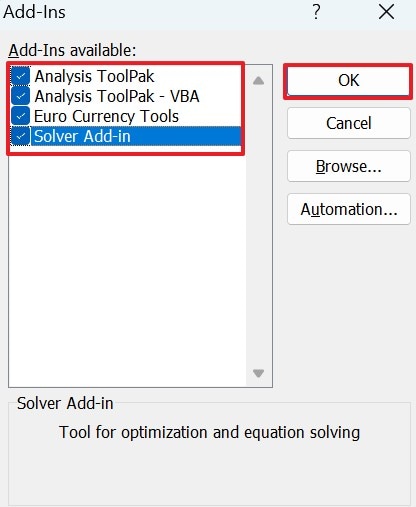
- From the next window, check all the add-ins and select “OK” to apply changes. Close MS Excel and open it again. Next, access this add-ins window again and check them one by one to rule out the problematic add-in.
4. Remove Conditional Formatting Rules
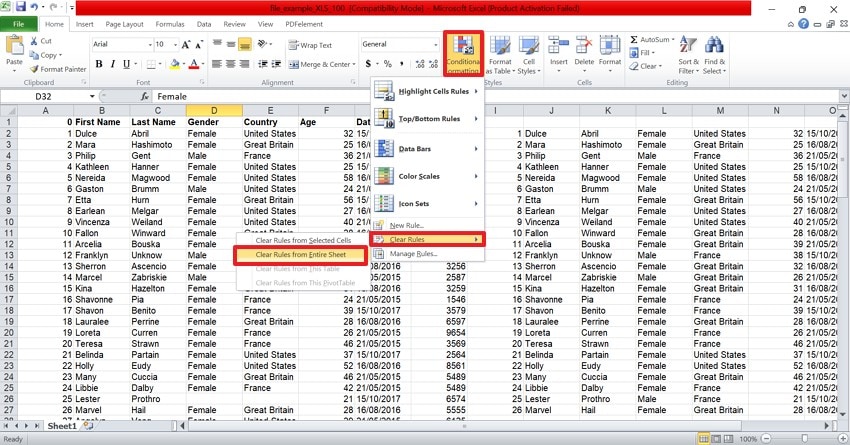
Too many conditional formatting rules can drastically slow down Excel, especially in large spreadsheets. Simplify or delete unnecessary rules to improve responsiveness and prevent formula recalculations from hanging the application. This step keeps your workbook lean and reduces memory strain during editing or data sorting. The steps below will guide you on what to do when Excel is not responding:
Instructions. To begin with, find and select the “Conditional Formatting” button on the right. Using the pop-up menu, hover the cursor over the “Clear Rules” menu to select “Clear Rules from Entire Sheet”. This will reset formatting rules throughout the file, optimizing file size.
5. Update Excel and Windows
Outdated Excel or Windows versions may contain bugs that lead to freezing or delayed responses. Updating both ensures you have the latest performance optimizations and security patches. Regular updates help maintain stability and compatibility across your Excel files and system environment. These instructions will guide you on updating Excel and Windows:
Updating Excel
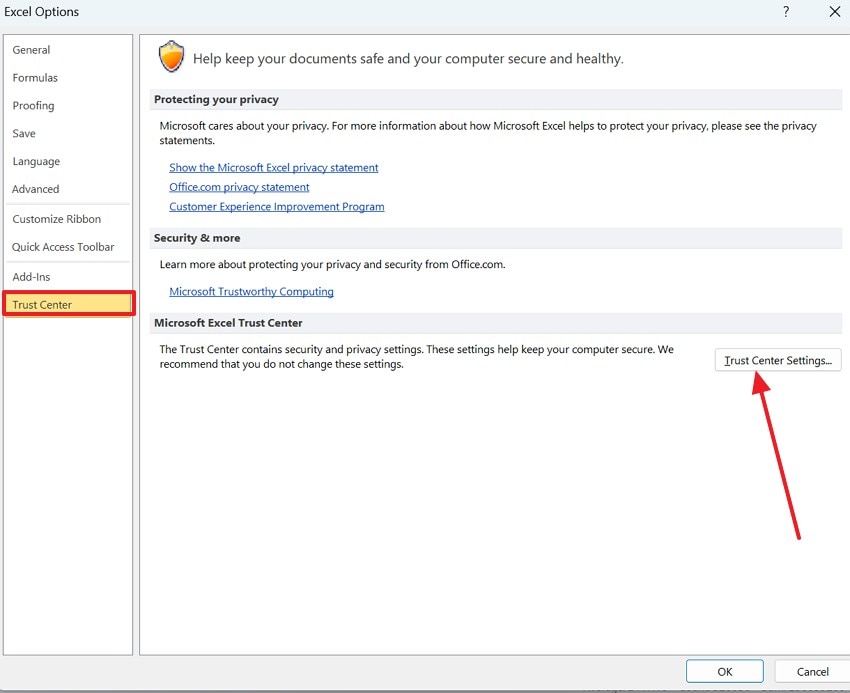
- First, enter the “File” menu and select the “Options” tab from the left to change the interface.
- From the “Trust Center” tab on the left, select the “Trust Center Settings” button.
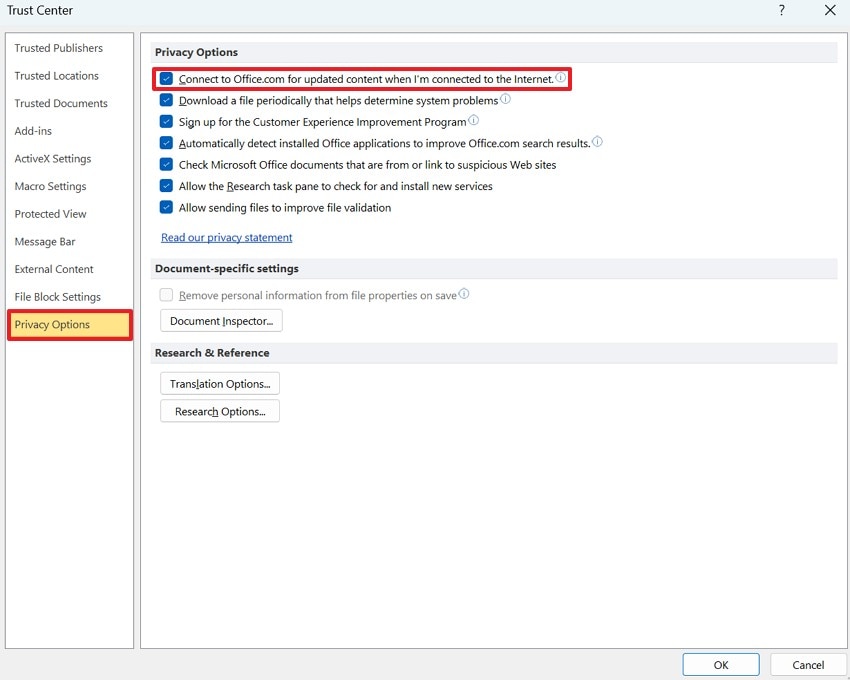
- In the following window, expand the “Privacy Options” menu and check the “Connect to Office.com for Updated Content When I’m Connected to the Internet” box. This action will automatically sync any updates without manual input.
Updating Windows
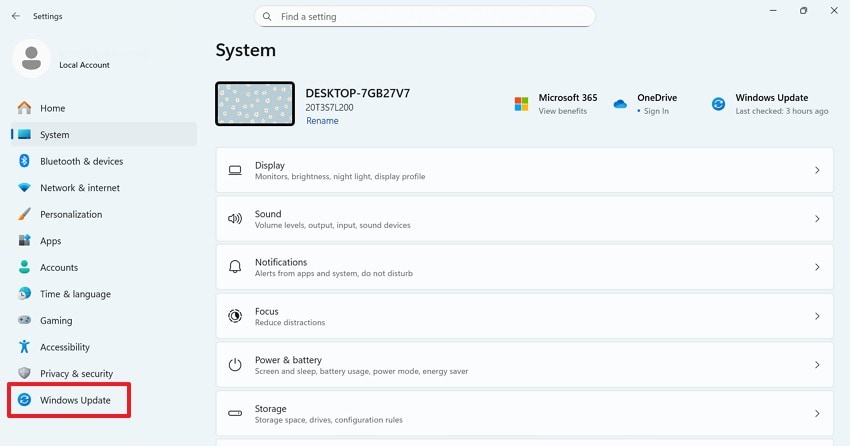
- In the “Settings” app, select the “Windows Update” tab from the left and proceed.
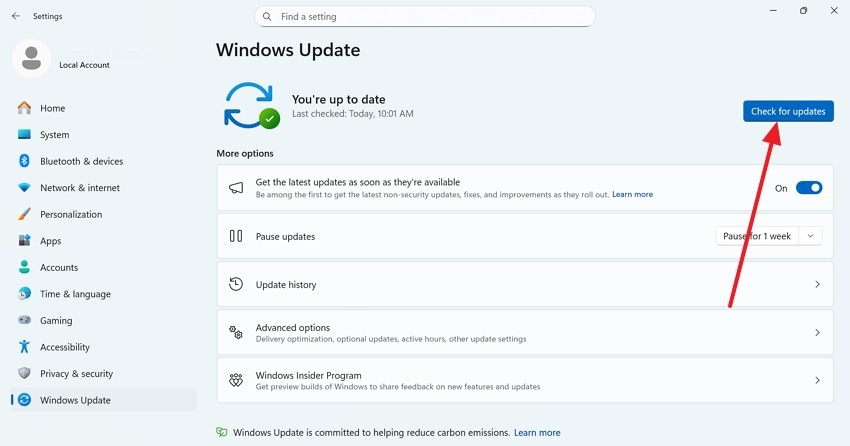
- From the next window, select the “Check for Updates” button to update the OS from the next interface.
6. Repair Microsoft Office
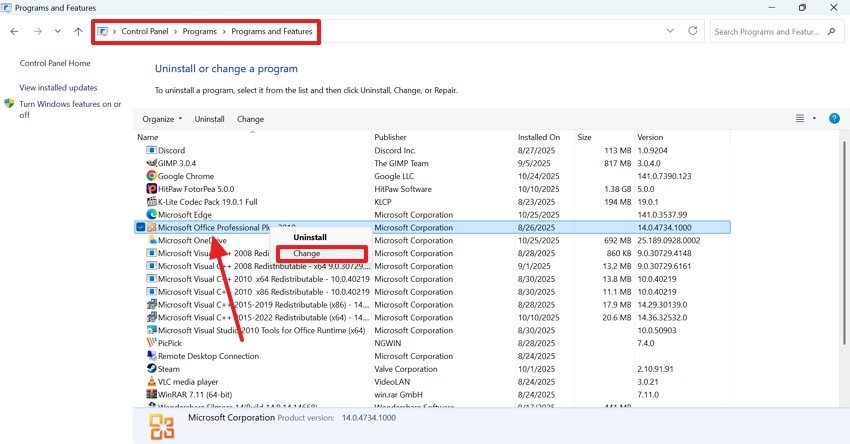
If Excel is frozen but not crashed despite basic fixes, performing an Office repair can resolve corrupted program files. Access this through the Control Panel and select either Quick Repair or Online Repair. This process restores Excel’s default configurations and eliminates glitches without affecting your saved data. Follow these instructions for repairing MS Office:
Instructions. To start, follow this pathway on your PC: Control Panel > Programs > Programs and Features. Find the “MS Office” option and right-click on it to select “Change.” Using the next window, choose the “Repair” option and start the process.
7. Run the Inspect Workbook Tool
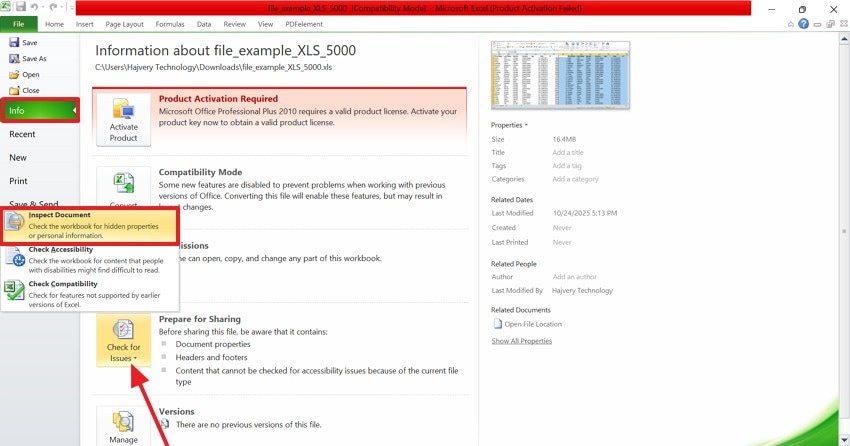
The Inspect Workbook tool helps detect hidden elements like links, comments, or excessive metadata that slow Excel down. Running this check reveals unnecessary content that might cause performance lags. Cleaning these elements ensures your file stays optimized and easier for Excel to handle efficiently. The steps below demonstrate running the Inspect Workbook tool for fixing the frozen Excel file:
- To begin with, open the “Info” tab from the “File” menu and expand the “Check for Issues” menu. Using this drop-down, choose the “Inspect Document” option.
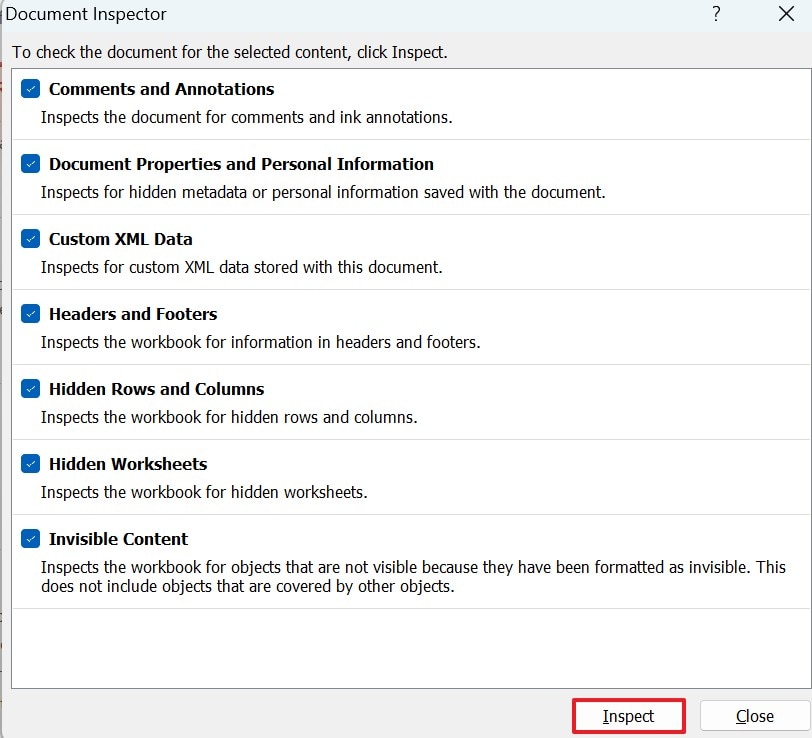
- When the “Document Inspector” window opens, check all boxes and select the “Inspect” button.
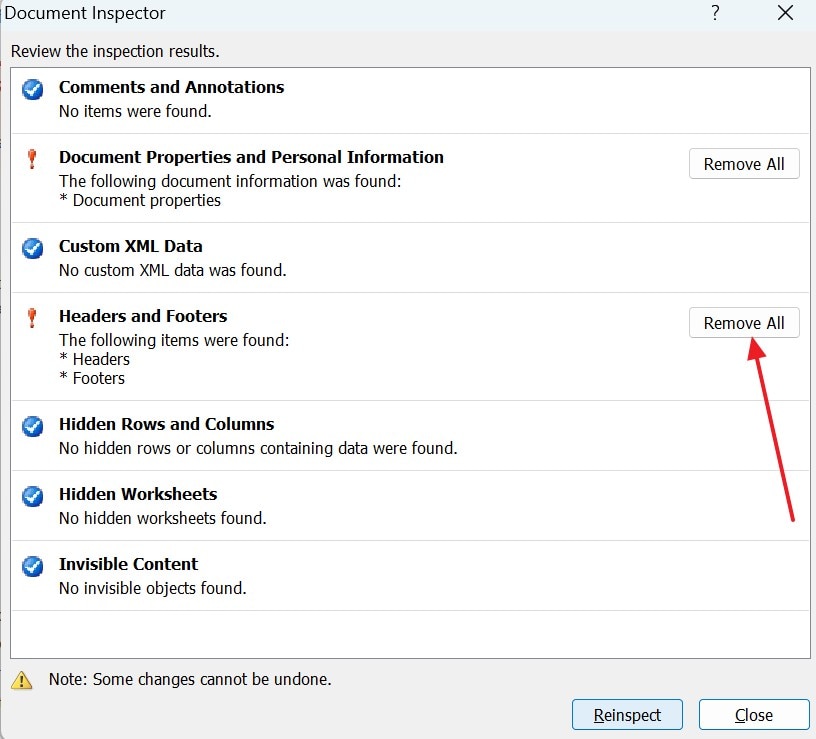
- As the next window opens, select the “Remove All” option for the unnecessary elements and save the workbook again.
8. Disable the "When Calculating this Workbook" Option
This setting forces Excel to constantly recalculate data, which can cause freezing during heavy operations. Turning it off reduces unnecessary processing and improves performance, especially with large datasets. You can manually trigger recalculations when needed instead of letting Excel do them automatically. Follow these steps and learn how to disable this option to resolve the Excel frozen file issue:
Instructions. From the “Formulas” tab, expand the “Calculation Options” menu to select the “Manual” option. When you need to update the calculations manually, press the F9 key on the keyboard.
9. Enable/Adjust AutoRecover for Next Time
The AutoRecover helps protect your work if Excel freezes again by saving backups periodically, but has been replaced by the Auto Save option now. You can shorten the save interval for better protection against unexpected hangs. This ensures you never lose significant progress even if you’re forced to close Excel suddenly. Use the “Ctrl+S” keys from your keyboard to autosave the progress in MS Excel.
10. Use Task Manager to Force Quit (If Nothing Works)
If Excel remains completely frozen despite all efforts, use Task Manager to force close it. This should be your last resort, as it may result in unsaved changes being lost. After reopening Excel, consider enabling AutoRecover or repairing the program to prevent future freezes. Follow these instructions to fix the Excel freezing file by performing a Force Quit:
Instructions. To enter the “Task Manager” window, press the “Ctrl+Shift+Esc” keys on your keyboard. Now, locate “MS Excel” and right-click on it to “End Task”.
Part 3. Recover Unsaved Work When Excel Is Frozen But Not Crashed: Top Methods
If the above-mentioned methods fail to fix the Excel keeps freezing issue, you can use the advanced techniques. The following methods should be followed for effective results:
1. Use Excel’s Built-in AutoRecover Feature
The AutoRecover feature automatically saves backup copies of your workbook at regular intervals, preventing data loss during freezes. It allows users to restore unsaved progress once Excel becomes responsive again. This built-in safeguard reduces the impact of unexpected hangs or power interruptions, ensuring smoother file recovery. Just use the “Ctrl+S” after every few minutes to save the progress in real time.
2. Restore Unsaved Files from the Temporary Folder
Excel often creates temporary backup files while you work, even before saving manually. Accessing this folder lets you recover unsaved work if AutoRecover fails. It’s a reliable fallback for retrieving critical data after unexpected freezes or application shutdowns. The steps below feature a guide on fixing the frozen Excel issue using this method:
- Start the process by pressing the “Win+R” keys and accessing the Run window. Here, give the “%temp%” command and hit OK.
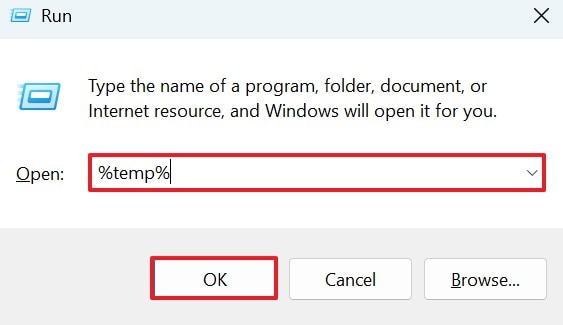
- If you locate any files with a “temp” extension, rename them and add a “.xlsx” extension, and paste the file to the desired folder.

3. Use Recovery Tool - Recoverit
If you need to preserve the data on your sheets, you can use a quick recovery tool for this. Recoverit offers a recovery rate of 99.5% and ensures the effective restoration of important Excel files. Besides sheet documents, users can retrieve over 1,000 types of documents and multimedia files in order to get the most productivity. This platform supports more than 10,000 lost file scenarios to diversify its range of applications.
It can be used with increased flexibility as it supports both Windows and Mac. Although the file scan process is automated, the users are free to add a custom search filter. When the file recovery process for frozen Excel is finished, your retrieved documents will have a preserved quality.
Key Features
- Batch Recovery Feature: Benefit from the batch recovery feature to retrieve multiple Excel files and enhance productivity.
- Scanning Options: In case you are not able to find the intended file through the Quick Scan, then find it through Deep Scan.
- Compatible Devices: Recoverit supports over 1 million storage devices, including hard drives, memory cards, and flash drives.
Using Recoverit to Retrieve Missing Excel Files
Now that we know the capabilities of Recoverit, let’s see how it can help you restore files. The steps below feature a guide on using this tool to recover an Excel file:
- Select the Location of a Missing Excel File
To begin with, open Recoverit and select the location of your missing file from the left panel.

- Choose the Missing Files and Recover
When the missing files appear on the next interface, select them and click “Recover” to retrieve them.

- Preview the Recovered File
As the Excel files are recovered, preview them and hit the “Recover” button to save them.

Part 4. How to Prevent Excel Freezing Issues: Top Tips
If you have fixed the frozen file issue using Recoverit, you must keep this from happening again. To avoid the Excel freezing problem in the future, the following points will be used:
- Keep Your Excel Files Lean: Do not overload Excel with too much data, pictures, or formatting, which may slow down the calculations and freeze the system. It is also essential to clean up unused cells on a regular basis, simplify formulas, and get rid of any unnecessary worksheets to maintain a stable performance.
- Synchronize the Excel and Windows Periodically: Old versions of software usually have bugs that cause lock-ups or slow down during intensive operations. By upgrading Excel and Windows, one can maintain a smooth operation and enhance compatibility with the current data operations.
- Limit Conditional Formatting and Add-ins: Conditional formatting and add-ins with a large number of rules may cause a serious slowdown in Excel. Only necessary rules should be kept, and the add-in features should be turned off to be responsive.
- Turn on AutoRecover and Save Frequently: AutoRecover is a protective measure of Excel that saves your progress automatically in situations where the software crashes. Additionally, it is used to reduce the risk of data loss, make regular manual saves.
- Monitor System Resources and Close Background Apps: Background applications, such as browsers or editing programs, usually require a lot of memory and can freeze Excel. Before starting up Excel, close the resource-hungry apps to make sure that the operation is smooth and continues without interruptions.
Conclusion
To conclude the discussion, many users often encounter an “Excel frozen but not crashed” issue. This article addresses the top reasons and the most effective solutions to remedy this problem. If the built-in recovery options on your system fail, you can use a third-party solution.
However, you can save the progress of your file to avoid data loss in the future. To do this, you can use Recoverit on your Windows or Mac devices. This platform retrieves your missing workbooks and preserves the data in them.
FAQ
-
1. Why does Excel freeze but not crash?
Excel often freezes due to large datasets, complex formulas, outdated add-ins, or background processes consuming memory without closing completely. -
2. Should I wait or close Excel immediately when it freezes?
Wait at least a few minutes; Excel sometimes unfreezes after completing a background calculation or saving task. -
3. Is it possible to restore 5 missing Excel files from my PC?
To retrieve 5 or even more Excel files in a single task, use Recoverit. This platform offers a batch-recovery feature to maximize productivity. -
4. How can I be sure that my recovery tool has retrieved the right document?
You can use Recoverit and benefit from the Preview File feature for this. Using this utility will help you preview the file that has been recovered to be sure.


