

 TL;DR:
To fix an Excel file that refuses to save, bypass immediate software or storage conflicts by saving the workbook with a completely new filename, moving it to a local drive, or changing the file format.
● Launch Excel in Safe Mode by holding the "Ctrl" key while opening the application to disable potentially buggy add-ins that block the manual saving process.
● Resolve persistent saving blocks by deleting the Excel cache file within the Save Options, granting "Read & Write" file permissions, or temporarily disabling the AutoSave and Auto Recover features.
● Run the Microsoft Office Repair Tool via the Control Panel for deep software corruption, or use Wondershare Recoverit to scan and restore the spreadsheet if the data is already lost.
Ask AI for a summary
 ChatGPT
 Perplexity
 Gemini
 Claude
 Grok
Grok
Saving should be simple, yet failure interrupts progress and delays important deadlines today. Sudden blocks disrupt workflow, leaving work stuck without a reliable save option. Quick guidance helps restore access and continue edits confidently in active spreadsheets. This approach ensures stability during tasks that demand precision across every changed cell.
Moreover, the right fix restores access, protects edits, and improves how documents behave. Stability returns once saving works correctly throughout devices and connected storage locations. This guide helps when Excel won’t let me save, with proven fixes that support heavy workflow.
Try Recoverit to Perform Excel Data Recovery
 Security Verified. 3,591,664 people have downloaded it.
In this article

Part 1. Common Causes Behind Excel Won't Let Me Save
Identifying root causes helps resolve excel not saving issues faster during active work:
- Permission Issue: Excel stops saving when users lack permission to edit files. Shared drives sometimes allow viewing only, blocking any new changes during work.
- Storage Limit: Saving fails when the device or cloud drive has very low space. Temporary files grow fast, preventing Excel from writing updated content correctly.
- File Damage: Broken workbooks stop saving because Excel cannot read the damaged parts properly. Crashes or power loss often make files unstable during saving attempts.
- Add-In Conflict: Buggy add-ins interrupt buttons that control saving inside open workbooks. Complicated macros sometimes break features that help write new changes.
- Format Problem: Invalid characters in filenames stop saving when the system cannot accept them. Wrong formats also block writing if Excel does not support the file type.
Part 2. Basic Solutions to Fix Excel Not Saving the File
Apply the practical solutions below to restore saving functions smoothly and keep your Excel files secure during active work:
Method 1. Save the Workbook in a New File Name
Renaming the Excel file forces Excel to create a new file structure, avoiding previous conflicts. Locked files or corrupted headers stop normal saving and delay progress unnecessarily. Creating a new filename bypasses those blocks by writing a completely separate copy safely. This method prevents errors that appear when excel won’t let me save, protecting recent changes. Follow the steps below to save the file with a new name:
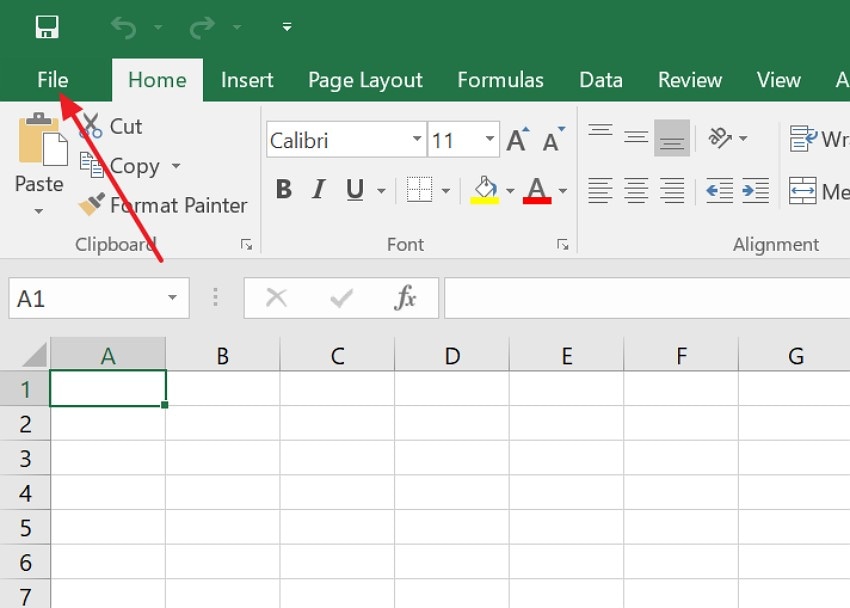
- First, click on the “File” option in the top left corner of your Excel.
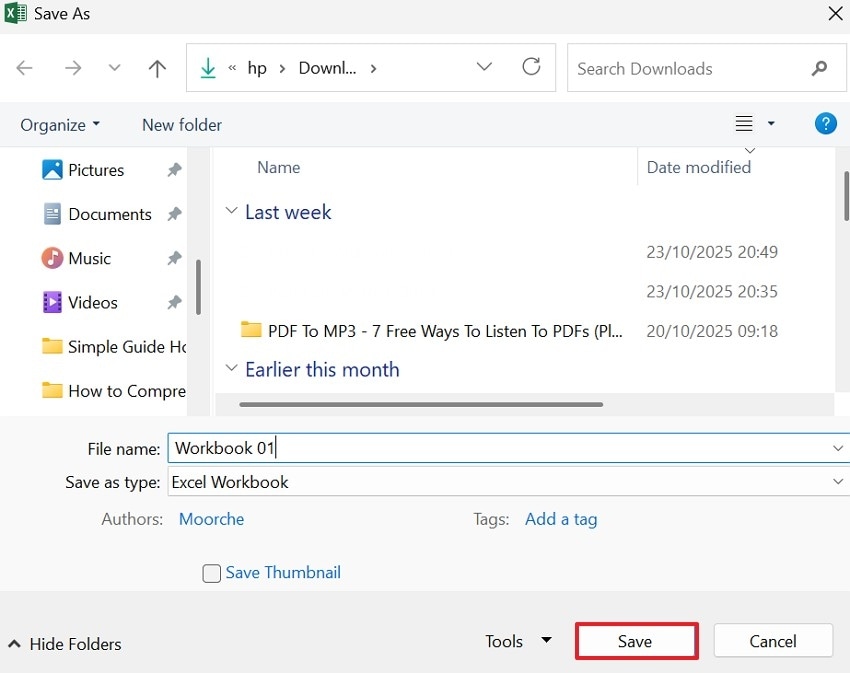
- Next, press “Save As,” select a folder, enter a new name, and hit “Save” for a fresh file.
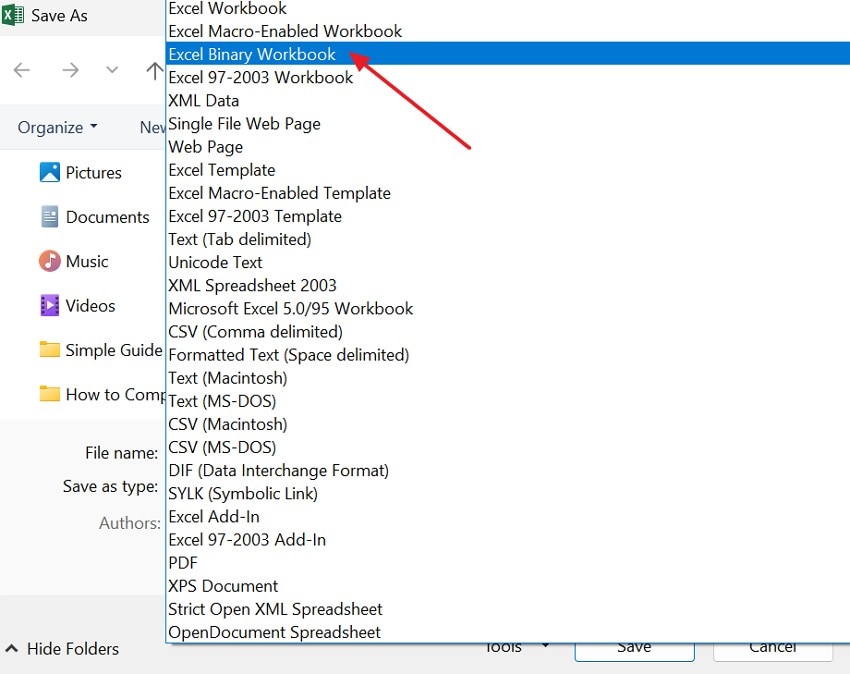
Method 2. Change File Format Before Saving
Switching file type creates a clean version that supports current Excel tools consistently. Older formats can interrupt saving when new features try to update outdated file layouts. Excel saves faster once the design matches what the software expects. Helpful when users ask why won’t excel let me save to Mac during vital changes. Use the steps below to change the file type and restore saving:
- To start, click the “File” option, then select “Save As” and the location.

- Afterwards, open the “File Format” dropdown, select a format from the list, and click “Save” to rebuild the file.
Method 3. Move File to a Local Drive
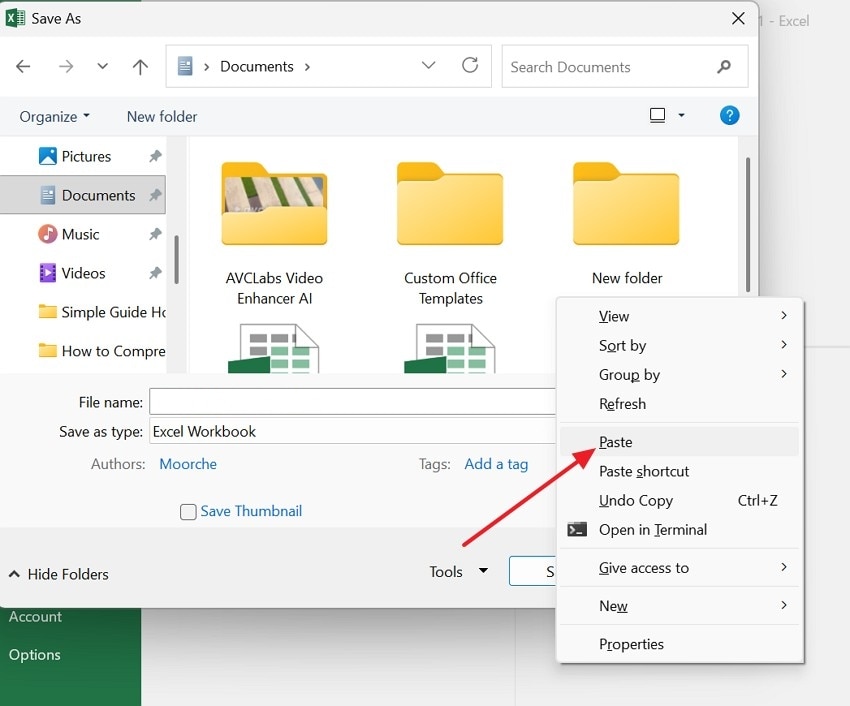
Local storage provides direct access, allowing Excel to write changes without connection delays. Cloud or shared spaces sometimes block saving when links are slow or pause file access. Placing files locally prevents interruptions that can break saving during ongoing tasks. Use this when excel won’t save on remote drives that cause saving trouble. Follow the steps below to move files locally and complete saving smoothly again:
- First, right-click on the “File” in the File Explorer and choose “Copy” to proceed further.
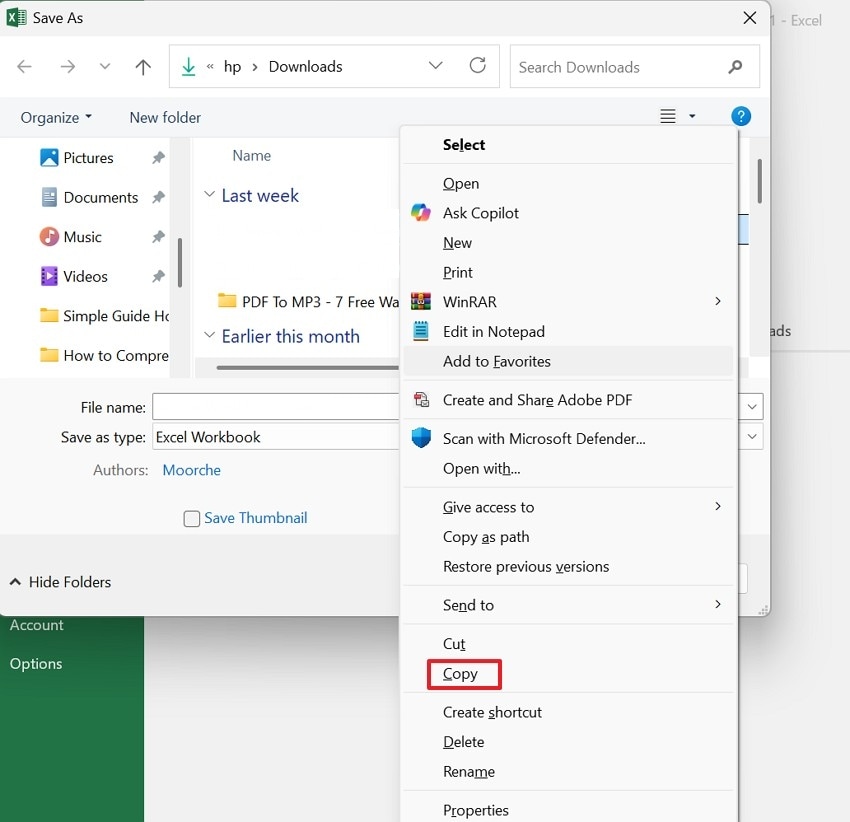
- After that, paste it into “Documents” or “Desktop,” open it, and try saving again.
Method 4. Run Excel in Safe Mode
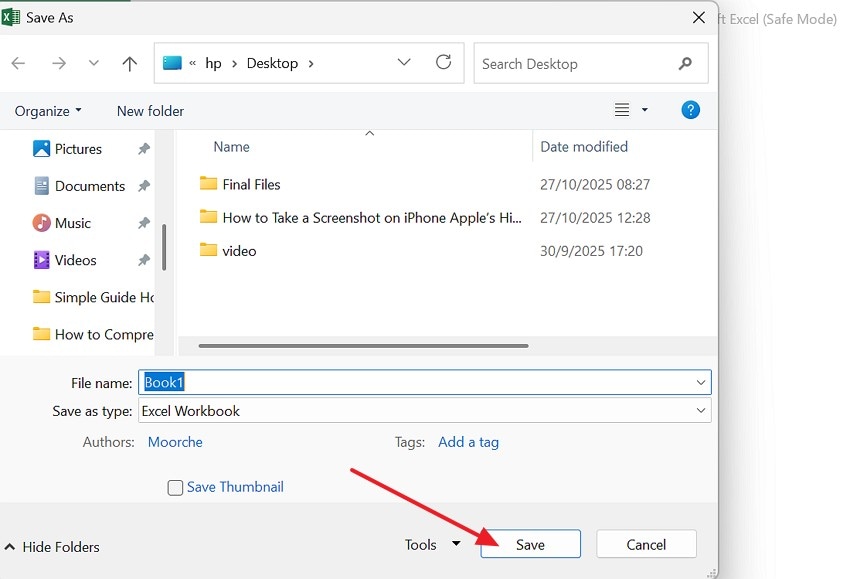
Safe Mode disables tools that alter saving while users update content inside Excel. Excel runs smoothly when add-ins are turned off, avoiding blocks when saving. This fix shows if those tools cause trouble without changing the normal data structure used. Try this when asking why won’t excel let me save while handling large files. Adhere to the guided steps below to test saving while Excel runs in Safe Mode:
- First, hold the “Ctrl” key and double-click “Excel,” then choose “Yes” for Safe Mode.

- Next, try saving again while clicking the “Save” button, to confirm if add-ins were blocking the process.
Part 3. Excel File Still Not Saved? Try Top Advanced Solutions
Persistent failures demand advanced fixes; proceed to proven solutions that restore savings:
Method 1. Repair Excel with the Microsoft Office Repair Tool
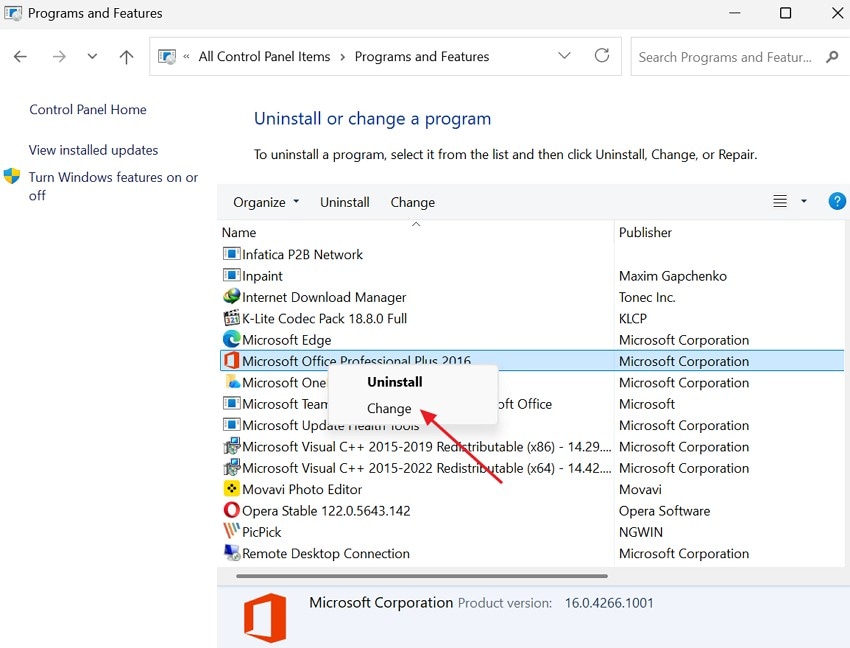
A repair rebuilds important parts that help Excel store file changes without trouble. This method improves savings by restoring broken actions that stop writing new data fully. Repair keeps Excel stable, ensuring everything works during active document editing. It helps resolve excel not saving issues caused by a damaged program with the steps below:
- First, close Excel and go to “Control Panel > Programs > Microsoft Office > Change”.
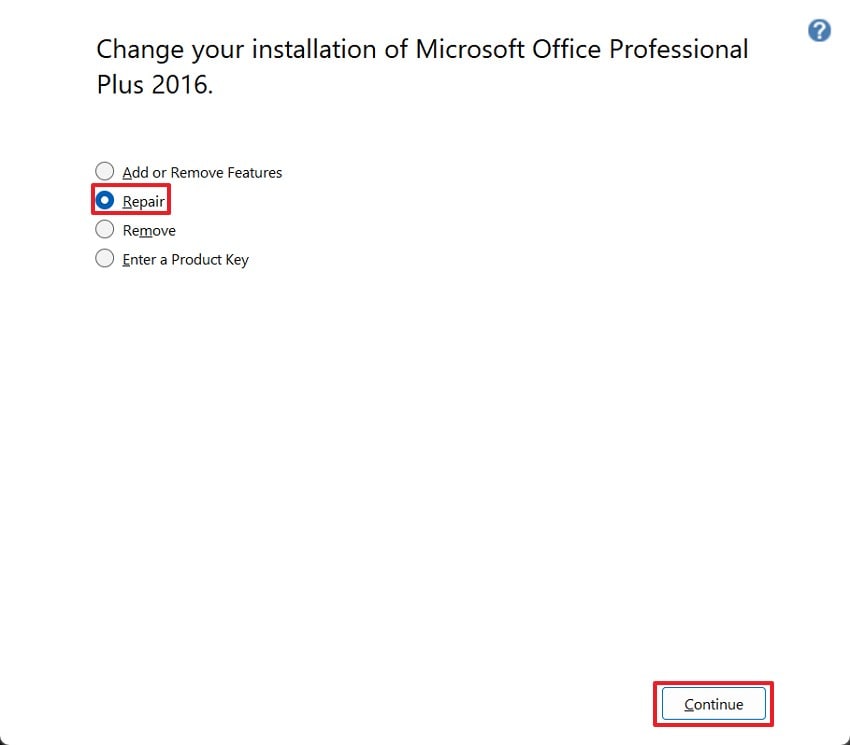
- Then, choose “Repair” and click “Continue” to allow Windows to restore Excel correctly.
Method 2. Reset Excel Preferences or Cache Files
Resetting clears broken settings that interrupt saving while working with fresh changes. Excel loads better when the old cache does not block new editing tasks. This restores normal behavior, allowing files to save without strange pauses between actions. Useful when excel won’t let me save in simple files that should save easily. Apply the steps below to reset settings and help Excel save correctly:
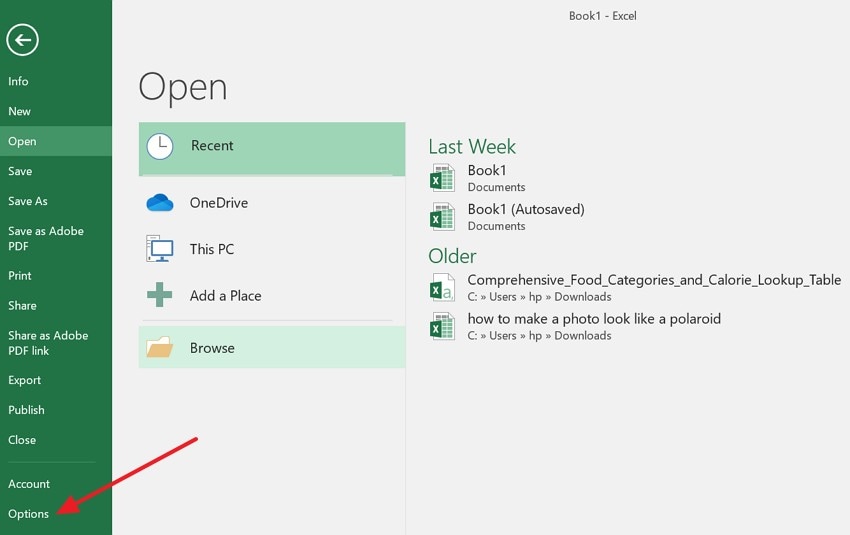
- First, open “File” and then select “Options” at the very last of the list.
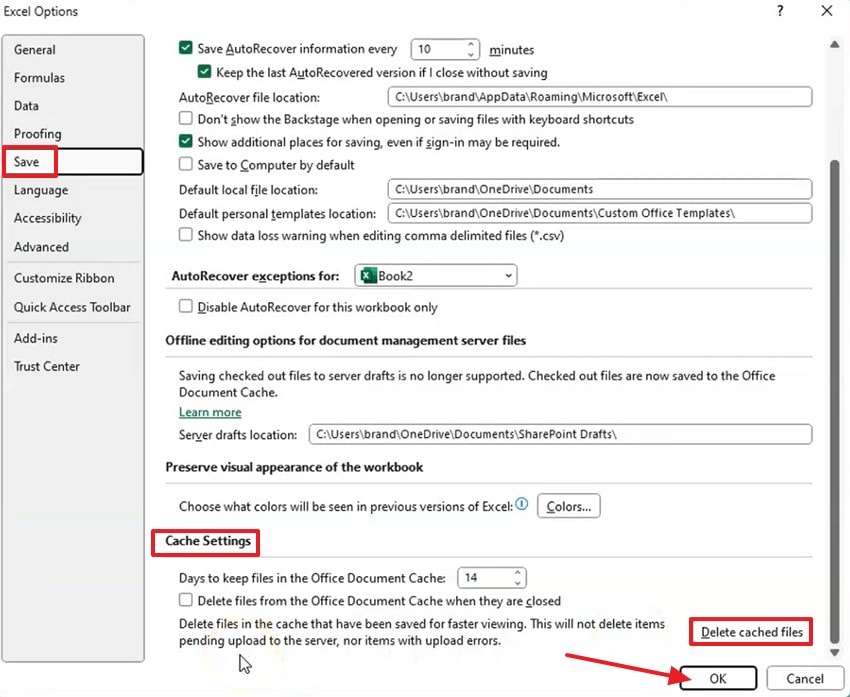
- Next, click on the “Save” option, then under “Cache Settings” click “Delete Cache File” and confirm. Hit the “OK” button to close “Options,” restart Excel, and try saving again.
Method 3. Check File Ownership and Permissions
Full access lets Excel write updates correctly without security blocks stopping file changes. Ownership ensures editing stays under user control while working across shared folder spaces. Saving requires proper rights to be active, so content updates stay protected and stored correctly. Follow these steps below to update permissions and allow saving without blocks:
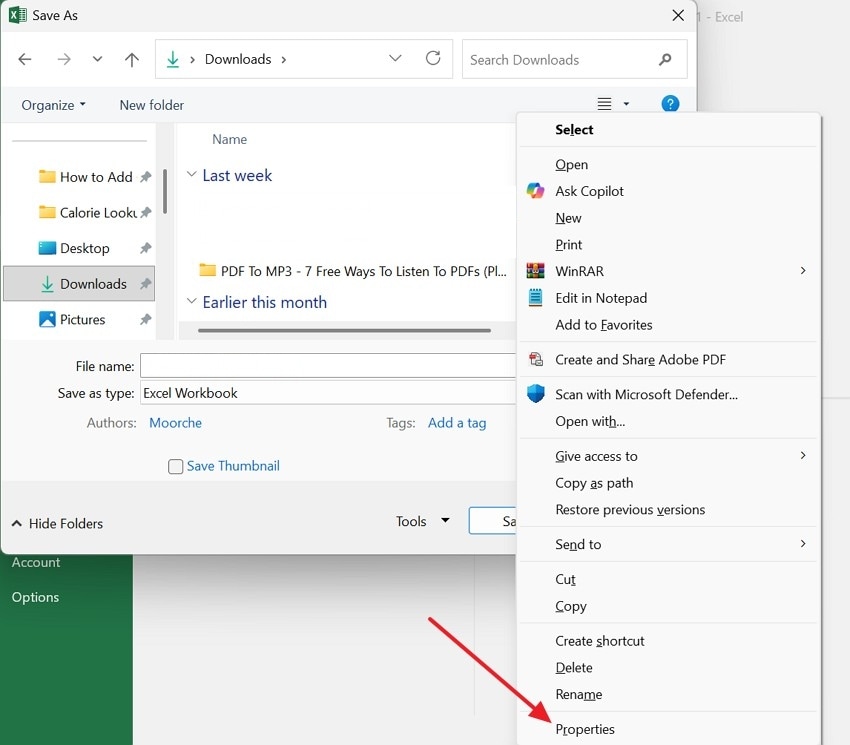
- First, right-click the file, choose “Properties” or “Get Info,” and check access rights.
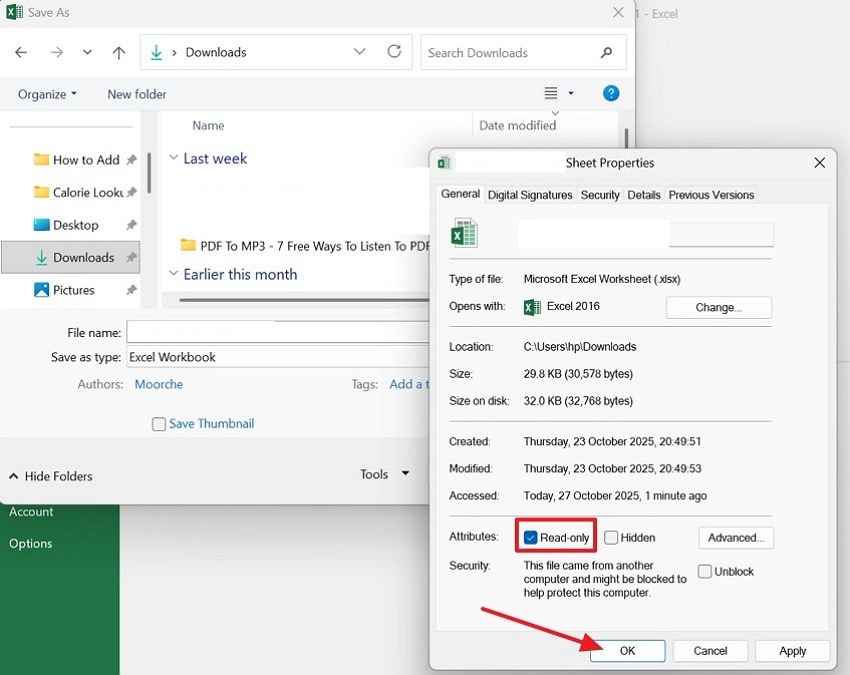
- Next, enable “Read & Write” permissions, then hit “OK” to apply changes, and attempt saving again.
Method 4. Disable AutoSave or Auto Recover Temporarily
AutoSave may lock files, stopping manual saving from finishing correctly during tasks often. Turning it off returns control, so files store changes without long waiting periods. Saving works again once Excel writes updates without temporary locks stopping actions quickly. Useful if excel won’t save while editing fast during heavy workloads on devices. Let’s walk through the stepwise guide below to apply this fix:
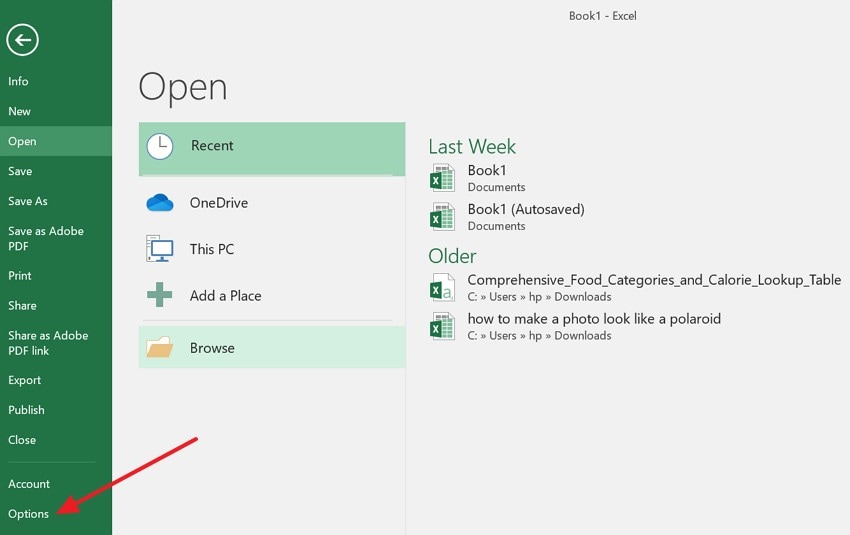
- To begin, access the “File” option and choose the “Options” to move towards the “Save” option.
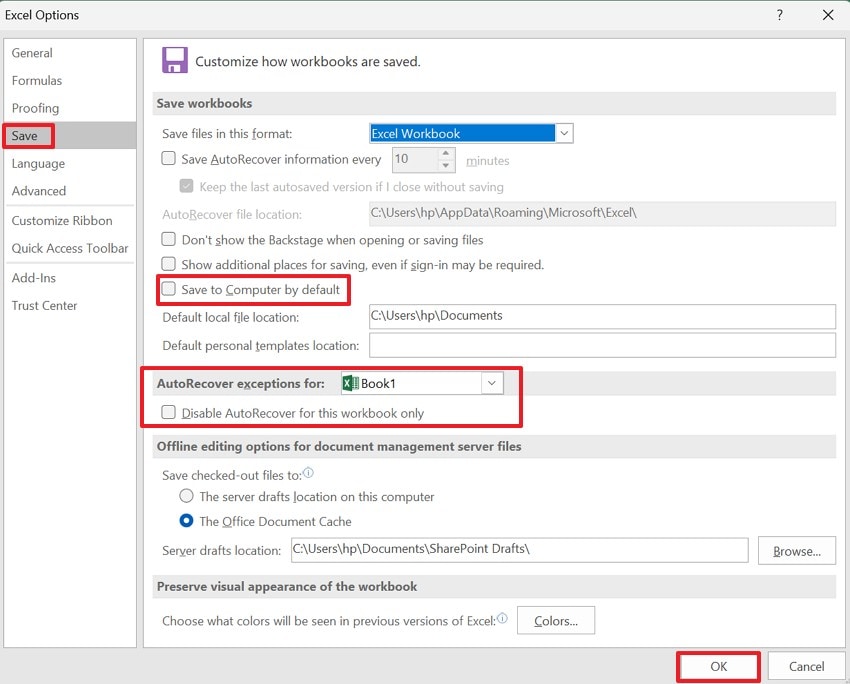
- Next, turn off the “AutoSave” and “Auto Recovery” and click on the “OK’ button to save the file manually to finish your changes.
Pro Tip. What to Do If I Lose My Excel File? Fix with Recoverit
When sheets disappear or become corrupted, important work can vanish within seconds. Recoverit helps recover deleted, lost, or unsaved spreadsheets without damaging your device storage. It supports Windows and Mac, providing safe scanning that locates content across common file locations. Users rely on this tool during computer crashes, sudden shutdowns, or severe errors. It offers peace of mind for excel not saving issues that cause accidental data loss.
Moreover, it includes helpful guidance that walks users through easy recovery steps without confusion. This software works with many storage devices like SSDs, flash drives, and memory cards. Patented recovery technology protects original content through a safe read-only process. With support for multiple data loss scenarios, it keeps valuable information within reach.
Key Features
- Wide Compatibility: Recovers documents, media, and spreadsheets across 1M storage devices.
- Boot Recovery: Restores files when Windows cannot start by creating a bootable media drive for complete secure recovery.
- Preview Ability: Lets users preview Excel content before restoring, so only correct, intact files are recovered safely each time.
Stepwise Guide to Recover Lost Excel Files with Recoverit
Let’s walk through the step-by-step guide to recover deleted or lost Excel files safely using Recoverit:
- Choose the Location for Recovery
First, access the “Hard Drives and Locations” option in the left sidebar to start the recovery.

- Start the Scanning Process
After the scanning starts, all recoverable files will appear under the “Name of Lost Files” folder.

- Preview the Excel Files and Recover
Lastly, preview the Excel files and choose the “Recover” option to complete the recovery process.

Part 5. Preventive Tips Behind the Excel File Not Saving
Use these preventive tips when excel won't save, ensuring files stay secure during work:

- Regular Saving: Save work often using simple shortcuts to keep progress always current and safe. Create extra copies after changes to stop corruption causing unexpected data loss.
- Format Choices: Save files as XLSX or XLSM for complete compatibility with recent features. These formats reduce saving errors when Excel handles updates and automation tasks.
- Safe Storage: Store important files on trusted cloud services, enabling auto-save and history. Cloud copies prevent loss if devices fail or sudden issues damage data.
- Light Content: Remove heavy formatting and unnecessary objects that strain Excel system memory limits. Fewer elements reduce crashes while saving large files with active calculations running.
- Simple Naming: Use short file names without special characters for smooth saving everywhere, always. Save documents in easy folders to prevent path issues that block writing processes.
- Clean Calculation: Remove unnecessary formulas because large calculations increase file size, slowing down saving actions. Use simple functions and keep data light so Excel saves without major problems.
Conclusion
To conclude, when excel won’t let me save, important work gets interrupted, and progress stops. To address this problem, in this article, we explained common causes, simple fixes, advanced repairs, and preventive tips that keep files safe. You can save blocks, restore access, and avoid future issues using trusted methods. For lost or deleted files, Recoverit provides secure recovery to protect valuable spreadsheets.
FAQ
-
1. Why is Excel not saving to my folder location?
Permissions restrict access, blocking file saving inside protected or shared storage areas sometimes. Grant full rights or choose a local path that supports correct writing operations. -
2. How do I fix the saving issues caused by full storage space?
Remove unused files to free space, allowing Excel to write new data correctly. Try saving again once enough storage supports auto updates and manual saving. -
3. Why does Excel show errors during saving after new edits?
Large data, heavy formatting, or add-ins can interrupt important saving processes easily. Simplify content or disable add-ins to restore smooth file writing in Excel. -
4. Can Recoverit restore deleted or unsaved Excel files safely?
Recoverit scans storage locations and finds recently deleted spreadsheets without damage risks. It previews content before restoring, ensuring correct Excel files return successfully.


