

 TL;DR:
Excel users can secure their workbooks by utilizing standard saving shortcuts or cloud syncing, and can resolve common saving failures by addressing Windows path limits or software conflicts.
● Pressing Ctrl + S on Windows or Command + S on Mac instantly updates a workbook, while using the "Save As" command to save in formats like XLSX, XLSB, or CSV forces Excel to rewrite data, eliminating hidden formatting errors and reducing file size.
● To fix "Document not saved" or permission errors, ensure the total file path and name remain under the Windows 260-character limit, verify drive write access, or temporarily disable "Real-time Protection" in Windows Security.
● Unsaved or deleted spreadsheets can be retrieved via Windows File History or OneDrive version history, while permanently lost data requires third-party recovery software like Wondershare Recoverit if autosave was turned off.
Ask AI for a summary
 ChatGPT
 Perplexity
 Gemini
 Claude
 Grok
Grok
Imagine you're working on an important budget report in Excel, and after hours of inputting data, you realize you haven’t saved your workbook yet. Losing that progress can be frustrating, but saving your workbook is a simple process that every user should know. Learning how to save your work correctly ensures your data is secure and easily accessible for future use.
In this article, we will learn how to save a workbook in Excel easily using different techniques. By the end, you will learn various handy methods to save your spreadsheets to your device.
Try Recoverit to Perform Excel Data Recovery
 Security Verified. 3,591,664 people have downloaded it.
In this article

Part 1. Why You Must Know How to Save a Workbook in Excel
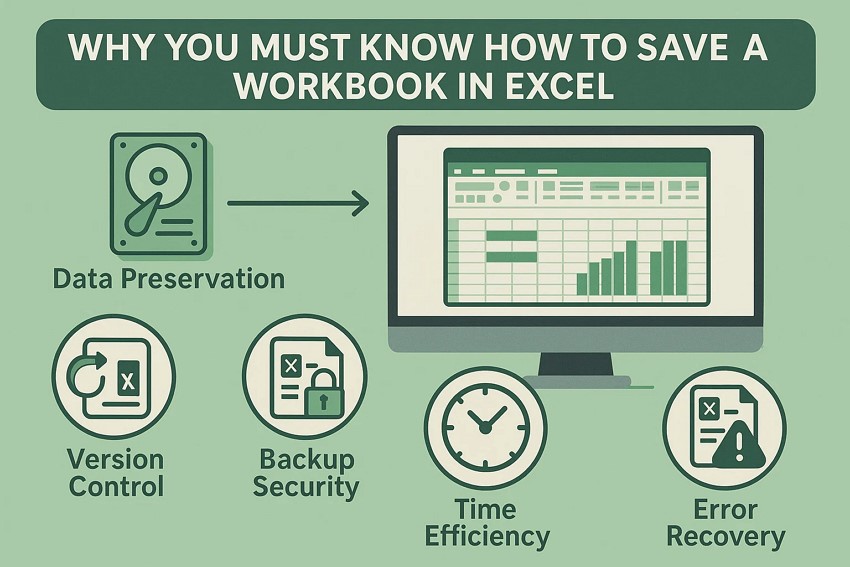
Before moving towards the methods for saving the workbook in Excel, it is important for you to know the reasons for saving these documents. Mentioned below are some of the fundamental reasons why you must know how to save a workbook in Excel:
- Data Preservation: Saving the workbook ensures that all your hard work and data input are safely stored. Without saving, there's a risk of losing important information due to unexpected shutdowns or crashes.
- Version Control: By saving multiple versions of your workbook, you can keep track of changes and revert to earlier versions if needed. This is especially useful when experimenting with data without permanently altering the original.
- Backup Security: Regularly saving workbooks helps create backups that protect against data loss from corruption or accidental deletion.
- Time Efficiency: This prevents the frustration and lost time of redoing work after accidental data loss. It keeps your workflow uninterrupted and efficient.
- Error Recovery: Excel’s autosave and recovery features depend on saved files to restore work after a crash. Knowing how to save enhances your ability to recover lost data quickly.
Part 2. Basic Saving Methods For the Saving Workbook in Excel
After learning about the reasons why you need to save the workbook in Excel, let us explore the basic saving methods of these spreadsheets in the section below:
1. Save a New Workbook for the First Time
Saving a new workbook for the first time in Excel involves creating a permanent file from the initial unsaved document. This method sets the foundation for all future edits by assigning the workbook a specific name and location on your device or cloud storage. To learn how to save a new workbook for the first time, read the steps mentioned below:
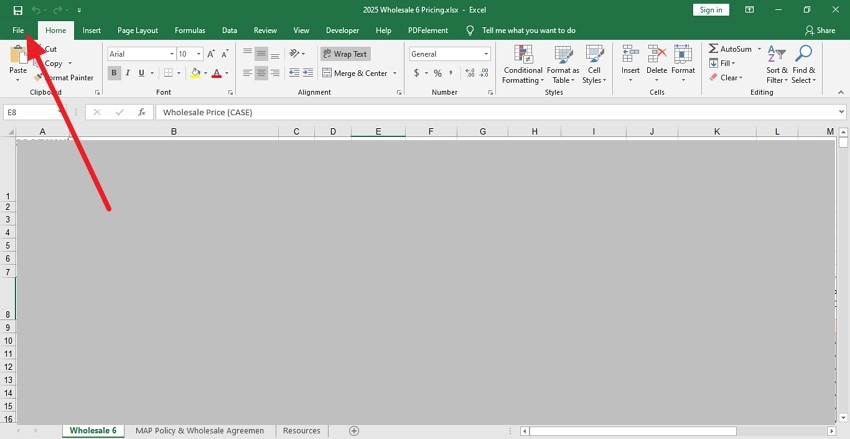
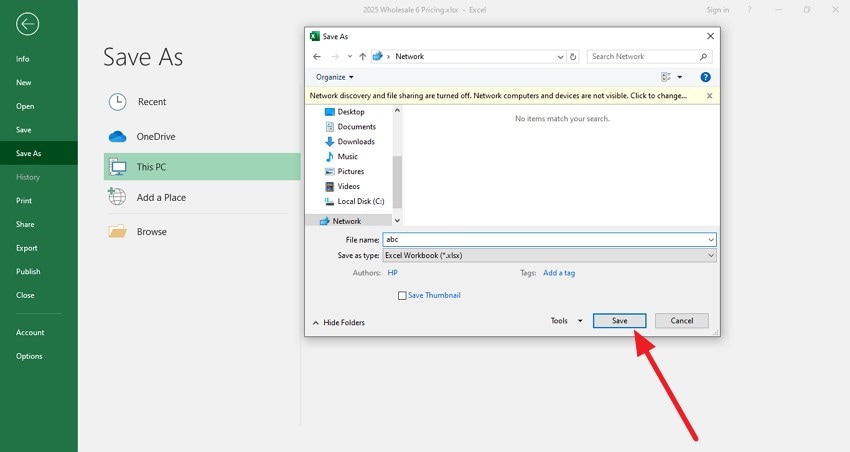
- Once you are done working on the spreadsheet, head to the top-left corner of the interface and press the “File” option.
- In the following interface, click the "Save As" option and choose the location on your device for the file.
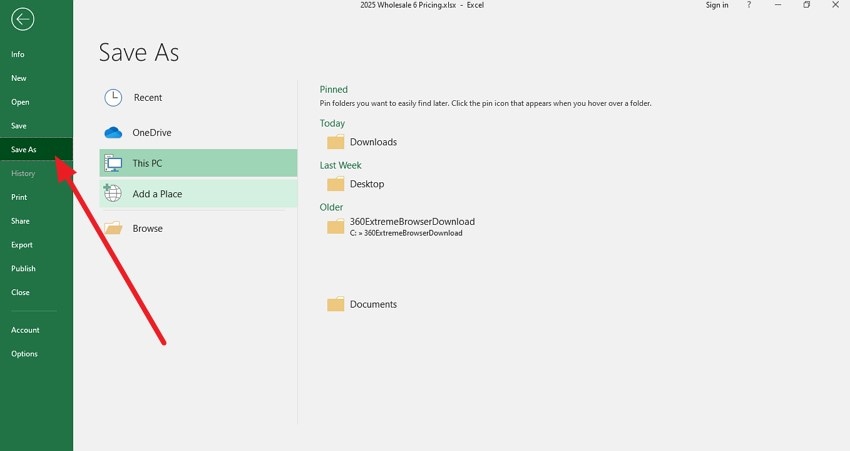
- Give the name to the file to save and press the "Save" button to successfully save the workbook for the first time to your storage.
2. Save Workbook in Excel with a Keyboard Shortcut
Using a keyboard shortcut to save a workbook in Excel is the quickest and most efficient way. The widely used shortcut is Ctrl + S on Windows (or Command + S on Mac), which instantly saves your current workbook. If the workbook is new and has never been saved, this shortcut will prompt you to choose a file name and location. For existing files, it simply updates and saves the latest changes.

3. Force Save Using "Save As" Command
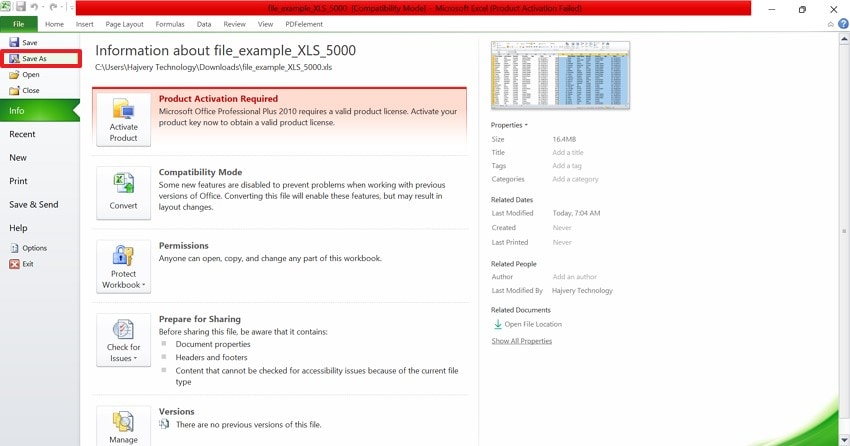
Using the Save As method in Excel is significant because it forces the program to rewrite all data into a new file. This helps eliminate hidden formatting errors, reduce file size, and prevent crashes when working with large or complex spreadsheets. It also ensures a corruption-free version of your workbook for future use. The guide below explains how this method can be used for the Excel workbook Save:
Instructions. To start, select the “File” tab of the Excel file and click the “Save As” option to access the File Explorer. Here, locate the file save folder and save the Excel file.
4. Try Saving to a Different Location
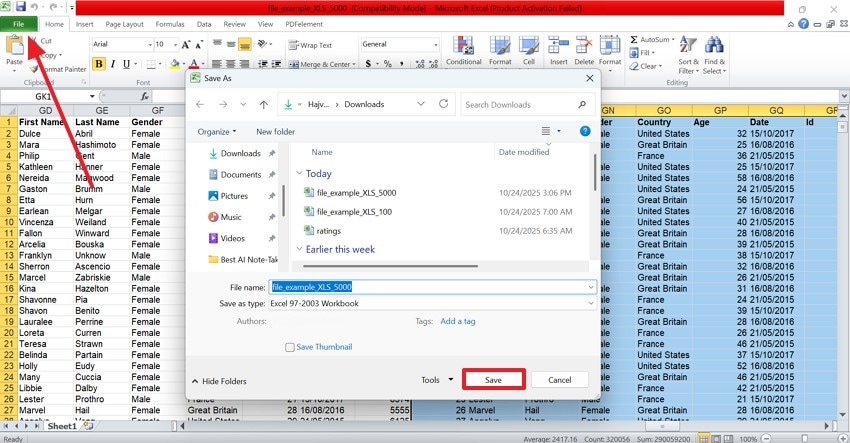
This method in Excel is important when file paths or storage issues prevent saving properly. Changing the destination can bypass network errors, permission problems, or corrupted folders. It helps confirm whether the issue lies in the file or its original save directory. This ensures smoother, more reliable saves for a spreadsheet file. Follow this guide to learn how to save a workbook as an Excel file in a new location:
Instructions. To save the file, enter the “File” tab at the top left and select the “Save As” option from the next interface. Using the File Explorer window, pick a different location and hit the “Save” button.
Part 3. Advanced Solutions to Save a Workbook in Excel
If the solutions mentioned above fail, you can use some advanced solutions for better outcomes. The following section explores the advanced solutions for saving a workbook in Excel:
1. Save the Workbook in Excel as a Different Format
Saving the workbook in a different format, such as XLSX, XLSB, or CSV, can significantly improve compatibility and performance. This method often reduces file size and removes hidden formatting issues that cause lag or crashes. It’s especially useful for large datasets or when sharing files across different Excel versions or systems. Follow this guide to learn how to save a spreadsheet file in some other format:
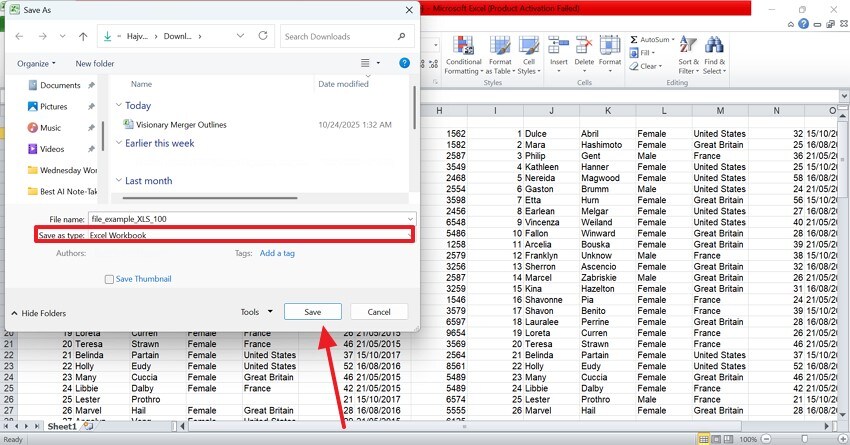
- To save the file in another format, use the “File” tab at the top left and select the “Save As” option from the left panel.
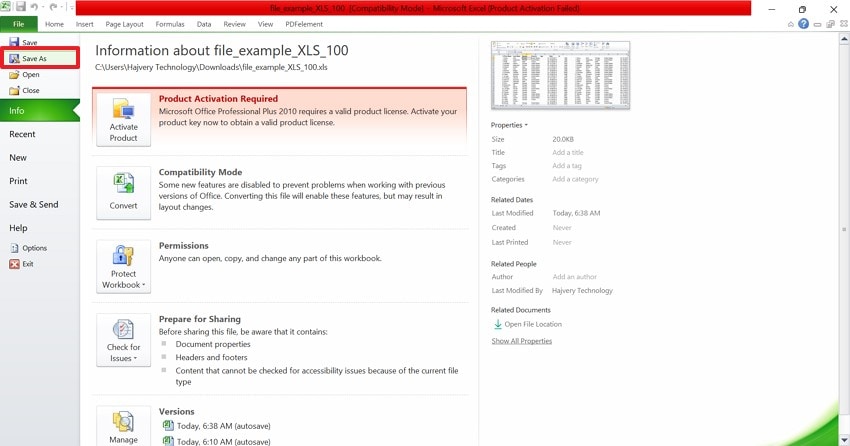
- When the File Explorer opens, open the “Save As Type” menu and pick the “Excel Workbook” or any other format. Hit the “Save” button to save the file in .XLSX format.
2. Save Workbook in Excel to OneDrive or SharePoint
Storing your Excel workbook in OneDrive or SharePoint ensures automatic backups and real-time collaboration with team members. These cloud options prevent data loss from local crashes or device failures while maintaining version history. They also enable seamless access to your workbook from any device, supporting modern remote and hybrid workflows. The guide below explains how to save a spreadsheet to OneDrive:
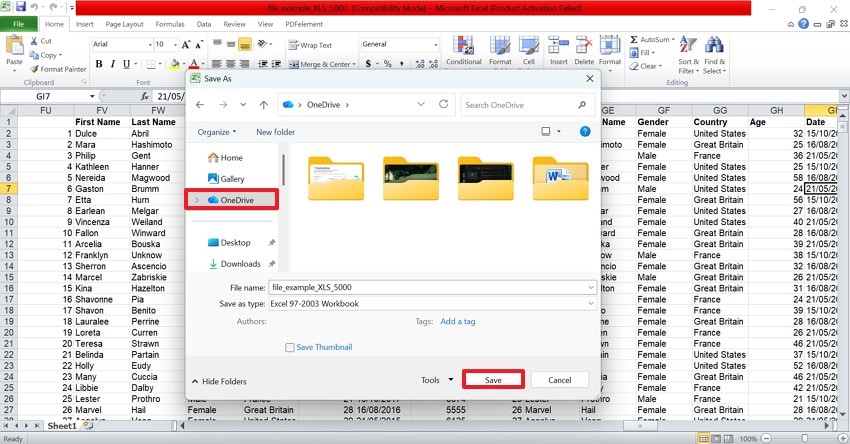
Instructions. For saving the workbook, enter the “File” tab and select the “Save As” option to access the File Explorer window. Using the left panel of this window, enter the “OneDrive” folder and hit the “Save” option to sync the file with the drive.
3. Save Workbook in Excel with Password Protection
Saving your workbook with password protection helps safeguard sensitive financial or business data from unauthorized access. This security feature encrypts your file, making it unreadable without the correct password. It’s ideal for professionals handling confidential reports or shared workbooks that require controlled access and data privacy compliance. The steps below will explain how to save a workbook in Excel with password protection:
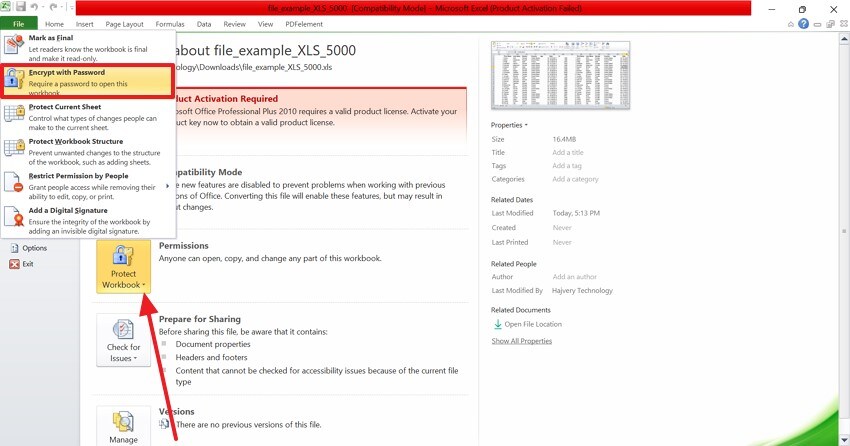
- To start the process, select the “File” tab from the top left and enter the “Info” tab from the left. Now, expand the “Protect Workbook” menu to select the “Encrypt with Password” option.
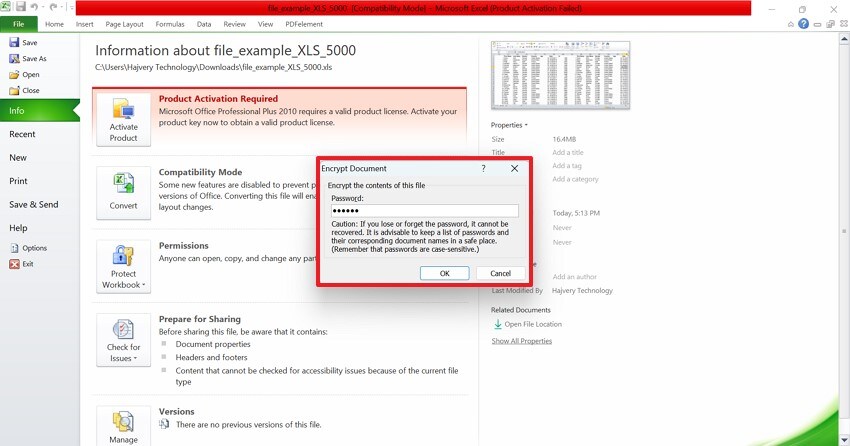
- Using the next window, add a password and hit the “OK” button to save the protection settings.
Part 4. Alternative Solutions To Fix Saving Workbook Errors
Having learned the solutions to save a workbook in Excel, let us now have a look at the alternative solutions to fix saving workbook errors:
1. Disable Conflicting Antivirus or Security Software
One effective alternative to fix Excel saving errors is to disable conflicting antivirus or security software. Sometimes, these programs block Excel's ability to write files correctly, mistaking the saving process for a threat. Temporarily turning off or adjusting the settings of antivirus software can resolve these interruptions. Follow the steps mentioned next to learn how to disable the antivirus of your system before saving the workbook:
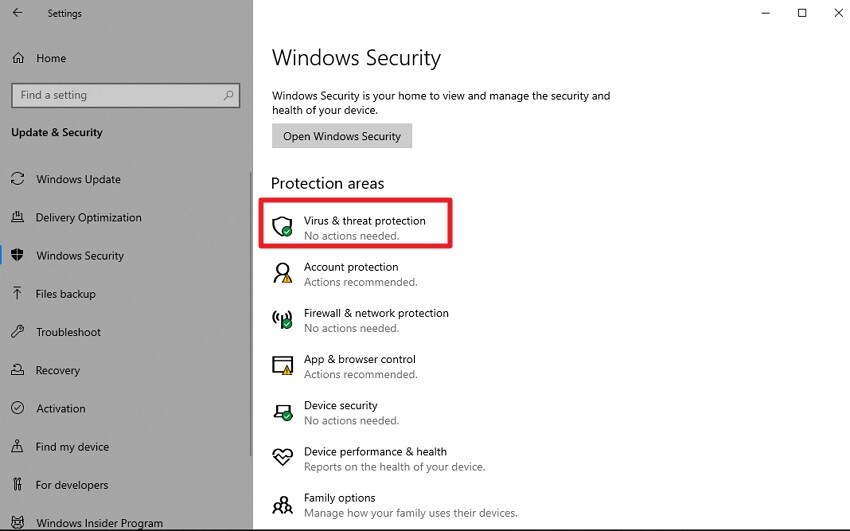
- Begin by accessing Windows' Security on your system and accessing the "Virus and Threat Protection" option from here.
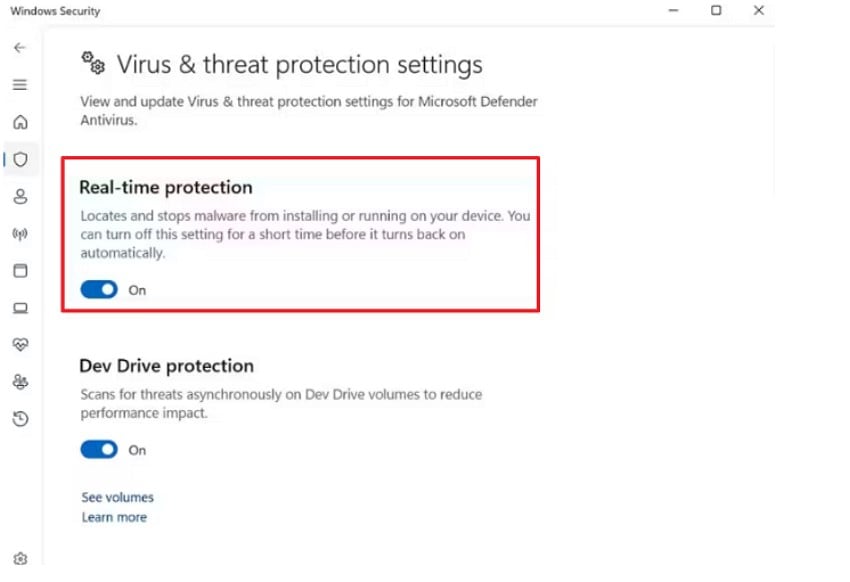
- Turn the toggle off for the “Real-time Protection” option in the following interface to successfully disable the antivirus or security software.
2. Check File Name and Path Length
The maximum length for a file name and its path in Windows is typically 260 characters, which includes the drive letter, folders, and the actual file name. This limit can cause issues when saving Excel workbooks if the path or filename is too long. To avoid errors, keep the total length below this threshold. Here is how you can check the file name and path length for the Excel workbook save:
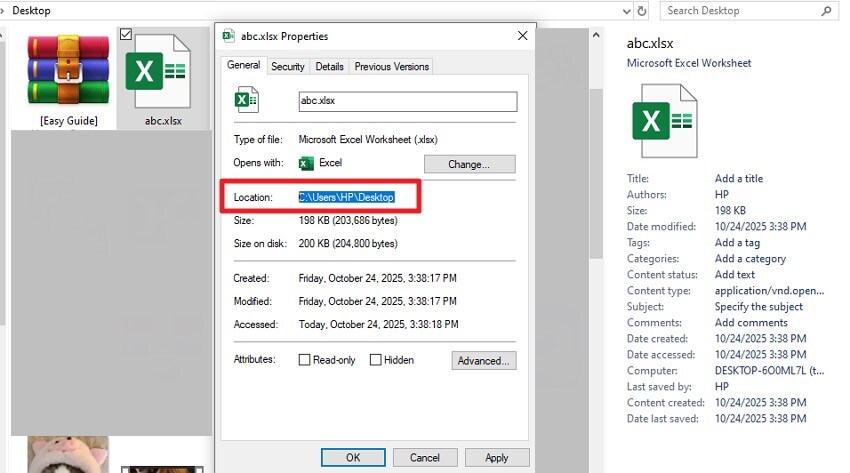
Instructions. Navigate to the file in Windows Explorer, right-click it, select "Properties," and look at the full file path under "Location" combined with the file name. Count the characters to ensure the total doesn’t exceed roughly 260 characters.
3. Repair Excel Application or Office Suite
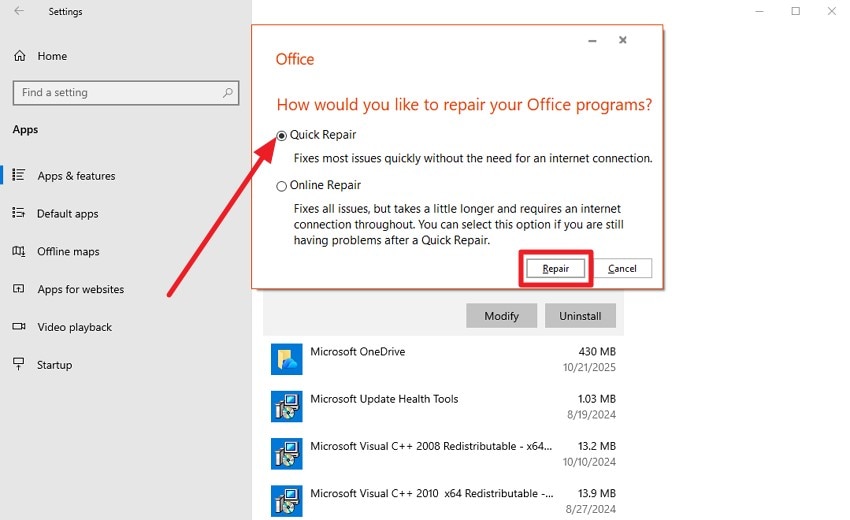
Repairing the Excel application or the entire Office suite is a useful method to fix saving or operational errors. This process restores Excel’s core files and settings without deleting your documents or personal data. Windows offers a Quick Repair solution, which quickly resolves the common issues within the software. To learn how to use this utility for saving a workbook, read the steps provided next:
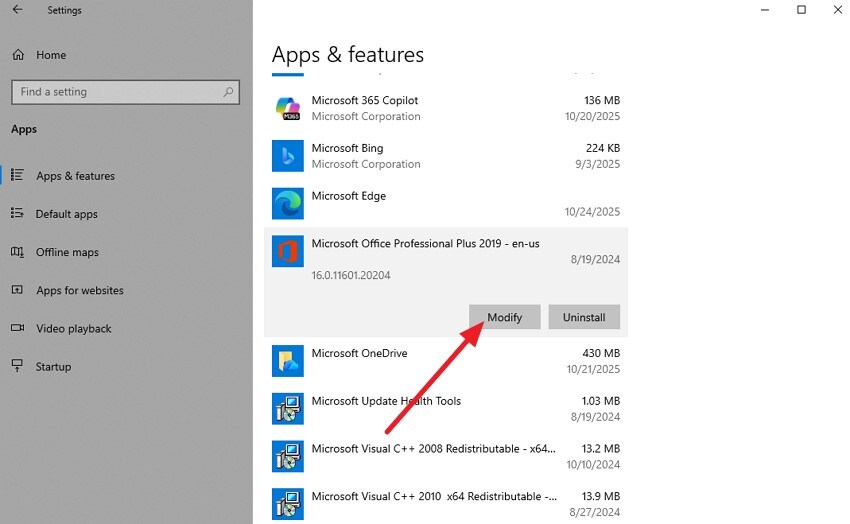
- Start by opening your Windows Settings and navigating to “Apps.” Find Microsoft Office or Microsoft 365 in the list, click on it, and press the “Modify” button.
- Next, select the “Quick Repair” option by clicking on its radio button and then hit the “Repair” button to begin the repair process.
4. Simplify File Content or Remove Problematic Elements
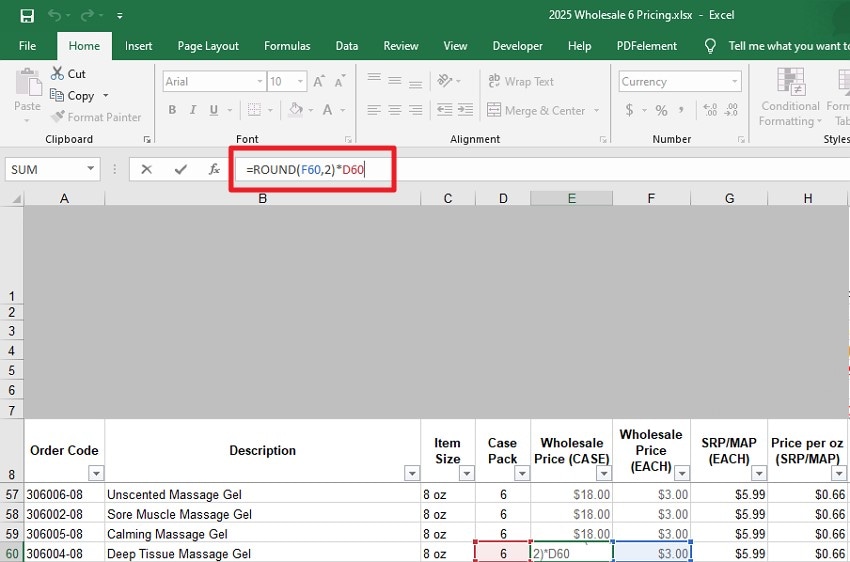
Simplifying file content or removing problematic elements in Excel can help fix saving errors. Sometimes, workbooks contain complex or corrupted objects that cause issues. Simplifying formulas, deleting unused sheets, or clearing excessive formatting reduces complexity. Removing large or unnecessary images and embedded objects can also help.
5. Check Drive Space and Permissions
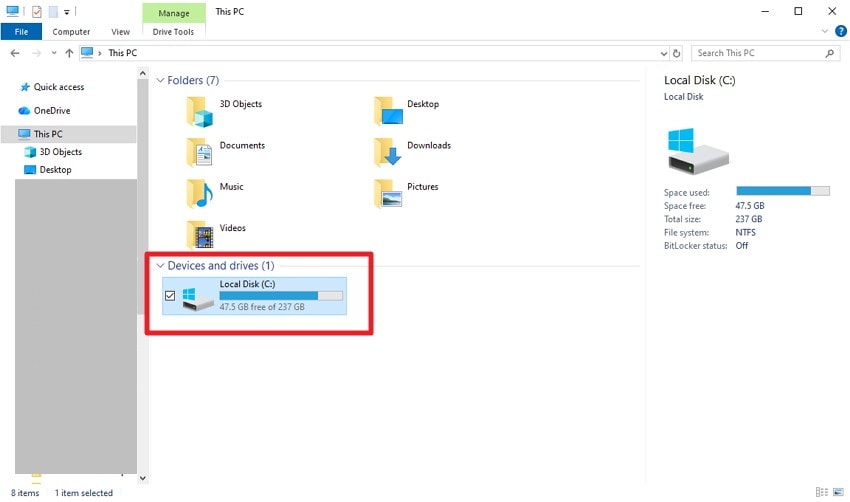
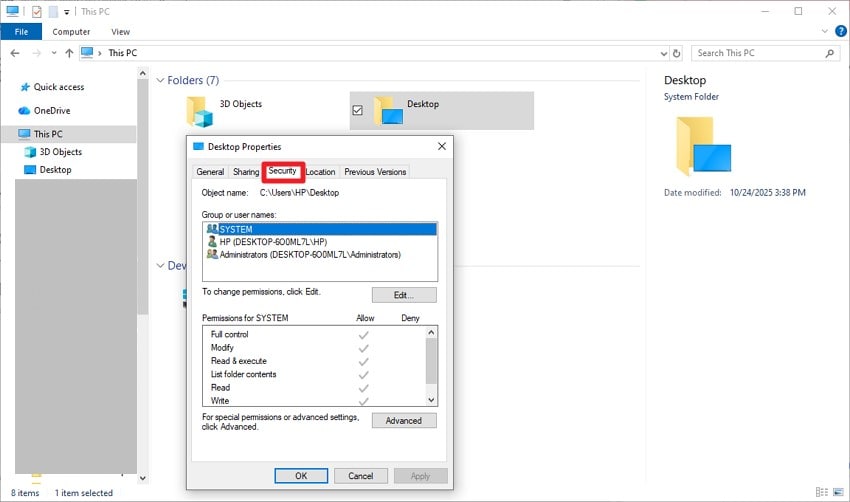
Checking drive space and file permissions is important when you encounter difficulties saving Excel workbooks. If your storage drive is full or nearly full, Excel won’t be able to save changes properly. Additionally, you need the right permissions to write or modify files in the folder. Read the instructions mentioned below to learn how to check drive space and permissions to save a workbook in Excel:
Check Drive Space
Instructions. Open File Explorer and click on "This PC" to see available free space for all your drives listed under "Devices and drives."
Check Permissions
Instructions. Right-click the folder where you save your workbook, select "Properties," and check the "Security" tab to confirm you have write access.
6. Clear Hidden Data/Personal Information Before Sharing
Clearing hidden data and personal information from an Excel workbook before sharing is important to protect privacy and reduce file size. Excel workbooks may contain hidden metadata like comments, tracked changes, document properties, and personal details. Follow the steps mentioned next to learn how to inspect this hidden data to fix Excel workbook save issues:
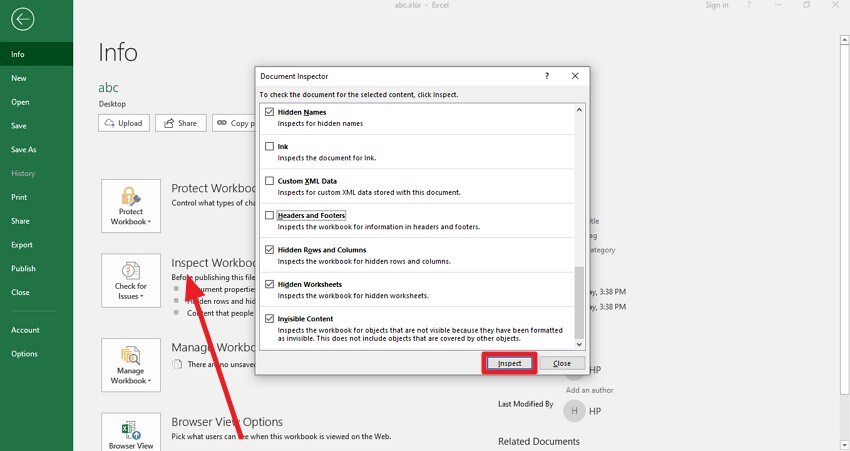
- Click the “File” option and head to the Info section. Next, click on the “Inspect Workbook” option and choose the hidden content you want to inspect by ticking the checkbox in the next window. Finally, hit the “Inspect” button to execute the process.
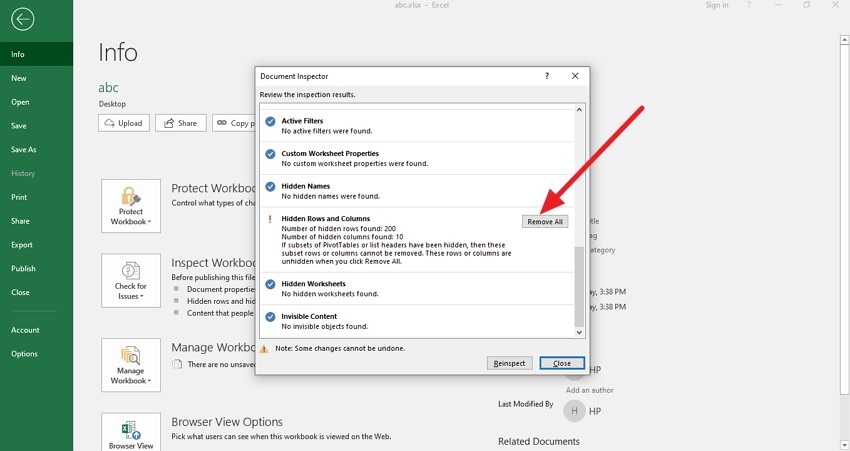
- Once the inspection is complete, the tool will show all the hidden data, which you can remove using the “Remove All” button. Alternatively, hit the “Reinspect” or “Cancel” buttons located within the interface.
Part 5. Recover Deleted or Lost Excel Files: How to Do It With Recoverit
Now that we know a lot about fixing the saving workbook errors, let's discuss more. Losing an Excel file is equally frustrating as witnessing saving errors. Recoverit is an efficient Excel file recovery tool that has the ability to retrieve 1,000 other formats of files as well. With its “File Preview” feature, users can take a look at the recovered documents to ensure the effectiveness of the process.
This platform offers functionality for over 1M+ storage devices, including hard drives, memory cards, and flash drives. It further enhances its flexibility by supporting both Windows and Mac. Although the file scan process is automated, the users are free to add a custom search filter. In case you are not able to find the intended file through the Quick Scan, then find it through Deep Scan.
Key Features
- Advanced Recovery Mode: Recoverit also offers an advanced recovery mode to recover severely damaged files and folders in no time.
- Scenario Support: You can retrieve files from more than 10,000 scenarios of a missing Excel file.
- Batch Recovery: This platform allows for multiple retrievals per task through its batch processing feature.
Using Recoverit to Retrieve Missing Excel Files
Now that we know the file restoration abilities of Recoverit, let’s see how it can help you restore files. The steps below feature a guide on using this tool to recover a lost Excel file:
1. Select the Folder with Your Missing Excel File
To start the process, open Recoverit and select the potential location of your missing file from the left panel.

2. Recover the Missing Files to Proceed
When the missing files appear, select them and click the "Recover" button located at the bottom.

3. Preview the Results
As the Excel files are recovered, preview them and hit the “Recover” button to save them successfully to your device.

Conclusion
All in all, this article was a complete overview of the errors encountered while saving an Excel file and the solutions to these issues. This guide covered easy to advanced fixes to save the workbook to cater to all levels of users. However, we discussed the process of recovering a lost Excel file using Recoverit. This tool offers quick retrieval solutions, supporting over 1,000 file formats and more than 10,000 lost file scenarios.
FAQ
-
1. How do I recover a deleted Excel file from my computer?
Check the Recycle Bin and manually locate the missing file first. If it’s not there, use “File History” or OneDrive version history to restore an older copy. When these methods fail, use Recoverit and benefit from its batch-recovery feature for maximized productivity. -
2. Can I recover a file if autosave was turned off?
This can be done, but only if Windows File History, OneDrive, or another backup tool was active before the loss occurred. However, you can always use Recoverit to restore a sheet file, whatever the cause. -
3. Why is Excel not letting me save my workbook?
This often happens due to file corruption, permission issues, or insufficient storage space. Try saving in a new location or under a new name. -
4. Why do I get the “Document not saved” error in Excel?
It usually means Excel lost connection to the save location or there’s a permission issue. Save the file locally and copy it to the intended folder.


