

 TL;DR:
UFS Explorer (version 10.21.1) is a highly technical data recovery tool suited for IT professionals handling complex disk images, virtual machines, and RAID arrays, while Wondershare Recoverit is the recommended alternative for everyday users needing guided file recovery from standard readable storage.
● UFS Explorer Standard Recovery ($69.95) is restricted to single-disk logical recovery, requiring users to purchase the RAID Recovery ($149.95) or Professional ($699.95) editions to reconstruct multi-disk NAS or RAID configurations.
● The software cannot bypass security protocols and strictly requires the legitimate password, passphrase, or recovery key to access BitLocker, BitLocker To Go, or APFS-encrypted volumes.
● The free trial permits unlimited scanning, file previewing, and disk imaging to verify recoverability, but it restricts saving any individual recovered file larger than 256 KB prior to purchasing a license.
Ask AI for a summary
 ChatGPT
 Perplexity
 Gemini
 Claude
 Grok
Grok
UFS Explorer is a powerful data recovery product family for deleted files, formatted volumes, RAW or inaccessible partitions, disk images, virtual disks, encrypted volumes, NAS storage, and complex RAID cases. It is one of the more technical recovery tools on the market, and that is both its biggest advantage and its biggest drawback.
This updated UFS Explorer review checks its current features, safety, pricing, user experience, recovery workflow, Reddit feedback, and fit for home users versus technicians. It also compares UFS Explorer with Wondershare Recoverit, a simpler data recovery alternative for users who need guided recovery from readable drives, memory cards, USB drives, crashed computers, and common storage devices.
Data safety first: never install recovery software on the storage device you are trying to recover. If the drive clicks, overheats, disconnects, or is not detected, create a disk image first where possible or stop DIY recovery and consider a professional service. Save recovered data to a different healthy drive.
In this article

Part 1. UFS Explorer Review Verdict
Quick verdict: UFS Explorer is worth it for advanced users, IT technicians, data recovery labs, and users dealing with complex file systems, disk images, virtual machines, encrypted volumes, NAS devices, or RAID arrays. It is less ideal for casual users who only need to recover deleted files from a USB drive, SD card, or single hard drive with minimal setup.
| Review Area | 2026 Verdict | What It Means |
| Overall rating | 4.3/5 for advanced data recovery | Excellent technical depth, but the workflow can feel heavy for beginners. |
| Latest version checked | UFS Explorer Standard Recovery 10.21.1, updated on 17.07.2026 | The official SYSDEV release log shows active development and recent fixes. |
| Best for | Complex storage, file systems, disk images, virtual disks, encrypted volumes, and RAID/NAS cases | Choose the correct edition; Standard is not meant for complex RAID work. |
| Not ideal for | Beginners who want a simple three-step recovery app | Recoverit is easier for common deleted-file, formatted-drive, and external-device recovery. |
| Free trial | Unlimited scanning and preview; saving is limited to small files up to 256 KB per file | Good for verifying whether files are found before purchase. |
| Pricing | Standard Recovery starts at $69.95; RAID Recovery starts at $149.95; Professional Recovery starts at $699.95 | Pricing is fair for technical work but expensive for one-time casual recovery. |
Review Scorecard
| Category | Score | Review Notes |
| Technical recovery depth | 4.8/5 | Strong support for file systems, disk images, virtual disks, encryption, damaged volumes, and advanced scan workflows. |
| RAID and NAS capability | 4.6/5 | Excellent when using RAID Recovery, Network RAID, or Professional editions; Standard Recovery is for single-disk and simpler cases. |
| Ease of use | 3.4/5 | Usable, but the interface is technical and assumes users understand disks, partitions, file systems, imaging, and scan parameters. |
| Safety | 4.6/5 | Read-only operation and disk imaging reduce risk when used correctly. |
| Pricing value | 3.8/5 | Good value for advanced recovery work, but overkill for simple deleted-file recovery. |
| Beginner fit | 3.2/5 | Recoverit is more approachable for non-technical users. |
Who Should Use It
| User Situation | Use UFS Explorer? | Recommended Edition or Alternative |
| Deleted files from a normal HDD, SSD, USB drive, or SD card | Yes, but it may be more technical than needed. | UFS Explorer Standard Recovery or Recoverit for a simpler guided workflow. |
| Formatted, RAW, or inaccessible partition | Yes. | Standard Recovery is suitable for single-disk cases. |
| NAS, RAID 0/1/5/6, Drobo, Synology, QNAP, or complex multi-disk storage | Yes, with the right edition. | UFS Explorer RAID Recovery, Network RAID, or Professional Recovery. |
| BitLocker or APFS-encrypted volume | Yes, if you have the legitimate key or password. | UFS Explorer can unlock supported encrypted volumes but cannot bypass encryption. |
| Clicking or physically failed drive | No repeated software scans. | Create an image only if safe, or use professional recovery. |
Part 2. Key Features That Make UFS Explorer Stand Out
UFS Explorer Standard Recovery is a cross-platform data recovery tool for common logical recovery cases. The broader UFS Explorer product family also includes RAID Recovery, Network RAID, Professional Recovery, Technician, and Video Recovery editions for more specialized workflows.
- System support: UFS Explorer runs on Windows, macOS, and Linux. Standard Recovery supports major file systems including FAT/FAT32/exFAT, NTFS, ReFS, APFS, HFS+, Ext2/3/4, XFS, Btrfs, UFS/UFS2, ZFS, ISO 9660, and UDF.
- Disk image and virtual disk support: It can work with RAW/IMG, VMDK, VHD/VHDX, QCOW2, VDI, DMG, Parallels images, and other disk image formats.
- Recovery from damaged or formatted storage: It supports quick scans, deep scans, and IntelliRAW signature scans for missing files when file system metadata is damaged.
- Advanced disk imaging: The built-in imager helps create a sector-by-sector copy of unstable media, allowing recovery from an image rather than repeatedly reading the original device.
- Encrypted volume access: It can unlock BitLocker, BitLocker To Go, and APFS-encrypted volumes with valid credentials. It does not crack or bypass encryption.
- RAID and NAS support in higher editions: RAID Recovery and Professional editions support more complex RAID/NAS layouts than Standard Recovery.

Part 3. Performance and Safety Insights
UFS Explorer is more credible when judged by its capabilities and workflow rather than unsupported success-rate claims. The original draft mentioned fixed scan times and recovery percentages, but those numbers should not be used without a documented test setup. Real results depend on drive health, file system damage, overwriting, encryption, interface speed, RAID layout, and whether recovery is performed from the original drive or an image.
| Performance Area | What It Does Well | What to Keep in Mind |
| Scan accuracy | Supports metadata scans, sector-by-sector deep scans, and IntelliRAW signature recovery. | Deleted data cannot be recovered if it has been overwritten. |
| File system handling | Strong coverage for NTFS, Ext4, APFS, HFS+, XFS, Btrfs, ZFS, FAT32, and exFAT. | Folder structure quality depends on whether original metadata still exists. |
| RAID and large volumes | RAID-focused editions provide advanced reconstruction and analysis tools. | The correct RAID parameters and edition matter; wrong reconstruction can produce unusable results. |
| Resource usage | Advanced settings let technical users tune scan, cache, and imaging behavior. | Large images and RAID arrays may require significant RAM, storage, and time. |
| Trial evaluation | Scanning, preview, and disk imaging are available in the trial; saving is limited by file size. | Preview recoverable files before buying a license. |
Safety Criteria in Using UFS Explorer
- Read-only source access: UFS Explorer states that it does not write to the source storage during recovery operations, which reduces the risk of further logical damage.
- Local processing: Recovery is performed on the user's computer, so files are not uploaded to a third-party cloud for scanning.
- Image first for unstable drives: For drives with bad sectors or slow response, create a disk image and recover from the image rather than repeatedly scanning the original drive.
- Install on a healthy drive: Installing the software on the damaged drive may overwrite recoverable sectors.
- Use valid credentials for encrypted volumes: UFS Explorer can work with supported encrypted volumes only when the legitimate password, passphrase, or recovery key is available.
Part 4. User Experience and Recovery Workflow
UFS Explorer gives users strong control, but its interface is built for people who understand storage structure. The device tree, file system modules, scan parameters, disk imaging, RAID tools, and hex viewer are useful for experts. For beginners, the same depth can feel dense compared with consumer-focused tools.
Comprehensive Data Recovery Process
The original screenshots below are retained in the same workflow positions. The steps have been rewritten to make the process safer and more direct.
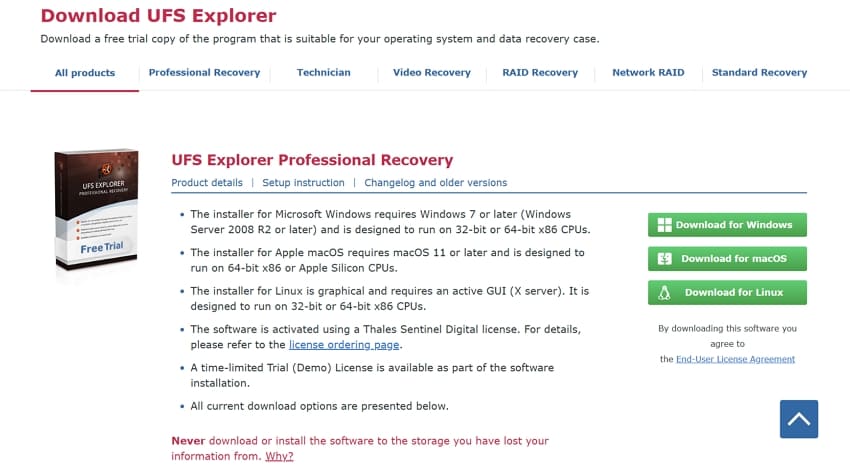
- Install safely on a healthy drive.
Install the correct UFS Explorer edition on a clean system drive or another healthy storage device. Never install it on the damaged drive you want to recover.
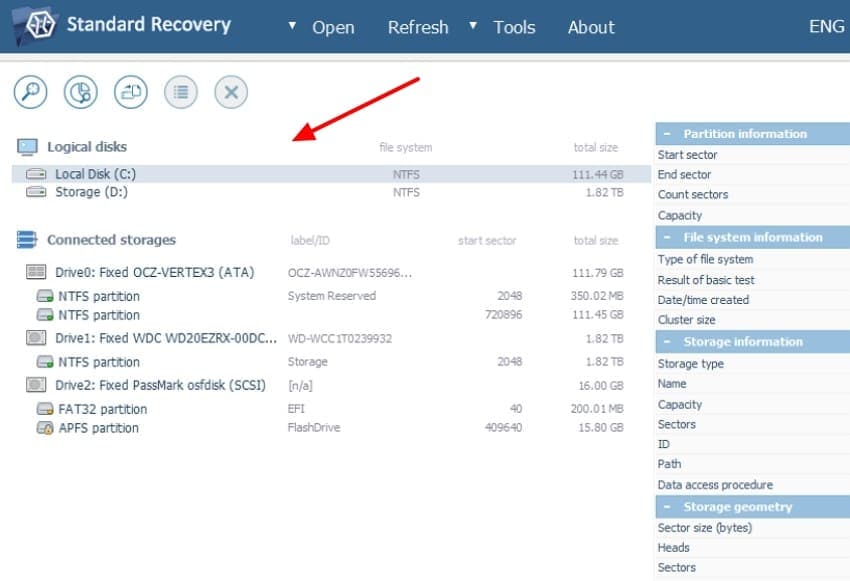
- Select the target device.
Open UFS Explorer and choose the drive, partition, RAID array, or disk image from the device tree. If the physical drive is unstable, use an image file instead.
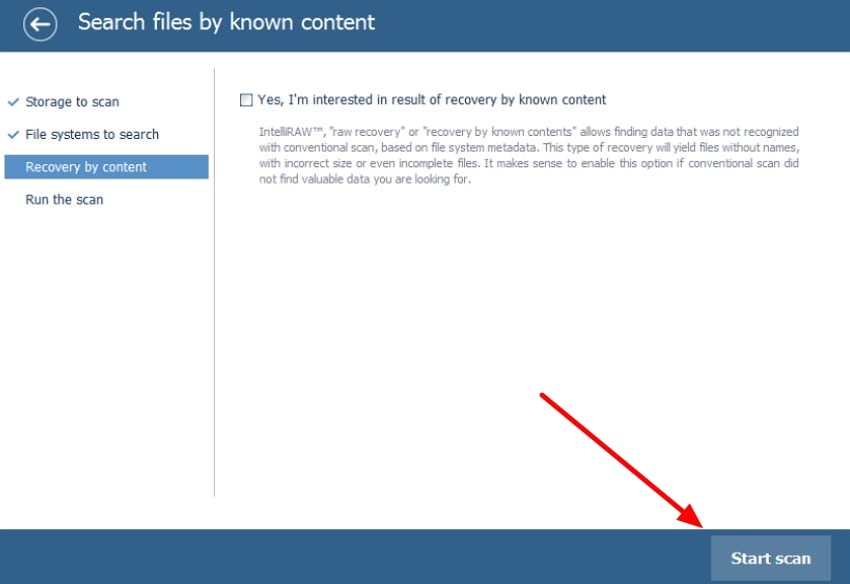
- Start the scan.
Click Start Scan, choose the likely file systems, and enable deeper or IntelliRAW scanning when file system metadata is missing or damaged.
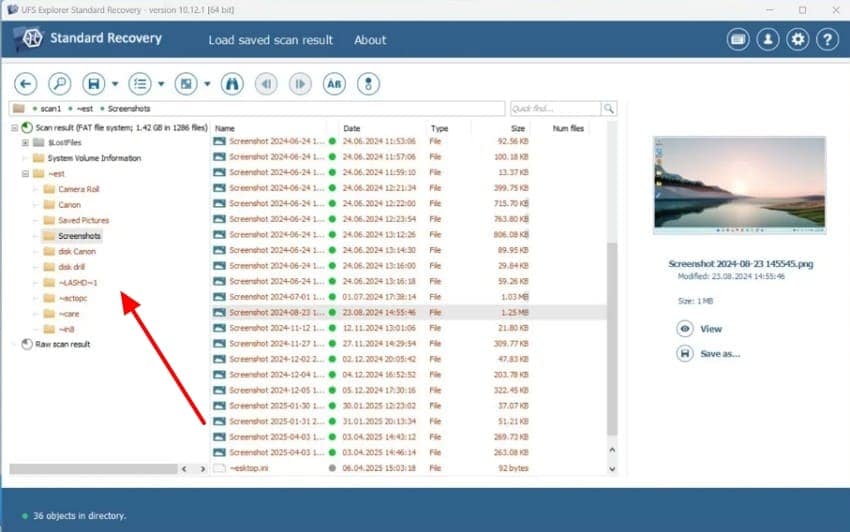
- Review and analyze results.
Browse the scan result tree, preview files, use search and filters, and mark the data you want to recover. Save the scan session if the recovery case is large.
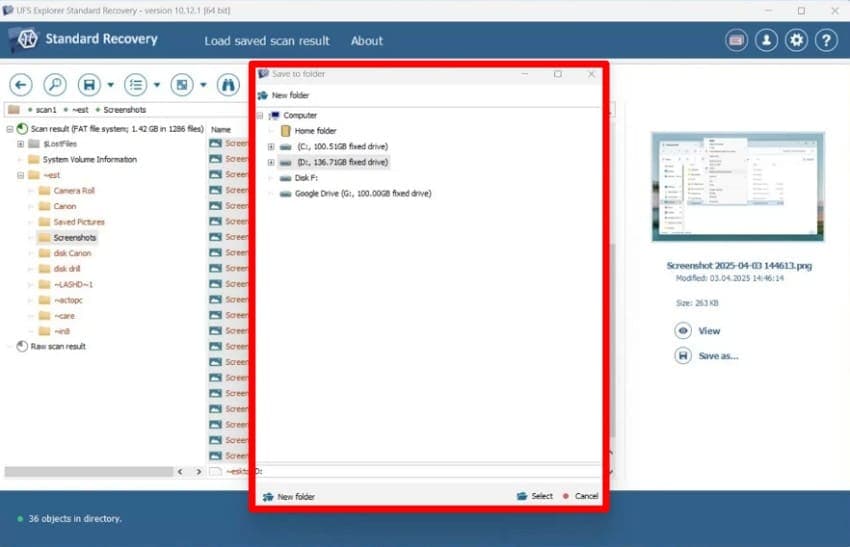
- Save recovered data safely.
Use Save as or the recovery copy function to save selected files to a different healthy drive. Never save recovered files back to the source storage.
User Feedback From Reddit
User comments from data recovery communities show why UFS Explorer is respected by technicians but can be frustrating in difficult cases. Positive comments often mention successful recovery of large sets of files with names, attributes, and structure preserved. Negative comments tend to involve long scans, stalled operations, Drobo/RAID complexity, or inconvenient recovered folder naming.
Positive user feedback:
- "I started UFS Explorer on Disk 2, and like DiskDrill, it took it approximately 5 days. I was able to successfully recover the vast majority of files with not only the file names but the extended attributes..." - Bobby6kennedy on Reddit
- "From my research, the best decision as to which program to purchase would be between UFS Standard Recovery $64.95 vs DMDE Standard Edition..." - Reindeer993 on Reddit
Negative user feedback:
- "Recovering a Drobo 5 drive set... after 2 weeks of letting ufs run against it..." - Delchi on Reddit
- "One of my main complaints about UFS is their default of using hidden folders for data recovered from outside of the filesystem..." - thefanum on Reddit
Part 5. UFS Explorer Pricing Plans
UFS Explorer pricing depends on edition, license type, operating system, and use case. Current official order pages list perpetual licenses with 360 days of free updates for many editions. Prices below are current public prices checked from the official order page, but users should verify them before purchase.
| Edition | Entry License | Current Starting Price | Best For |
| Standard Recovery | Personal, one user, one computer, one OS | $69.95 | Deleted files, formatted drives, RAW partitions, virtual disks, encrypted single-disk volumes, and common logical recovery. |
| RAID Recovery | Personal, one user, one computer, one OS | $149.95 | RAID arrays, NAS, spanned volumes, and complex multi-disk storage. |
| Network RAID | Personal, one user, one computer, one OS | $229.95 | Network-based RAID recovery workflows and remote storage configurations. |
| Professional Recovery | Commercial, one seat | $699.95 | Professional labs and service providers that need deeper tools and broad storage handling. |
| Technician | Commercial, 3-month license | $469.95 | Short-term professional use where technician-level features are required. |
Value verdict: UFS Explorer is not a cheap casual recovery app, but its price is reasonable for advanced technical recovery. If you only need to recover deleted files from a readable drive, Recoverit may be more practical. If you need RAID/NAS reconstruction or advanced file system support, UFS Explorer can justify the cost.
Part 6. UFS Explorer Pros and Cons
| Pros | Cons | Best Fit |
| Excellent file system coverage across Windows, macOS, Linux, BSD, Solaris, and virtual disks | More technical than beginner-focused recovery apps | Advanced users and technicians |
| Read-only recovery workflow and strong disk imaging tools | Wrong edition choice can limit RAID/NAS recovery | Unstable drives that should be imaged before recovery |
| Supports encrypted volumes with valid credentials | Cannot bypass or crack encryption | BitLocker, APFS, and BitLocker To Go cases where the key is available |
| RAID, NAS, and professional editions are available | Pricing can be high for one-time home users | Complex storage and multi-disk recovery |
| Trial allows scanning, preview, and evaluation before purchase | Saving is limited to small files in the unregistered version | Users who want to verify recoverability before buying |
Part 7. UFS Explorer vs Recoverit
UFS Explorer and Recoverit serve different users. UFS Explorer is stronger for technical cases involving RAID, NAS, unusual file systems, disk images, and encrypted volumes. Recoverit is stronger for users who want a simpler guided workflow for common file recovery from readable drives and devices.
| Aspect | UFS Explorer | Recoverit |
| Best user | Technicians, advanced users, and users with complex storage cases | Home users, creators, office users, and users who need simple guided recovery |
| Ease of use | Technical interface with many options | Clear guided recovery steps |
| RAID/NAS | Strong in RAID/Network RAID/Professional editions | Better suited to common readable storage and supported recovery workflows |
| File preview and filters | Strong but technical | Beginner-friendly preview and sorting workflow |
| Data safety | Read-only source access and advanced imaging tools | Guided recovery workflow that helps users avoid saving back to the source drive |
| Price fit | Best value for advanced cases | Better value for common file recovery tasks |
Recoverit can help recover files from readable storage, including internal drives, external drives, memory cards, cameras, and supported crashed computer scenarios. It cannot repair failing hardware, bypass encryption, or guarantee recovery from overwritten data.
Key Recoverit Features
- Batch recovery: recovers multiple files or folders together for large recovery tasks.
- Smart scanning: scans deleted, formatted, and lost files with a guided workflow.
- File preview: lets users check photos, videos, documents, and other supported files before saving.
How Recoverit Simplifies Data Recovery
The Recoverit screenshots below are retained in the same guide position from the original article.
- Select the location for recovery.
Start from Hard Drives and Locations and choose the disk, partition, external drive, or other readable storage where files were lost.

- Initiate the scanning process.
Start scanning and wait while recoverable files are listed. Do not unplug the drive during the scan.

- Preview and recover the data.
Preview files, select what you need, and save recovered data to a different healthy drive.

Part 8. Final Verdict
UFS Explorer is a strong, current, and technically capable recovery tool. It is best for users who need deep file system support, virtual disk recovery, disk imaging, encrypted volume access with valid credentials, RAID/NAS reconstruction, and professional-grade storage analysis. The current Standard Recovery release log shows version 10.21.1 updated on 17.07.2026, which confirms active development.
Its main drawback is complexity. Many everyday users do not need RAID reconstruction, hex viewers, or advanced imaging settings. For simple deleted-file, formatted-drive, memory card, or external-drive recovery, Recoverit is often easier to use and more approachable.
Choose UFS Explorer when the case is technically complex. Choose Recoverit when you want a guided data recovery workflow for common storage devices. In either case, do not write to the affected drive and save recovered files to another storage device.
FAQ
-
Is UFS Explorer suitable for beginners?
It can be used by beginners in simple cases, but it is mainly built for advanced users and technicians. Recoverit is easier if you want a guided recovery workflow. -
Is UFS Explorer safe to use?
Yes, when used correctly. UFS Explorer uses read-only source access and supports disk imaging. Users should still avoid installing it on the affected drive or saving recovered files to the source disk. -
Can UFS Explorer recover encrypted drives?
It can work with supported encrypted volumes such as BitLocker and APFS only when you provide the legitimate password, passphrase, or recovery key. It cannot bypass or crack encryption. -
How much does UFS Explorer cost?
Current official pricing starts at $69.95 for Standard Recovery, $149.95 for RAID Recovery, $229.95 for Network RAID, and $699.95 for Professional Recovery. Prices may change, so confirm on the official order page. -
What is the best UFS Explorer alternative?
Recoverit is a strong alternative for common file recovery from readable drives, external devices, memory cards, and supported crashed computer workflows. UFS Explorer remains better for advanced RAID, NAS, and technical file system cases.


