

 TL;DR:
BAK files are automatic backup copies generated by applications like AutoCAD, Microsoft Office, and SQL Server to prevent data loss, and they are typically restored by renaming the file extension to the original format or utilizing the software's native restore function.
● To access the backup data manually, you must change the .bak extension to the application's recognized format, such as renaming it to .dwg for AutoCAD drawings or .xlsx for Excel spreadsheets.
● Unprotected BAK files left on public servers pose significant security risks because they can expose unencrypted passwords, private user details, and full database configurations to attackers.
● Resolving access-denied errors requires navigating to Windows File Explorer properties and granting "Full Control" permissions to the "Everyone" group, whereas permanently deleted backups require deep scanning tools like Wondershare Recoverit for restoration.
Ask AI for a summary
 ChatGPT
 Perplexity
 Gemini
 Claude
 Grok
Grok
BAK files are simple backup copies made by software to save your important data safely. Many users ask what are BAK files because sudden data loss can happen anytime. However, people often feel confused when these files appear without a clear explanation on the screens. Therefore, knowing their purpose helps you recover from mistakes or system changes. This guide provides simple ways to explain opening errors and recovery options.
Try Recoverit to Perform BAK File Recovery
 Security Verified. 3,591,664 people have downloaded it.
In this article

Part 1. Understanding the Basics: What Are BAK Files?
BAK files serve as backup copies of original files to stop data loss from crashes. Software adds the ".bak" extension before changing the main file for safety. BAK files come from Microsoft Office, saving Word or Excel work during editing. Plus, databases such as SQL Server save full copies for safe data restoration.

However, they appear when apps save work, crash unexpectedly, or experience power issues. Also, many beginners ask what is a BAK file in AutoCAD projects. Apps like AutoCAD and text editors back up project or setting files. Therefore, they stay safe unless downloaded from unknown or untrusted sources.
Why Software Creates Backups Known as What Are BAK Files?
Software creates BAK files to preserve a backup before changes overwrite the originals. Moreover, this helps users recover data after crashes, bad saves, or sudden shutdowns. Editors like AutoCAD save backups, showing what are BAK files in AutoCAD.
Therefore, users can restore work quickly to protect drawing edits from crashes. Finally, BAK files enable quick recovery without full-system backups during updates.
Popular Apps and Systems That Use What Are BAK Files
Many people wonder what are BAK files and which apps or systems they are used with. Below is a table that helps you to know which system uses BAK files:
| App or System Name | Description |
|---|---|
| Notepad++ | Creates BAK files to protect user profiles, passwords, and data. |
| Microsoft Word | Saves backup copies to recover documents after crashes or sudden shutdowns. |
| AutoCAD | Stores BAK backups of drawings, helping restore work after unexpected errors. |
| Adobe Photoshop | Uses BAK files to safeguard project changes during editing sessions. |
| Microsoft SQL Server | Generates BAK files as full database backups for recovery operations. |
| Microsoft Windows | In rare boot or repair scenarios, Windows may generate files like BOOTSECT.BAK |
Typical Locations Where What Are BAK Files Are Stored
BAK files are saved in different places depending on the software and system rules. The following locations help users find, restore, or manage backups safely:
- Same Folder: AutoCAD and editors save BAK files beside originals, enabling fast restore by renaming.
- User Folder: LibreOffice stores backup copies in the user profile's backup folders, not alongside the documents.
- Database Backups: SQL Server saves .bak files in database backup directories under the Windows program files.
- System Boots: Windows may generate a file named BOOTSECT.BAK during boot configuration updates.
- Network Paths: DBAs move backups to network paths or drives for safety and space.
Part 2. Opening BAK Files Safely: What You Should Know
Opening BAK files safely starts by knowing which app created the backup file. Check names and folders to learn sources, like drawings, texts, or databases, inside. For design users, understanding what are BAK files in AutoCAD helps restore drawings.
Always open backups using the original program or trusted viewers in read-only mode. Work on copies first, rename carefully, and avoid random tools that damage data. Scan files from unknown sources, and never replace important work without verifying it. Review the guide below to open a .bak file in AutoCAD:
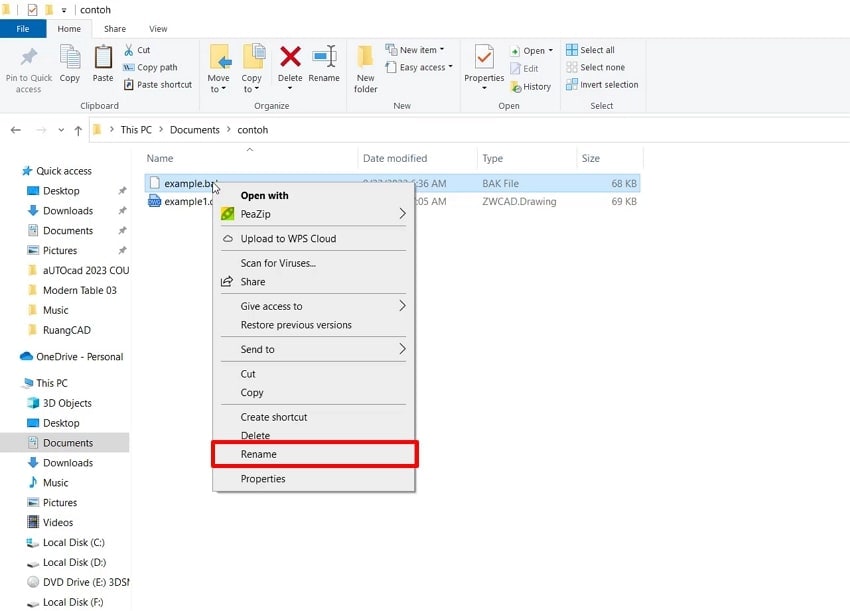
- Step 1. To initiate, you need to change the file extension to ".dwg" format, right-click on the file, and select "Rename."
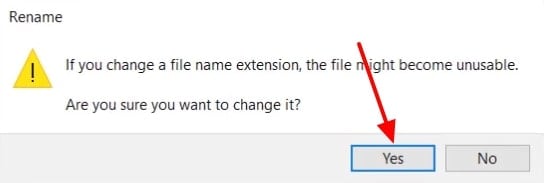
- Step 2. After changing it, a pop-up will appear; click the "Yes" button.
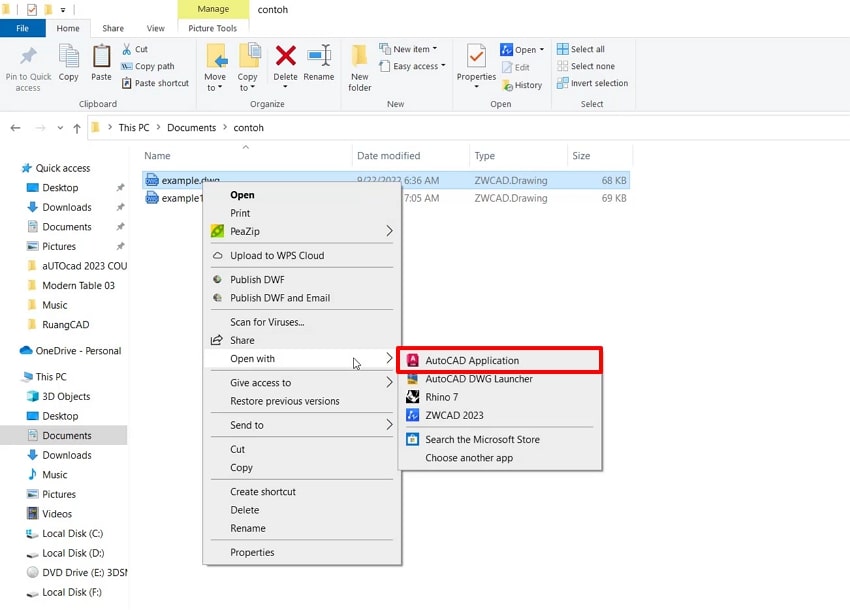
- Step 3. Finally, right-click on the file and go to the "Open With" section and choose "AutoCAD Application" to open it.
Part 3. Security Concerns: Are BAK Files Harmful?
Backup files often look safe, but they can hide risks when handled carelessly. Let's explore what are BAK files helps users protect data, privacy, and systems properly:
- Hidden Exposure: BAK files can expose old data that was meant to stay private. Attackers may access these files if they remain visible or unprotected.
- Stores Secrets: Many BAK files contain saved passwords, keys, or private user details. If leaked, this information can lead to serious privacy and data loss issues.
- Public Servers: BAK files on websites may stay open without the owners noticing the risk. Anyone can download them and read the sensitive information stored easily.
- Malware Masking: Some harmful files use BAK names to avoid user suspicion. People may open them, thinking they are a safe backup.
- Attack Target: Hackers often look for .bak files that store valuable data. These files can reveal full system, database, and application details.
Part 4. 5 Common Errors Users Face With BAK Files
After addressing security concerns, users often wonder what are BAK files in AutoCAD. This part explores five common errors and simple fixes to get your backups working:
Error 1. "I can't open this .bak."
This error occurs when your program cannot recognize the .bak file extension. Because many programs create backups, there is no single app to open. Therefore, people often ask what are BAK files and why opening fails. However, Microsoft Excel creates backups only when backup options are enabled. As a result, knowing the creator app helps you proceed safely next.
Solution
- To begin, change the file extension to a format recognized by a program like Excel.

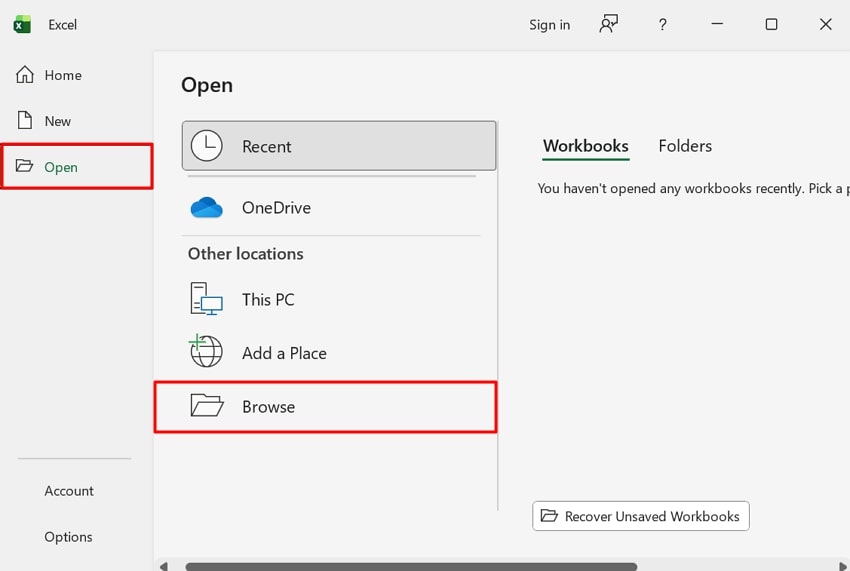
- Afterward, access "Excel" to select the "Open" option and choose "Browse."
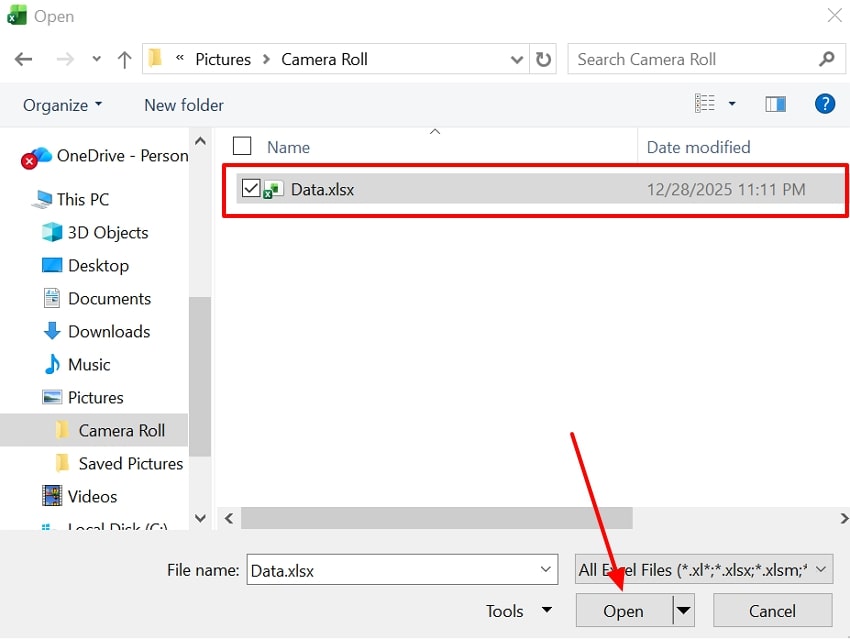
- Next, select the ".xlsx" files and press the "Open" button.
Error 2. "Backup not visible or not found."
Backup not visible means the file exists, but the program cannot show it. In SQL database tools, paths differ, and backups seem to be missing during restore. Often, SQL Server only shows server folders, not personal computer locations saved. This confusion is similar to asking what is a BAK file in AutoCAD. However, wrong source choices hide backups, so checking folders solves issues.
Solution
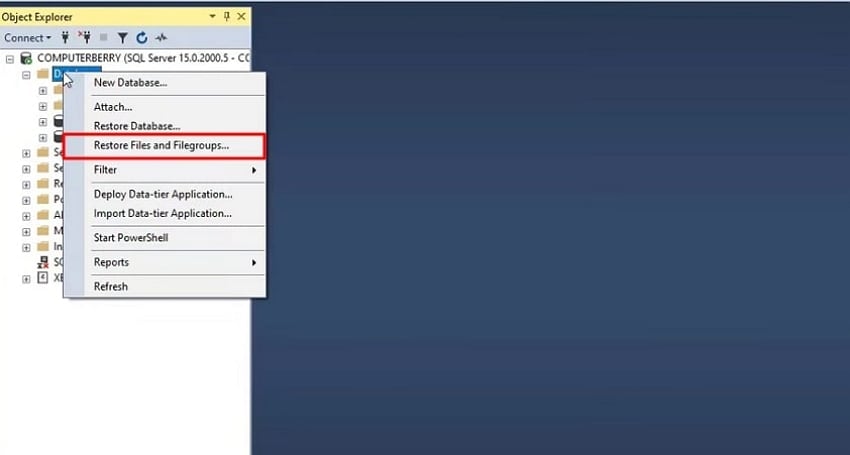
- Open "SQL Server Management Studio" to right-click on "Database" and choose the "Restore Files and Filegroups" option.
- On the next window, enter any database name in the "To Database" text box section. Next, check the "From Device" option and click the "...".

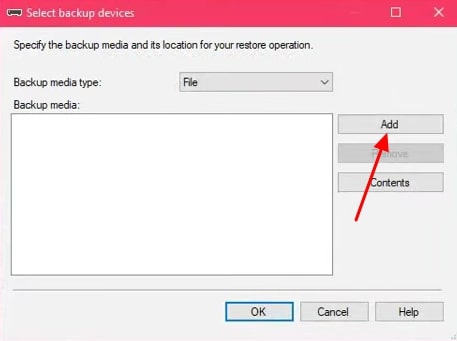
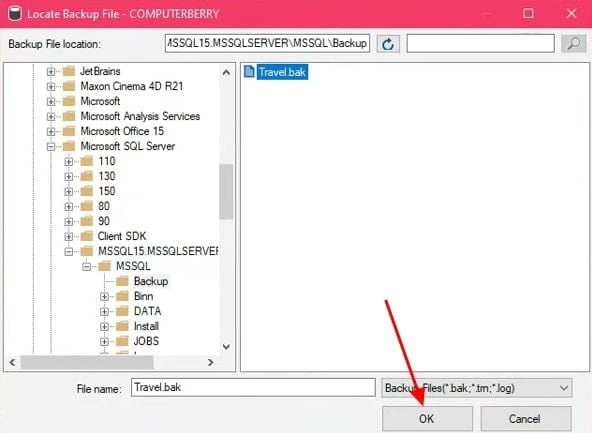
- Afterward, hit the "Add" button to add the .bak file.
- Upon accessing a new interface, select the file and click the "OK" button.
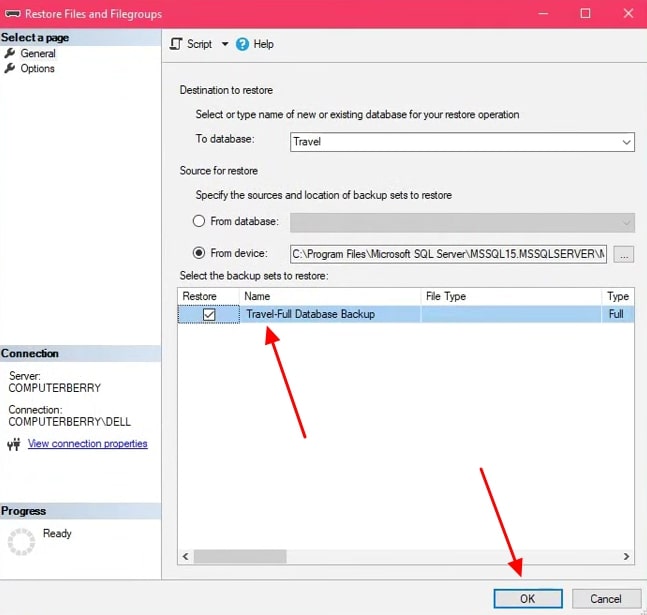
- After adding a file, check it and press the "OK" button. At last, a pop-up appears confirming that the data was restored successfully.
Error 3. "Permission and access‑denied errors."
Permission and access-denied errors occur when systems unexpectedly block backup files. This happens because user accounts lack the rights to read or change data. However, NTFS rules or network limits often restrict folders holding what are BAK files. Therefore, the backup remains safe but is locked by system security settings. Meanwhile, users should verify permissions before proceeding to the following fixes.
Solution
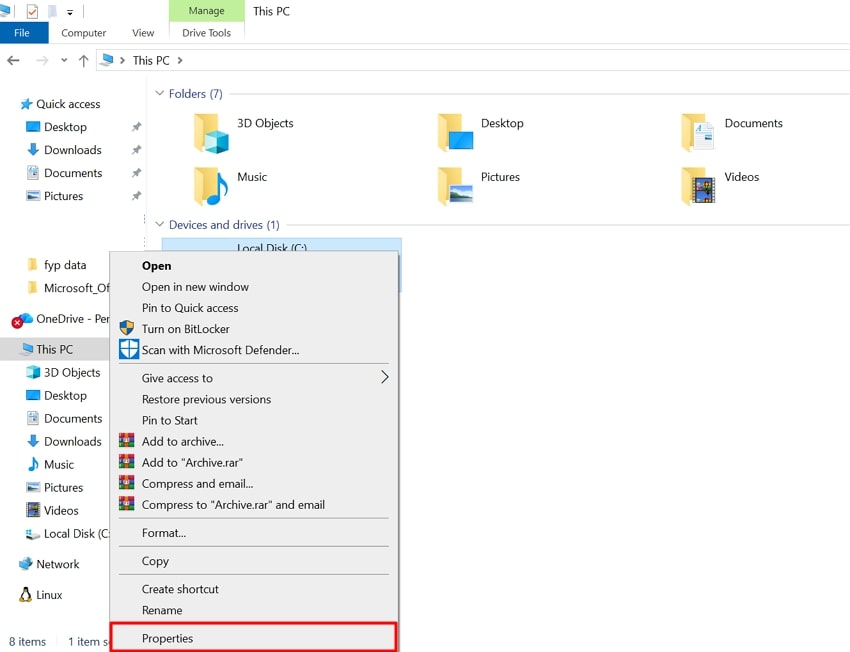
- Open your "File Explorer" and right-click on "Local Disk C:," and choose "Properties."
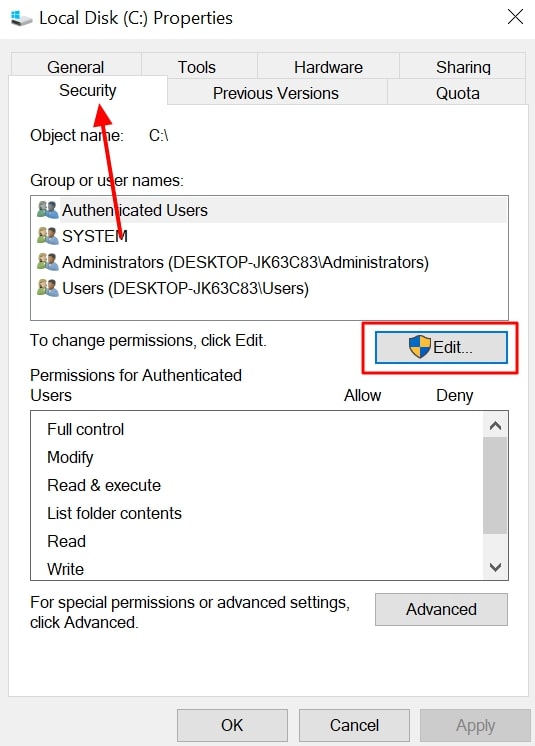
- Next, go to the "Advanced" tab and hit the "Edit" button.
- Afterward, click the "Add" button to add permission.

- Upon accessing it, press the "Advanced" button.
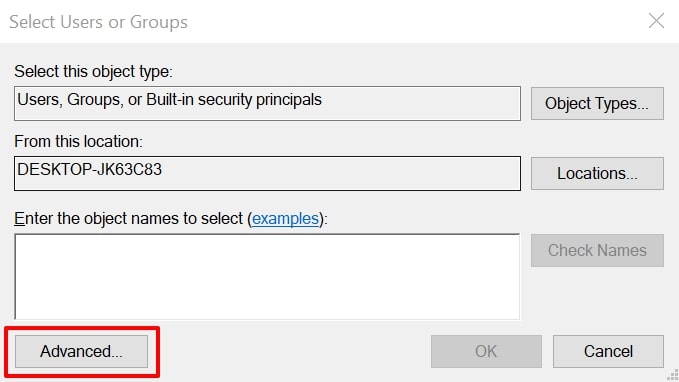
- Now, click on the "Find Now" button and choose the "Everyone" option, then click "OK."

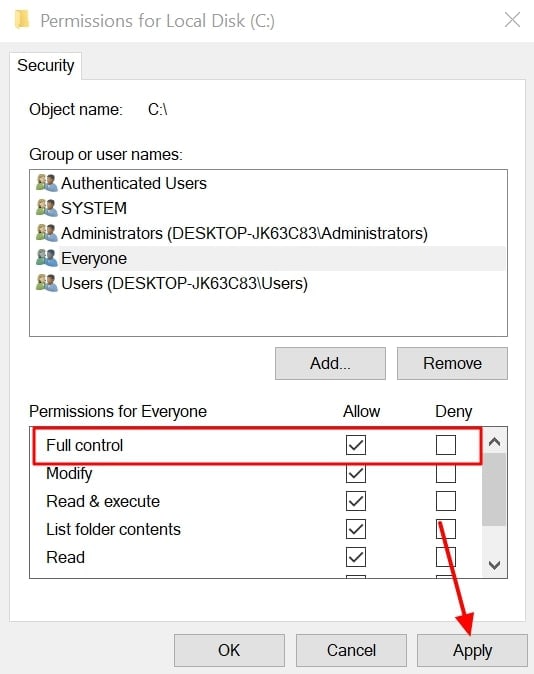
- Finally, give "Full Control" to "Everyone" and then click the "Apply" button. At last, a pop-up will appear; you need to click on the "Yes" option.
Error 4. "Corrupted or invalid backup."
This error indicates that the backup file is corrupted, and the software cannot read it. Usually, the internal structure or headers are broken, incomplete, or mismatched inside the backup. In SQL Server, restores fail with messages like incorrectly formed data, errors such as SQL Server Error 3013 or Error 3201. For AutoCAD, asking what is a BAK file in AutoCAD blocks recovery.
Solution
You should check the backup before using it for recovery. SQL users can run "RESTORE VERIFYONLY" to confirm file health safely. If it fails, try an older backup copy from the same project. Review disk condition, network stability, and backup logs.
Finally, stop antivirus scans on backup folders to prevent future write damage. This approach reduces repeat corruption and improves long-term backup reliability.
Error 5. "Wrong file, bad renames, or no usable backup"
The error appears when a backup file does not match the required data. Sometimes users misunderstand what are BAK files and try opening the wrong backups. However, bad renames confuse programs because changed names hide the real file type. Meanwhile, deleted or very old backups mean there is no usable copy. Accordingly, checking file source naming and age helps ensure a safe move forward.
Solution
Users can also verify correct extensions, since BAK files must match original program patterns exactly. For AutoCAD projects, keep one correct pattern like drawing .dwg .bak only. If renamed wrongly, copy the file and rename it back safely.
Next, open the restored copy inside AutoCAD. Finally, keep recent backups, follow a retention plan, and store important backup files on external or cloud storage before carefully deleting local copies later.
Part 5. Final Thoughts: When BAK Files Really Matter
These backups matter most when quick recovery prevents loss after mistakes happen. In AutoCAD and editors, backup copies restore projects after bad saves quickly. However, understanding what are BAK files helps reverse updates and set errors.
Therefore, database BAK backups recover data after crashes, attacks, or system failures. Meanwhile, stored copies support long-running projects, enable change comparisons, and avoid prolonged downtime.
Pro Tip: Accidentally Deleted BAK Files? Recoverit Makes Recovery Simple
Sometimes, many people accidentally delete .bak files and are unable to recover them. To address this need, Recoverit stands out as the best option to recover deleted or lost files. This advanced tool uses advanced scanning algorithms to identify lost files accurately and efficiently. Moreover, it restores critical database formats, including SQL, SQLite, MDF, and LDF files. You can also recover more than 1000 file formats across media and archives.
Additionally, the tool supports recovery of miscellaneous system and application-related file extensions. It even allows previewing recoverable files before the final restoration process. Recoverit performs deep scanning within 5 minutes to locate hidden or hard-to-find lost files. Furthermore, you can recover website-related files like HTML, PHP, JSP, and ASPX formats.
Key Features
- Backup Restoration: Recoverit recovers backup-related files such as BKF and related formats.
- Auto Recognition: The tool automatically recognizes file types during scanning for better accuracy.
- Virus Damage: Recoverit restores files affected or deleted by malware or virus attacks and helps access them again.
Guide to Recover Lost Files Using Recoverit
After understanding what Recoverit does and what makes it perfect, follow the guide to recover the lost files through the platform:
- Choose a Location of Lost Files
As you access the tool, go to the "Hard Drive and Location" section, choose a location where your files were lost.
- Scan the Location and Recover
The tool will perform a deep scan to find lost files, and you can see the real-time scanning results.
- Preview Lost Files and Recover
You can view the lost files and then hit the "Recover" button to recover them.
Conclusion
In conclusion, BAK files act as quiet safety nets that protect work during crashes, errors, or sudden changes. Understanding how they appear, where they are stored, and how to open them reduces confusion and data loss risks.
Knowing what are BAK files helps users respond calmly when mistakes happen. However, accidental deletion or corruption creates urgent recovery needs. Therefore, Recoverit provides a reliable, fast solution for users facing unexpected data loss.
FAQ
1. Can BAK files be safely deleted anytime?
BAK files can be deleted only after confirming the original file works properly. Keeping recent backups helps during unexpected crashes, updates, or accidental editing mistakes. Old BAK files may be removed to free space after successful verification.2. Do BAK files update automatically with every save?
Some programs update BAK files automatically, while others create backups only occasionally. AutoCAD creates a new BAK file each time a drawing is saved, replacing the previous backup. Behavior depends on software settings, file type, and internal backup rules.3. Are BAK files the same as temp files?
BAK files store backups, while temp files support active processing tasks temporarily. Temporary files often delete automatically, unlike BAK files. BAK files remain until manually removed or replaced by software.4. Can BAK files be recovered after permanent deletion?
Deleted BAK files can often be restored if storage sectors remain unreplaced. Immediate scanning improves recovery success after accidental deletion incidents. Recoverit is recommended for deep scanning and restoring deleted BAK backup files.


