 TL;DR:
Recoverit serves as the best overall hard drive recovery software for both Windows and Mac due to its 99% success rate, though specific technical needs or budgets may make alternatives more suitable.
● EaseUS (2GB free limit) is ideal for beginners, Disk Drill favors Mac users, Stellar specializes in media repair, R-Studio targets IT professionals needing RAID and network recovery, and PhotoRec provides a completely free command-line option.
● To prevent permanent data overwriting, you must immediately stop using the affected drive, install the recovery software on a different partition, and save all restored files to a separate location.
● These software solutions only fix logical data loss; if the drive has physical damage indicated by clicking or grinding noises, software cannot recover the data and professional clean-room services are necessary.
Ask AI for a summary
 ChatGPT
 Perplexity
 Gemini
 Claude
 Grok
Grok
Misplacing important data can be incredibly frustrating. In an instant, cherished photos, vital documents, and irreplaceable videos can vanish. Hard drives malfunction. Files are accidentally erased. Systems can crash without notice. Fortunately, there's a silver lining. Top-tier hard drive recovery software can help restore what was lost.
Modern recovery tools are powerful and easy to use. They work on different devices and file systems. Whether you need the best hard drive recovery tool for Windows or Mac, options exist.
This guide reviews the top solutions. We'll help you find the best hard disk recovery tool for your needs.
Table of Contents
Part 1: Most Common Causes of Data Loss
Data loss happens more often than you think. Understanding why files disappear helps prevent future problems. The best hard disk data recovery software handles multiple loss scenarios. Here are the main causes of data loss:
- Accidental Deletion: Users delete files by mistake every day. The recycle bin gets emptied too quickly. Important folders are removed during cleanup. Shift+Delete bypasses normal safety measures.
- Formatting: Hard drives get formatted accidentally. The wrong drive is selected during installation. Quick format removes all data instantly. Partition tables get corrupted and need reformatting.
- Corruption: Files become corrupted due to various reasons. Power failures interrupt write operations. Software bugs damage file structures. Viruses and malware corrupt data intentionally.
- Hardware Failure: Physical damage causes permanent data loss. Hard drives have mechanical parts that fail. Bad sectors develop over time. Electronic components stop working suddenly. (Related article: How to Recover Deleted Files from Shared Drives? How to Fix Certain Windows Hard Drive Malfunction?)
Part 2: How to Choose the Best Hard Drive Recovery Software
Selecting the right recovery software matters. Not all tools perform equally. The best hard drive data recovery solutions share certain features. Consider these factors before making your choice:
- Recovery Rate: The Success rate determines software quality. Top tools recover 99% or more of lost data. They handle complex deletion scenarios. Check reviews for real-world performance data.
- Supported File Systems: Your drive's file system must be supported. Windows uses NTFS and FAT32 formats. Mac systems run on APFS and HFS+. Linux uses EXT3 and EXT4 systems. Choose software that supports your format.
- User Interface: Simple interfaces save time and frustration. Beginners need clear instructions and guidance. Wizards walk users through recovery steps. Confusing software leads to mistakes and data loss.
- Preview Functionality: Preview files before recovering them. This feature saves storage space. You recover only the needed files. Images, videos, and documents can be previewed. Corrupted files appear differently from healthy ones.
- Price and Value: Compare pricing across different tools. Free versions have limitations on recovery size. Paid software offers unlimited recovery capacity. Lifetime licenses cost more upfront but save money. Consider your budget and recovery needs.
- Customer Support: Good support helps when problems arise. Look for 24/7 availability and multiple contact methods. Email, chat, and phone support work best. Knowledge bases provide self-help resources.
- Scanning Speed: Time matters during data recovery. Fast scans complete in minutes. Deep scans take hours but find more files. Advanced disk recovery features balance speed and thoroughness.
Part 3: Top 6 Hard Drive Recovery Software in 2025
Here's a detailed comparison of the best 5 hard drive data recovery tools, plus one excellent free option:
Comparison Table
| Software | Recovery Rate | Price | Best For | Platform |
| Recoverit | 99% | $79.99/year | All users | Windows, Mac |
| EaseUS | 97% | $69.95/month | Beginners | Windows, Mac |
| Disk Drill | 96% | $89 lifetime | Mac users | Windows, Mac |
| R-Studio | 95% | $79.99 lifetime | Professionals | Windows, Mac, Linux |
| Stellar | 94% | $79.99/year | Photos & videos | Windows, Mac |
| PhotoRec | 92% | Free | Budget users | All platforms |
#1 Recoverit
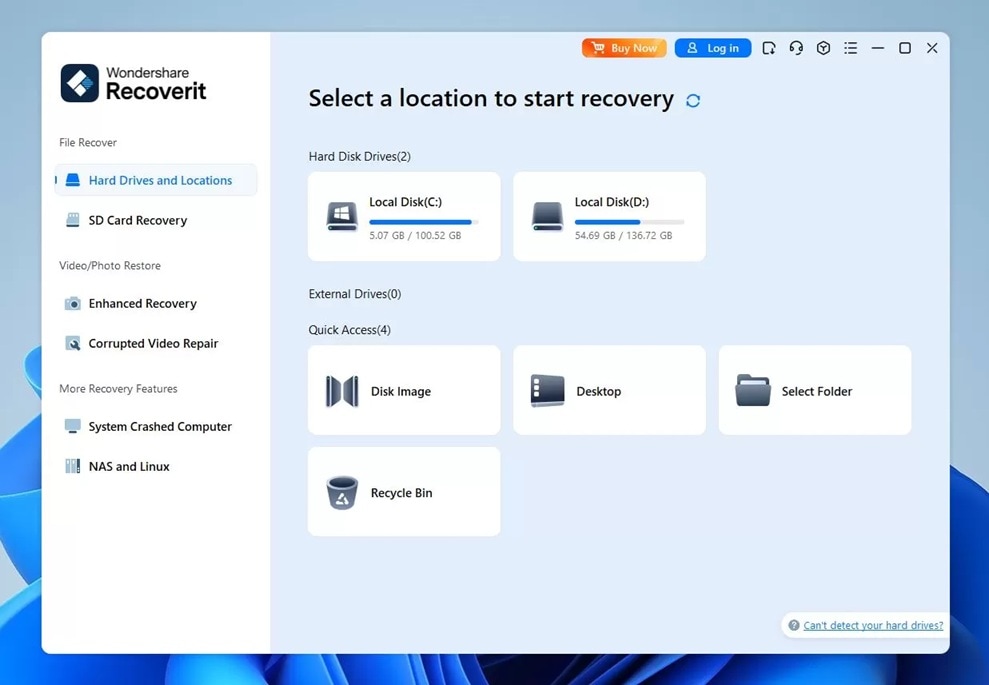
Recoverit stands as the best hard drive recovery software available today. It combines power with simplicity. Users of all skill levels succeed with this tool.
Try Recoverit to Recover Permanently Deleted/Lost Data
 Security Verified. Over 7,302,189 people have downloaded it.
The software recovers over 1000 file types. It works on internal and external drives. USB drives, SD cards, and cameras are supported. Recoverit handles all common data loss scenarios. Deleted files, formatted drives, and crashed systems pose no challenge.
Key Features:
- Advanced video recovery technology
- Deep scan mode for thorough searches
- Preview function for 1000+ file types
- Bootable media creation for crashed systems
- Email recovery functionality
- Resume scanning feature
Pros:
- Extremely high recovery success rate
- Intuitive interface for beginners
- Fast scanning with the deep scan option
- Excellent customer support available
- Regular updates and improvements
Cons:
- Free version limits recovery to 100MB
- Advanced features require a premium plan
Related Video >>: How to Recover Permanently Deleted Files from PC?

#2 EaseUS Data Recovery Wizard
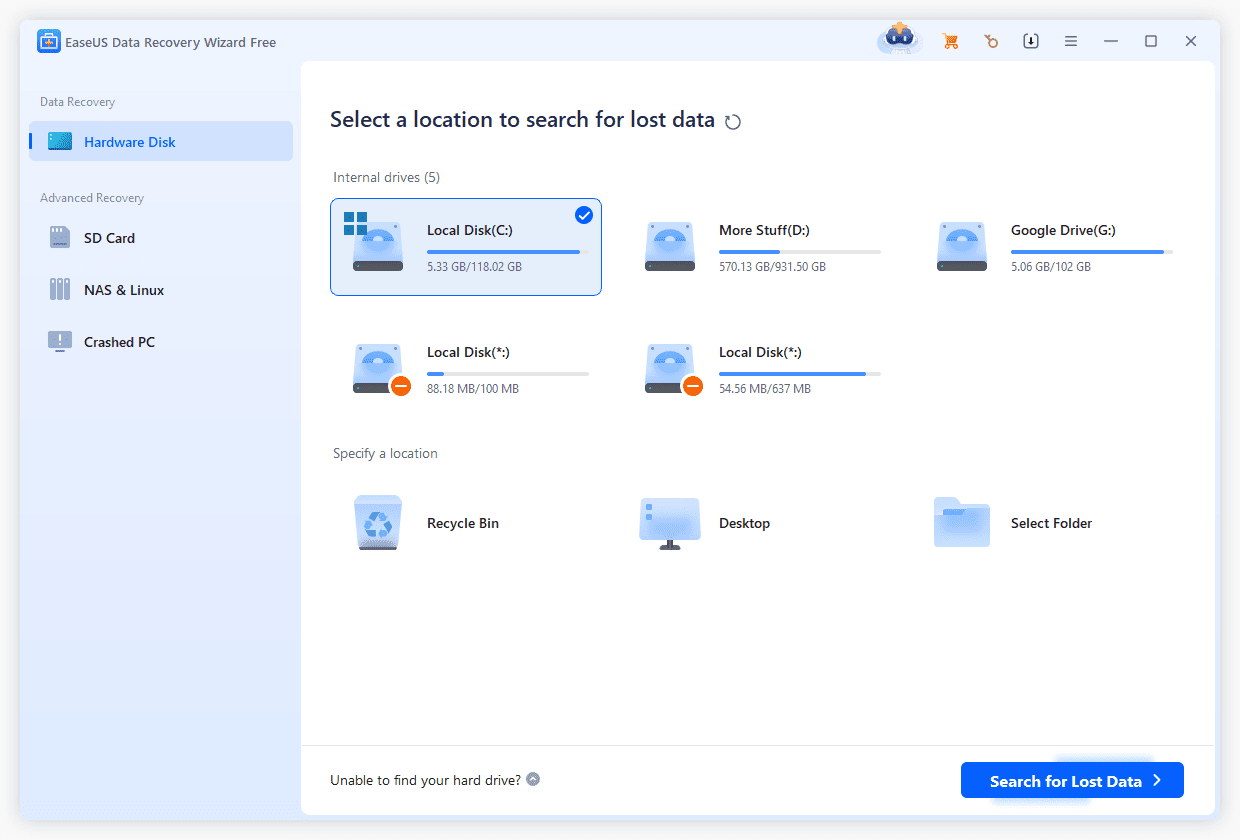
EaseUS offers reliable, advanced hard drive recovery software capabilities. This tool has earned trust through consistent performance. Millions of users worldwide depend on it.
The wizard-based interface guides users step by step. Three simple steps complete most recovery jobs. Filters help locate specific file types quickly. EaseUS supports all Windows and Mac versions.
Key Features:
- Partition recovery functionality
- RAW drive recovery support
- Crashed system recovery option
- Cloud storage recovery is available
- Filter and search capabilities
- Real-time preview during scanning
Pros:
- Very user-friendly interface design
- Comprehensive file type support
- Good value for money
- The free version allows 2GB recovery
- Strong technical support team
Cons:
- Monthly subscription can be expensive.
- Slower deep scan compared to competitors.
- Interface feels cluttered sometimes.
#3 Disk Drill

Disk Drill excels as the best hard disk recovery tool for Mac users. It also works perfectly on Windows systems. The clean design appeals to creative professionals.
Extra tools come bundled with Disk Drill. Drive health monitoring prevents future data loss. Duplicate file finder clears storage space. Data backup features protect important files.
Key Features:
- Recovery Vault for extra protection
- Guaranteed Recovery function
- S.M.A.R.T. monitoring for drive health
- Byte-to-byte backup capability
- Disk cleanup tools included
- Multiple scanning algorithms
Pros:
- Beautiful, modern interface design
- Lifetime license option available
- Extra utilities add value
- Works excellently on Mac systems
- Free version recovers 500MB
Cons:
- Slightly expensive compared to alternatives.
- Scanning can be slow.
- Advanced features have a learning curve.
#4 R-Studio
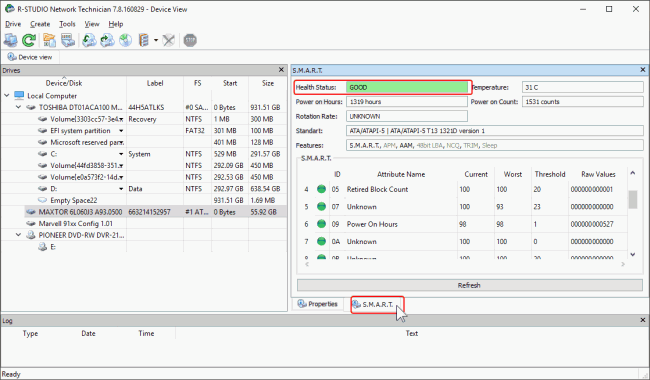
R-Studio serves as advanced disk recovery software for experts. IT professionals and data recovery specialists prefer it. The tool handles complex recovery scenarios.
Network recovery capability sets R-Studio apart. Remote computers can be scanned over networks. RAID reconstruction works with various configurations. Advanced users appreciate the detailed control options.
Key Features:
- RAID recovery and reconstruction
- Network recovery capabilities
- Raw file recovery technology
- Hexadecimal editor for experts
- Disk imaging functionality
- Automated RAID parameter detection
Pros:
- Extremely powerful recovery engine
- Supports all file systems
- Lifetime license available
- Network recovery is unique
- Professional-grade features
Cons:
- Steep learning curve for beginners.
- The interface appears dated and complex.
- Overwhelming for simple recovery needs.
#5 Stellar Data Recovery
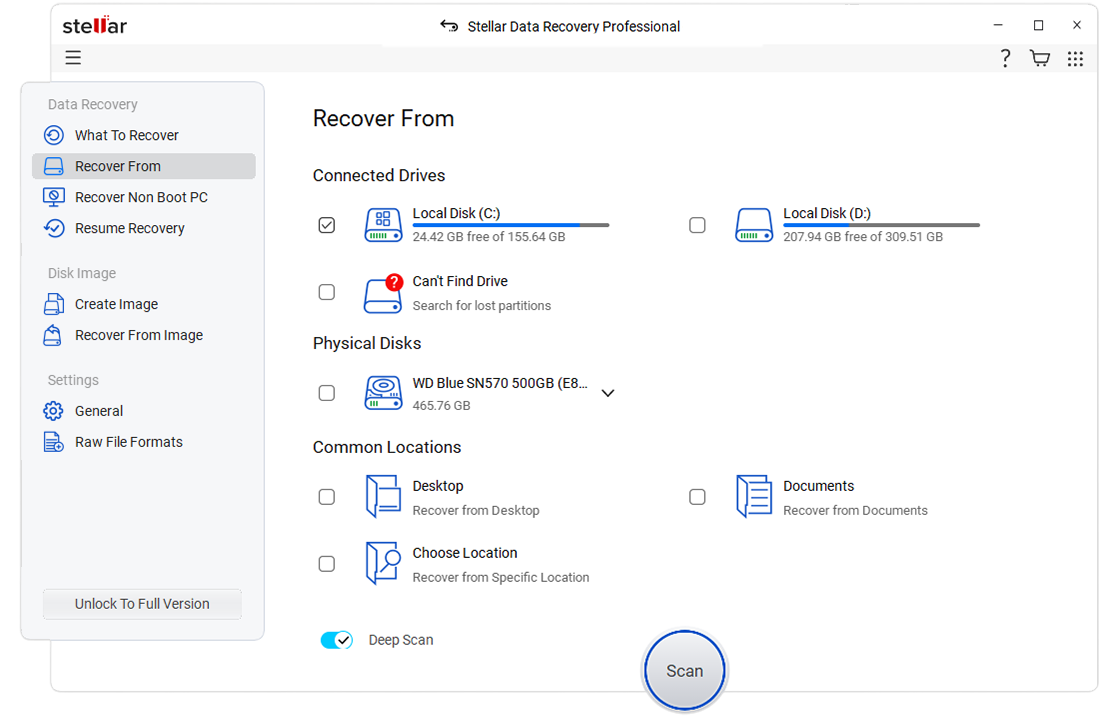
Stellar specializes in photo and video recovery. It's the best hard drive data recovery choice for photographers. The software handles large media files exceptionally well.
Photo repair features fix corrupted images. Video repair restores damaged footage. These extra capabilities justify the premium price. Stellar supports professional camera formats.
Key Features:
- Photo and video repair tools
- Optical media recovery support
- Email recovery from various clients
- Drive monitoring functionality
- 4K video recovery capability
- RAW image format support
Pros:
- Excellent for media professionals
- Repairs damaged photos and videos
- Clean and modern interface
- Good scanning speed
- Reliable customer support
Cons:
- Annual subscription required.
- Expensive for basic recovery needs.
- Free version very limited.
#6 PhotoRec & TestDisk
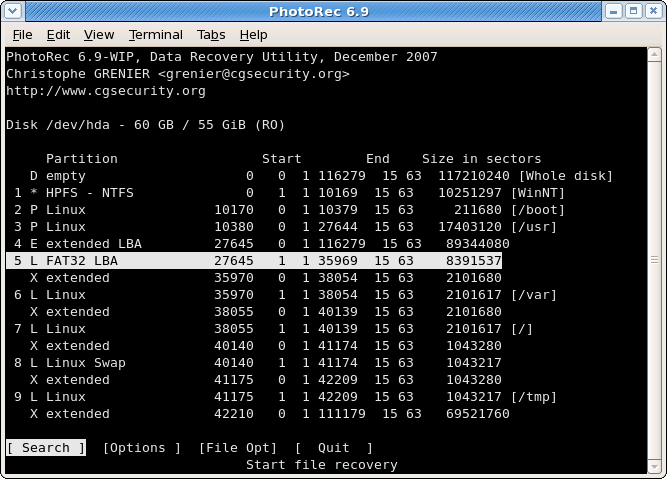
PhotoRec and TestDisk provide free, best hard disk data recovery software options. These open-source tools work surprisingly well. Budget-conscious users appreciate the zero cost.
TestDisk repairs partition tables and boot sectors. PhotoRec recovers files using signatures. Both tools run from command-line interfaces. Technical knowledge helps but isn't required.
Key Features:
- Completely free and open source
- Works on all operating systems
- No installation required
- Recovers from severely damaged drives
- Regular updates from the community
- Portable versions available
Pros:
- Absolutely free to use
- Very powerful recovery capabilities
- Works on any platform
- No data size limitations
- Active community support
Cons:
- Command line interface only
- No preview functionality available
- Steep learning curve
- Limited file organization after recovery
Part 4: Accidentally Deleted Files? Use Recoverit Today
Deleted files cause panic and stress. Important work disappears instantly. Family photos vanish without warning. Recoverit makes recovery simple and fast.
The software works in three easy steps. No technical knowledge is needed. The entire process takes minutes. Most users recover files on the first try. Success rates remain consistently high.
Step 1: Download Recoverit. Launch Recoverit on your computer. Choose the drive where the files were deleted. This could be your C: drive or an external device. Click the Start button to begin scanning.

Step 2: The software scans your selected location. Quick scan completes in minutes. Deep scan runs for thorough results. Preview recovered files before restoration. Check that files aren't corrupted.

Step 3: Select the files you want to recover. Click the Recover button. Choose a different drive for saving files. Never save to the same location. Files are restored to your chosen destination.

Part 5: Tips for Making the Most of Hard Drive Recovery Software
Success depends on proper usage. Follow these tips for advanced hard drive recovery software results. Small mistakes can reduce recovery chances. Good practices maximize file restoration.
- Stop Using the Drive Immediately: Continued use overwrites deleted data. New files take up space where old data existed. Power off the system if possible. Connect the drive to another computer for recovery.
- Don't Install Software on Affected Drive: Install recovery tools on a different drive. Installing on the affected drive reduces the chances. Use an external drive or a different partition. This preserves recoverable data.
- Use Quick Scan First: Quick scans complete faster. They find recently deleted files easily. Only use a deep scan when needed. Deep scans take hours on large drives.
- Save Recovered Files Elsewhere: Never recover to the same location. This causes permanent data loss. Use external drives or cloud storage. Verify recovered files before deleting originals.
- Recover Files by Type: Filter by file extension when possible. This speeds up the process significantly. Focus on important file types first. Documents and photos usually matter most.
- Check Preview Before Recovery: Preview prevents recovering corrupted files. Thumbnails show file condition. Text files can be partially read. This saves time and storage space.
- Create Disk Images for Safety: Image the drive before recovery attempts. This creates a backup copy. Multiple recovery attempts can be made. The original drive remains unchanged.
- Monitor Drive Health Regularly: Use S.M.A.R.T. monitoring tools. These predict drive failures early. Back up data when warnings appear. Prevention beats recovery every time.
Conclusion
Data recovery no longer requires expensive specialists. The best hard drive recovery tool options bring professional results home. User-friendly interfaces make recovery accessible to everyone.
Choose software based on your specific needs. Recoverit offers the best overall experience. EaseUS provides great value for beginners. R-Studio serves professional users well. Free options work when budgets are tight.
Prevention remains the best strategy. Regular backups protect against data loss. But when accidents happen, recovery software saves the day. The best 5 hard drive data recovery tools listed here will help. Don't wait until disaster strikes. Download recovery software today and keep it ready.
FAQs
-
Q1: Can free data recovery software work as well as paid versions?
Free software has limitations, but it can be effective. They typically limit recovery amounts to 500MB or 2GB. The recovery algorithms work similarly to paid versions. For small recovery jobs, free tools work fine. Large-scale recovery needs paid software. Professional features require premium versions. Consider your specific needs before choosing. -
Q2: How long does hard drive recovery typically take?
Recovery time depends on several factors. Quick scans finish in 5-10 minutes. Deep scans take several hours on large drives. A 1TB drive might need 4-6 hours. File size and quantity affect speed, too. Damaged drives take longer to scan. Plan accordingly and don't interrupt the process. -
Q3: Is it possible to recover data from a physically damaged hard drive?
Software cannot fix physical hardware damage. Clicking or grinding noises indicate mechanical failure. Professional data recovery services handle physical damage. They work in clean room environments. Costs range from hundreds to thousands. For valuable data, professional recovery is worth it. Software works only on logical failures.



