 TL;DR:
To recover lost files from an internal or external hard drive, immediately stop writing data to the disk to prevent overwriting or SSD TRIM erasure, and scan the stable device with recovery software to extract files to a different healthy destination drive.
● For logical data loss like accidental deletion or quick formatting, scan readable disks using Wondershare Recoverit, or utilize Microsoft's Windows File Recovery command-line app if you are running Windows 10/11 and have a supported local drive letter.
● Never accept operating system prompts to format or initialize a RAW or unallocated volume, and avoid running write-based utilities like CHKDSK or Mac Disk Utility First Aid, as these processes modify directory structures and destroy recoverable data.
● Stop all DIY software recovery scans and consult a professional lab if the drive produces clicking noises, stalls during reads, repeatedly disconnects, or completely fails to appear in system-level tools like Disk Management or Disk Utility.
Ask AI for a summary
 ChatGPT
 Perplexity
 Gemini
 Claude
 Grok
Grok
How to recover lost files on a hard drive: Stop using the affected disk, check Recycle Bin or Trash and any existing backups, then choose recovery software only if the storage remains safely readable. For a stable internal or external HDD, lost files may still be recoverable after deletion, quick formatting, a lost partition, or certain file-system errors. New writes, full overwrites, SSD TRIM, and hardware failure can change the result.
This guide covers both internal drives and external hard drives, including cases where Windows shows a RAW disk or macOS cannot mount a volume. You will learn when to restore an earlier copy, how to scan a detected drive with Recoverit, when Microsoft's Windows File Recovery is appropriate, and when to stop DIY efforts and consult a professional. Recovering data and repairing a hard drive are different tasks: do not erase, repartition, initialize, or run write-based repairs before protecting the files you need.
In This Article
Part 1. Can You Recover Lost Files From a Hard Drive?
Yes, lost files can sometimes be recovered from an internal or external hard drive, even after an emptied Recycle Bin, accidental quick format, or missing partition. The first question is not which recovery program to install. It is whether the original storage remains readable and whether the missing data still exists.
Recoverable Logical Loss vs. Physical Drive Failure
Deletion changes the way a file system tracks a file; it does not necessarily remove every data block immediately. A failing motor or read head is different: the computer may be unable to obtain the blocks at all. Use these symptoms to choose a route before attempting a scan.
| Question | Likely logical loss | Possible hardware failure |
| What happened? | Delete or Shift+Delete, quick format, lost partition, damaged directory records | Drop, liquid damage, power fault, worn components, failed controller |
| What does the computer show? | Disk still has a stable, plausible capacity; files or partitions are missing, RAW, or inaccessible | Disk clicks, disappears repeatedly, reports implausible capacity, or stalls on ordinary reads |
| Safer first route | Check available backups; scan the stable, detected source without writing to it | Stop repeated power-ons and scans; arrange qualified diagnosis if files matter |
| Can software repair the cause? | Some file-system errors can be repaired later, after files are safe | No program can repair a broken head, motor, platter, or controller |
A drive can have both types of trouble. For example, a damaged enclosure can hide an otherwise readable disk, while a failing disk may initially appear as a simple RAW volume. Do not assume a logical problem just because Windows displays the disk.
How Drive Readability and Overwriting Affect Recovery
Recoverability is limited by what remains on the storage media. Files deleted from a traditional HDD may still be present until other writes reuse their sectors. If a document was overwritten, no ordinary file-recovery tool can reconstruct the original bytes from the overwritten locations. A recovered file can therefore have the correct name but contain missing or damaged content.
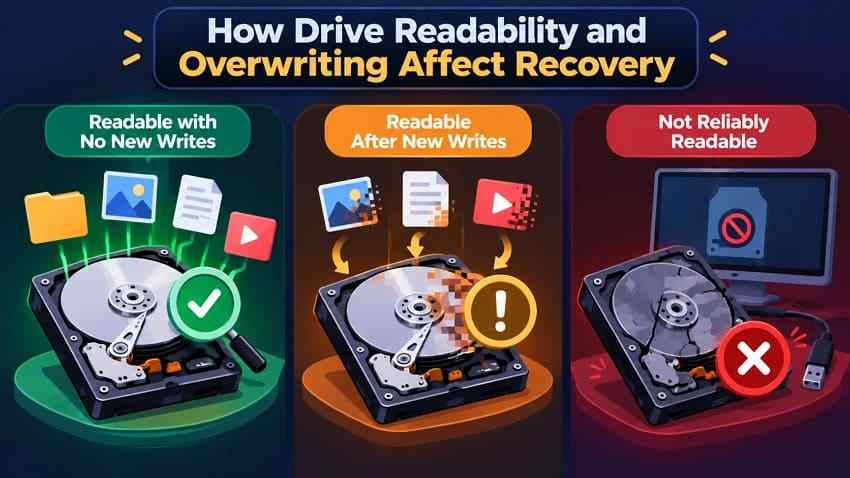
- Stable and unused: A detected disk with no new writes is a better candidate for software recovery.
- Stable but reused: Scan results may be partial; review previews rather than trusting filenames alone.
- Unstable or incorrectly identified: If a 1 TB disk suddenly reports 2048 GB, freezes, or disconnects, prioritize connection and hardware assessment rather than initializing it.
HDD vs. SSD, Internal vs. External Drives
The search phrase how to recover lost files on a hard drive covers several different storage environments. The distinction matters more than the brand of drive.
| Storage type | Key recovery consideration | Initial precaution |
| Traditional HDD | Deleted contents may remain until their sectors are reused; physically failing HDDs should not be repeatedly scanned | Stop writes; listen for unusual noises |
| SSD or flash-based external drive | TRIM and garbage collection may make deleted blocks unavailable even without a visible overwrite | Stop activity promptly; check backups first |
| Internal Windows or Mac system drive | The running operating system continually writes caches, logs, and updates | Use a different boot environment or computer when practical |
| External HDD or SSD | USB cable, power, hub, enclosure, and file-system compatibility affect visibility | Check the connection without formatting or initializing |
Encrypted drives require the valid BitLocker, FileVault, or device-unlock credentials. Recovery software is not an encryption-bypass tool.
Part 2. What to Do Before Trying Hard Drive Recovery
If important files have vanished, stop creating new data on the affected drive. A safe first response protects the original evidence instead of immediately trying the fastest-looking fix.
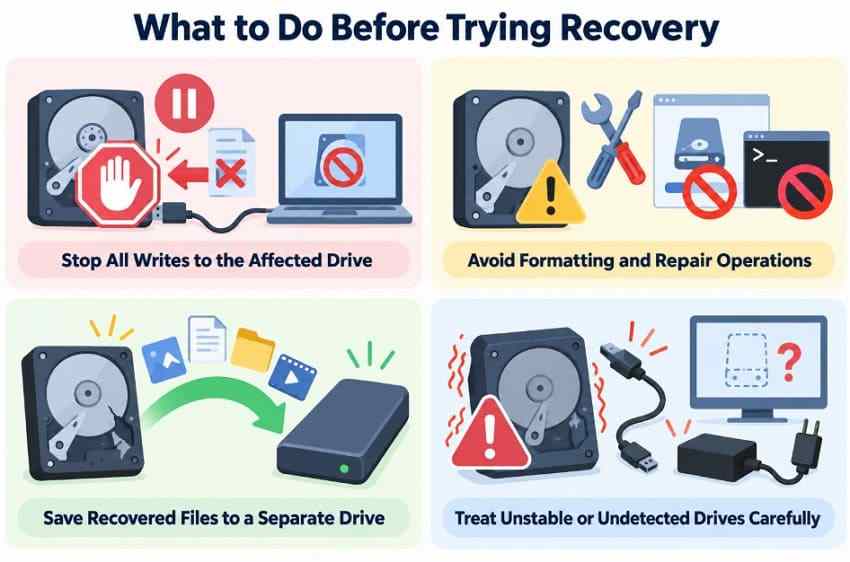
Stop Writing to the Affected Drive
- Internal drive: Avoid downloads, app installations, updates, gaming, and unnecessary restarts. If the missing files are on the system disk, consider recovery from a separate boot drive or another computer.
- External drive: Pause automated backups and sync jobs directed to it. Disconnect it until you are ready to use a known-good connection and a safe destination.
- Previously formatted drive: Do not test it by copying a new file onto it. That test can overwrite exactly what you need.
Avoid Formatting, Repartitioning, CHKDSK, and First Aid First
Windows may ask you to initialize or format a drive, and Disk Utility may offer Erase or First Aid. Do not accept an erase or format prompt to make an old drive accessible while its data is still needed. Likewise, creating a replacement partition writes new metadata over disk structures that may be important to recovery.
Microsoft documents that CHKDSK /f repairs file-system errors and /r performs additional sector checks. Apple states that Disk Utility First Aid can modify formatting and directory structures when repairing errors. Neither is a substitute for undeleting files. Use repair options only after recoverable data has been copied elsewhere or the risks have been assessed.
Prepare a Separate Destination and Know When to Stop
Prepare another healthy physical disk with enough room for the files you want to retrieve. You can scan the affected disk, but never save recovered files back onto that disk. A second partition on the same physical device is not as safe as a different drive.
If the drive clicks or grinds, smells burned, disconnects repeatedly, or stops responding during ordinary reads, stop the attempt. Large scans and extended hardware tests can make a physically failing HDD deteriorate further. A qualified lab can evaluate the device before more data is lost.
Part 3. Choose the Right Hard Drive Recovery Method
There is no single recovery method for every situation. Start with the least invasive source of an existing copy, then consider scanning only if the device can be accessed safely.
Quick Comparison: Backups, Recovery Software, and Specialist Help
| Method | Try it when | What it cannot do |
| Recycle Bin or Mac Trash | The item is still listed there | Restore an item removed permanently from the bin |
| File History, Time Machine, or another backup | A dated copy exists from before the loss | Restore files that were never captured |
| Recoverit or another graphical scanner | The disk is detected, stable, and contains remaining recoverable data | Read a physically invisible device or restore overwritten sectors |
| Windows File Recovery | You have Windows 10/11, a supported local source, and are comfortable with commands | Scan cloud storage or network shares; operate without a suitable source drive |
| Professional data recovery | Irreplaceable data is on a clicking, severely unstable, or persistently undetected drive | Promise success when magnetic media or encrypted components have been destroyed |
For files missing after a normal delete, check the bin first. For older files or a removed folder, check the backup date before scanning. For damaged disks, the urgency changes: preserving hardware may matter more than immediately trying software.
RAW Volumes, Formatted Drives, and Lost Partitions
- RAW volume: Windows recognizes a disk or volume but cannot read its file system. Cancel format prompts; a stable, detected source may still be scannable.
- Accidental quick format: Some HDD file contents may remain. See the separate formatted drive recovery guide for scenario-specific limitations.
- Lost partition: The disk may show unallocated space. Do not create a new volume or rewrite the partition table before extracting files.
- Full format or overwritten space: Expect more limited recovery; a completed overwrite-based format removes recoverable original sector contents.
What Changes When an External Hard Drive Is Not Showing Up?
An external hard drive may be absent from File Explorer or Finder but still appear in a system-level disk tool. That difference determines whether file recovery software has a source it can scan.
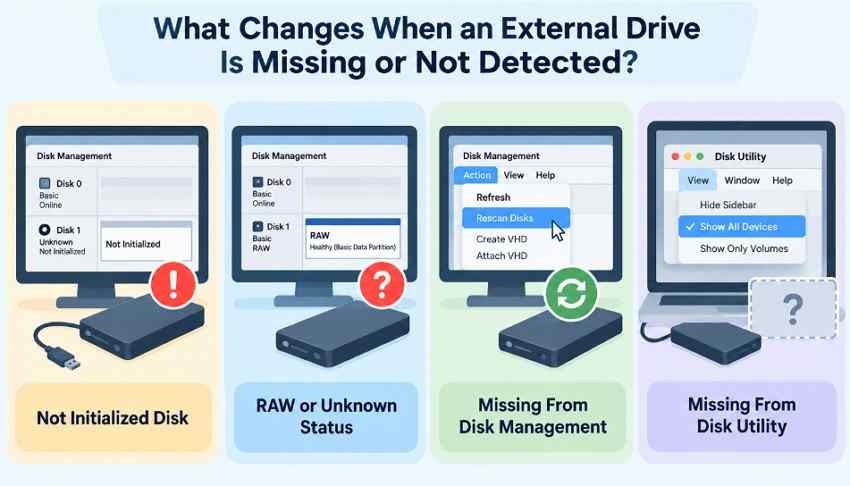
| Observed state | Safe next action |
| Visible in File Explorer or Finder, but files are missing | Search the correct folder; check Trash, permissions, and backups; scan if needed |
| Visible only in Disk Management or Disk Utility as RAW or unmounted | Avoid format prompts; evaluate stable software-based recovery |
| Shows Not Initialized, Unknown, or an implausible capacity | Do not initialize an already-used drive; inspect cable, enclosure, power, and disk identity |
| Missing from system-level tools on multiple connections | Stop routine recovery scans; consider hardware or specialist diagnosis |
On Windows, open Disk Management and identify the physical disk by capacity. On a Mac, open Disk Utility > View > Show All Devices. A single known-good cable/port or power check is reasonable if there are no mechanical warning signs. Microsoft also warns that Not Initialized can reflect disk failure or corruption, not just a new empty disk. See the existing hard drive detection guide for more detailed connection checks.
Part 4. Recover Lost Files From a Readable Hard Drive With Recoverit
When no usable backup exists and the disk remains stable and accessible, Wondershare Recoverit Hard Drive Recovery offers a graphical way to scan internal or external HDDs and supported SSDs. Its role is to retrieve readable file data, not to repair the underlying hardware.
Supported Logical-Loss Cases and Device-Visibility Limits
Recoverit is relevant to accidentally deleted files, emptied bins, quick-formatted partitions, lost partitions, and some damaged or RAW file systems when the physical disk still appears to the operating system and can be read. Depending on the platform and disk, common file systems include NTFS, FAT32, exFAT, APFS, and HFS+.
Do not treat a disk being listed as proof that it is healthy. If the drive has severe read instability, clicking, or continuous disconnects, pause the process. If it is encrypted, the correct unlock information is required before protected files can be accessed.
Scan, Preview, and Recover to Another Healthy Drive
Install Recoverit on a healthy disk or another computer, not on the source that lost files. Keep the recovery destination connected and available before starting.
Step 1. Select the affected internal or external drive. Open Hard Drives and Locations in Recoverit. Identify the source by size and location, and select the disk or volume where the files disappeared. Do not select the destination disk by mistake.

Step 2. Scan and narrow the results. Allow the program to search the selected source. Use available filename search, file-type filters, and folder paths to locate your documents, photos, project files, or videos. If file-system records were damaged, recovered files may have unfamiliar names.

Step 3. Preview and save recovered files safely. Preview supported results to check whether they open correctly. Choose the required files, click Recover, and select a folder on a different healthy physical drive. Open a few recovered files to verify the output before clearing or repairing the original disk.


What Recoverit Cannot Recover or Repair
Recovery software cannot reconstruct bytes that have been overwritten, reverse an SSD's already-processed TRIM deallocation, fix physically failed platters, or read a drive that the system never detects. A successful scan preview also does not guarantee every file will be intact. For an unstable drive, seek imaging or professional evaluation rather than repeated full scans.
Part 5. Restore Files From the Recycle Bin, Trash, or a Backup
A known-good copy avoids the uncertainty of scanning deleted disk space. Check these built-in options before using recovery software, especially on SSDs where TRIM can make deleted content unavailable quickly.
Restore Items That Are Still in Recycle Bin or Trash
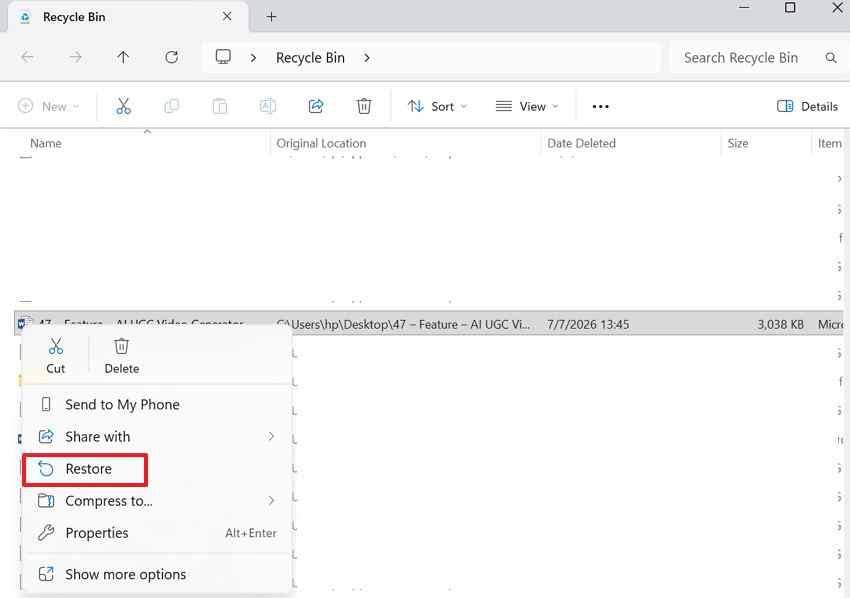
On Windows: Open Recycle Bin, find the missing file, right-click it, and choose Restore. It returns to the original location. If the file was removed with Shift+Delete or the bin was emptied, you will not find it there. For other deletion scenarios, see the Recycle Bin recovery options.
On Mac: Open Trash from the Dock, select the file or folder, then choose File > Put Back or Control-click it and choose Put Back. Items permanently deleted from Trash are not restored by this action.
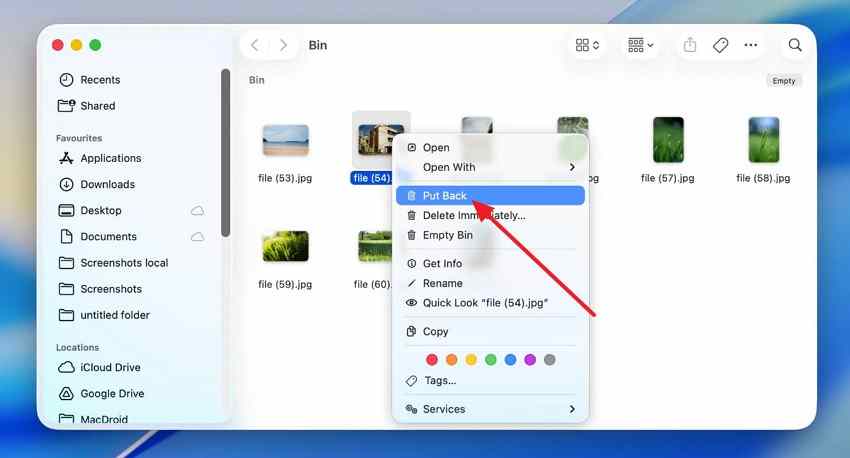
Important: Both standard Restore and Put Back write to the item's original location. If additional missing data on that same source still needs recovery, avoid writing to it until those other recovery attempts are complete when practical.
Recover Previous Windows Files With File History
Microsoft's File History guide explains that earlier versions can be restored only if the relevant files were backed up before the loss. Having File History available in Control Panel does not mean it was enabled or that the missing folder was included.
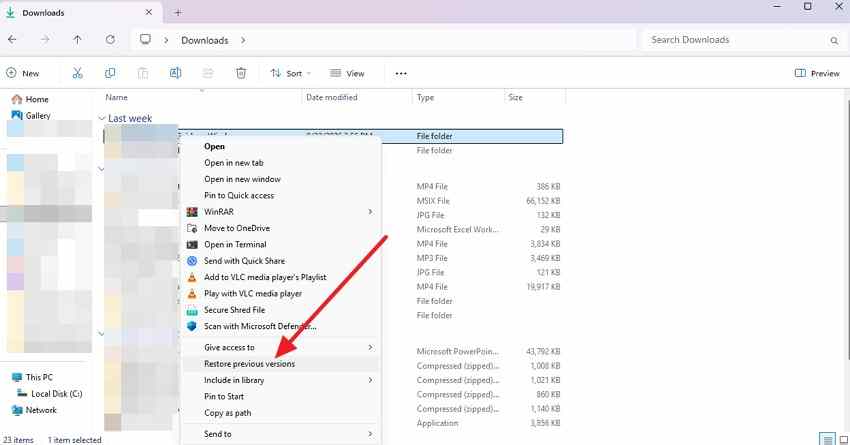
Step 1. Find an earlier version. Open File Explorer, navigate to the original folder, right-click it, and select Restore previous versions. On Windows 11, you may first need Show more options. Look for a date before the files disappeared.
Step 2. Inspect the copy before restoring. Select the version and use Open or Open in File History to inspect it. Expand the Restore menu and choose Restore to... when available; select a safe alternative folder or disk. Clicking Restore directly replaces the current version, which may be unnecessary or risky.
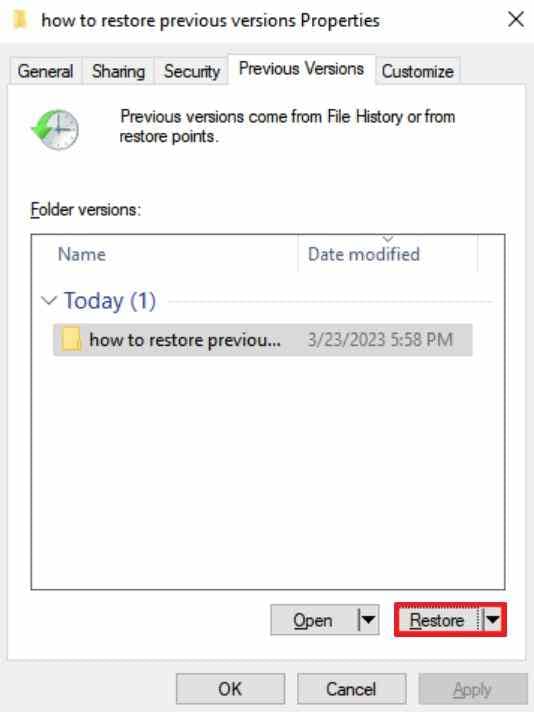
If no earlier version is listed, check the actual File History backup drive or other backup service. File History cannot create a past copy after the original file is gone.
Restore Mac Files With Time Machine
Time Machine can restore a file or folder only if the relevant version exists in a backup or available local snapshot. Apple's Time Machine restore instructions describe browsing dated copies and restoring selected items. You can also refer to this Time Machine setup and restore guide.
Step 1. Open the backup browser. Connect the Time Machine backup disk if needed. In Finder, navigate to the folder that formerly contained your file, then open Time Machine from Spotlight or select Browse Time Machine Backups from its menu, if shown.
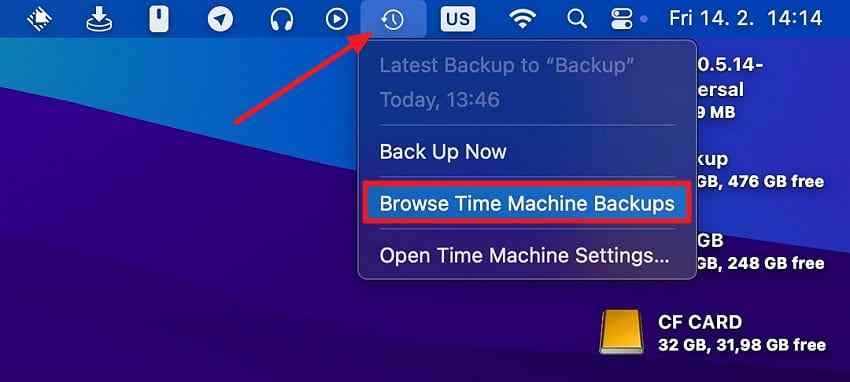
Step 2. Choose a version before the loss. Use the timeline to locate the file, inspect the date, select it, and click Restore. Apple normally returns it to the original location. If preserving that source is essential for other deleted-file recovery, arrange an alternate safe copy first where possible.
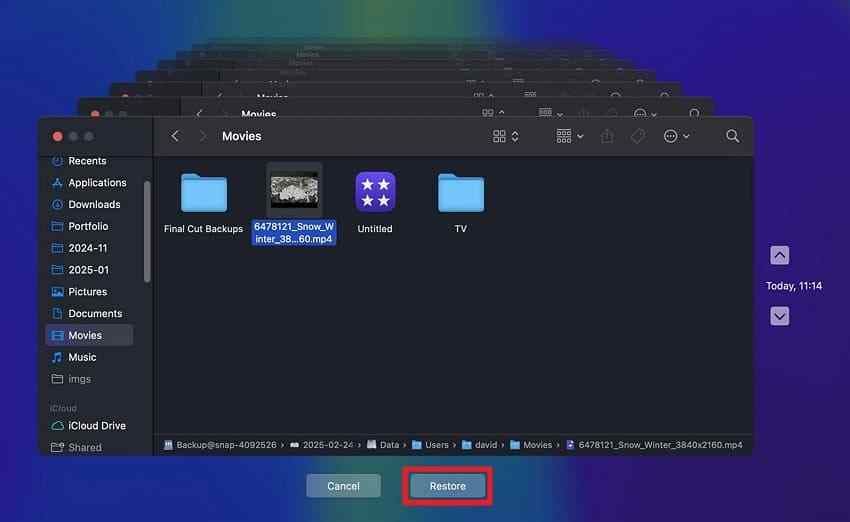
Time Machine cannot recover a file excluded from backup or created after the most recent usable backup. On APFS startup disks, local snapshots may exist, but they share the affected storage and are not a replacement for an external backup.
Part 6. Recover Files With Windows File Recovery
For Windows users comfortable with a command line, Windows File Recovery is a Microsoft utility that can recover supported files from local hard disks, external drives, and USB storage. It is not a website scan, a cloud recovery service, or a physical-drive repair tool.
When Microsoft's Command-Line App Fits
Use it when Windows can identify the source and destination as usable local drives with different drive letters. It can suit accidental deletions and some formatted or corrupted volumes when the filesystem and required recovery mode are supported. It does not recover files from network shares or cloud-only storage. If the disk is physically unstable, do not force a long scan.
Choose Regular or Extensive Mode
| Source file system | Loss scenario | Microsoft's recommended mode |
| NTFS | Deleted recently; volume is healthy | Regular |
| NTFS | Deleted a while ago | Extensive |
| NTFS | Formatted or corrupted volume | Extensive |
| FAT / exFAT | Any supported recovery scenario | Extensive |
Regular mode uses NTFS metadata and is worth trying first for recent deletion. Extensive mode searches more thoroughly and usually takes longer. If a scan finds nothing, the data may have been overwritten, cleared by TRIM, or made inaccessible by damage.
Use the Current Command Syntax and Another Destination Drive
Step 1. Confirm drive letters. Check the source in File Explorer or Disk Management. Connect a separate healthy destination drive with enough free capacity. Here C: is the source and E: is the destination; replace both with your actual letters.
Step 2. Run a targeted recovery command. Install Windows File Recovery from Microsoft's official download route and open it with the required permissions. For a recently deleted Documents folder on NTFS, use:
winfr C: E: /regular /n \Users\<username>\Documents\
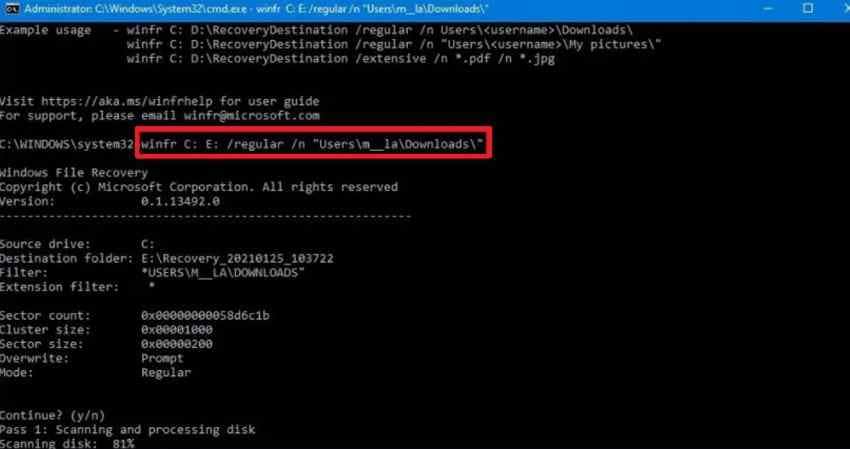
Replace <username> with your Windows profile folder name. Keep the trailing backslash when specifying a folder, as in Microsoft's example. For an external exFAT drive F: containing lost JPG files, with E: as a different physical destination, a more suitable pattern is:
winfr F: E: /extensive /n *.jpg
Step 3. Review the output. Confirm the prompt when requested. Microsoft creates a Recovery_<date and time> folder on the destination. Open a sample of recovered files and check their contents before considering any repair on the original disk.
Limits: This command requires an accessible source drive and cannot scan a disk that has no usable Windows drive letter. If a lost partition or RAW disk is detected but lacks a drive letter, consider compatible recovery software or a specialist rather than initializing it to make the example run.
Part 7. When DIY Hard Drive Recovery Is Not Appropriate
Software recovery is not always the safest next step. A mechanical HDD can worsen with repeated attempts to spin up or scan it, and an encrypted drive may remain inaccessible even after successful hardware repair unless the valid key is available.
Completely Unrecognized or Physically Failing Drives
- Stop immediately: Clicking, grinding, unusual vibration, burning smell, liquid exposure, or severe impact.
- Stop scans: Repeated disconnects, long read stalls, escalating read errors, or incorrect disk identification.
- One cautious connection check: On a quiet, undamaged external device, try a known-good compatible cable, port, and required power adapter. Do not keep retrying a drive that remains unstable.
- Do not initialize: An old drive marked Not Initialized or RAW can still contain important data. Microsoft explains that initialization is meant for new disks without existing files.
When to Contact a Professional Recovery Service
Choose a reputable recovery lab if the disk makes mechanical noises, has no system-level detection after safe connection checks, or holds irreplaceable data that cannot be risked in a DIY scan. Ask how the lab handles evaluation fees, data confidentiality, return media, diagnostic imaging, and whether work requires authorization before costs rise. Keep any BitLocker or FileVault recovery keys available; the lab cannot bypass properly implemented encryption simply by replacing hardware.
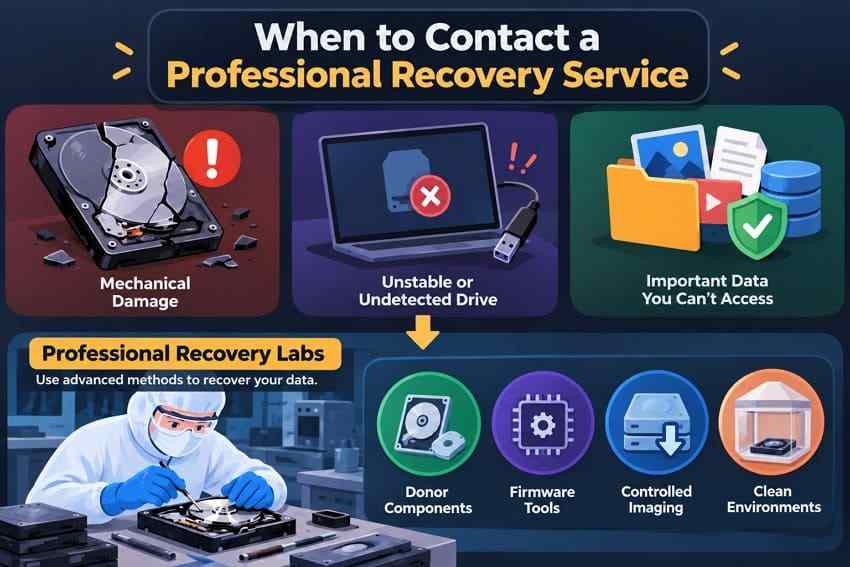
Never open a sealed HDD yourself. Specialist work may use controlled imaging, component-level assessment, and appropriate clean facilities, but recoverability and price vary with the actual failure.
Can You Recover Files From a Formatted or Undetected Hard Drive?
Formatted HDD: Sometimes, especially after a quick format on stable media without later writes. A completed full overwrite format or reused sectors sharply limits what remains. Formatted SSD: TRIM may make deleted blocks unrecoverable. Undetected disk: First distinguish a file-system or enclosure issue from physical non-detection. If system-level tools still cannot access the storage after safe checks, ordinary software has nothing to scan.
For a specific external-drive case, see recovery from an external hard drive. Avoid repeating formatting, CHKDSK repairs, or disk-partition changes while important files remain missing.
Conclusion
To recover lost files on a hard drive safely, identify whether the disk is healthy enough to read, stop new writes, and check Trash, Recycle Bin, or a previous backup. When a stable internal or external drive still contains recoverable data, Recoverit or Windows File Recovery can provide a software route; save results on another physical disk. If the drive clicks, repeatedly disconnects, reports implausible details, or cannot be detected, stop DIY scanning and seek professional evaluation. Data recovery should come before repairs, formatting, or replacement.
FAQ
-
Can permanently deleted files be recovered from a hard drive?
Sometimes. Traditional HDDs may retain the file's data until another write reuses those sectors. An emptied Recycle Bin or Shift+Delete does not itself prove all bytes are gone. On SSDs, TRIM and garbage collection can remove deleted data sooner. Check existing backups first and avoid new writes. -
Can you recover data from a formatted hard drive?
Recovery may be possible after a quick format on a readable HDD if the original data remains untouched. A full overwrite format, new files written after formatting, SSD TRIM, or physical damage can make recovery partial or impossible. Never reformat a second time to try to fix the situation. -
How do you recover lost files from an external hard drive?
First check the connection and confirm that the external drive appears in File Explorer, Disk Management, Finder, or Disk Utility. Check backups or a synced copy. For a stable, detected disk with logical loss, scan it with compatible recovery software and save recovered files to another physical drive. Stop if it clicks or repeatedly disconnects. -
Can data be recovered from a hard drive that is not detected?
Possibly, but not with a normal software scan if the operating system never exposes an accessible disk. On an external drive without signs of physical damage, check a known-good cable, port, power supply, and computer once. Persistent non-detection, abnormal noises, or incorrect capacity readings call for specialist evaluation.


