 TL;DR:
To safely restore disappeared files from an external hard drive, immediately stop writing new data to prevent overwriting, verify if the files are merely hidden or in the Recycle Bin, and scan with Recoverit only if the physical disk remains continuously detectable and mechanically stable.
● Do not initialize, format, or run repair commands like CHKDSK on RAW or unallocated space before securing your data, as these actions alter disk metadata and can permanently destroy recoverable files.
● Software recovery requires intact data blocks and cannot reconstruct files that have been overwritten by new data, erased by external SSD TRIM commands, or locked behind missing BitLocker encryption keys.
● If the drive repeatedly disconnects or makes grinding noises, stop all DIY scans immediately to prevent severe hardware damage, and always save any successfully rescued files to a completely different healthy physical drive.
Ask AI for a summary
 ChatGPT
 Perplexity
 Gemini
 Claude
 Grok
Grok
An external hard drive can open normally while photos, documents, or folders seem to have disappeared. On Windows and Mac, the cause may be hidden files, a changed save location, accidental deletion, filesystem corruption, malware, or sync software. Even when the drive shows used space, a particular file may no longer be accessible.
Before formatting or running repairs, identify the disk and check whether it still reports occupied storage. Check visibility, folder paths, Recycle Bin, Trash, and existing backups. For deleted or inaccessible files, Recoverit may help when the device is stable and detectable. This guide explains how to distinguish the symptoms, protect the original disk, and decide whether to search, recover, or stop.
In This Article
Part 1. Which "Missing Files" State Do You Actually Have?
A missing folder and a missing disk are different problems. Identify the visible state first: it tells you whether the next step should be a harmless search, a recovery scan, or a hardware safety check.
Identify the Symptom Before Choosing a Fix
Look at File Explorer or Finder, the space reported for the volume, and whether the physical device is present in Windows Disk Management or Mac Disk Utility. These five states call for different first moves:
| Observed state | What it may mean | Safest first action |
| Drive opens; used space remains | Hidden data, inaccessible folders, system files, or files in a volume Recycle Bin | Reveal hidden items and check the actual folder path |
| Only one folder appears empty | Changed save/export path, sync activity, permissions, or deletion | Search the drive and application output folder before repairing |
| Specific files were deleted | Deletion or cleanup; recoverability depends on remaining data | Stop writes; inspect Recycle Bin, Trash, and backups |
| Disk shows RAW or Unallocated | Unrecognized file system or lost partition information | Cancel format/initialize; consider safe recovery |
| Physical disk is absent or repeatedly drops | Cable/power/enclosure issue or a hardware fault | Perform a limited connection check; stop if unstable |
The size of the reported used space is a clue, not proof that a particular file still exists. An external disk can show occupied space even when the content you need has been deleted or its directory records cannot be read.
Stop Writes and Confirm the Physical Disk
If deletion or file-system damage is possible, do not download, copy, initialize, defragment, format, or run repair tools on the affected disk. A new write can overwrite information that recovery software would otherwise need. First identify the physical disk and check for existing copies.
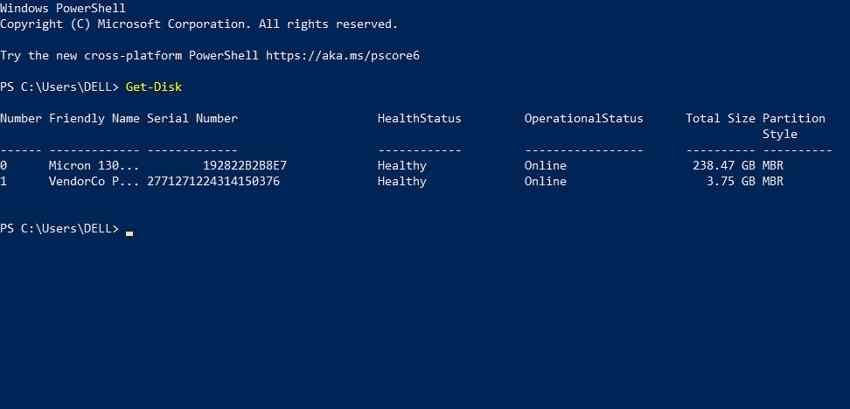
Windows: Open Disk Management from the Windows + X menu. In PowerShell, the read-only command Get-Disk lists physical disks. Match the manufacturer, connection, and approximate capacity before assuming that a drive letter such as E: still belongs to the same device. Microsoft documents this command in its Get-Disk reference.
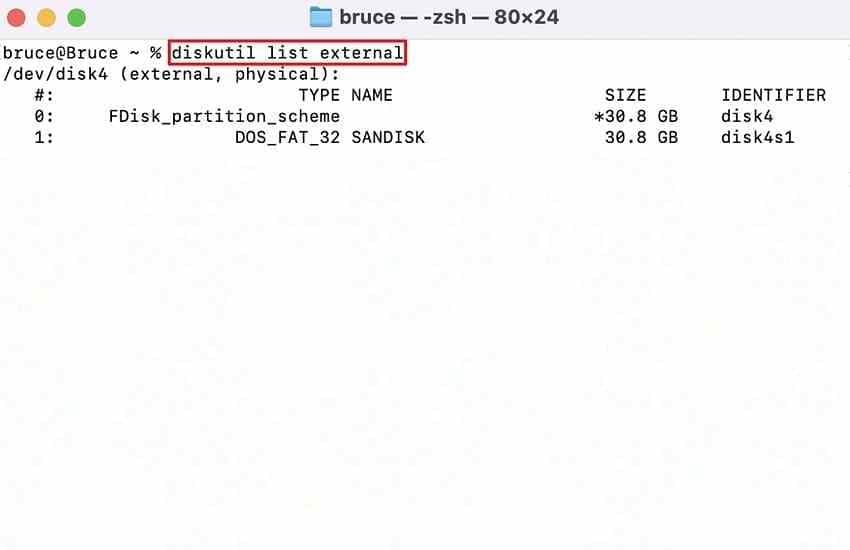
Mac: Open Disk Utility, choose View > Show All Devices, and compare the physical disk and volumes. Advanced users can use the read-only Terminal command diskutil list external to inspect external disk identifiers.
Check whether a separate disk, a verified cloud copy, or an existing backup already contains the folder. Do not restore files onto the affected external drive while the cause is unknown.
Part 2. If Used Space Is Still There but Files Are Invisible
When a volume opens and storage is still occupied, begin with visibility and location checks. These do not require reformatting or changing file attributes, and they may solve the problem before any recovery scan is needed.
Reveal Hidden Items and Trace the Folder Path on Windows
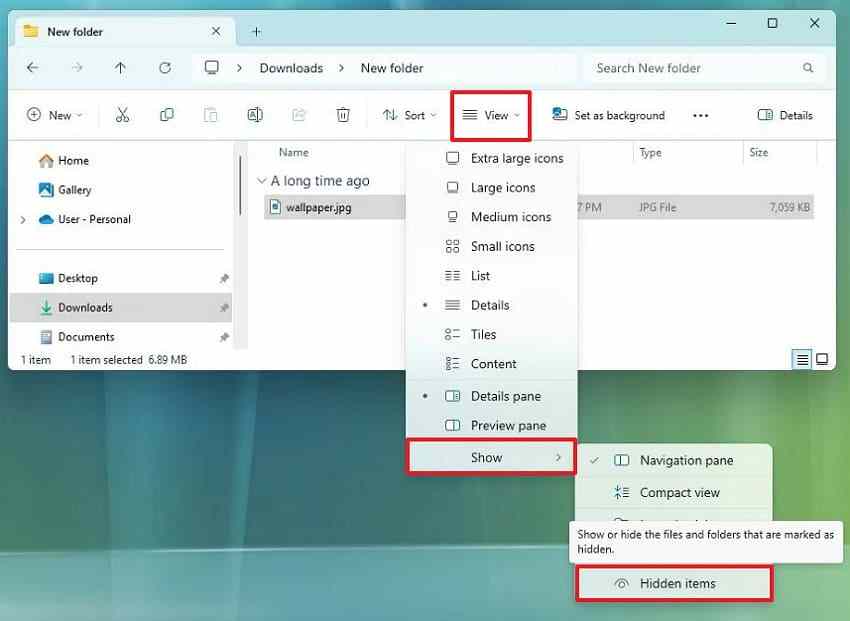
Step 1. In Windows 11 File Explorer, open the external drive and choose View > Show > Hidden items. Windows 10 uses View > Hidden items. This displays ordinary hidden files, not necessarily every protected system file. See Microsoft’s File Explorer instructions for the relevant Windows layouts.
Step 2. Confirm the drive name and full folder path. Search the entire external drive using a distinctive filename or extension, clear search filters, and check whether the correct Windows user account is signed in.
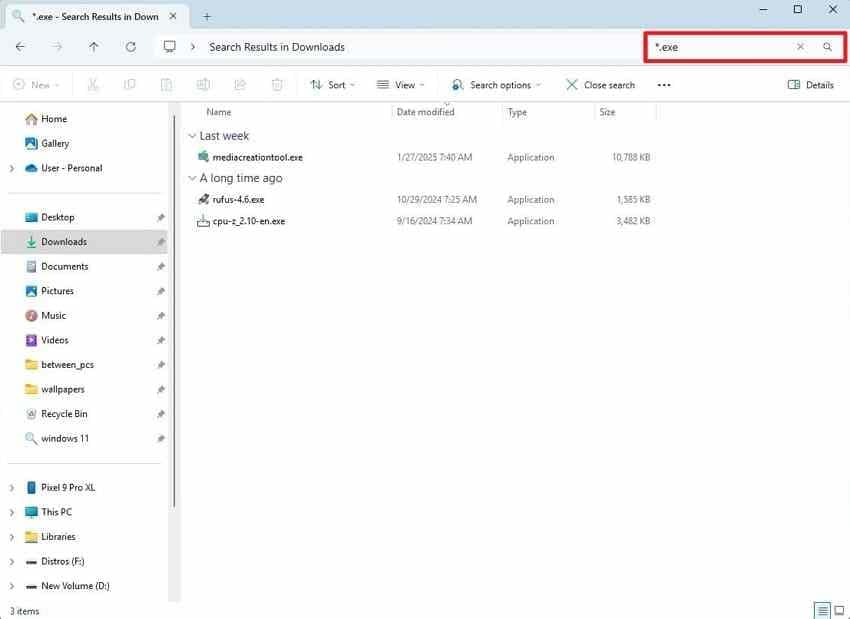
Step 3. If a program created the missing files, check that program’s Save As, Export, or Output folder setting on both computers. Look for similarly named folders on the internal drive and the external drive. Do not assume the last opened location is where the application exported its output.
In one real user report, files appeared to vanish after an external SSD was used between a desktop and a laptop. The user later noticed the problem affected output from one specific application. That does not prove the cause, but it is a useful reason to verify application-specific export paths before blaming the disk.
If a suspicious shortcut replaces a familiar folder, do not open it. Changing all file attributes recursively with an internet command can alter unrelated files; confirm the actual cause first.
If the reported used space remains high after these checks, the more specific files missing but still taking up space guide covers that narrower symptom. Avoid running repair commands until your important data is protected.
Check Sync History, Security Quarantine, and Drive Letters
Synchronization and security software can change which copy is visible. Also, a drive may receive a different letter on another Windows PC without losing any data.
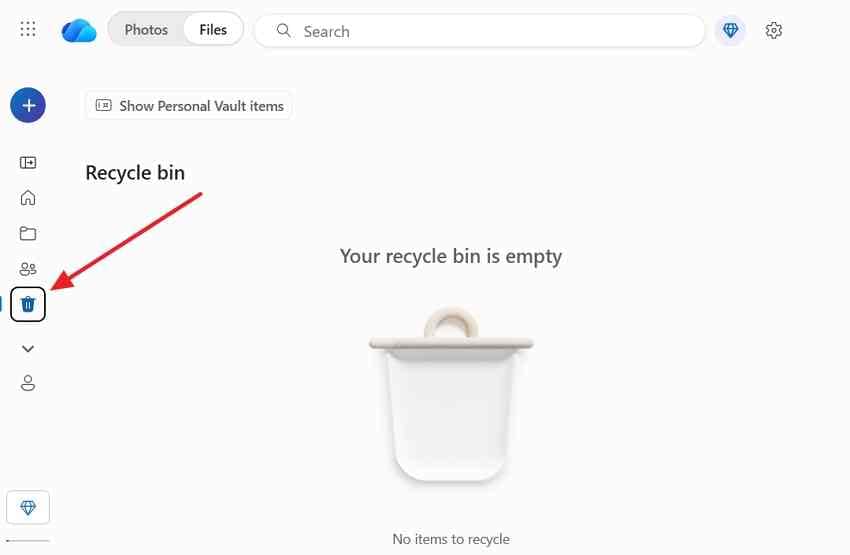
Check the sync location. If the folder was managed by OneDrive, inspect the correct account and its online Recycle Bin or version history. An empty OneDrive bin does not show that a local external drive is empty. Microsoft explains the distinct OneDrive recovery locations.
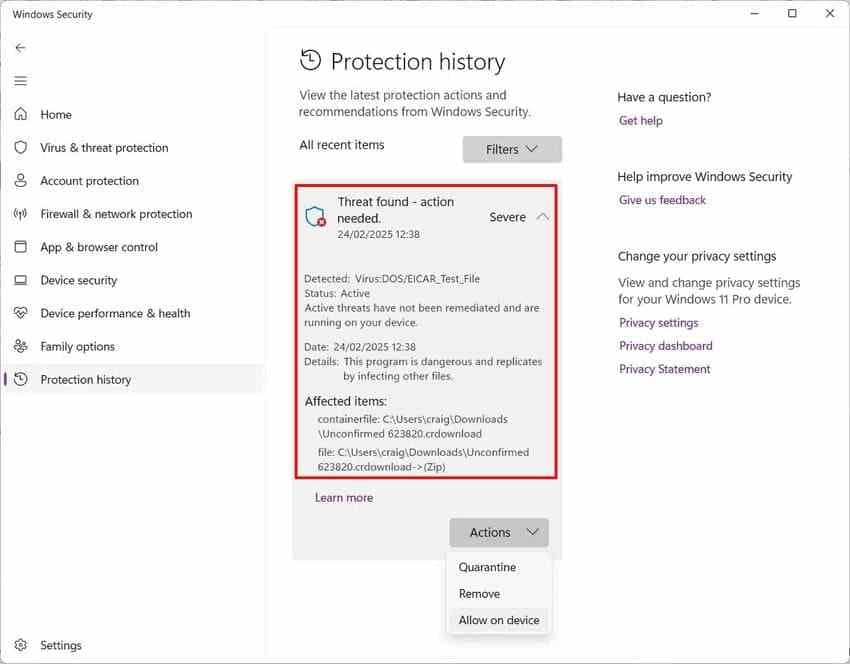
Check security actions. Open Windows Security > Virus & threat protection > Protection history. Review any recent quarantines rather than restoring an item automatically; the alert may represent a real threat. Microsoft documents the Protection history screen.
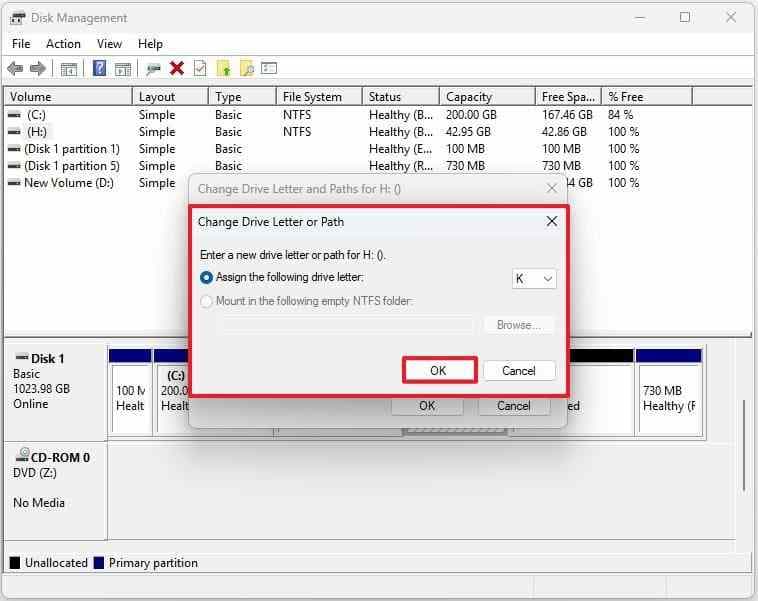
Check drive letters. In Disk Management, match the physical disk and partition capacity. If an otherwise healthy, accessible volume has no suitable drive letter, Windows lets administrators assign one through Change Drive Letter and Paths. Avoid changing letters on a damaged disk or one used by applications without first securing data. Follow Microsoft’s drive-letter guidance only when that is the confirmed issue.
Inspect Finder and Mounted Volumes on Mac
On a Mac, an external volume may be mounted but hidden from Finder, or a folder may contain files marked as hidden. Separate these visibility cases from a volume that will not mount at all.
Step 1. Open the external volume in Finder, then press Command + Shift + . (period) to toggle hidden items. Check the path, search scope, and permissions before modifying anything.
Step 2. Choose Finder > Settings. Under General, enable External disks if you want disks shown on the desktop; check the Sidebar tab for their Finder sidebar visibility. Apple explains these options in Finder settings.
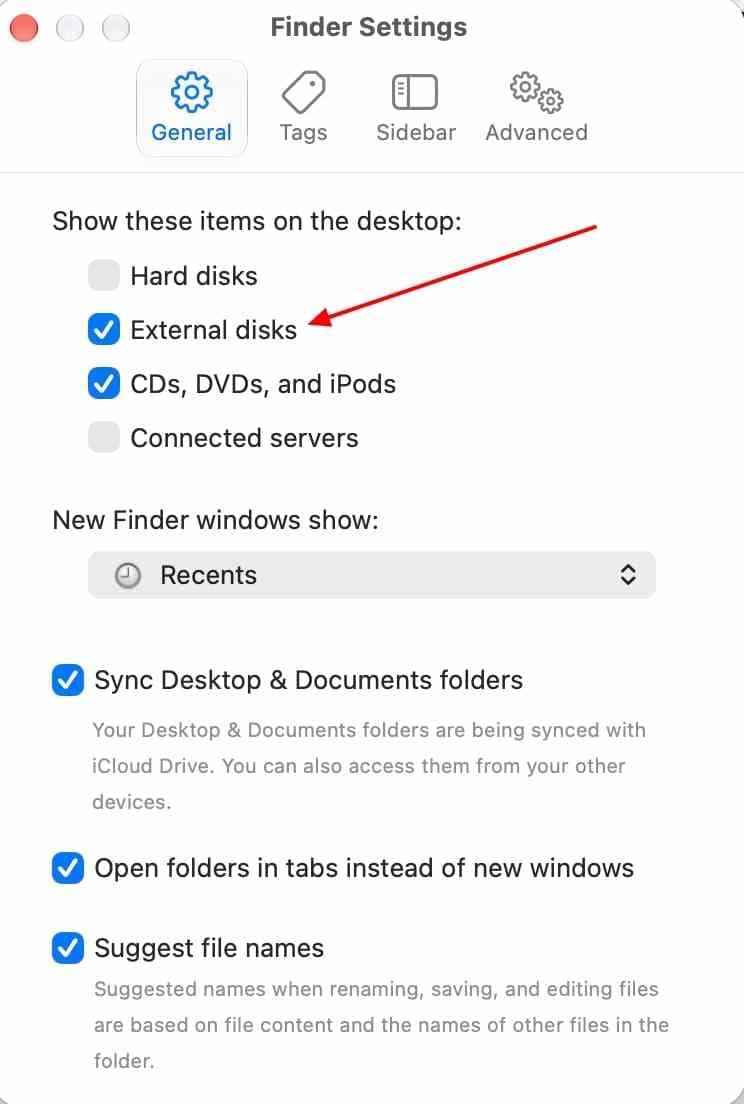
Step 3. In Disk Utility > View > Show All Devices, confirm the physical device and its volume. If the disk is stable and only the volume is unmounted, a single Mount attempt may make it accessible; stop repeated attempts if errors, disconnects, or unusual sounds occur. Apple describes mounting an ejected volume.
For Mac-only recovery choices after these checks, use the existing Mac external hard drive recovery guide rather than applying Windows disk commands to an Apple-formatted drive.
Part 3. If Files Were Deleted or the Folder Is Truly Empty
If the original folder is truly empty or a file was deleted, visibility fixes cannot recreate it. Work from any independent copies toward a recovery scan, and leave the affected drive unchanged while choosing a destination for rescued data.
Check Existing Backups Before Recovery
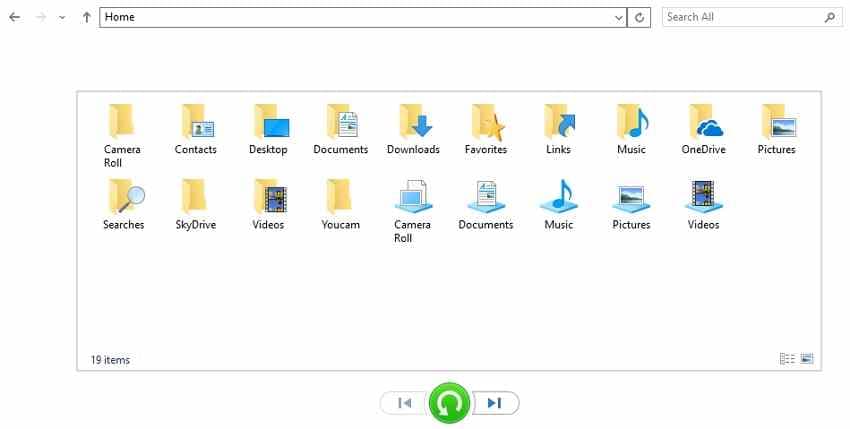
Windows File History: Use Control Panel > System and Security > File History to inspect saved versions only if File History was enabled beforehand. External drive folders are not automatically protected: the folder must have been included in a backed-up library or otherwise covered. When available, use Restore to... to save a copy elsewhere. See Microsoft’s File History guide.
Note: The following original screenshot illustrates an older File History restore interface. Current control placement can differ by Windows edition and version.
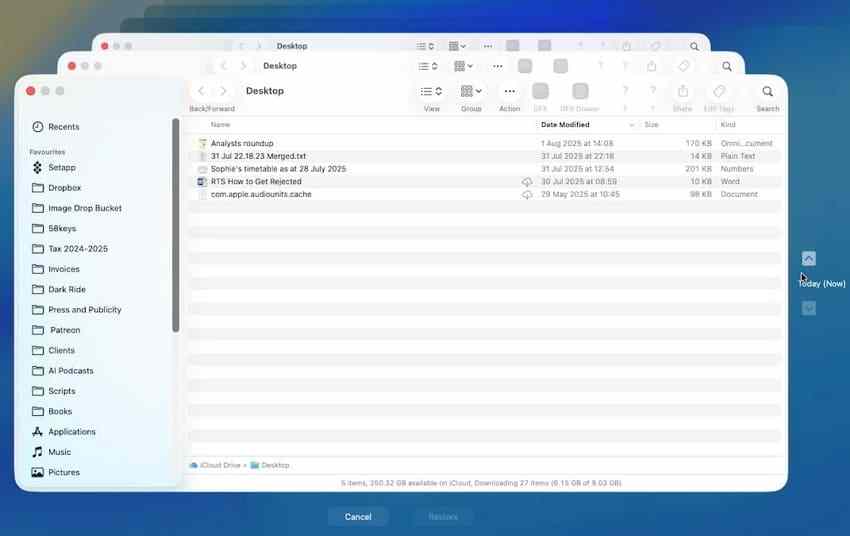
Mac Time Machine: Connect the backup destination and inspect versions from before the files disappeared. A data drive is recoverable from Time Machine only if that drive was included in the backup, rather than excluded. Check Apple’s Time Machine instructions and backup exclusions first.
Also check any independently managed backup or versioned cloud service. A copy in a second folder on the same failing external drive is not an independent backup.
Look in Recycle Bin or Trash Without Assuming the File Is There
Windows and macOS handle deletion differently depending on the filesystem, device type, and method of deletion. Inspect the appropriate location without assuming every external-drive deletion is recoverable there.
| Deletion path | Where to check |
| Ordinary Windows Delete on an eligible external volume | Windows Recycle Bin while the volume is connected; behavior depends on volume and settings |
| Windows Shift + Delete, permanent delete, or unsupported removable media | Often bypasses Recycle Bin; check prior backups |
| Files deleted inside a synced cloud folder | Both the cloud service’s bin/version history and the local Recycle Bin if applicable |
| Mac Finder Delete on an eligible external volume | Mac Trash with the drive connected, if supported |
If you find the correct files in Recycle Bin or Trash, restore them to a healthy destination when that option is available. If neither bin contains them, move to recovery only after verifying you are scanning the right physical disk.
Scan a Stable External Drive With Recoverit
For a stable, detectable external HDD or SSD with missing or deleted files, Wondershare Recoverit Hard Drive Recovery can scan supported devices and preview eligible results. It is for extracting files, not repairing a failed disk or bypassing encryption. Install the program on your computer or another healthy disk, never on the affected drive.
Step 1. Select the correct external drive. Connect the drive directly and open Recoverit. Under Hard Drives and Locations (label may vary by version), select the external physical drive or appropriate volume by identity and capacity. The Recoverit Windows user guide covers external-device scans.

Step 2. Scan without changing the source. Let Recoverit search for recoverable files. Use its file type, path, or search filters to locate relevant results. If the drive begins disconnecting, making unusual noises, or producing repeated read errors, stop the scan.

Step 3. Preview and save elsewhere. Open a supported preview where available, select the required files, and click Recover. Choose a different healthy physical drive, not another folder on the same source. Open important saved files to verify their contents.

Recovery depends on the remaining file data, the health of the device, the filesystem, and whether an earlier operation overwrote or erased the original blocks. A listed filename or a preview is not a guarantee that every recovered byte will be intact.
Understand Overwrite, SSD TRIM, and Encryption Limits
When software cannot find usable files, one of the following limits may explain why. Checking the right condition avoids repeating scans that cannot restore data that no longer exists:
- Overwritten data: New files may occupy blocks that formerly held deleted content. Recovery software cannot reconstruct the original bytes once they have been overwritten.
- External SSD TRIM: Some SSD/enclosure combinations pass discard or TRIM commands. If the SSD has erased deleted blocks internally, ordinary software recovery may not be possible; support varies by hardware and connection.
- Encryption: A BitLocker recovery key or other valid unlock credential may be necessary before a Windows or Mac tool can access protected data. Recoverit cannot replace a missing key or decrypt an unknown volume without authorization.
- Read instability: Frequent disconnects, I/O errors, or mechanical warning sounds turn a software problem into a potential hardware risk. Do not keep running deeper scans on a failing device.
Part 4. If Windows Shows RAW or Unallocated Space
A RAW partition or unallocated space is a different problem from a hidden folder. The computer detects some aspect of the storage device, but the usual filesystem or partition map is unavailable. Preserve its state rather than creating a new volume to make it look usable.
Inspect RAW or Unallocated Status Without Initializing
Step 1. Press Windows + X and open Disk Management. If Windows asks to Initialize Disk for a drive that previously held data, select Cancel. Microsoft notes that a used drive can appear uninitialized because of corruption or hardware problems; see Disk Management troubleshooting.
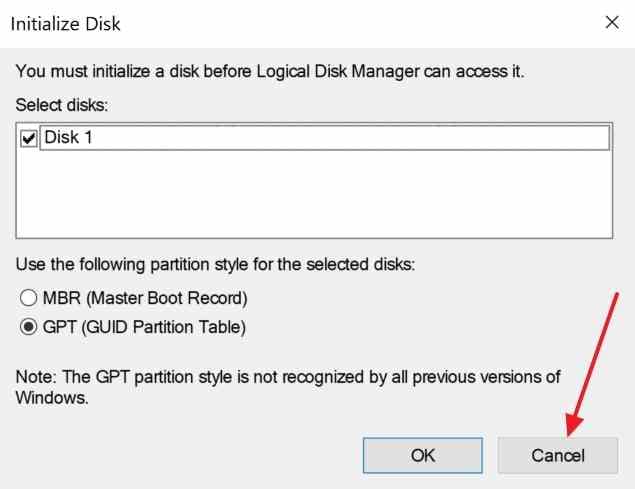
Step 2. Find the disk by capacity and connection. Check whether its volume reports RAW or the disk displays Unallocated. Note the disk number but do not format, initialize, delete, or create partitions while important data remains missing.
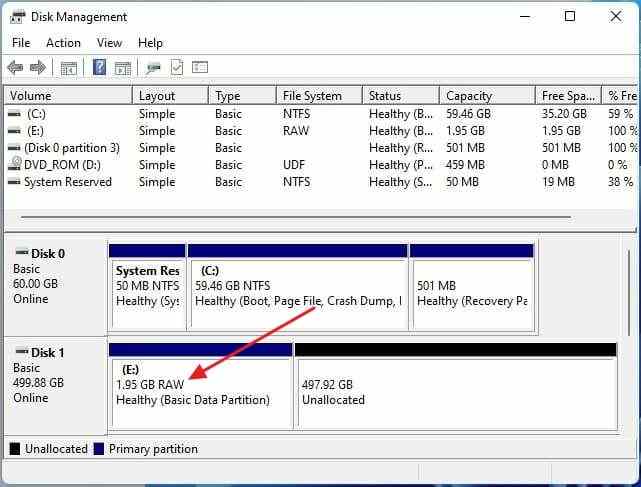
If the physical device itself does not appear, return to the hardware checks in Part 5. A drive that is completely absent from the operating system is not a viable target for a normal application scan.
Recover Data Before CHKDSK or Partition Repairs
Microsoft states that CHKDSK /f fixes file-system errors by changing disk metadata; it is not a file-recovery utility. Do not run chkdsk /f, chkdsk /r, DiskPart clean, or a format command as your first response to missing data. Read the official CHKDSK reference before considering a repair after recovery.
On macOS, Disk Utility First Aid also performs filesystem repair. Back up or recover important data before using it on a damaged volume. If a disk is stable but logically damaged, an experienced operator may work from a verified disk image or other non-destructive copy; imaging a failing drive requires specialist judgment.
When an accessible physical disk is healthy enough to read, Recoverit may locate recoverable content from logical damage or a lost partition. For adjacent scenarios such as missing volumes and file-system corruption, see the existing hard drive lost-files guide instead of inserting potentially destructive partition-rebuild steps into this article.
Part 5. If the External Drive Disconnects or Is Not Detected
A hard drive that disappears during a scan needs a different response from one that merely has an empty folder. Establish whether a simple connection problem exists, but do not turn repeated power cycles into a diagnostic experiment on a failing device.
Make One Controlled Cable, Port, and Power Check
For a disk without clicking, grinding, burning smells, liquid exposure, or repeated failure signs, one controlled connection check may help:
Step 1. Use a known-good, appropriate cable and connect directly to the computer rather than through a hub or dock.
Step 2. For an external desktop enclosure that requires its own power, use the correct manufacturer-approved power adapter.
Step 3. If the disk still does not appear but remains mechanically quiet, check one other trusted computer once. Inspect Disk Management or Disk Utility rather than relying only on Explorer or Finder.

A drive missing only from File Explorer may still be visible as a physical disk in Disk Management; that does not necessarily mean the hardware is dead. Conversely, a USB enclosure appearing in a device list does not prove that the underlying HDD or SSD is readable.
Stop DIY Scans When the Hardware Is Unstable
- Repeated clicking, grinding, or spin-up attempts: Disconnect the HDD and seek an experienced data recovery specialist; continued powering may cause additional damage.
- Drive disappears partway through every read: Stop direct scans rather than retrying indefinitely.
- No physical disk appears after limited cable/power checks: Ordinary file recovery tools cannot scan what the operating system cannot access.
- Hardware-encrypted enclosure: Before moving the internal disk to another case, check whether the original USB bridge is needed to decrypt its contents.
If the missing files are valuable and the drive is unstable, a professional lab is safer than repeatedly running disk repair software. Describe the symptoms, whether the disk was dropped, and whether encryption was enabled; do not attempt a home clean-room disassembly.
Part 6. Verify Recovered Files and Prevent a Repeat
Finding file names in a scan is not the finish line. Verify the contents on a different physical device and decide whether the original external drive is trustworthy before returning it to daily use.
Verify Files on a Different Healthy Drive
Recover into a new folder on a healthy destination and open a representative sample from every important project. For critical items, verify each file rather than relying on scan previews or counts.
| File type | Verification before you reuse the old disk |
| Photos | Open at full size and inspect the complete image, including lower portions |
| Videos | Play a sample from start to finish, especially the final seconds |
| Documents and project files | Open every crucial page, attachment, dependency, and linked asset |
| ZIP and other archives | Extract into a test folder and verify the included files |
When a project contains linked media or exported assets, confirm those dependencies open from the new location as well. The destination should not be another partition of the same suspect device.
Rebuild the Original Volume Only After Verification
Only after the necessary files are verified should you consider reformatting or recreating a filesystem. Formatting removes access to the existing file layout and does not repair failing mechanics, controller faults, or power issues. Replace a drive that repeatedly disconnects, reports physical errors, or no longer behaves predictably.
If you need to test an apparently healthy disk before reusing it, keep the verified files safely elsewhere and use the manufacturer’s supported diagnostics. Do not treat a single successful copy as proof that a previously unstable drive is reliable.
Keep Independent Backups and Test Restores
Maintain copies on independent storage devices or services so that one disk failure does not remove both the working data and its backup. Keep one copy away from the primary location when possible. Check the backup configuration for newly added external folders, and periodically restore a sample of documents and media to verify that the backup works.
After copying a large project between computers, confirm the transfer has finished and reopen a few output files on the destination before deleting the original. Eject removable storage properly, and avoid using a failing disk as the only place where recent work exists.
Conclusion
Files can disappear from an external hard drive because of hidden settings, a changed save location, deletion, malware, damaged partitions, or failing hardware. First identify whether the volume opens, still uses space, or appears as RAW. Check File Explorer, Finder, Recycle Bin, Trash, and backups before making changes. If files remain missing, Recoverit may recover eligible data from a stable, detected drive; always save results elsewhere. Avoid formatting or repairs until files are secure. Verify recovered copies and maintain independent, tested backups.
FAQ
-
Why did my external hard drive files disappear but still take up space?
The space may include hidden files, files in a volume Recycle Bin, system data, or content whose directory entries are no longer readable. Check the correct folder, hidden-item view, and search filters. Used space alone cannot establish that a particular deleted file is intact. -
Can I recover missing files from an external hard drive without formatting?
Often, yes. Formatting is not a prerequisite for file recovery. Cancel any format or initialize prompts, check backups and bins, then scan only if the physical drive is stable and detected. Save recovered files to another healthy disk. -
Why are files missing from my external hard drive after connecting it to another computer?
Drive letters, search settings, account permissions, file-system compatibility, and application export paths can differ between computers. Confirm the same physical drive and folder, search by filename, and check whether the application saved its output to the internal disk instead. -
Can I recover disappeared external hard drive files without a backup?
Possibly, if the lost content has not been overwritten or erased and the disk can be read safely. A stable drive can be scanned for recoverable data. SSD TRIM, unavailable encryption credentials, severe hardware damage, or repeated disconnects can prevent ordinary software recovery.



