 TL;DR:
True online hard drive recovery does not operate directly through a web browser; it requires either downloading local software for a readable disk, granting a technician authorized remote access for complex logical issues, or sending mechanically failing hardware to a physical lab.
● Stop using the affected drive immediately and recover missing files to a separate healthy disk before running write-based OS tools like Windows CHKDSK or macOS Disk Utility First Aid, which can permanently alter the file system and destroy recoverable data.
● Choose a method based on hardware condition: use local software (such as Recoverit, which allows up to 500 MB of free recovery) for logical errors on stable disks, arrange remote help for operational drives, or disconnect power and consult a lab for clicking sounds or missing system-level detection.
● Standard recovery methods cannot retrieve data from overwritten sectors resulting from a full format, recently deleted SSD blocks cleared by TRIM and garbage collection, physically damaged hardware, or encrypted storage missing the proper credentials.
Ask AI for a summary
 ChatGPT
 Perplexity
 Gemini
 Claude
 Grok
Grok
Online hard drive recovery may mean downloading recovery software, asking an expert to work through an authorized remote connection, or requesting a physical disk recovery service. It is rarely a matter of uploading a broken hard disk to a webpage: local or remote software still needs access to the storage device, and mechanical damage requires specialist hardware work.
Before choosing a method, determine whether the hard drive is stable and detected, and whether the data has an existing backup. This guide separates file recovery from HDD repair, explains safer online options, and shows when to use local software such as Recoverit, remote help, or a recovery lab. Do not format, initialize, run repair commands, or save new files to a drive containing important missing data.
"15 years old photos and videos." - a user describing accidental HDD data loss on r/datarecovery.
In This Article
Part 1. What Does "Online Hard Drive Recovery" Mean?
An online hard disk recovery service is not necessarily a browser tool. It may be a download that runs on your PC, a technician working remotely through an authorized connection, or an online booking for a physical recovery lab. These routes differ in where the drive stays, who can read the data, and which failures they can address.
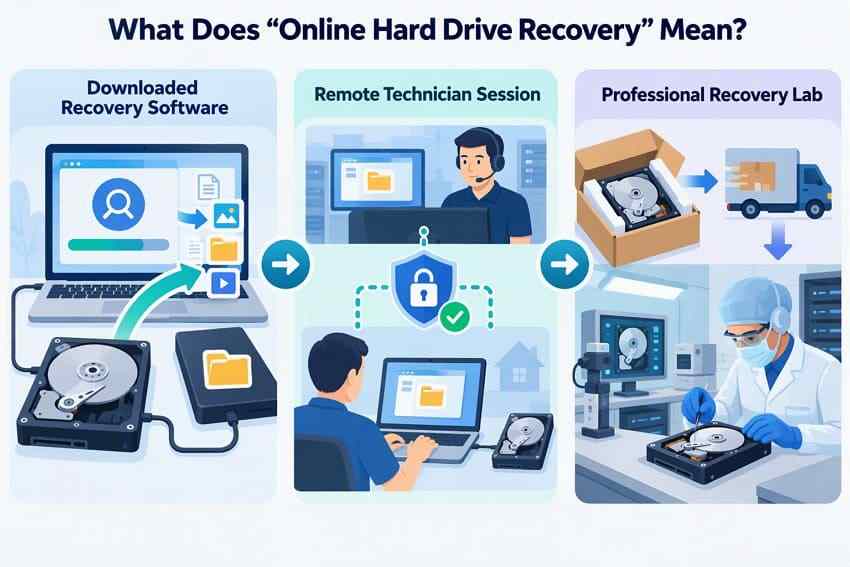
Downloaded Software That Scans a Connected Drive Locally
For most people, "online hard drive recovery" means downloading a desktop application and running it on the computer that can access the affected HDD. The application reads data through the operating system and storage interface, rather than uploading the entire drive to a website. The hard disk might be inside the PC or connected by USB, SATA, or a compatible enclosure.
A locally run scan is suitable for certain deleted files, accidentally formatted volumes, or RAW file systems, provided the physical drive is detected and can be read reliably. It is not an online shortcut around a dead controller, failed heads, or unreadable sectors.
Remote Technician Assistance vs. Professional Lab Recovery
In a remote session, a verified technician uses approved client software to help investigate a storage device that is still operational. For example, Ontrack Remote Data Recovery specifically requires a working, correctly recognized storage device and a network connection. The technician does not physically repair the HDD through the internet.
A lab is different: the disk goes to specialists who may use dedicated imaging hardware, replace failed components in a controlled environment, or work around other physical obstacles. Lab recovery can be necessary after impacts, abnormal mechanical noises, or repeated read failures. Neither route promises complete recovery.
Local HDD Recovery vs. Restoring Files From a Cloud Account
Before scanning a drive, ask whether the files also exist in cloud storage. Google Drive deleted-file recovery generally offers a 30-day Trash window, while Dropbox Deleted files usually retains deleted files for 30, 180, or 365 days depending on the account plan. These services restore copies already held online; they do not reconstruct deleted sectors on the physical HDD. If the missing file was never uploaded, a local backup, software scan, or lab may be needed.
| Question | Local hard drive recovery | Cloud file restoration |
| Where is the data? | Remaining data or metadata on the affected local disk | A copy on the provider's servers |
| What access is needed? | A stable, operating-system-detectable source disk | The right account and permission to restore |
| Biggest limitation | Overwriting, unreadable sectors, physical failure, or encryption access | Provider retention period and permanent deletion |
| Best first use | Unique files missing from a readable HDD | Files known to have been uploaded or synchronized |
Part 2. Choose a Recovery Route Before You Start
Do not select a tool solely because it says "free" or "online." First check whether a previous copy exists, whether the drive appears at the hardware level, and whether it is behaving normally. A few minutes spent choosing the correct route can prevent a repair attempt from destroying the remaining evidence of the lost files.
Comparison: Existing Backup, Local Software, Remote Help, and Lab Recovery
| Recovery route | Best situation | Device condition | What to confirm first |
| Existing backup | An earlier version or independent copy already exists | Original drive may be unusable | Backup date, completeness, and restore destination |
| Local recovery software | Deletion, quick format, RAW or lost partition | Detected, stable, and readable enough to scan | A different healthy disk for saving recovered files |
| Remote technician | Complex logical loss needing guided access | Powered, accessible, and working reliably | Verified provider, privacy terms, permissions, and quote |
| Recovery laboratory | Clicking, failed heads, non-detection, or severe instability | Physical faults or inaccessible storage | No further DIY power cycles; diagnostic, costs, and handling terms |
Decision rule: If the files have an intact backup, restore that copy first. If the HDD still reads normally, consider local software. If you need a specialist but the disk works, ask about remote assistance. If the disk is physically failing, stop the software route and seek qualified evaluation.
Deleted, Formatted, or RAW Files on a Readable Drive
A drive can be visible in Windows Disk Management or macOS Disk Utility while its data is not accessible from File Explorer or Finder. Match the symptom to the next step rather than accepting an automatic format prompt.
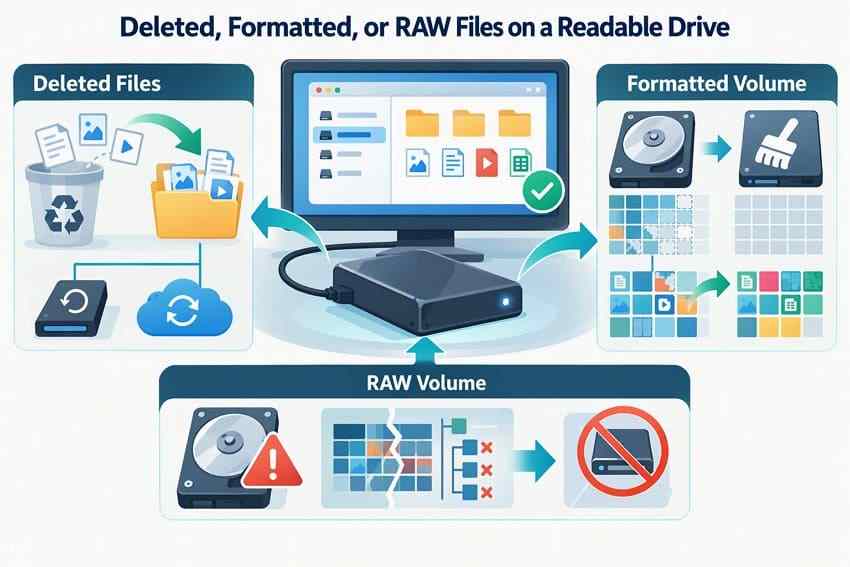
- Deleted files: Check Recycle Bin, Trash, File History, Time Machine, or cloud copies. If they are unavailable, stop writing to the drive and scan it.
- Quick format: Stop using the HDD immediately. A quick format generally removes or rebuilds file-system structures without necessarily overwriting every previous file sector. See the separate formatted-drive recovery guide for the detailed distinction.
- RAW or inaccessible volume: A RAW label often means Windows cannot interpret the file system. Cancel format and initialize prompts; recover readable data before repair. See the RAW external-drive recovery checklist.
- Full format or overwritten space: When the relevant data has already been overwritten, normal software cannot reconstruct it. A modern Windows full format substantially reduces the chance of old-data recovery.
Clicking, Repeated Disconnection, or No System-Level Drive Detection
Stop if you hear grinding or repeated clicking, smell burning, see impact damage, or watch the drive repeatedly disconnect during reads. Repeated scans, CHKDSK, and power cycling can make some hardware failures worse. Do not open a hard disk or put it in a freezer.
For a silent external HDD with no obvious physical damage, perform one low-risk connection check: another known-good cable, direct USB port, appropriate power adapter, or compatible enclosure. If Windows Disk Management or macOS Disk Utility still cannot see the physical device, ordinary recovery software has nothing to scan. The hard-drive detection troubleshooting article explains the visibility distinction in more detail.
Part 3. Recover a Readable Hard Drive With Local Software
If the HDD is stable, detected by the operating system, and contains logical file loss, a local scan avoids granting an outside technician control of the computer. This section covers what a web browser can and cannot do, then shows an executable Recoverit workflow for Windows or Mac.
Why a Standard Web Page Cannot Scan a Physically Connected HDD
A standard website can work with files or folders you explicitly choose, but it does not obtain unrestricted access to the deleted sectors of a hard drive. Google's File System Access API documentation describes permission-based browser access to user-selected files and directories; that is not the same as a raw disk scan. Services that ask you to upload an existing PDF or photo can process that available file, not retrieve one no longer visible on the HDD.
Treat services advertised as online HDD recovery with caution if they promise to scan and restore every deleted sector instantly inside a standard browser. Local software or legitimate authorized remote assistance still needs the physical data to be readable.
Recoverit for Supported Logical Data Loss on a Readable Source
Wondershare Recoverit Hard Drive Recovery can scan supported internal and external HDDs that remain accessible to the system after deletion, formatting, damaged file-system metadata, or partition loss. It supports scanning, filtering, and previewing supported results. It does not repair broken heads, restore data from overwritten sectors, defeat encryption, or scan a drive the operating system cannot identify at the hardware level.
The usual consumer workflow uses the computer where the affected drive can be detected. Recoverit also documents separate NAS/Linux-device workflows, but those are product-specific remote connections to supported storage, not a generic browser-based hard disk repair service. Check the appropriate product edition before relying on advanced features.
Step-by-Step: Scan, Review, and Recover to Another Drive
Before starting: If possible, work from a healthy computer and install the software on a different physical disk from the affected source. Keep a second healthy drive available for recovered files. If the disk is unstable, stop instead of forcing a full scan.
Step 1. Choose the affected hard drive
Connect the stable HDD, open Recoverit, and select Hard Drives and Locations. Identify the correct physical disk by its capacity and label; for a lost partition, choose a relevant detectable disk location. Start the scan without formatting or initializing the source.

Step 2. Scan and narrow the results
Let the scan read the drive while monitoring for unusual noise, stalls, or disconnections. Use the search field and available file-type, name, or size filters to focus on needed documents, photos, or videos. Interface labels can differ by release; do not assume every edition has the same AI search control.
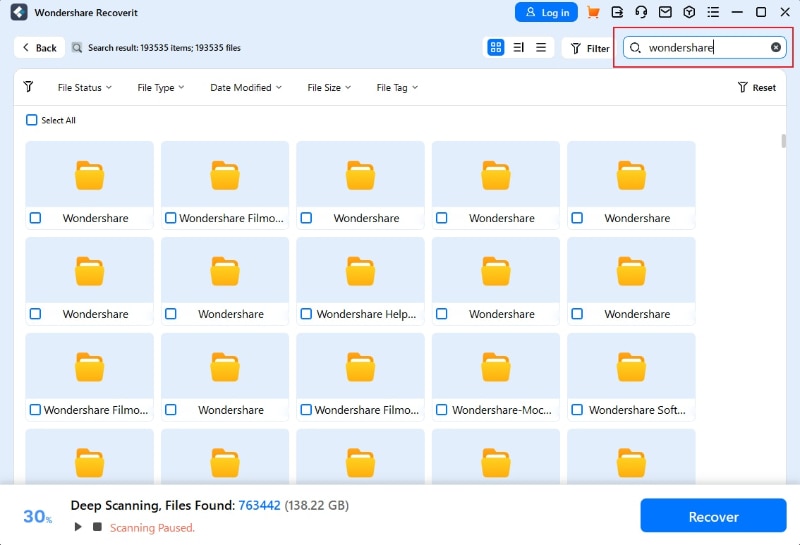
Step 3. Preview and save files to safe storage
Preview supported files to check quality, select what you need, then click Recover. Choose a different healthy physical drive for the output. Open a sample of the restored files to verify them before attempting disk repair.


Limits for Overwritten Data and Physical Drive Damage
- Overwritten sectors: Data replaced by new writes cannot be recovered from those sectors. File names appearing in search results are not proof that file contents remain intact.
- SSD behavior: This guide primarily addresses HDDs. If the device is an SSD, TRIM and garbage collection may make recently deleted blocks unavailable even without much later user activity.
- Unreadable or unstable disk: A drive that vanishes mid-scan or produces severe mechanical sounds should be powered down; an expert may image it with specialist equipment.
- Encrypted storage: Legitimate credentials or recovery keys may be necessary. Recovery software is not a password-bypass or decryption tool.
Part 4. What to Check Before Using Remote Recovery Help
Remote recovery can be useful when a technician needs to guide a complicated but still readable disk through diagnosis. It also creates a security decision: a remote helper may see sensitive filenames, connected drives, or the desktop, and might request control. Make access explicit before granting it.
Technician Access, Connection Security, Data Handling, and Session Revocation
Use only the provider's verified contact channel. The FTC's tech-support scam guidance warns that unsolicited warnings and callers may try to obtain remote access. Microsoft Quick Assist demonstrates a permission-based workflow for screen sharing and separate approval for full control; it is an example, not a guarantee that all recovery services use Quick Assist.
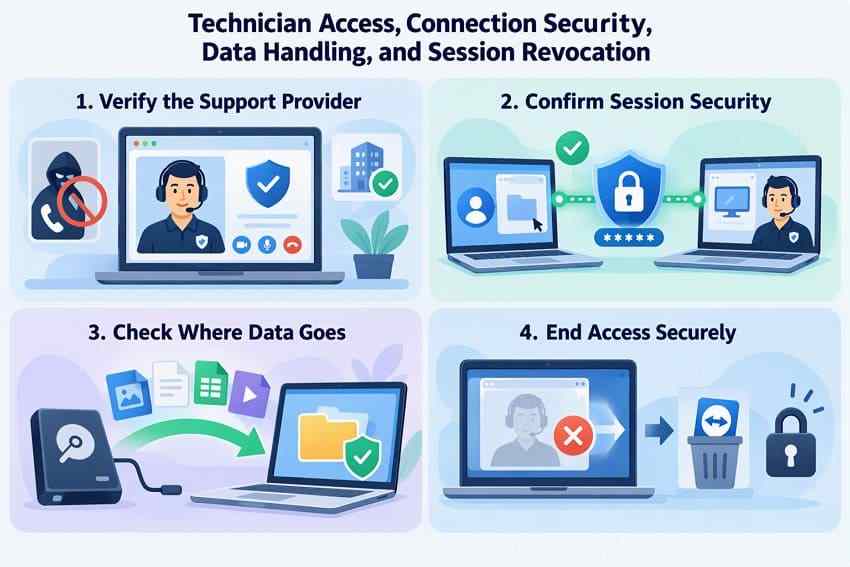
- Identity: Start from the provider's official site or known support number and confirm the technician's name and case ID.
- Connection: Ask what remote application will be used, how the session is secured, and whether unattended access is possible.
- Scope: Approve screen sharing before control, and limit access to the disks and files required for recovery.
- Data handling: Ask whether files remain on your system, are copied elsewhere, or are uploaded for analysis. Require a clear retention and deletion policy for transferred data.
- Revocation: End the session, remove unnecessary helper software, revoke unattended access, and update any credentials that may have been exposed.
Service Scope, Costs, and Whether the Drive Must Be Sent to a Lab
An online consultation may be free while actual remote work is chargeable. Ask for the supported storage types, whether the case is logical rather than mechanical, whether the technician can work with your operating system, and what happens if remote diagnosis reveals hardware trouble. Ontrack's pricing overview illustrates why recovery services typically depend on the fault, urgency, and work required rather than a single universal fee.
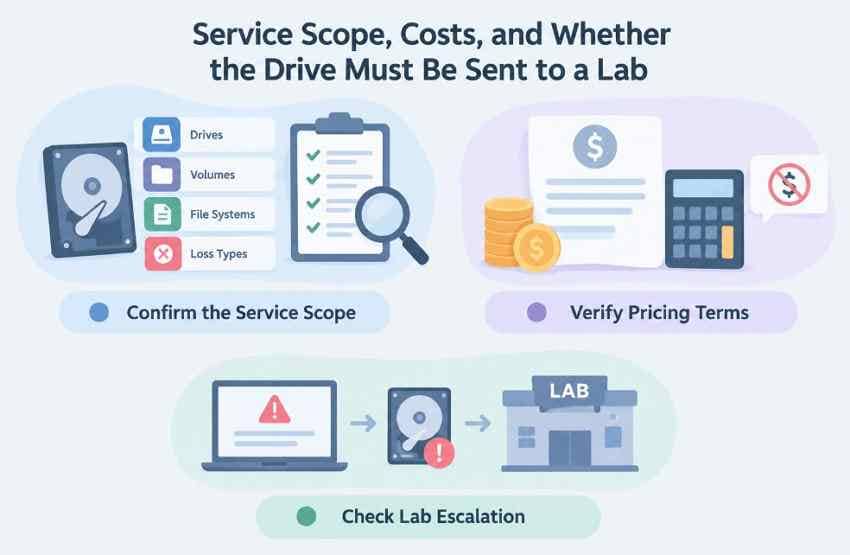
Before approving work, get a written explanation of diagnostic charges, recovery fees, destination media, taxes, shipping, privacy handling, and any no-data/no-charge conditions. Request a list or preview of recoverable files where offered. If a lab becomes necessary, confirm who receives the disk and whether you must authorize new costs.
Why Remote Access Cannot Repair Mechanical HDD Damage
Remote control cannot replace damaged heads, free a seized motor, rebuild an electrically failed board, or directly read inaccessible platters. Even an expert working remotely depends on the drive returning readable data. When reads repeatedly fail, asking the technician to keep trying can increase risk; physical diagnosis and appropriate imaging tools are the more suitable route.
Part 5. Recovery vs. Hard Drive Repair
Data recovery aims to copy missing files into safe storage. Hard disk repair aims to make a volume usable by modifying or checking file-system structures. These are different goals. A repaired directory may make the disk mount again without reconstructing deleted files, and write-based repairs can remove clues recovery software could have used.
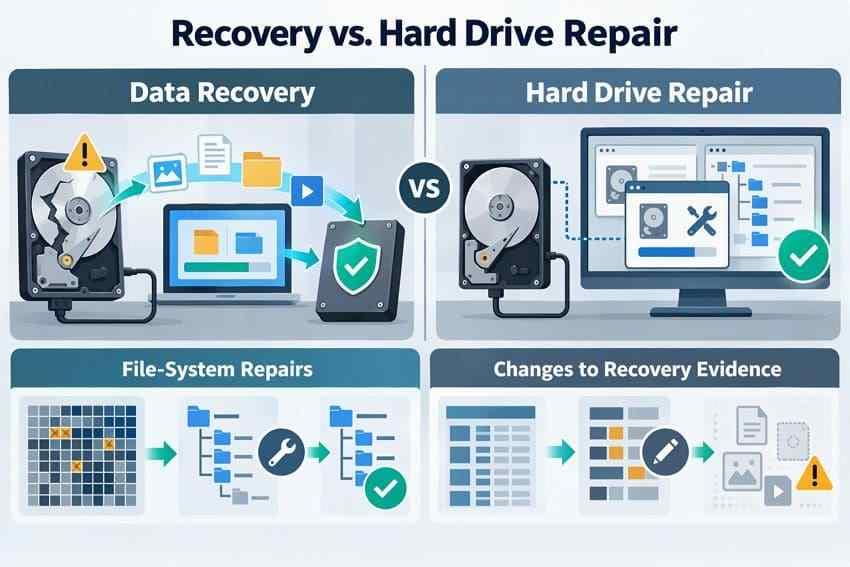
CHKDSK and Disk Utility First Aid as Logical-Error Tools
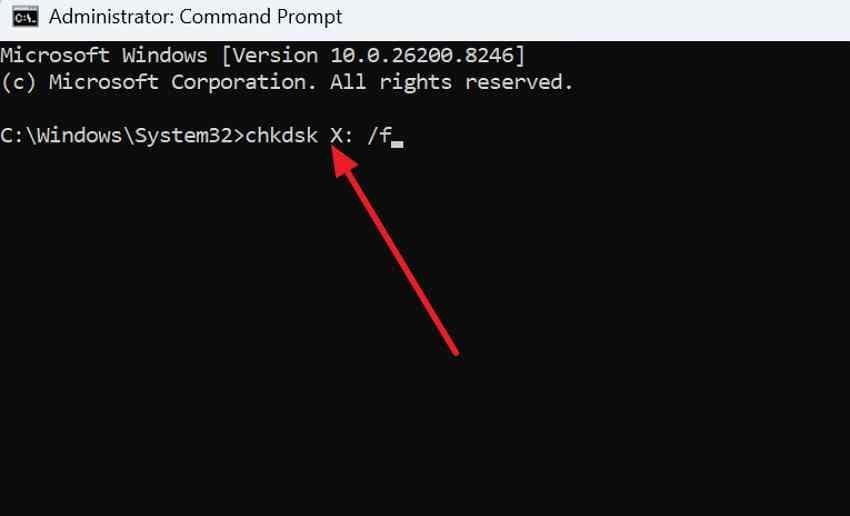
Windows CHKDSK reports file-system status without repair switches; /f makes repairs and /r adds a much more extensive bad-sector examination. Microsoft notes that FAT repair may alter the allocation table and sometimes result in data loss. On Mac, Disk Utility First Aid checks and can repair disk formatting or directory structures, but Apple also advises making a backup first.
Neither CHKDSK nor First Aid is a deleted-file recovery program or a mechanical HDD repair. Running them before extracting important data from a corrupted or unstable disk may make the recovery harder, not easier.
Recover or Back Up Needed Files Before Repair, Erase, or Reformat
Safe sequence: Stop writing to the affected drive; check existing backups; recover the files or create an expert-supervised image if the media is unstable; verify the recovered copies; and only then consider repair or formatting for future reuse.
A stable, readable drive with no important missing files may be a reasonable repair candidate. An HDD that clicks or disconnects is not: power it down and seek professional diagnosis rather than scheduling a lengthy bad-sector scan.
Current OS-Specific Instructions for Any Repair Procedure
Use the following only after the data you need is secured. These checks are not a substitute for recovery. Replace the example drive letter or device name carefully; choosing the wrong target can affect unrelated data.
| Platform | Status check / non-repair option | Possible repair after files are safe | Important restriction |
| Windows 10/11 | chkdsk X: reports volume status |
chkdsk X: /f repairs file-system errors |
Use an elevated Command Prompt; /r adds extensive sector reads, unsuitable as a first move on a failing HDD. |
| Windows PowerShell | Repair-Volume -DriveLetter X -Scan |
-SpotFix or -OfflineScanAndFix when appropriate |
See Microsoft Repair-Volume reference; repair actions may take the volume offline. |
| macOS | Inspect physical drive and volumes in Disk Utility | Run First Aid on volumes, then containers and the device | Back up first; use macOS Recovery when checking the startup disk. |
| Linux ext2/ext3/ext4 | e2fsck -n /dev/sdXN can request no changes |
An expert may run repair on an unmounted filesystem | See the e2fsck manual; mounted-device results can be unreliable and repair can be risky. |
Windows example: Open Command Prompt as administrator, verify the affected drive letter in Disk Management, and run chkdsk X: for a report. If and only if all important data is safe and a logical repair is justified, use chkdsk X: /f. Do not copy the literal X: without confirming the target.
On macOS, open Disk Utility and select View > Show All Devices. After your files are safe, run First Aid from the lowest volume upward through containers and the device, following Apple's current procedure. Avoid automatically following an erase recommendation while you still need unprotected files.
Formatting is not recovery: it creates a new file system and can destroy file-system metadata required by later scans. For Windows-specific repair alternatives, see the Recoverit disk-repair tools comparison; apply the same data-first precaution.
Part 6. When an Online Method Cannot Help
Not every lost hard drive can be fixed by software, remote assistance, or an inexpensive download. Once the disk cannot be detected or read reliably, the priority changes from repeated attempts to preserving its physical condition and arranging appropriate evaluation.
Physical Damage and Drives That Do Not Appear to the Operating System
Check whether Windows Disk Management, macOS Disk Utility, or the machine's firmware sees the physical disk. A missing drive letter is different from missing hardware: a disk can be detected without a mountable volume. By contrast, a drive that clicks, grinds, overheats, or never identifies itself to the system is not a sensible target for routine recovery software.
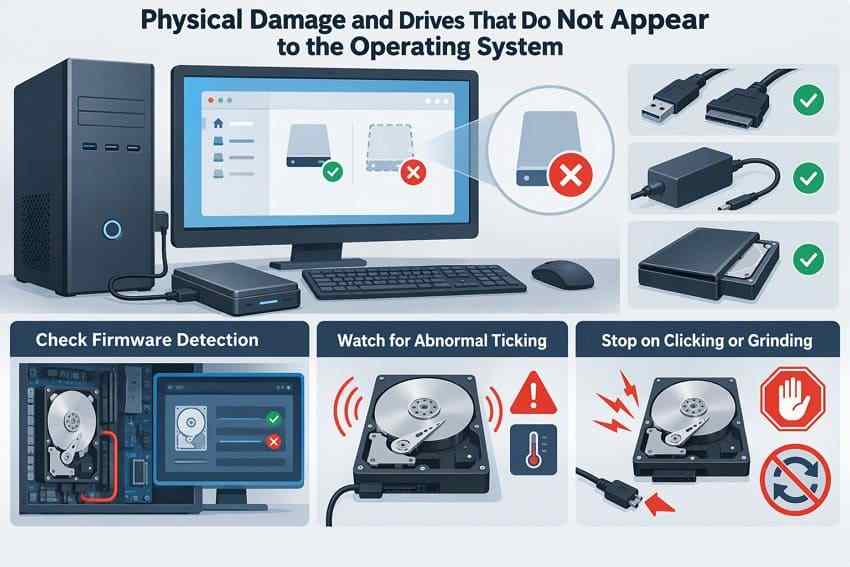
If the HDD is silent and has no damage symptoms, do one sensible check of the cable, port, power adapter, or enclosure. Stop if the drive continues to disappear or starts making abnormal noises. Avoid freezing it, opening its sealed case, or trying firmware packages from unofficial sites.
When a Qualified Recovery Service Is More Appropriate
Ask for specialist evaluation when your data is irreplaceable or the HDD shows mechanical, electrical, or severe stability problems. A reliable provider should describe diagnostic conditions, expected timeline, authorization before invasive procedures, confidentiality, secure return or disposal, and which costs still apply if the desired files cannot be recovered.
It can help to provide the exact drive model, capacity, connection type, symptoms, and a chronological list of actions already attempted. Do not run another extended scan just to generate a fuller symptom report.
What "Free Online Recovery" Includes: Downloads, Remote Help, and Labs
The word "free" is used for very different things. It may mean an installer, scanning and preview, a small amount of file saving, a phone consultation, or a no-cost initial lab evaluation. Compare what you can actually take away without payment, not just whether the download button is free.
| Offer | Potentially free element | Where charges may begin | Decision point |
| Recovery-software download | Installation and sometimes scan/preview | Saving files beyond the current free allowance | Check the vendor's terms before starting a large job. |
| Limited free recovery | Recoverit official Windows and Mac pages currently advertise up to 500 MB | Files beyond the current cap or edition-specific features | A multigigabyte photo archive is far larger than 500 MB. |
| Remote recovery | Initial inquiry or assessment, when offered | Authorized remote work or service time | Verify privacy terms and the exact quote. |
| Professional lab | Evaluation or estimate, if that provider offers one | Specialist work, return media, shipping, or expedited service | Request written terms before shipping a disk. |
For example, a person trying to recover hundreds of gigabytes of family photos needs to evaluate the realistic cost of saving that volume, not just the free scan. Windows File Recovery, TestDisk, and PhotoRec are free local alternatives for certain cases, but they are not browser scans or mechanical repair services, and their technical complexity differs.
Conclusion
Online hard drive recovery usually means getting a local recovery application, arranging authorized remote assistance, or contacting a laboratory online. Begin with an existing backup, then choose a software scan only for a stable HDD that your computer can detect. Recoverit offers a graphical route for supported logical file loss, while remote technicians may help with operational disks and labs handle difficult physical failures.
Above all, protect the remaining data before CHKDSK, First Aid, formatting, or other write-based repairs. Recover recovered files to a different healthy disk and confirm that they open. A clicking, overheating, repeatedly disconnecting, or undetectable HDD should not be subjected to more routine scanning.
FAQ
-
Can You Recover Hard Drive Data Completely Online?
If the files already exist in Google Drive, Dropbox, or another cloud backup, you may restore them through that provider online. Files that exist only on a local HDD normally require software or a technician to access the physical drive, or a laboratory to handle its hardware. A standard website cannot perform an unrestricted deleted-sector scan. -
Is There a Free Online Hard Drive Recovery Tool?
Some desktop recovery tools offer free downloads or limited free file saving, but they run locally. Recoverit currently advertises up to 500 MB of free recovery on its official Windows and Mac pages; verify the edition and terms you install. Free open-source tools exist for some scenarios but do not bypass unreadable hardware. -
Can an Online HDD Repair Tool Fix a Corrupted Hard Drive?
CHKDSK on Windows and Disk Utility First Aid on Mac can fix certain logical file-system problems after the needed data is protected. They are not online deleted-file recovery services and cannot repair mechanical failure or reconstruct overwritten file content. Recover or back up important files before writing changes to the disk. -
Is Remote Online Hard Drive Recovery Safe?
It can be reasonable for a working, system-recognized drive when the provider is verified, the connection and permissions are clearly explained, and data handling is documented. Initiate contact through an official channel, approve only necessary access, confirm fees and where files will be stored, then end and revoke the session afterward. Never trust unsolicited remote-help demands.


