

You do not have to restore your entire Mac just to get back a deleted document or missing folder. If Time Machine saved that item before it disappeared, you can browse the backup, select the right date, and restore the file directly to its original location. The same approach works for many older file versions.
The important question is whether the needed file exists in an accessible backup or local snapshot. This guide shows how to find that copy, avoid replacing newer work, access another backup disk, and diagnose missing backup entries. When Time Machine has no usable copy, we also explain which local recovery options may still be worth checking.
In This Article
Part 1. Check Whether Time Machine Has the File You Need
Before changing anything on your Mac, locate the likely source and date. Time Machine cannot recreate a file that was never included in a backup. This short check helps you choose the right backup without replacing a newer version by mistake.
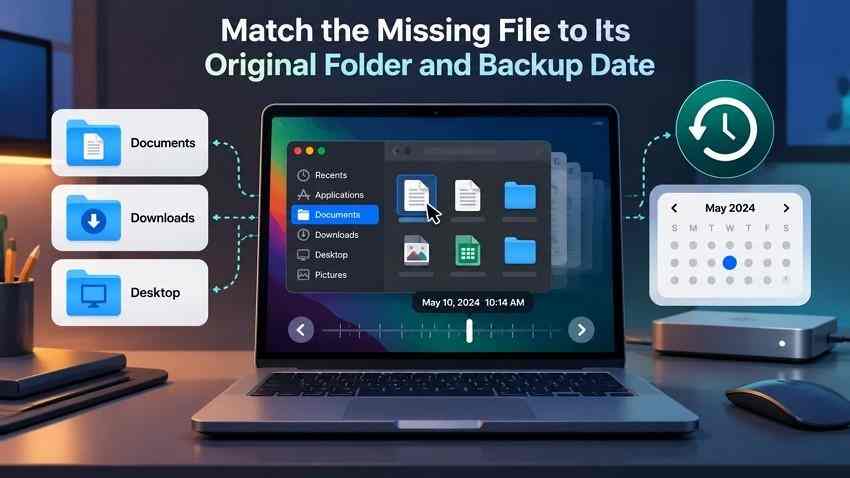
1. Match the Missing File to Its Original Folder and Backup Date
Start in the folder where the item normally lived, such as Documents, Desktop, Downloads, or a folder on an included external drive. If you do not remember the location, search the current Mac using Finder or Spotlight. Then identify a date when the file definitely existed. That is more useful than always choosing the newest backup: a newer snapshot may have been made after the deletion.
Helpful check: If the file was renamed or moved, inspect both its old and new folders. Apple's Time Machine and Spotlight search instructions also describe searching before browsing available backups.
2. Connect the Correct Backup Disk and Unlock It If Required
Time Machine may use an external drive, a network destination, or more than one backup disk. Those destinations do not necessarily contain the same dates. Connect the appropriate disk and let macOS recognize it before browsing. If the backup is encrypted, enter the backup encryption password when prompted; the ordinary Mac login password may not be the same.
| Backup source | What to check | What can block recovery |
| External USB or Thunderbolt drive | Correct drive, cable, power, and Finder or Disk Utility visibility | Wrong disk, damaged connection, or unreadable storage |
| Network Time Machine destination | Network connection, reachable shared destination, and credentials | Unavailable server or authentication problem |
| Encrypted backup | Correct disk and its encryption password | Backup remains locked |
| Another backup disk | Earlier dates on that specific destination | The desired file was never backed up there |
3. Keep a Copy of Any Newer File Before Restoring an Older Version
Time Machine usually returns a restored file to its original folder. When a file with the same name is already there, restoring an older copy can conflict with newer work. Before proceeding, open the current item if possible and save a duplicate under a different name, or copy it to a separate drive. This is especially important for documents that were edited after the backup date.
Example: If your current proposal contains Monday's changes but you need a section from Friday's Time Machine copy, preserve Monday's file first. You can then compare the older and newer versions instead of risking your recent edits.
Part 2. Restore Deleted Files and Folders With Time Machine
Use this method to restore files from Time Machine when the backup contains the deleted document, photo, project, or folder. It restores selected items without reinstalling macOS or migrating your entire user account.
Step 1. Open the original location in Finder. Navigate to the folder that used to contain the file. If the item was on your Desktop, you can begin from the Desktop without opening another Finder window.
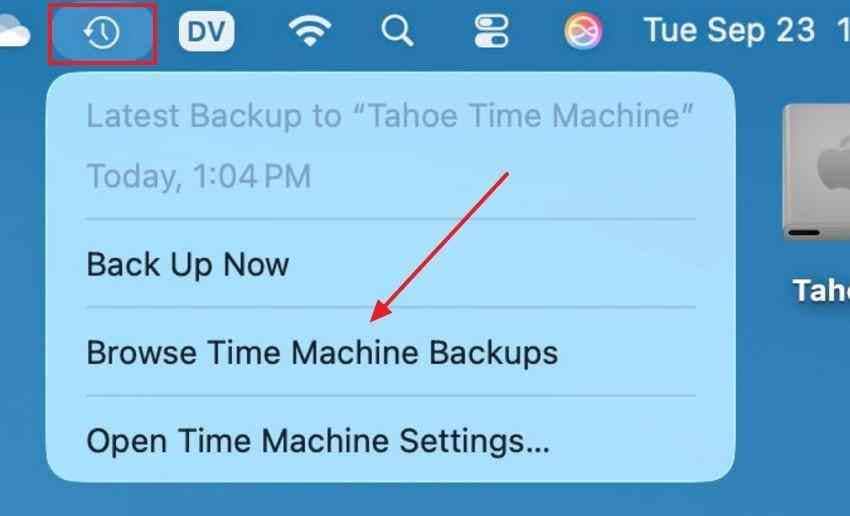
Step 2. Launch the backup browser. Open Time Machine with Spotlight, or use its menu bar icon and choose Browse Time Machine Backups. If the icon is not visible, Spotlight is a reliable alternative. Wait for the connected backup to become available.
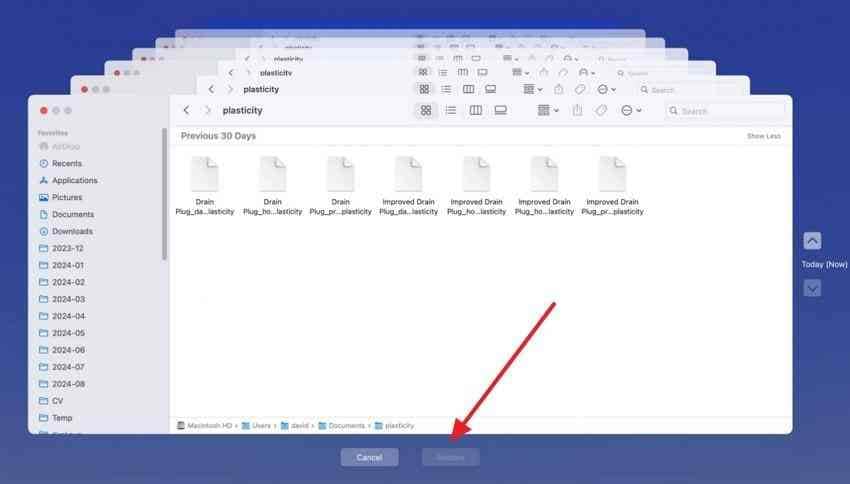
Step 3. Select the date and missing items. Use the arrows or right-side timeline to move to a backup created before the loss. Select the file or folder; you can choose multiple items. Give an older backup time to load before deciding a file is absent.
Step 4. Restore and verify the result. Click Restore. Open the restored document or media file from its original folder, check the contents, and compare the timestamp or version if needed. A filename appearing in Finder is not proof that its contents are intact.
Tip: For a file whose name you only partly remember, search in Finder before entering Time Machine rather than manually scrolling through every dated folder.
Part 3. Recover an Earlier Version or Use Another Backup Disk
Not every missing change is a deleted file. Sometimes the document still exists but its latest edits are wrong; in other cases the needed date is on another backup destination. Use the method that matches the problem.
1. Browse Earlier Document Versions in Supported Mac Apps
Many Mac applications, including Pages, provide document version history. These versions are not identical to a Time Machine backup on an external disk. For supported apps, Apple's document version history guide describes how to restore or copy an earlier draft.
Step 1. Open the document and choose File > Revert To > Browse All Versions.
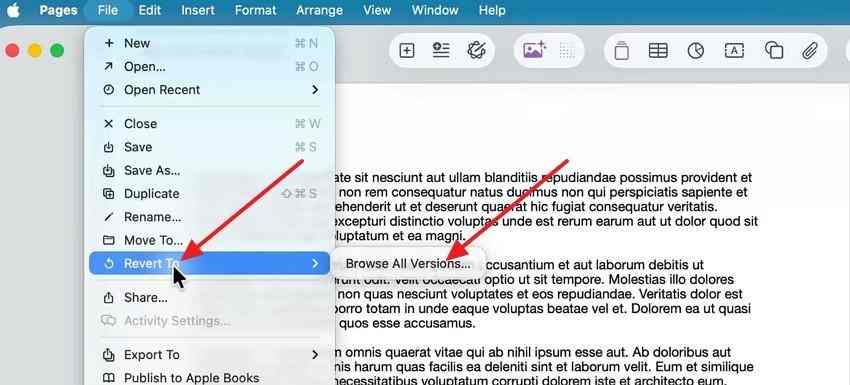
Step 2. Select the version you want from the available timeline. Click Restore only if you intend to replace the current document. To keep the current and older drafts, hold Option and choose Restore a Copy, when available.
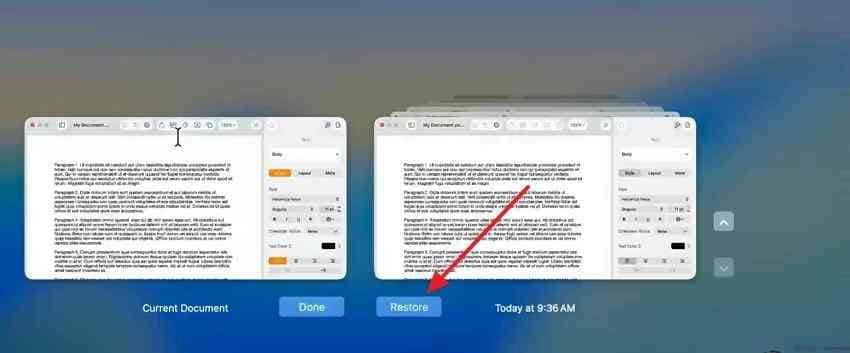
Version history is useful for recovering overwritten edits but does not guarantee that every keystroke or every deleted document has been preserved.
2. Access Another Time Machine Backup When Permissions Allow
If you previously used more than one backup disk, check the other drive instead of assuming the file is gone. Apple's multiple Time Machine disk guide explains that the Mac can display a combined timeline or browse a specific disk.
Step 1. Connect the alternate drive and make sure it is unlocked and accessible to your Mac.
Step 2. Open the Time Machine menu, hold Option, and choose Browse Other Backup Disks, where that option is available. Select the intended backup and browse its dates. Alternatively, use the normal backup browser to inspect the accessible combined timeline.
Step 3. Locate and restore the required file, then verify that it opens. Backups created on another Mac may require the appropriate access permissions or password. Do not change disk ownership or erase the drive merely to make it appear.
3. Choose a File Restore Instead of a Full Mac Migration
If you only need one folder, Time Machine's file browser is the shorter route. Migration Assistant is intended for transferring applications, user accounts, and settings from a backup to a working Mac, not for quickly retrieving one spreadsheet or photo. The comparison below keeps these actions separate.
| Method | Best for | Impact to check |
| Time Machine file browser | Deleted files, missing folders, specific backed-up versions | Restored items can replace existing files of the same name |
| Document version history | Earlier edits to a document still present in a supported app | Restore replaces the current document unless you save a copy |
| Migration Assistant | Accounts, apps, settings, and large groups of files | Account-name conflicts and possible replacement of current account data |
For complete account transfers or restoring a new Mac, follow a separate Mac backup migration guide instead of using this file-only procedure.
Part 4. Recover Files From Available Local Snapshots
When your Time Machine backup disk is disconnected, the Mac may still hold a recent local snapshot on its own APFS storage. Apple calls these temporary copies, not substitutes for a separate backup. Their availability depends on how Time Machine was configured and whether macOS has retained the data.
1. Check the APFS and Automatic-Backup Requirements
Apple's local snapshot documentation states that snapshots are saved on APFS volumes when automatic Time Machine backups are enabled.
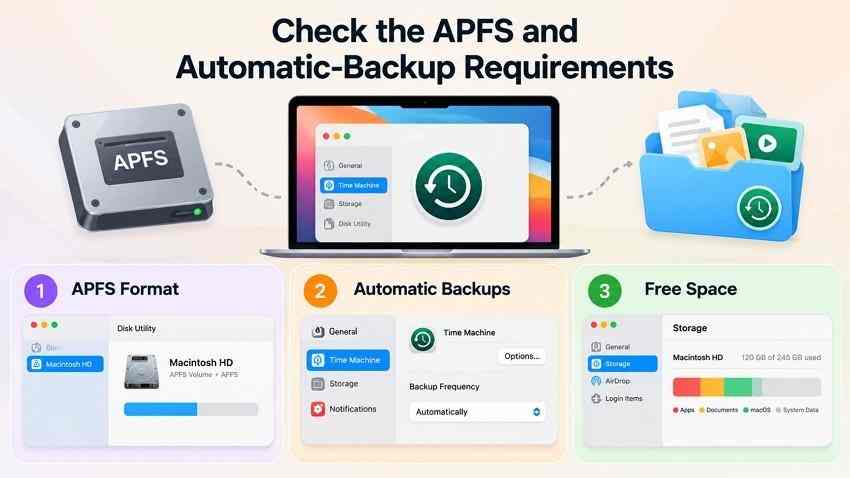
- File system: Open Disk Utility and inspect the format of the relevant volume. Time Machine local snapshots require APFS.
- Backup schedule: Open System Settings > General > Time Machine and review the backup frequency under Options. Manual-only backups may not provide the expected hourly local snapshots.
- Available space: macOS removes local snapshots when space is needed, even when Time Machine was enabled previously.
2. Browse a Retained Snapshot Without the Backup Disk
If a local snapshot remains on the Mac, open the original folder in Finder and launch Time Machine as described in Part 2. Inspect the available timeline even though the external backup disk is not connected. Select the earlier file and restore it if it appears. A Mac can have local snapshots covering recent changes without showing a new date in the Time Machine settings panel.
Important: Do not change backup frequency or delete snapshots while investigating a missing file. Keep the original Mac as undisturbed as practical until you have checked for the required version.
3. Understand Why Local Snapshots May Already Be Gone
Time Machine generally retains hourly local snapshots for up to 24 hours; macOS can remove them sooner when storage is needed. A snapshot associated with the latest successful backup may remain under some conditions, but no particular date can be promised.
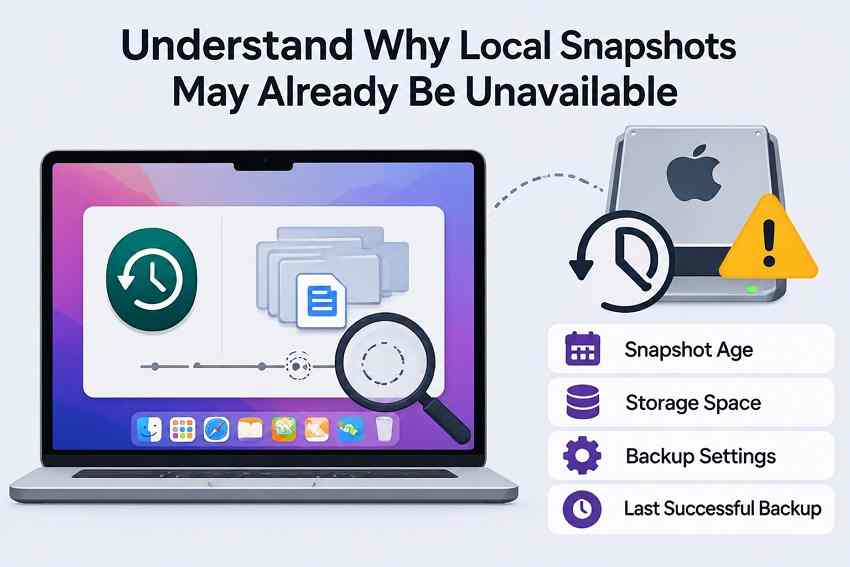
If the snapshot has disappeared, reconnect your normal Time Machine destination and look for an older backup there. An absent snapshot does not mean macOS is damaged, and a later backup cannot retrospectively create a copy of a previously unbacked file.
Part 5. Find Out Why a File Is Missing From the Backup
If the filename is not visible at the expected date, avoid immediately reformatting the backup disk or starting another long backup. Work through the likely causes below before deciding the data is unrecoverable.
1. Check Whether the File Was Downloaded and Included in a Backup
A file visible in Finder is not necessarily stored as full local data. With iCloud Drive's storage optimization, a document can be cloud-only until downloaded. Verify the file's original location and cloud status, then review the exclusions in System Settings > General > Time Machine > Options. Apple's iCloud Drive file handling guide explains how files may be kept in the cloud until downloaded.
| Possible reason | Where to look | Next safe action |
| Wrong original folder or filename | Finder search, renamed folders, older backup dates | Search the likely former location in the backup browser |
| Cloud-only iCloud file | Finder iCloud Drive and its download status | Check iCloud's existing copy or Recently Deleted |
| Folder or external volume excluded | Time Machine settings and exclusions | Check other copies; changing exclusions now will not create a historic backup |
| Older backup pruned | Available dates on this and any other backup disks | Check independent backups instead of assuming the lost date can be recreated |
2. Look for an Older Backup That Has Not Been Deleted
Time Machine automatically prunes older backups as storage fills. Apple's full backup disk guidance confirms that older dates may disappear to make room for new ones. Browse the dates that actually remain and check any second backup disk. If an old file is particularly important, avoid generating unnecessary new backups to the same nearly full destination while you investigate.
There is no universal number of months or years Time Machine guarantees: the oldest date you can restore depends on the history still available on your backup media.
3. Resolve Backup Access Problems Without Reformatting the Disk
When a Time Machine backup disk does not appear, begin with the least intrusive checks. Reconnect the drive directly, check power and cable condition, and inspect whether the device appears in Finder or Disk Utility. For a network destination, verify network reachability and credentials. Apple's Time Machine settings reference can help you confirm the selected destination.
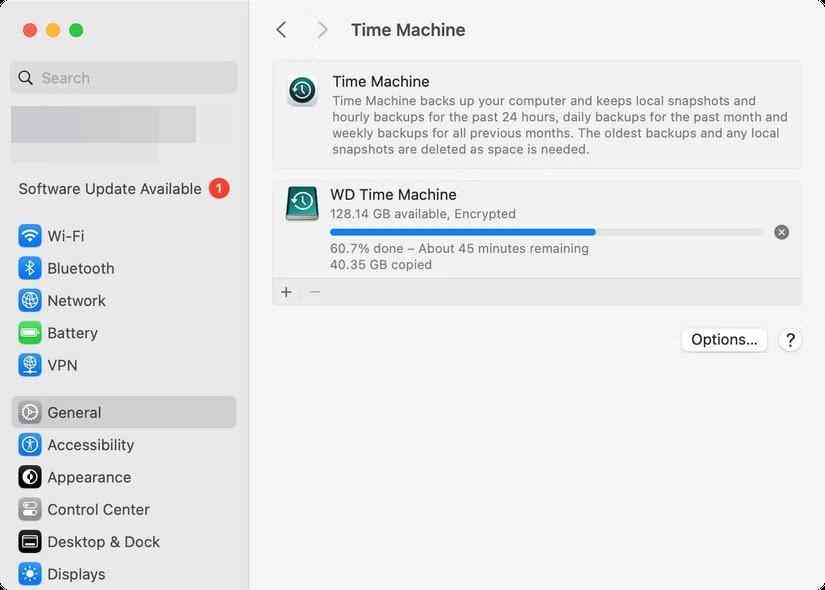
If the backup volume mounts but reports file-system errors, protect accessible backup files and other important copies before attempting a repair. Disk Utility First Aid can modify directory structures and is not a deleted-file recovery method. Apple's First Aid instructions begin by recommending a current backup.
Stop here if the drive clicks, disappears repeatedly, produces escalating read errors, or is absent from Disk Utility after a basic cable and power check. Repeated scanning or repair attempts can worsen physically failing media. For an inaccessible backup, use this focused Time Machine backup detection guide or consider specialist recovery for important data.
Part 6. Recover Local Files When No Suitable Backup Exists
When the correct file never appeared in a backup or retained snapshot, the next steps depend on where its original data existed. Try surviving copies first. Only then consider local recovery software for a storage device that the Mac can still detect and read.
1. Check Trash, iCloud, and Independent Copies First
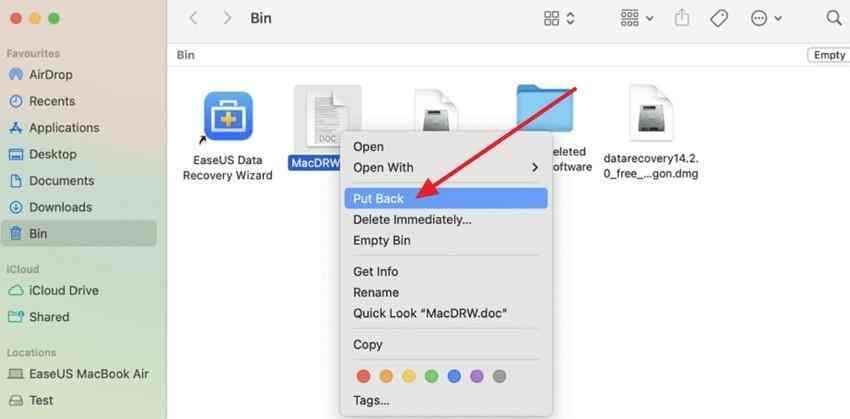
- Mac Trash: Open Trash in the Dock. If the file is there, Control-click it and choose Put Back.
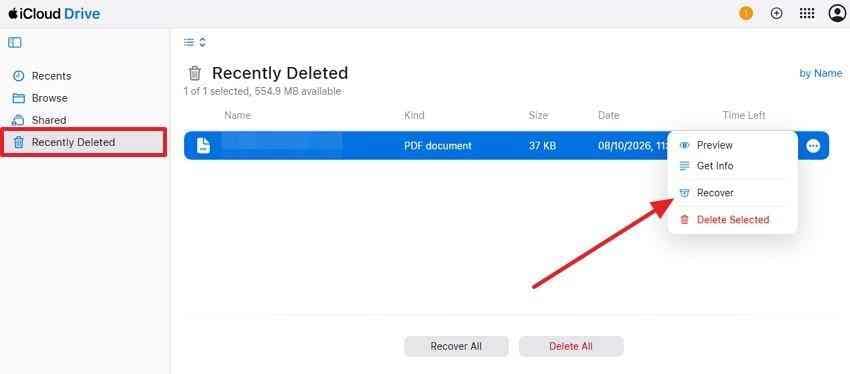
- iCloud Drive: Sign in to the correct account, open iCloud Drive's Recently Deleted, and recover an available file. Apple states that eligible deleted iCloud files can generally be recovered within 30 days, but permanently removed files cannot be restored by this route. See Apple's iCloud deleted-file instructions.
- Other copies: Search email attachments, shared folders, other Macs, external drives, and any independently maintained backup.
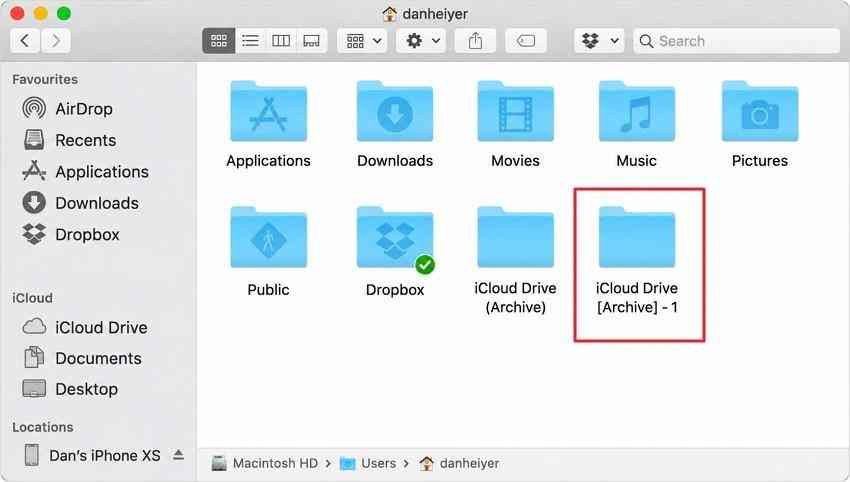
- iCloud Drive (Archive): If iCloud Drive was previously disabled or the Mac signed out, check whether an archive folder was created in the home folder. This folder is not present on every Mac.
2. Scan Readable Local Storage With Recoverit When Appropriate
If the missing file was stored locally and is absent from usable backups, Wondershare Recoverit for Mac may help locate surviving deleted data on a readable internal or external drive. It is a file-recovery tool, not Time Machine itself; it cannot make an expired backup reappear, bypass FileVault encryption, or recover data that has been overwritten or cleared after SSD TRIM. Modern Mac internal-storage security can further limit what third-party tools can access.
For related Mac deletion situations, see the Mac deleted-file recovery guide. If the storage is unstable or missing from Disk Utility, do not repeatedly run software scans.
3. Preview the Results and Save to Separate Storage

Recoverit's current Mac recovery guide describes choosing a source, scanning it, and reviewing recoverable results. Keep the original device as undisturbed as possible and prepare a different healthy destination before you begin.
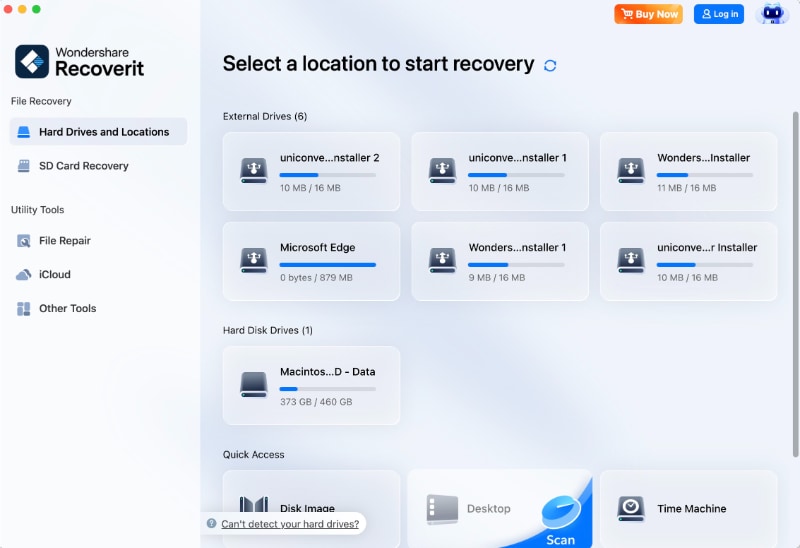
Step 1. Select the readable source. Open Recoverit on a supported Mac, choose the drive or folder where the missing file actually existed, and start scanning. Do not select an unrelated Time Machine disk if you are trying to recover a file deleted from your Mac's internal storage.
Step 2. Review the scan results. Filter by type or name where available. If your installed edition offers additional search features, use them as an optional aid rather than assuming they exist in every version. Preview supported files to assess whether their contents are usable.
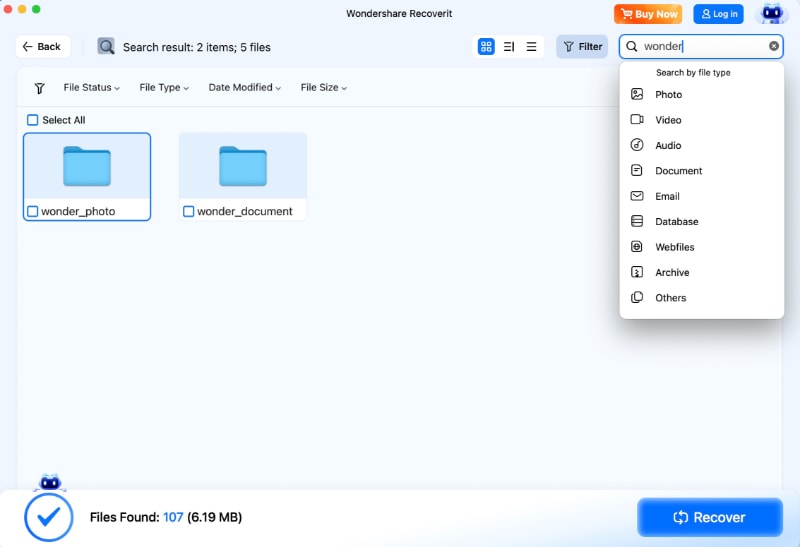
Step 3. Recover to another drive. Select the results you need, click Recover, and save to a different healthy disk or a supported separate destination. Saving back onto the source can overwrite data that has not yet been recovered.

Watch the walkthrough: This Recoverit video is an additional visual reference for file recovery. Time Machine's built-in Restore button remains the preferred method whenever the file exists in a valid backup.

Conclusion
To recover files from Time Machine, start with the original folder and the oldest useful backup date, then restore only the missing items. Use document version history for earlier edits and check another backup disk if the first one lacks the file. Local snapshots may help temporarily when the backup drive is disconnected. If no usable copy exists, inspect Trash, iCloud, and other saved files before considering local recovery software. Protect newer work and avoid writing recovered files back to the affected storage.
FAQ
-
Can Time Machine Recover Files Deleted Before Backups Were Enabled?
Only if another existing backup or retained snapshot contains the file. Turning on Time Machine after deletion does not recreate an older copy. Check Trash, iCloud, or a separate backup first. Local recovery may be possible from a readable source if the data still exists. -
How Far Back Can You Recover Files From Time Machine?
You can go back as far as the oldest usable backup that still contains the file. Time Machine prunes older copies when its destination needs space; local snapshots usually cover a much shorter period. No fixed retention period is guaranteed for every disk. -
Does Time Machine Back Up Files Stored on External Drives?
It can include files from connected external volumes when those volumes are eligible and not excluded. Check the source drive and the excluded-items list in Time Machine settings. The designated backup destination itself is excluded from being backed up to itself. -
Can You Recover Files From a Damaged Time Machine Backup Drive?
Possibly, if the drive can still be read reliably and the data remains intact. Check connections without formatting. If the device repeatedly disconnects, clicks, or cannot be detected, stop DIY scans and consider a professional data-recovery service. Software cannot fix physical damage or unlock encrypted backups without the correct password.


