 TL;DR:
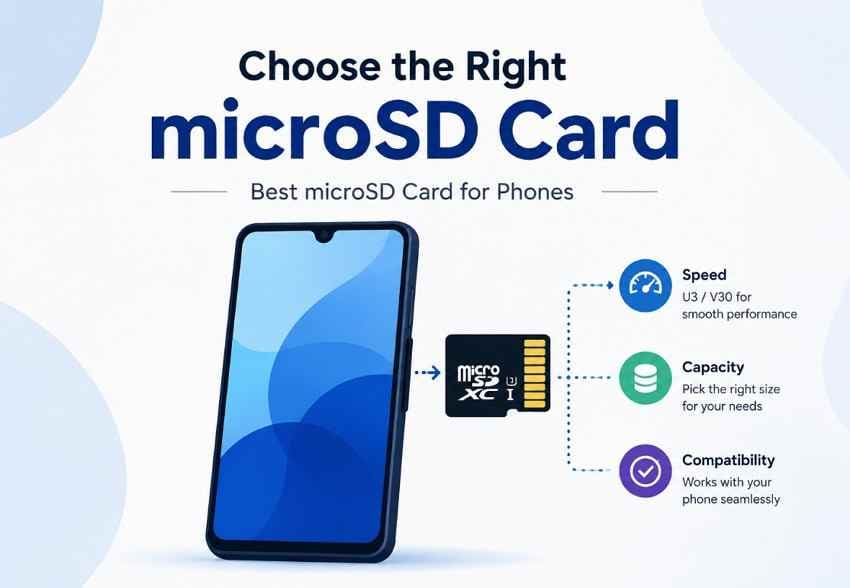
The Samsung PRO Plus is the best overall microSD card for compatible Android phones, the SanDisk Extreme is ideal for 4K video capture, and the Samsung EVO Plus provides the best everyday value, but buyers must first confirm their specific phone's official storage capacity limit.
● Always check your exact phone model's manufacturer specifications to verify the presence of a dedicated microSD slot and its maximum supported capacity, as inserting a card that exceeds this limit can cause mounting failures or unpredictable behavior.
● Performance ratings can change by capacity within the same product family; for example, the 64GB Samsung EVO Plus operates at lower U1/V10/A1 speeds, while the 128GB and larger variants provide the U3/V30/A2 performance required for sustained heavy media writes.
● Purchasing an A2-rated card only delivers faster random-access performance for mobile apps if your phone hardware explicitly supports A2 command features, and formatting a card as internal adoptable storage will encrypt it exclusively to that single device.
Ask AI for a summary
 ChatGPT
 Perplexity
 Gemini
 Claude
 Grok
Grok
Quick answer: Samsung PRO Plus is the best all-around microSD card for a compatible Android phone, SanDisk Extreme is a strong choice for high-resolution photo and video use, and Samsung EVO Plus offers the best everyday value. Before buying any card, confirm that the exact phone has a microSD slot and supports the card's capacity.
A phone owner asking which SD card is best for expanding Android storage captures the real search intent behind this guide. The answer is not simply “buy the fastest card.” A card can carry U3, V30, and A2 logos yet still exceed the phone's capacity limit, deliver lower real-world speed through the phone's interface, or offer little benefit if the phone cannot store apps on removable media.
This guide compares five current microSD cards by verified specifications and practical use case. It also explains how to avoid counterfeit or incompatible cards, configure Android storage without erasing valuable files, and respond safely if a phone memory card becomes unreadable.

In This Article
Part 1. Best SD Cards for Mobile Phones: Quick Picks
The best memory card for a mobile phone depends on what you store, how often you transfer large files, and what the phone can actually use. This table gives a decision-ready comparison without treating advertised peak speed as guaranteed phone performance.
| microSD Card | Best For | Capacity Options | Speed Class | App Rating | Key Advantage |
| Samsung PRO Plus | Best overall | 128GB, 256GB, 512GB, 1TB | U3, V30 | A2 | Balanced phone performance with up to 180MB/s read and 130MB/s write on compatible hardware |
| SanDisk Extreme | Photos and 4K video | 32GB to 2TB; phone-friendly choices commonly start at 64GB | U3, V30 on current supported variants | A2 on current supported variants | Large capacity range and fast media transfers with compatible hardware |
| Samsung EVO Plus | Best value | 64GB, 128GB, 256GB, 512GB, 1TB | 64GB: U1/V10; 128GB and larger: U3/V30 | 64GB: A1; 128GB and larger: A2 | Good everyday performance without paying for the highest product tier |
| Lexar Professional 1066x | Apps and everyday storage | 64GB, 128GB, 256GB, 512GB, 1TB | U3, V30 | A2 | Strong combination of random app performance, media capacity, and transfer speed |
| Kingston Canvas Go! Plus | Heavy mobile use | 64GB, 128GB, 256GB, 512GB, 1TB | U3, V30 | A2 | Consistent ratings across a wide range for frequent large-file transfers |
Best default for most Android phones: A genuine 256GB U3/V30 card from a reputable seller is a practical balance of space, sustained speed, and price. Choose 512GB or 1TB only when the phone officially supports it and the media library will use the extra capacity.
Specification warning: Ratings can change by capacity within the same product family. Samsung EVO Plus is a clear example: the current 64GB variant has lower U1/V10/A1 ratings than current 128GB-and-larger variants. Always verify the exact capacity and model number at checkout.
Part 2. What Type of SD Card Does a Mobile Phone Need?
A good SD card for a phone starts with physical and logical compatibility. Use the checks below before comparing performance claims or brand reputation.
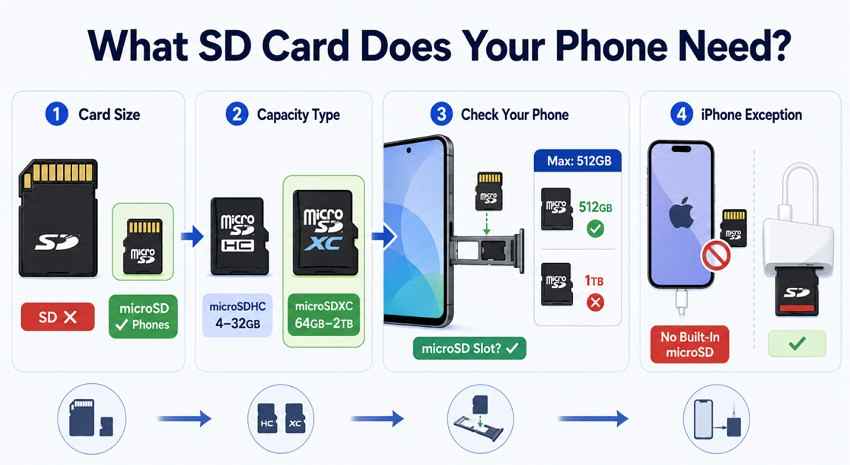
The first distinction is the card's physical size, followed by its capacity standard and the limit stated by the phone manufacturer.
microSD vs Full-Size SD Card
Phones with removable storage use microSD cards, not full-size SD cards. A retail microSD package may include a full-size SD adapter, but the adapter is for a camera or computer card reader. It does not go into a phone tray.
“SD card for phone” is the common search phrase, but “microSD card” is the product format to look for. Confirm the tray markings because a hybrid tray may accept either a second SIM or a microSD card, not both at once.
microSDHC vs microSDXC
The SD Association capacity standard defines SDHC as more than 2GB through 32GB and SDXC as more than 32GB through 2TB. The same capacity standards apply to the microSD form factor.
That means a 16GB or 32GB phone card is normally microSDHC, while 64GB, 128GB, 256GB, 512GB, 1TB, and 2TB cards are microSDXC. The default file system is typically FAT32 for SDHC and exFAT for SDXC. Learn more about SDHC cards and SDXC cards before reformatting a card that already holds data.
Check Whether Your Phone Has a microSD Slot
Not every Android phone supports removable storage. Check the exact model number on the manufacturer's specification or support page rather than assuming that every phone in the same series has a card slot. Regional and carrier variants can differ.
If a slot exists, also check whether it is dedicated or shared with the second SIM. Never force a card into a tray, trim a card, or use an improvised adapter.
Check the Maximum Supported Card Capacity
A phone may accept microSDXC but still have an official limit of 128GB, 256GB, 512GB, or 1TB. A higher-capacity card might not mount, may request formatting, or can behave unpredictably outside the manufacturer's validated range.
The phone's documented limit matters more than the largest card currently sold. Search the exact model number plus “microSD maximum capacity,” then confirm the answer on the manufacturer's official page or user manual.
Why iPhones Do Not Use Expandable microSD Storage
iPhones do not include a built-in microSD slot and cannot expand their internal storage with a memory card. Apple does support compatible external SD card readers and storage devices through the Files or Photos apps on supported iPhones, but this is external file access—not permanent internal expansion. See Apple's external storage connection guide for connector and file-system requirements.
| Card Type | Typical Capacity Range | Phone Compatibility | Best Use |
| microSDHC | More than 2GB through 32GB | Older and current phones that support microSDHC | Basic music, documents, and limited photo storage |
| microSDXC | More than 32GB through 2TB | Only within the exact phone's supported capacity | Modern photo, video, download, game, and media libraries |
| Full-size SD | Varies by SD family | Does not fit a phone's microSD tray | Cameras, laptops, and external readers |
Part 3. Reliable microSD Cards for Phones
These picks cover distinct mobile workloads instead of ranking five nearly identical cards. Each recommendation uses current official ratings, but the phone remains the performance ceiling.
Samsung PRO Plus for Everyday High Performance
Samsung PRO Plus is the strongest all-around option for a compatible Android phone. Samsung explicitly lists mobile phones among its supported applications, and current capacities from 128GB through 1TB carry U3, V30, and A2 ratings.
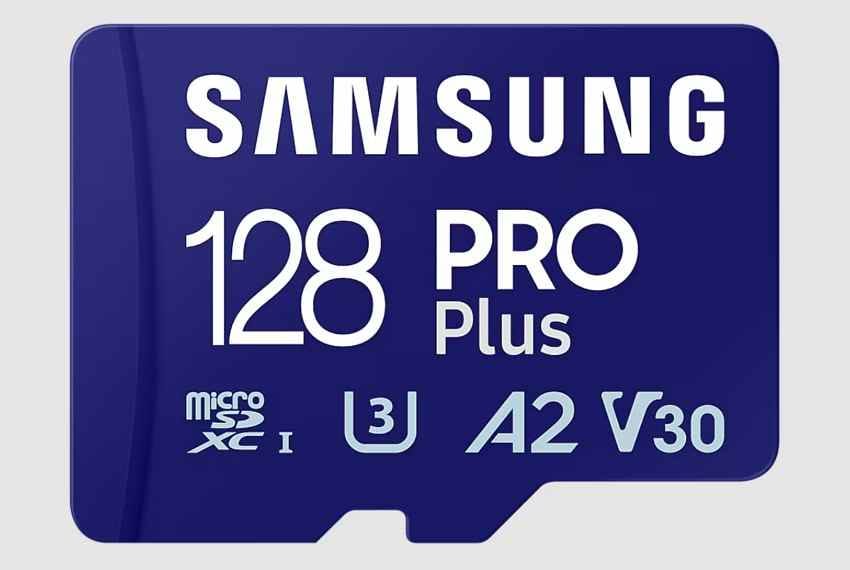
Its current phone-relevant specifications make the buying case clear.
Key Specifications
- Interface: UHS-I microSDXC.
- Performance ratings: U3, V30, and A2.
- Capacities: 128GB, 256GB, 512GB, and 1TB.
- Advertised speed: Up to 180MB/s read and 130MB/s write under compatible conditions.
- Best fit: Photos, apps where supported, offline downloads, high-resolution video, and regular transfers.
What the number does not mean: Samsung states that actual speed varies by capacity, host device, and test conditions, and its maximum figures require compatible equipment. Buy PRO Plus for its balanced U3/V30/A2 profile, not because every phone will reach 180MB/s.
SanDisk Extreme for Photos and 4K Video
SanDisk Extreme is a good fit for creators and camera-heavy users who capture high-resolution photos, record supported 4K video, or frequently move large files between a phone and computer. Its current range reaches 2TB, but that capacity is useful only when the phone officially supports it.
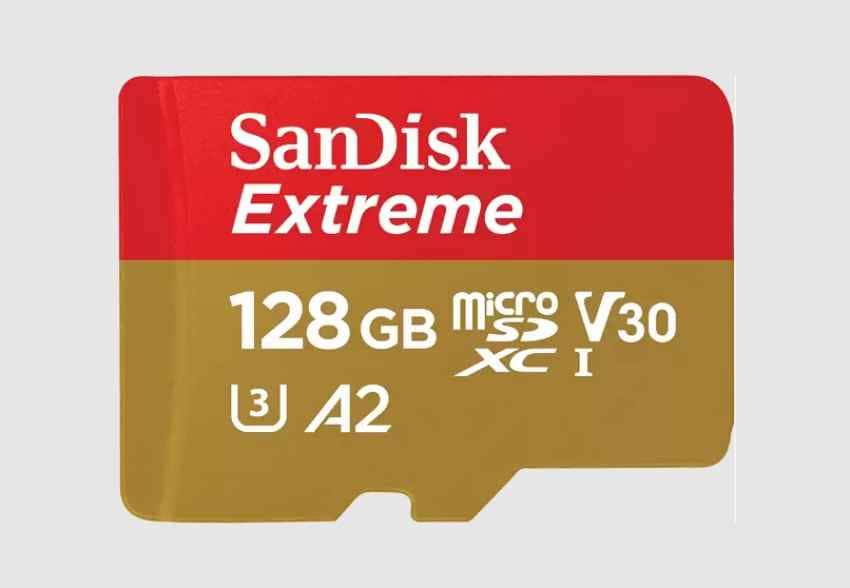
The card's sustained ratings matter more to phone use than its highest promotional transfer number.
Key Specifications
- Interface: UHS-I microSD.
- Performance ratings: U3, V30, and A2 on current supported variants.
- Capacities: Current official options extend from 32GB to 2TB.
- Advertised speed: Capacity-dependent maximums; the current 2TB page lists up to 240MB/s read and 150MB/s write under specified conditions.
- Best fit: Large photo libraries, supported 4K capture, creator workflows, and frequent computer transfers.
Compatibility limit: SanDisk states that its highest read/write results require compatible hardware and, for some claims, its QuickFlow reader. A normal phone interface can be slower. U3/V30 is the more dependable signal for sustained recording than a peak read figure.
Samsung EVO Plus for Best Value
Samsung EVO Plus is the practical value choice for photos, music, documents, maps, downloads, and offline video. The current 128GB-and-larger variants provide U3, V30, and A2 ratings, while the 64GB model has lower ratings.
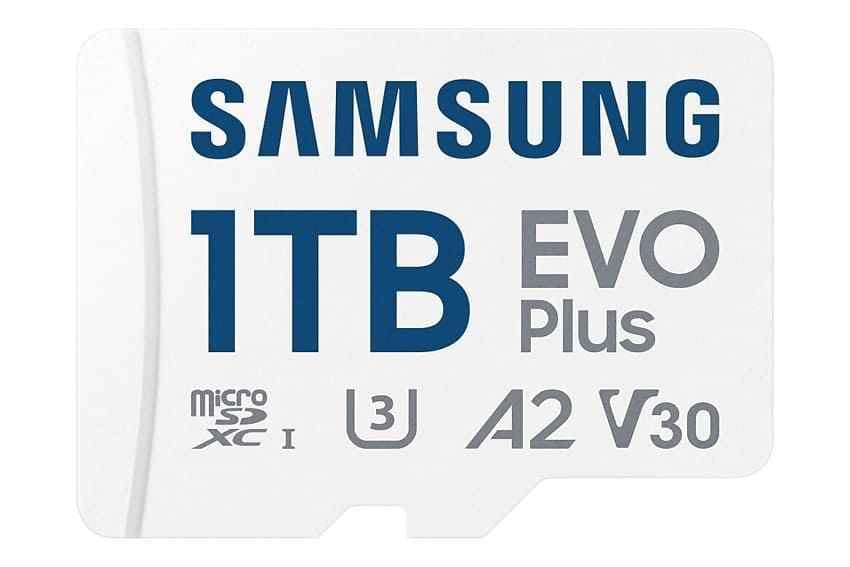
Check the exact capacity rather than applying one specification to the entire EVO Plus family.
Key Specifications
- Interface: UHS-I microSDHC or microSDXC, depending on capacity.
- Performance ratings: Current 64GB variant is U1/V10/A1; current 128GB-to-1TB variants are U3/V30/A2.
- Capacities: 64GB, 128GB, 256GB, 512GB, and 1TB.
- Advertised speed: Up to 160MB/s read on compatible hardware for current supported variants.
- Best fit: General Android storage expansion when maximum transfer performance is unnecessary.
For most buyers, 256GB is the sweet spot in this range: it carries the stronger ratings and supplies meaningful room without the cost of 1TB. Users recording demanding video should confirm that both the phone and recording app support saving that mode to removable storage.
Lexar Professional 1066x for Apps and Everyday Storage
Lexar Professional 1066x microSDXC UHS-I Card SILVER Series combines A2 random-access performance with U3/V30 sustained ratings. It is a sensible mixed-use option for compatible Android phones that permit supported app data on removable storage.
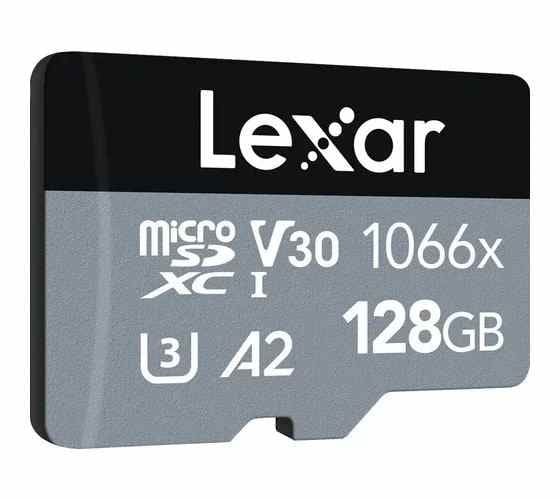
Its current specifications support both everyday phone storage and larger media transfers.
Key Specifications
- Interface: UHS-I microSDXC.
- Performance ratings: U3, V30, and A2.
- Capacities: 64GB, 128GB, 256GB, 512GB, and 1TB.
- Advertised speed: Up to 160MB/s read; maximum write speed varies by capacity and regional listing.
- Best fit: Mixed app-capable storage, photos, media, and large file libraries.
A2 does not guarantee that every Android app can move to the card. The phone manufacturer and individual app determine what may be stored externally, and full A2 acceleration also requires host support.
Kingston Canvas Go! Plus for Heavy Mobile Use
Kingston Canvas Go! Plus suits users who copy large photo and video folders regularly and want U3, V30, and A2 across a wide capacity range. Kingston also lists Android devices among the relevant uses for the current SDCG4 line.
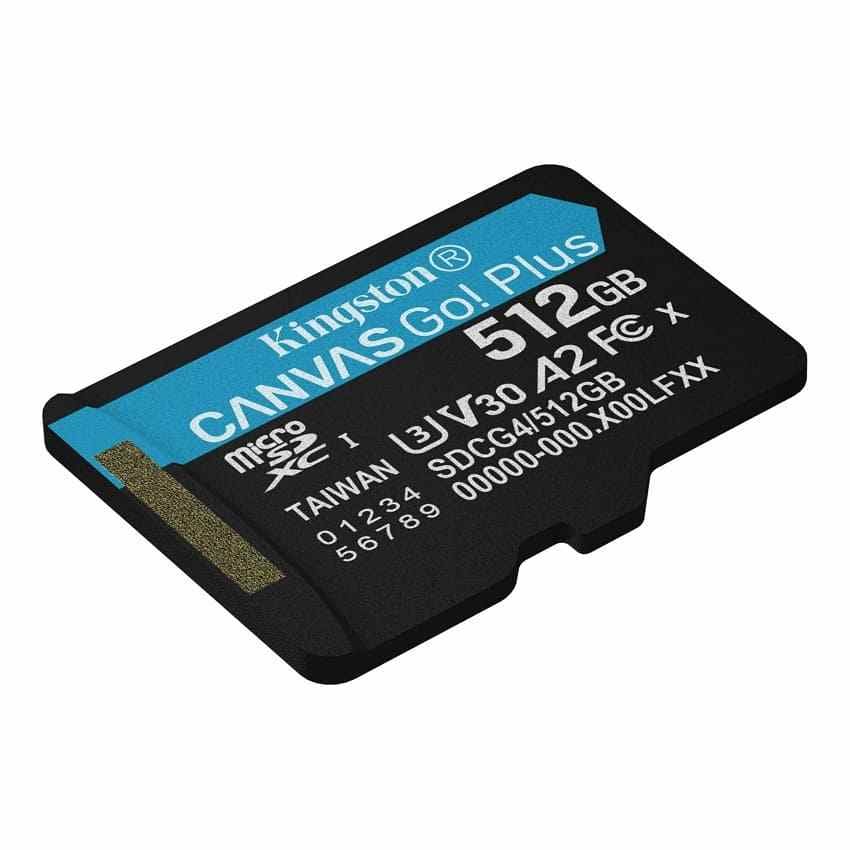
The range scales from basic expansion to high-capacity mobile libraries.
Key Specifications
- Interface: UHS-I microSD.
- Performance ratings: U3, V30, and A2.
- Capacities: 64GB, 128GB, 256GB, 512GB, and 1TB.
- Advertised speed: Up to 200MB/s read; up to 100MB/s write on 64GB/128GB and 160MB/s on 256GB-to-1TB models.
- Best fit: Frequent read/write work, high-resolution media, and regular large transfers.
Kingston notes that its highest results require the MobileLite Plus Reader. A phone can still benefit from the card's U3/V30 rating without reproducing the maximum desktop-reader benchmark.
Part 4. How to Choose the Best Memory Card for Your Mobile
Use this order of decisions: compatibility, capacity, sustained speed, app rating, seller authenticity, and only then peak transfer speed.
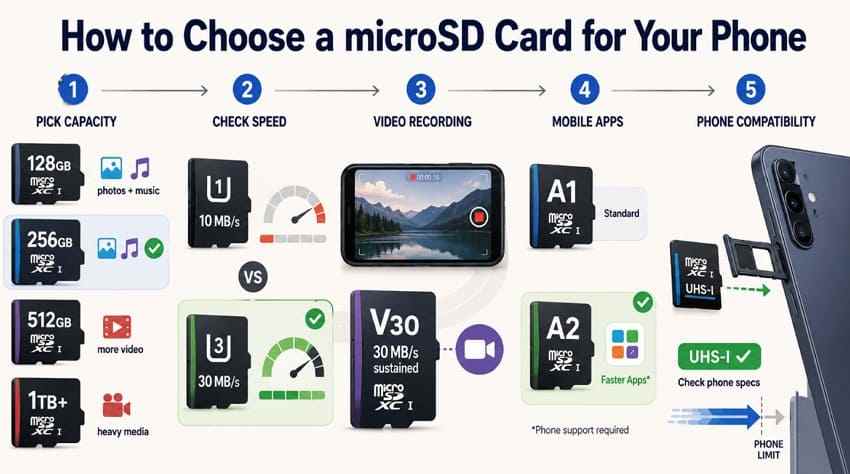
Each check removes a different buying risk, from an unsupported capacity to paying for performance the phone cannot reach.
Choose the Right Storage Capacity
For moderate photos, music, maps, and app data, 128GB is often sufficient. Choose 256GB for most everyday users, 512GB for large photo/video libraries, and 1TB or higher only for heavy media storage on a phone that officially supports it.
Capacity is not a backup. A larger card concentrates more files in one small device, so the need for a second copy increases as the library grows.
Understand U1 vs U3 Speed Ratings
The SD Association Speed Class standard defines U1 as a minimum sequential write speed of 10MB/s and U3 as 30MB/s. U1 can handle basic files and media, while U3 gives more headroom for large writes and demanding recording modes.
These are minimum sustained class ratings, not maximum read speeds. A U3 logo does not mean the card always writes at exactly 30MB/s; it means the card meets at least that class requirement under the standard's conditions.
Understand V30 and Video Speed Classes
V30 indicates a minimum 30MB/s sequential write level under the Video Speed Class framework. It is a sensible target for phones that record supported high-bitrate or 4K video to the card. Normal music, documents, and photo viewing do not require V30.
Choose A1 or A2 for Mobile Apps
A1 and A2 measure minimum random read/write performance plus sustained sequential write, making them more relevant to app-like small-file workloads than V30. A2 has higher random-performance requirements, but the full benefit depends on an A2-compatible host.
Do not buy A2 on the assumption that the phone can move every app to the card. Many Android phones allow only photos, video, downloads, and selected app data on portable storage.
Check UHS-I and Phone Interface Compatibility
All five recommendations use UHS-I. The phone's card controller, firmware, file system, capacity variant, workload, and temperature limit actual speed. Cards advertising unusually high UHS-I transfer numbers may require a proprietary or branded card reader to reach them.
- Verify the phone first: Confirm the slot, card standard, and maximum capacity for the exact model.
- Match class to workload: U3/V30 is useful for large media and supported 4K recording; U1 can be enough for light storage.
- Use A2 realistically: It helps only when the host and app workflow can use it.
- Buy from a reputable seller: Counterfeit cards may report false capacity and corrupt files after the real storage fills.
- Avoid overpaying for a reader benchmark: The phone may not reach the package's maximum transfer speed.
Part 5. A1 vs A2: Which Is Better for a Phone?
A2 is technically the stronger app rating, but it is not automatically the better purchase for every phone. The workload and host support decide whether its higher random-performance ceiling becomes useful.
| Feature | A1 microSD | A2 microSD | Which Is Better for Mobile? |
| Minimum random read | 1,500 IOPS | 4,000 IOPS | A2, when the phone supports the A2 command features |
| Minimum random write | 500 IOPS | 2,000 IOPS | A2, for compatible small-file workloads |
| Minimum sustained sequential write | 10MB/s | 10MB/s | Tie; check U3/V30 for demanding sustained writes |
| Host requirement | Broad baseline support | Full benefit requires an A2-compatible host and card | A1 can be the safer value when host support is unknown |
| Best use | Basic app data and everyday storage | Mixed app-capable storage and media on supported Android devices | A2 for a compatible phone; otherwise prioritize capacity and U3/V30 |
The SD Association Application Performance Class explains that A2's full performance requires both an A2 card and A2 host support. Without that combination, the card can still function, but the expected A2 acceleration may not appear.
Decision rule: Choose A2 when the price difference is small and the phone supports app-related use on microSD. If the card is mainly for photos, music, and offline video, capacity, authenticity, and U3/V30 may matter more.
Part 6. What microSD Capacity Should You Buy?
Choose enough space for the next one to two years, but stay within the phone's official limit. The table below is a planning guide, not a promise of exact file counts.
| Capacity | Best For | Approximate User Type | Compatibility Check |
| 64GB or 128GB | Photos, music, documents, maps, moderate downloads | Basic expansion or light media use | 64GB and above normally require microSDXC support; ratings can differ by capacity |
| 256GB | Photos, games, offline streaming, and mixed everyday storage | Best default for most users | Confirm the phone supports at least 256GB |
| 512GB | Large photo/video libraries, games, travel media, and creator files | Heavy media user | Check the exact model because older phones may have a lower limit |
| 1TB and above | Very large video libraries and long-term offline collections | Creator or maximum-capacity buyer | Buy only when the phone explicitly supports the selected capacity |
Practical recommendation: 256GB is large enough to materially expand most Android phones without making the card the only home of an enormous archive. Move to 512GB when you record or carry substantial video. A 1TB or 2TB card makes sense only with confirmed support, a genuine product, and a separate backup plan.
Part 7. How to Set Up a New microSD Card on Android
Android menus differ by phone maker and version, so treat these as a safe general workflow. Follow the manufacturer's instructions when the wording or storage options differ.
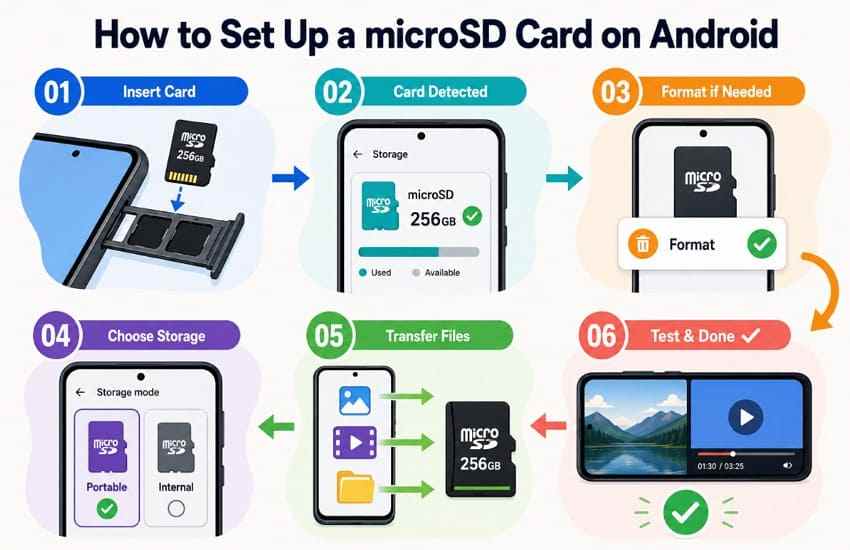
Back up any files already on the card before starting because formatting erases its contents.
- Insert the microSD card correctly: Power off the phone when the manufacturer recommends it, open the correct tray, place the card in the marked orientation, and reinsert the tray without forcing it.
- Confirm the card is detected: Open the phone's storage settings or Files app and look for the SD card. If it is missing, power down, reseat it, and verify the capacity is supported before formatting.
- Format only if required: If Android requests formatting, confirm that no needed files remain on the card. Formatting is destructive. Use the phone's own formatting workflow for the most compatible file system.
- Choose the supported storage mode: Portable storage remains movable between compatible devices. Some manufacturers may offer adoptable/internal storage, which encrypts and ties the card to that phone. Many phones offer portable storage only.
- Move supported content: Configure the camera, download, or media app to use the card where that option exists. Move photos, videos, music, documents, or supported app data through the phone's Files or storage controls.
- Test the card before relying on it: Copy several files, reopen them, restart the phone, and confirm the card remains mounted. Keep another copy of anything irreplaceable.
Do not reformat a card with missing files: If the phone suddenly asks to format a previously working card, cancel the prompt and stop using the card until the data is backed up or recovered.
Part 8. Recover Lost Files From a Phone microSD Card
If photos disappear, folders become inaccessible, or Android reports an SD card error, stop taking photos, downloading files, and moving apps to that card. New writes can overwrite recoverable data.
Recommended Tool: Wondershare Recoverit
Wondershare Recoverit Memory Card Recovery can scan a removable phone microSD card through a Windows or Mac computer when the card is still detected by a card reader. It is designed for logical loss such as deletion, accidental formatting, RAW file systems, inaccessible folders, and some corruption scenarios.
Its relevant capabilities make it useful for a readable removable card rather than Android internal storage.
Five Useful Recovery Features
- Multiple logical-loss scenarios: Scans for files lost through deletion, formatting, RAW status, and inaccessible storage.
- Broad file-type support: Searches for photos, videos, audio, documents, archives, and other common formats.
- Search and filters: Narrows results by file type, path, date, or size when a large card produces many results.
- File preview: Lets users open available previews to check content before recovery.
- Separate recovery destination: Saves selected files to the computer or another drive instead of writing back to the affected card.
Important boundary: Recoverit does not directly scan an Android phone's internal storage. Remove the microSD card and connect it to the computer through a reliable reader. A card formatted as Android adoptable/internal storage may be encrypted and tied to the original phone, so a computer-based scanner may not be able to read it.
How to Recover Files From a Readable Phone microSD Card
Prepare a different drive for the recovered files, then use this three-step workflow.
Step 1. Select the microSD Card. Connect the card through a reliable reader, open Recoverit, choose the detected card under SD Card Recovery, verify its capacity, and start the scan.

Step 2. Review the Scan Results. Let the scan continue while filtering by type, path, date, or size. Avoid writing any new data to the affected card during the scan.

Step 3. Preview and Recover. Preview important files where available, select the usable results, click Recover, and save them to the computer or another external drive—not to the affected microSD card.

If the card was reformatted, follow the focused formatted memory card recovery guidance and avoid using the card until the scan is complete.
Recover Files From a Readable Phone microSD Card
 Security Verified. Over 7,302,189 people have downloaded it.
When microSD Recovery Can Work
Software recovery is most appropriate when the computer detects the card with the correct or plausible capacity and the problem is logical rather than physical.
- Files were deleted and the card has not been heavily reused.
- The card was accidentally formatted without a secure overwrite.
- The file system is RAW, corrupted, or inaccessible while the card remains detectable.
- Folders appear empty after an interrupted transfer.
- Photos or videos disappeared but the card still mounts through a reader.
When the Card Is Too Damaged for Software Recovery
Stop DIY attempts if the card is cracked, bent, burned, wet, overheating, has visibly damaged contacts, reports wildly incorrect capacity, or is not detected by multiple known-good readers. Software cannot scan storage the computer cannot communicate with. For valuable data, contact a professional recovery service; otherwise replace the card.
Part 9. Signs You Should Replace Your Phone's Memory Card
A card does not need to fail completely before it becomes unsafe. Back up its contents and replace it when these symptoms repeat.
- Files frequently become corrupted or disappear: Repeated damage after successful saves can indicate failing flash memory or a counterfeit-capacity card.
- The phone repeatedly reports SD card errors: Recurring mount, file-system, or formatting warnings deserve investigation; use this SD card error guide without repairing the only copy first.
- The card disconnects or becomes unreadable: Test it in a known-good reader after safely removing it. Repeated disconnects across devices are a strong replacement signal.
- Transfers become unusually slow: Sustained slowdowns, freezes, or write failures can precede broader data loss.
- Formatting errors keep returning: Do not repeatedly format a card that immediately becomes RAW or unreadable again.
- The card fails on multiple compatible devices: Stop using it and decide whether the data justifies professional service.
If recovered photos open with artifacts or fail to render, separate storage recovery from file repair. This guide to recovering corrupted photos explains the distinction.
Conclusion
The best SD card for a mobile phone is a genuine microSD card that fits the exact phone's capacity limit and workload. Samsung PRO Plus is the best overall pick, SanDisk Extreme suits demanding photo and video use, Samsung EVO Plus offers strong value, and Lexar Professional 1066x and Kingston Canvas Go! Plus cover app-capable and write-heavy use. For most Android owners, a 256GB U3/V30 card is the practical starting point. Whatever you buy, keep a separate backup and stop using the card immediately if files disappear.
Frequently Asked Questions
-
Does a Larger microSD Card Make a Phone Slower?
Capacity alone does not automatically slow a phone, but performance can vary by card model and capacity variant. The phone's controller, card rating, file system, workload, card health, and available free space matter. A card above the phone's supported limit can also cause recognition or reliability problems. -
Can I Use a Camera microSD Card in My Phone?
Yes, when the card's physical format, capacity, standard, and file system are compatible with the phone. Back up the card before moving it. If Android asks to format it, formatting will erase the existing camera files, so copy or recover them first. -
Is a V30 microSD Card Necessary for Normal Phone Use?
No. V30 is useful for supported high-bitrate or 4K recording and large sustained writes. Basic documents, music, photo viewing, and ordinary downloads can work on lower-rated cards. Choose V30 when the price difference is reasonable or the phone workload benefits from it. -
Can the Same microSD Card Be Moved Between Android Phones?
A card used as portable storage can usually move between compatible phones after it is safely unmounted, provided the new phone supports its capacity and file system. Back up first. A card formatted as adoptable or internal storage may be encrypted and tied to the original phone, so it cannot simply be moved and read elsewhere.


