

 TL;DR:
The safest tool to format an SD, SDHC, SDXC, or SDUC card on Windows is the official SD Memory Card Formatter from the SD Association because it automatically applies optimized flash memory standards rather than generic storage formatting.
● Windows File Explorer and Disk Management hide the FAT32 option for volumes larger than 32GB, requiring third-party partition managers like AOMEI Partition Assistant or DiskGenius to format a 64GB or larger card to FAT32.
● FAT32 restricts individual files to a 4GB maximum limit, making exFAT the required default for SDXC and SDUC cards handling large 4K video exports from modern cameras and drones.
● Missing data must be extracted using recovery software like Recoverit before applying an overwrite format, because overwriting permanently destroys user data and the official formatter cannot process cards while they are locked by BitLocker To Go encryption.
Ask AI for a summary
 ChatGPT
 Perplexity
 Gemini
 Claude
 Grok
Grok
The safest SD memory card formatter for Windows is usually the official SD Association formatter, especially when you want a card prepared for cameras, drones, handheld consoles, dash cams, or other SD host devices. Windows File Explorer, Disk Management, DiskPart, and partition managers can also format SD cards, but they do not all handle SD card standards, FAT32 limits, damaged partitions, or data recovery risks in the same way.
Before you format, recover or back up anything important. Formatting rewrites file-system information, and an overwrite format can make files unrecoverable. If the SD card asks to be formatted, shows as RAW, has missing photos, or contains files you still need, use Recoverit Memory Card Recovery before creating a new file system.
Try Wondershare Recoverit to Perform Data Recovery
 Security Verified. Over 7,302,189 people have downloaded it.
In this article
Part 1. What Is an SD Memory Card Formatter?
An SD memory card formatter creates a new file system on an SD, SDHC, SDXC, or SDUC card so Windows and other devices can store files on it again. The tool you choose matters because SD cards are flash media with standards for capacity, file system, and protected areas.
Why an SD Card May Need Formatting
Formatting is useful when a healthy card must be prepared for a new device, when a device requires a specific file system, or when Windows detects a card but cannot use its current file system. It can also help when a card shows the wrong capacity because of an old partition layout.
- New SD card setup: a camera, drone, handheld console, dash cam, or 3D printer may require its own layout.
- File system corruption: interrupted writes, unsafe ejection, or battery loss can make the card unreadable.
- Device switching: moving a card between cameras, PCs, consoles, and Android devices can create compatibility issues.
- Incorrect capacity: old partitions may make a large SD card appear smaller than it is.
- Performance problems: a healthy card may perform better after being formatted for the target device.
What Happens When You Format an SD Card
A format operation creates new file-system structures and removes normal access to existing files. A quick format usually clears the file index while leaving old data blocks until new files overwrite them. That is why recovery may still work after a quick format if you stop using the card immediately.
Quick Format vs. Full Format
A quick format is fast and prepares the card for reuse. A full or overwrite format takes longer because it writes across the card. If you want a deeper explanation, see Recoverit's Quick Format vs. Full Format guide. For recovery, quick format is less damaging; for privacy before selling or returning a card, overwrite format is safer.
SD Memory Card Formatter vs. Windows Formatting Tools
Windows formats an SD card like a general removable drive. A dedicated SD formatter for Windows follows SD card behavior more closely. The SD Association explains that its formatter uses FAT parameters optimized for flash memory in SD cards, supporting portability, performance, and endurance across SD host products.
The SD Association also states on its formatter FAQ that its tool should be downloaded from sdcard.org and not from other websites. For a download-focused query, this matters: avoid mirror sites that may bundle unrelated installers.
SD, SDHC, SDXC, and SDUC File Systems
The SD Association's capacity standards connect card capacity with the card standard and default file system.
| Standard | Capacity | Default file system | Common use |
| SD (SDSC) | Up to 2GB | FAT12 or FAT16 | Legacy devices |
| SDHC | Over 2GB to 32GB | FAT32 | Older cameras, consoles, and FAT32-only devices |
| SDXC | Over 32GB to 2TB | exFAT | Modern cameras, drones, dash cams, and 4K recording |
| SDUC | Over 2TB to 128TB | exFAT | High-capacity future SD storage |
Part 2. What to Do Before Formatting an SD Card
Formatting is destructive to normal file access. Before you use an SD formatter for PC, complete these checks in order.
| Check | Why it matters | What to do |
| Back up accessible files | Formatting removes the file index. | Copy everything readable to your PC or another drive. |
| Recover missing files | Recovery is easier before formatting or new writes. | Scan the card before continuing if photos or videos are missing. |
| Confirm the drive letter | Formatting the wrong drive can erase unrelated data. | Match drive letter, capacity, and label in File Explorer or Disk Management. |
| Check device compatibility | Older devices may reject SDXC or exFAT cards. | Confirm the target device supports the card standard and file system. |
| Check the write-protect switch | A locked SD adapter blocks formatting. | Move the switch away from Lock. |
| Unlock BitLocker To Go | The official formatter does not support encrypted SD cards until they are unlocked. | Unlock the card in Windows first. |
| Stop on physical failure | Formatting a failing card can worsen data loss. | Stop using cracked, overheating, bent, or repeatedly disconnecting cards. |
Part 3. Best SD Card Formatter Tools for Windows
These Windows SD card formatting tools cover different problems. Use the official tool for normal SD card preparation, Windows tools for quick tasks, and partition managers only when you need extra control.
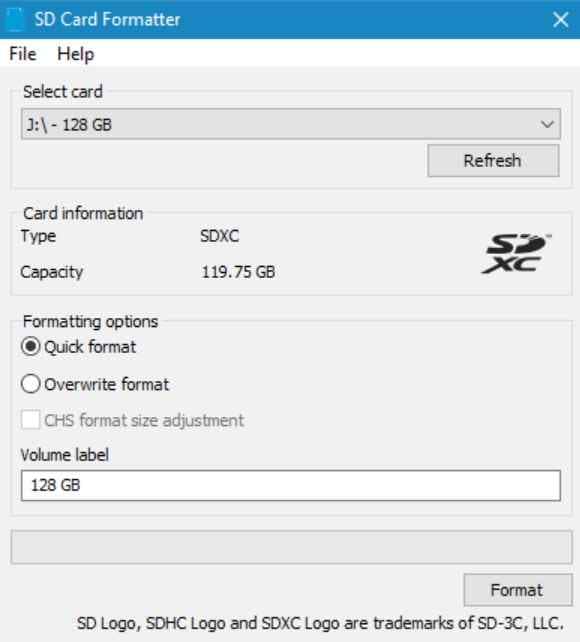
Tool 1. SD Memory Card Formatter by the SD Association
The official SD Memory Card Formatter is the best default for SD, SDHC, SDXC, and SDUC cards. It is designed for SD card standards rather than general storage formatting. Use the SD Association download page for the current Windows installer, license notice, and installation requirements instead of downloading formatter installers from mirror sites.
Best for: safely formatting memory cards for cameras, dash cams, drones, handheld consoles, recorders, and other SD host devices.
Tool 2. Windows File Explorer
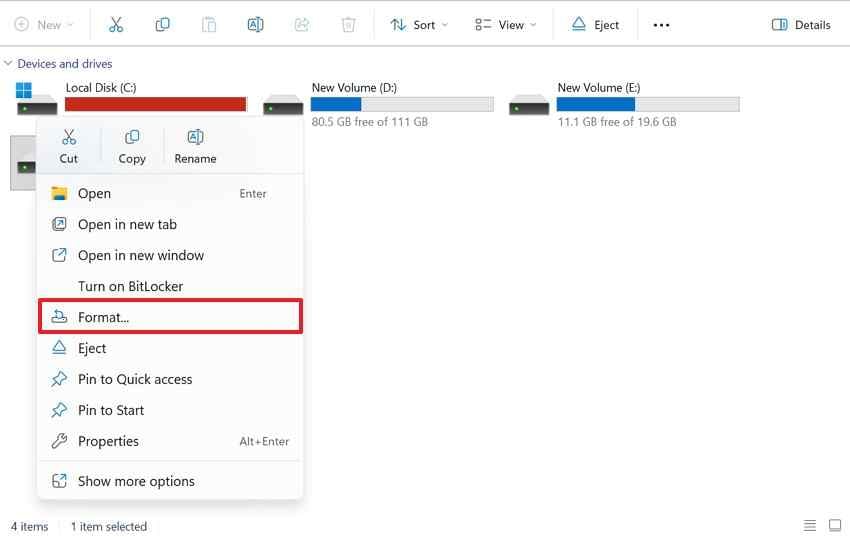
File Explorer is the fastest built-in way to perform a normal SD card format Windows task. Right-click the SD card drive, choose Format, select the file system, and start the format. It is simple, but it may not expose every option and usually does not offer FAT32 on cards larger than 32GB.
Best for: healthy SD cards that Windows already reads correctly.
Tool 3. Windows Disk Management
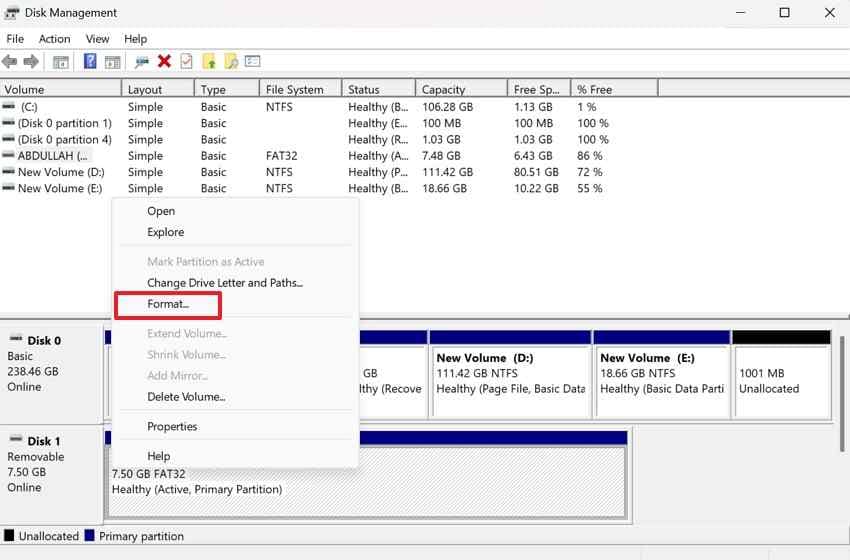
Disk Management shows disks, partitions, unallocated space, and drive letters. It is more useful than File Explorer when an SD card appears in Windows but does not show as a normal drive.
Best for: assigning a drive letter, deleting an old volume, creating a new simple volume, or formatting a RAW or unallocated card after data is protected.
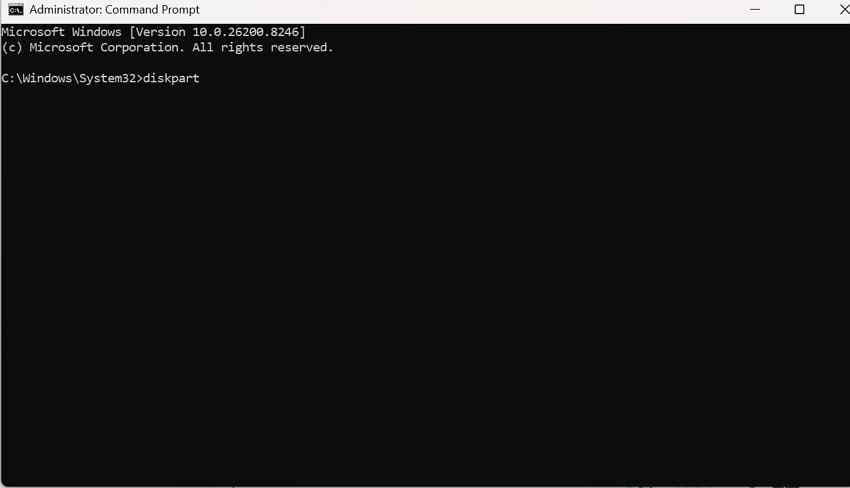
Tool 4. DiskPart and the Windows Format Command
DiskPart is the command-line storage tool in Windows. It can clean partition tables, create partitions, assign drive letters, and format volumes. It is powerful, but a wrong disk number can erase the wrong drive.
Best for: stubborn cards that built-in graphical tools cannot repartition or format.
Tool 5. AOMEI Partition Assistant
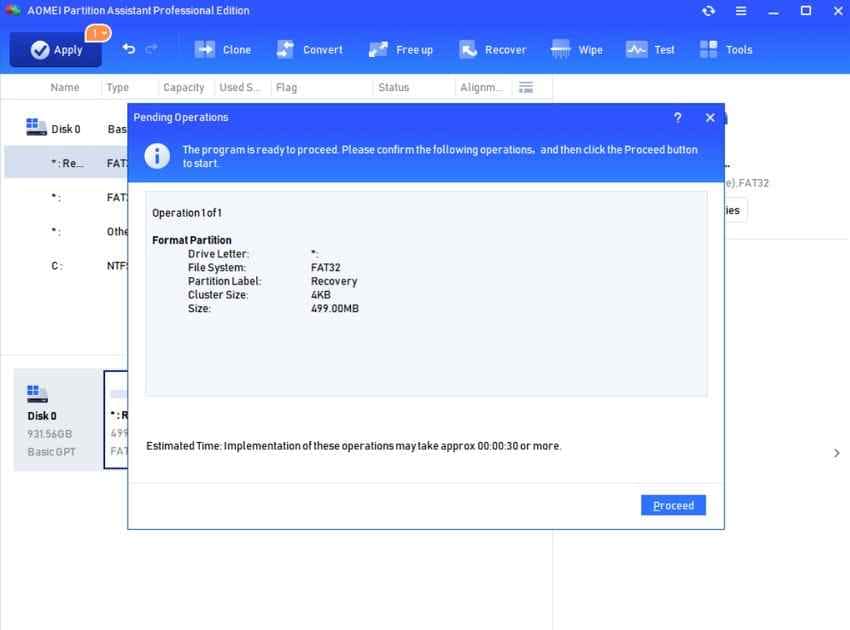
AOMEI Partition Assistant is a third-party partition manager that can format cards, manage partitions, and create FAT32 volumes larger than the limit shown in the Windows Format dialog. It is useful when a device specifically requires FAT32 on a 64GB, 128GB, or larger card.
Best for: users who need a graphical SD card formatter FAT32 free download option for large cards.
Tool 6. DiskGenius
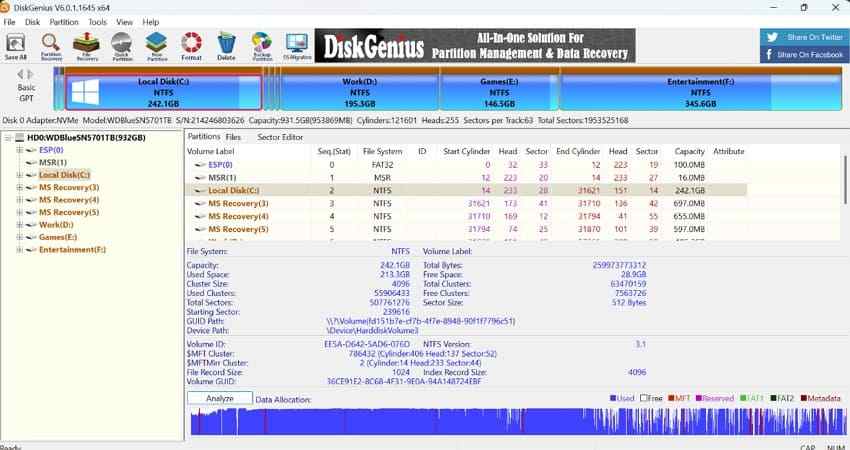
DiskGenius combines partition management, formatting, disk inspection, and recovery-related functions. It can help inspect a card before you decide whether to format it.
Best for: cards with unclear partition damage, wrong capacity, or inaccessible volumes.
Tool 7. Rufus for Bootable or Specialized SD Cards
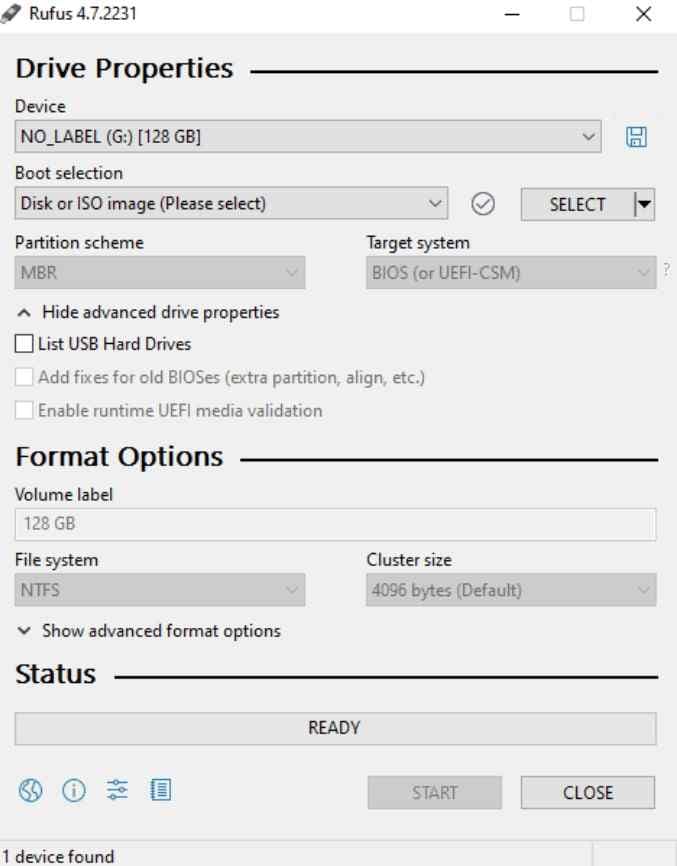
Rufus is mainly for creating bootable or image-based media, not for preparing ordinary camera SD cards. Use it when a single-board computer image, firmware tool, or bootable recovery workflow needs a specially written card.
Best for: bootable SD cards, firmware media, and image-writing workflows. For ordinary photo and video cards, use the official SD formatter or Windows tools instead.
Part 4. Compare the Best SD Card Formatting Options
Select the right SD formatter for Windows by matching the card problem with the tool's strength.
| Tool | Ease of use | Supported file systems | Formats FAT32 above 32GB | Best for | Main limitation |
| SD Memory Card Formatter | Very easy | Automatically follows SD card standards | No custom FAT32 workflow | Safely formatting SD, SDHC, SDXC, and SDUC cards | Limited file-system customization |
| File Explorer | Very easy | FAT32, exFAT, NTFS | No in the GUI | Quick formatting of healthy SD cards | Weak partition repair options |
| Disk Management | Moderate | FAT32, exFAT, NTFS | No in most normal GUI workflows | RAW, unallocated, or newly detected cards | Can still fail on damaged cards |
| DiskPart | Advanced | FAT32, exFAT, NTFS | Depends on Windows build and command path | Repartitioning stubborn or corrupted cards | Wrong disk selection can erase other drives |
| AOMEI Partition Assistant | Easy | FAT32, exFAT, NTFS | Yes | Large SD cards that need FAT32 | Third-party install required |
| DiskGenius | Moderate | FAT32, exFAT, NTFS | Yes | Partition repair and card inspection | More features than beginners may need |
| Rufus | Moderate | FAT32, exFAT, NTFS, image-based layouts | Yes | Bootable or specialized SD cards | Not ideal for ordinary camera formatting |
For most users, the official SD Memory Card Formatter is the safest default. Use a third-party partition manager only when Windows cannot create the file system your target device requires.
Part 5. How to Use the Official SD Memory Card Formatter on Windows
The official tool is the right first choice for most SD and microSD cards. Download it only from the SD Association's website.
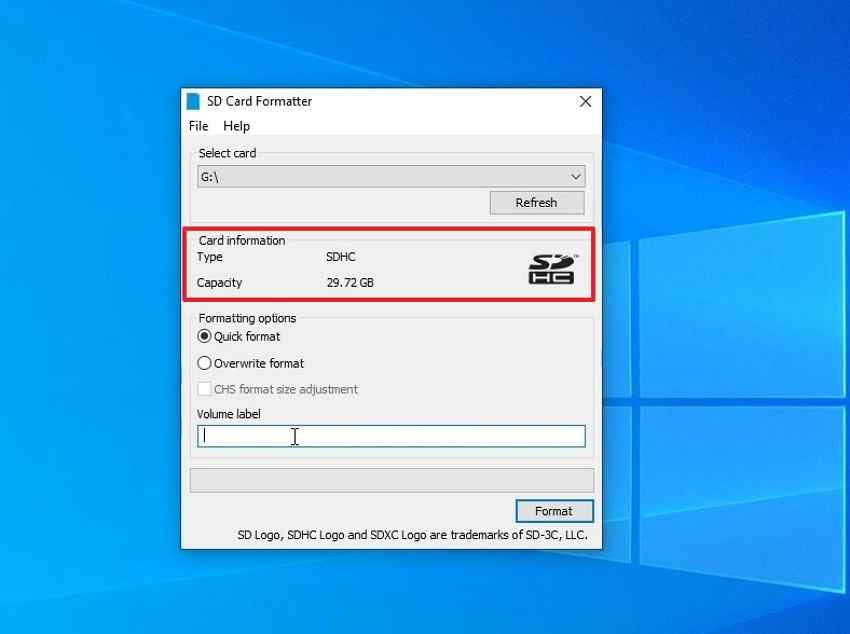
Step 1. Go to the SD Association download page, download the Windows installer, install the tool, insert the SD card, open the formatter, select the correct drive letter, and confirm the displayed capacity.
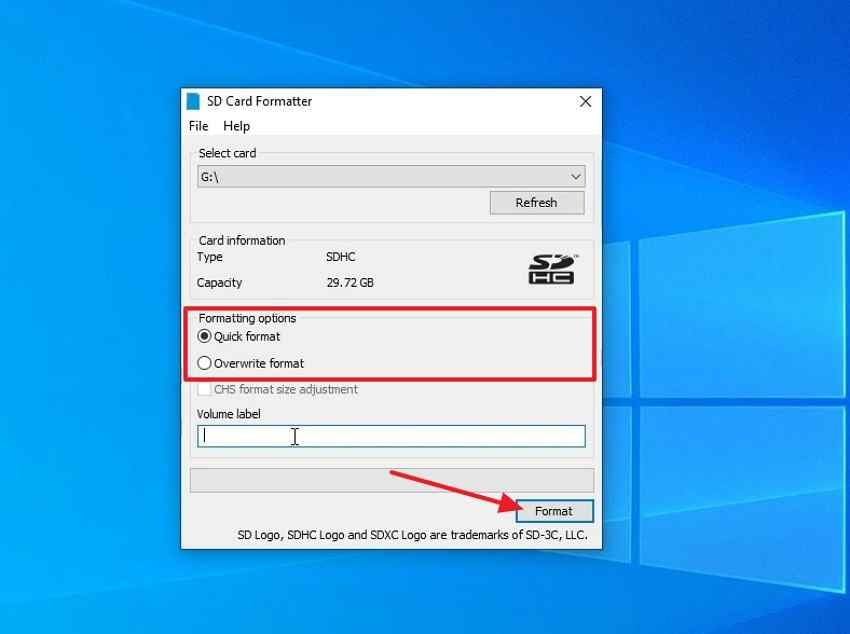
Step 2. Choose Quick Format for routine reuse or Overwrite Format only when you intentionally want to erase user data. Add a volume label if needed, click Format, wait for completion, and safely eject the card.
Note: The SD Association says its formatter does not format the protected area used for SD security functions. It also does not support SD cards encrypted with Windows BitLocker To Go until the card is unlocked.
Part 6. Which File System Should You Choose?
Before using an SD card formatter for PC, choose the file system your target device supports. Recoverit also has deeper explainers on FAT32, exFAT, and NTFS.
| File system | Suits | Max file size | Notes |
| FAT12 or FAT16 | SD cards up to 2GB | Often up to 2GB | Legacy devices only |
| FAT32 | SDHC cards up to 32GB and older FAT32-only devices | 4GB per file | Broad compatibility, but poor for large single video files |
| exFAT | SDXC and SDUC cards | Effectively much larger than SD card video files | Best default for most 64GB+ cards, 4K video, and modern devices |
| NTFS | Windows-focused storage | Very large files | Useful for PCs, but many cameras and drones cannot read it |
Follow the target device's manual first. If the device says FAT32, use FAT32. If it supports SDXC cards normally, exFAT is usually the better default for 64GB and larger cards.
Part 7. How to Format a Large SD Card to FAT32
Many users searching for sd card formatter fat32 free download have the same problem: Windows does not show FAT32 for a 64GB, 128GB, or larger SD card in the normal Format dialog.
Why Windows May Not Show the FAT32 Option
The Windows graphical Format dialog has traditionally hidden FAT32 on volumes larger than 32GB. That does not mean FAT32 itself is limited to 32GB. PCWorld reports on the change, and Microsoft's Windows Insider Blog notes that some Windows 11 command-line formatting paths increased the FAT32 format limit from 32GB to 2TB. However, many users on normal GUI workflows and older builds still need another method.
Format a Large Card With a Partition Manager
If your device requires FAT32 on a large SD card, a partition manager is usually the easiest route. In AOMEI Partition Assistant, right-click the card partition, choose Format Partition, select FAT32, and apply the operation. In DiskGenius, use the Format Current Partition workflow and choose FAT32.
Confirm the drive letter and capacity before applying changes. Formatting the wrong disk is not a Recoverit or formatter problem; it is a device-selection mistake.
FAT32 File-Size and Compatibility Limitations
FAT32 has a 4GB per-file limit. A 512GB card formatted as FAT32 can still fail to store one video file larger than 4GB. That is why long camera clips, dash cam files, and large exports may fail even when the card has plenty of free space.
When exFAT Is the Better Choice
Choose exFAT when the target device supports it, especially for SDXC cards, 4K video, high-resolution photos, and large file transfers. Reserve FAT32 for older cameras, car systems, firmware tools, and handheld devices that specifically require it.
Part 8. Recover Files Before Formatting an SD Card
If Windows asks you to format the card, the file system may be damaged while the underlying photos or videos still exist. Do not format first if those files matter. Continued use and new writes reduce recovery chances.
How Recoverit Can Help Before Formatting
Recoverit scans readable SD cards through a card reader and can help recover files from deleted, formatted, RAW, or inaccessible memory cards. It recovers files from storage; it does not format the card, repair the SD card hardware, or fix the file system for reuse.
- Formatted card recovery: may recover files after quick formatting when data has not been overwritten.
- RAW card scanning: scans cards Windows reports as unformatted or inaccessible.
- Enhanced video recovery: helps recover video files that may be fragmented across the card.
Important note: files removed by overwrite formatting or overwritten by new data cannot be restored by any software.
How to Recover Files From an SD Card Before Formatting
Follow these steps before creating a new file system on the card.
Step 1. Connect the card and select it. Insert the SD card with a reader, open Recoverit, choose SD Card Recovery, select the card, and click Start Scan.

Step 2. Scan and filter the results. Let the scan run. Use File Location, file type, date, and search filters to find missing photos, videos, documents, or other files.

Step 3. Preview and save to another drive. Preview recoverable files, click Recover, and save them to your PC or an external drive, not back to the same SD card.

Try Wondershare Recoverit to Perform Data Recovery
Security Verified. Over 7,302,189 people have downloaded it.
When Professional Recovery Is Required
Software recovery depends on the card being detected by a reader and stable enough to scan. If the card is cracked, burnt, water-damaged, overheating, or invisible to every reader, stop retrying and contact a professional data recovery lab.
Part 9. Best Practices for Formatting SD Cards
Using an SD formatter for PC correctly matters, but good habits prevent repeat formatting problems.
- Use the official SD formatter for normal SD preparation: it applies SD Association formatting behavior for SD, SDHC, SDXC, and SDUC cards.
- Format in the target device when possible: cameras, drones, dash cams, and consoles may create their own folder structure.
- Choose the correct file system: use FAT32 only when the device requires it; use exFAT for most modern 64GB+ SDXC cards.
- Do not interrupt formatting: removing the card or losing power can corrupt the file system.
- Safely eject the card: use Windows safe eject before removing the card reader.
- Back up files regularly: SD cards are removable media, not long-term backup storage.
- Replace worn-out cards: repeated corruption, slow writes, I/O errors, and wrong capacity warnings often point to failing flash memory.
- Avoid download mirrors for formatter tools: the official SD Memory Card Formatter should come from sdcard.org.
Conclusion
The best SD memory card formatter for Windows is the official SD Association tool for most SD, SDHC, SDXC, and SDUC cards. File Explorer and Disk Management handle simple Windows formatting, DiskPart helps with stubborn cards, and partition managers are useful when a large card must be FAT32. Before any format, recover or back up important files because formatting changes the file system and may remove normal access to your data.
FAQ
-
Is the SD Memory Card Formatter free to download?
Yes. The SD Association provides SD Memory Card Formatter as a free download for Windows and macOS. Download it from sdcard.org instead of mirror sites. -
Why does Windows not offer FAT32 for my 64GB card?
The Windows graphical Format dialog commonly hides FAT32 above 32GB. Some newer Windows command-line paths have raised that limit, but many users still need a partition manager when a large card must be FAT32. -
Can I recover photos after formatting an SD card?
A quick format may leave recoverable data until new files overwrite it. Stop using the card, scan it with recovery software, and save recovered files to another drive. -
Does Recoverit format SD cards as well as recover files?
No. Recoverit recovers files from readable storage. Formatting still requires the SD Association tool, a Windows utility, DiskPart, or a partition manager. -
What is the best SD card formatter for PC?
For normal SD card preparation, use the official SD Memory Card Formatter. For quick healthy-card formatting, File Explorer is enough. For damaged partitions or large FAT32 needs, use Disk Management, DiskPart, or a reputable partition manager.


