

 TL;DR:
To restore a corrupted XLS file, first attempt Microsoft Excel's built-in Open and Repair or Extract Data features to salvage values and formulas, and revert to OneDrive or Windows Previous Versions if the file structure remains unreadable.
● Bypass freeze crashes caused by broken formatting by setting Excel's Calculation Options to Manual before opening the workbook, or extract raw data into a blank workbook using external reference formulas.
● Limit free online repair services to non-confidential files under 100MB with minor header errors, as they risk data privacy and cannot process severe storage sector corruption.
● Utilize desktop software like Recoverit to perform sector-by-sector deep scans on local drives, external HDDs, and USBs if the XLS document is entirely lost, deleted from the Recycle Bin, or overwritten by interrupted saves.
Ask AI for a summary
 ChatGPT
 Perplexity
 Gemini
 Claude
 Grok
Grok
- Identify the Damage: Determine if your file is completely inaccessible, showing unreadable content, or lost due to an overwritten sync before choosing a repair path.
- Use Built-in Repair: Start with Excel's Open and Repair feature or use Extract Data to pull values and formulas into a fresh workbook.
- Check Version History: Revert to a healthy state using OneDrive Version History or Windows Previous Versions to bypass the corruption entirely.
- Professional Recovery: Use Recoverit if the file is lost, deleted, or if internal code damage prevents standard Excel tools from opening it.
- Prevention: Minimize future risks by enabling AutoRecover, using manual backups, and avoiding interruptions during the saving process.
Imagine you've spent hours fine-tuning a complex spreadsheet, only for Excel to freeze and deliver the dreaded "unreadable content" error upon reboot. That sinking feeling of seeing a File Corrupted message right before a deadline is a nightmare every professional has faced. Whether it was a sudden power cut, a software crash, or a glitchy cloud sync, the result is the same.
However, a corrupted XLS file isn't necessarily a dead end, and multiple ways exist for corrupted XLS file recovery. From hidden internal repair tools to advanced data reconstruction, this guide will uncover those options to get your work back.
In this article
-
- Way 1. Use Open and Repair
- Way 2. Use Extract Data
- Way 3. Open with Manual Calculation
- Way 4. Copy Accessible Sheets to a New Workbook
- Way 5. Use External References to Extract Values
- Way 6. Save as SYLK or Another Workable Format
- Way 7. Restore an Older or Safer Copy of the XLS File
- Way 8. Check AutoRecover and Backup Copies
- Way 9. Restore from Windows Previous Versions
Part 1. Identify the Problem First: Corrupted XLS, Unreadable XLS, or Lost XLS?
To recover the Excel file, determine whether the file is corrupted, unreadable, or lost via the mentioned details to choose the right solution:
- File Exists, But Won't Open: The document icon appears in your folder, but double-clicking it results in a "file format not valid" error or no response. This usually indicates that the file extension or the internal header information has been severely damaged, preventing Excel from recognizing the data.
- Unreadable Content or Formatting Errors: In this scenario, the workbook opens, but a warning message appears regarding "unreadable content" or broken styles. While you can see the file, your formulas, cell formatting, and specific datasets may be replaced by garbled text or entirely missing.
- Excel Freezes During Opening: The application starts loading the file, but hangs at a specific percentage or becomes completely unresponsive. This often happens when a corrupted calculation or a faulty macro triggers an infinite loop, causing the software to crash before the interface can load.
- File Lost, Overwritten, or Further Damaged: This is the most critical stage, in which the original file has disappeared from the drive or was overwritten with a broken version. It also covers cases where failed manual repair attempts have accidentally stripped away the remaining healthy data from the document.
Part 2. Why XLS Files Get Corrupted
Whether you use built-in or XLS file recovery online free options, one needs to know why the issue appears. Therefore, this section has listed 5 causes for the Excel file recovery, as mentioned below:
- Interrupted Saves and Power Outages: If the power cuts out while Excel is mid-write, the file saving process is cut in half, leaving the document incomplete. Hence, this results in a broken binary structure that the software cannot parse because the data's closing tags are missing.
- Excel Crashes: A software freeze or internal exception can force Excel to quit before it can properly index the workbook's metadata. This abrupt termination often leaves behind ghost data or random calculations that prevent the file from opening clearly again.
- Sync or Network Issues: When working on shared drivers or cloud folders, a momentary drop in internet connection can cause a packet of data to be lost during the upload. Thus, this creates a sync conflict where the version stored on the server becomes an unreadable mix of old and new data.
- File Integrity Problems: Over time, storage sectors on hard drives or USB sticks can fail, physically damaging the disk area that contains your spreadsheet. So, when Excel tries to read these bad sectors, it encounters corrupted bits, leading to the "Unreadable Content" error message.
- Malware or Transfer Damage: Malicious software can target and alter document headers, or files may become scrambled when sent as email attachments over insecure connections. These external interferences alter the underlying code of the XLS file, making it appear gibberish to Excel.
- Overwrite-Related Corruption: Manually saving a newer version of a file over an older one can sometimes cause data corruption if the process is interrupted or the disk is nearly full. Thus, this creates a hybrid file that contains overlapping data streams, which confuses the software's file reader and blocks access.
Part 3. Use Microsoft Excel Official Repair Methods First
If you want to try to use the XLS file recovery online free or built-in options, this section is for you. Since built-in options are preferred in most cases, review the 8 options to regain access to Excel files:
Way 1. Use Open and Repair
When an Excel file won't open or shows an error, this Excel feature can help extract important data, such as values and formulas, when a full repair doesn't work. In addition, the method is quick and safe because it does not change the original file unless you save it. Since it works with both older and newer Excel file formats, here is how it works:
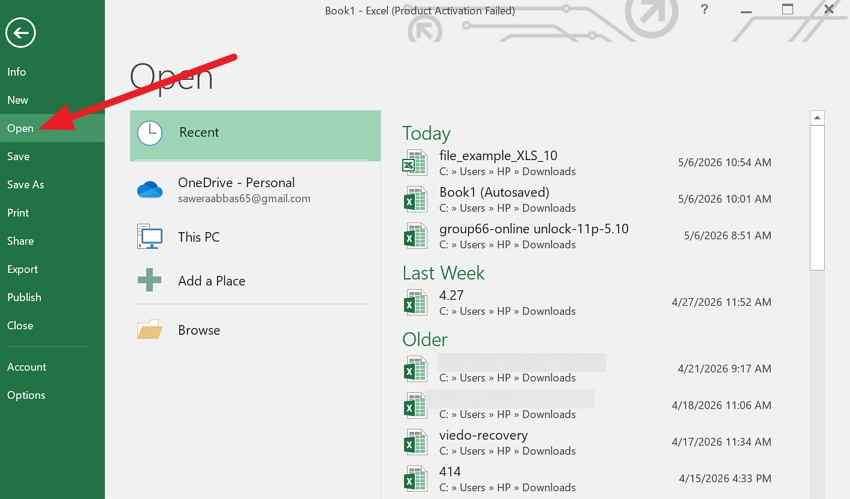
Step 1. Press the "File" option and in the "Open" tab, click on the "Browse" option.
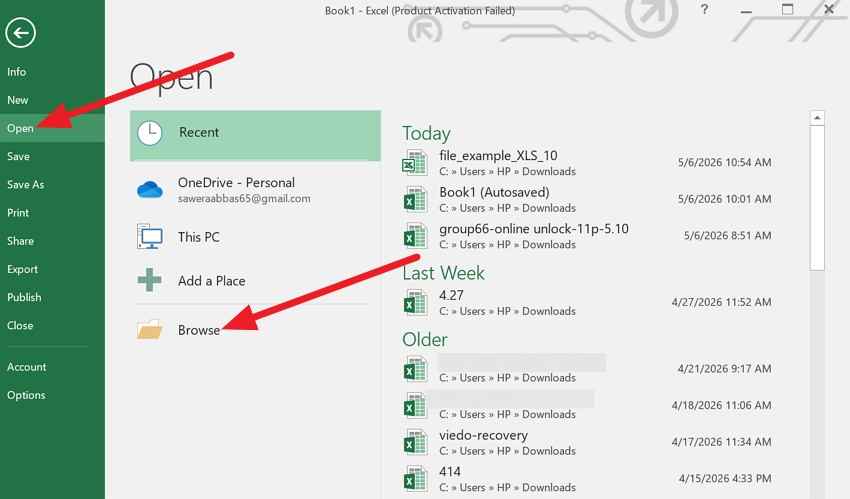
Step 2. In the File Explorer, locate the file you want to repair and stretch the "Open" menu to pick the "Open and Repair" option.
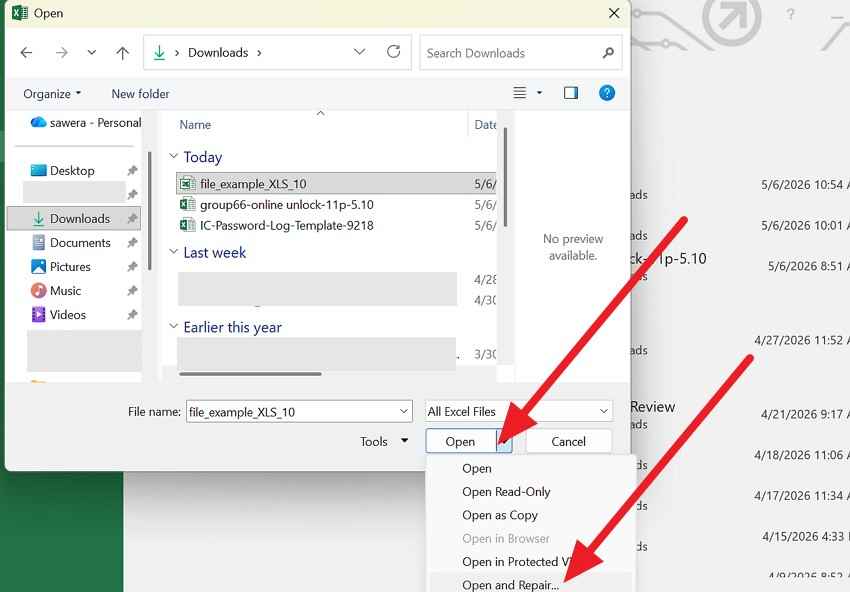
Step 3. In the dialogue box, click the "Repair" option to recover as much data as possible.

Way 2. Use Extract Data
Rather than using XLS recovery online free options, this solution in Excel's Open and Repair is helpful. Mainly, when a damaged file can't be fully fixed, but you still want to save your work. It focuses on extracting key data, such as values and formulas, while skipping broken formatting or layout. Hence, it can even recover data from badly corrupted files that won't open normally, as guided:
Instructions. Access the "Open and Repair" option as mentioned in way 1, but when the dialogue box appears, choose the "Extract Data" option. Excel will ask whether to keep your formulas or convert them to values; select the option that preserves your most important data.

Way 3. Open with Manual Calculation
When dealing with the corrupted XLS file recovery, this simple fix stops crashes caused by heavy or broken formulas. Normally, Excel recalculates everything when a file opens, which can freeze or crash the app, but manual mode prevents this. Once it opens, you can view your data, copy important parts, or save the file before running any calculations, as shown:
Step 1. Launch Microsoft Excel, open a blank workbook, and press the "File" option to head to the "Options" tab.
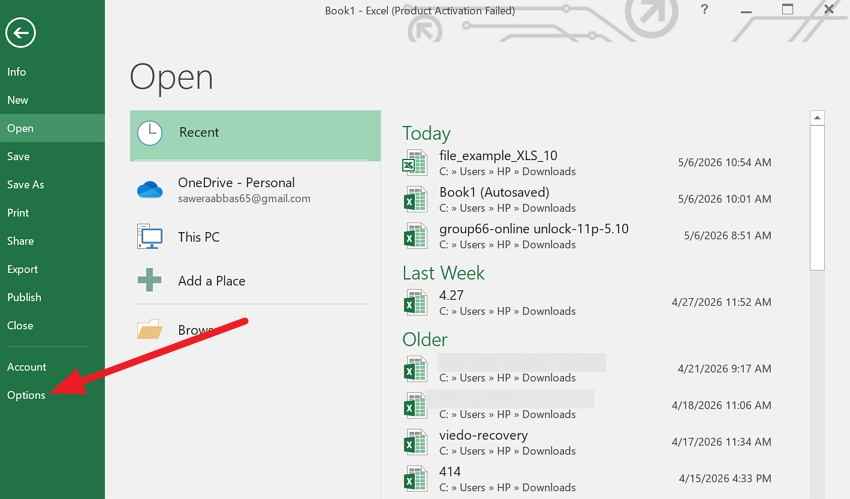
Step 2. On the new window, go to the "Calculations Options" section in the "Formulas" tab. Among the given options, set it to "Manual" and click on "Ok" to continue.
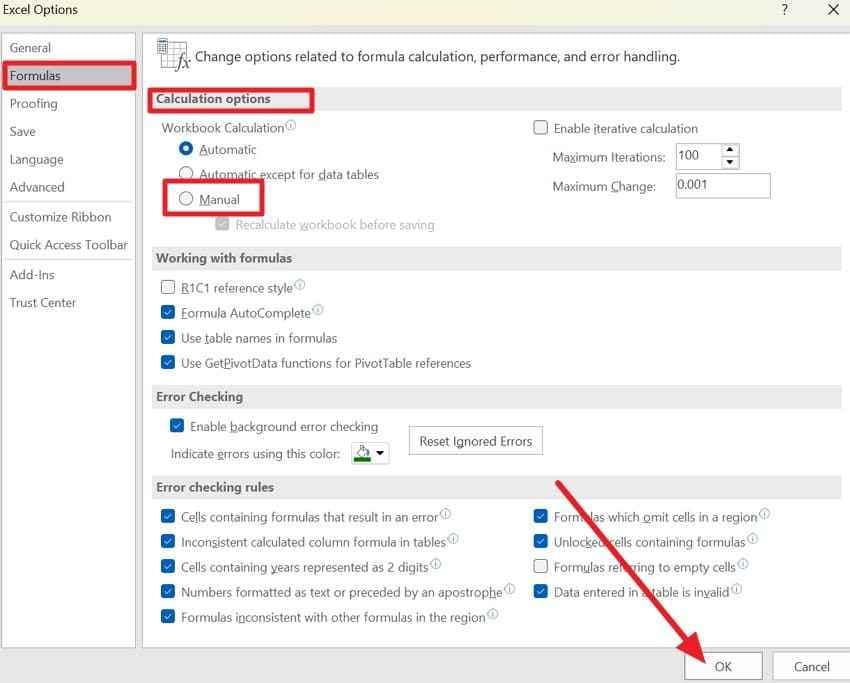
Step 3. Now, press File and "Open" to browse to the location of your corrupted XLS file and open it. With the file now open without calculating formulas, you can save a copy or copy data to a new workbook.
Way 4. Copy Accessible Sheets to a New Workbook
To recover the Excel file, this is a simple way to save data from a corrupted Excel file that still opens. Instead of fixing the damaged file, you move only the working data into a new, clean file, which helps avoid carrying over hidden issues.
You can also copy the entire sheet or just the parts that still work, depending on the file's damage. This method uses normal copy and paste, so no extra tools are needed.
Way 5. Use External References to Extract Values
Instead of fully opening the damaged Excel workbook, you create a new Excel file and link it to the corrupted one with a formula like "='[File.xlsx]Sheet1'!A1." Hence, this helps with corrupted XLS file recovery and lets Excel pull text and number values, recovering only important sheets or cells, as guided below:
Step 1. Press the "File" and "New" tab to choose the "Blank Workbook" option. In cell 1 of the new file, type the formula "='[CorruptedFile.xlsx]Sheet1'!A1" that points to the first cell of the damaged workbook file.
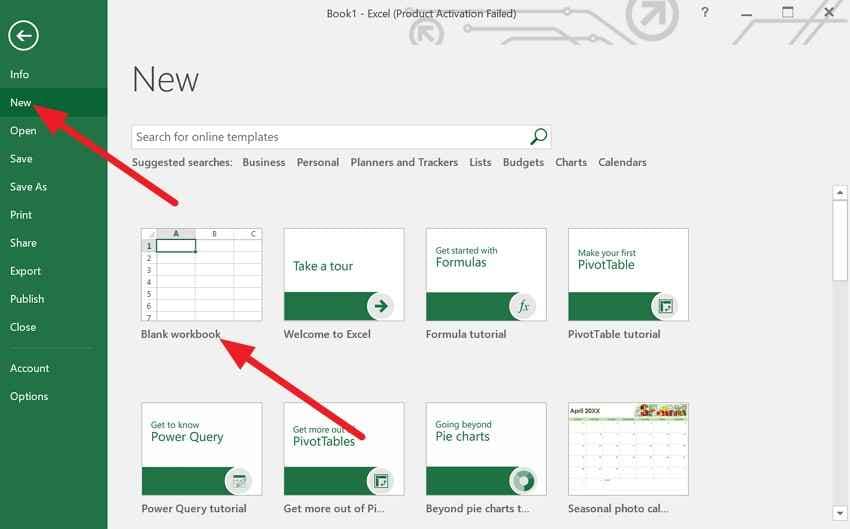
Note: Replace the CorruptedFile.xlsx and Sheet1 with the actual file and sheet names.
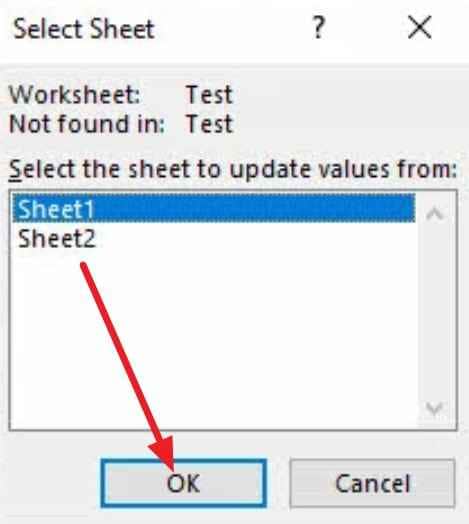
Step 2. After that, press the "Enter" key. If the "Update Values" dialogue box appears, select the corrupted file, then choose "OK."
Select cell 1 in the new workbook and the fill handle across the rows and down the columns to replicate the range of data in your original file. Select the entire range of data you just populated in the new workbook. Press "Home > Copy" and "Home > Paste Arrow > Paste Values" to keep the data but remove the link to the broken file.
Way 6. Save as SYLK or Another Workable Format
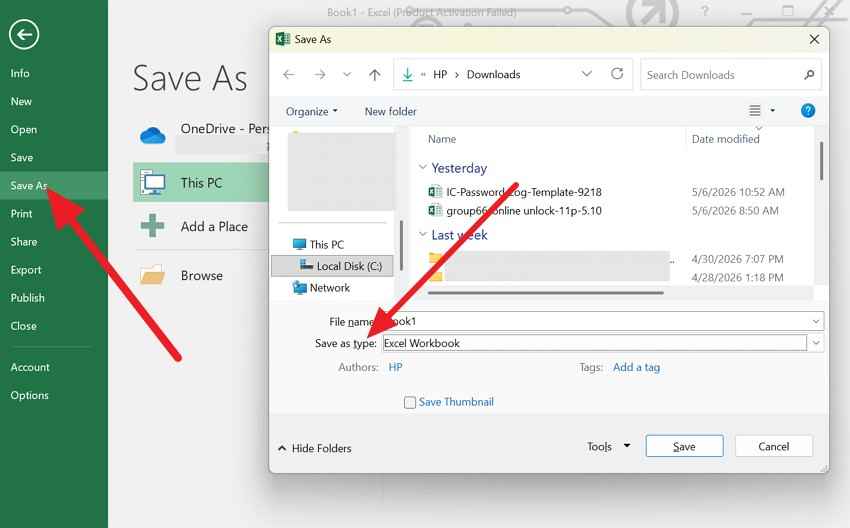
If the external reference method fails, save the corrupted Excel workbook as a SYLK (.slk) or another file format. This can fix minor corruption by making Excel rebuild the file structure while keeping the important data from the active sheet.
- Choose the File > Save As option and in the File Explorer "Save As Type" menu, pick the "SYLK" format.
Way 7. Restore an Older or Safer Copy of the XLS File
To recover the Excel file, this solution returns the workbook to a version that worked properly before the corruption happened. It avoids risky changes to the damaged file and usually restores the data, formulas, formatting, and layout more completely than repair tools. Since it saves time, here is how it's done in a few simple taps:
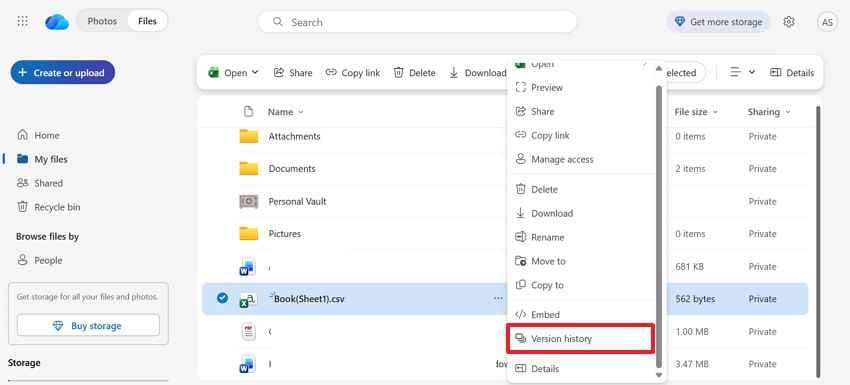
Step 1. Go to the OneDrive or SharePoint document library and tap the "Three Dots" to choose the "Version History" option.
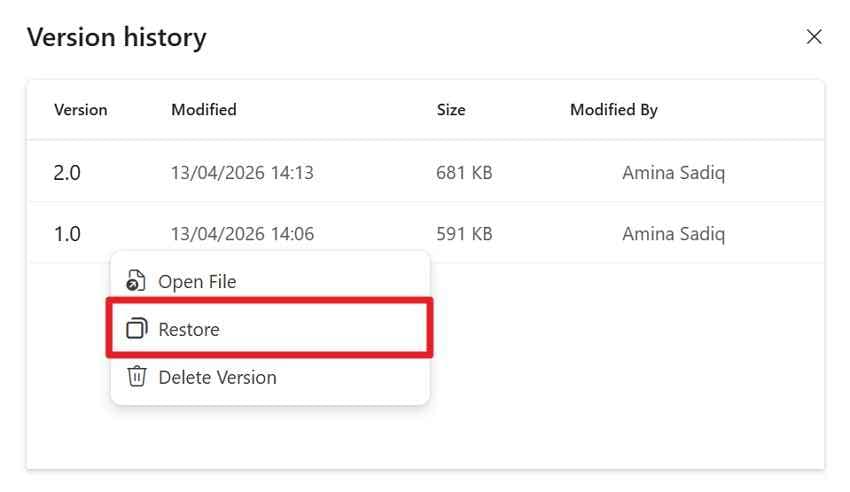
Step 2. Right-click on the version you want to restore and select the "Restore" option.
Way 8. Check AutoRecover and Backup Copies
This solution can help, as these versions were created before the file became damaged. AutoRecover often creates backup files that can restore your data with little loss. Excel also makes these files easy to access through the Document Recovery pane or the "Recover Unsaved Workbooks" option.
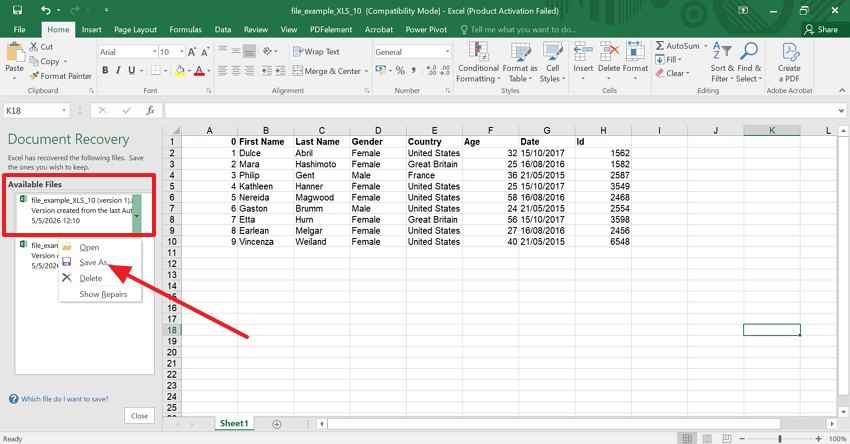
Use AutoRecover: Reopen the Excel, and in the Document Recovery pane (on the left side), right-click on the version you want to restore and choose "Save As."
Use Recover Unsaved Workbooks
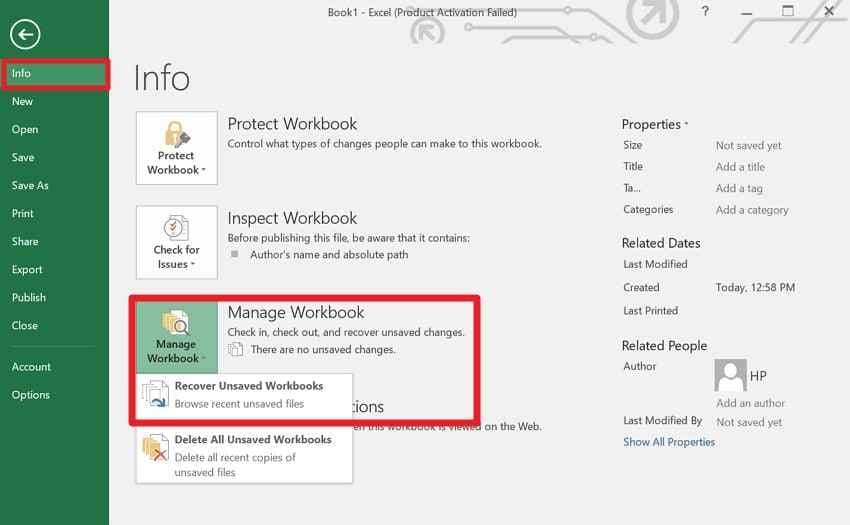
- In the File > Info tab, press the "Manage Workbook" option and tap "Recover Unsaved Workbooks."
- A dialog box will appear showing a list of temporary auto-recovery files. Look for your file often ending in .asd or labeled as "Unsaved" based on the date and time.
Way 9. Restore from Windows Previous Versions
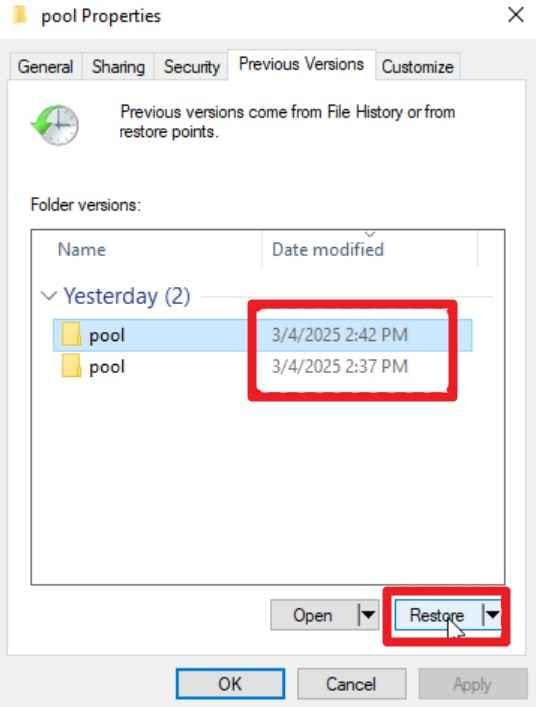
You can also recover the Excel file from Windows previous version to restore an older copy before corruption. When Excel recovery options cannot open the file, it can help to restore the file to a new location. As the feature uses built-in Windows backups like File History, restore points, and shadow copies, here is the detailed guide:
Step 1. In the File Explorer, locate the corrupted file and right-click to choose the "Properties" option.
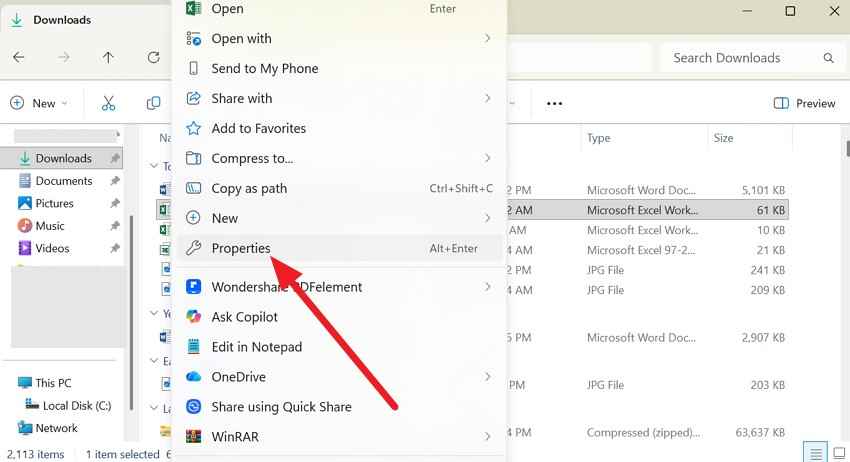
Step 2. Go to the "Previous Version" tab on the popup window, choose the desired version, and press the "Restore" button.
Part 4. Free Online XLS Recovery or Repair: When It Helps and When It Doesn't
For users who want to go for online XLS file recovery free options, review the mentioned table and determine if they can be worth using:
| Factor | When It Helps | When It Doesn't |
|---|---|---|
| Corruption Level | Minor header errors or simple formatting glitches. | Severe structural damage or deep sector corruption. |
| File Privacy | Non-sensitive, public, or generic datasets. | Confidential financial, medical, or legal records. |
| Accessibility | Quick fixes when Excel isn't installed on your device. | Large workbooks exceeding 50MB--100MB upload limits. |
| Internet Status | Stable connections for uploading and downloading files. | Offline environments or intermittent network access. |
| Cost & Speed | Immediate, one-off repairs without software setup. | Batch recovery of multiple files or complex macros. |
Why Online Repair Should Be a Secondary Path: Online tools can compromise data privacy and lack the deep-scanning power of local software.
Part 5. If the XLS File Gets Lost, Overwritten, or Still Won't Open, Use Recoverit
Rather than relying on free online XLS recovery tools, desktop recovery solutions like Recoverit Excel Recovery can be an effective choice. This tool can scan the drives, partitions, or specific folders to find Excel workbooks that were deleted or became inaccessible due to corruption. Additionally, it works across internal drives, external HDD/SSD drives, USB sticks, SD cards, and other storage devices.
For corrupted XLS/XLSX files, this tool can use repair/recovery logic to reconstruct the file contents that the Excel "Open and Repair" option can't fix. The tool lets users select the location of the corrupted or lost file to start the Quick Scan, which they can pause and resume as needed. Furthermore, users can preview the file or filter it to restore the repaired version.
Key Features
- Enhanced NAS and Linux Recovery: The tools also support recovery from NAS servers and Linux-formatted drives (EXT4) without requiring complex command-line tools.
- Patented Video & Photo Recovery Integration: While primarily for Excel, the tool also includes "Enhanced Recovery" for media files, useful for a spreadsheet containing embedded high-resolution images or linked videos.
- Advanced Deep Scan Technology: Though the Quick scan handles recently deleted files, the Deep Scan performs a sector-by-sector search of the entire storage drive.
For the corrupted XLS file recovery, if you want to know how you can use this tool, this section has performed a detailed test, as demonstrated:
Step 1. Determine the Lost and Corrupted File Location
Start by choosing the lost or corrupted Excel file location in the "Hard Drives and Locations" tab and pressing the "Start" button.

Step 2. Start the Quick Scan on the Tool
When the Quick Scan ends, filter the Excel files by size and location to recover the preferred one.

Step 3. Preview the File and Press Recover
As you locate the needed Excel file, preview it, and click the "Recover" and "OK" buttons to save.

Part 6. How to Prevent XLS Corruption and Data Loss
To ensure you don't need to recover the Excel file in the future, follow the given tips:
| Tip | Action |
|---|---|
| Enable AutoRecover | Set Excel to save recovery info every 5-10 minutes to minimize data loss. |
| Use Manual Backups | Keep a Version 2 or a Backup copy on a separate drive or in a cloud folder. |
| Local First | Always save files to your local drive before syncing them to cloud services. |
| Safe Hardware Eject | Never pull out a USB drive or shut down while a file is actively saving. |
| Limit File Size | Split massive workbooks into smaller files to reduce the risk of internal crashes. |
Conclusion
This guide has addressed the query of corrupted XLS file recovery by offering 8 simple solutions to try. So, where online tools raise privacy concerns and Excel recovery options fail, Recoverit offers deep structural repair and lost file recovery features.
Frequently Asked Questions
-
Can a corrupted XLS file be recovered if it was never saved?
You can check the Recover Unsaved Workbooks folder in Excel for temporary .asd files that the software automatically creates. -
Why does my recovered Excel file show symbols and gibberish?
This occurs when the file's encoding is damaged beyond repair, so the raw binary data is read as plain text rather than spreadsheet values. -
Can I recover an XLS file that was deleted from the Recycle Bin?
Standard Excel tools cannot do this, so you will need a dedicated recovery tool, such as Recoverit, to scan the driver's cluster for the deleted data.


