 TL;DR:
Missing old iCloud photos can typically be retrieved by downloading unmodified originals directly from iCloud.com, rescuing them from the 30-day Recently Deleted folder, or checking separate shared collections.
● Restoring an older iCloud backup requires completely erasing your current iPhone data first and will only recover the missing images if iCloud Photos syncing was disabled when that specific backup was created.
● Photos previously moved into an iCloud Shared Photo Library or a Shared Album are removed from your Personal Library view, requiring you to manually open the Collections tab to find and save them back to your device.
● Once the 30-day recovery window expires, permanently deleted images cannot be retrieved from Apple servers, though software like Wondershare Recoverit can still scan local Mac, PC, or external drives to find previously downloaded copies.
Ask AI for a summary
 ChatGPT
 Perplexity
 Gemini
 Claude
 Grok
Grok
“A month ago I accidentally deleted some photos from my recently deleted album on my iPhone…Is there a way to get them back or are they gone forever?”-RovndHovse
Old photos that stop loading are not necessarily gone from your iCloud library. When iCloud Photos is enabled and syncing has completed, full-resolution originals are stored in iCloud while optimized versions may remain on the device.
Other cases involve deleted photos, previous backups, or copies stored elsewhere. Knowing how to recover old photos from iCloud means identifying the correct case first. This guide explains 6 recovery paths and when each one applies. If a computer copy was deleted, Wondershare Recoverit covers that separate recovery case.
In This Article
Part 1. Where Can Your Old iCloud Photos Still Be?
Before attempting recovery, check where another copy of the photo may still exist. Its location determines whether you need to download, restore, or recover the file. For how to recover old photos from iCloud, these 6 places cover the main possibilities addressed throughout this guide:
| Location | When Photos May Be There | Recovery Option |
| iCloud Photos Library | iCloud Photos was enabled and the photo synced | Download from iCloud Photos |
| Recently Deleted | Removed within the last 30 days | Recover from Recently Deleted |
| An Older iCloud Backup | iCloud Photos was off when the backup containing the photo was created | Full device restore, Part 4 |
| Shared Albums or Library | Moved or shared at some point | Check the relevant shared location |
| Another Apple Device | A separate local copy remains on the device | Save or copy that version |
| Mac, PC, or External Drive | Imported or exported previously | Locate the copy or attempt file recovery |
Part 2. How to Find Old Photos That Are Still in iCloud
Start with these 4 methods to see how to retrieve old photos from iCloud before recovery:
Method 1. Search Old Photos on iCloud.com
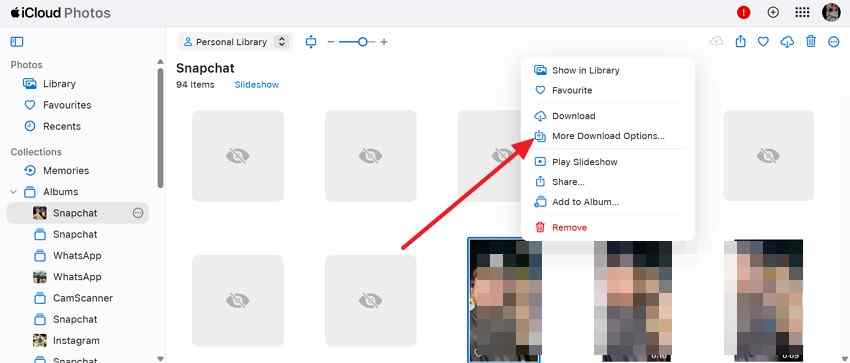
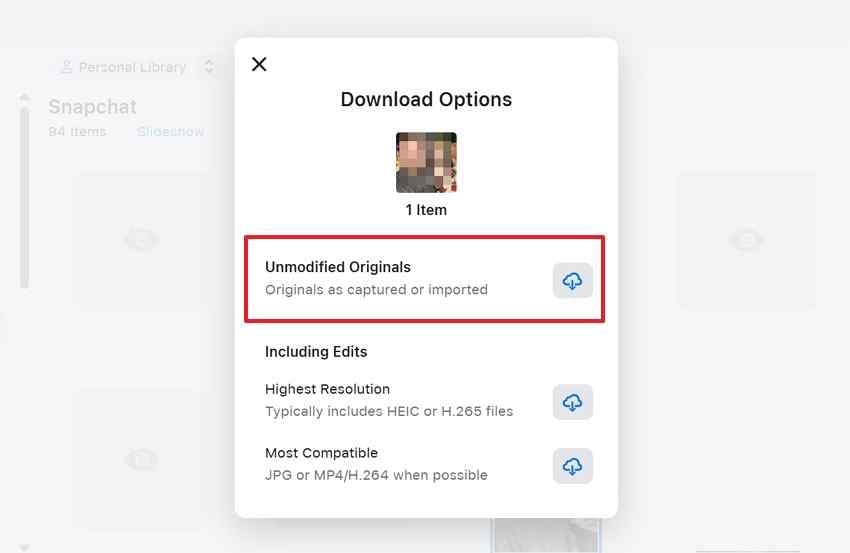
Your iCloud Photos library can also be checked directly at iCloud.com. Apple says you can download photos there and choose Unmodified Originals when you want files in the format originally captured or imported. If the old photos appear there, you can download them without restoring a backup. Follow these steps to check iCloud Photos and download any old images:
Step 1. Locate and select the old photo on iCloud.com > Click the “More” menu > Choose “More Download Options.”
Step 2. Select “Unmodified Originals” > Click the “Download” icon to save the originally captured photo.
Method 2. Check the Photos App and Download the Originals
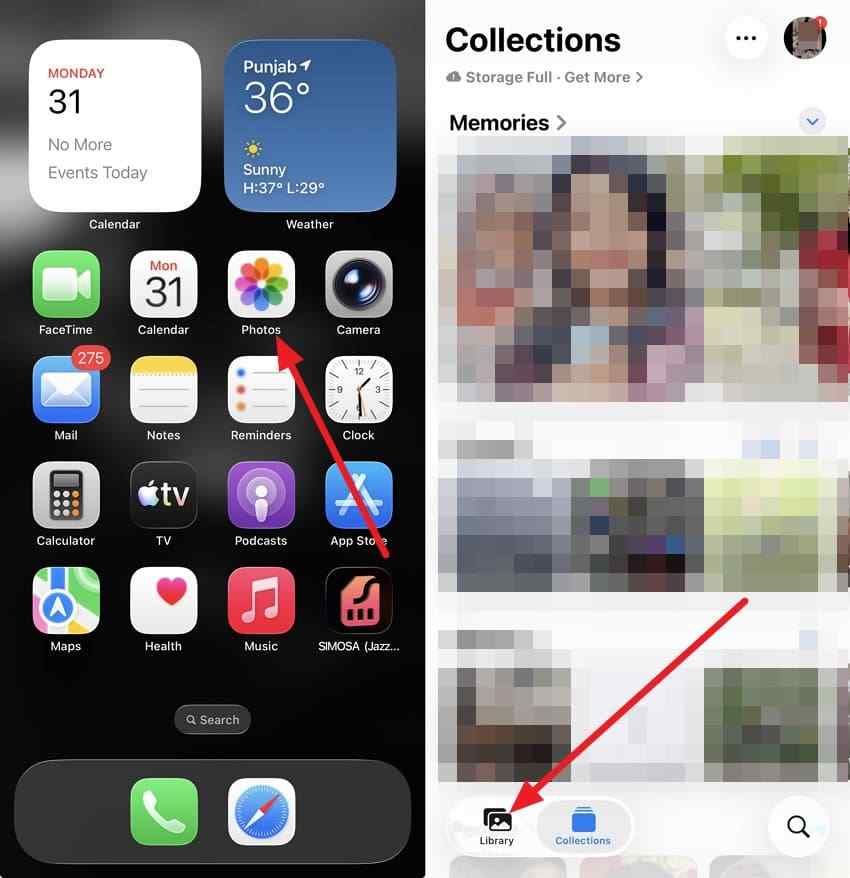
This method works when older images remain in iCloud but are not stored locally. Apple confirms originals can download over Wi-Fi or cellular. For how to retrieve old photos from iCloud, use these steps to locate and download them:
Step 1. Open “Photos” > Locate and open the photo in “Library” > Stay connected to Wi-Fi or cellular data while iCloud downloads the full-resolution version.
Step 2. If you want all originals stored on the iPhone, go to “Settings > [your name] > iCloud > Photos” > Select “Download and Keep Originals.” Ensure your iPhone has enough storage for the full-resolution library.
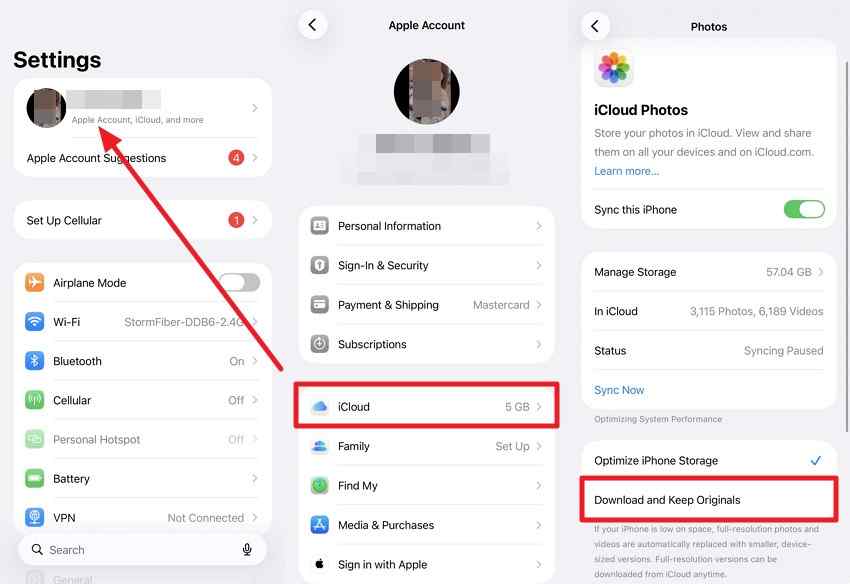
Method 3. Check Shared Albums and the Shared Library
Old photos may remain outside your Personal Library after being shared. Shared Albums keep separate shared copies, while photos moved into an iCloud Shared Photo Library leave your Personal Library view. Check both locations before assuming an older image was deleted by following the steps below:
For Shared Albums
Step 1. Open “Photos” > Tap “Collections” > Scroll to “Shared Albums” > Open the album containing the photo.
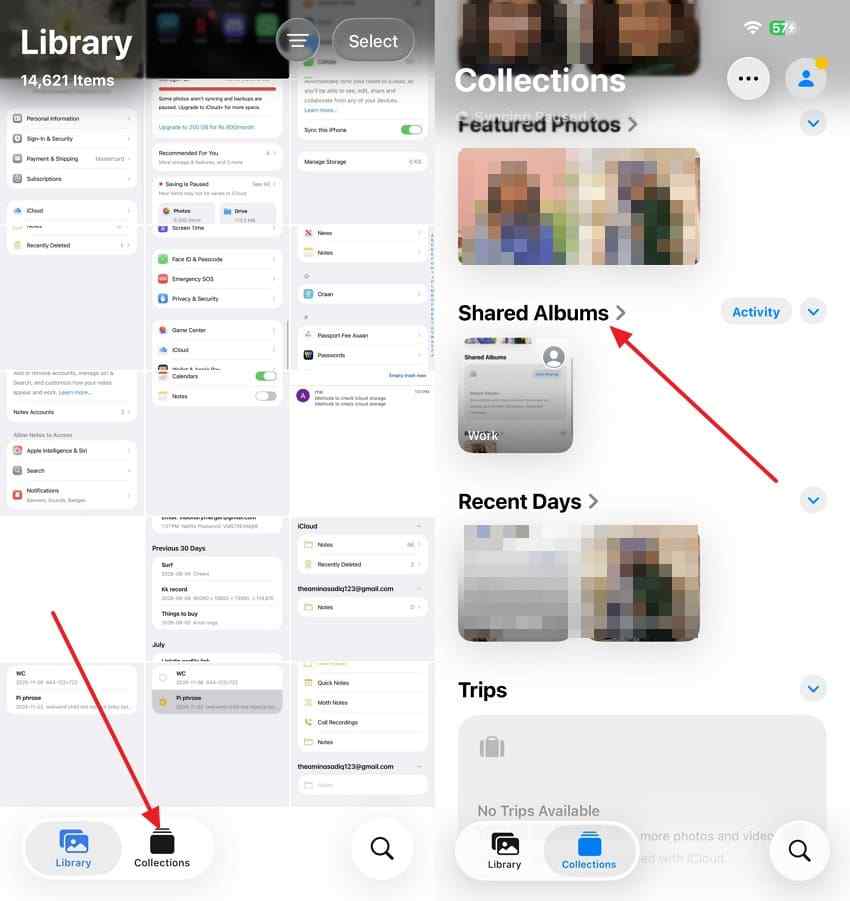
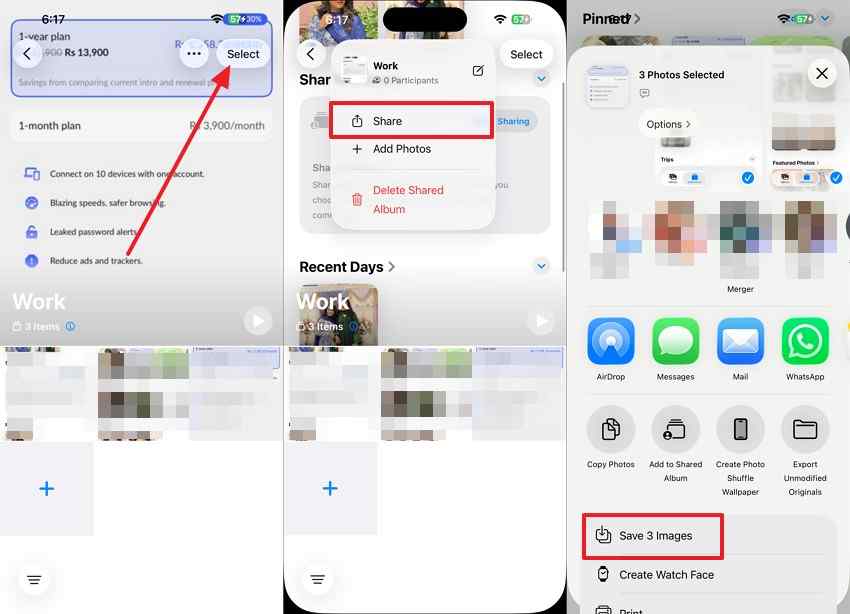
Step 2. Select the photo > Tap “Share” > Choose “Save Image” to add a copy to your photo library.
For Shared Library
- In “Photos” > Tap “Library” > Open “Sort and Filter” > Choose “Shared Library” or “Both Libraries.”
- Open a photo you contributed > Tap “More” > Select “Move to Personal Library.”

Method 4. Search by Date, Place, or Keyword
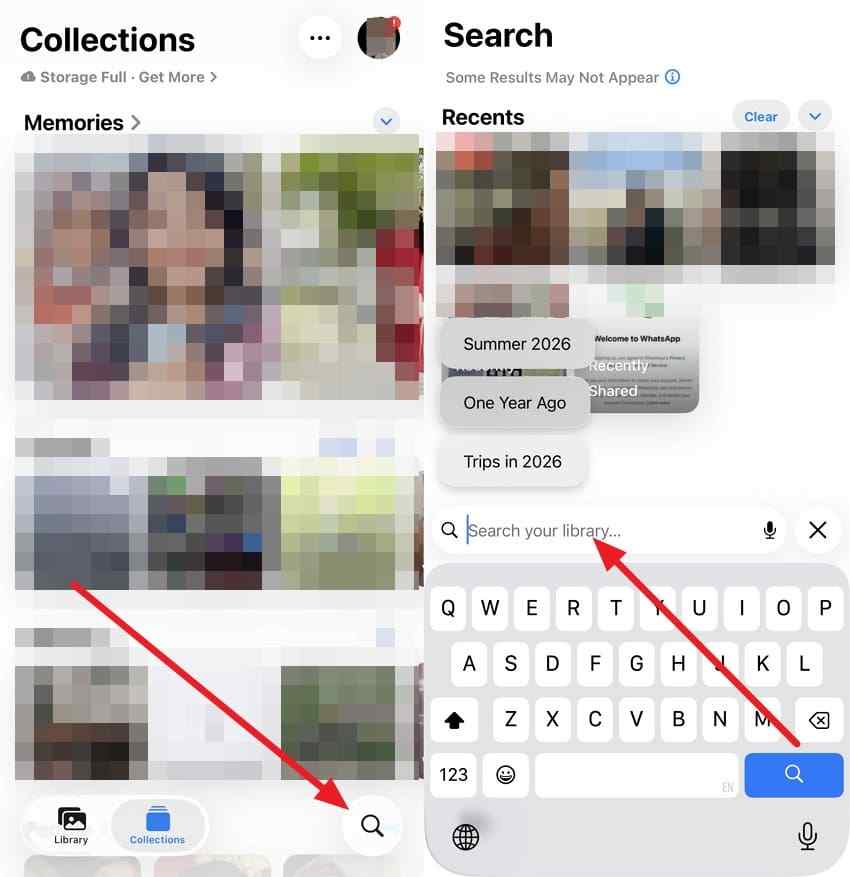
If you remember what an old picture showed but not when it was taken, Apple confirms Photos can search by dates, places, people, objects, and events. For how to recover old pictures from iCloud, use these instructions to locate matching images:
Instructions. Open “Photos” > Tap on the “Search” icon > Enter a date, place, person, object, or event > Review results > Open the matching photo.
Part 3. How to Recover Old Photos That Were Deleted
If the photo was deleted, how to recover old photos from iCloud depends on when it was removed and whether another copy still exists. Start with Recently Deleted, then check local copies or other storage if the iCloud recovery window has already expired.
Method 1. Restore Photos From Recently Deleted
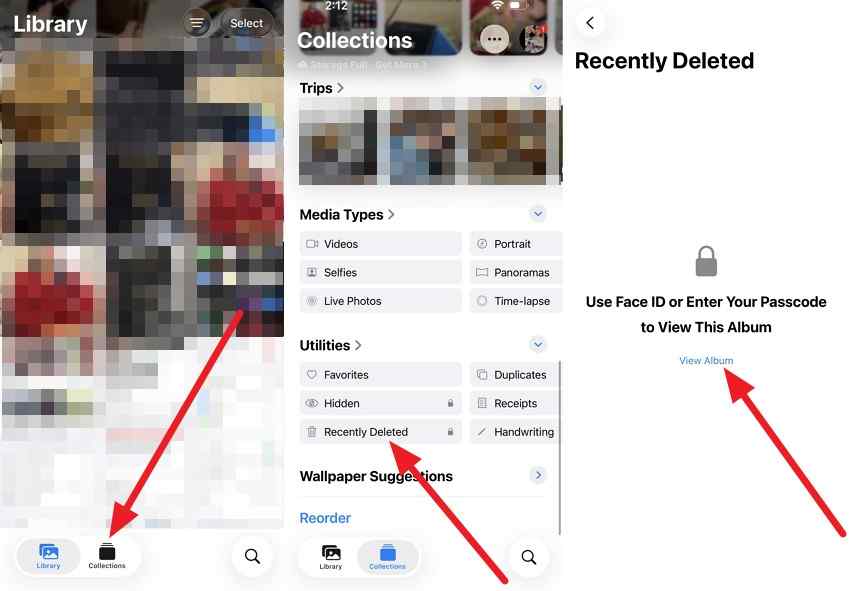
Delete a photo by mistake, and it does not vanish straight away. Apple moves it to Recently Deleted, where it stays for 30 days before being removed permanently. Check this collection first when an older photo was recently removed. Follow the steps below to recover photos from Recently Deleted:
Step 1. From “Photos > Collections” > Swipe up > Open “Recently Deleted” under “Utilities” > Tap “View Album” > Unlock with Face ID, Touch ID, or your passcode.
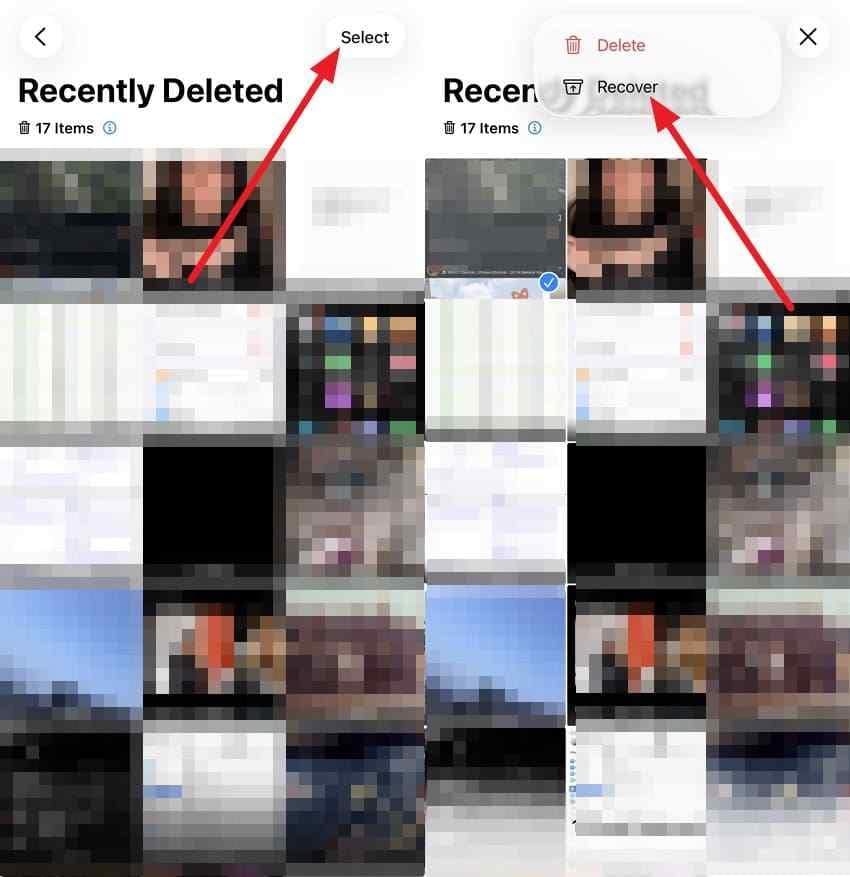
Step 2. Press “Select” > Choose the photos > Tap “Three Dots” > “Recover” > Confirm Recover to return them to your library.
Method 2. Recover Deleted Copies With Wondershare Recoverit

Old iCloud photos may also survive as copies previously downloaded, imported, or saved to a Mac, PC, external drive, or SD card. If one of these local copies was later deleted or lost, the recovery process shifts from iCloud to the storage device where the file existed. This method does not recover photos permanently removed from Apple’s servers when no other copy remains.
Recoverit for Mac can scan computer drives and removable storage for these lost photo copies. It supports common iPhone and camera image formats, provides large previews for identifying the right photos, and lets Mac users save recovered files directly to iCloud.
Key Features
- Wide Image Type Support: Covers HEIC through to RAW, which matters when a library spans a decade of changing iPhone formats.
- AI-Powered Storage Scanning: Uses AI-powered scanning to search hard drives, USB drives, SD cards, and other external storage for lost or deleted files.
- AI Search: Finds recovered photos using natural-language descriptions and helps narrow large scan results using details such as dates and device information.
- Disk Image Recovery: Creates or imports disk images for scanning, providing another recovery route for aging drives or storage affected by bad sectors.
- Read-Only Scanning: Scans source storage without intentionally modifying original files, helping protect recoverable data when output is saved to another drive.
Steps to Scan Storage for Older Images Using Recoverit
The steps below show how to scan, identify recoverable photos, and restore selected files safely:
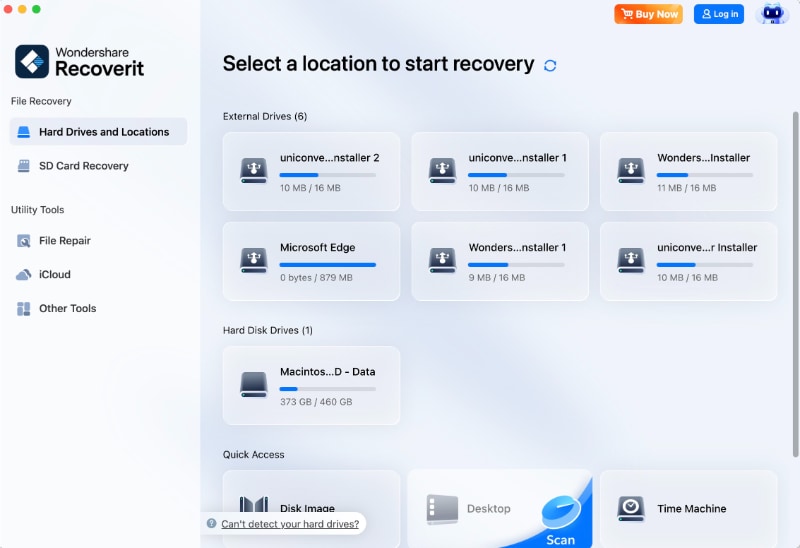
Step 1. Open Recoverit and Select Location
Open “Recoverit” > Select “Hard Drives and Locations” > Choose a specific disk.
Step 2. Filter Old Photos From Scanning
After scanning, choose the images using the “Filter” option > Look for specific images.

Step 3. Preview and Save Scanned Photos
With the scan completed > Preview images > Select and choose “Recover” to save them to a new location.
Recover Deleted Copies With Wondershare Recoverit
 Security Verified. Over 7,302,189 people have downloaded it.
Note: Some photos cannot be recovered. If they were permanently deleted from iCloud and no other copy exists, recovery may be impossible. Check Recently Deleted, other Apple Accounts, and your computers before trying recovery software.
Part 4. How to Restore Old Photos From an iCloud Backup
An older iCloud backup can help with how to recover old photos from iCloud, but only in certain situations. Apple notes that iCloud Photos stores synced images separately from device backups. If iCloud Photos was off, however, photos kept on the iPhone may have been included in that backup.
Restoring an older backup requires a new or erased iPhone and restores the device from that backup rather than extracting individual photos. Save important current data first, then check the available backup dates before proceeding. Before restoring anything, verify the backup is suitable and protect current data by following these steps:
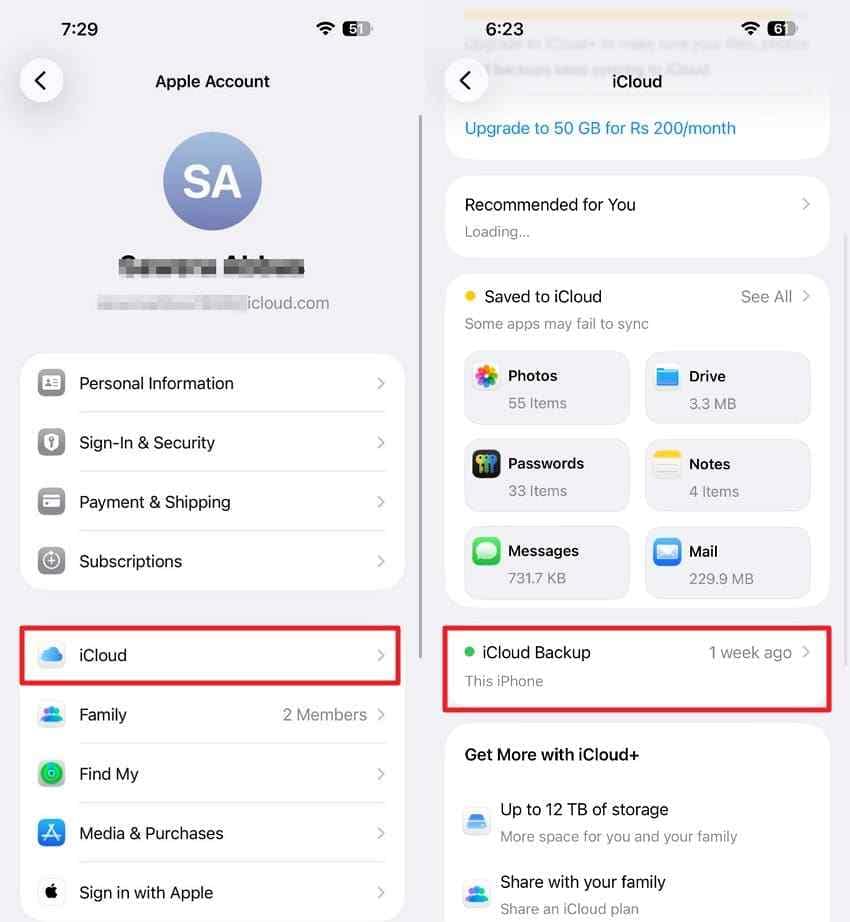
Step 1. Check the Backup Date
Open “Settings > [your name] > iCloud > iCloud Backup” and check the latest backup information and compare the date with when the photos were still available. During restore, compare the date and size of the available backups before selecting one.
Step 2. Confirm the Photos Could Be Included
Use this step only if you know iCloud Photos was not enabled when that backup was created. Apple states that iCloud backups may contain device photos when iCloud Photos is off.
Step 3. Protect Current Data
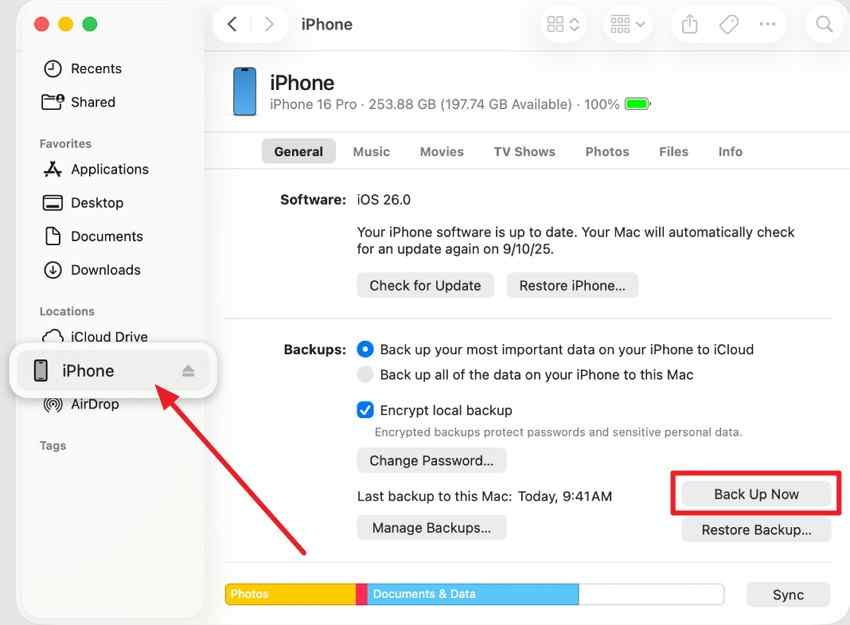
Apple recommends backing up current data to a computer before trying another iCloud restore. Connect the iPhone to a computer > Open “Finder” on Mac or “Apple Devices” on Windows > Select the iPhone > “General” > “Back Up Now”.
Step 4. Erase the iPhone
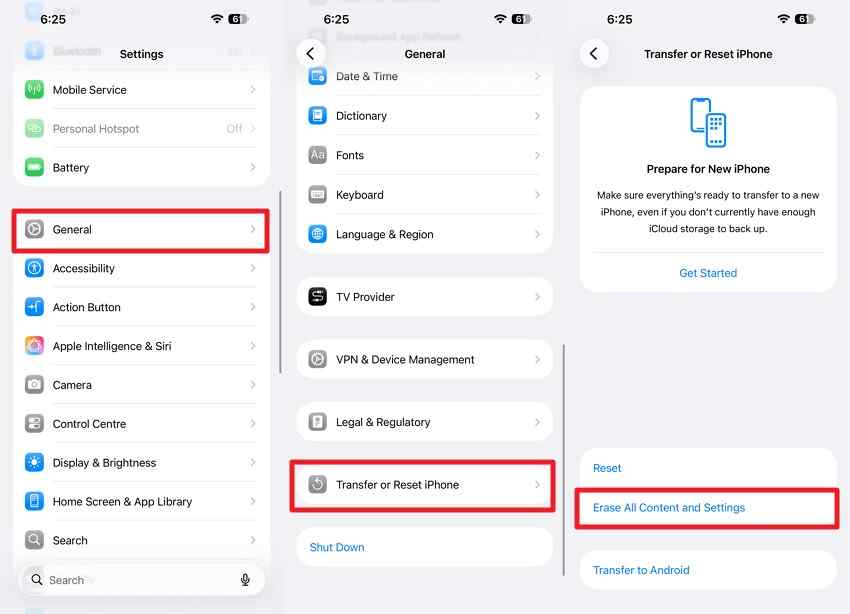
From “Settings > General > Transfer or Reset iPhone > Erase All Content and Settings,” then follow the onscreen prompts.
Step 5. Restore From iCloud Backup
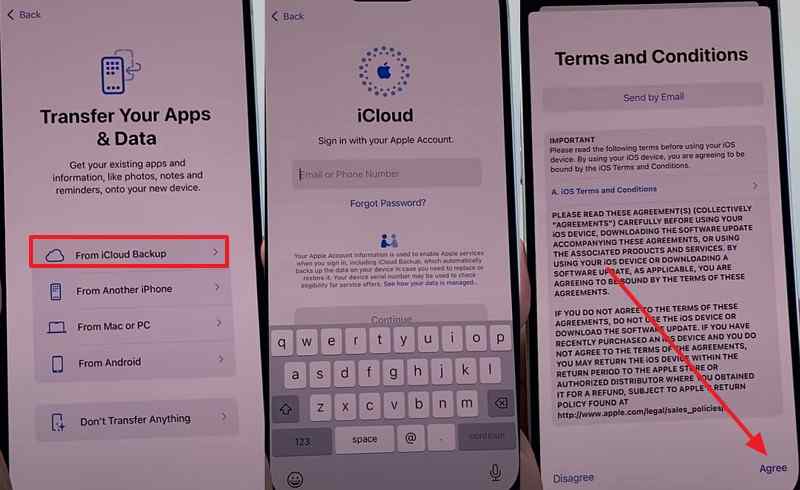
On the “Transfer Your Apps & Data” screen, choose “From iCloud Backup.”
Step 6. Allow the Restore to Complete
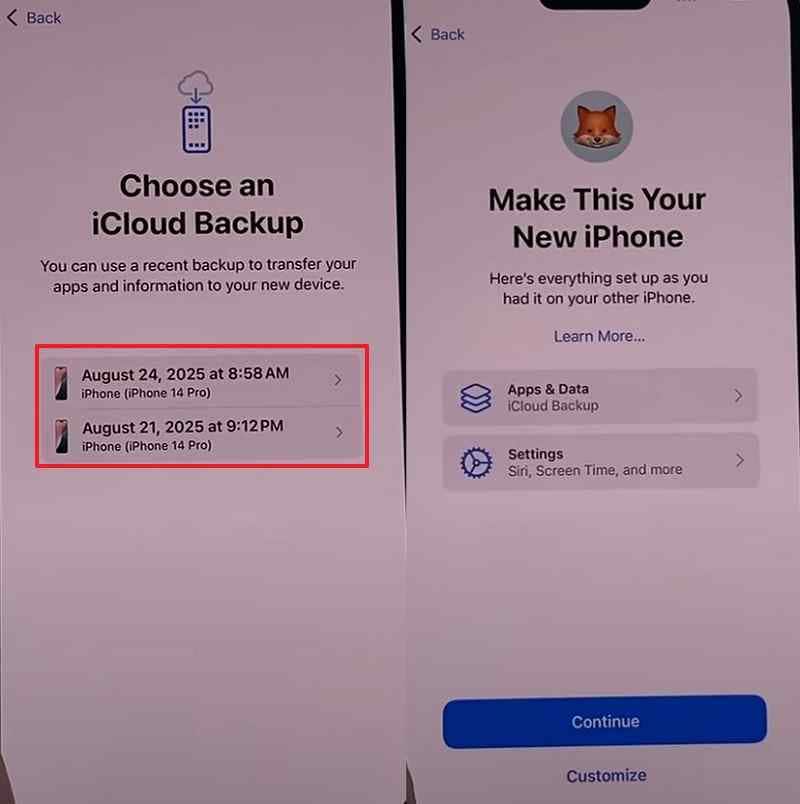
Sign in to your Apple Account > Choose the appropriate backup > Tap “Continue” > Keep the iPhone connected to Wi-Fi and power until the restore completes.
Part 5. Ways to Look for Old Photos Outside iCloud
If iCloud has no usable copy, how to recover old pictures from iCloud may depend on copies stored elsewhere. Older photos may have been downloaded, imported, or backed up over time, so check these 5 locations before assuming they are permanently gone:
- Old Apple Device: A previous iPhone, iPad, or Mac may still contain a local copy, particularly if it stopped syncing before the photo disappeared.
- Mac Photos Library: Check the Photos library and whether Download Originals to this Mac was enabled, which may leave full-resolution copies stored locally.
- Windows iCloud Folder: A PC previously using iCloud for Windows may contain photos that were downloaded from iCloud Photos.
- Past Imports and Downloads: Check folders used by Image Capture, browser downloads, email attachments, and previous manual photo imports.
- External Drives: Search external hard drives, SSDs, USB drives, and other storage where photos may have been manually backed up or exported.
Part 6. Which Old Photo Recovery Method Should You Try?
With every route covered, the question is which fits your circumstances. Each carries a different cost, and the restore in Part 4 is far more disruptive. Matching your situation in the table below narrows how to retrieve old photos from iCloud to one option:
| Situation | Best Method | Needs Reset | Main Limitation |
| Still in iCloud Photos | Part 2, download originals | No | Needs Wi-Fi and time |
| Deleted inside 30 days | Recently Deleted | No | The grace period then ends |
| In an Older iCloud Backup | Part 4, full restore | Yes | Loses everything created since |
| Exported Somewhere Else | Part 5, then Part 3 | No | Copies may be resized |
| No Other Copy Exists | None available | No | Nothing remains to read |
Note: The third row is the most disruptive option, so try the first 2 methods before restoring the entire device.
Part 7. Why You Cannot Find Your Old iCloud Photos
Sometimes every recovery route returns nothing. When how to retrieve old photos from iCloud fails, one of these issues may explain why. Apple recommends checking Recently Deleted, Shared Library, iCloud Photos settings, and the Apple Account in use before concluding photos are gone.
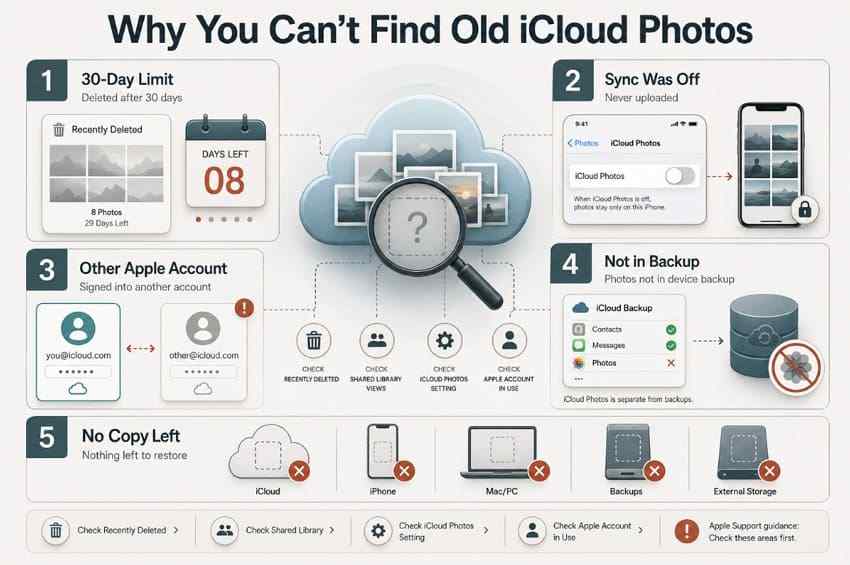
- Recovery Window Expired: Deleted iCloud Photos stay in Recently Deleted for up to 30 days. After that, they are permanently removed unless another saved copy exists elsewhere.
- iCloud Photos Was Off: Photos stored only on the iPhone would not have synced to iCloud Photos if the service was disabled when they were saved.
- Different Apple Account: The missing photos may belong to another Apple Account previously used with iCloud Photos, so confirm the correct account is currently signed in.
- Backup Does Not Contain the Photos: If iCloud Photos was enabled when the backup was created, synced photos were stored separately and excluded from the device backup.
- No Copy Remains: If iCloud, backups, other devices, computers, and external storage contain no copy, there may be nothing left to restore.
Part 8. How to Keep Old iPhone Photos Safe
Most recovery problems become easier to avoid with a few regular checks. To keep how to recover old pictures from iCloud from becoming necessary again, use these 5 habits:
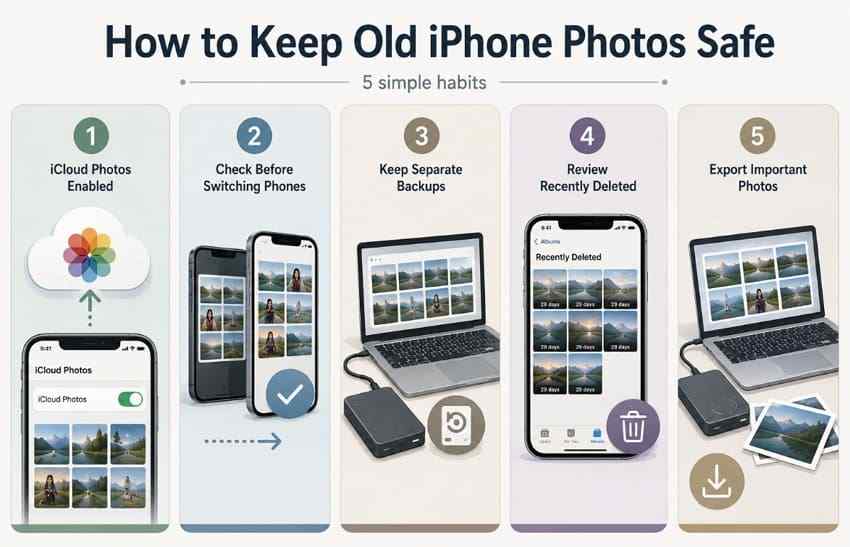
- Keep iCloud Photos Enabled: Keep iCloud Photos syncing when appropriate so full-resolution originals remain stored in iCloud and accessible across your Apple devices.
- Check Before Switching Phones: Confirm older photos appear on the new iPhone and that iCloud syncing has finished before erasing, selling, or giving away the previous device.
- Keep Separate Backups: Maintain an independent copy of important photos on a computer or external drive instead of relying on iCloud Photos as your only safeguard.
- Review Recently Deleted: Check Recently Deleted promptly after accidental deletion because photos remain recoverable for up to 30 days unless removed permanently sooner.
- Export Important Photos: Save irreplaceable originals to a computer or external drive so another independent copy remains available if iCloud photos are deleted or inaccessible.
Conclusion
To conclude, how to recover old photos from iCloud starts with checking whether the originals still exist online, in Recently Deleted, or inside an available backup. iCloud.com should be your first stop, while Recently Deleted covers photos removed within 30 days. Older backups only help when the missing photos were actually included. If a deleted copy once existed in another location, Recoverit can scan that storage for recoverable files.
FAQ
-
How far back can iCloud Photos store pictures?
iCloud Photos does not normally expire pictures based on age. Photos can remain in the library as long as they were successfully synced, have not been deleted, and sufficient iCloud storage is available. -
Why do old photos appear on icloud.com but not on my iPhone?
They may not have finished syncing to the iPhone, the device may be using a different Apple Account or library view, or the full-resolution original may still need to download. Check the Apple Account, iCloud Photos sync status, Shared Library view, and network connection. -
Can an old iCloud backup be restored to a newer iPhone?
Yes. An available iCloud backup can be restored to a new or erased iPhone, although the device may need an iOS update first. If the iPhone is already set up, back up current data before erasing it for the restore. -
Does Optimize iPhone Storage remove old photos from iCloud?
No. Optimize iPhone Storage can replace full-resolution local originals with smaller space-saving versions while the full-resolution originals remain in iCloud.


