

 TL;DR:
You can recover iPhone photos without a full backup by retrieving surviving copies from the Recently Deleted album, iCloud web syncs, or alternative apps, though recovering permanently erased files directly from an encrypted iOS device is highly unlikely.
● Stop taking new photos and do not factory reset the iPhone, as any new data activity or system wipe will immediately overwrite storage and eliminate your remaining recovery chances.
● Search for surviving file duplicates outside the main gallery, specifically inside the Files app's Recently Deleted folder, Hidden or Shared albums, and media attachments previously sent via Messages, Mail, or social apps.
● Third-party software like Recoverit cannot bypass iPhone encryption to recover deleted internal data; it only works to scan and recover missing iPhone photos that were previously exported to readable external storage like Windows PCs, Macs, SD cards, or USB drives.
Ask AI for a summary
 ChatGPT
 Perplexity
 Gemini
 Claude
 Grok
Grok
Losing iPhone photos without a backup can feel frightening, especially when iCloud storage was full, the device was not backed up, or important memories disappeared after deletion, syncing, or an update. The good news is that “no backup” does not always mean “no recovery option.”
Your photos may still exist in Recently Deleted, iCloud Photos, Hidden albums, Shared Albums, Files, Messages, Mail, social apps, cloud apps, computer imports, old phones, SD cards, USB drives, or external hard drives. This guide explains how to recover photos from iPhone without backup safely, starting with built-in options before moving to recovery software and external storage recovery.
Try Recoverit to Perform Data Recovery
 Security Verified. 3,591,664 people have downloaded it.
In this article
Quick Answer: Can You Recover iPhone Photos Without Backup?
Yes, you may be able to recover iPhone photos without backup if the photos still exist in Recently Deleted, iCloud Photos, Hidden albums, Shared Albums, Files, Messages, Mail, cloud apps, computer imports, or another storage device.
If the photos were deleted recently, start with the Recently Deleted album. If iCloud Photos was enabled, check iCloud.com from a browser. If the photos were shared, downloaded, edited, exported, or imported before, check Messages, Mail, Google Photos, OneDrive, Dropbox, Mac Photos, Windows Photos, File Explorer, old devices, SD cards, USB drives, and external disks.
If the photos were permanently deleted from all locations and no copy exists anywhere, recovery becomes much less likely. Some recovery tools may scan accessible data or existing records, but they cannot guarantee recovery of permanently deleted photos from encrypted iPhone storage.
Part 1. Stop First: What to Do Before Trying Recovery
Before trying any recovery method, take a few safe steps to protect your chances.
| What to Do | Why It Matters |
| Stop taking new photos or videos. | New data and app activity may reduce recovery chances. |
| Do not factory reset the iPhone. | A reset can erase remaining accessible data and settings. |
| Avoid deleting more photos from iCloud Photos. | iCloud Photos syncs changes across devices when enabled. |
| Do not make major sync changes yet. | Sync changes may update libraries before you check all locations. |
| Keep the iPhone charged and connected to Wi-Fi. | Some synced photos or cloud libraries may need time to load. |
| Check official Apple locations first. | Built-in options are safer than jumping straight to unknown tools. |
| Use trusted software only if needed. | Untrusted tools may ask for unsafe access or Apple ID details. |
If your iPhone is stuck in recovery mode after an update, connect it to a computer and choose “Update” first when that option appears. Avoid choosing “Restore” unless you understand that it can erase device data.
Part 2. Choose the Right Photo Recovery Path
Before learning how to recover iPhone pictures without backup, identify where the missing photos may still exist. Use this table to choose the safest first step.
| Situation | Best First Check | Why It Matters |
| Photos were deleted less than 30 days ago | Recently Deleted in the Photos app. | Deleted photos may still be recoverable there temporarily. |
| Photos are missing but not clearly deleted | Library, Albums, Search, Hidden, and Recently Saved views. | Filters, albums, dates, or hidden settings can make photos appear missing. |
| iCloud Photos may have been enabled | iCloud.com Photos and iCloud Recently Deleted. | Synced copies may still exist online. |
| Photos may be hidden or shared | Hidden album, Shared Albums, and Shared Library if enabled. | Photos may exist outside the main personal library view. |
| Photos were sent or received | Messages, Mail, AirDrop, WhatsApp, Messenger, and social apps. | Attachments may survive even if the Photos Library copy is gone. |
| Photos were imported before | Mac Photos, Image Capture, Finder, Windows Photos, and File Explorer. | Imported copies may exist outside the iPhone. |
| Photos were stored outside the phone | Old phones, SD cards, USB drives, external disks, or cloud apps. | Copies may remain on other devices or storage media. |
| iPhone is locked, inaccessible, or unauthorized | Use official access recovery or Apple support paths. | Recovery tools should not be used to access unauthorized devices. |
Part 3. Restore iPhone Photos Without Backup Using Built-In Methods
To restore iPhone photos without backup, begin with the following built-in iPhone options before trying advanced recovery tools:
1. Restore Photos from the Recently Deleted Album
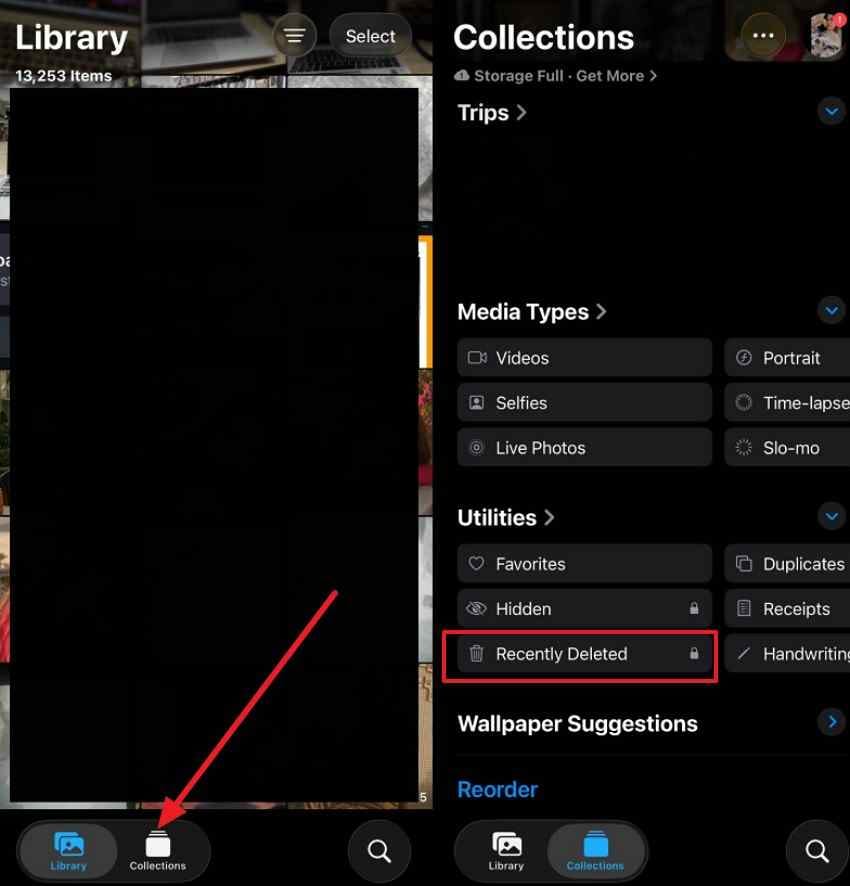
Before learning how to recover photos from iPhone without backup, start with the Recently Deleted first. This album temporarily stores deleted photos before permanently removing them after 30 days. Follow the steps below to recover available photos from this album:
Step 1. Open the Photos app, tap “Collections,” then open “Recently Deleted” under Utilities.
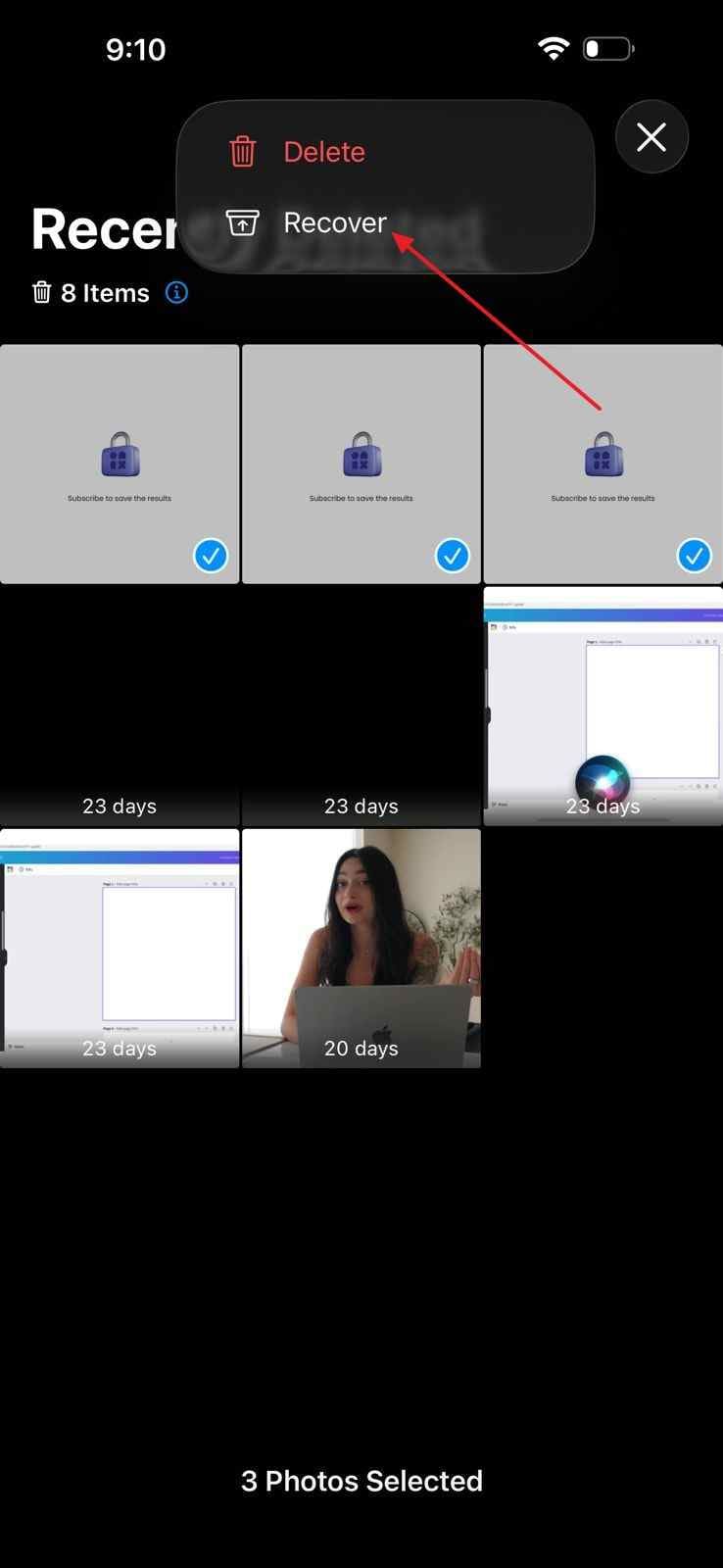
Step 2. Unlock the album, select the photos, tap “Three Dots,” and choose “Recover.”
2. Check Hidden Album and Shared Library
Some photos may look missing because they are hidden or stored separately. Moreover, the shared library can hold images outside your personal photo view. Continue with the instructions below to check both locations carefully:
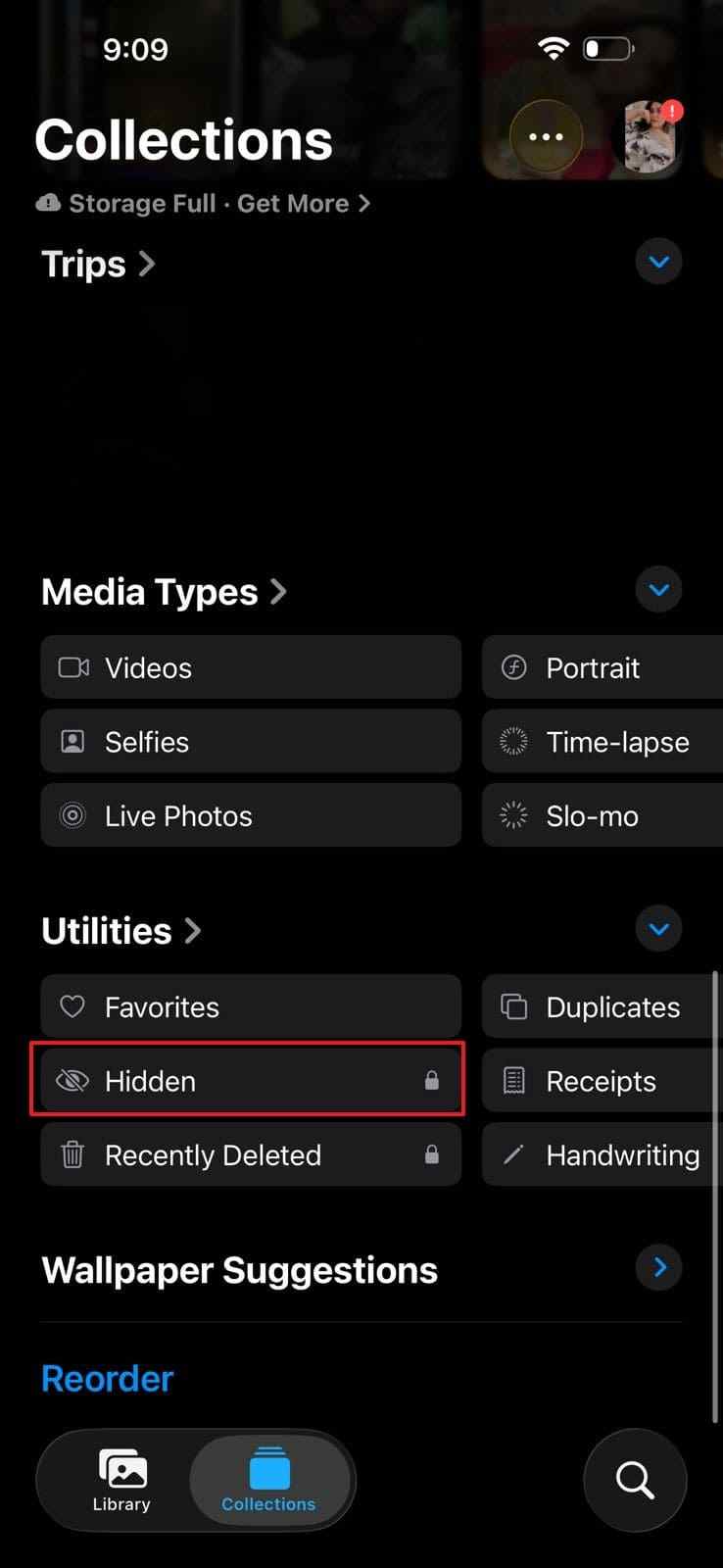
For Hidden Album
Open Photos, go to “Utilities,” and check the “Hidden” album after unlocking it.
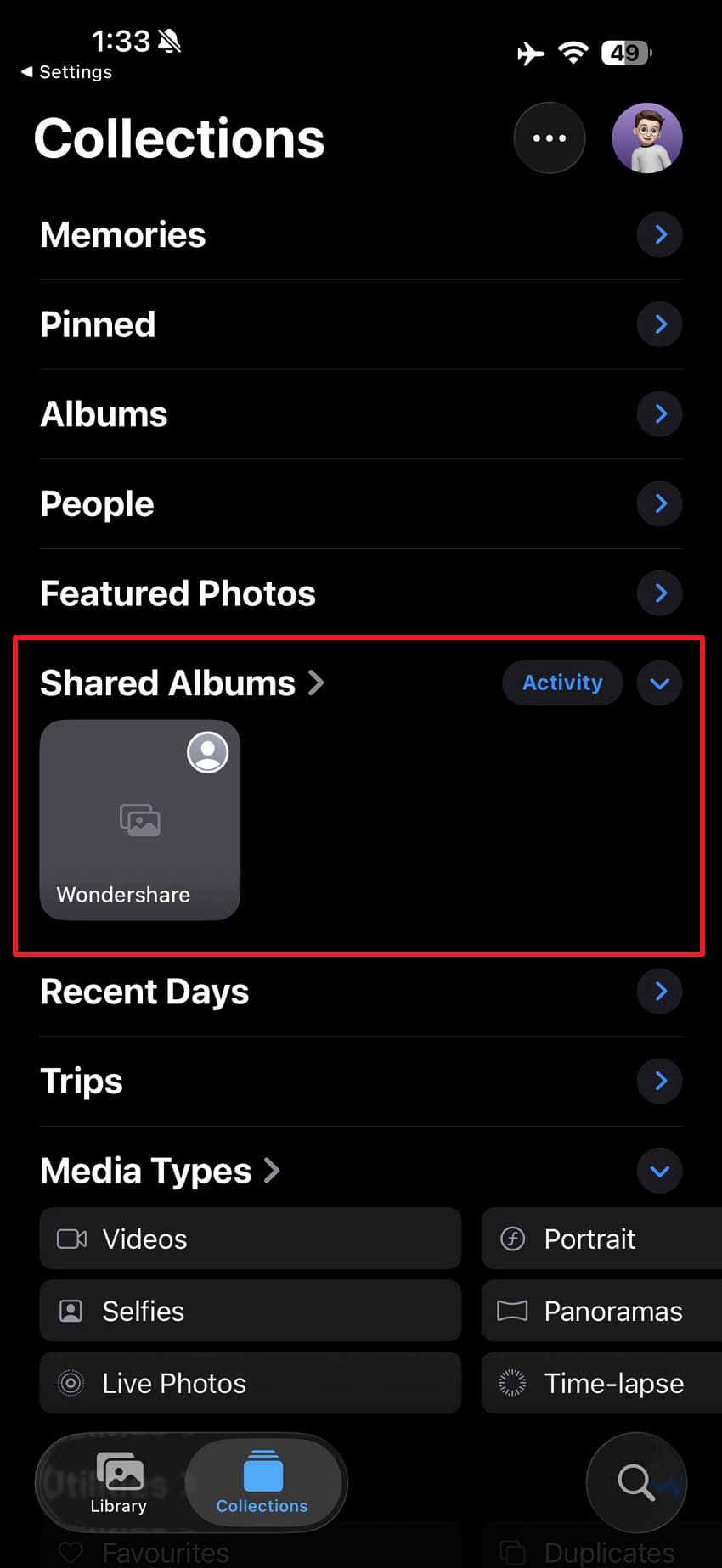
For Shared Library
Access the “Collections” tab and scroll down to the “Shared Albums” section to check and restore lost images.
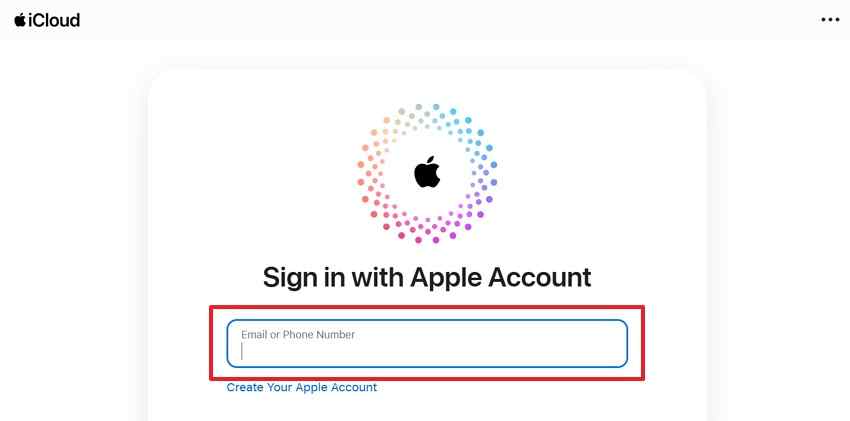
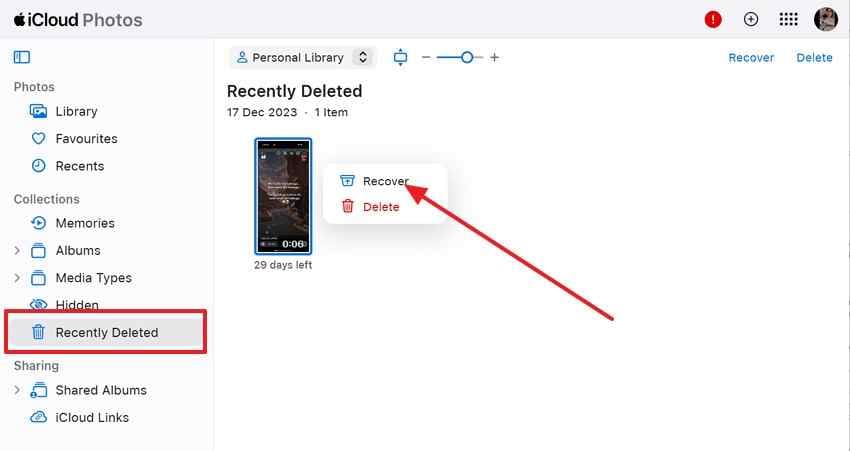
3 Check iCloud Photos from a Web Browser
Use iCloud when checking how to recover iPhone pictures without a backup. Since synced photos may still appear online, even when missing from the iPhone. Follow the guide below to review your iCloud Photos library:
Step 1. Visit “iCloud” in a browser and sign in with your Apple ID.
Step 2. Check “Library” and “Recently Deleted,” then select photos to download or view.
4. Check the Files App and Recently Deleted Files
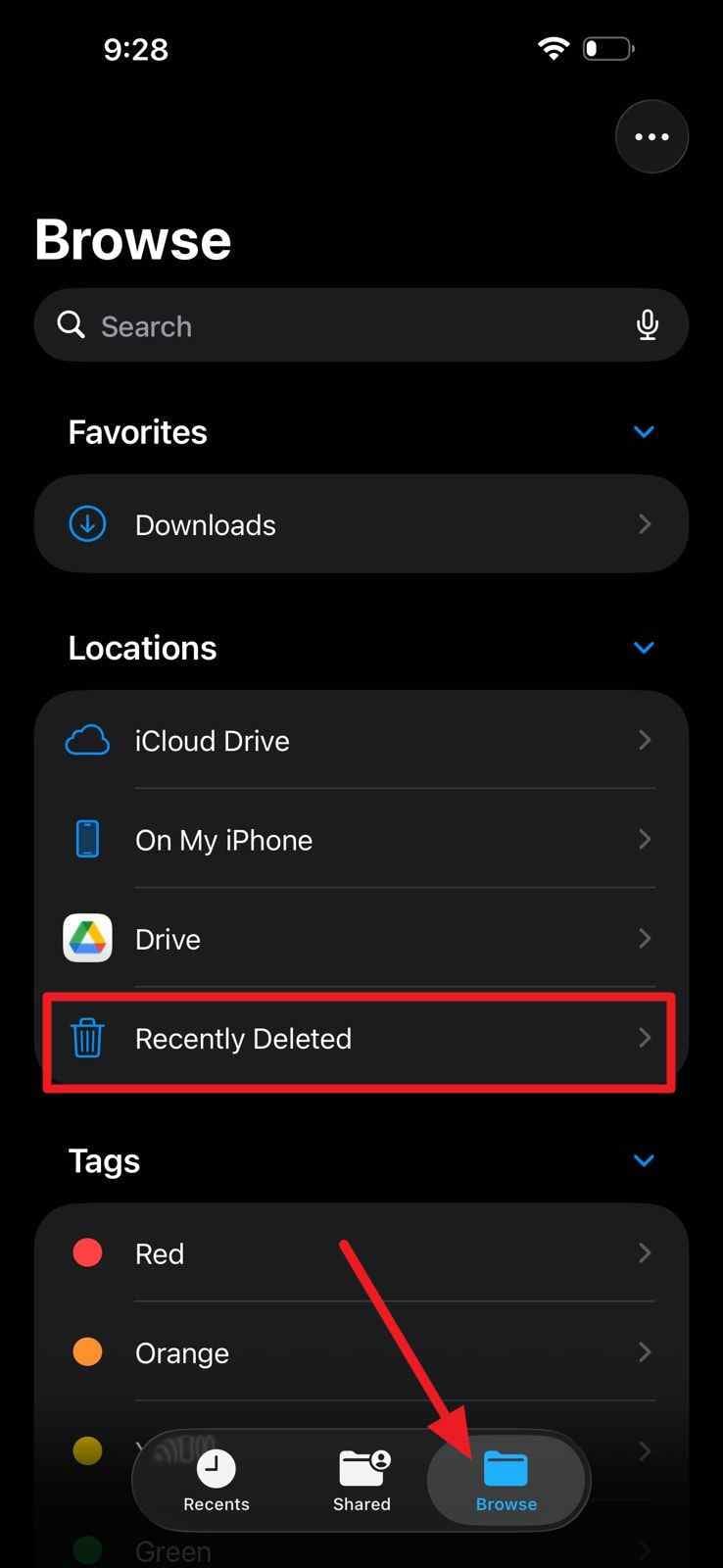
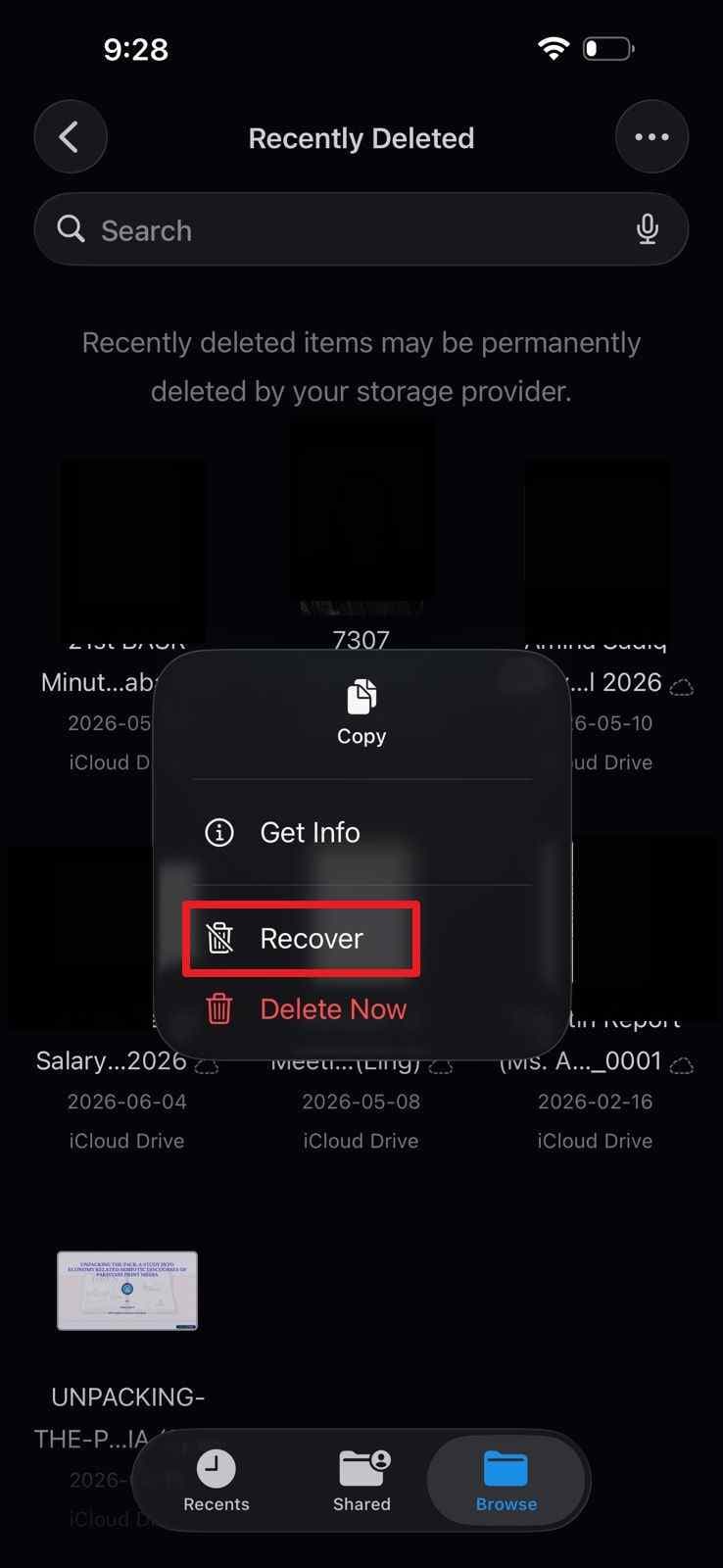
Photos saved as files may remain inside Downloads, folders, or iCloud Drive. In addition, the Files app also has Recently Deleted for recoverable documents and media. Use the steps below to properly check saved image files:
Step 1. Access the Files app, then navigate to the “Browse” tab and access “Recently Deleted.”
Step 2. Next, select missing image files and tap the “Recover” option.
5. Check Messages, Mail, AirDrop, and Social Media Attachments
When learning how to restore iPhone photos without backup, review shared attachments. Thus, sent or received images may survive inside chats, emails, or apps. Now, move through the instructions below to locate those copied photos:
- Check chats, emails, AirDrop folders, or social apps where you may have shared or received the missing photos.
- When you find an image, open it, tap “Share,” then save it to Photos or Files.

Try Recoverit to Perform Data Recovery
Security Verified. 3,591,664 people have downloaded it.
Part 4. Recover iPhone Pictures Without Backup Using iPhone Recovery Tools
If built-in checks fail, iPhone recovery tools may help recover iPhone pictures without backup through a deeper device scan.
When Third-Party iPhone Recovery Tools May Help
Third-party iPhone recovery tools may help when photos are absent from Recently Deleted, iCloud, and shared apps. They scan the remaining device data, but recovery depends on the deletion time, storage changes, and the risk of overwriting.
What iPhone Recovery Tools Can and Cannot Recover
| Can Recover | Cannot Recover |
| Recently deleted photos not yet overwritten | Photos already overwritten by new data |
| Photos from iCloud, backups, or synced services | Encrypted data without proper access |
| Media saved in messages or app attachments | Data removed after a factory reset |
| Photos accessible through the readable device storage | Guaranteed recovery of deleted files |
| Images found in previous exports or backups | Data stored on inaccessible storage |
| Recoverable photo records identified during scans | Files permanently erased from all sources |
How to Scan an iPhone for Deleted Photos
Prior to learning how to recover photos from an iPhone without backup, connect the device to trusted recovery software. Scan the iPhone, preview detected photos, then recover only the files you truly need.
Safety Notes Before Using iPhone Recovery Software
Before using iPhone recovery software, choose a trusted tool, avoid unsafe access requests, and stop using the device heavily.
Part 5. Recover Photos from Other Places You May Have Forgotten
Before deciding how to restore iPhone pictures without backup, check other places where copies may still exist.
1. Check Google Photos, OneDrive, Dropbox, or Other Cloud Apps
Open each cloud app, then check Photos, Camera Uploads, Albums, Trash, and Shared sections. Moreover, search by date or file name, because automatic uploads may store copies outside iPhone Photos.
2. Check Mac Photos, Image Capture, or Finder Imports
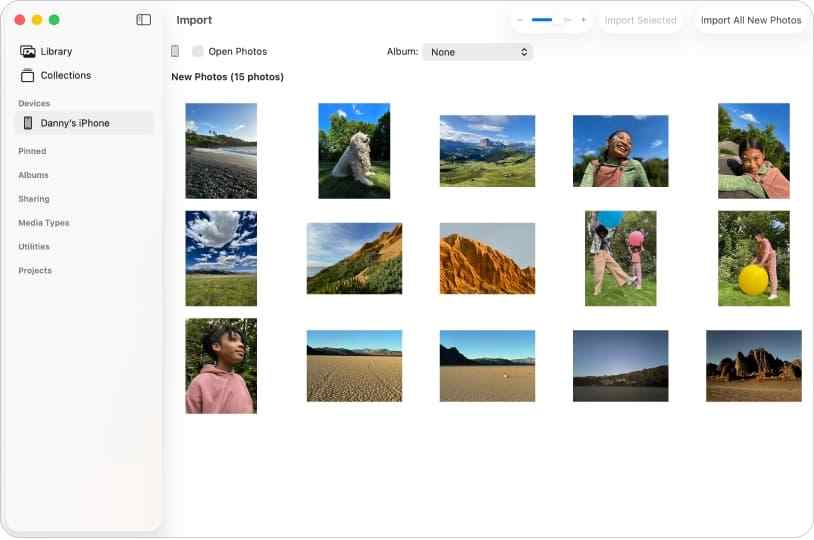
If you connected the iPhone to a Mac before, check Photos imports, Image Capture folders, and Finder transfer locations. To do so, access the Mac Photos app and check Library, Recents, and Imports for earlier iPhone transfers. Then search Finder > Pictures, Downloads, Desktop, or the folder selected in Image Capture for saved photo copies.
3. Check Windows Photos, File Explorer, or iCloud for Windows
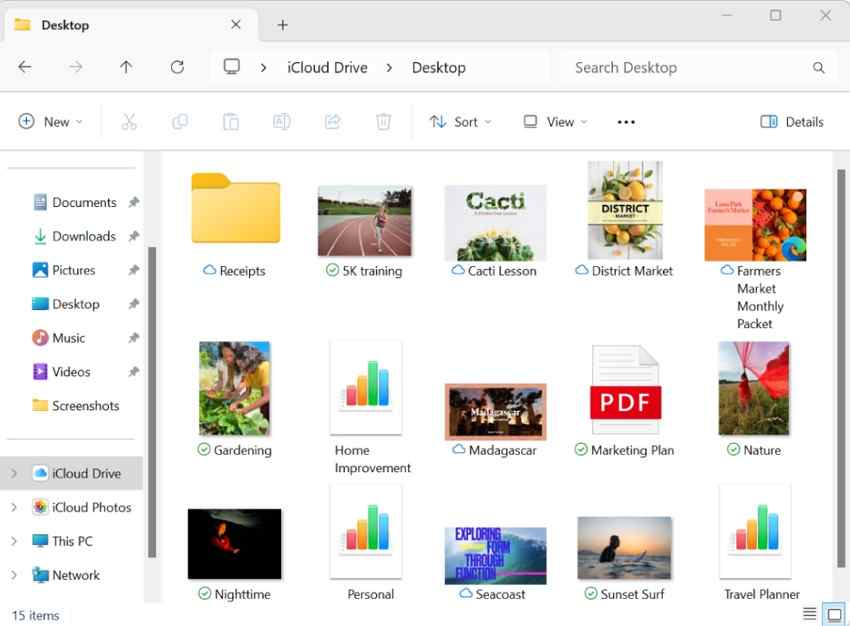
When learning how to recover iPhone pictures without a backup, check Windows Photos and File Explorer imports. If iCloud for Windows is installed, open “File Explorer > iCloud Photos” and review synced photos or downloaded copies.
4. Check Old Phones, SD Cards, USB Drives, and External Hard Drives
Old phones, SD cards, USB drives, and external hard drives may contain copied or imported photos. Connect each device safely, open folders carefully, and search DCIM, Pictures, or Downloads folders.
5. Check Download, Export, and Editing App Folders
Editing apps, download folders, and export albums may store separate copies outside Photos. Check saved projects, exported media, attachments, and downloads before assuming the missing images are permanently gone forever.
Pro Tip. Recover Lost iPhone Photos Stored on Windows, Mac, SD Cards, or Drives
If your missing iPhone photos were previously imported, exported, downloaded, synced, or copied to a computer, SD card, USB drive, external disk, or memory card, Recoverit can help scan that storage device for lost image files.
This is different from directly recovering permanently deleted photos from iPhone internal storage. Recoverit is best used when copies of your iPhone photos were stored on readable external or computer storage and then lost because of deletion, formatting, corruption, system crash, transfer error, or drive problems.
Important: Recoverit cannot directly recover photos from a locked, inaccessible, or unauthorized iPhone. It works with readable storage devices and authorized access.
When Recoverit Is Useful for iPhone Photo Recovery
Recoverit may help when:
- iPhone photos were imported to a Windows PC or Mac and later deleted.
- Photo folders disappeared from an external hard drive.
- A USB drive or SD card containing iPhone photo copies was formatted.
- Images were lost after a system crash or storage corruption.
- Transferred iPhone photos were deleted from Downloads, Pictures, Desktop, or DCIM folders.
- You need to recover photos from readable storage devices rather than from a locked iPhone.
Key Features
- Computer Photo Recovery: Scan Windows or Mac storage locations where iPhone photos were saved.
- SD Card and USB Drive Recovery: Recover image files from SD cards, USB drives, memory cards, and external disks.
- Photo Preview Before Recovery: Preview recoverable images before saving them.
- Image Format Support: Recover common image formats, including JPG, PNG, HEIC, and other photo files.
- Smart File Filters: Filter scan results by type, date, size, or file name.
- Safe Export to Another Location: Save recovered photos to a different drive to avoid overwriting lost data.
How to Recover Lost iPhone Photos Stored on Windows, Mac, SD Cards, or Drives
When iPhone-based checks do not bring back your missing photos, try scanning the storage device where those photos may have been copied.
Step 1. Select the Storage Location
Launch Recoverit and choose the drive, “SD Card,” “USB Drive,” or “External Disk” where the lost iPhone photos were stored.

Step 2. Scan and Filter Lost Photos
Once the scan starts, all the recoverable files will appear under the “File Location” tab in the “Name of Lost File” folder.

Step 3. Preview and Recover Photos
Open any found photo to preview its quality before restoring it. Select the needed images, click “Recover,” and save them to a different secure location to avoid overwriting lost data.

Note: Do not save recovered photos back to the same drive or storage device where they were lost. Saving to a different location helps avoid overwriting recoverable data.
Try Recoverit to Perform Data Recovery
Security Verified. 3,591,664 people have downloaded it.
Part 6. How to Protect iPhone Photos from Future Loss
After learning how to restore iPhone photos without backup, the next step is preventing the same situation from happening again.
- Turn On Automatic Photo Sync: Use iCloud Photos or another trusted cloud photo service to sync photos automatically. This reduces the risk of losing photos when your iPhone is lost, damaged, or replaced.
- Review Your Storage Plan: Photo syncing can stop when cloud storage is full. Check available iCloud or cloud app storage regularly and upgrade, clean up, or export files before syncing stops.
- Save Important Albums Elsewhere: Family memories, work images, travel photos, and special events deserve an extra copy. Export important albums to a computer, external hard drive, or secure cloud folder.
- Create a Backup Before Major Changes: Before updating iOS, resetting settings, restoring the device, or switching phones, create a fresh backup. This gives you a safer fallback if something goes wrong.
- Use More Than One Backup Location: Do not rely on one backup method. Use at least two places, such as iCloud Photos plus a computer export, or a cloud app plus an external drive.
- Check Backups After Creating Them: A backup is only useful if it works. Open your backup location and confirm that important photos are visible and accessible.
Conclusion
Recovering photos from iPhone without backup starts with safe checks. First, look in Recently Deleted, Hidden album, Shared Albums, iCloud Photos, Files, Messages, Mail, AirDrop, and social app attachments. Then check cloud apps, Mac imports, Windows imports, old devices, SD cards, USB drives, and external hard drives where copies of your iPhone photos may still exist.
If the photos were permanently deleted from all locations and no copy exists anywhere, recovery becomes much harder. Some iPhone recovery tools may scan accessible records or backups, but they cannot guarantee recovery from encrypted iPhone internal storage.
For photos that were previously copied to a computer, SD card, USB drive, external disk, or other readable storage device, Recoverit can help scan the storage and recover lost image files. Just remember that Recoverit works with readable storage devices and authorized access, not locked, inaccessible, or unauthorized iPhones.
FAQs
-
Q1. Can I recover permanently deleted iPhone photos without a backup?
You can only recover them if another copy still exists in Recently Deleted, iCloud Photos, cloud apps, Messages, Mail, a computer, old device, or external storage. If the photos were permanently deleted from all locations, recovery is unlikely. -
Q2. How long does Recently Deleted keep iPhone photos?
Recently Deleted usually keeps deleted photos and videos temporarily before permanent deletion. Check it as soon as possible and recover available items before they expire. -
Q3. Can I recover iPhone photos after 30 days without backup?
Sometimes, but only if the photos exist elsewhere, such as iCloud Photos, Shared Albums, Messages, Mail, Google Photos, OneDrive, Dropbox, Mac imports, Windows imports, old devices, or external drives. -
Q4. Can recovery software restore iPhone photos without backup?
Some tools may scan accessible data, app attachments, synced records, or existing backups, but they cannot guarantee recovery of permanently deleted photos from encrypted iPhone storage. -
Q5. Can Recoverit recover photos directly from my iPhone?
Recoverit is best for recovering iPhone photo copies from computers, SD cards, USB drives, external disks, and other readable storage devices. It cannot directly recover photos from locked, inaccessible, or unauthorized iPhones. -
Q6. What should I do before trying recovery?
Stop heavy phone use, avoid taking new photos or videos, do not factory reset the iPhone, and check Recently Deleted, iCloud Photos, Files, Messages, cloud apps, computers, and external storage first. -
Q7. Can I recover photos after factory resetting my iPhone without backup?
Usually no, unless the photos were synced, shared, imported, exported, or stored somewhere else before the reset. If no copy exists outside the reset iPhone, recovery is unlikely. -
Q8. Where else should I check if I have no iPhone backup?
Check iCloud.com, Google Photos, OneDrive, Dropbox, Messages, Mail, AirDrop, Mac Photos, Image Capture, Finder, Windows Photos, File Explorer, iCloud for Windows, old phones, SD cards, USB drives, and external hard drives.


