 TL;DR:
Copilot is an AI-powered assistant embedded directly into applications like Microsoft 365 and GitHub that utilizes large language models to generate text, code, and summaries using your secure organizational data as context.
● Productivity-focused versions integrated into Word, Outlook, and Windows streamline business text generation, while technical versions like GitHub Copilot operate within IDEs such as Visual Studio Code to suggest code and refactor logic.
● Outputs can contain inaccuracies or security flaws requiring manual verification, and organizations must enforce role-based access controls to prevent sensitive internal data from leaking into prompt logs.
● Because Copilot does not guarantee safe storage or prevent accidental deletion, users must manually save generated drafts to locations like OneDrive or use data recovery software like Wondershare Recoverit to restore missing files.
Ask AI for a summary
 ChatGPT
 Perplexity
 Gemini
 Claude
 Grok
Grok
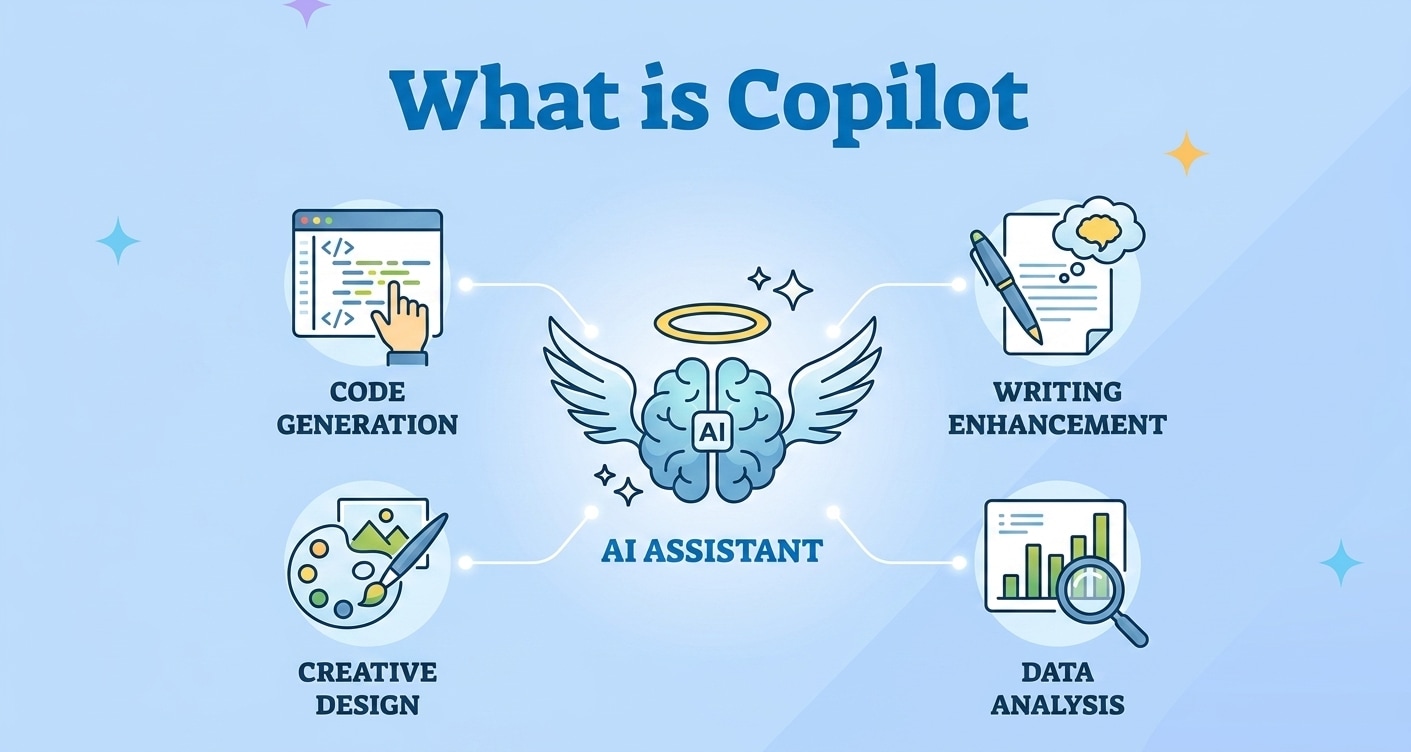
Copilot is a new class of AI Copilot assistant designed to work alongside you inside the apps and services you already use. Whether it is writing emails, creating documents, summarizing meetings, generating code, or answering complex questions, Copilot uses large language models to understand your prompts and produce helpful content in seconds. Different versions of Copilot are now built into tools like Microsoft 365, GitHub, Windows, and web browsers, so it can support everything from office productivity to software development. As Copilot becomes more central to daily workflows, it is important to understand how it works, where your data goes, and what to do if important Copilot generated files or drafts are accidentally deleted.
Try Recoverit to Perform Data Recovery
 Security Verified. 3,591,664 people have downloaded it.
In this article
What Is Copilot
What is Copilot in the modern workspace? In simple terms, it is an AI powered assistant embedded into your everyday tools to help you work faster and more accurately. Instead of switching to a separate chatbot, you can call Copilot from within Word, Outlook, Windows, GitHub, or a browser tab and ask it to draft, rewrite, summarize, or analyze content on the spot.
Most popular implementations, such as Microsoft Copilot and GitHub Copilot, are built on large language models (LLMs) that can understand natural language prompts and generate humanlike text or code. This makes Copilot especially useful for tasks like:
- Drafting emails, proposals, reports, and blog posts based on a short description.
- Summarizing long documents, chats, or meeting transcripts into concise action lists.
- Generating, refactoring, or explaining source code directly inside your IDE.
- Answering contextual questions using the files, messages, and web information you grant access to.
Because Copilot lives inside tools people already use everyday, it can transform daily work routines without forcing teams to learn completely new workflows.
How Does Copilot Work
Under the hood, AI Copilot products combine several technologies to turn your request into a usable response:
- Understanding your prompt: When you type or speak a query, Copilot uses natural language processing (NLP) to interpret your intent and the context around it, such as the open document, current email thread, or selected code block.
- Gathering relevant context: Enterprise versions of Microsoft Copilot, for example, can securely access content you are allowed to see in SharePoint, OneDrive, Teams, or Outlook. This grounding step helps Copilot produce answers that reflect your actual data instead of generic web text.
- Generating a response: The request and context are sent to an LLM in the cloud (such as GPT-4 or similar), which predicts the next best words or lines of code, forming a draft response, summary, or snippet.
- Post-processing and formatting: The raw output may be adjusted for formatting, citations, style, or security filters before it appears in your app as a suggestion you can accept, edit, or discard.
This pipeline makes Copilot powerful, but it also introduces important security and privacy questions. Your organization needs to manage permissions, data access boundaries, and logging so that only the right people and services can see sensitive information that flows through an AI assistant.
| Aspect | What It Means for Copilot Users |
|---|---|
| Data sources | Files, emails, chats, and code you can already access become the basis for smarter answers. |
| Cloud processing | Prompts and context may be processed on remote servers, so reviewing copilot data privacy terms is essential. |
| User control | You remain in charge: you can ignore suggestions, edit drafts, and decide what content to share with Copilot. |
What are the Types of Copilot
There is no single universal Copilot. Instead, several specialized assistants address different tasks and user groups. Understanding these flavors helps you pick the right Copilot guide and security settings.
Productivity-focused Copilots
Productivity Copilots focus on text, collaboration, and everyday business tasks. The most common examples include:
- Microsoft Copilot for Microsoft 365: Works inside Word, Excel, PowerPoint, Outlook, and Teams to help write documents, create presentations, analyze spreadsheets, and summarize meetings.
- Copilot in Windows: A system-level assistant you can use to search files, adjust settings, and get quick answers from the web and your PC content.
- Copilot in Edge and Bing: A browser and search companion that can summarize pages, draft social posts, or compare products while you browse.
These tools streamline routine office tasks, reduce manual drafting, and make it easier to extract insights from large amounts of text. Because they are deeply integrated into business suites, organizations must consider Copilot security policies, data residency, and role-based access controls.
Developer and technical Copilots
Technical Copilots are designed for software engineers, DevOps teams, and data professionals. Examples include:
- GitHub Copilot: An AI pair programmer that suggests entire lines or functions directly in editors like Visual Studio Code, Neovim, or JetBrains IDEs. It can help with boilerplate, tests, and even learning new frameworks.
- Copilots for data and analytics: Some platforms embed AI assistants that write SQL, build dashboards, or generate visualizations from natural language queries.
- Security-focused copilots: Emerging tools that analyze logs, alerts, and vulnerabilities to help security teams investigate incidents faster.
Developer-friendly copilots can dramatically speed up coding and troubleshooting. However, teams must evaluate license compliance, code quality, and the risk of unintentionally incorporating sensitive internal logic into model training or prompt logs.
Practical Tips for Copilot
To get the best results from Microsoft Copilot, GitHub Copilot, or any other AI Copilot, it helps to adopt a few practical habits.
Write clear, specific prompts
Vague prompts often lead to generic answers. When working with Copilot inside documents or code, include:
- Role and audience: "Write a professional email to a client explaining a project delay."
- Style and length: "Summarize this meeting in five bullet points for executives."
- Constraints: "Generate Python code using only standard library modules."
Review, verify, and edit outputs
No generative AI is perfect. Always treat Copilot suggestions as drafts:
- Double-check facts and figures against trusted sources.
- Confirm that code is secure, efficient, and matches project conventions.
- Adjust tone and wording to align with your brand and audience.
Manage data privacy and access
Because Copilot can access organization data, configure settings and governance carefully:
- Limit access to sensitive repositories, folders, and mailboxes.
- Use separate environments for testing versus production data.
- Review vendor documentation on copilot data privacy and compliance.
Reduce the risk of data loss
Copilot itself does not guarantee safe storage of the content it helps create. To avoid losing important work:
- Make sure Copilot-generated drafts are saved to reliable locations like OneDrive, SharePoint, or version control.
- Enable auto-save features when available.
- Use backups and a dependable data recovery software solution so you can recover Copilot files if something goes wrong.
How to Use Recoverit to Recover Lost Data
Even with good habits, crashes, accidental deletions, and formatting errors can cause documents or code that involve Copilot to disappear. Wondershare Recoverit is a dedicated data recovery software solution that helps you rescue lost, deleted, or formatted files from computers, external drives, and many other storage devices. Whether a Copilot-generated document vanishes after a system issue or an important project folder is removed by mistake, Recoverit from the Recoverit official website offers a reliable way to scan your storage, locate recoverable items, and bring crucial data back in just a few clicks.
Key Features Offered by Recoverit
- Recover files from over 2000 data loss scenarios, including accidental deletion, formatting, partition errors, and system crashes.
- Support for more than 1000 file formats, from Office documents and code projects to photos, videos, audio files, and archives.
- Clear, guided recovery workflow with advanced deep scanning, powerful filtering, and file preview before restoring.
Step-by-Step Guide on How To Recover Lost Data
1. Choose a Location to Recover Data
Launch Wondershare Recoverit and select the drive, partition, or external device where your Copilot-related files were stored before they went missing. For example, pick the system disk that contained your Microsoft 365 documents or the folder where you saved code assisted by GitHub Copilot. Confirm your choice to begin scanning that location.

2. Deep Scan the Location
Recoverit will automatically perform a deep scan of the selected location, searching for lost or deleted items. As results appear in real time, you can filter by file type, path, or search keywords such as part of a filename. This is especially useful when you need to recover Copilot-generated Word documents, PowerPoint decks, or coding project files without browsing through thousands of unrelated items.

3. Preview and Recover Your Desired Data
Once the scan is complete, preview supported files like documents, images, and videos to make sure they open correctly. Then select the Copilot-related items you want to restore and click "Recover". Always choose a safe destination on a different drive or partition to avoid overwriting data that may still be recoverable.

Conclusion
Copilot is reshaping how people write, code, research, and collaborate by embedding AI directly into familiar tools. Understanding how it operates, the main types available, and the best ways to use it helps you get more value from the technology while staying mindful of privacy, accuracy, and security.
Because Copilot content still depends on where and how it is saved, you can run into data loss from accidental deletion or system problems. By combining smart Copilot usage with a solid backup habit and a reliable recovery tool like Wondershare Recoverit, you can enjoy the benefits of AI assistance with far less risk to your important files.
Next: Meta Ai
FAQ
-
What is Copilot in simple terms?
Copilot is an AI powered assistant that lives inside apps and services you already use, helping you write, summarize, generate ideas, and automate routine tasks based on your prompts. -
Is Copilot the same as ChatGPT?
No. Copilot and ChatGPT are both based on large language models, but Copilot is integrated directly into products like Microsoft 365 and GitHub to work with your documents, emails, and code, while ChatGPT is a standalone conversational tool. -
Does Copilot store or use my data?
Copilot uses your prompts and related content to generate responses, and some data may be processed in the cloud depending on the specific Copilot product and settings. You should review the privacy and compliance documentation for the version of Copilot you use and adjust organizational policies accordingly. -
Can Copilot generated content be wrong?
Yes. Like other generative AI tools, Copilot can produce inaccurate, outdated, or biased information. Always review outputs, verify facts with trusted sources, and apply your own expertise before sharing or publishing the results. -
How can I recover a deleted file that used Copilot content?
If a document or project that included Copilot generated content is deleted, avoid writing new data to that drive and use a recovery tool such as Wondershare Recoverit to scan the affected location, preview recoverable files, and restore the items you need.



