

 TL;DR:
Kimi accelerates video pre-production by generating research, outlines, and scripts as a text-based AI assistant, though creators must independently render the actual footage and protect their locally saved project files from data loss.
● Kimi operates strictly as an information processor for the planning phase, meaning it cannot natively edit, compile, or output visual video files.
● Assets produced alongside Kimi workflows, such as exported DOCX scripts or reference media, are stored on local drives and remain vulnerable to accidental deletion or formatting errors.
● If local project files are lost, users must immediately halt drive usage and run Wondershare Recoverit to scan and restore the deleted text and media formats before the data is overwritten.
Ask AI for a summary
 ChatGPT
 Perplexity
 Gemini
 Claude
 Grok
Grok
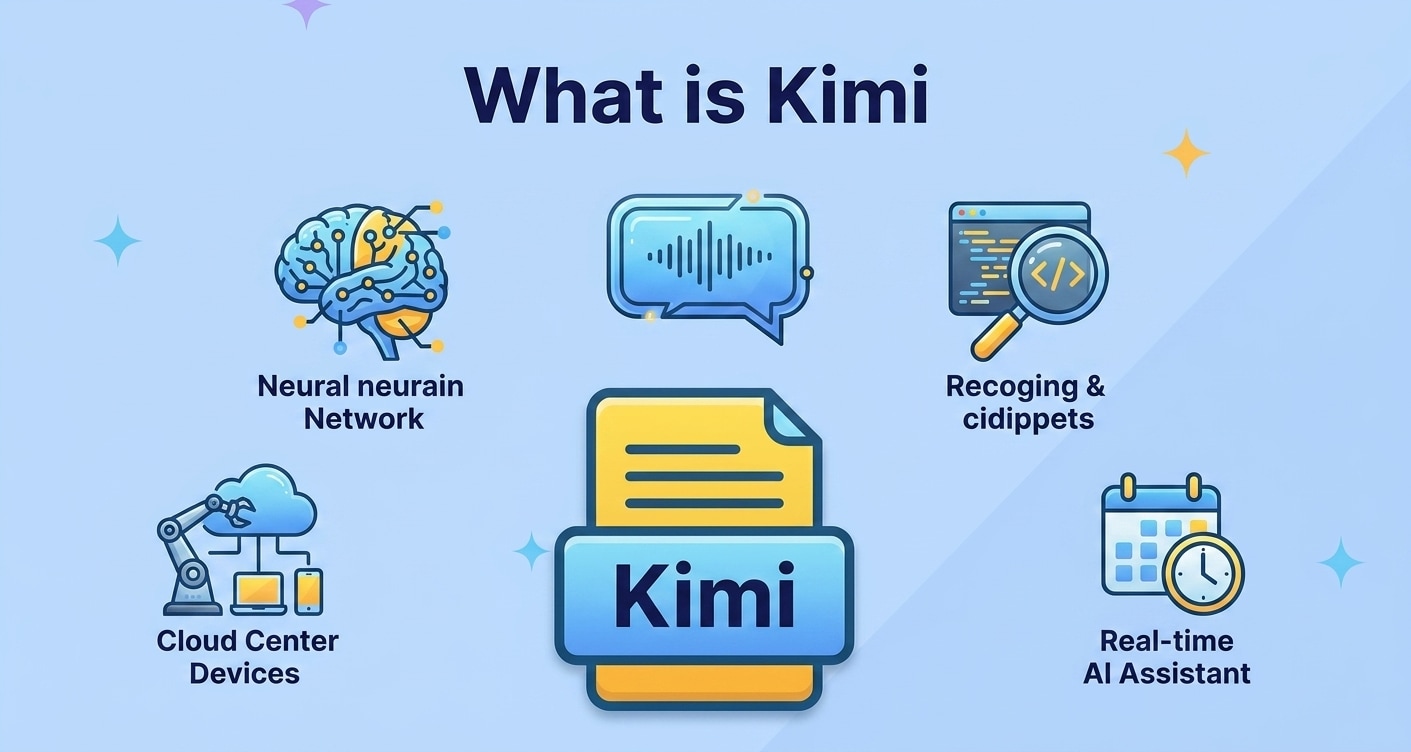
Kimi is an emerging AI assistant that helps users research, write, and prepare content that can be turned into engaging videos and digital assets. Whether you are outlining scripts, organizing references, or collaborating on creative briefs, Kimi AI can accelerate the planning side of your video production workflow. Like any digital project, though, the scripts, images, and media files you generate alongside Kimi video projects can be lost due to accidental deletion, formatting errors, or device failure. Understanding what Kimi is, how it fits into your creative pipeline, and how to protect and recover your associated files will help you keep your AI powered content projects running smoothly and safely.
Try Recoverit to Perform Data Recovery
 Security Verified. 3,591,664 people have downloaded it.
In this article
What Is Kimi
Kimi is an AI assistant designed to help you understand information, generate ideas, and draft written content quickly. Instead of manually researching, copying notes, and writing everything from scratch, you can ask Kimi to summarize sources, outline articles, or produce first-draft scripts that you can later refine.
In the context of video creation, Kimi AI focuses on the text side of your workflow. It does not replace your editor or motion graphics tools, but it dramatically speeds up the planning and pre-production phases by helping you shape what you want to say on camera or in a voiceover.
Because Kimi runs online and your work is stored across different devices, any related assets you save locally—scripts, research PDFs, images, raw video clips—can still be lost or deleted. Pairing Kimi with a reliable way to recover project files keeps these AI-driven workflows safer.
How Does Kimi Work
From a user perspective, Kimi AI works like a conversational assistant. You type prompts or paste reference material, and the model responds with structured text, ideas, and explanations. Behind the scenes, Kimi relies on large language models that have been trained on extensive datasets so it can generate human-like responses.
For video workflows, a typical process looks like this:
- You define your video goal (for example, an explainer, tutorial, or social clip).
- You provide Kimi with a topic, audience profile, and any reference links or notes.
- Kimi generates outlines, talking points, or full scripts based on your instructions.
- You revise the content, ask Kimi to adjust the tone or length, and finalize the script.
- You move the approved script into your camera, teleprompter, or AI video tool.
Many creators also use Kimi as a research assistant. It can surface key concepts, compare sources, and organize information into sections that correspond directly to scenes in your final video.
What are the Types of Kimi
While Kimi itself is one AI assistant, users commonly break its usage into several "types" or modes that map to stages in a content or video workflow. Thinking in terms of types helps you apply Kimi more strategically and keep your project assets organized for easier backup and recovery.
Core uses of Kimi for content creation
When people talk about different types of Kimi usage, they usually mean the specific jobs they rely on the AI to handle. For example:
- Research assistant Kimi: Collects definitions, frameworks, and examples on a topic so you can build a well-informed script or storyboard.
- Outlining Kimi: Turns rough ideas or bullet points into clear, hierarchical outlines that correspond to video chapters or scenes.
- Scriptwriting Kimi: Generates dialogue, voiceover text, and on-screen narration for full-length videos or short-form clips.
- Editing and polishing Kimi: Refines your drafts, removes repetitive sections, and adapts wording to different platforms such as YouTube, TikTok, or internal training portals.
Each of these usage types produces its own collection of files: drafts, edited versions, and final scripts. Keeping versions labeled and backed up reduces the risk of losing important milestones in your project history.
Kimi use cases across video workflows
Kimi supports more than just initial script creation. It can sit at multiple points along a modern AI video workflow, helping you produce assets that later feed into editing software or video-generation platforms.
| Kimi use case | How it supports video creation |
|---|---|
| Idea development and validation | Generates topic lists, video titles, and quick summaries so you can test what resonates with your audience before recording or rendering. |
| Script and storyboard drafting | Produces complete scripts, shot descriptions, and scene breakdowns that save time for directors, editors, and on-screen talent. |
| Repurposing and localization | Helps convert one master script into shorter clips, reels, or translated versions so your content can reach more platforms and regions. |
Across these use cases, your local folders will quickly fill with text files, reference images, and test video exports. Losing any of these can slow down or derail production, so having a recovery plan for Kimi-related projects is essential.
Practical Tips for Kimi
Using Kimi effectively is about more than writing prompts. You also need good habits around organization, collaboration, and data protection so your work remains usable and recoverable.
Prompting and workflow best practices
- Be specific with context. Tell Kimi who the audience is, what platform you are targeting, and what outcome you want from the video.
- Iterate rather than restart. Ask Kimi to revise existing drafts instead of creating entirely new ones so your script improves while staying aligned with your initial direction.
- Use clear structure markers. Request outputs with headings, timestamps, or scene numbers that map directly to your editing timeline.
- Document your prompt history. Save important prompts and responses in a dedicated folder so you can recreate or extend earlier work.
Protecting Kimi project files from loss
- Centralize your Kimi assets. Store scripts, outlines, and reference material in a single project directory per video to make backup and recovery straightforward.
- Use versioned filenames. Add dates or version numbers to critical scripts so you can roll back to earlier drafts if a file becomes corrupted or overwritten.
- Sync to trusted cloud storage. Combine local saves with cloud sync so that a hardware problem does not wipe out your work with Kimi.
- Act quickly after accidental deletion. If a script or video draft disappears, stop writing new data to that drive and use a recovery tool like Recoverit to increase the odds of restoring it.
How to Use Recoverit to Recover Lost Data
Even with careful organization, it is easy to delete the wrong folder or format a drive that holds your Kimi projects, including scripts, exported Kimi video assets, and supporting media. Recoverit by Wondershare is a dedicated data recovery solution designed to help restore lost, deleted, or inaccessible files from computers and external storage. To explore the full feature set and download the software, visit the Recoverit official website.
Key Features Offered by Recoverit
- Recovers over 1000 file formats, including video, audio, images, and documents commonly used in Kimi AI workflows.
- Supports data recovery from PCs, external hard drives, SD cards, USB flash drives, and other devices where you may store kimi project assets.
- Provides file preview before recovery so you only restore the exact kimi projects files and video drafts you need.
Step-by-Step Guide on How To Recover Lost Data
-
Choose a Location to Recover Data
Launch Recoverit on your computer and review the list of available drives and locations on the main interface. Select the disk, external device, or specific folder where your Kimi-related documents, video drafts, or reference files were stored before they went missing. Click the Start button to let Recoverit begin analyzing that location for recoverable data.

-
Deep Scan the Location
Recoverit will automatically perform an in-depth scan of the selected drive or folder. During this process, it searches for deleted, lost, or formatted files that may include Kimi scripts, exported text, thumbnails, and associated video assets. You can observe the progress, pause or stop the scan if needed, and start reviewing discovered items as they appear in real time.

-
Preview and Recover Your Desired Data
Once the scan finishes, browse the categorized results or apply filters such as file type or keyword to quickly locate missing Kimi content. Click on individual documents, images, or video clips to preview them and verify they are intact. Select the items you want to restore, choose Recover, and save them to a safe destination different from the original path to avoid overwriting other recoverable data.

Conclusion
Kimi is becoming a valuable AI assistant for planning, researching, and drafting content that often feeds directly into modern AI video workflow setups. By helping you structure ideas and scripts more efficiently, it can streamline everything from YouTube explainers to educational or internal training videos.
At the same time, the Kimi-related files you store on local or external devices are still vulnerable to loss through accidental deletion, formatting mistakes, or hardware failure. Combining good file management habits with a powerful recovery solution such as Recoverit ensures that deleted or inaccessible documents, images, and video resources can often be restored. That way, your AI-powered creative projects remain resilient, even when something goes wrong at the storage level.
Next: Sora Video
FAQ
-
What is Kimi used for in a video workflow?
Kimi is typically used to research topics, organize references, and generate or refine scripts that later become narrated videos, tutorials, explainers, or social clips. It focuses on the planning and content side rather than full video editing or rendering. -
Does Kimi directly edit or render videos?
No. Kimi functions mainly as an AI assistant for text and information processing. You usually export Kimi-generated scripts or ideas and then edit or render the final video using dedicated video software or other AI video tools. -
Can I recover deleted Kimi project files with Recoverit?
Yes. If your Kimi-related documents, images, or video drafts were stored on a local drive or external device and were deleted or lost, you can scan that location with Recoverit. As long as the data has not been heavily overwritten, there is a good chance some or all of it can be restored. -
Which Kimi-related file types can Recoverit restore?
Recoverit supports over 1000 file formats, including DOCX, TXT, PDF, JPG, PNG, MP4, MOV, and AVI. This covers most script files, reference images, thumbnails, and video clips you might create while working with Kimi-assisted projects. -
How can I avoid losing Kimi content in the future?
Use organized project folders, enable cloud sync or scheduled backups, and avoid storing critical Kimi files on failing or nearly full drives. If you accidentally delete something, stop writing new data to that storage device and run Recoverit as soon as possible.


