

 TL;DR:
To efficiently remove or isolate duplicate data in Excel, utilize the built-in data tools for permanent deletion or dynamic formulas for non-destructive extraction.
● Press the Alt+A+M keyboard shortcut to instantly delete repeated entries after visually flagging them via Conditional Formatting, which permanently removes duplicates while retaining the first occurrence of each record.
● Apply the =UNIQUE([cell letters]) function or check the "Unique Record Only" box within the Advanced Filter to generate a distinct list dynamically without altering your original source dataset.
● Double-check your spreadsheet calculations after cleanup since deleting duplicate rows will change the results of formulas referencing those cells, though accidental data loss during removal can be restored using recovery software like Recoverit.
Ask AI for a summary
 ChatGPT
 Perplexity
 Gemini
 Claude
 Grok
Grok
You open an Excel file moments before a deadline and notice the same names, numbers, or records repeating across rows. Working with duplicate data can slow analysis, distort results, and make reports look unprofessional. Knowing how to remove duplicates in Excel quickly becomes essential when accuracy and speed matter. This article provides you with fast and easy methods to keep your spreadsheets clean, organized, and ready for confident decision-making.
Try Recoverit to Perform Excel File Recovery
 Security Verified. 3,591,664 people have downloaded it.
In this article

Part 1. Why Duplicate Data Can Ruin Your Excel Sheets
"How to delete duplicates in Excel" is important because duplicate data refers to repeated entries that appear more than once in a worksheet. These repetitions often occur during data imports, manual entry, copying rows, or merging multiple files. When duplicates remain unchecked, they can inflate totals, skew calculations, and mislead reports, ultimately affecting decisions based on inaccurate analysis. Clean data ensures reliable insights, accurate formulas, and professional-looking Excel sheets.
Common Reasons Duplicates Appear in Excel
- Manual Data Entry Errors: Entering information by hand increases the chance of typing the same record more than once. This often happens when working with large datasets or updating sheets over time.
- Copy-Paste Mistakes: Copying and pasting data from one location to another can unintentionally duplicate rows. Overlapping pasted ranges usually cause repeated values without immediate notice.
- Importing Data from Multiple Sources: Bringing data from different files or systems may include identical records. Without proper checks, Excel treats these entries as separate rows.
- Merging or Appending Sheets: Combining worksheets with similar structures can create duplicate records easily. This is common when consolidating monthly or departmental reports.
- Lack of Data Validation Rules: When validation rules are missing, Excel allows repeated entries freely. This makes it easier for duplicates to enter the dataset unnoticed.
Part 2. Spot Duplicate Values Fast with Conditional Formatting
Before learning how to remove duplicates in Excel, it helps to quickly spot duplicate values with Conditional Formatting in Excel. This built-in feature visually highlights repeated data in seconds, making it easier to identify problem areas at a glance. By flagging duplicates automatically, you can review your dataset more confidently and decide whether to edit, merge, or remove entries without risking important information. Here is how you can highlight the duplicates in seconds:
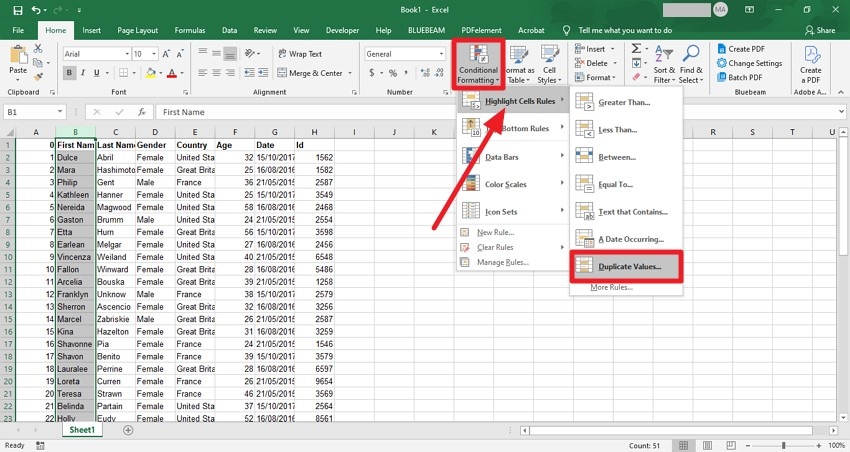
- To begin the process, open the file in the Excel program, select the column, and head to the "Home" tab at the top. Now, expand the "Conditional Formatting" option and choose "Highlight Cells Rules." Next, pick the "Duplicate Values" option and click on it.
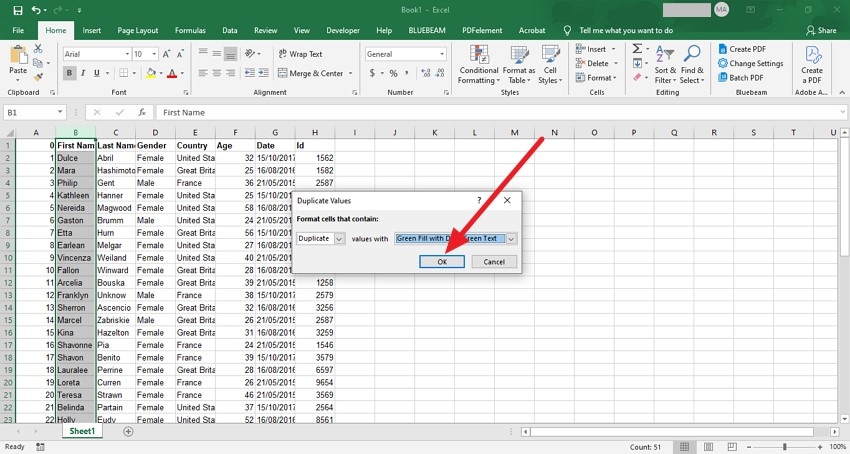
- In the following dialogue box, select the color and format for the highlight by expanding the drop-down menu. Once done, press the "OK" button.
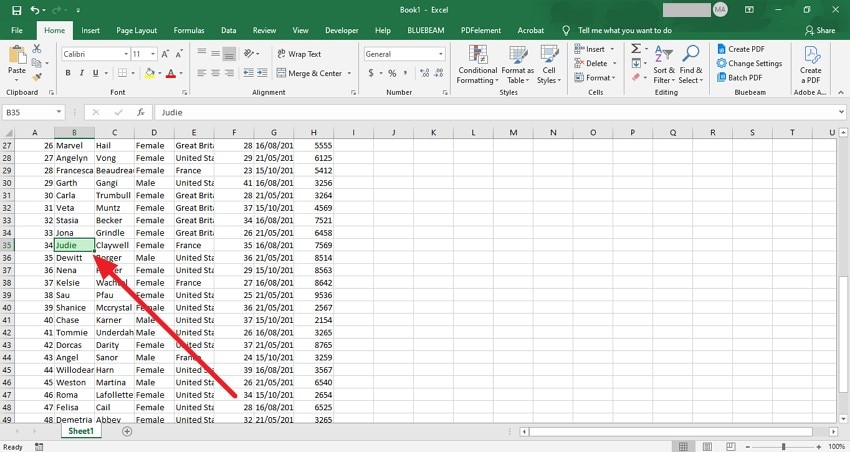
- Once done, preview the highlighted duplicates within the interface and perform further actions according to your preferences.
Part 3. Excel Tips: Remove Duplicates with These Easy Methods
Once you've identified repeated entries, the next step is acting. Learning how to delete duplicates in Excel becomes essential. Mentioned below are some of the top methods you can try to get rid of the repeated data:
1. With Conditional Formatting
Conditional Formatting helps visually flag repeated values, making it easier to review data before cleanup. It plays a key role in deciding how to remove duplicates in Excel accurately. By highlighting duplicates instantly, users can avoid accidental data loss and confidently apply other removal methods where necessary. Follow the steps mentioned below to learn how to remove duplicates using this method:
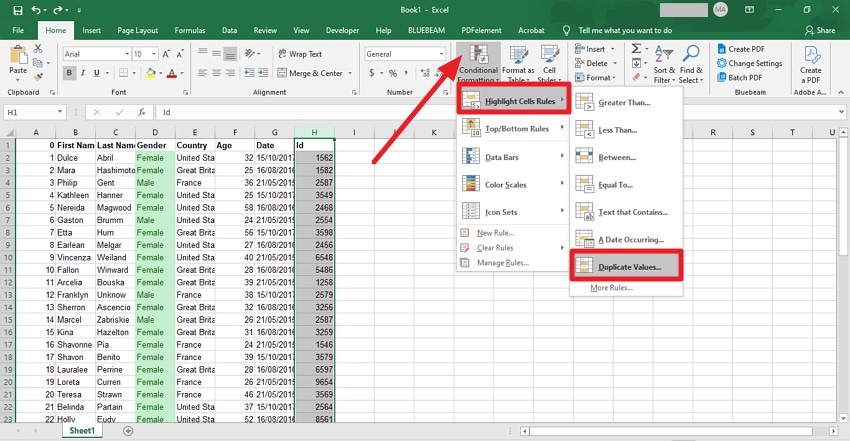
- Begin by accessing the file in the program and clicking the "Conditional Formatting" option from the Home tab. Next, choose the "Highlight Cells Rules" option and click on "Duplicate Values."
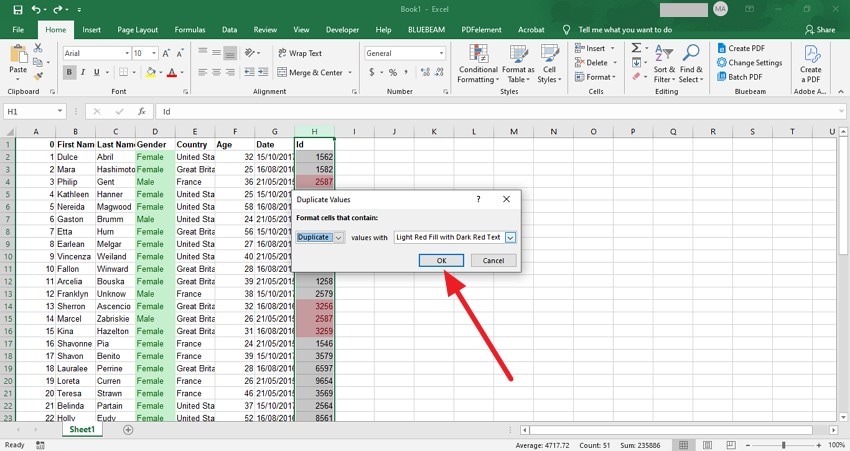
- Next, select the color for the highlight and text and press the "OK" button.
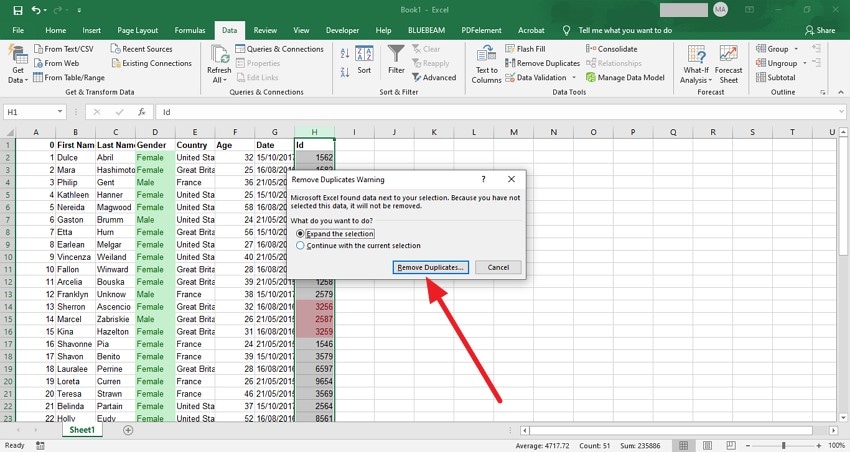
- Once the duplicate values are highlighted, press the "Alt+A+M" keys to remove the duplicates from the sheet.
2. Remove Duplicates Feature
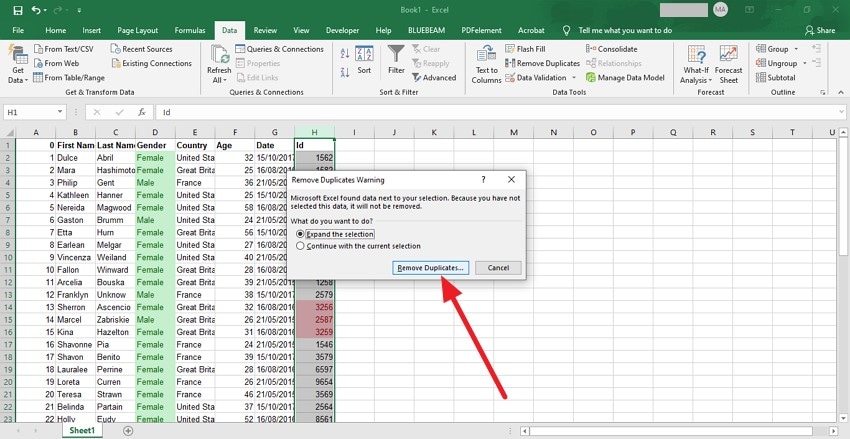
The built-in Remove Duplicates feature is one of the fastest answers to how to delete duplicates in Excel. It scans selected columns, identifies repeated entries, and removes them instantly while keeping the first occurrence intact. This method is ideal for large datasets where speed, accuracy, and minimal manual effort are essential. To learn how to use this fix, read the steps mentioned next:
- To initiate the process, launch the Excel sheet on your device, select the column from the top, and head to the "Data" tab. Now, locate the "Remove Duplicates" option and click on it.
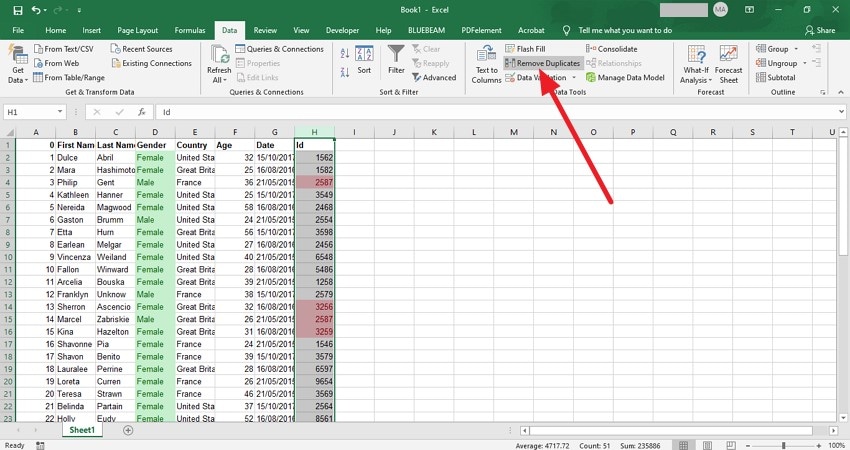
- In the following dialogue box, choose the selection and press the "Remove Duplicates" button to successfully remove the repeated data.
3. Using the Advanced Filter option
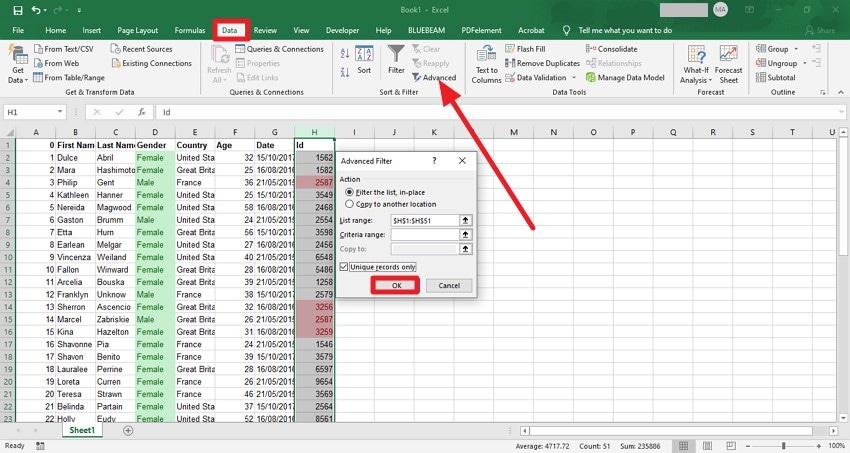
Using the Advanced Filter is a flexible approach for users who want more control over how to remove duplicates in Excel. It allows you to extract unique records to a new location or clean the existing list without altering the original data. This makes it ideal for maintaining data accuracy while preserving the original dataset for reference. Follow the instructions mentioned below to learn how to use this fix:
Instructions. Once you have opened the document and selected the column for duplicate data, access the "Data" tab from the top. Now, click on the "Advanced" option to open a small dialogue box. Here, select the range and tick the checkbox for "Unique Record Only" and press the "OK" button.
4. With Formulas
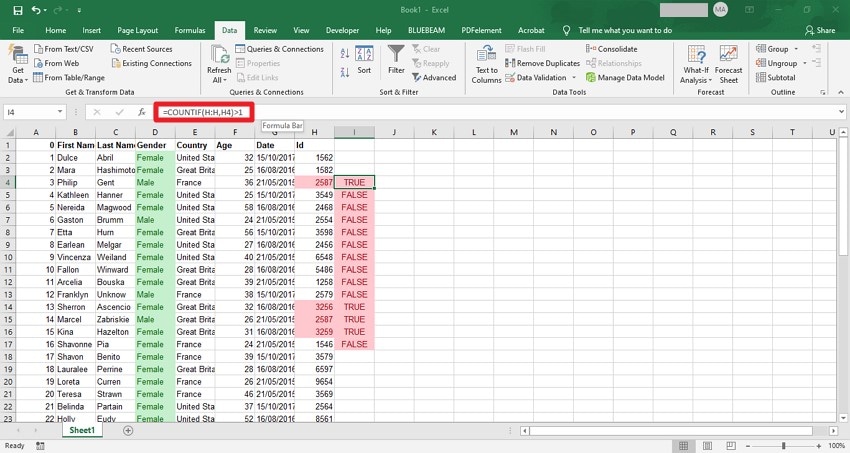
It is a powerful option for users who want precise control over how to delete duplicates in Excel. By applying logical or counting formulas, you can identify repeated values dynamically and manage duplicates without permanently altering the original data. This approach works well for ongoing datasets that require continuous updates and validation. To learn how to remove duplicates from your Excel file, read the instructions mentioned next:
Instructions. After selecting and opening the document within the Excel interface, head to the formula field at the top. Now, input the formula: "=COUNTIF([Column Letter]>[Row] >1)". This will highlight the repeated entries, which you can easily remove using the "Alt+A+M" keys.
5. Using Power Query
Power Query is an efficient solution for handling large or frequently updated datasets when learning how to remove duplicates in Excel. It automates the cleaning process, refreshes results with new data and ensures consistency without manual effort. This method is ideal for advanced users who want scalable and repeatable data cleanup. To learn how to use the Power Query feature, read the steps mentioned below:
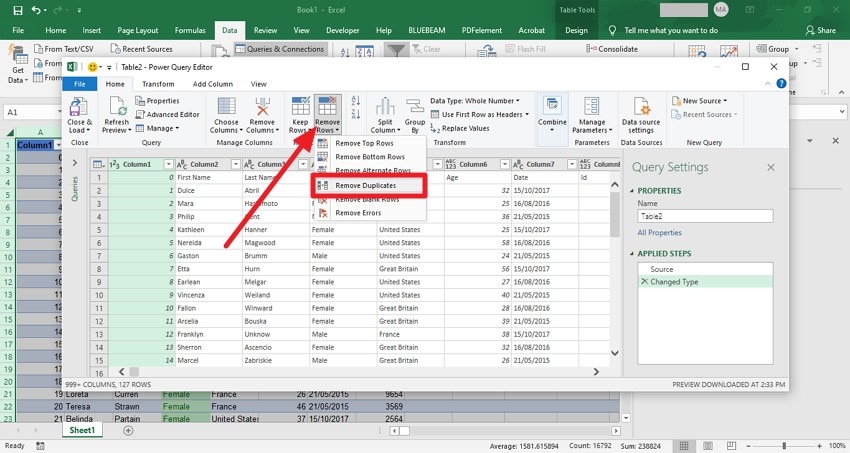
- Access the "Data" tab and choose "Queries & Connections." Next, locate the "From Table/Range" option and click on it.
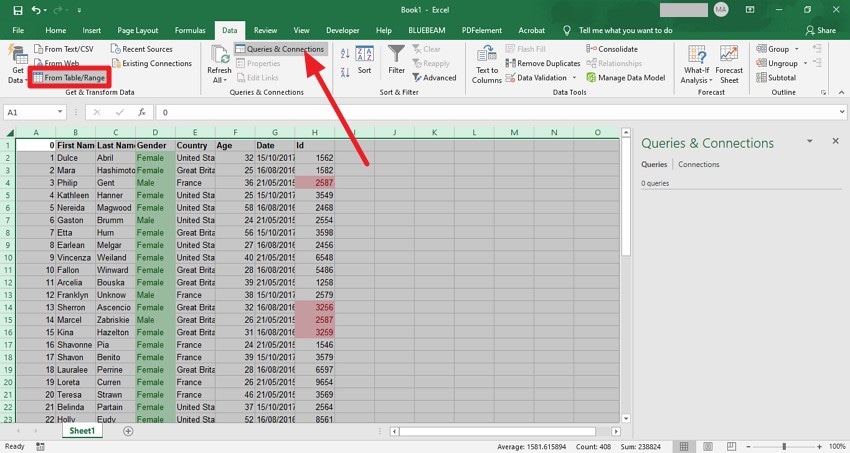
- In the following interface, select the column and head to the ribbon at the top. From here, choose the "Remove Rows" option and pick the "Remove Duplicates" option.
6. UNIQUE Function
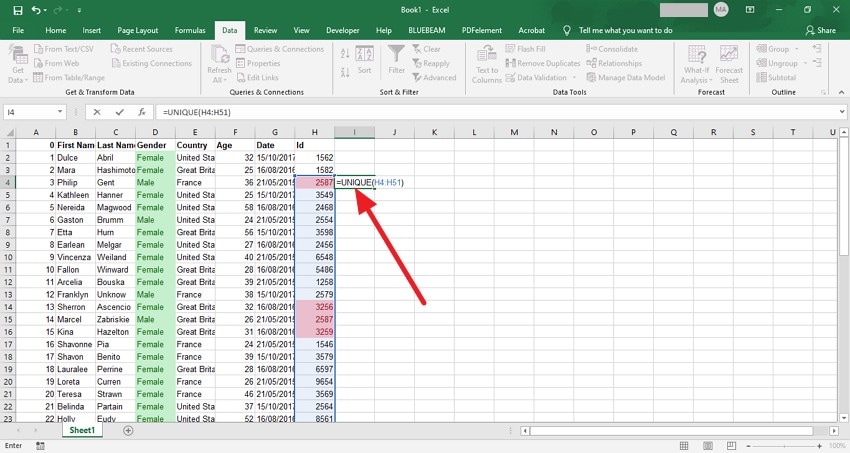
The UNIQUE function offers a modern and formula-driven way to understand how to delete duplicates in Excel. It automatically extracts distinct values from a selected range, and updates results dynamically as the source data changes. This makes it a clean, non-destructive option for generating duplicate-free lists instantly. Read the instructions mentioned next to learn how to use this Unique function for removing duplicates:
Instructions. After accessing the document within the tool, input the formula: "UNIQUE([cell letters])" and select the cells by dragging. This will remove all the duplicate data from your selected column.
Pro Tip. Protect Your Excel Data: Recoverit for Lost or Removed Entries
Recoverit can be a reliable safety net when cleaning spreadsheets, especially while learning how to remove duplicates in Excel efficiently. During duplicate removal, selecting the wrong range or applying changes too quickly can erase important rows. Recoverit scans your storage device to locate deleted or lost Excel files, helping restore previous versions so your data remains accurate and complete after cleanup.
When Excel crashes or closes unexpectedly during duplicate removal, files may become corrupted or partially saved. Recoverit helps retrieve damaged Excel documents by rebuilding file structures and restoring usable data. The tool provides support for more than 1 million storage devices, including system storage and external storage.
Key Features Offered By Recoverit
- Preview Before Recovery: Recoverit lets you view recoverable files before restoring them, ensuring you recover only the data you need.
- Unlimited File Recovery: There are no limits on the number of files you can recover, allowing complete restoration of lost Excel data.
- Multiple File Format Support: The tool supports a wide range of file types, including Excel, Word, images, videos, and more, for versatile recovery.
Steps for Recovering Excel Files With Recoverit
Having explored Recoverit's capabilities, here's a step-by-step guide to recovering lost Excel files using the tool:
- Choose the Drive to Start
Once you open Recoverit on your device, navigate to the drive or folder containing the Excel file. Click on it, and the software will immediately begin scanning the selected location for recoverable files.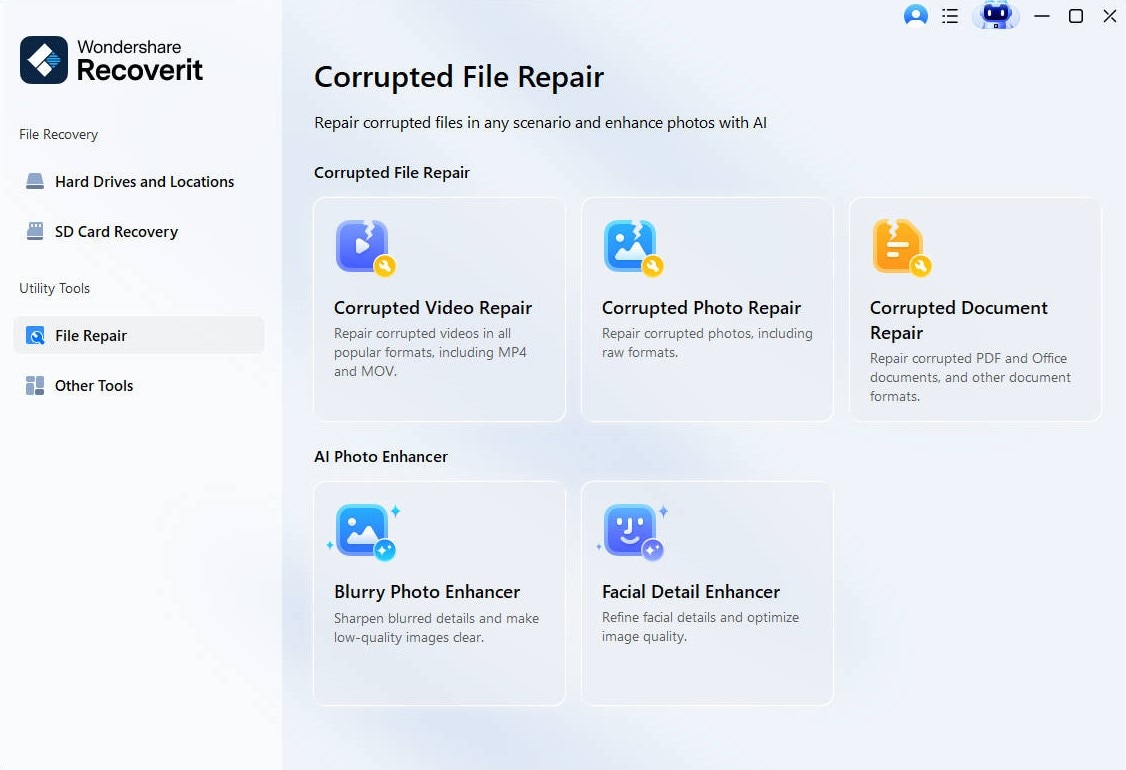
- Pick Your File and Hit "Repair"
After the scan completes, browse through the displayed files and select the corrupted Excel file you want to restore. Click the "Repair" button to initiate the recovery process.
- Verify Recovered Files and Save
Once recovery is finished, double-click the restored file to check its contents. Then save it to your preferred location on your device for safekeeping.
Part 4. Best Practices for Managing Excel Data Without Duplicates
When working with large datasets, knowing how to delete duplicates in Excel is important. By following these strategies, you can minimize duplicate entries and ensure your Excel data stays organized:
- Use Excel's Built-In Remove Duplicates Tool: Excel's native "Remove Duplicates" feature quickly identifies and deletes repeated entries. Regular use of this tool prevents clutter and maintains consistent data.
- Apply Data Validation Rules: Setting up validation ensures users cannot enter duplicate information in key columns. This proactive step reduces the need for repetitive cleanup later.
- Maintain a Master Sheet: Keep a single, updated master spreadsheet as the source of truth for all data entries. Reference this sheet when importing or merging new data to avoid duplicates.
- Regularly Audit and Clean Data: Schedule periodic checks to identify and remove any duplicates that may have slipped through. Consistent audits help maintain accuracy over time.
- Use Conditional Formatting to Spot Duplicates: Highlight duplicate values with conditional formatting to catch repeated entries visually. This makes it easier to address duplicates before they affect analysis.
Conclusion
To sum it up, this article provided a complete guide on how to remove duplicates in Excel effortlessly. By following these methods, you can keep your spreadsheets clean, organized, and accurate for reliable analysis. Additionally, if any important data is accidentally deleted during the cleanup process, Recoverit can help restore lost or corrupted Excel files quickly.
FAQ
-
1. How do I remove duplicates in Excel quickly?
You can use Excel's built-in "Remove Duplicates" tool to delete repeated entries in a few clicks. This method is fast and works well for large datasets. -
2. Can I recover Excel data if I delete the wrong rows while removing duplicates?
Yes, if you accidentally delete important data while cleaning duplicates, Recoverit can help restore lost Excel files safely and efficiently. -
3. Does removing duplicates affect formulas in Excel?
Removing duplicates may change the results of some formulas if they reference deleted rows, so it's best to double-check calculations after cleanup. -
4. How can I prevent duplicates from appearing in my Excel sheets?
You can set up data validation rules or maintain a master sheet to reduce the chances of duplicate entries. Using consistent entry practices also helps.


