

 TL;DR:
Resolve the Windows "insufficient privileges" installation error by bypassing system folder restrictions through running the setup as an administrator, unblocking the downloaded file, or routing the installation to a non-system drive.
● Grant the installer execution rights by right-clicking the setup file to select "Properties" and checking the "Unblock" box, or manually apply "Allow" permissions for the Administrators group under the target folder's Security tab.
● Eliminate background software conflicts by temporarily lowering User Account Control (UAC) settings, disabling Microsoft Defender Antivirus, or executing a clean boot using msconfig with the "Hide all Microsoft services" option checked.
● Fix missing or corrupted system files blocking directory access by running "sfc /scannow" and "dism.exe /online /cleanup-image /scanhealth" via Command Prompt, or utilize Recoverit if repeated installation failures cause file corruption or data loss.
Ask AI for a summary
 ChatGPT
 Perplexity
 Gemini
 Claude
 Grok
Grok
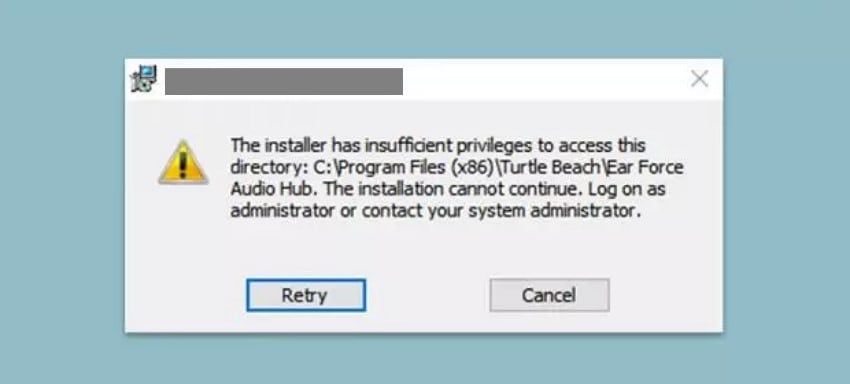
Installing a new application on your Windows PC can quickly turn frustrating when the setup suddenly fails with a permissions warning. This issue often appears without clear guidance, leaving users unsure why the installation cannot continue. When the message “the installer has insufficient privileges to access this directory” shows up, it interrupts workflows and delays important tasks.
Instead of guessing or retrying the installer multiple times, understanding how to handle this error correctly can save time and prevent system misconfigurations. This guide walks you through practical, safe fixes that help restore proper access.
Try Recoverit to Perform Windows Data Recovery
 Security Verified. 3,591,664 people have downloaded it.
In this article
- Solution 1. Run Installer as Administrator
- Solution 2. Unblock the Installer File
- Solution 3. Adjust Folder Permissions and Take Ownership
- Solution 4. Free Up Disk Space and Check Drive Health
- Solution 5. Temporarily Disable User Account Control (UAC)
- Solution 6. Temporarily Disable Antivirus and Firewall
- Solution 7. Change Installation Path to Another Folder or Drive
- Solution 8. Perform a Clean Boot to Avoid Conflicts
- Solution 9. Uninstall Older or Conflicting Versions
- Solution 10. Repair System Files with SFC and DISM

Part 1. Understanding the “Insufficient Privileges” Error in Windows
This Windows error appears when an installer cannot write files to protected system locations. Permission restrictions prevent setup programs from completing required directory changes during installation. Users often encounter the message that “the installer has insufficient privileges to access this directory.” The warning indicates Windows security controls are actively blocking unauthorized file access.
This error helps protect sensitive folders from accidental or malicious modification. It commonly interrupts software installation, updates, or configuration processes on Windows systems.
Part 2. What Causes the Insufficient Privileges Error in Windows
Before applying fixes, it helps to understand why Windows blocks certain installations. When the installer has insufficient privileges to access this directory, the issue usually stems from system-level permission controls. Mentioned below are some of the causes behind the occurrence of this error:
- Lack of Administrator Rights: Running an installer without admin permissions limits its ability to modify protected folders. Windows blocks changes to system directories for standard user accounts.
- Restricted Folder Permissions: Some directories have read-only or restricted access settings by default. Installers fail when they cannot write or extract the required files.
- User Account Control (UAC) Restrictions: UAC prompts prevent unauthorized background system changes. Ignoring or denying prompts can stop the installation process.
- Third-Party Security Software: Antivirus or endpoint protection tools may block installer actions. They often flag installers attempting system-level access.
- Corrupted User Profile Settings: Damaged account permissions can interfere with normal installation behavior. This causes repeated permission-related errors across applications.
Signs You Are Affected by This Installer Error
When installation problems continue without progress, clear symptoms start to appear. If the installer has insufficient privileges to access this directory, the following signs usually confirm the issue.
- Installation Stops Abruptly: The setup process ends unexpectedly before completion. No usable application files are installed.
- Permission Error Messages: Windows shows alerts about denied access during installation. Messages often reference directory or folder permissions.
- Repeated Setup Failures: Running the installer again results in the same error. Progress never moves past the same installation stage.
- Missing Program Files: The installation folder appears but lacks essential files. The application fails to launch after setup.
- Admin Prompt Without Progress: Administrator permission is granted, but installation still fails. Windows security restrictions continue blocking access.
Part 3. 10 Solutions to Fix “Installer Has Insufficient Privileges” Error in Windows
Now that you understand the causes and signs, it’s time to apply practical fixes. When “the installer has insufficient privileges to access this directory,” these 10 solutions can help you restore proper access and complete the installation:
Solution 1. Run Installer as Administrator
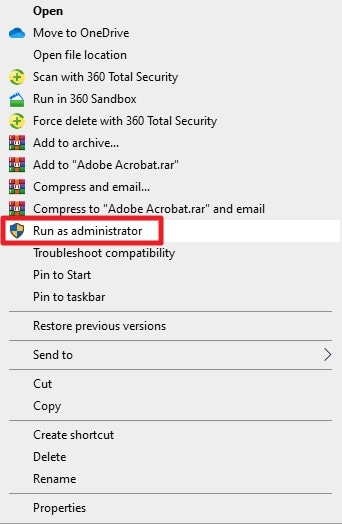
One of the simplest ways to fix installation errors is by running the setup as an administrator. Elevated permissions allow the installer to write to protected system folders without restrictions. This often resolves the common issue where the installer has insufficient privileges to access this directory. This ensures that all required files are installed successfully and completely. Follow the instructions below to learn how to run the installer as admin:
Instructions. Locate the installer in the folder, then right-click it to display a list of options. Next, search for the "Run as Administrator" option and click on it to run the app with admin privileges.
Solution 2. Unblock the Installer File
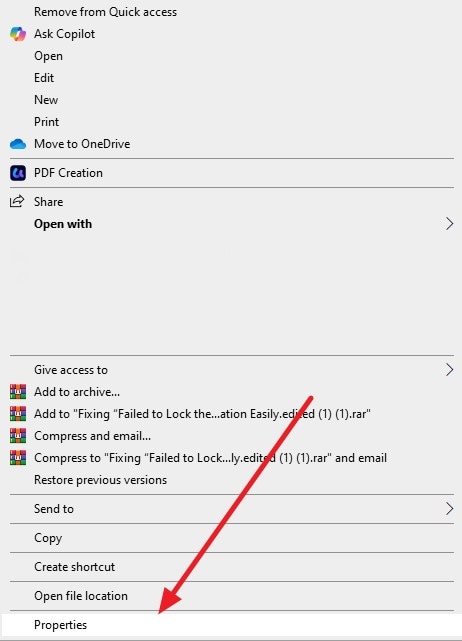
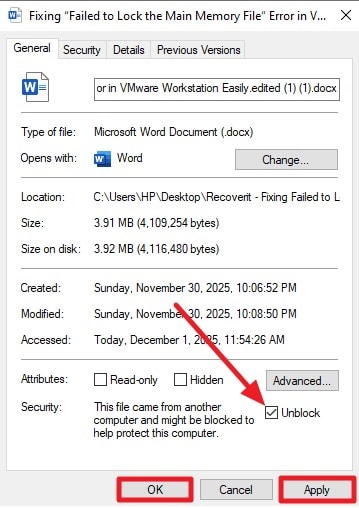
Downloaded files from the internet are sometimes blocked by Windows for security reasons. Unblocking the installer grants the system trust and allows it to execute without interference. This method can prevent the frequent “the installer has insufficient privileges to access this directory” error. This gives the setup program the proper access it needs to function. Here is how you can unblock the installer file:
- Select the installer file, then right-click it to display the list of options. Locate the "Properties" option and click on it to proceed.
- In the following small window, tick the checkbox for the “Unblock” option and press “Apply” then “OK.”
Solution 3. Adjust Folder Permissions and Take Ownership
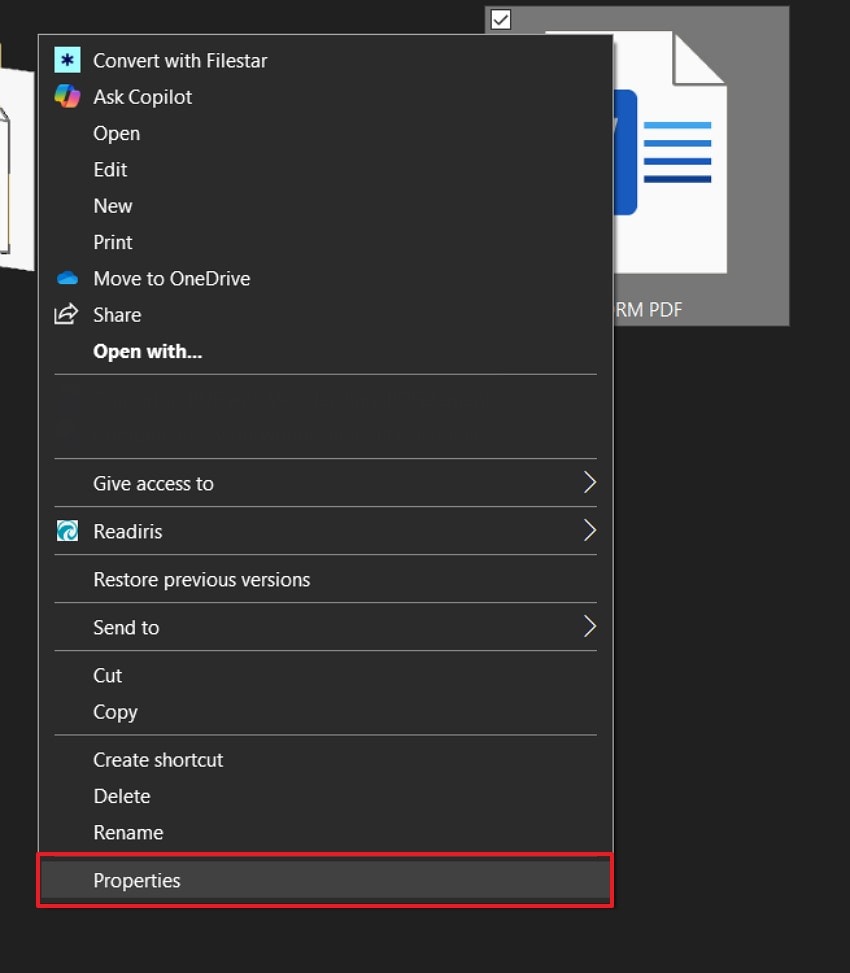
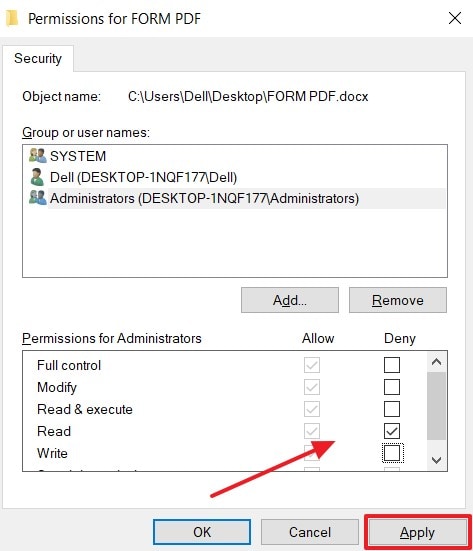
Gaining full control over the target installation folder often resolves permission conflicts. By modifying permissions and taking ownership, users grant the installer write, delete, or modify permissions as needed. This approach directly addresses the error that “the installer has insufficient privileges to access this directory.” It ensures that installation completes without interruptions due to permissions. Follow the steps mentioned next to adjust permissions:
- Right-click the folder and select "Properties" from the menu.
- Next, switch to the “Security” tab and select the “Administrators” group or username. After that, click the “Edit” button to modify the permission settings.
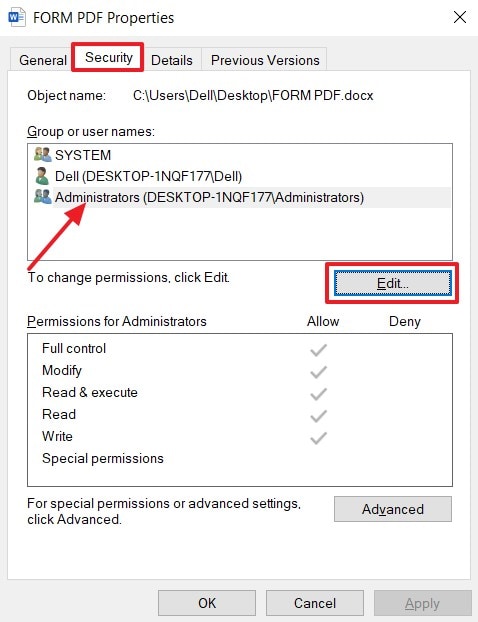
- Under the “Permissions for Administrators” section, select the appropriate “Allow” or “Deny” checkboxes as needed. Finally, click “Apply” to save the changes.
Solution 4. Free Up Disk Space and Check Drive Health
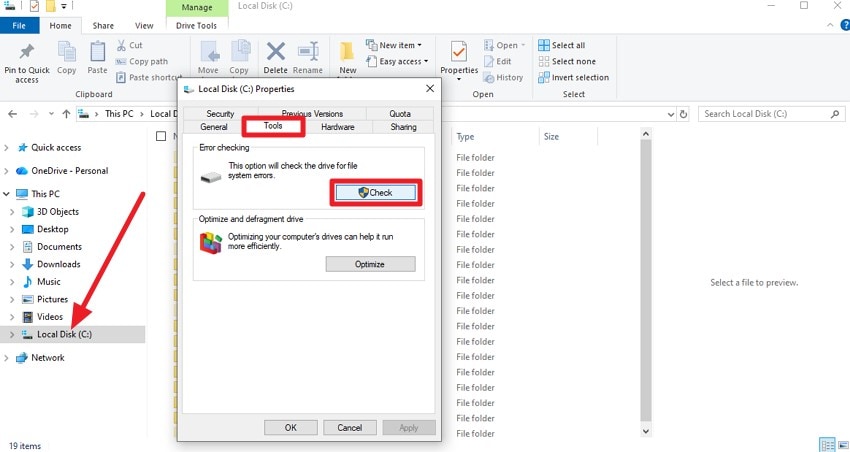
Low storage or disk errors can block installations even with proper permissions. Ensuring sufficient free space and checking the drive for errors helps avoid interruptions. This method prevents the error that “the installer has insufficient privileges to access this directory.” To free up the disk space, you can remove and uninstall unwanted applications. However, to check the drive health, read the instructions provided next:
Instructions. Right-click on the drive and press the “Properties” option. In the properties window, enable the “Tools” tab and click the “Check” button to check the disk health.
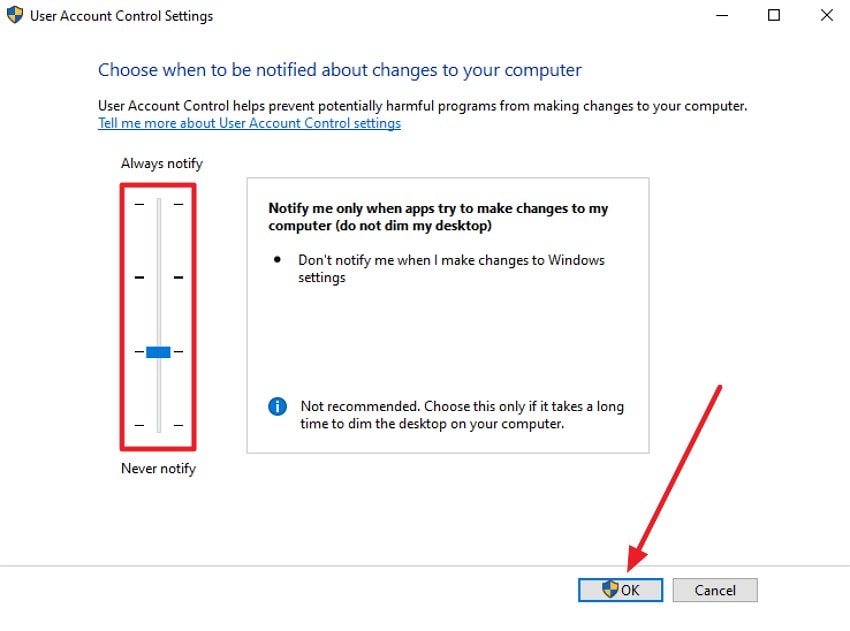
Solution 5. Temporarily Disable User Account Control (UAC)
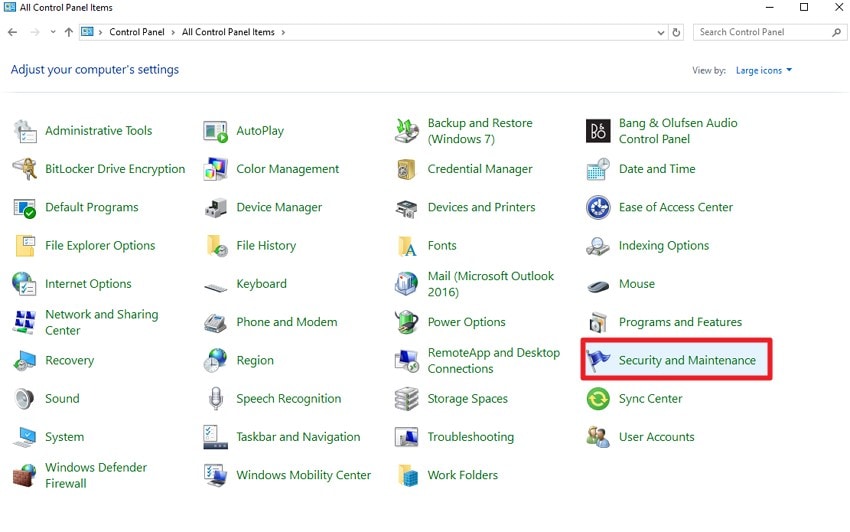
User Account Control can prevent applications from making changes to system folders. Temporarily disabling UAC removes these restrictions, giving installers more freedom to execute necessary operations. This is useful when encountering the error that the installer has insufficient privileges to access this directory, as it allows the setup to proceed without constant administrative prompts. Read the steps provided below to perform this fix:
- Open the “Control Panel” and find the “Security and Maintenance” option, then click to open it.
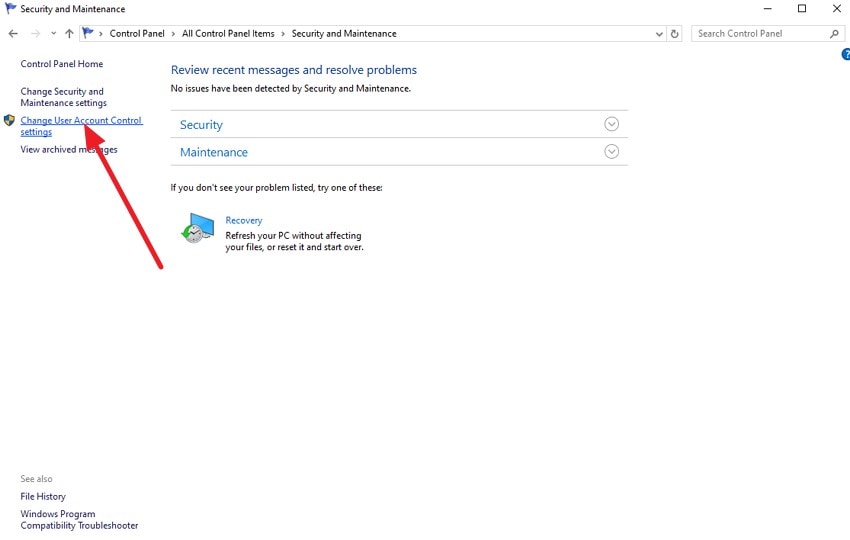
- In the next window, navigate to the left-side panel and select “Change User Account Control Settings.”
- On the settings screen, move the slider downward to reduce the level of UAC restrictions.
Solution 6. Temporarily Disable Antivirus and Firewall
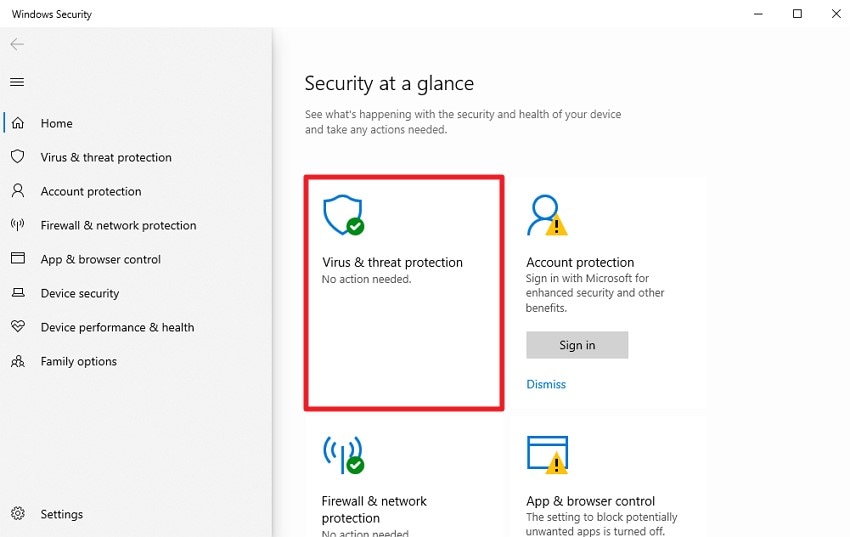
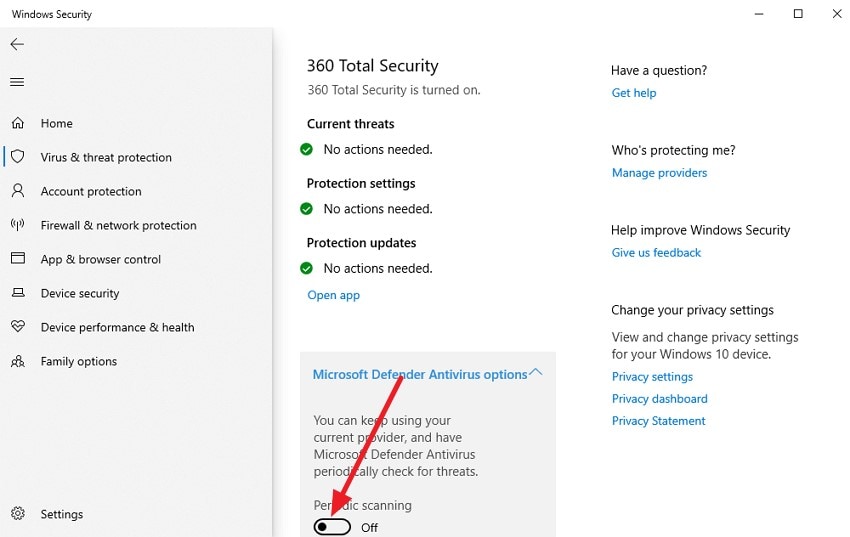
Security software can sometimes block legitimate installers, mistaking them for threats. Temporarily turning off antivirus or firewall protection allows the setup program to run uninterrupted. This method helps when “the installer has insufficient privileges to access this directory,” which appears repeatedly. Once done, the installer can now access the required folders without interference. To learn how to disable antivirus software, read the steps mentioned below:
- Begin by accessing the “Windows Security” app and selecting the “Virus & Network Protection” option by clicking on it.
- Next, turn the toggle off for the “Microsoft Defender Antivirus” option to disable the antivirus successfully.
Solution 7. Change Installation Path to Another Folder or Drive
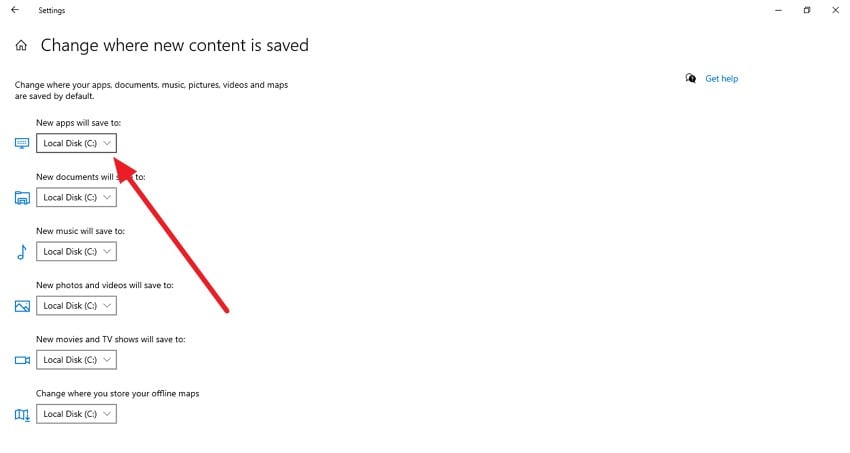
Switching the installation location to a different folder or drive avoids permission restrictions on protected directories. Installing in a user-accessible location often bypasses security blocks that cause the error. By doing this, users prevent “the installer has insufficient privileges to access this directory” error. This enables the installer to successfully place files where they can operate freely. To learn how to change the installation path to another driver, follow the steps mentioned next:
- Access the “System Settings” and enable the “Storage” section from the left. Now scroll the page and choose the “Change Where the New Content is Saved” option.
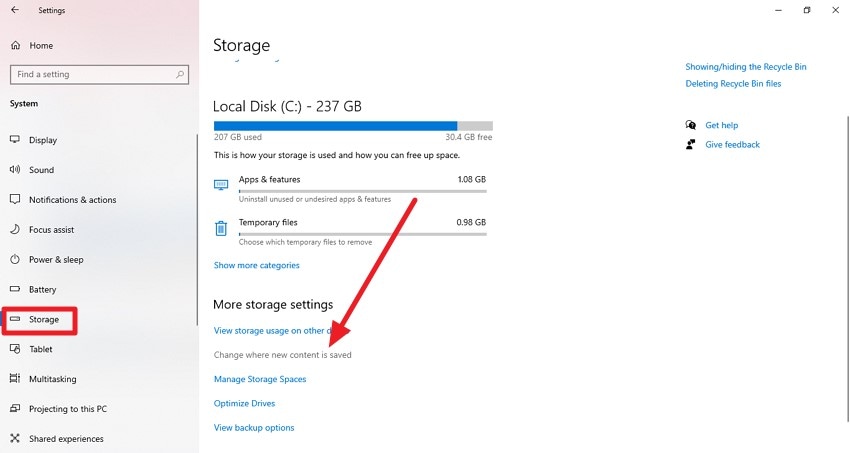
- In the following interface, select the drive using the drop-down menu from the options provided.
Solution 8. Perform a Clean Boot to Avoid Conflicts
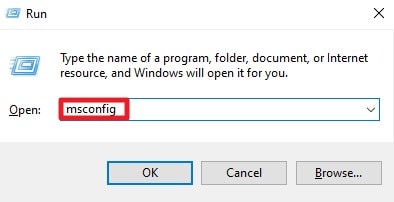
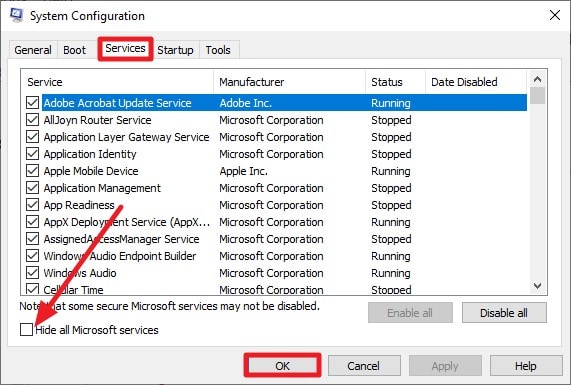
Starting Windows with only essential services running reduces software conflicts that may interrupt installation. A clean boot ensures no background applications block access to critical folders. This method resolves issues like “the installer has insufficient privileges to access this directory.” It provides a controlled environment for the installer to complete without unexpected interference. Read the steps provided next to learn how to perform a clean boot:
- Begin by pressing Win + R, typing “msconfig,” and pressing Enter.
- In the “System Configuration” window, switch to the “Services” tab. Check the box labeled “Hide all Microsoft services” and press “OK.” Finally, restart your system for a clean startup with new configurations.
Solution 9. Uninstall Older or Conflicting Versions
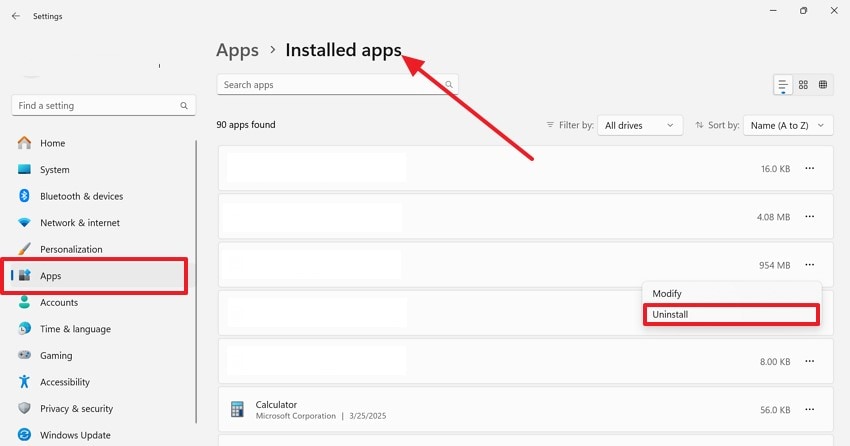
Existing installations or outdated software can block new setups from completing properly. Removing older versions frees up resources and permissions, allowing the new installer to function correctly. This method addresses the common error that “the installer has insufficient privileges to access this directory.” It ensures the fresh installation can proceed smoothly without conflicts. Follow the instructions to learn how to uninstall the older installer versions:
Instructions. Start by opening your device settings and selecting the “Apps” section from the left panel. Then, locate the application under “Installed Apps”, right-click it, and choose the “Uninstall” option to remove it from your system.
Solution 10. Repair System Files with SFC and DISM
Corrupted or missing system files often prevent installers from accessing required directories. Running SFC and DISM scans repairs these files, restoring Windows integrity. This method directly resolves issues like “the installer has insufficient privileges to access this directory.” It allows installation processes to complete successfully without system-level permission errors. Here is how you can repair system files:
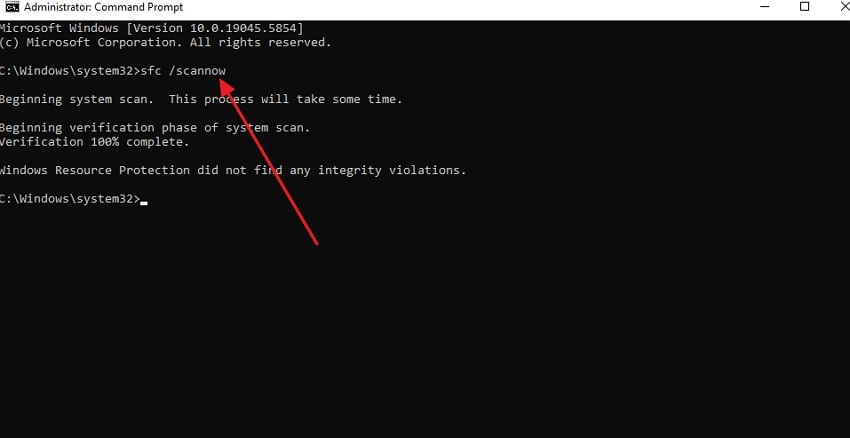
SFC Scan
Instructions. Launch the Command Prompt and type “sfc /scannow”, then press Enter. The System File Checker will scan your system for missing or corrupted files and automatically repair any issues it detects.
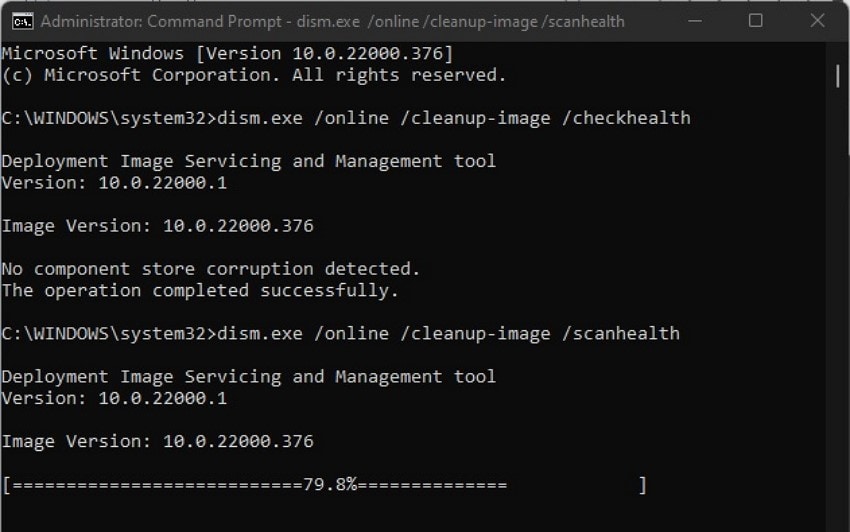
DISM
Instructions. In the Command Prompt, type “dism.exe /online /cleanup-image /healthcheck” and press Enter to check system health. Next, enter “dism.exe /online /cleanup-image /scanhealth” and press Enter to perform a more thorough scan for repairing files.
Part 4. 5 Best Practices to Prevent Future Installer Errors
To avoid running into installation issues repeatedly, it’s important to follow preventive measures. When the installer has insufficient privileges to access this directory, adopting these best practices can help ensure smoother software installations:
- Always Run Installers as Administrator: Granting elevated permissions from the start avoids many access-related errors. This ensures the installer can write files to protected directories without interruption.
- Keep System and Software Updated: Regular updates patch security vulnerabilities and improve compatibility. Updated systems reduce the chances of installation failures and other errors.
- Maintain Proper Folder Permissions: Assigning correct permissions to frequently used installation folders prevents unauthorized access blocks. Users can avoid repeated errors by having full read/write access to target directories.
- Monitor Antivirus and Firewall Settings: Configuring security software to trust legitimate installers helps prevent unnecessary blocks. Temporarily adjusting or adding exceptions allows smoother installation processes.
- Perform Routine Disk Maintenance: Check for disk errors and maintain sufficient free space regularly. Healthy drives ensure installers can access directories without interruptions.
Pro Tip: Recoverit: Recover Lost Data If Installer Errors Cause File Issues
When installation errors prevent programs from completing, important files may become corrupted or lost. Recoverit helps retrieve these lost files safely, ensuring your work or installation resources are restored. It supports recovery from system crashes, accidental deletions, or interrupted setup. This provides a reliable way to regain access to documents, media, and installation files that might otherwise be permanently inaccessible due to installer issues.
In addition to restoring lost files, Recoverit offers a user-friendly interface that guides you through the recovery process. It quickly scans local drives, external storage, and other directories to locate missing files. Even if an installer error interrupts file creation or modification, Recoverit ensures you can recover essential files efficiently and continue your work without the frustration of permanent data loss.
Key Features Offered by Recoverit
- Preview Before Saving: Recoverit allows users to preview files before recovery, ensuring only needed files are restored.
- Deep Scan Utility: Its deep scan utility thoroughly searches drives to recover even hidden or corrupted files.
- Multiple File Formats Support: The tool supports a wide range of file formats, including documents, videos, images, and more.
Steps For Recovering Lost or Corrupted Files Using Recoverit
The installer has insufficient privileges to access this directory, which can sometimes lead to file loss, but Recoverit makes recovery simple. Here is how you can use the tool:
- Select the Location
Launch Recoverit on your computer and choose the drive or folder where the lost or corrupted files were located. The tool will immediately start scanning the selected location, and you can pause or stop the process anytime you wish.
- Pick Files to Recover
Once the scanning completes, a list of recoverable files will be displayed. Navigate through the folders, select the files you want to retrieve, and click the “Recover” button to continue.
- Preview and Finalize Recovery
After recovery, use the preview feature to verify the files’ contents and quality. When satisfied, click “Recover” again to save the files safely to a secure folder or drive.
Conclusion
All in all, this article provided a complete guide on how to resolve “The installer has insufficient privileges to access this directory” error. It discussed various solutions that are easy to apply and effective. However, if you encounter file loss or corruption, you can use tools like Recoverit to get them back. This AI-powered data recovery tool provides support for various types of device storage.
FAQ
1. Why does Windows show “the installer has insufficient privileges to access this directory”?
This error occurs when the installer cannot access protected system folders due to permission restrictions. Running the installer without administrative rights or encountering UAC blocks often triggers this message.2. Can I fix the installer error without changing system settings?
Yes, sometimes simply running the installer as an administrator or selecting a different installation folder resolves the issue. However, persistent errors may require adjusting folder permissions or temporarily disabling security software.3. What should I do if the installer error causes file loss?
You can use Recoverit to safely recover lost or corrupted files. It scans your drives and restores important documents, images, and installation files efficiently.4. Is there a safe way to preview files before recovery after installer issues?
Yes, Recoverit includes a preview feature that lets you check files before restoring them. This ensures only the needed files are recovered and saved to your system.


