

 TL;DR:
To escape a PS5 Safe Mode loop, disconnect all external devices and progressively attempt non-destructive software repairs like rebuilding the database or updating the firmware via USB before resorting to a complete system wipe.
● Access Safe Mode by holding the console's power button for about 7 seconds until a second beep sounds, then select "Clear Cache and Rebuild Database" or "Restore Default Settings" to resolve internal file inconsistencies without deleting your saved games.
● If standard boot fails due to damaged system files, download the latest firmware from the official PlayStation website to a USB drive, connect it to the console, and select "Update System Software" to overwrite the corrupted components.
● Select the "Reset PS5" (Initialization) option strictly as a last resort for severe system failures, as this process completely erases all user data and restores the console to its factory default conditions.
Ask AI for a summary
 ChatGPT
 Perplexity
 Gemini
 Claude
 Grok
Grok
When your PS5 is stuck in safe Mode and refuses to return to normal, it can interrupt game nights, updates, and downloads in seconds. Many players face this unexpected screen without warning. In this guide, you'll learn clear, practical steps to move past Safe Mode and get your PlayStation 5 running smoothly again.
Try Recoverit to Perform PS5 Data Recovery
 Security Verified. 3,591,664 people have downloaded it.
In this article
-
- Restart PS5 Normally From Safe Mode Menu
- Disconnect All External Devices
- Check Power Supply and HDMI Connection
- Rebuild PS5 Database From Safe Mode
- Update PS5 System Software via USB
- Restore PS5 Default Settings
- Initialize PS5 (Factory Reset) As Last Resort
- Test Hardware If Black Screen Or Freezing Persists

Part 1. What PS5 Safe Mode Is and Why It Happens
PS5 Safe Mode is a diagnostic startup environment that loads only essential system firmware components instead of the full operating system. When in Safe Mode, the PS5 displays six technical options. The console will not boot into the standard home interface, downloads and updates pause, and certain features like multiplayer or media playback become inaccessible. These indicators confirm that the system has restricted operations to prioritize repair, maintenance, and safe troubleshooting.
Why It Happens
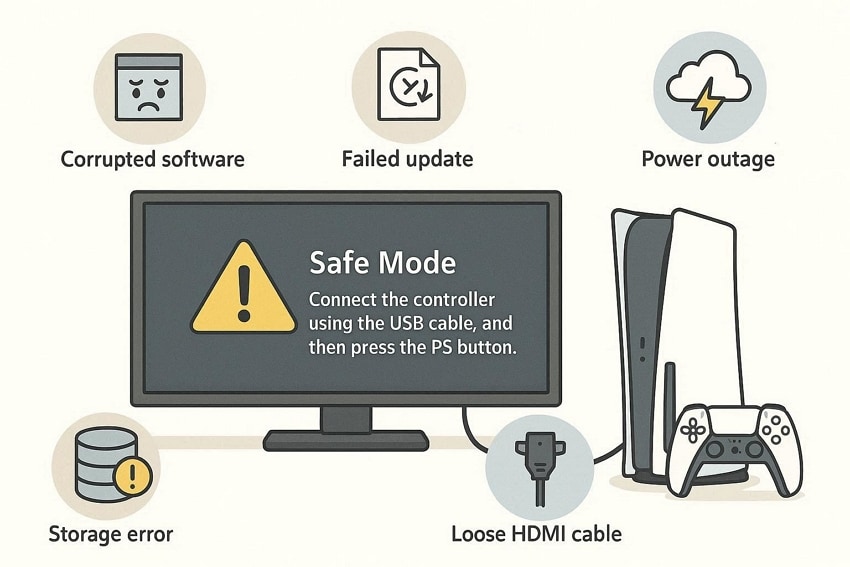
Shifting focus to troubleshooting, understanding why your PlayStation 5 is stuck in Safe Mode is essential before applying fixes. Mentioned below are some of the reasons why this happens:
- Corrupted System Software: Interrupted updates or sudden shutdowns can damage system files. This forces the PS5 to boot into Safe Mode to prevent further errors.
- Failed System Update: An incomplete or failed firmware update may stop the console from starting properly. Safe Mode appears so the update can be retried or repaired.
- Improper Shutdown: Power outages or unplugging the console abruptly can corrupt data. The system enters Safe Mode to check and repair storage integrity.
- Hard Drive or SSD Issues: Internal storage errors can disrupt the boot process. The console uses Safe Mode to rebuild the database or repair storage problems.
- Loose Power or HDMI Connections: Faulty cables may cause startup detection issues. The system may default to Safe Mode when normal boot signals fail.
Part 2. Step-By-Step Guide [Fix PS5 Stuck In Safe Mode With These Easy Steps]
Many PS5 users encounter the frustrating issue of their console getting stuck in Safe Mode, preventing normal operation. Understanding the step-by-step process to fix this ensures the system can boot correctly. Follow these different solutions mentioned below to resolve the issue effortlessly:
1. Restart PS5 Normally From Safe Mode Menu
Selecting the "Restart System" option in Safe Mode triggers a standard boot sequence, reinitializing firmware processes and controller interfaces. This action allows the operating system to load fully, restoring all functions such as menu navigation, game access, and system services. For a get PS5 out of safe mode scenario, this procedure resets diagnostic flags and resumes normal console operations without altering saved data.
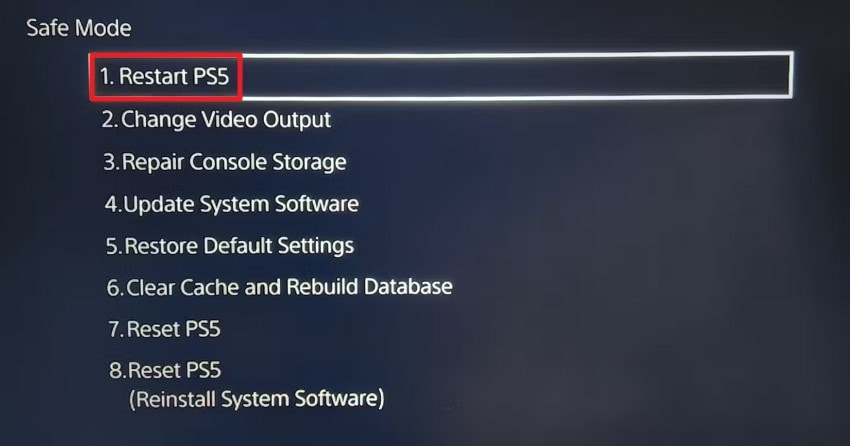
Instructions. To restart your PS5 normally from Safe Mode, connect your controller via USB, press the PS button, select the first option "Restart PS5," and confirm. This action exits Safe Mode and triggers a normal system reboot.
2. Disconnect All External Devices
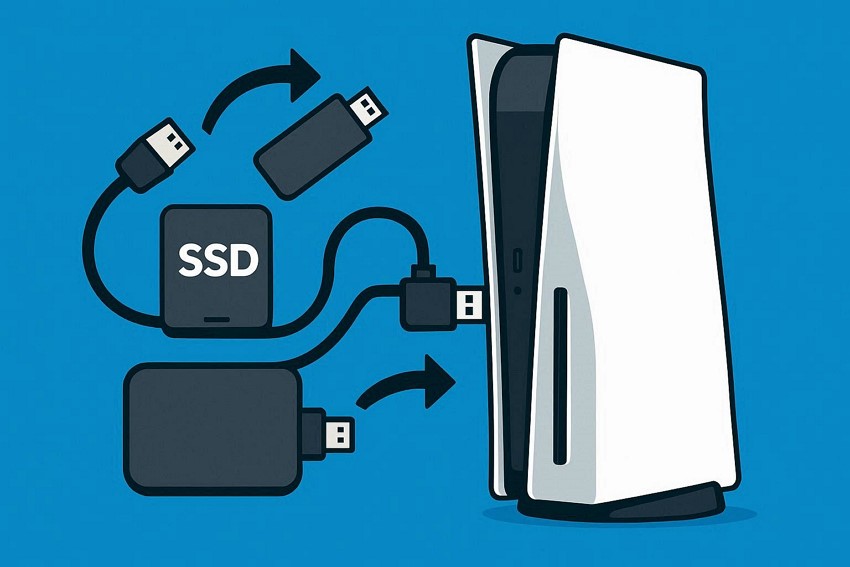
Removing USB drives, external SSDs, and other peripherals isolates the PS5's internal storage and system components. This ensures that only the console's core hardware interacts with the firmware during boot. In a PS5 stuck in safe mode state, disconnecting external devices enables the system to complete Safe Mode recovery operations, including database rebuilds, firmware updates, and default settings restoration, without interference.
3. Check Power Supply and HDMI Connection
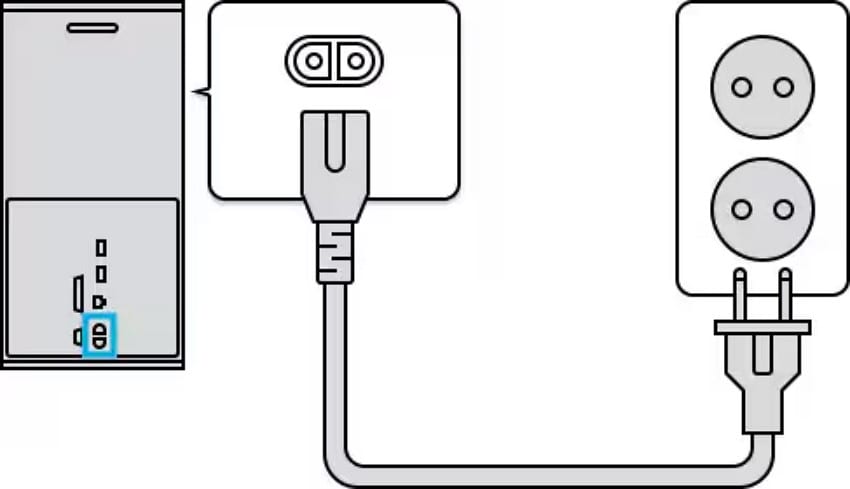
Verifying stable power and HDMI connections ensures uninterrupted communication between the PS5 and its display during Safe Mode operations. Proper voltage delivery and a secure HDMI handshake allow the console to execute boot routines, detect the display correctly, and load system menus. This step is critical when attempting to boot the PS5 in safe Mode and return the system to full operational status.
4. Rebuild PS5 Database From Safe Mode
The "Rebuild Database" option reorganizes internal storage, scans for file inconsistencies, and corrects corrupted entries. This process maintains user data while aligning system files with firmware protocols, restoring operational integrity. For instances where the PS5 safe mode is not working, database rebuilding ensures that the operating system can load without conflicts, enabling the console to exit Safe Mode. To learn how to rebuild the database in the Safe Mode of PS5, read the steps provided next:
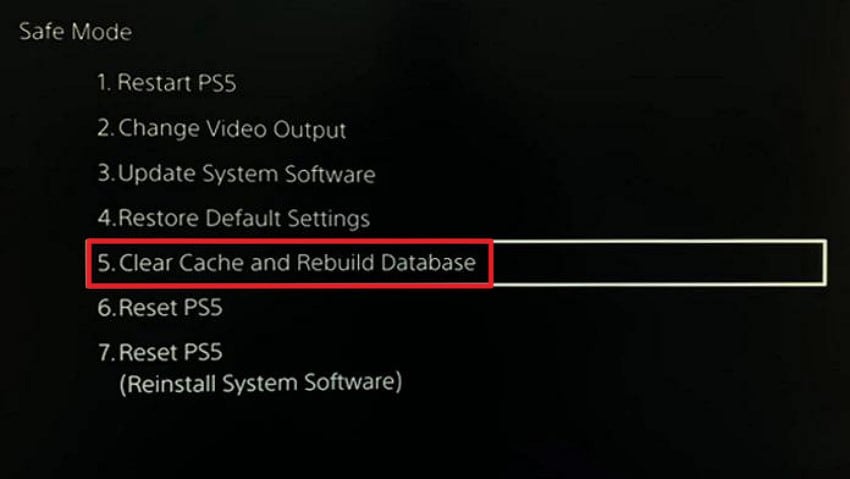
- To rebuild your PS5 database from Safe Mode, turn off the console, then hold the power button for about 7 seconds until you hear a second beep to enter Safe Mode. Connect your controller via USB, select "Clear Cache and Rebuild Database."
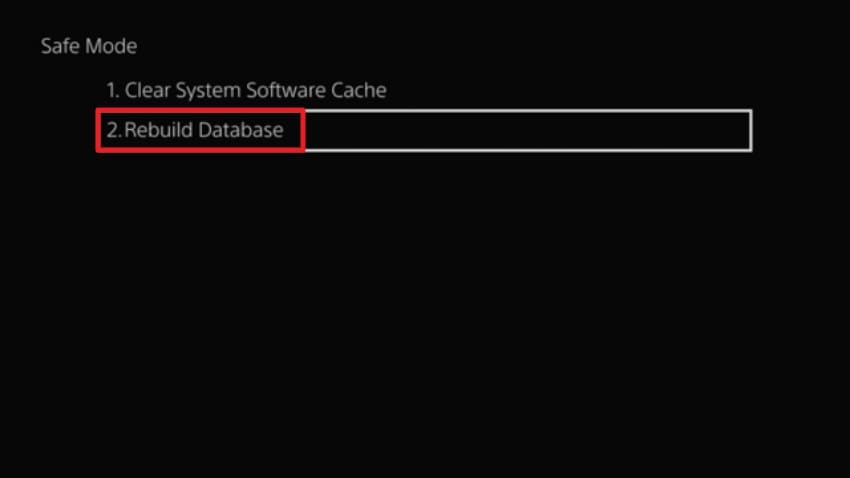
- Now, select the "Rebuild Database" option and wait for a few hours to let the system refresh and build a database for the new startup.
5. Update PS5 System Software via USB
Using a USB drive to reinstall the latest firmware applies missing or corrupted system components directly to the console. This method effectively allows the user to get the PS5 out of a safe mode situation by refreshing system software while preserving core configurations required for standard boot. Read the steps mentioned below to learn how to update the system of your PS5 using a USB drive:
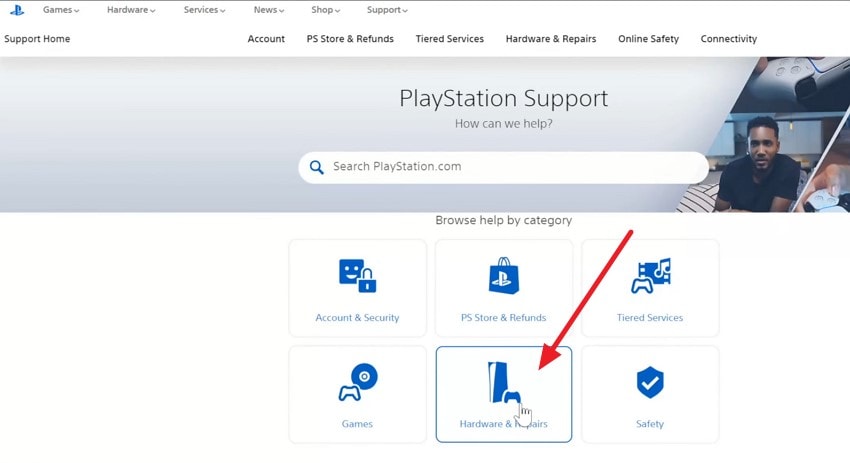
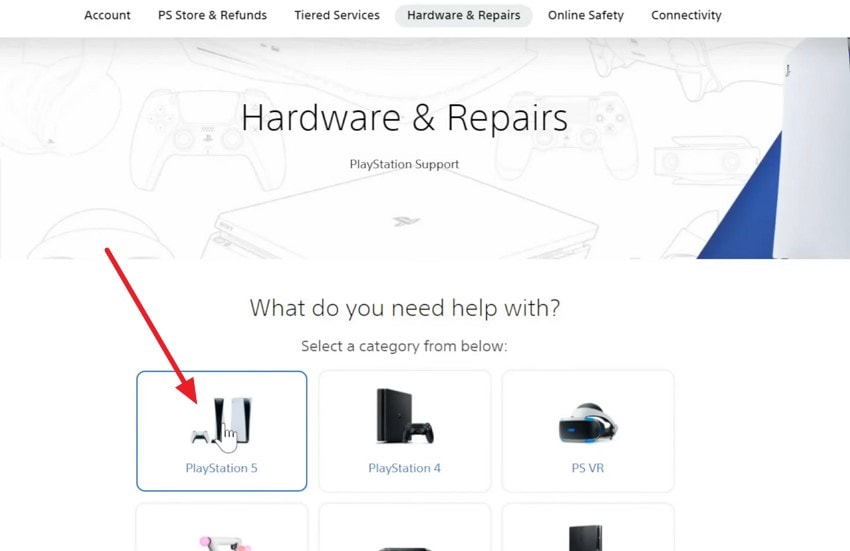
- Begin by heading to the official website of PlayStation and choosing the "Hardware & Repairs" option.
- Next, locate the "PlayStation 5" option and click on it.
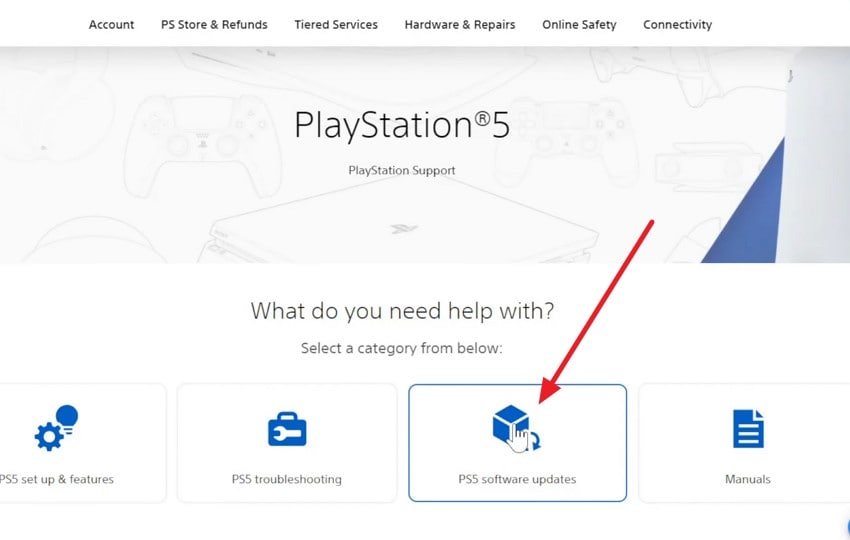
- In the following interface, click the "PS5 Software Updates" option.
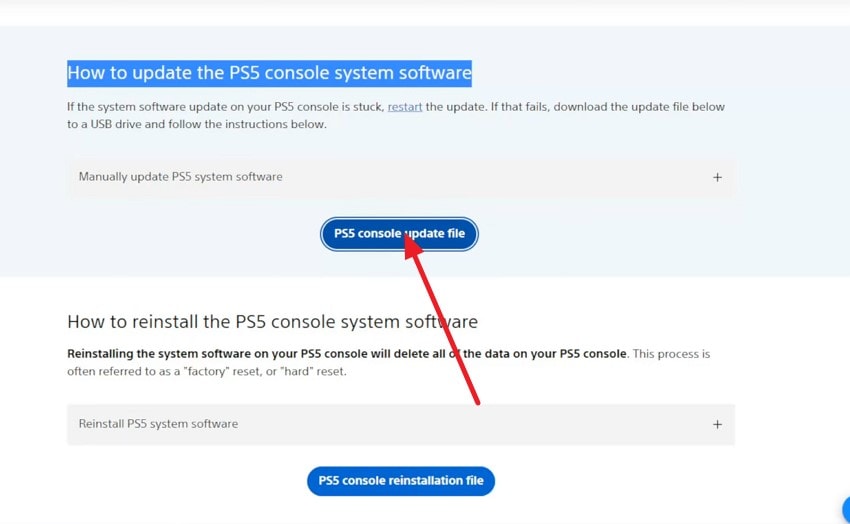
- Now press the "PS5 Console Update File" button to successfully download the update to your system.
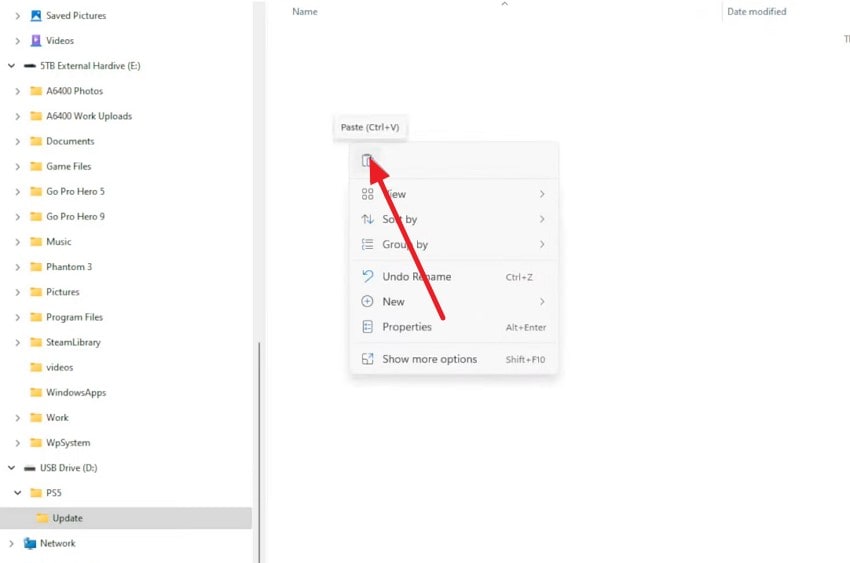
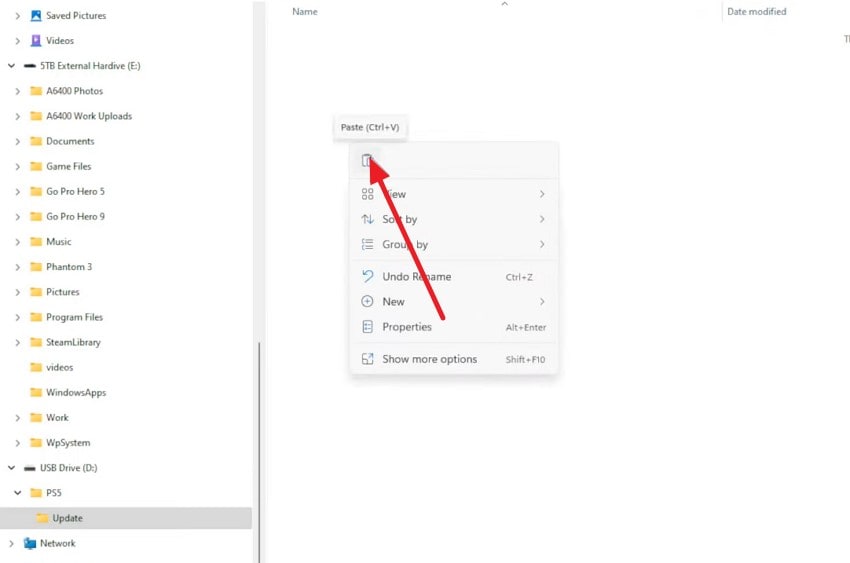
- Moving forward, connect your USB Drive to your computer and copy and paste the file to the drive.
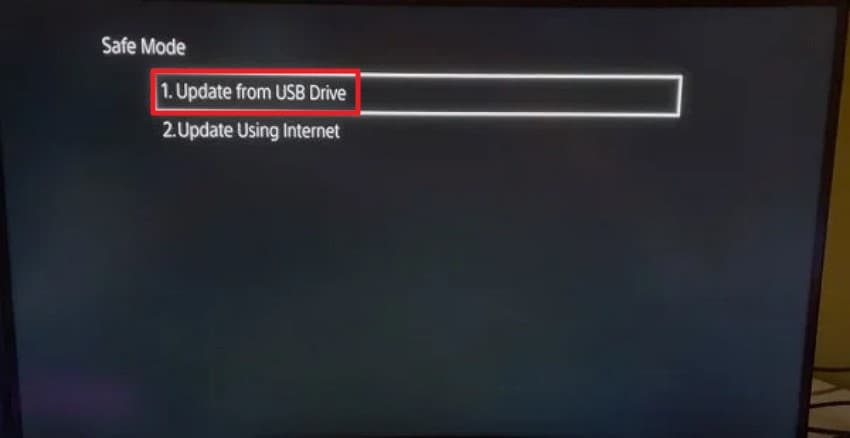
- Once done, attach the USB to the PlayStation and enter Safe Mode. Here, select the "Update System Software" option to proceed.
- Choose the "Update From USB Drive" option to let the system begin copying the update file to the console.
6. Restore PS5 Default Settings
Restoring default settings resets video, network, and system parameters to factory configurations without deleting saved data. The firmware reinitializes according to standard specifications, allowing all connected hardware and controllers to function normally. In a PS5 stuck in safe mode scenario, this adjustment ensures the console can resume standard operations with fully recognized settings. Here is how you can perform this fix on your console:
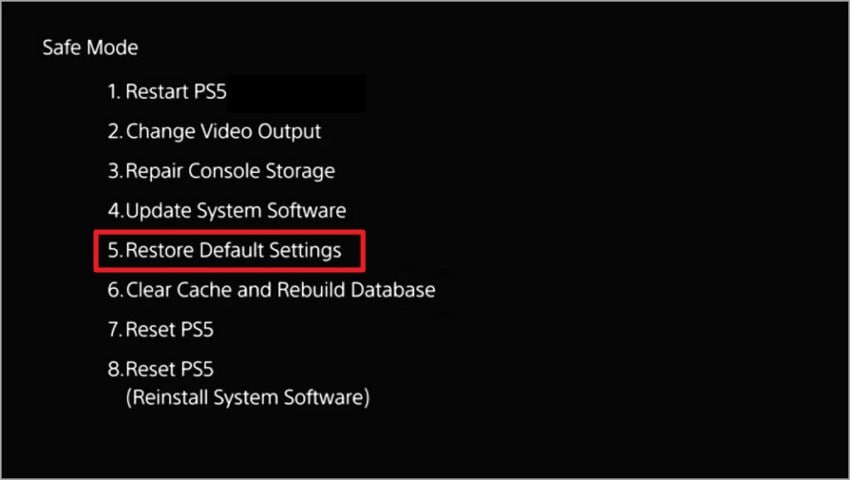
Instructions. Once you enter Safe Mode, select "Restore Default Settings" from the list of options. Confirm the selection and allow the system to reset configuration settings.
7. Initialize PS5 (Factory Reset) As Last Resort
A full factory reset reinstalls the system software and erases all user data, creating a clean firmware environment. This procedure removes residual errors or corrupted files and restores operational parameters. When attempting to boot PS5 in safe mode, initialization guarantees a complete return to default system conditions, enabling the console to operate normally without triggering Safe Mode. Perform the fix by following the instructions below:
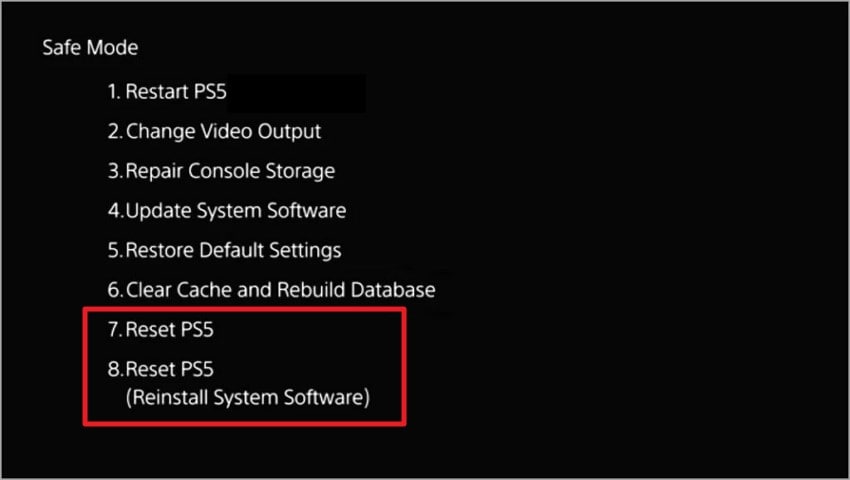
Instructions. When you are stuck in Safe Mode, go through the options provided on the screen and click on the "Reset PS5" option. This will instantly begin the system reinstallation settings and remove all the previous data.
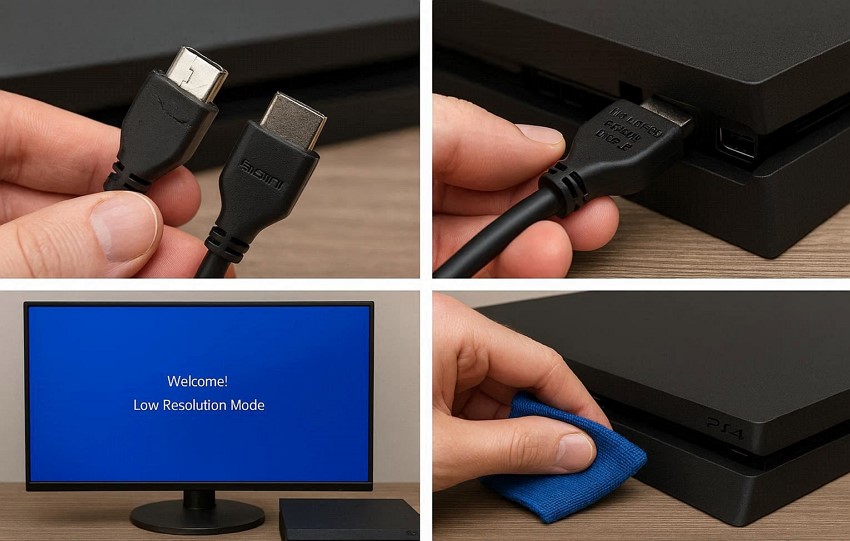
8. Test Hardware If Black Screen Or Freezing Persists
Technical evaluation of internal components such as SSD, RAM, and power circuitry confirms proper functionality. Diagnosing hardware ensures that Safe Mode recovery routines, firmware updates, and database operations execute correctly. In a PS5 safe mode condition with freezing or display issues, hardware testing restores reliable performance, allowing the console to boot fully into the operating system once defects are resolved. You can check the hardware by performing the following fixes:
- Inspect the HDMI cable for damage and try a different high-speed HDMI cable. Also, switch HDMI ports on your TV to rule out display port issues.
- Connect the console to a different TV or monitor. If the issue disappears, the original display may be the cause.
- Boot into low-resolution mode by holding the Power and Eject buttons until the second beep. This resets display output settings without affecting saved data.
- Ensure proper ventilation and clean dust from vents. Overheating can cause freezing or sudden black screens.
Pro Tip: Recover Lost Game Data From PS5 Backup or USB Drives
Recoverit provides a comprehensive solution to recover lost game data from PS5 backup or USB drives, effectively scanning both internal storage and connected external devices for deleted or corrupted files. The software identifies game saves, configuration files, and related data, allowing users to preview items before recovery. It also offers a free option to recover up to 500 MB, letting users test its functionality without commitment.
The tool includes multiple recovery modes, including quick scan and deep scan, which handle both minor deletions and severely damaged backups. File integrity is preserved during restoration, ensuring that recovered game data remains playable. Its selective recovery feature lets users choose specific files or entire folders from PS5 stuck in Safe Mode. With Recoverit, restoring PS5 game data from backups or USB drives becomes fast, accurate, and risk-free.
Key Features Offered by Recoverit
- Batch Recovery: Recoverit enables batch recovery, allowing multiple deleted or lost files to be restored simultaneously, saving time and improving efficiency.
- Numerous Device Support: The software supports recovery from various devices, including internal drives, external HDDs, SSDs, USB flash drives, and memory cards.
- Advanced Recovery Mode: Its advanced recovery mode performs deep scans to locate severely lost, formatted, or corrupted files with higher precision.
Comprehensive Steps to Recover Game Files using Recoverit
Having learned about this data recovery tool in detail, let us have a look at how to use it:
1. Connect the USB Drive and Launch Recoverit
Begin by inserting the USB drive containing your PS5 backup into the computer. Upon opening Recoverit, the interface will display the USB drive as an available source for scanning, ready to analyze its contents.

2. Scan and Identify Recoverable Files
Once the scan finishes, Recoverit presents all retrievable files from the USB or PS5 backup. Select the files that you want to recover by pressing the "Recover" button.

3. Preview and Restore Game Data
When the files are recovered, preview them within the tool's interface and press the "Recover" button to save them successfully to your device.

Part 3. How To Maintain PS5 To Avoid Safe Mode Problems -6 Tips
As frustrating as encountering PS5 Safe Mode can be, regular maintenance of your console helps prevent recurring issues. The following tips focus on practical, technical steps to maintain system stability and reliability.
- Regular Firmware Updates: Keep the PS5 system software up to date to ensure compatibility with games, peripherals, and online services. Updates often include stability fixes that reduce Safe Mode triggers.
- Proper Shutdown Practices: Always power down the console completely instead of unplugging or using forced shutdowns. Controlled shutdowns prevent corrupted files and maintain database integrity.
- Stable Power Supply: Use a consistent, surge-protected power source to avoid voltage fluctuations that can disrupt firmware initialization and trigger Safe Mode.
- Check and Clean External Devices: Periodically inspect USB drives, external SSDs, and accessories for damage or improper connections, which may interfere with normal boot routines.
- Rebuild Database Periodically: Running the "Rebuild Database" option at intervals optimizes storage, reorganizes system files, and maintains firmware alignment, reducing the likelihood of Safe Mode entries.
- Monitor System Temperature: Ensure proper ventilation and avoid overheating. Excessive heat can affect hardware components and force the console into Safe Mode to prevent damage.
Conclusion
To sum it up, this article provided a complete guide to resolving a PS5 stuck in Safe Mode, covering technical fixes, Safe Mode options, and preventive maintenance tips. For users looking to recover lost game data during troubleshooting, Recoverit offers an efficient solution, allowing recovery from PS5 backups or USB drives. Its free 500 MB option ensures essential files can be restored quickly and safely.
FAQ
-
1. Why is my PS5 stuck in Safe Mode?
A PS5 can enter Safe Mode due to firmware initialization issues, corrupted database files, or temporary system glitches. Safe Mode limits functionality, allowing recovery, updates, or database rebuilds without loading the full operating system. -
2. Can I get my PS5 out of Safe Mode without losing data?
Yes, options like "Restart System," "Rebuild Database," or "Restore Default Settings" allow the console to return to normal operation without deleting saved games or user files. -
3. How can I recover lost PS5 game data from USB drives?
Recoverit can scan PS5 backups or connected USB drives, identify deleted or corrupted game files, and restore them safely. It supports previewing files and allows free recovery of up to 500 MB before full restoration. -
4. What should I do if my downloaded files are accidentally deleted?
If important files are lost, Recoverit can help restore them quickly. It scans your drive deeply and allows you to preview files before safe recovery.


