
 TL;DR:
Upgrading to Windows 11 version 25H2 is recommended for users with supported hardware seeking better system stability, as this September 30, 2025 release is a minor enablement update focused on bug fixes rather than visual redesigns.
● The installation process is significantly faster for users upgrading directly from version 24H2, delivering smoother File Explorer handling and reduced background crashes without altering the existing user interface.
● Hardware requirements remain unchanged, meaning older unsupported processors will not experience raw speed improvements and new AI capabilities are strictly limited to Copilot+ compatible devices.
● Because unexpected restarts or power cuts during the upgrade process can cause data loss, users missing files post-installation can utilize Wondershare Recoverit to perform non-destructive drive scans and restore up to 500 MB of data for free.
Ask AI for a summary
 ChatGPT
 Perplexity
 Gemini
 Claude
 Grok
Grok
Windows updates often promise improvements, but many users worry about the speed changes they may cause. The Windows 11 version 25H2 update brings questions about features and value. Some people feel excited while others hesitate before installing another big update. Understanding what really changes helps users decide without pressure today.
This Windows 11 version 25H2 review describes whether the upgrade can enhance everyday work or cause new issues. This is aimed at enabling the readers to make sound choices in the wake of needs rather than hype. In the end, you will be assured of whether to upgrade or wait.
Try Recoverit to Perform Windows 11 Data Recovery
 Security Verified. 3,591,664 people have downloaded it.
In this article

Part 1. What Is Windows 11 Version 25H2?
Windows 11 version 25H2 is a major update for Microsoft's Windows system. It continues the yearly update cycle and builds on the earlier 24H2 version. The majority of the improvements are already enabled with a small enablement update. This new release aims to maintain Windows to be safe, consistent, and hassle-free in everyday use.
Version 25H2 was published by Microsoft on September 30, 2025. In addition, it is also referred to as the Windows 11 2025 Update. The deployment is done in phases, beginning with the users who update. The rollout happens in stages, starting with users who check updates. Later, Windows Update offers it to more supported devices worldwide.
Release Timeline and Rollout Details
The table below explains the release timing and rollout process:
| Milestone | Date/Status |
|---|---|
| First Insider previews | June-August 2025 |
| Official public release | September 30, 2025 |
| Enablement via Windows Update | Gradual rollout through late 2025 |
| WSUS availability | October 14, 2025 |
| End of servicing (Expected) | 2027, varies by edition |
In this Windows 11 version 25H2 review, the update focuses more on stability than features. Most users will notice smoother performance and fixes instead of major visual changes. Microsoft designed this update to improve reliability rather than introduce big new tools.
Part 2. Windows 11 25H2 Reviewed: What's New and What Works
Windows 11 25H2 does not feel like a big visual upgrade. Instead, it improves how existing features work in daily use. Most changes focus on stability, performance, and smoother system behavior. Many features already existed earlier, but now feel more complete and reliable. This makes users ask one simple question: Is it worth updating to Windows 11 25H2?
New Features and Enhancements in 25H2
Have a look at the table below to explore new features and enhancements in 25H2:
| Features | What Changes in Windows 11 25H2 |
|---|---|
| Performance | The system feels more stable during daily tasks and multitasking. |
| File Explorer | File handling feels faster with improved built-in tools and actions. |
| AI Features | Some AI options now work automatically on supported devices. |
| Settings App | Settings pages feel more organized and easier to navigate. |
| Network Support | Modern Wi-Fi and driver updates help supported hardware perform better. |
| System Stability | Small bugs and background issues are fixed quietly over time. |
All in all, Windows 11 25H2 is more of a refinement update. It emphasizes the upgrading of what is already in use by the users rather than the addition of the glitzy.
Part 3. Windows 11 25H2 Review: Pros, Cons, and Upgrade Advice
Before deciding, many users wonder, "Should I upgrade to Windows 11 25H2" now. This part looks at real usage, speed, compatibility, and clear upgrade trade-offs. The goal is to help you decide based on experience, not marketing promises. Each of the following sections explains what works well and what still needs improvement:
User Experience and Interface Feedback
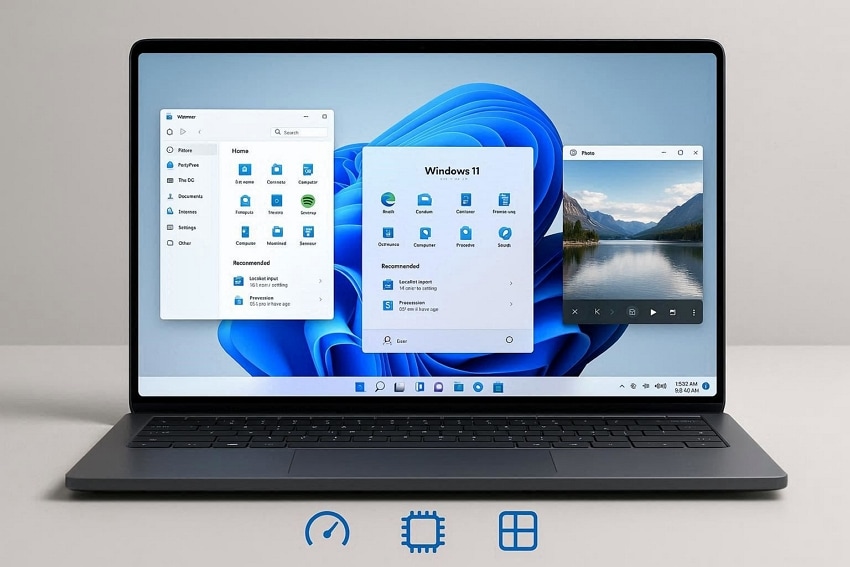
Windows 11 25H2 feels familiar rather than completely new for most users. The interface stays clean, with small refinements improving daily navigation comfort. Menus respond more smoothly, and Settings feel easier to browse. There are no big design changes, which helps users avoid relearning workflows. Thus, the overall experience feels calmer, polished, and more consistent across sessions.
Performance Benchmarks Compared To Previous Versions
Tests of performance indicate that Windows 11 25H2 emphasizes stability gains, rather than speed gains. The startup times are the same, and the background tasks are less aggressive. Multitasking is also easier with supported hardware, particularly when the workload is high. Memory handling appears slightly improved compared to earlier versions. Most gains come from reduced glitches rather than noticeable raw performance jumps.
Compatibility With Hardware and Apps
Windows 11 25H2 keeps strong compatibility with existing apps and devices. Most software that worked on earlier versions runs without issues here. Hardware support remains unchanged, so older unsupported devices still face limits. Drivers install smoothly on supported systems, reducing common update conflicts. So, gamers and productivity users should not see major compatibility surprises.
Pros and Cons of Upgrading To 25H2
To decide clearly, compare the following pros and cons carefully:
Part 4. Should You Upgrade to Windows 11 25H2?
Before upgrading, it is good to be aware of the benefits you will get and the problems you may encounter. This section will describe the benefits of upgrading to Windows 11 version 25H2 and also point out issues that may keep some users on hold. By reading this, you will be able to make a clear decision rather than make assumptions.
Benefits of Updating to 25H2
Below are the main benefits of updating to Windows 11 version 25H2:
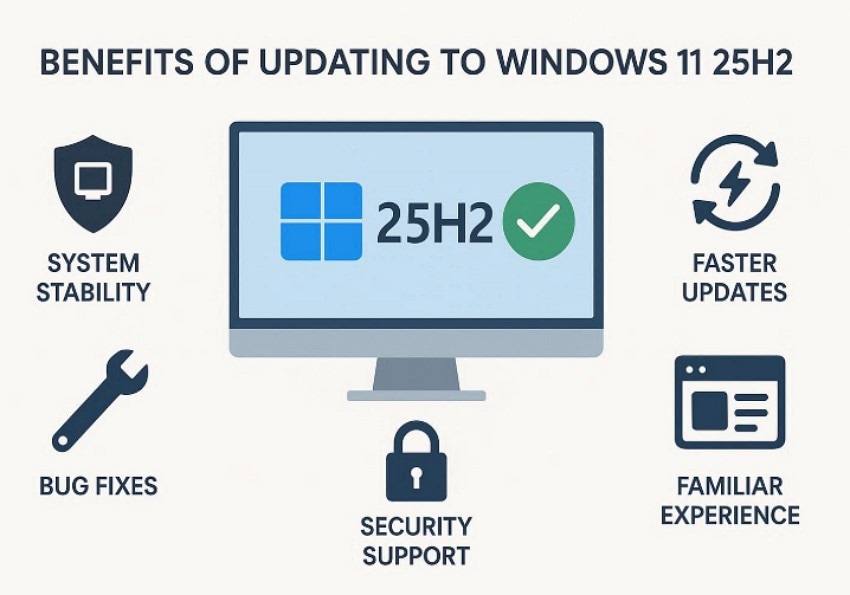
- Improved System Stability: Windows runs more reliably with fewer crashes during everyday tasks and stability. Core features like File Explorer and Settings feel smoother after the upgrade process.
- Faster Update Experience: Updates install faster because Windows activates existing features through enablement packages automatically. This reduces downtime and avoids long restart cycles for users during updates.
- Bug Fix Improvements: Many background bugs have been resolved, improving consistency across daily system operations overall. These fixes quietly enhance reliability without changing how Windows looks visually much.
- Extended Security Support: Security patches continue longer, giving users extended protection against modern threats online. This helps keep systems safer even without noticeable feature changes over time.
- Familiar User Experience: The familiar interface reduces learning time for users upgrading from earlier versions. Most workflows remain unchanged, making the transition easier and less disruptive overall.
Potential Drawbacks and Compatibility Issues
Along with benefits, it is important to consider possible drawbacks before upgrading.
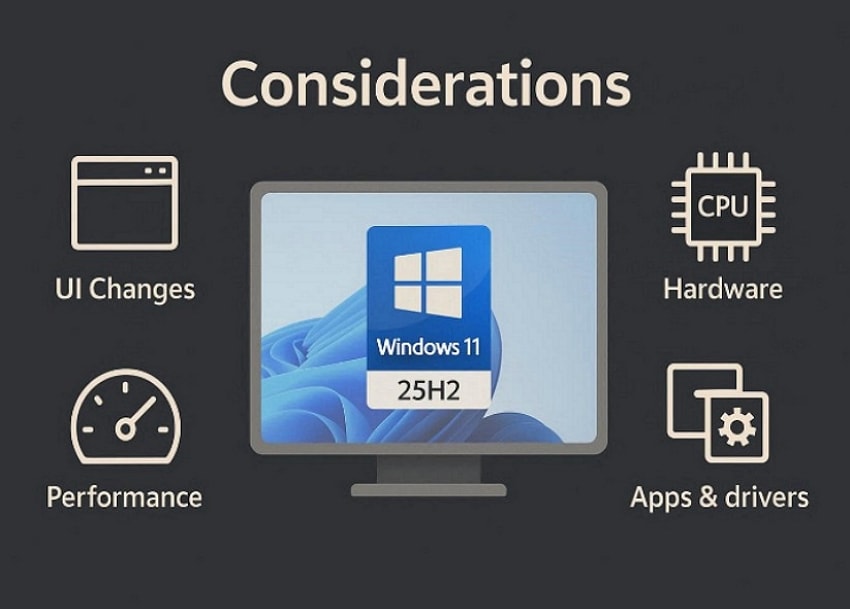
- Minimal Visual Changes: Windows 11 25H2 keeps the same interface layout found in recent versions. Users looking for fresh design updates may not notice visible differences.
- Hardware-Limited AI Features: Some advertised features depend on newer processors with dedicated AI support. Devices without this hardware gain fewer benefits from AI-related improvements.
- Limited Performance Gains: The update focuses on stability rather than increasing raw system speed. Users expecting faster boot times or gaming boosts may see little change.
- App and Driver Updates Needed: Certain professional or legacy apps may require post-upgrade compatibility updates. This may create short adjustment periods for work environments or specialized software.
Getting Windows 11 25H2: Complete Installation Guide
Here are two simple and reliable methods to install Windows 11 version 25H2:
Method 1: From Settings
This method works best for users already receiving updates through Windows Update. It uses built-in tools and keeps the upgrade process simple and safe. No extra downloads are required for eligible devices, so follow the steps below:
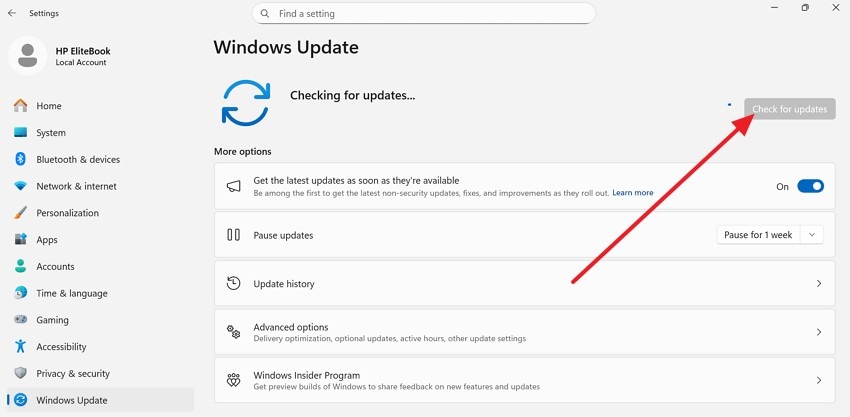
- To start, navigate to the "Settings" and select the "Update & Security" option. After that, click on the "Check for updates" to search for available upgrades.
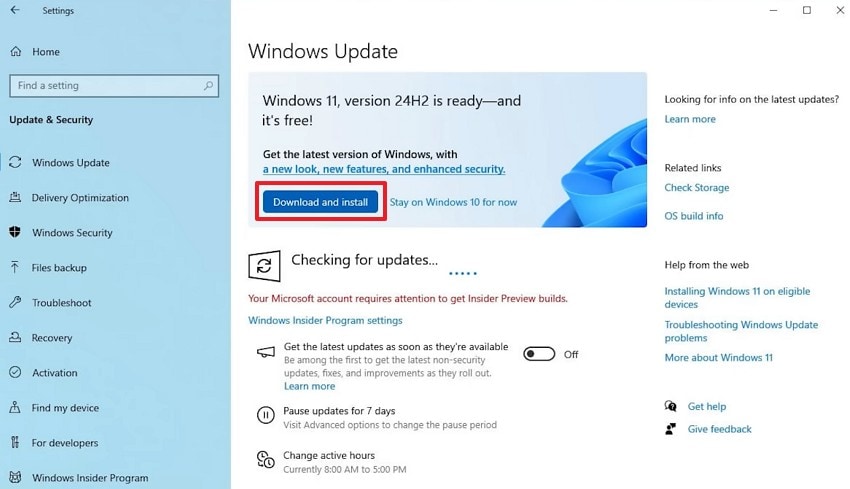
- Next, choose the "Download and Install" button when the update appears. Then, restart your computer when Windows prompts you to finish installation.
Method 2: From the Official Site
When the update does not appear in Settings, this method will help you. It uses Microsoft's Installation Assistant for a direct upgrade. The tool checks compatibility before starting installation, so adhere to the guide below to try this:
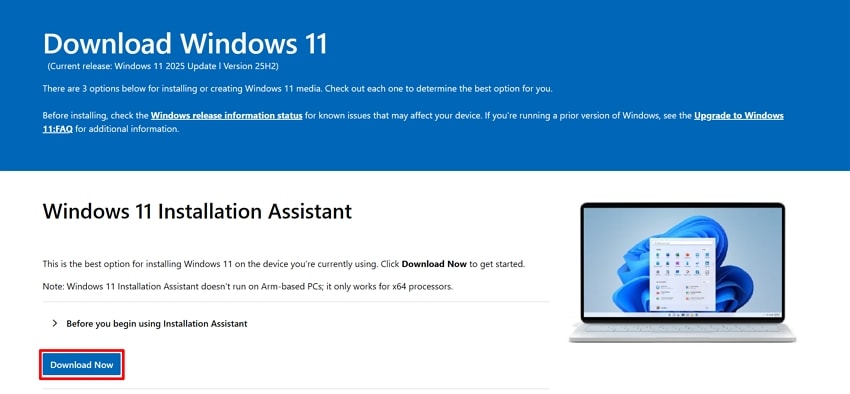
- First, visit the Microsoft Windows 11 download page and under "Windows 11 Installation Assistant." click "Download Now" after confirming the version download.
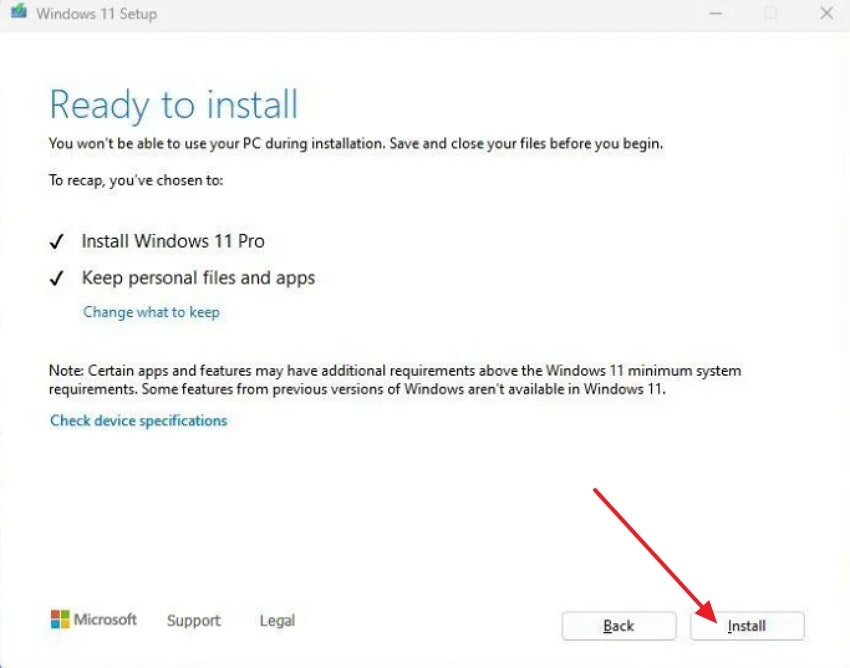
- After that, on the "Ready to install" screen, review options and select "Install." Wait for the installation to complete and restart your PC when prompted.
Pro Tip: Restore Your Lost Data While Upgrading to Windows 11 Version 25H2 With Recoverit
System upgrades can interrupt files during restarts, freezes, or power cuts. Such problems can make files appear missing after an update process. This risk feels higher during a Windows 11 version 25H2 upgrade. People worry when work files, photos, or videos seem to be gone later. A simple recovery option can reduce stress during updates for users.
Thus, Recoverit helps users scan drives to find lost deleted files again. The tool reads storage without changing data during scans on disks. This approach keeps original files safe while users search drives inside. You can have free data recovery of up to 500 MB across Recoverit for starters. Many people use Recoverit during upgrades to protect important files today.
Key Features
- Deep Scanning: Finds files from damaged partitions using advanced scan methods across storage locations.
- File Preview: Lets users preview recoverable files before restoring them to confirm accuracy.
- Wide Support: Supports documents, photos, videos, and audio archives across many storage device types.
Guide to Restore Lost Data While Upgrading to Windows 11 Version 25H2 With Recoverit
Now, adhere to the steps below to recover lost data while upgrading Windows 11 Version 25H2 with Recoverit:
- Select the Storage Location to Initiate Recovery
Upon launching the tool, choose the drive impacted after the upgrade by selecting the "Hard Drives and Location" option form left side panel.
- Scan the Drive for Lost Data
Now, start the scanning process to detect deleted, hidden, or inaccessible files. Here, Recoverit displays results during scanning, allowing early file identification if needed.
- Preview Files and Complete Recovery
Finally, preview identified files to verify content integrity prior to restoring. Press the "Recover" button to store the files that are recovered in a second storage device to prevent data overwriting.
Conclusion
To conclude, Windows 11 version 25H2 brings small but useful improvements focused on stability and reliability. Most users will notice smoother performance instead of big visual changes. This Windows 11 version 25H2 review shows that the update works best for supported systems already running well. If problems appear during upgrading and files seem missing, Recoverit provides a helpful option to scan drives and recover important data
FAQ
1. What does Windows 11 version 25H2 mainly improve?
Windows 11 version 25H2 has the primary positive impact on the stability, performance, and reliability of daily use. It aims at correcting the flaws and not creating significant visual additions for the user.2. Who should consider upgrading to Windows 11 25H2?
Upgrading suits supported devices running Windows 11 version 24H2 without serious problems today. Users with stable systems can wait if the current performance already meets their needs well.3. Are there hardware or app compatibility concerns with 25H2?
Some older hardware may see limited benefits due to unchanged system requirements overall. Apps and drivers usually work, but occasional updates may still be required afterwards.4. What if files seem missing after upgrading to Windows 11 25H2?
Upgrade interruptions can sometimes cause files to appear missing after a system restarts unexpectedly. Recoverit can scan drives and may help restore important data safely during upgrades.


