

 TL;DR:
Upgrading to Windows 11 is highly recommended for users with modern hardware meeting TPM 2.0 requirements to utilize enhanced security and AI Copilot integrations, but users relying on legacy components or specialized enterprise software should wait due to increased system resource consumption.
● The operating system strictly requires a compatible 64-bit processor, 4GB of RAM, 64GB of storage, and Secure Boot capability; attempting the upgrade on older hardware risks installation failure, severe lag, and peripheral malfunctions.
● Windows 11 directly outperforms Windows 10 on supported modern devices by delivering faster boot times, 7.54% faster GPU rendering, up to 15% longer battery life, and system updates that are 40% smaller.
● Microsoft provides a strict 10-day window to roll back to Windows 10 if bugs or compatibility issues occur, making a full system image backup and data preservation using tools like Wondershare Recoverit an essential prerequisite before installation.
Ask AI for a summary
 ChatGPT
 Perplexity
 Gemini
 Claude
 Grok
Grok
A user preparing for a major work project often wonders whether their current system can keep up, leading many to ask: Should I upgrade to Windows 11? Microsoft’s latest operating system promises smoother performance, advanced security, and a refreshed interface designed for productivity.
Yet upgrading isn’t always a straightforward decision. This guide breaks down the benefits, drawbacks, and real-world considerations so you can confidently decide whether Windows 11 is the right move for your workflow.
Try Recoverit to Perform Windows 11 Data Recovery
 Security Verified. 3,591,664 people have downloaded it.
In this article

Part 1. Key Features of Windows 11: What’s New and Exciting
The question "Should I upgrade to Windows 11?" is commonly asked, and the latest versions of Windows 11 offer compelling new features that enhance productivity, security, and user experience. Mentioned below are some of the key highlights of this new upgrade:
1. AI-Powered Copilot Integrations
With Copilot integrations, users gain intelligent assistance that elevates productivity across many daily Windows activities effortlessly. These AI-driven tools offer contextual guidance designed to reduce workload friction and enhance decision-making accuracy consistently.

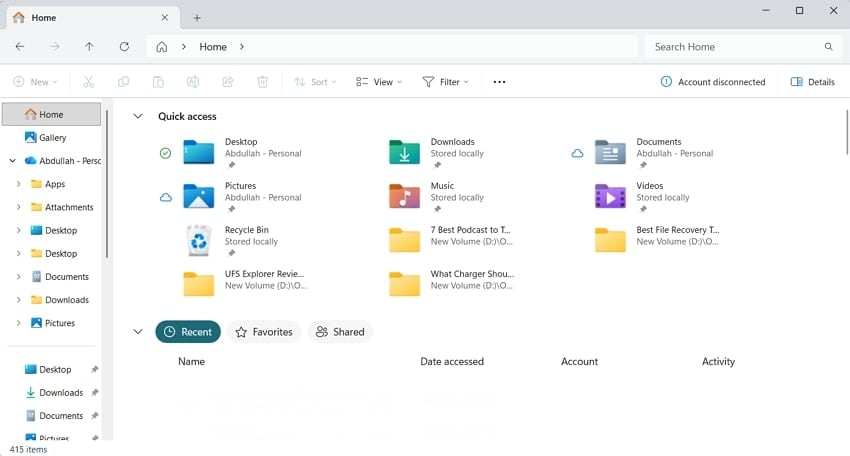
2. Enhanced File Explorer Capabilities
Through its redesigned layout, File Explorer delivers smoother navigation, supporting faster file handling across workflows. The updated “Home” page and AI actions simplify routine operations while improving organization for all users.
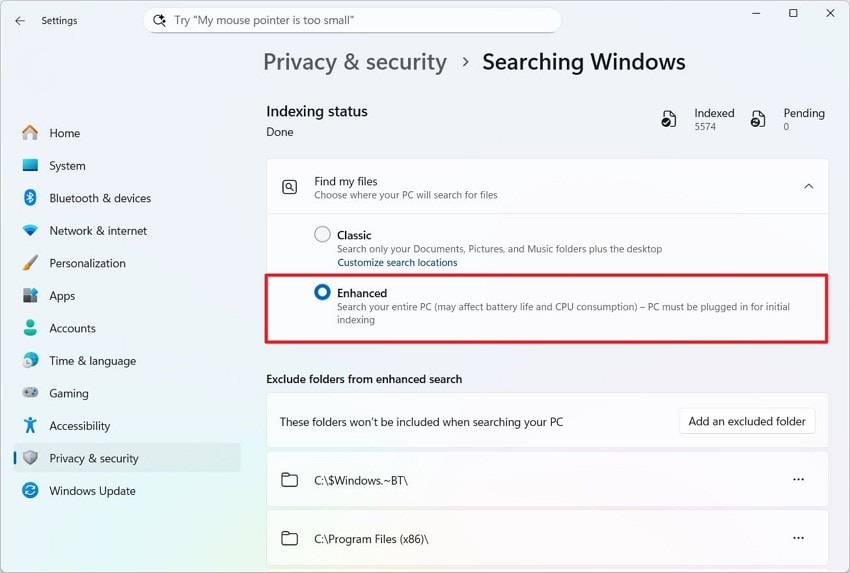
3. Semantic Indexing in Windows Search
By using semantic indexing, Windows Search interprets natural language queries with improved precision across diverse content categories. This enhanced understanding generates more relevant results by analyzing the context surrounding the user's search intent thoroughly.
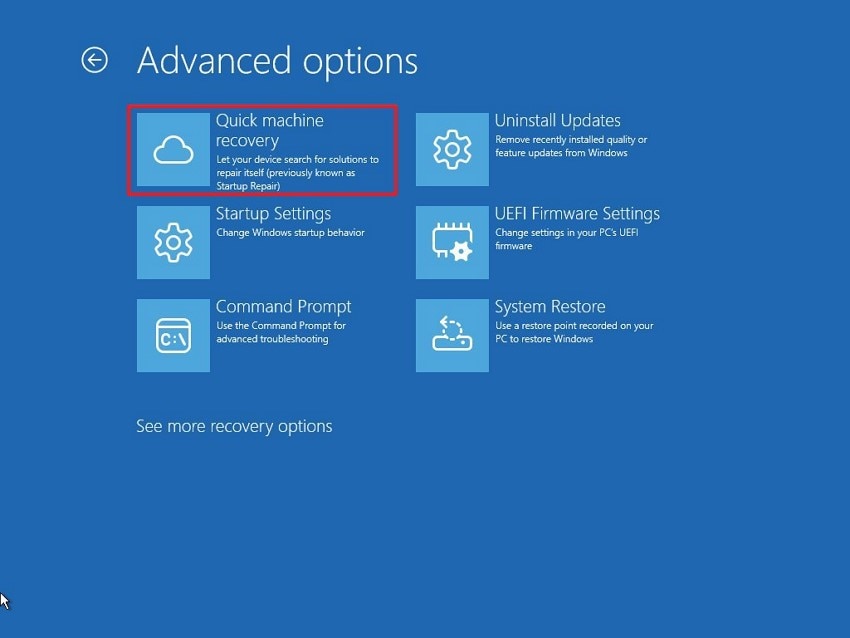
4. Quick Machine Recovery & Cross-device Resume
During system interruptions, Quick Machine Recovery minimizes downtime by restoring essential components with notable efficiency. Cross-device resume enables task continuity by syncing activity states across devices without affecting workflow stability.
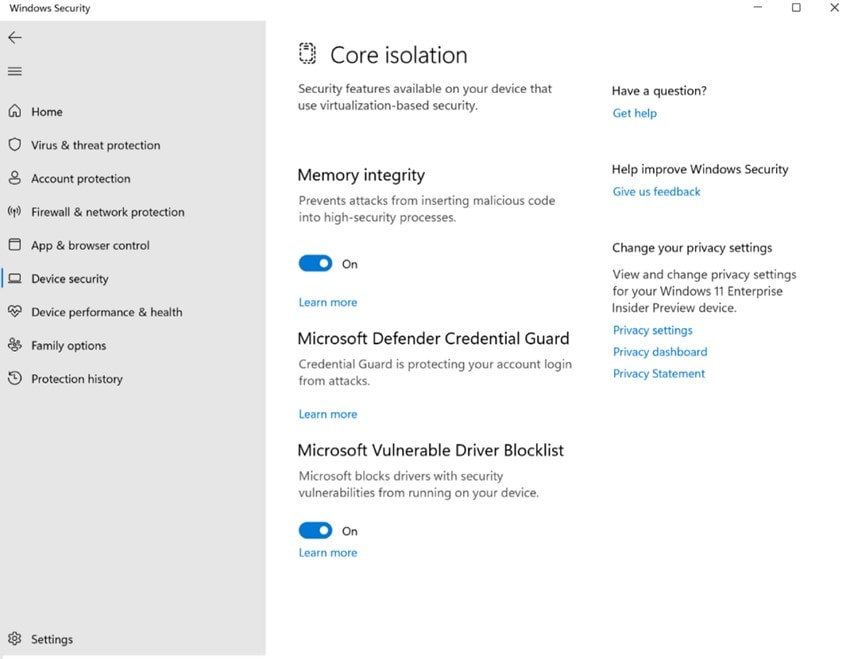
5. Security Enhancements
Under enhanced security protocols, Administrator Protection strengthens defenses to prevent unauthorized changes on sensitive systems. Passkey integration modernizes authentication by replacing traditional passwords with encrypted credentials, improving digital safety for people wondering Should I update to Windows 11.
6. Taskbar Improvements
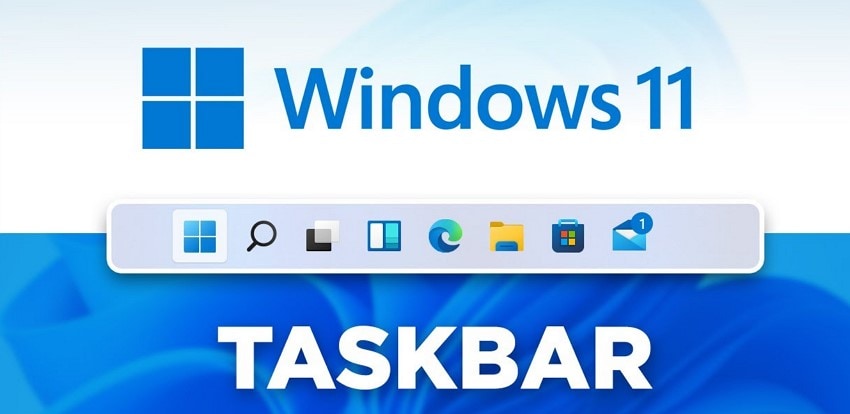
Within the updated interface, smaller taskbar icons enhance accessibility and optimize space on various display sizes. New battery iconography and faster sharing options support smoother multitasking by significantly reducing unnecessary steps.
Part 2. System Requirements Check: Can Your PC Run Windows 11?
Before deciding whether should I upgrade to Windows 11, review the table mentioned below to verify whether your processor, RAM, storage, and security features align with the Minimum Requirements for Windows 11:
| Components | Minimum Requirements |
|---|---|
| Processor | 1 GHz or faster with 2 or more cores on a compatible 64-bit processor or SoC |
| RAM | 4 GB |
| Storage | 64 GB or larger |
| System Firmware | UEFI, Secure Boot capable |
| TPM | Version 2.0 |
| Graphics Card | DirectX 12 or later with WDDM 2.0 driver |
| Display | High definition (720p) greater than 9” diagonally, 8 bits per color channel |
| Internet & Account | Required for setup (Home/Pro editions) and updates |
More related: How to Fix ‘This PC Doesn’t Currently Meet Windows 11 System Requirements’
Part 3. Performance Review: Windows 11 vs. Windows 10
Windows users often wonder, “is it worth upgrading to Windows 11,” especially when performance improvements are a major deciding factor. Below is a clear, benchmark-based breakdown to help you understand how Windows 11 compares to Windows 10-:
| Category | Windows 11 | Windows 10 |
|---|---|---|
| Boot Time | Faster | Slower as compared to Windows 11 |
| App Launch/Multitasking | More responsive | Comparatively less responsive |
| Battery Life | Up to 15% longer | Similar |
| GPU Rendering | 7.54% faster | Slower |
| Gaming | Similar FPS; better features | Consistent |
| Updates | 40% faster/smaller | Average |
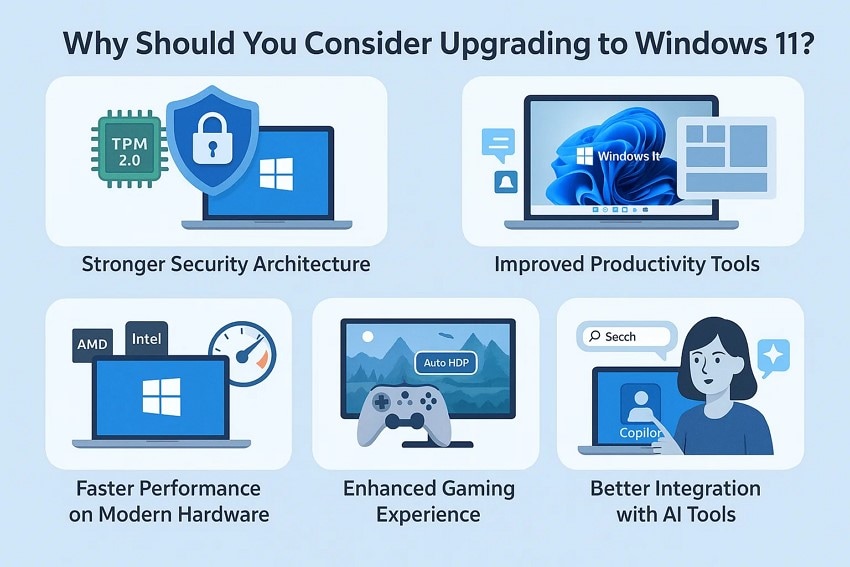
Part 4. Why Should You Consider Upgrading to Windows 11?
Before making the switch, many users ask if is windows 11 worth it and whether the upgrade brings meaningful improvements. Below are the key reasons why upgrading may be a smart move:
- Stronger Security Architecture: Built-in protections like TPM 2.0, Secure Boot, and virtualization-based security significantly reduce vulnerability risks. These features work together to provide hardened defenses that meet modern cybersecurity standards for personal and business use.
- Improved Productivity Tools: Snap Layouts, Snap Groups, and enhanced multitasking features help users manage windows more efficiently. These tools streamline multitasking by reducing the time spent organizing apps and adjusting screen layouts.
- Faster Performance on Modern Hardware: Windows 11 leverages new CPU architectures, enabling better scheduling and smoother task execution. Users with the latest Intel or AMD processors experience more responsive interactions and quicker load times.
- Enhanced Gaming Experience: Features like Auto HDR, DirectStorage, and improved Xbox integration elevate gameplay performance. These technologies reduce load times and enhance visual quality, especially on supported hardware.
- Better Integration with AI Tools: Windows 11 incorporates AI-driven features such as Copilot and intelligent search enhancements. These additions provide contextual guidance and automated support that make daily tasks faster and more efficient.
Part 5. What are the Risks Associated With Upgrading to Windows 11 Today?
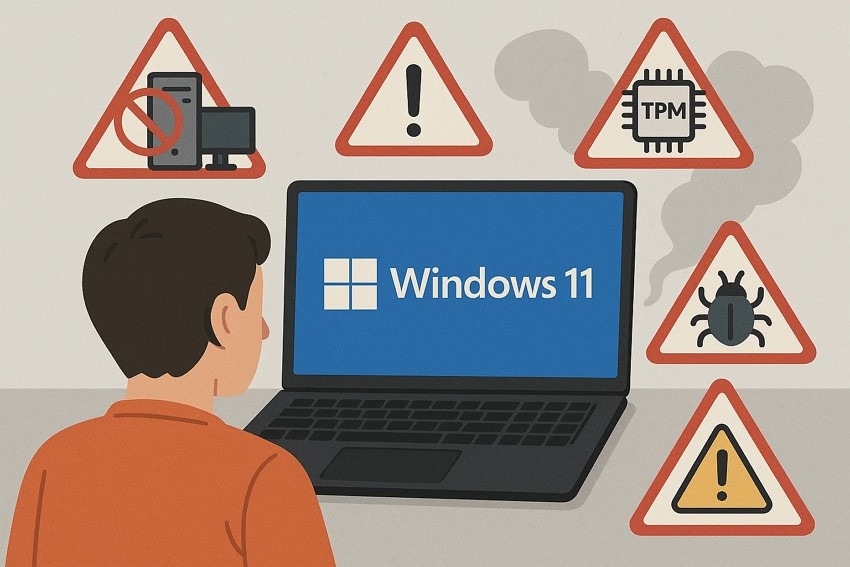
Many users ask, “Should I upgrade to Windows 11” but hesitate due to potential risks that could affect performance, compatibility, or productivity. Understanding these risks helps you make an informed decision before committing to the upgrade:
- Compatibility Issues: Older hardware or peripherals may not work properly with Windows 11, causing device malfunctions. Certain software applications may also face compatibility problems, leading to crashes or limited functionality.
- Higher System Requirements: Windows 11 demands TPM 2.0, Secure Boot, and newer CPU architectures that some PCs may lack. Attempting to upgrade without meeting these requirements can result in installation failure or system instability.
- Increased Resource Usage: The OS uses more RAM and background processes than Windows 10, potentially slowing older devices. Systems with limited memory or storage may experience lag, reduced multitasking efficiency, or longer boot times.
- Initial Bugs and Glitches: Early updates may contain bugs affecting security, performance, or application stability temporarily. Users may encounter crashes, display issues, or unexpected behavior until Microsoft releases fixes.
Part 6. Upgrade Timing Guide: Who Should Upgrade Immediately and Who Should Wait
Deciding whether “I should upgrade to Win 11” depends on your hardware, workflow needs, and risk tolerance. The guide below helps identify who should upgrade now and who might be better off waiting:
Who Should Upgrade Immediately
- Modern Hardware Users: PCs with TPM 2.0, Secure Boot, and recent CPUs will experience smooth performance.
- Security-Conscious Users: Those wanting enhanced protection benefit from Windows 11’s security features like Passkeys and virtualization-based security.
- Tech Enthusiasts & Early Adopters: Users eager to explore AI integrations, Copilot, and Snap Layouts gain productivity advantages quickly.
- Creative & Collaborative Professionals: Designers, editors, and collaborative teams benefit from improved multitasking and GPU-accelerated workflows.
Who Should Wait
- Older Hardware Users: PCs with older processors, low RAM, or legacy components may experience slower performance.
- Users Dependent on Legacy Software: Specialized applications or older drivers may not work properly on Windows 11 immediately.
- Business or Enterprise Environments: Organizations relying on consistent workflows and IT-managed systems should postpone upgrades.
- Low-Spec or Resource-Limited Devices: Systems with limited storage, RAM, or older graphics may struggle with Windows 11’s requirements.
Backup and Preparation Tips Before Upgrading
Many users who ask if is windows 11 worth it often overlook the importance of preparation before upgrading. Following these tips ensures a smoother transition to Windows 11 while safeguarding your important files and settings:
- Full System Backup: Create a complete system image using built-in tools or third-party software to preserve your current setup. This allows full restoration if the upgrade fails or unexpected errors occur during installation.
- Data Backup: Save documents, photos, and important files to an external drive or cloud storage service. Having copies of critical data ensures nothing is lost in case of accidental deletion or corruption.
- Check Compatibility: Verify that your PC meets Windows 11 minimum requirements, including TPM 2.0, CPU, and storage. Ensuring compatibility prevents failed installations and hardware or driver conflicts.
- Update Drivers and Software: Make sure all device drivers and essential applications are up to date for seamless operation. Updated drivers reduce the risk of crashes, freezes, or peripheral malfunctions after the upgrade.
- Uninstall Unnecessary Programs: Remove unused software and bloatware to free system resources and avoid potential conflicts. A clean system improves installation speed and overall performance after upgrading.
Pro Tip: Recoverit to Rescue Your Files Before Any Upgrade
Before deciding whether “I should upgrade to Win 11,” many users worry about losing important files during the process. Recoverit provides a reliable solution, allowing you to recover lost, deleted, or corrupted files. Its advanced scanning technology ensures that documents, photos, and media are safely restored. Using Recoverit before an upgrade gives peace of mind, protecting your data from accidental loss.
Recoverit lets you preview all scanned files directly within its interface before restoring them to your system. Additionally, its intuitive search feature allows you to locate and recover specific files even from a crashed PC. The software provides various scanning options tailored to the extent of file loss or corruption, ensuring thorough recovery for different types of data issues.
Key Features Provided by Recoverit
- Batch Recovery Support: Recoverit allows you to restore multiple files and folders at once, saving time and effort compared to recovering items individually.
- Wide Storage Device Compatibility: The tool supports over 1 million types of storage devices, including both internal drives and external media.
- Advanced Recovery Mode: Its deep-scan mode can retrieve severely corrupted or lost files that are typically considered unrecoverable, ensuring comprehensive recovery.
Steps to Recover Files Before Upgrade with Recoverit
Before deciding whether is it worth upgrading to Windows 11, it’s crucial to ensure all your important files are safely backed up and recoverable. The following steps guide you through recovering your files efficiently with this tool:
1. Open Recoverit and Select File Recovery
Start Recoverit and choose “Hard Drives and Locations” from the left-hand menu. Highlight the drive or folder where the lost or damaged library files were located.

2. Pick the Drive or Folder and Begin Scanning
Select the files that you want to recover by selecting them and clicking the “Recover” button. You can pause or stop the process anytime if the desired files appear before the scan completes.

3. Preview and Restore Your Files
After the scan finishes, use the Preview function to verify the files you want to recover. Finally, click “Recover” to safely restore them to a secure location on your system.

Conclusion
To sum it up, this article provided a detailed answer to your question: “Should I upgrade to Windows 11 now.” While Windows 11 offers improved security, a modern interface, and productivity enhancements, the decision depends on your hardware and software compatibility. Tools like Wondershare Recoverit make this process simple, allowing you to recover, preview, and securely back up your data so you can upgrade with confidence.
FAQ
-
1. Is Windows 11 faster than Windows 10?
On modern hardware, Windows 11 offers slightly faster boot times and improved multitasking performance. Older PCs may not notice a significant speed improvement compared to Windows 10. -
2. Can I go back to Windows 10 if I encounter problems?
Yes, Windows allows you to roll back to Windows 10 within 10 days of upgrading. This provides a safety net if you encounter performance issues or compatibility problems. -
3. How do I ensure my critical documents are safe before upgrading?
Backing up your files with Wondershare Recoverit allows you to recover lost or damaged data easily. This step provides peace of mind before starting the Windows 11 upgrade. -
4. Can I recover files lost during the Windows 11 upgrade?
Yes, Recoverit can recover deleted, corrupted, or missing files quickly and securely. This ensures your important documents, photos, and media remain safe even if issues occur.


