 TL;DR:
Overwritten files are usually recoverable only if an earlier copy survives in your application's version history, cloud storage, or system backups, as no data recovery software can reconstruct original content once new bytes physically replace the old storage sectors.
● Cloud platforms like OneDrive and SharePoint typically retain file version histories for 30 days, while Google Drive permanently deletes older revisions of uploaded non-native files after 30 days or 100 newer versions unless you manually mark them to keep forever.
● Scanning local drives with software like Wondershare Recoverit cannot roll back a file's internal edits and will only succeed if a same-name file replacement left a separate, older deleted or temporary copy intact before SSD TRIM or new data erased it.
● You must immediately stop saving the active document and avoid downloading or installing anything on the source drive, because repeated saves replace temporary copies and force the operating system to reuse the exact physical blocks holding your lost data.
Ask AI for a summary
 ChatGPT
 Perplexity
 Gemini
 Claude
 Grok
Grok
“I moved a Word doc into a folder and accidentally clicked ‘replace,’ which has overwritten my work with an older version...” That account from Reddit user coughy_bean captures a common problem: the file name survives, but the content you need is no longer the version you can see.
If you are searching for how to restore an overwritten file, start with version history and backups—not a disk scan. Overwritten files recovery is possible when an older version, temporary copy, backup, or released local copy still exists. Data recovery software for overwritten files helps only with surviving data on readable storage; it cannot reconstruct physical sectors that new data has fully replaced.
Try Wondershare Recoverit to Recover an Overwritten File
 Security Verified. Over 7,302,189 people have downloaded it.
In this article
-
- Method 1. Restore an Earlier Version From the Original Application
- Method 2. Recover a Lost Previous Copy With Wondershare Recoverit
- Method 3. Restore Previous Versions With Windows File History
- Method 4. Restore an Overwritten File From OneDrive or SharePoint
- Method 5. Recover an Older File Version on Mac
- Method 6. Restore Previous Versions From Google Drive or Other Cloud Storage
- Method 7. Restore the File From Another Backup or Existing Copy
Part 1. Can an Overwritten File Be Recovered?
Often, yes—but successful recovery usually means locating an earlier copy, not undoing the physical write itself. Identify what “overwritten” means in your case before choosing a method.
Overwritten File Vs. Overwritten Storage Sectors
These two events are frequently described with the same word even though their recovery outcomes are completely different.
| Term | What actually happened | What may remain | Can it be recovered? |
| Overwritten file | The visible file now contains newer or different content. | An app version, cloud revision, backup, temporary file, or released copy may still exist. | Often, if one of those earlier copies survives. |
| Overwritten storage sectors | New bytes occupy the same physical blocks that held the old content. | The original bytes in those blocks no longer remain. | No. Software cannot reconstruct data that has been replaced byte for byte. |
This distinction explains why version history may restore a document immediately while a storage scan may find nothing useful. Wondershare's current support guidance likewise states that Recoverit cannot fully restore a file when its physical data sectors have been overwritten.
Replaced File Vs. Deleted Original File
Replacing a file with another item of the same name can remove the original directory entry and leave the new file in its place. Depending on the application and file system, the original may have been deleted, renamed, moved to temporary storage, or modified in place. A recovery scan can help only if a separate old copy or released data still survives.
This is why a same-name replacement may be more recoverable than repeatedly editing and saving the same file, but it is not guaranteed. Microsoft explains that deleted-file space can remain available until new data reuses it in its Windows File Recovery guidance.
Local File Vs. Cloud-Synced File
A local-only file depends on the original application, Windows or macOS versions, local backups, and any recoverable storage copy. A file stored in OneDrive, SharePoint, Google Drive, Dropbox, or another versioned service may also have revisions retained online.
Cloud sync is not automatically a backup. An unwanted save can synchronize to every connected device. The advantage is that a service's version history may preserve the older content even after the new version propagates.
When an Older File Version Can Still Be Restored
Recovery remains realistic when at least one independent earlier state is still accessible. Common examples include:
- The application saved versions: Microsoft 365, Pages, Preview, and other supported apps can retain earlier document states under specific conditions.
- The file has cloud version history: OneDrive, SharePoint, Google Drive, or another service still lists a revision created before the unwanted change.
- A backup predates the overwrite: File History, Time Machine, a NAS snapshot, or an external backup contains the needed copy.
- The original became a deleted or released copy: The file system still contains recoverable data that has not been overwritten, trimmed, encrypted, or otherwise destroyed.
- Another device or message contains the file: A laptop, email attachment, exported archive, or project backup holds an independent copy.
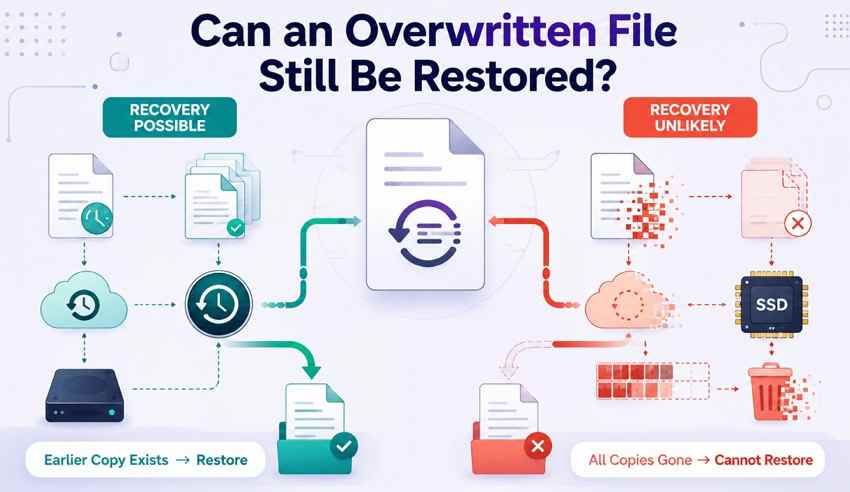
Once these possible sources are understood, the next question is whether any of them still survives or whether the original content has been removed from every location.
When an Overwritten File Is No Longer Recoverable
No recovery method can produce an original that no longer exists anywhere. Recovery is unlikely or impossible when all of the following routes are exhausted:
- The original physical blocks were reused: New data replaced the old bytes on the storage device.
- No version or backup exists: The application, operating system, cloud service, backup system, and other devices contain no earlier copy.
- Cloud revisions expired or were purged: The service no longer retains the required version and no offline copy remains.
- SSD cleanup removed released data: TRIM and garbage collection can make a deleted predecessor effectively unavailable to software.
- Encryption or physical failure blocks access: A missing key or failed storage hardware prevents reading the surviving data.
Part 2. What to Do Immediately After Overwriting a File
The next few actions determine whether you preserve an existing version or accidentally replace the last recoverable copy. Take these precautions before installing software or experimenting with the file.
- Stop editing or saving the affected file: Repeated saves may create newer revisions, replace temporary data, and make it harder to identify the correct copy.
- Avoid writing new data to the same drive: Do not install software, download large files, export projects, or run cleanup tools on the storage device that held the original.
- Keep the current version: Do not delete or rename it until you have compared all available versions. The current copy may contain sections that need to be merged with an older one.
- Identify where the file lived: Confirm whether it was local, synced, stored in a cloud service, included in a managed SharePoint library, or backed up elsewhere.
- Check the original application first: Look for Version History, Revert To, AutoRecover, autosave, recovery folders, or project backup commands before scanning the disk.
- Prepare another storage device: If a scan becomes necessary, install the recovery tool elsewhere and save recovered files to a separate drive.
Part 3. How to Recover an Overwritten File
Use the seven methods in this order. They begin with intact application and cloud versions, then move to backups and local storage scanning. Only Method 2 attempts to find a lost copy directly on the original storage device.
Method 1. Restore an Earlier Version From the Original Application
Application-level history is the best first choice because it can return a complete, structured file without depending on deleted sectors. The command varies by program and may require AutoSave, AutoRecover, or version history to have been active before the mistake.
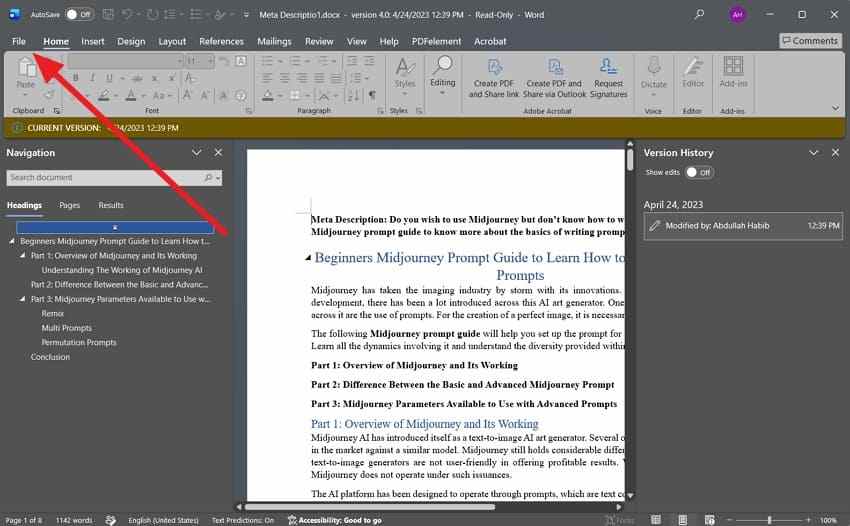
The screenshots below use Microsoft Word. For a file stored in OneDrive or SharePoint, Microsoft 365 can expose Version History. For a local Word file, AutoRecover may show a recoverable state, but it is not a guaranteed archive of every save.
Step 1. Open the affected document. In Word, open the current file and select File. Preserve the current version with Save As under a new name before restoring anything.
Step 2. Review the available versions. Select Info and open Version History or Manage Document, depending on the file location and Office version. Open the older copy first, compare it with the current file, and restore it only after confirming the content.
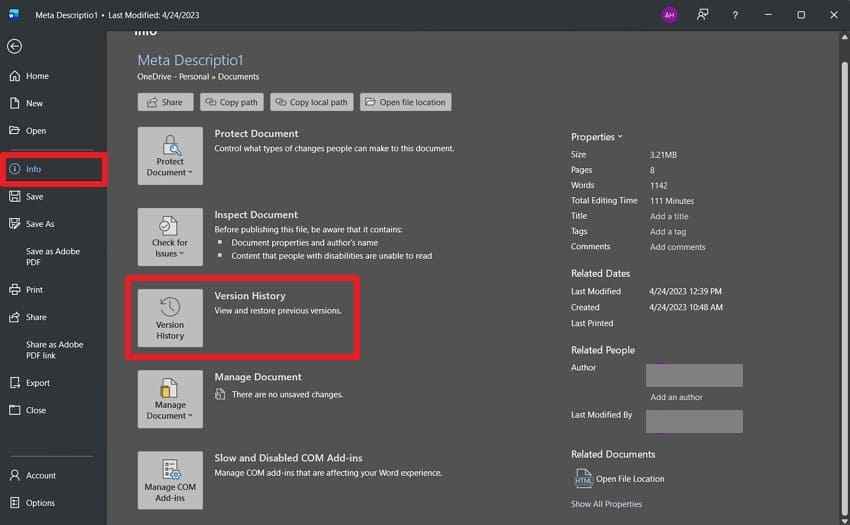
Limit: Version History is not displayed for every local file. Microsoft documents separate recovery routes for OneDrive or SharePoint version history and for files captured by AutoRecover.
Method 2. Recover a Lost Previous Copy With Wondershare Recoverit
If a same-name replacement caused the original to become a deleted or released local copy, a storage scan may locate it before its data is reused. Wondershare Recoverit scans readable Windows and Mac storage, including internal drives, external drives, USB devices, and memory cards.
Important boundary: Recoverit can recover only data that still exists on readable storage. It cannot roll a file back inside an application, access a cloud provider's private version history, or reconstruct original bytes after the physical sectors have been fully overwritten.
Five Useful Capabilities for a Lost Previous Copy
Recoverit is relevant after version-history and backup checks fail and there is reason to believe a separate local copy once existed.
- Local storage scanning: Scan the exact HDD, SSD, external drive, USB device, or memory card that held the earlier file.
- Document and media coverage: Search for Word, Excel, PowerPoint, PDF, text, archive, image, video, audio, and other supported file types.
- Path and attribute filters: Narrow results by file type, path, size, date, or status when many versions and temporary files appear.
- Preview before recovery: Open supported results to verify that the old content is readable rather than trusting the filename alone.
- Separate recovery destination: Save selected files to another device so the scan does not overwrite the source drive.
If those capabilities match the loss scenario, use the following three-step workflow while keeping all new writes away from the source storage.
How to Scan for an Earlier File Copy
Install Recoverit on another drive when possible, connect a separate recovery destination, and stop applications that write heavily to the source disk.
Step 1. Select the original drive. Open Recoverit, choose the drive or location that held the earlier copy, confirm the device by its capacity and path, and start the scan.

Step 2. Filter by file type, path, and date. Let the scan continue while you narrow the results to the original format and the period before the replacement. Search for alternate names and temporary copies as well as the original filename.

Step 3. Preview and recover elsewhere. Compare previews, select the intact version, click Recover, and save it to a different drive. Keep the current and recovered versions until their contents have been verified.
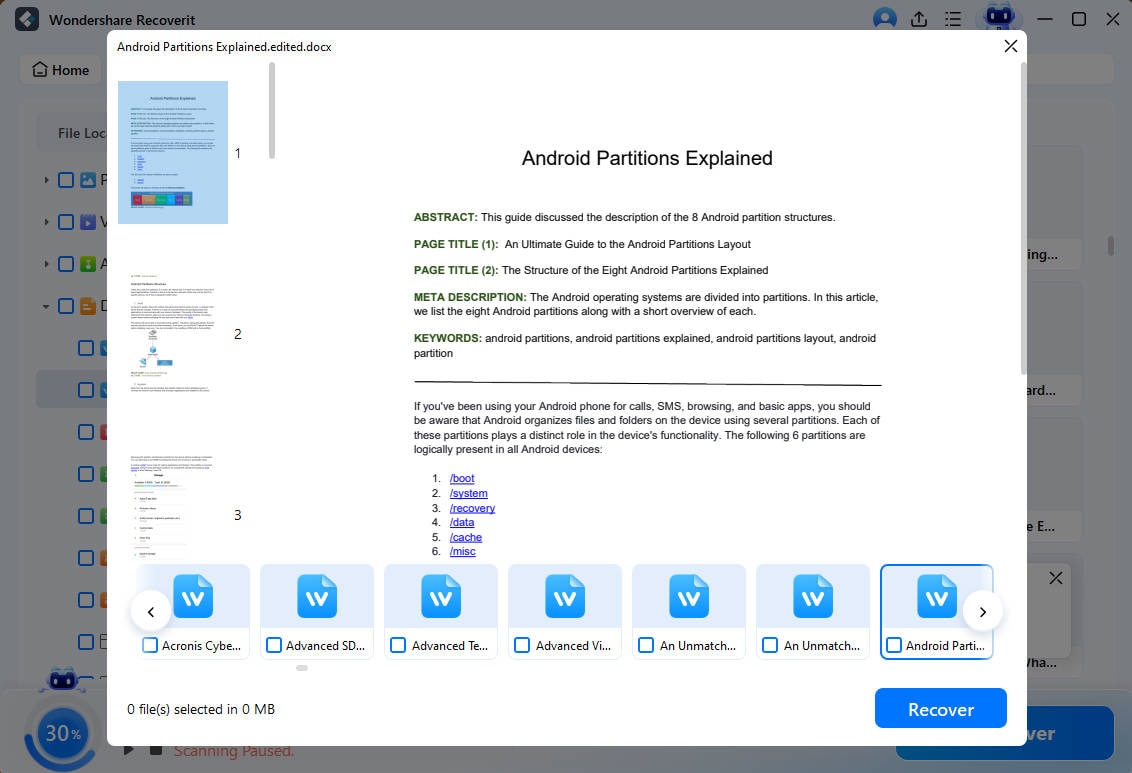
Limit: A result with the correct name may still be incomplete, corrupt, or unrelated. Wondershare's explanation of why lost data cannot be recovered confirms that overwritten physical sectors can produce files that do not open, are partially viewable, or show 0 KB.
Try Wondershare Recoverit to Recover an Overwritten File
Security Verified. Over 7,302,189 people have downloaded it.
Method 3. Restore Previous Versions With Windows File History
File History stores dated copies of protected Windows libraries and selected folders on an external drive or network location. It works only if it was enabled and captured the file before the unwanted save.
Step 1. Open the previous-version list. In File Explorer, navigate to the file or its containing folder. Right-click it and select Restore previous versions, or open Properties and choose the Previous Versions tab.
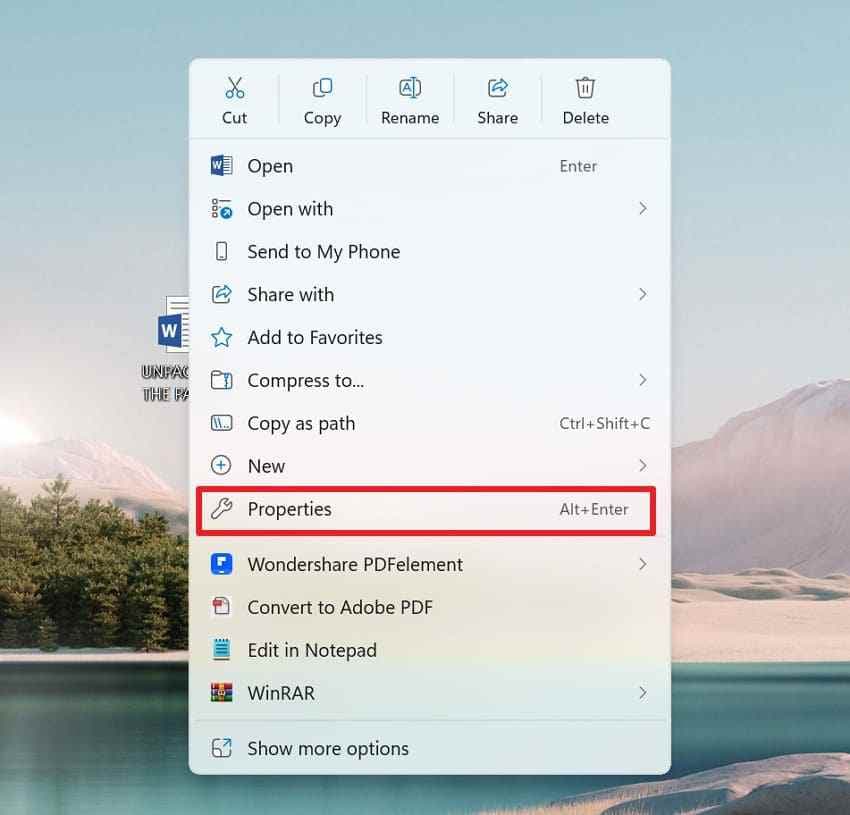
Step 2. Preview and restore safely. Select a version dated before the overwrite and use Open or Open in File History to inspect it. Choose Restore to when available so the earlier copy is saved elsewhere instead of immediately replacing the current file.
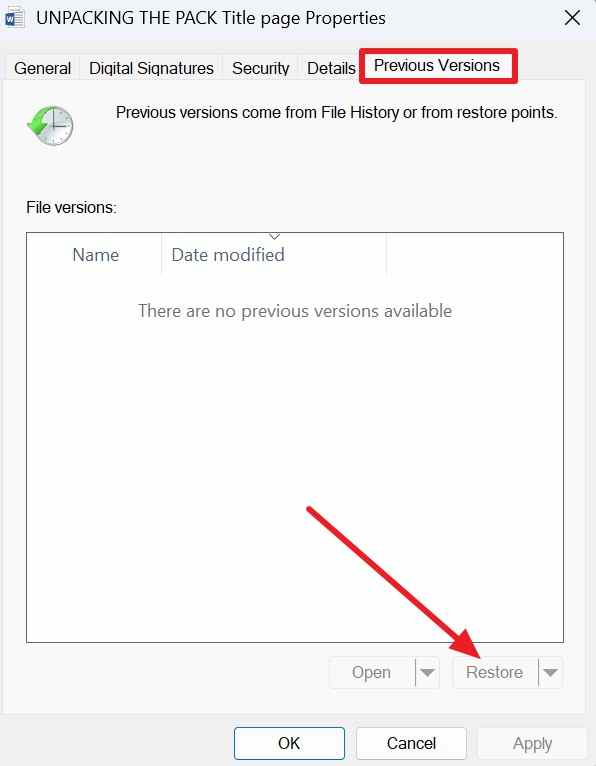
Limit: Empty Previous Versions results usually mean File History or another snapshot source did not capture that item. Microsoft warns that a direct restore can replace the current version and cannot be undone, so preview or restore to a separate location first. See the official Windows File History guide.
Method 4. Restore an Overwritten File From OneDrive or SharePoint
OneDrive and SharePoint Version History can restore earlier revisions without scanning the local disk. Microsoft currently states that it works with all file types, including Microsoft 365 documents, PDFs, CAD files, photos, and videos.
Step 1. Open Version History. Sign in to the correct OneDrive or SharePoint account, find the file, right-click it, and choose Version history. If the file is open in a Microsoft 365 app, you can also select the filename or File > Info > Version History.
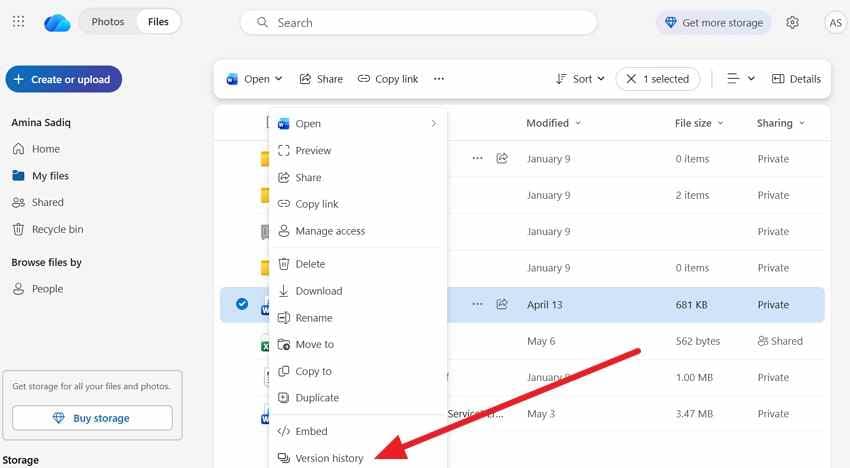
Step 2. Inspect and restore the correct revision. Select an earlier timestamp, open or preview the version, and use Restore only after confirming it contains the required content. Preserve the current copy first if it includes useful newer changes.
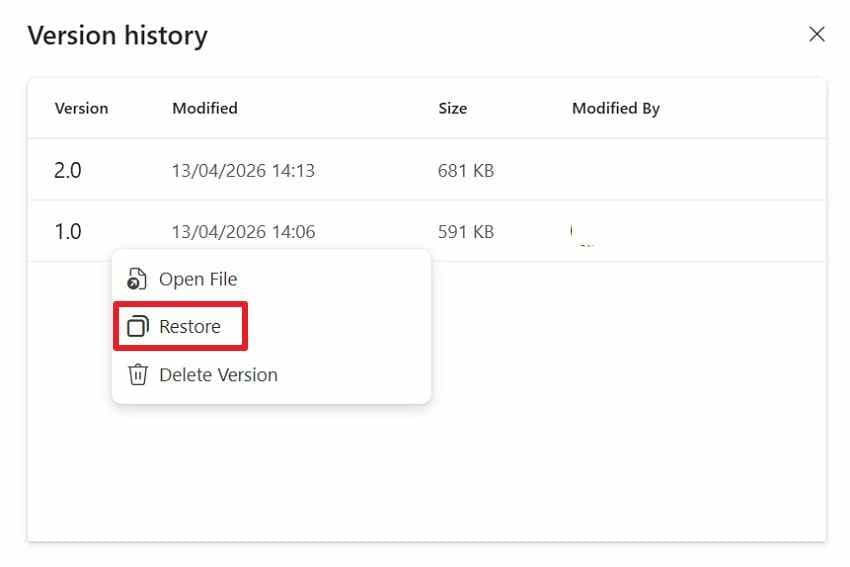
Limit: Microsoft's current consumer guidance says file version history is retained for 30 days. A work or school administrator can change or disable document versioning, and the number or retention of versions can depend on the SharePoint library configuration. Review the current OneDrive and SharePoint Version History instructions.
Method 5. Recover an Older File Version on Mac
macOS provides two different routes: document versions maintained by a compatible app and independent backups created by Time Machine. Check the app first, then the backup.
Use File > Revert To > Browse All Versions
Many Mac apps automatically save document versions, but availability depends on the application and file. Pages is used in the example below.
Step 1. Open the versions browser. Open the document in Pages and choose File > Revert To > Browse All Versions.
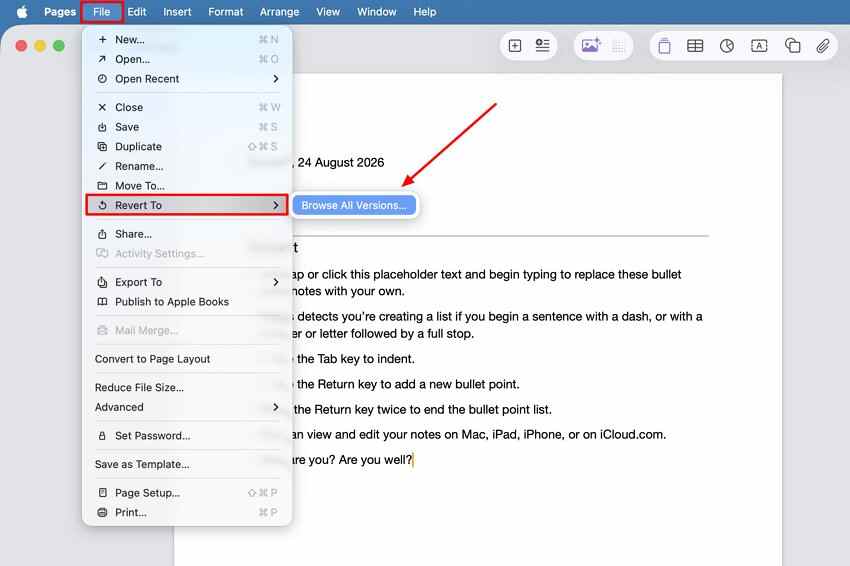
Step 2. Compare and restore. Browse the timeline and inspect the earlier content. Click Restore to replace the current version, or hold Option and choose Restore a Copy when available to preserve both versions.
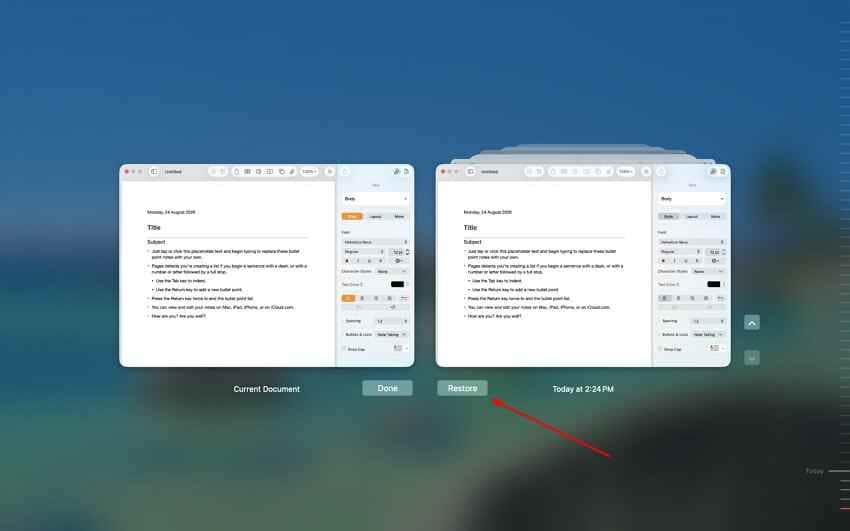
Apple's current document-version instructions note that many apps save versions automatically, but not every application supports this system.
Use Time Machine
Time Machine is the better route when the app has no usable version and a backup captured the file before it was overwritten.
Step 1. Open the original folder and Time Machine. Connect the backup disk, open the Finder folder containing the file, and use Spotlight or the menu bar to open Time Machine.
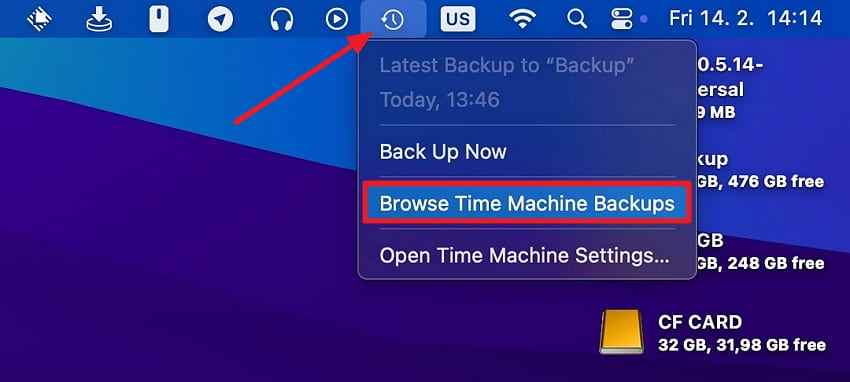
Step 2. Select the correct date and restore. Browse the timeline, preview the earlier file when possible, select it, and click Restore. To avoid confusion, copy the current version elsewhere before restoring to the original location.
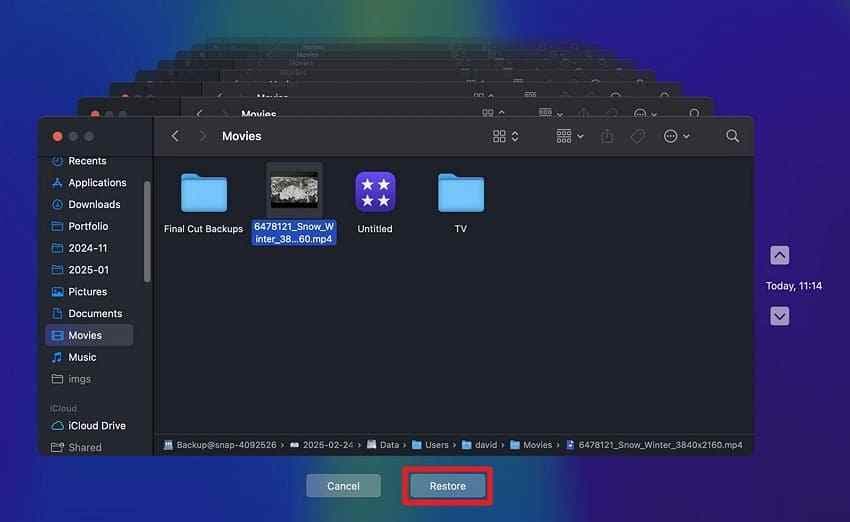
Limit: Time Machine cannot provide a version from before its first relevant backup or restore files excluded from the backup set. Apple's Time Machine restore guide confirms that restored items normally return to their original location.
Method 6. Restore Previous Versions From Google Drive or Other Cloud Storage
Google Drive uses different version systems for Google Docs, Sheets, and Slides versus uploaded PDFs, images, Office documents, and other non-Google files. Choose the workflow that matches the file type.
For Google Docs, Sheets, or Slides: Open the file, choose File > Version history > See version history, select an earlier timestamp, and choose Restore this version. Owner or Editor access is required.
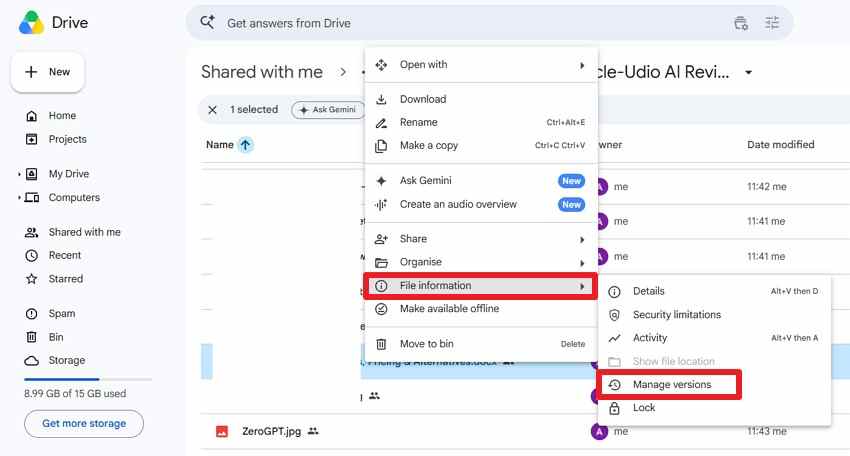
For an uploaded file: Select it in Google Drive, open File information > Manage versions, and review the available revisions.
Step 1. Open Manage Versions. In Google Drive on the web, select the uploaded file, open the More menu, and choose File information > Manage versions.
Step 2. Download the required revision. Open the three-dot menu beside the older version and choose Download. Verify the file locally before uploading it as a new current version. Use Keep forever for an important revision that must not age out.
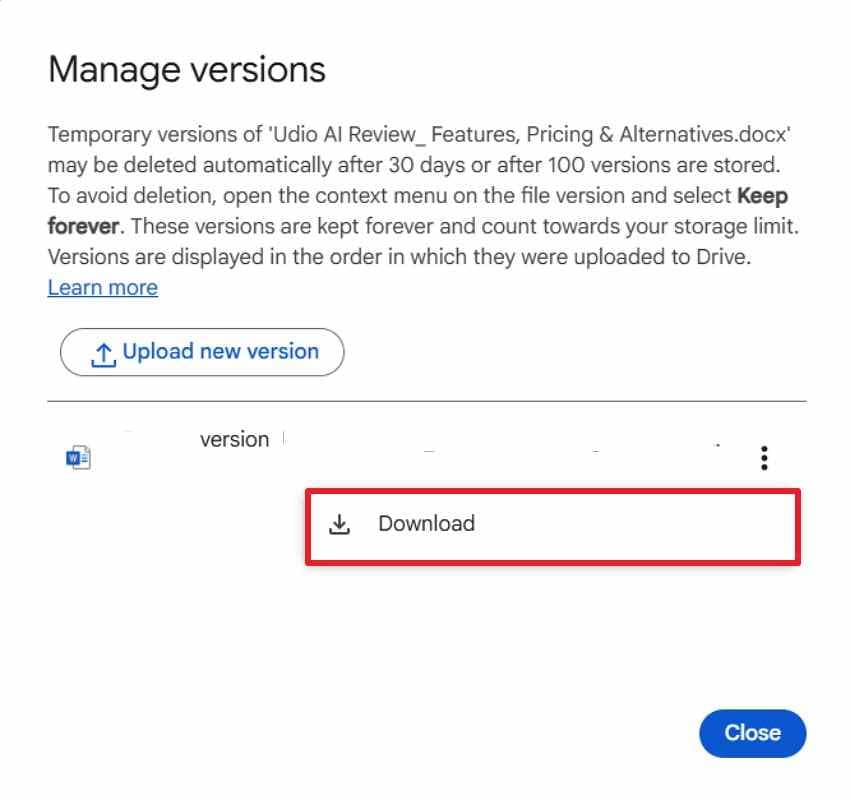
Limit: Google says an uploaded-file version may be permanently deleted after 30 days or after 100 newer versions unless it is marked Keep forever. The official Google Drive file-version guide also makes clear that Google-native document history is a separate system. Other cloud providers use their own plan, retention, permission, and version-count rules.
Method 7. Restore the File From Another Backup or Existing Copy
An ordinary copy is often more reliable than a complex recovery attempt. Search every place where the file may have been shared, exported, archived, or automatically backed up.
Recover From a Project Backup Folder
Open the project's backup or autosave folder, locate a copy dated before the overwrite, copy it, and paste it into a separate safe folder. Do not open and resave the backup in place until you have duplicated it.
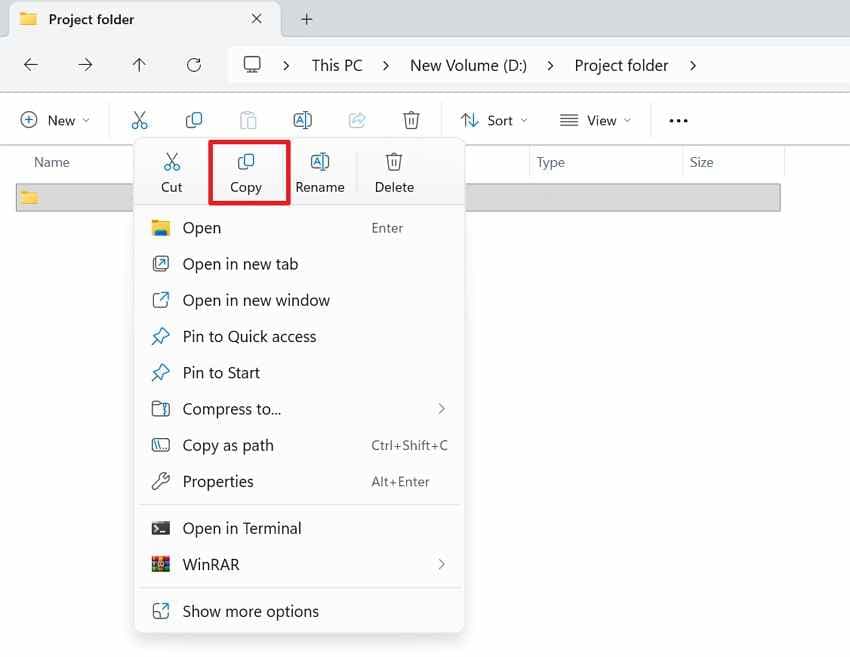
If the project folder does not contain the needed version, expand the search to storage, communication, and collaboration systems.
Check Other Independent Copies
Each location below can preserve a complete copy independently of the overwritten working file.
- External backup drive: Search dated folders or backup catalogs created before the unwanted save.
- NAS or network backup: Check snapshots, recycle bins, version history, and administrator-managed backup jobs.
- Another computer: Look for a copied, exported, or not-yet-synchronized version on a second device.
- Email or chat attachment: Search sent and received messages for the file before it was overwritten.
- Exported or archived copy: Inspect ZIP archives, delivery folders, PDFs, renders, and previous project exports.
- Project-specific backup folder: Video editors, design tools, IDEs, and creative apps may keep autosaves or backups outside the working directory.
More focused recovery guides:
- 6 Ways to Recover an Overwritten Excel File in Windows
- Recover an Overwritten File in Linux
- How to Recover Overwritten Data on an SD Card

Part 4. Which Overwritten File Recovery Method Should You Use?
Match the method to the location of the most likely earlier copy. This prevents a destructive disk scan or library rollback when a complete version is already available.
| Situation | Recommended method | Backup required? | Main limitation |
| Word or Excel file saved over | Application or Microsoft 365 Version History; then AutoRecover | No separate backup for an existing version | Version History usually depends on OneDrive or SharePoint; AutoRecover does not archive every save. |
| File replaced by another file with the same name | App or cloud version history first; Recoverit scan if a lost local predecessor may survive | No | A scan fails if the released blocks were reused, trimmed, or never contained a separate old copy. |
| OneDrive or SharePoint file overwritten | Cloud Version History | No | Retention, versioning, and permissions depend on the account and library configuration. |
| Google Drive file overwritten | Google-native Version History or Manage Versions for uploaded files | No | Uploaded revisions may expire after 30 days or 100 newer versions unless kept forever. |
| Mac document saved with incorrect changes | Revert To; then Time Machine | No for a surviving app version; yes for Time Machine | Revert To requires a supported app; Time Machine must have captured the earlier file. |
| Original file deleted before the replacement was saved | Recycle Bin or Trash; then Recoverit if a local copy may remain | No | Continued drive use and SSD TRIM reduce recovery chances. |
| Physical storage sectors already overwritten | Restore from an independent version or backup | Yes | No recovery software can reconstruct the replaced bytes. |
The pattern is consistent: the strongest results come from a complete earlier version that was stored independently. Check application and cloud history before treating the problem as deleted-data recovery.
Part 5. Why Overwritten File Recovery Can Fail
Failure usually means that the selected method is looking in the wrong place or that every usable earlier copy has disappeared. These are the six main causes.
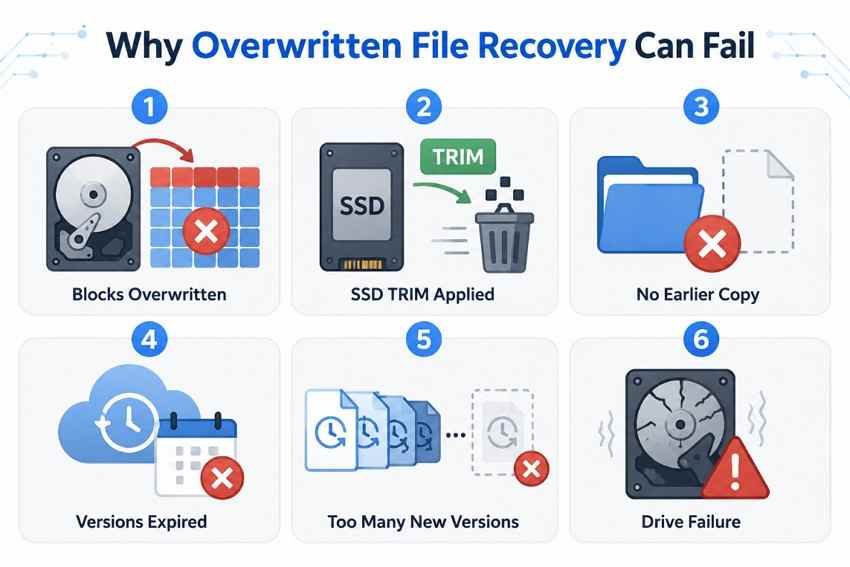
- Original storage blocks were fully overwritten: New bytes occupy the sectors that held the old content, leaving nothing for software to read.
- SSD TRIM removed residual data: TRIM marks released blocks as unused, and garbage collection may clear them before a scan begins.
- No version history or backup existed: The app, operating system, cloud service, and backup system never stored an earlier state.
- Cloud history expired or was purged: The required revision exceeded the service's retention or version-count rules, was deleted, or is inaccessible due to permissions.
- The current file was saved repeatedly: More saves can create newer revisions, replace temporary copies, and increase local disk activity.
- The drive has physical damage or severe corruption: A device that disconnects, reports the wrong size, clicks, or is not detected may need professional hardware recovery.
Part 6. How to Improve the Odds of Recovering an Overwritten File
Once the overwrite is discovered, preserve every surviving version and reduce new writes to the original storage. Use the following order of operations.
- Act before saving more changes: Stop editing, syncing, exporting, or downloading to the same drive until the recovery route is clear.
- Check application and cloud history first: These sources can provide a complete file without the uncertainty of a storage scan.
- Scan the original drive when a separate lost copy may exist: A copy of the current folder does not include deleted or released data that the file system no longer lists.
- Save recovered files to another drive: Never write scan results back to the source storage during recovery.
- Compare versions before replacing anything: Open recovered files read-only where possible and keep the current version until all useful content has been merged.
- Use professional recovery for critical hardware failure: Stop powering a failing drive repeatedly; software cannot solve controller, NAND, motor, head, or media damage.
Part 7. How to Prevent Accidental File Overwrites
The best protection is a versioned workflow that separates the active file from independent historical copies. Configure it before the next overwrite occurs.
- Turn on AutoSave and version history where appropriate: Confirm that the application actually records versions for the file's current storage location.
- Keep cloud versioning available: Review the account's retention, version-count, and permission rules instead of assuming every revision is permanent.
- Use File History, Time Machine, or another backup: Maintain copies outside the active working folder and test a sample restore.
- Use Save As for experimental edits: Create a new filename before major changes rather than editing the only master copy.
- Separate working and archive copies: Store dated milestones in a protected archive that synchronization or project cleanup cannot rewrite.
- Read replacement warnings carefully: Confirm the file name, size, modified date, and destination before approving a same-name replacement.
Conclusion
Knowing how to retrieve an overwritten file begins with finding where an earlier copy could still exist. Check the original application, OneDrive or SharePoint, macOS versions, Google Drive, File History, Time Machine, and independent backups before scanning storage. Use Recoverit when a separate lost local copy may remain on a readable drive—not as a way to reverse fully overwritten physical sectors.
Try Wondershare Recoverit to Recover an Overwritten File
Security Verified. Over 7,302,189 people have downloaded it.
Frequently Asked Questions
-
Can Recoverit Recover a File After the Physical Sectors Were Overwritten?
No. If new data has replaced the bytes in the same physical sectors, Recoverit and other software have no original data to reconstruct. Recoverit may still find a separate deleted, temporary, exported, or backup copy that occupies different storage blocks. -
Can You Recover an Overwritten Excel or Word File Without a Backup?
Sometimes. Check Microsoft 365 Version History when the file is stored in OneDrive or SharePoint, then check AutoRecover or Manage Document. If a same-name replacement left a separate deleted local copy, a storage scan may also help. None of these routes is guaranteed when no earlier version survives. -
Does Saving the Same File Multiple Times Make Recovery Harder?
It can. Repeated saves may replace temporary copies, add newer cloud revisions under retention limits, and generate disk writes that reuse released space. Stop saving once the mistake is discovered and preserve the current file under a different name. -
Can Cloud Version History Restore an Overwritten Photo or Video?
Yes, when the service retained an earlier revision. Microsoft states that OneDrive and SharePoint Version History works with photos and videos as well as documents, PDFs, and CAD files. Google Drive can retain revisions of uploaded images and videos through Manage Versions, but older uploaded-file revisions may be deleted after 30 days or 100 newer versions unless marked Keep forever.


