 TL;DR:
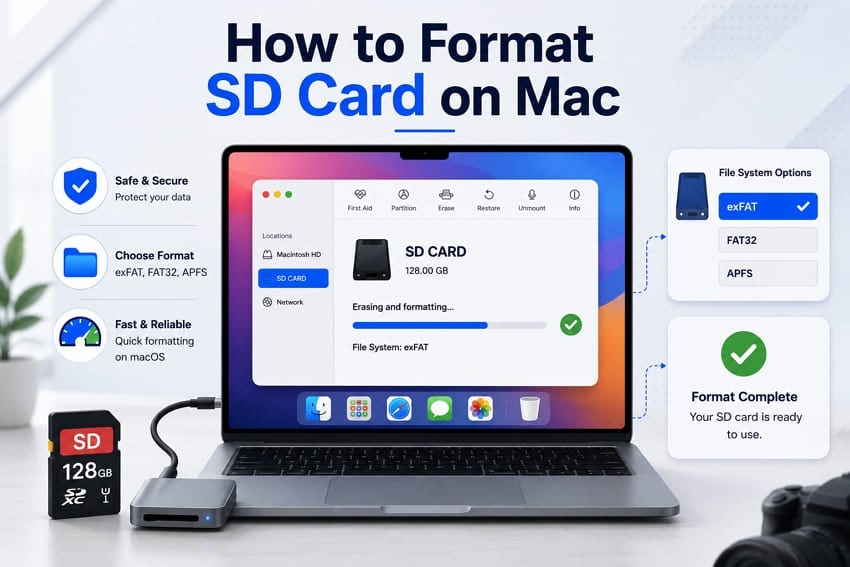
Formatting an SD card on a Mac requires using Disk Utility to apply exFAT for SDXC cards over 32GB to bypass 4GB file limits, or MS-DOS (FAT) for SDHC cards up to 32GB.
● Select the Master Boot Record partition scheme when formatting for cameras or drones, as these external devices generally cannot recognize the Apple-specific GUID Partition Map or APFS format.
● If the erase button is missing in Disk Utility, click View and choose Show All Devices to reveal the physical card, or verify that the lock slider on the physical adapter is disengaged.
● To free up storage capacity without completely rebuilding the file system, delete the unwanted files and empty the macOS Trash while the card remains actively connected to the port.
Ask AI for a summary
 ChatGPT
 Perplexity
 Gemini
 Claude
 Grok
Grok
Formatting erases everything on a card and creates a fresh file system for continued use. This process makes the card usable with cameras, drones, Macs, and other supported devices safely. Choosing the right file system and partition scheme helps ensure wider compatibility across different devices.
Learning how to format an SD card on Mac involves more than simply erasing it. This practical guide covers backups, suitable formats, clearing cards, and solving common macOS formatting problems.
Try Recoverit to Perform Data Recovery
 Security Verified. 3,591,664 people have downloaded it.
Table of Contents
Part 1. What to Check Before Formatting an SD Card on Mac
Before learning how to format a microSD card on Mac, check the card carefully. These 6 quick checks can help protect your files and prevent formatting problems:
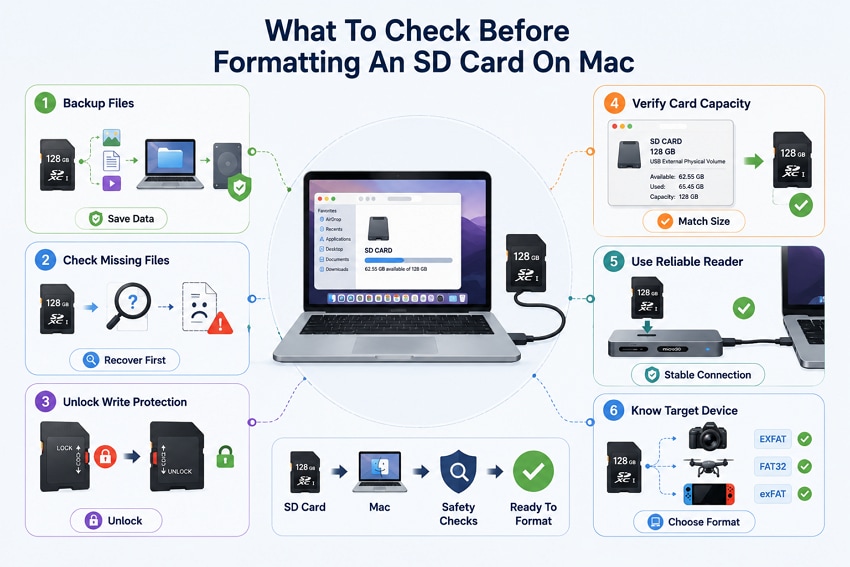
- Back Up What You Want to Keep: Copy important files elsewhere because formatting erases the data stored on the SD card.
- Stop If Files Are Already Missing: Recover missing files before formatting because recovery may become more difficult afterward.
- Check the Write-Protect Switch: Make sure the card or microSD adapter slider is unlocked before making any changes.
- Confirm the Mac Sees the Right Card: Compare the displayed storage capacity and device name with your SD card before proceeding.
- Use a Reliable Slot or Reader: Use a stable built-in slot or reliable card reader to prevent connection problems during formatting.
- Know Which Device Gets the Card: Check your camera, drone, or console requirements before choosing a compatible file system.
Note: Apple confirms that erasing a storage device deletes everything on it and recommends copying important files elsewhere first.
Pro Tip. Recover Lost Files Before Formatting the SD Card
Missing files or an empty memory card can make formatting risky immediately. This is where Recoverit can help recover important files before formatting. It supports SD, microSD, CF, CFexpress, and other common camera memory cards.
Recoverit can scan deleted, formatted, hidden, RAW, and inaccessible memory card files. You can preview recoverable photos, videos, and documents before restoring selected files. Recovered files should be saved elsewhere to prevent overwriting the original card.
Key Features
- FAT32 and exFAT Recovery: Scans SD cards using common file systems such as FAT32 and exFAT, including cards with damaged or inaccessible file systems.
- Deep Scan: Performs a detailed scan to locate files that may not appear during the initial SD card scanning process.
- File Details and Metadata: Preserves available file information when possible, although original names, dates, and metadata depend on the remaining data.
- Fragmented Video Recovery: Reconstructs fragmented video files to improve the recovery of footage recorded by cameras, drones, and other devices.
- AI File Recognition: Uses intelligent file recognition during scanning to help identify and organize recoverable files by type for easier selection.
How to Scan the Card Before Formatting
Before learning how to clear an SD card on Mac, recover important files first. Now, follow the steps below to recover your card files before formatting.
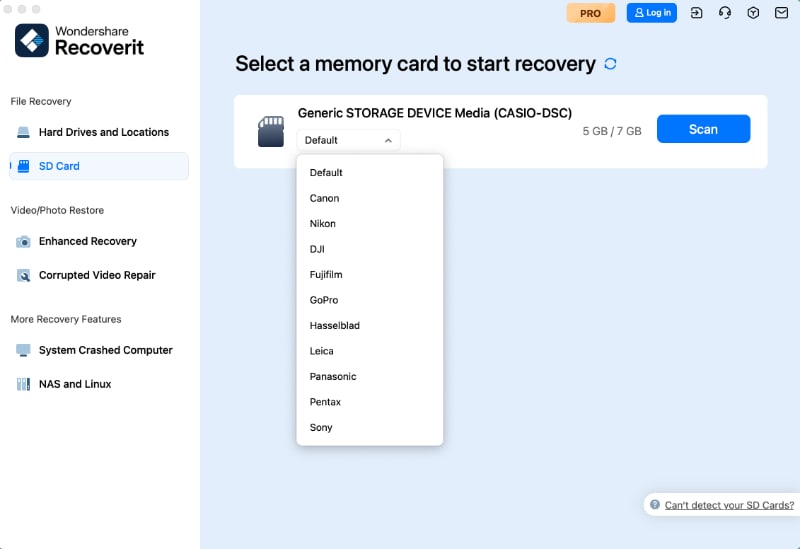
Step 1. Select the SD Card and Start a Scan
Open Recoverit, press “SD Card Recovery” > Choose your card > Click “Start Scan.”
Step 2. Let Recoverit Scan the Card
Once the scan completes, all the recoverable files appear under the “File Location” tab.
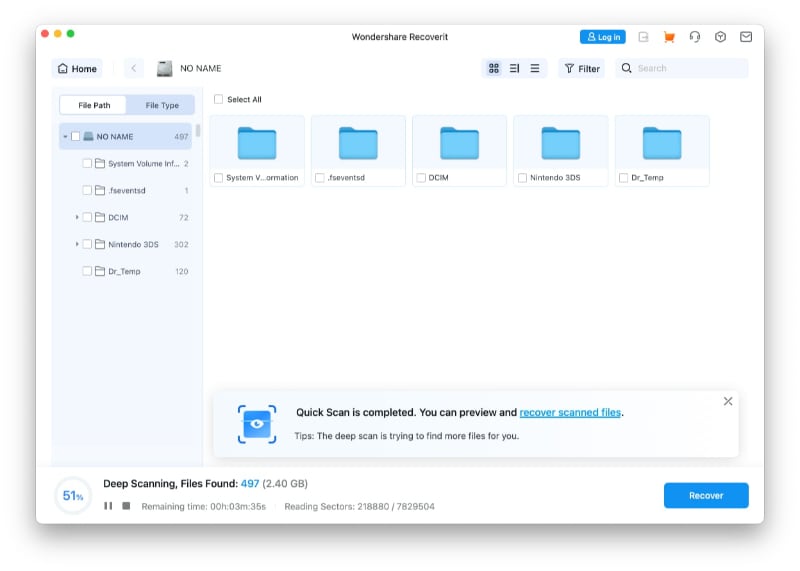
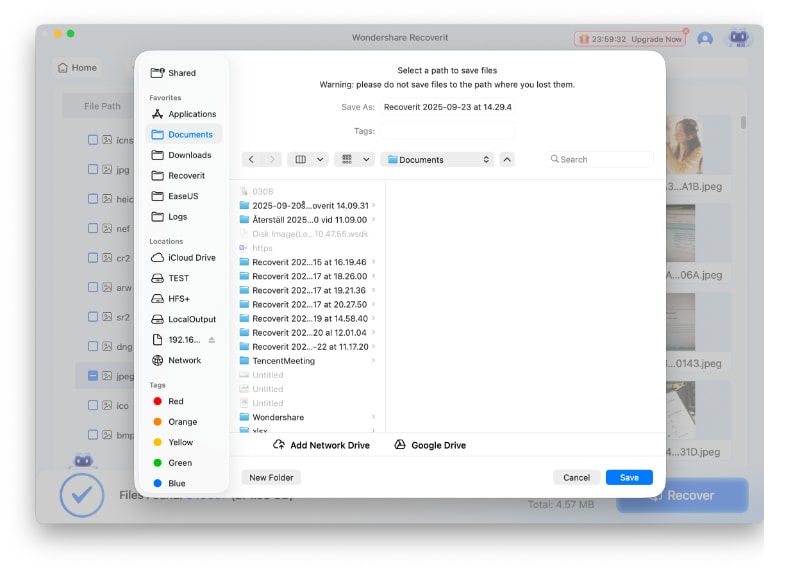
Step 3. Preview and Recover to Your Mac
Preview the results > Select the SD card files you need > Press “Recover” to save them.
Part 2. Which SD Card Format Should You Choose on Mac?
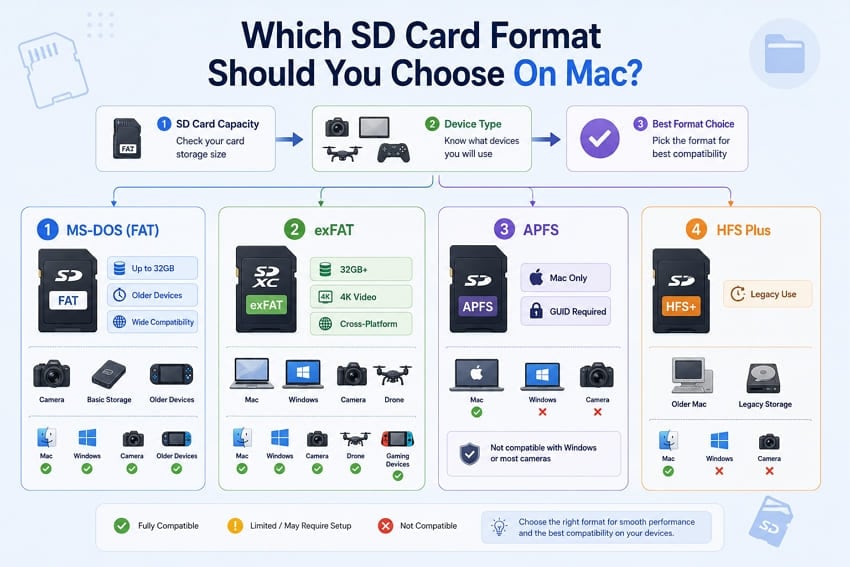
Choosing the right format determines which devices can read your SD card properly. Understanding how to format an SD card on Mac also requires knowing file system compatibility. The table below compares common formats and their best uses across different devices:
| Format | Typical Capacity | Mac | Windows | Cameras | Best Use |
| MS-DOS (FAT) | Up to 32GB | Yes | Yes | Usually | SDHC cards, older devices |
| exFAT | Above 32GB | Yes | Yes | Usually | SDXC/SDUC cards, large video files |
| APFS | Any | Yes | No | Generally no | Mac-only storage |
| HFS Plus | Any | Yes | No | Generally no | Older Mac-only workflows |
FAT32 for SDHC Cards Up to 32GB
Apple calls FAT32 MS-DOS (FAT) in Disk Utility, which often confuses Mac users initially. macOS offers this format for cards up to 32GB, matching the SDHC specification limits. FAT32 also limits individual files to 4GB, which can restrict large video recordings significantly.
exFAT for SDXC Cards Above 32GB
exFAT is generally the suitable choice for modern SDXC cards above 32GB in capacity. It removes FAT32's 4GB file limit, preventing long video recordings from being split unnecessarily. SDXC cards ship with exFAT, which supports reading and writing on Mac and Windows. According to Apple, MS-DOS (FAT) suits Windows-compatible volumes of 32GB or less, while exFAT suits volumes over 32GB.
When APFS Makes Sense for Mac-Only Storage
APFS suits cards staying Mac-only because cameras and Windows systems generally cannot read them natively. GUID is commonly used with APFS, while camera compatibility varies by device and format. Terminal can set GUID and APFS together using “diskutil partitionDisk” with the card identifier.
Choosing for Cameras, Drones, and Mixed Use
Cameras and drones generally use exFAT above 32GB and FAT32 below that capacity. These devices commonly expect the Master Boot Record instead of Apple’s GUID Partition Map. GUID cards may work normally on Mac while some cameras cannot recognize them. For cards shared between Mac and Windows, exFAT provides native read-write compatibility.
Part 3. How to Format an SD Card on Mac
Once you have chosen the right format, you can prepare the SD card. If you are wondering “how do I format an SD card on Mac?”, follow the methods below.
Method 1. Format the SD Card Using Disk Utility
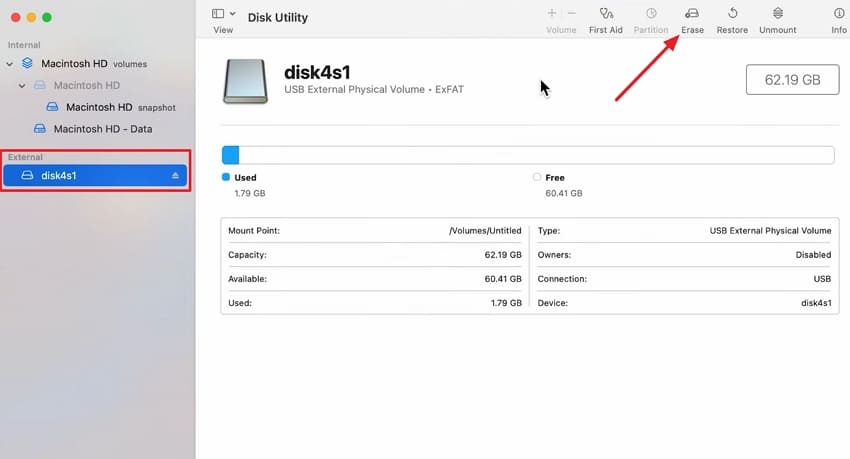
Disk Utility is the built-in Mac tool for formatting SD cards. Selecting the physical card lets you choose the required partition scheme easily. Here is how to format your card after inserting it into your Mac:
Step 1. First, open “Disk Utility” > Choose your SD Card > Press “Erase.”
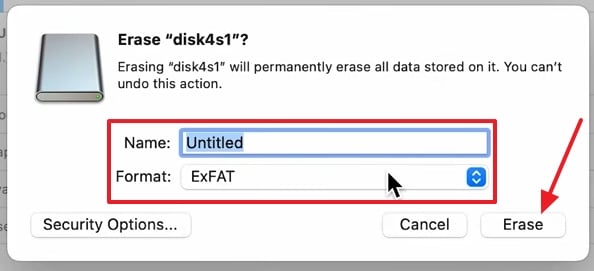
Step 2. Next, name the card > Choose “Format” > Select an appropriate Scheme for your intended device > Click “Erase.”
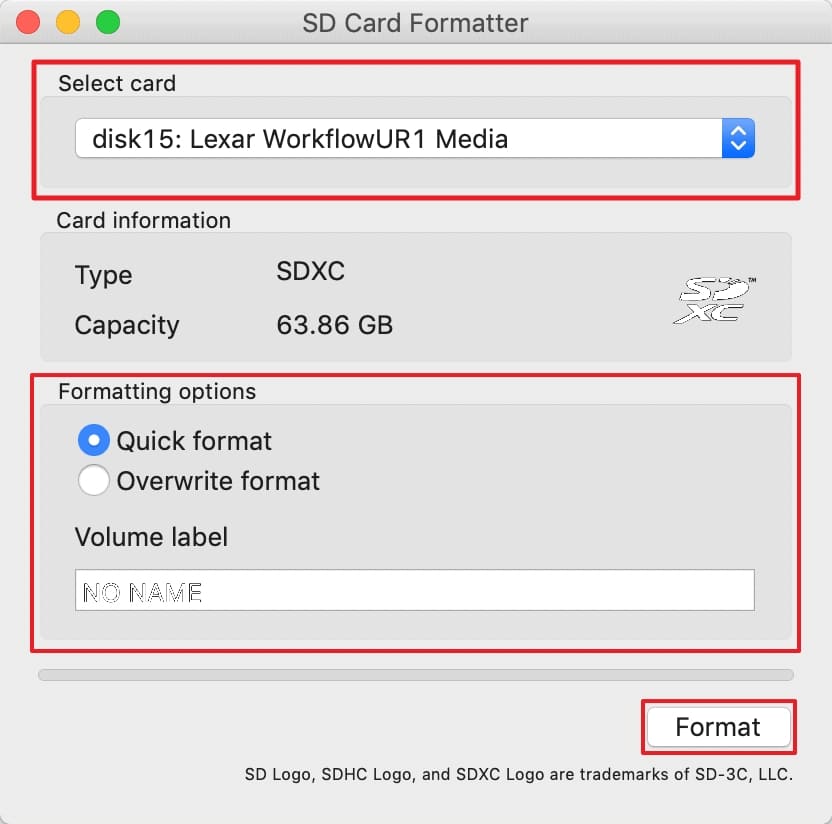
Method 2. Format With SD Memory Card Formatter
SD Memory Card Formatter helps restore cards showing incorrect storage capacity. It can also restore space hidden behind partitions Disk Utility cannot display. To learn how to format a microSD card on Mac with this tool, use these steps:
Instructions. Once you install and open the tool, select your SD card > Choose “Formatting Mode” > Enter a label > Press “Format.”
Method 3. Format an SD Card Using Terminal
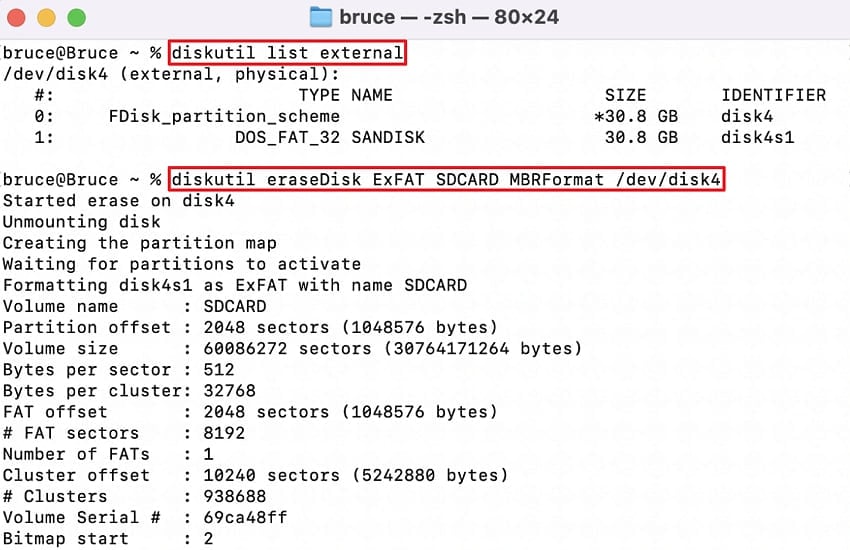
Terminal can format SD cards when Disk Utility fails or disables formatting options. The “diskutil” command formats selected cards directly, so always verify their identifier carefully. Here is how to format using Terminal:
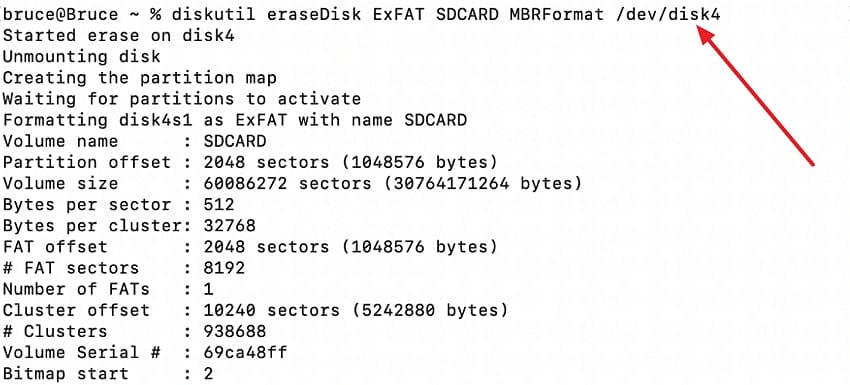
Instructions. Open Terminal > Run "diskutil list external” > See every connected disk. Identify your disk > Run “diskutil eraseDisk ExFAT SDCARD MBRFormat /dev/diskN” > Replace “N” with your disk number.
Part 4. How to Clear an SD Card on Mac Without Formatting
Not every SD card needs formatting when you only want files removed. Learning how to clear an SD card on Mac keeps formatting unchanged.
1. Delete Selected Files from the Card
This option quickly creates extra space while keeping your card working normally. To remove unwanted files, use these steps:
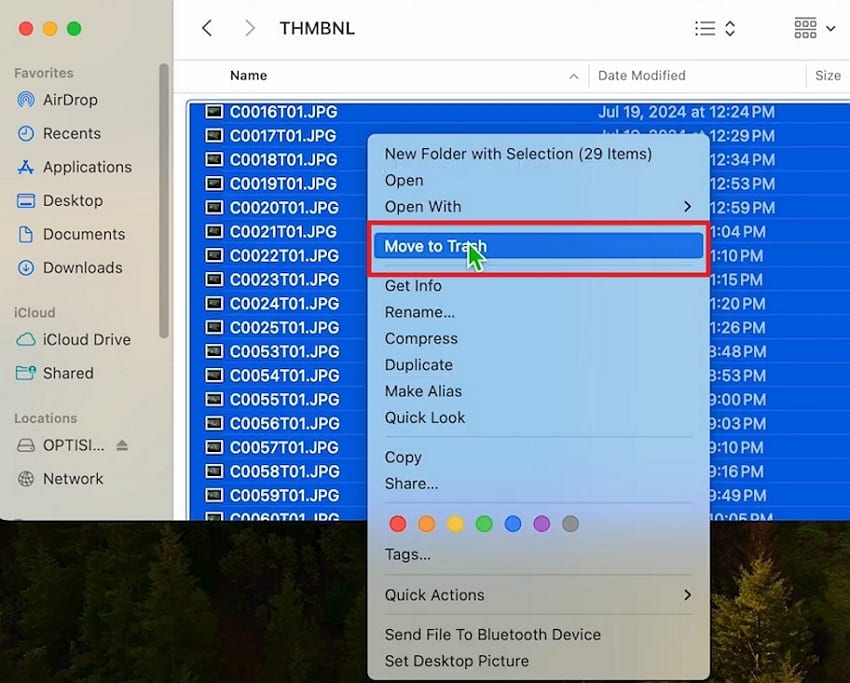
Step 1. Open your Card using “Finder” > Select the files you no longer need > Control-click > Press “Move to Trash.”
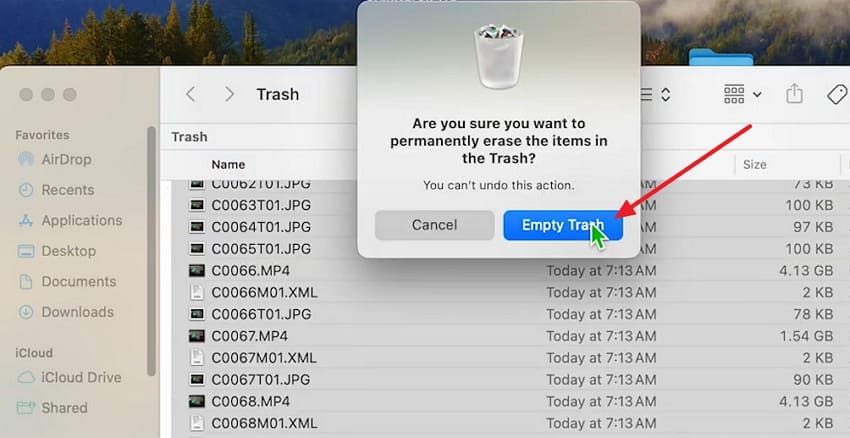
Step 2. Open “Trash” while the card is connected > Select the files > Control-click them > Press “Empty Trash.”
2. Clear the Hidden Files macOS Leaves Behind
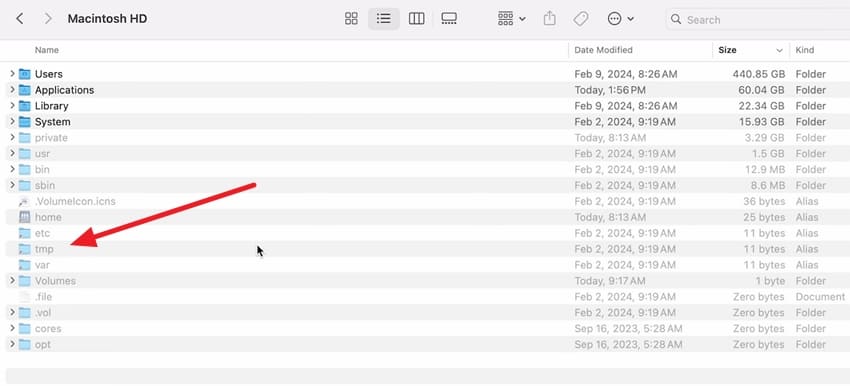
macOS creates hidden files on removable cards for indexing and system tracking. These hidden files can appear as unwanted clutter on other connected devices. Understanding how to clear an SD card on a Mac helps manage them. To remove hidden files, use these simple steps:
Instructions. Open “Finder” > Press “Command + Shift + .” to show hidden files > Delete hidden files > Empty Trash while the card is connected.
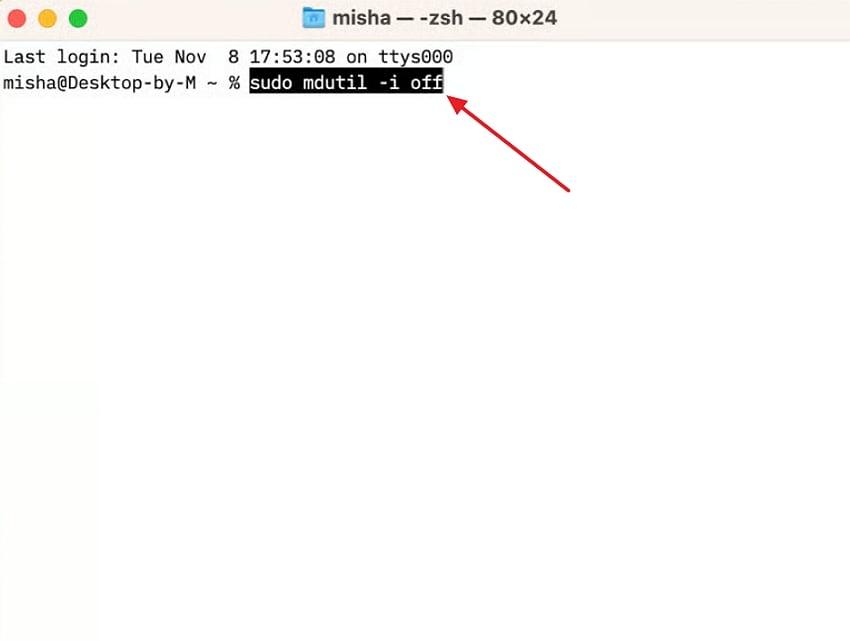
Optional: To stop Spotlight indexing the SD card, run “mdutil -i off /Volumes/CARDNAME” in Terminal, replacing CARDNAME with the card’s volume name.
When Clearing Files Is Better Than Formatting
Clearing files works best when your card functions properly and needs space. Learn how to format an SD card on Mac when clearing becomes insufficient.
When You Should Format Instead of Simply Deleting Files
Format cards showing errors, wrong capacity, or needing a different file system. Deleting files removes unwanted data while keeping the current file system unchanged. Formatting rebuilds the file system and may resolve some common card problems.
Part 5. What to Do if You Cannot Format the SD Card on Mac
Knowing how to format a microSD card on Mac cannot prevent errors. SanDisk says file system errors can sometimes make storage devices inaccessible entirely. Try these simple fixes when your Mac cannot format the SD card.
Fix 1. Unlock the Card or Adapter
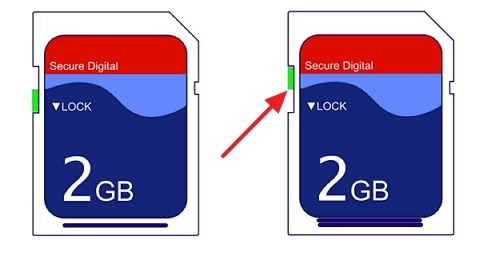
A locked SD card or adapter can prevent your Mac from formatting. The small lock slider may shift position when inserting the card again. Here is how to unlock your card:
Instructions. First, eject your card and look at the slider. Slide it in the opposite direction of the lock tag and reinsert it.
Fix 2. Reinsert and Change Reader or Port
Connection problems can make SD cards appear inconsistently within Disk Utility sometimes. Changing the card reader or port can help restore a stable connection. Before learning how to clear an SD card on Mac, follow the steps below to check connections:
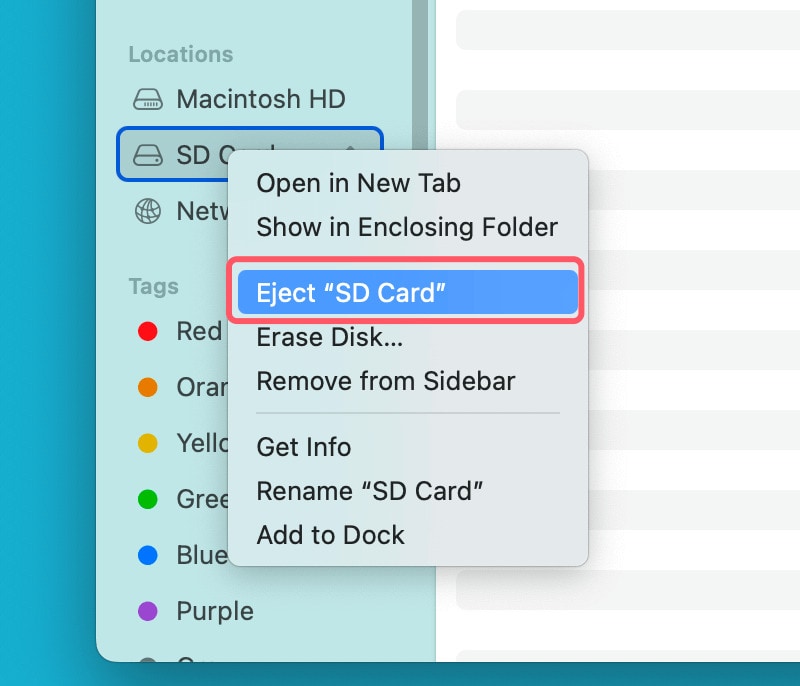
Instructions. Eject the card by right-clicking on the card and selecting “Eject SD Card” in Finder. Remove the card and reinsert it properly. Try the Mac’s built-in SD slot or another card reader. If the problem continues, connect the reader to a different USB or USB-C port.
Fix 3. Choose View and Show All Devices
Disk Utility may hide the physical SD card and show volumes only. Selecting the physical device can make missing formatting options appear again properly. If you want to fix this, continue:
Step 1. While the card is inserted, open “Disk Utility” > Press “View” > Choose “Show All Devices.”
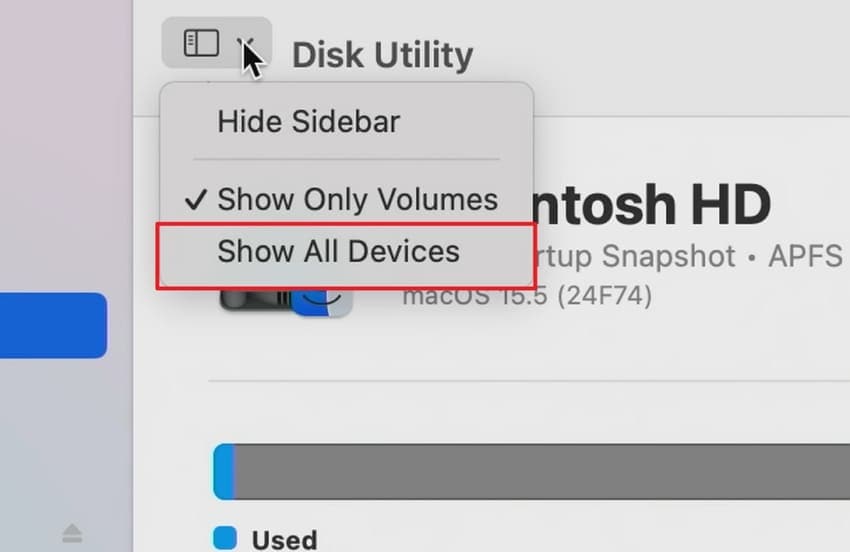
Step 2. Find your SD card > Select the top-level physical card > Check whether the “Erase” option is available.
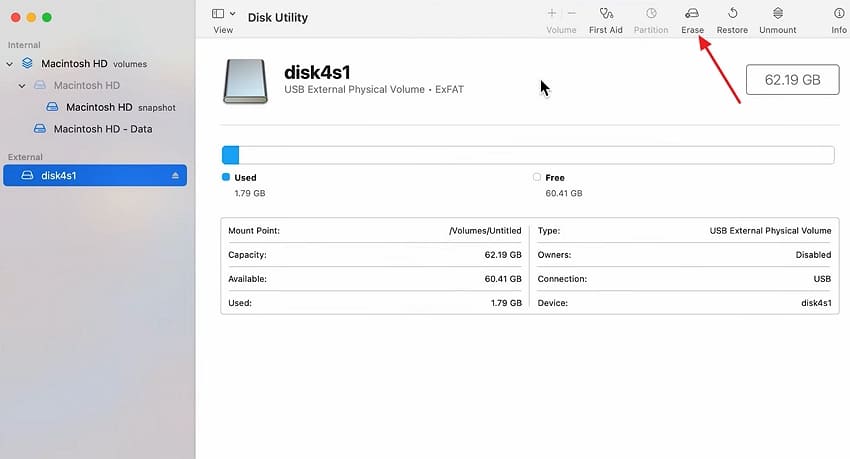
Fix 4. Run Disk Utility First Aid
If you are wondering "how do I format an SD card on Mac" after a failed attempt, First Aid can repair file system errors that may be preventing the process. It checks damaged file structures before you attempt the formatting process again. To repair the card, follow these steps:
Step 1. Open Disk Utility > Select the card > Press “First Aid.”
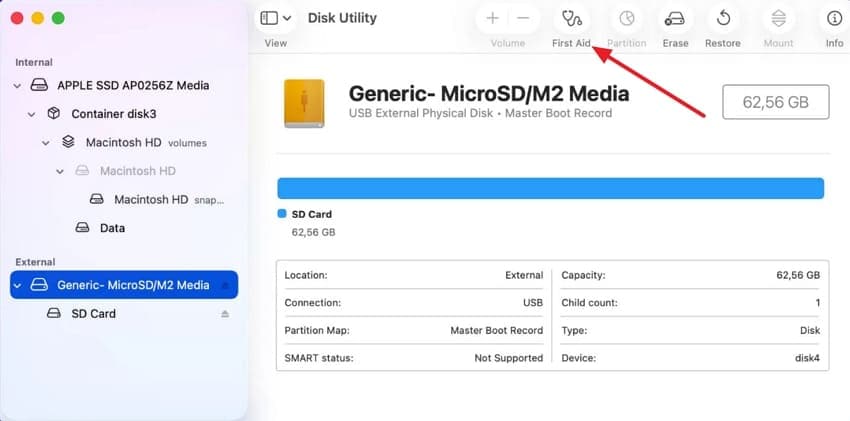
Step 2. Click “Run” > Let it finish > Retry formatting it.
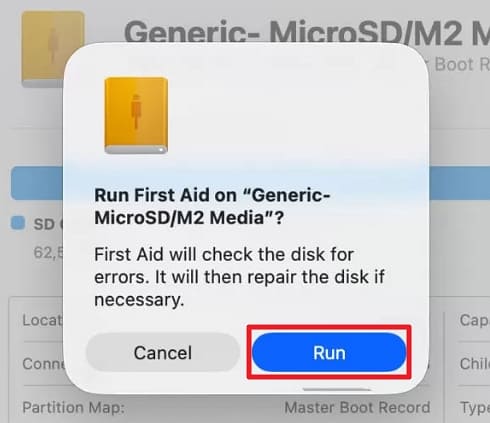
Fix 5. Unmount and Format Using Terminal
If Disk Utility cannot format the SD card, Terminal provides another way to unmount and erase it. Use these steps carefully:
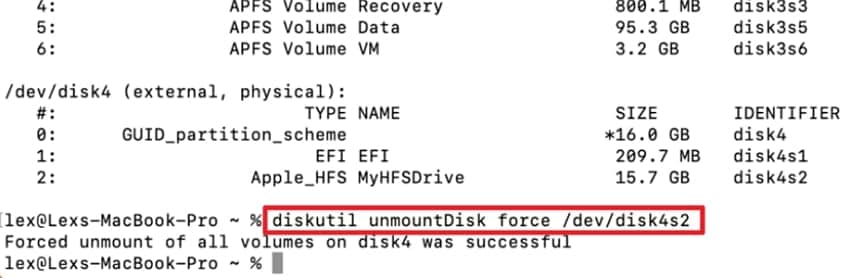
Step 1. Open Terminal > Enter “diskutil list” > Run “diskutil unmountDisk force /dev/diskN,” replacing N with your SD card.
Step 2. Next, run “diskutil eraseDisk ExFAT SDCARD MBRFormat /dev/diskN” to format it.
Fix 6. Replace the Card
Repeated formatting failures may indicate the SD card is damaged or worn. Incorrect storage capacity can also suggest the card is faulty or counterfeit. Test the card on another computer to confirm the same problem appears. Replace unreliable cards before storing important photos, videos, or other valuable files.
Part 6. What to Do After Formatting the SD Card
Knowing how to clear an SD card on Mac differs from checking reliability. The first 3 checks confirm functionality, while 3 others maintain it afterward.
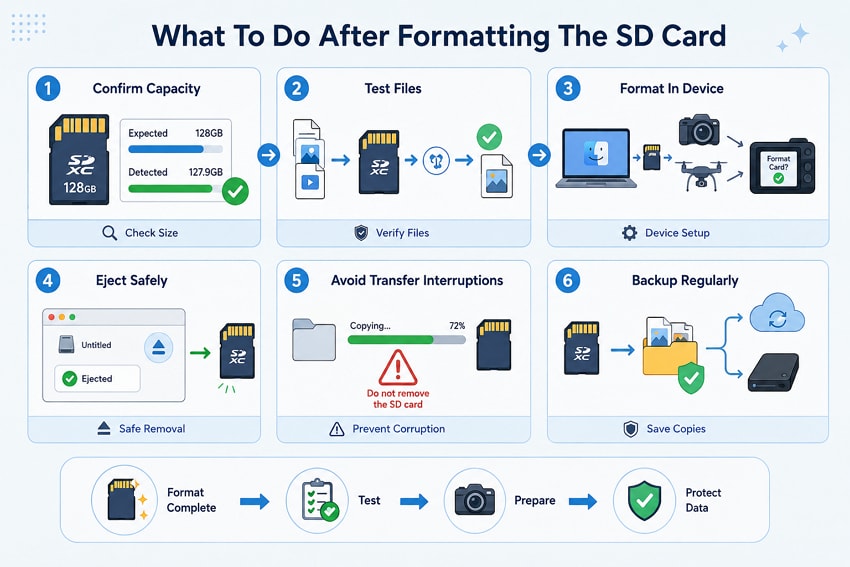
- Confirm the Capacity: Check that the card reports close to its expected usable capacity after accounting for formatting and file-system structures.
- Write and Read Test Files: Copy several files, eject the card, reconnect it, and open them to confirm normal read-and-write operation.
- Format Again in the Device: Cameras and drones may create their own folder structures, so format the card in the device when the manufacturer recommends it.
- Eject Properly Every Time: Use the eject symbol in Finder and wait for the card to disappear before physically removing it.
- Never Interrupt a Transfer: Avoid removing the card during an active transfer because doing so can corrupt files or damage the file system.
- Back Up Regularly: Treat an SD card as working storage and keep copies of important photos, videos, and other files elsewhere.
Conclusion
To conclude, how to format an SD card on a Mac depends on its capacity and intended device. Choose FAT32 for SDHC cards or exFAT for SDXC and SDUC cards. Check your camera or drone requirements before selecting a partition scheme, and format the card in-device when recommended. Always back up important data first or use Recoverit to retrieve valuable files that are already missing. These precautions help maintain compatibility and reduce avoidable data-loss risks.
Frequently Asked Questions
-
1. Does formatting an SD card on Mac change its speed class?
No, speed class is a hardware rating built into the card, and no format alters it. A card rated V30 stays V30 whatever file system it carries. -
2. Why is the card smaller than advertised after formatting?
Storage is sold using decimal gigabytes, while macOS may display capacity differently. The file system also reserves some space for its own internal tables. -
3. Does formatting a card repeatedly wear it out?
A quick format writes almost nothing and has no measurable cost. Overwrite and secure erase options touch every cell, so repeating those does spend write cycles the card cannot replace. -
4. Can you partition an SD card into multiple volumes on Mac?
Yes, Disk Utility or diskutil partitionDisk can divide an SD card into partitions. However, many cameras and other devices expect a single partition, so check device compatibility first.



