
 TL;DR:
Resolving a MacBook crash screen requires identifying the specific system state—such as an active pointer, stalled startup progress, or complete unresponsiveness—before executing non-destructive actions like peripheral isolation or macOS Recovery.
● Press Option + Command + Esc to force quit an unresponsive application if the pointer still moves, or boot into macOS Recovery to run Disk Utility First Aid if the Mac stalls on the Apple logo.
● Visual artifacts appearing before macOS loads, a display that remains blank inside Recovery, or image disruptions when moving the laptop lid indicate a physical hardware or logic board fault requiring Apple Diagnostics.
● Data recovery software like Wondershare Recoverit can scan readable APFS and HFS+ volumes, but cannot bypass FileVault encryption, reconstruct unsaved in-memory changes, or access an undetected internal SSD.
Ask AI for a summary
 ChatGPT
 Perplexity
 Gemini
 Claude
 Grok
Grok
A MacBook crash screen can mean very different things: one frozen app, a sleeping display, a stalled startup disk, a kernel panic, or a physical display fault. The fastest safe response is to identify what the Mac is still doing before forcing it off or reinstalling macOS.
Quick answer: If the pointer still moves, force quit the problem app. If the screen is black, connect power and rule out sleep. If startup is stuck, disconnect accessories and use macOS Recovery to run Disk Utility First Aid. Persistent lines, flickering, or a blank display even in Recovery point more strongly to hardware service. Protect readable files before any erase, firmware restore, or repair.
A MacBook Pro owner described a similar pattern on Reddit: the computer froze, the display went black, and the problem returned after restarting. That sequence is useful because it shows why a black-screen report should be diagnosed as a chain of symptoms—not treated as one universal failure.
Recover Data Before Repairing a MacBook
 Security Verified. Over 7,302,189 people have downloaded it.
In This Article
-
- Fix 1. Force Quit the App Causing the Frozen Screen
- Fix 2. Restart the MacBook
- Fix 3. Disconnect External Devices and Accessories
- Fix 4. Update macOS and Problematic Apps
- Fix 5. Test the MacBook With an External Display
- Fix 6. Start the MacBook in Safe Mode
- Fix 7. Start From macOS Recovery
- Fix 8. Run Disk Utility First Aid
- Fix 9. Reinstall macOS
- Fix 10. Run Apple Diagnostics and Arrange Hardware Service
Part 1. What Does a MacBook Crash Screen Mean?
First, identify whether only the picture has failed or macOS itself has stopped. Sound, pointer movement, keyboard response, fan activity, and output to another display are more informative than screen color alone.
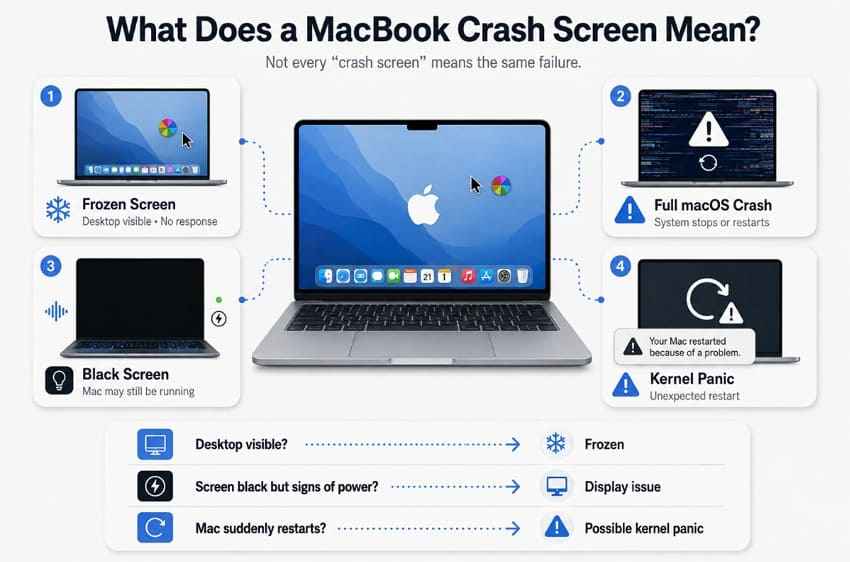
Frozen Screen vs Full macOS Crash
If the pointer moves and other apps respond, one application may be frozen. If the pointer, keyboard shortcuts, audio, and interface all stop, the entire system may be locked. An app-level freeze should be handled with Force Quit first; a full lockup may require a restart.
Black Screen vs Mac That Is Completely Powered Off
A black display does not prove the Mac is off. Apple notes that a Mac can show a black screen while sleeping, and a Mac laptop can remain black when its battery is depleted. Listen for startup sounds, notifications, or fans; press a key; connect the correct power adapter; and wait briefly before forcing a shutdown. See Apple’s current black-screen checks.
Kernel Panic and Unexpected Restart
Macs do not normally show the Windows-style blue crash screen discussed in this Windows blue-screen guide. A serious macOS failure may instead restart the Mac and display a message that the computer restarted because of a problem. Repeated events can come from installed software or connected hardware, and the panic log can help isolate the cause. For more context, see this guide to a kernel panic on Mac.
Display Problem vs System Problem
A display fault is more likely when the Mac continues producing sounds or works on an external monitor while the built-in panel stays blank or shows lines. A system problem is more likely when neither display works and the Mac cannot enter Recovery. This is a diagnostic clue, not a final diagnosis: graphics, firmware, power, or logic-board faults can affect both screens.
Part 2. Common Types of MacBook Screen Crashes
The appearance and timing of a MacBook screen crash narrow the search. Note what was running, whether the issue occurs before login, and whether the Mac restarts by itself.
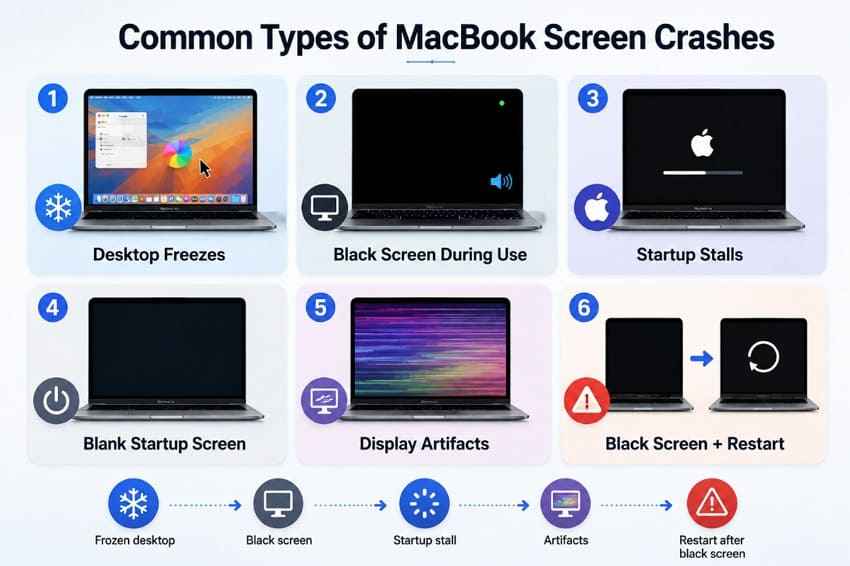
- MacBook screen freezes on the desktop: One app, a plug-in, memory pressure, storage errors, or background software may be blocking the interface.
- Screen suddenly turns black during use: Rule out sleep, a drained battery, display brightness, power instability, and an app or kernel crash.
- Mac gets stuck on the Apple logo or progress bar: Startup is not completing; an update, startup item, disk error, or damaged macOS installation may be involved.
- Mac starts to a blank black, gray, or blue screen: Apple treats these as blank startup screens and recommends Recovery-based disk repair before reinstallation.
- Screen shows pink, green, lines, flickering, or artifacts: Test updates, cables, docks, and an external display, but persistent artifacts can indicate the panel, display cable, graphics path, or logic board.
- Screen goes black and the Mac restarts: Check for the “restarted because of a problem” message and investigate software, peripherals, and hardware as a possible kernel panic.
During normal startup, the Apple logo and progress bar can alternate with a blank screen. Apple’s stalled startup guidance applies when progress stops for an unusually long time or never reaches login.
Part 3. What to Do Immediately When the MacBook Screen Crashes
Use the least disruptive action that still works. Every forced shutdown can discard unsaved changes, and repeated restarts can write new data to a drive from which files may need to be recovered.
- Rule out sleep: Move the pointer, press a key once, open the lid fully, and increase brightness.
- Connect the MacBook to power: Use a known-good compatible adapter and cable, then allow a depleted battery time to respond.
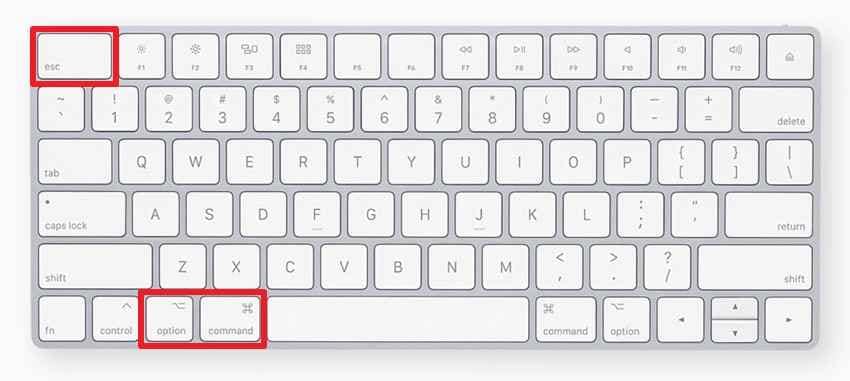
- Try Force Quit if macOS still responds: Press Option + Command + Esc and quit only the unresponsive app.
- Disconnect nonessential accessories: Remove hubs, docks, drives, printers, capture devices, and external displays, while leaving required power connected.
- Restart normally when possible: Choose Apple menu > Restart if the interface still works.
- Force the Mac off only when necessary: Hold the power button or Touch ID button for up to 10 seconds, release it, and then turn the Mac on again.
Important: Apple warns that forcing an app to quit can lose unsaved changes. A forced shutdown can do the same and may interrupt disk writes, so it should be the last immediate action, not the first.
Part 4. How to Fix a MacBook Crash Screen
Work through these fixes in order. Stop when the problem is resolved, and back up the Mac before moving to disk repair, macOS reinstallation, firmware restore, or service.
Fix 1. Force Quit the App Causing the Frozen Screen
Use this method only when the Mac still accepts keyboard input. Apple’s Force Quit guidance recommends trying a normal app quit first when possible.
- Press Option + Command + Esc.
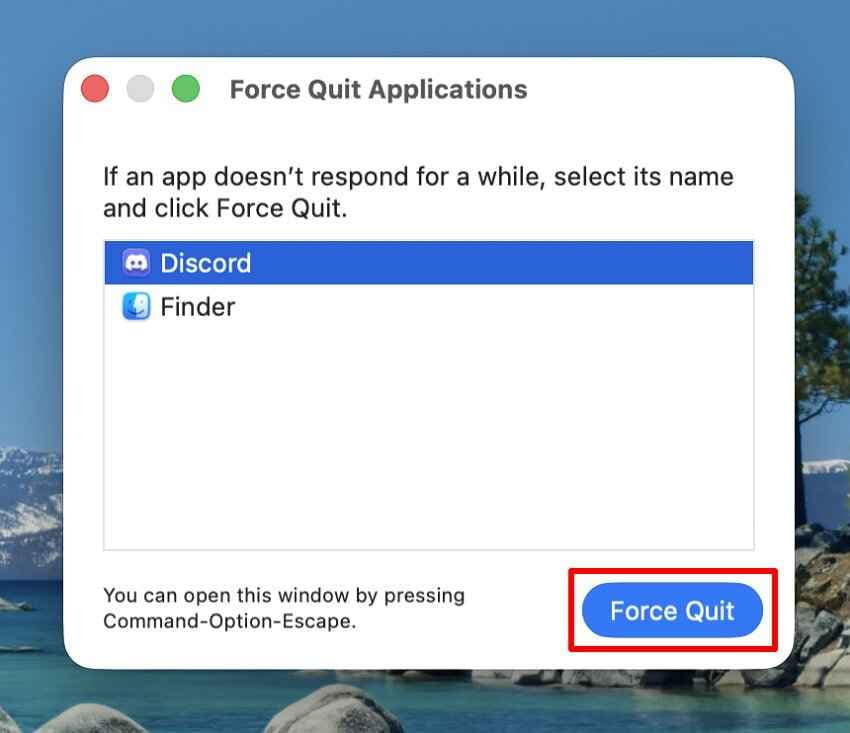
- Select the app marked Not Responding.
- Click Force Quit, then confirm.
- Reopen the app and test the same file or action. If the freeze returns, update the app and test without third-party plug-ins.
Fix 2. Restart the MacBook
A restart clears temporary system state and reloads macOS. Use the menu command whenever the Mac still responds.
- Choose Apple menu > Restart.
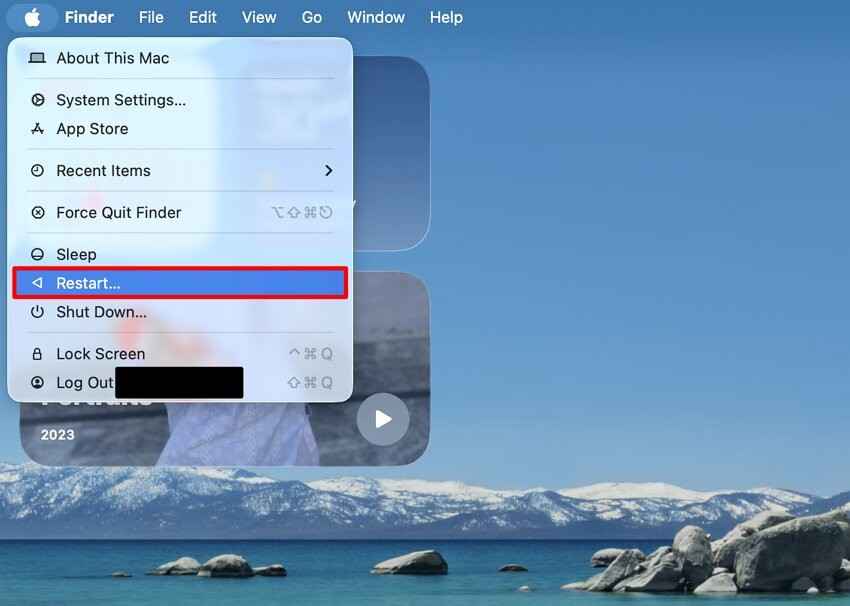
- If Restart cannot be selected and the whole Mac is unresponsive, hold the power button for up to 10 seconds.
- Release the button, wait a few seconds, and press it again to start the Mac.

Fix 3. Disconnect External Devices and Accessories
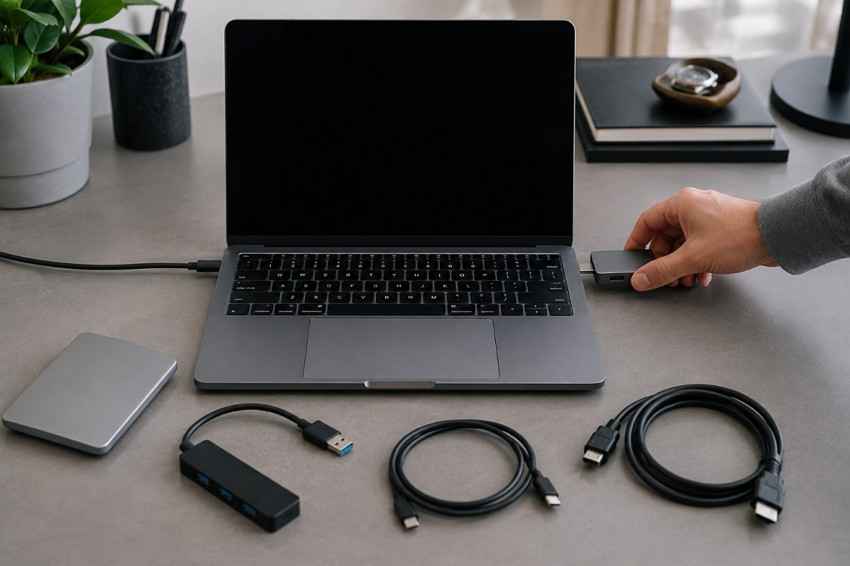
Apple recommends removing connected hardware when unexpected restarts recur, then reconnecting devices individually. A bad dock, cable, drive, display adapter, peripheral driver, or power path can destabilize the Mac.
- Shut down the MacBook if possible.
- Disconnect USB and Thunderbolt hubs, docks, external drives, printers, capture devices, adapters, and external displays.
- Keep only required power connected and start the Mac.
- If it works normally, reconnect one device at a time and retest until the failure returns.
Fix 4. Update macOS and Problematic Apps
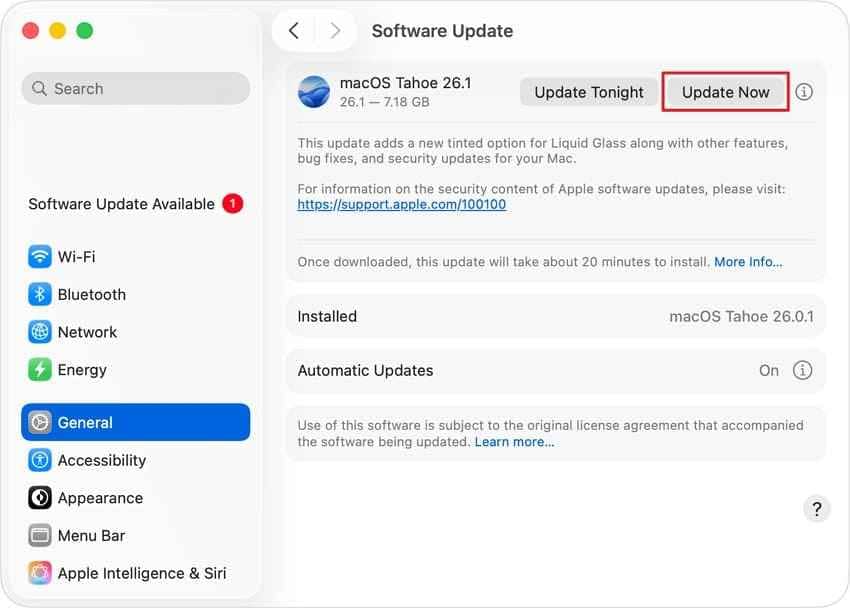
Updates can fix display, graphics, security, app-compatibility, and kernel issues. Install only from Apple and trusted developers, and keep a backup before a major macOS upgrade.
- Open Apple menu > System Settings > General > Software Update.
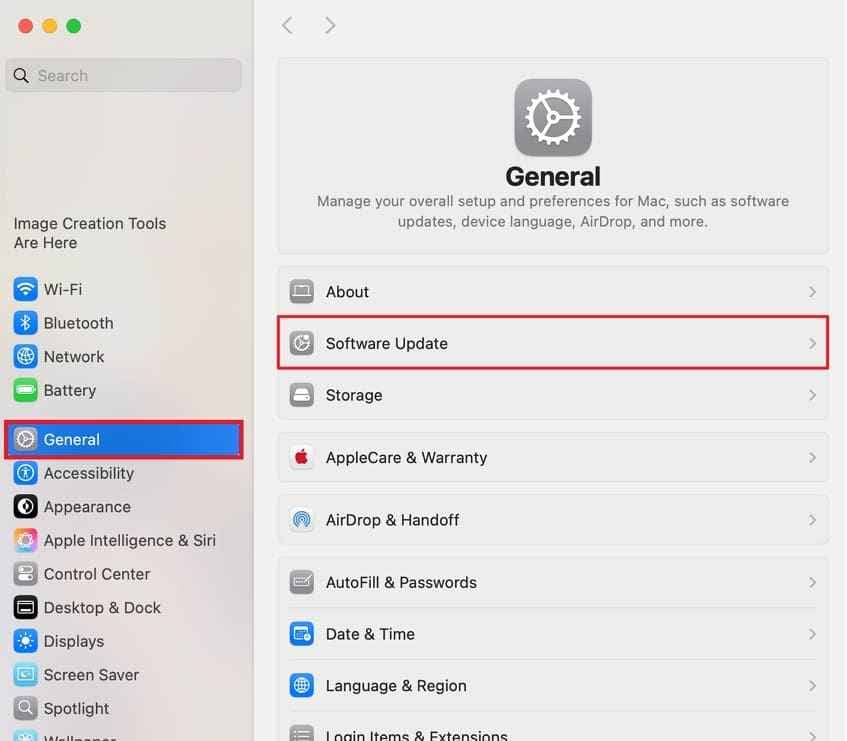
- Install the appropriate macOS update, then restart.
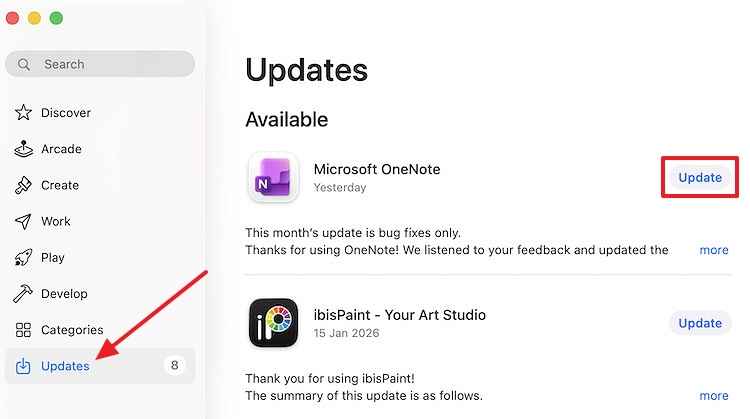
- Update the app that froze through the App Store or its developer’s official updater.
- Temporarily remove incompatible plug-ins, extensions, visual enhancers, antivirus components, and old device drivers.
- Test another known-good file. If only one document crashes, the file itself may be damaged.
Fix 5. Test the MacBook With an External Display
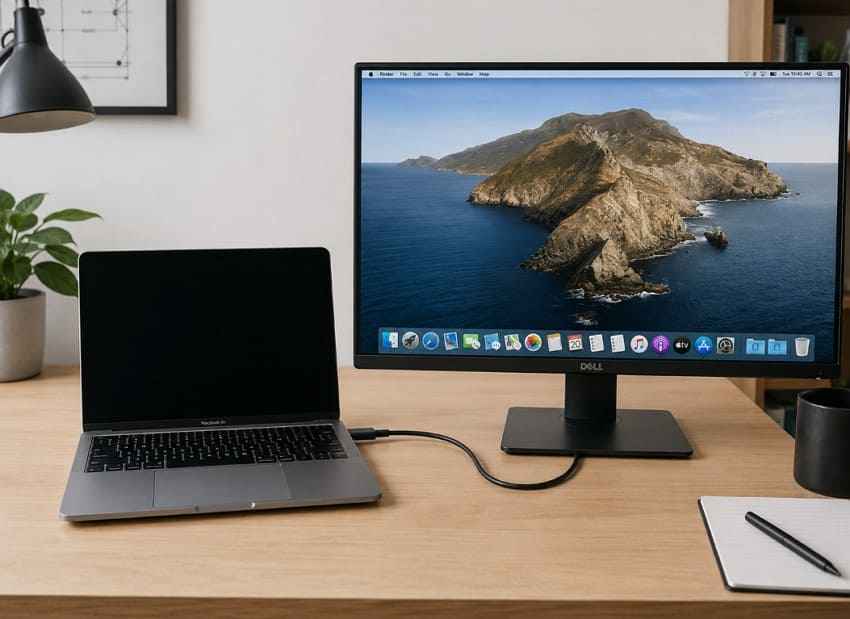
An external monitor can help distinguish a built-in display path problem from a broader startup failure, but it is not a conclusive hardware test. Use a compatible display, cable, and adapter, preferably connected directly instead of through a hub.
- Connect a known-good external monitor using a port and cable supported by the Mac.
- Connect power and start or wake the MacBook.
- If the desktop appears externally while the built-in display remains blank or corrupted, back up important files and arrange display inspection.
- If neither display works, continue with Recovery and Diagnostics rather than assuming the internal panel alone has failed.
Apple’s current external-display setup guide and display troubleshooting steps cover supported connections, direct cabling, and display detection.
Fix 6. Start the MacBook in Safe Mode
Safe Mode helps determine whether software loaded during startup contributes to the crash. The procedure depends on whether the Mac has Apple silicon or an Intel processor.
Apple Silicon MacBook
- Shut down the Mac and wait until it is fully off.
- Press and hold the power button until Loading startup options appears.
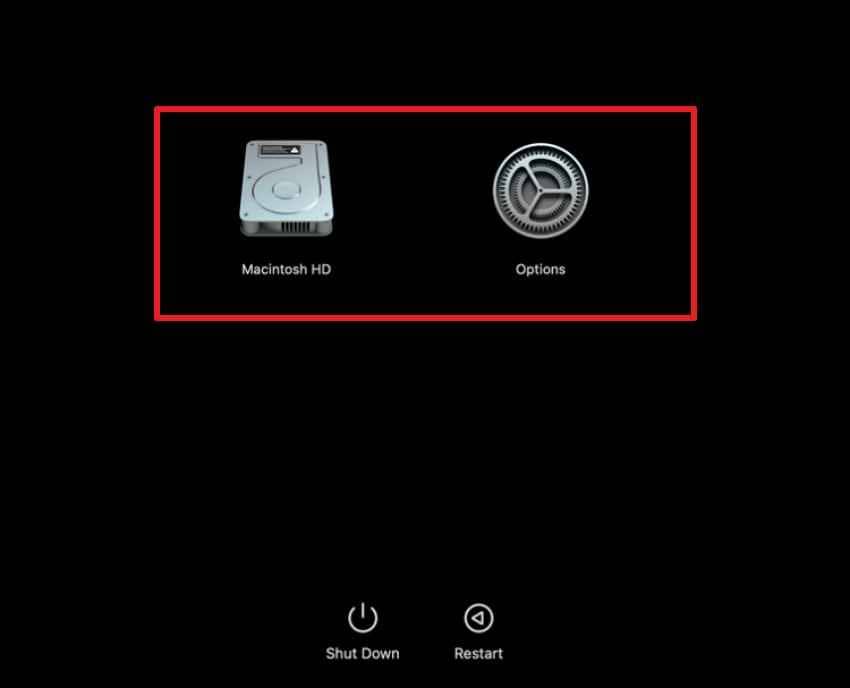
- Select the startup volume.
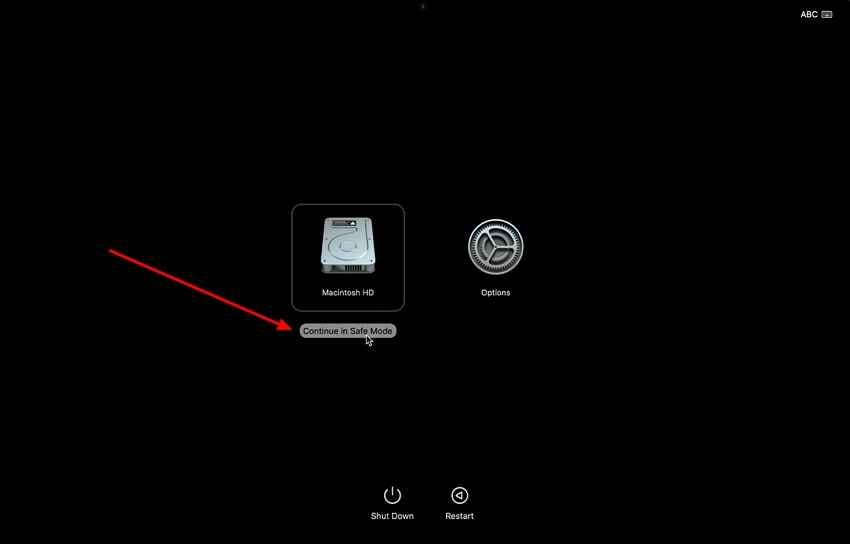
- Hold Shift, click Continue in Safe Mode, and log in.
Intel MacBook
- Turn on or restart the Mac.
- Immediately hold Shift until the login window appears.
- Log in; Apple notes that a second login may be required.
If the Mac works in Safe Mode, remove recently added login items, extensions, and third-party system software, then restart normally. Follow Apple’s current Safe Mode instructions.

Fix 7. Start From macOS Recovery
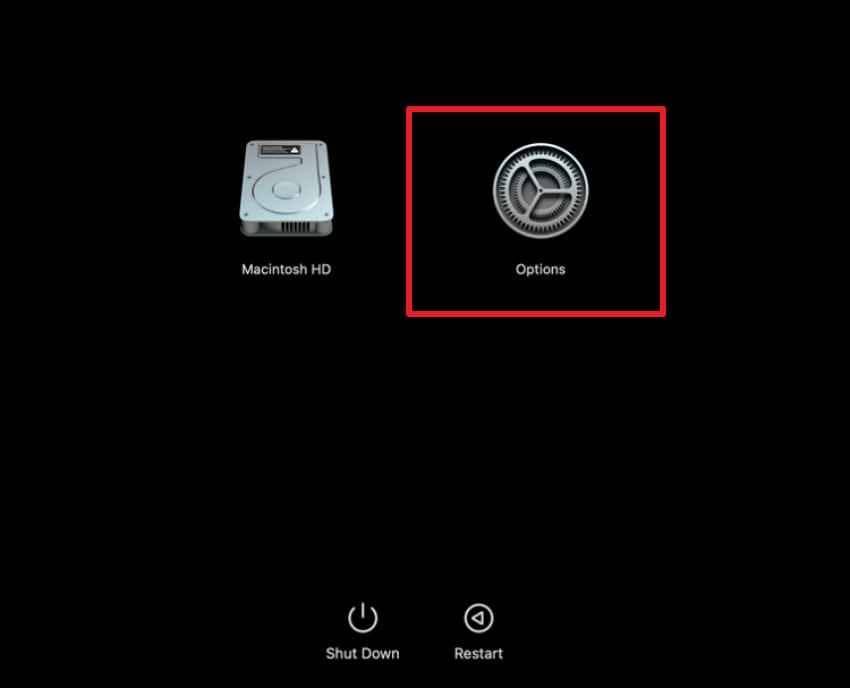
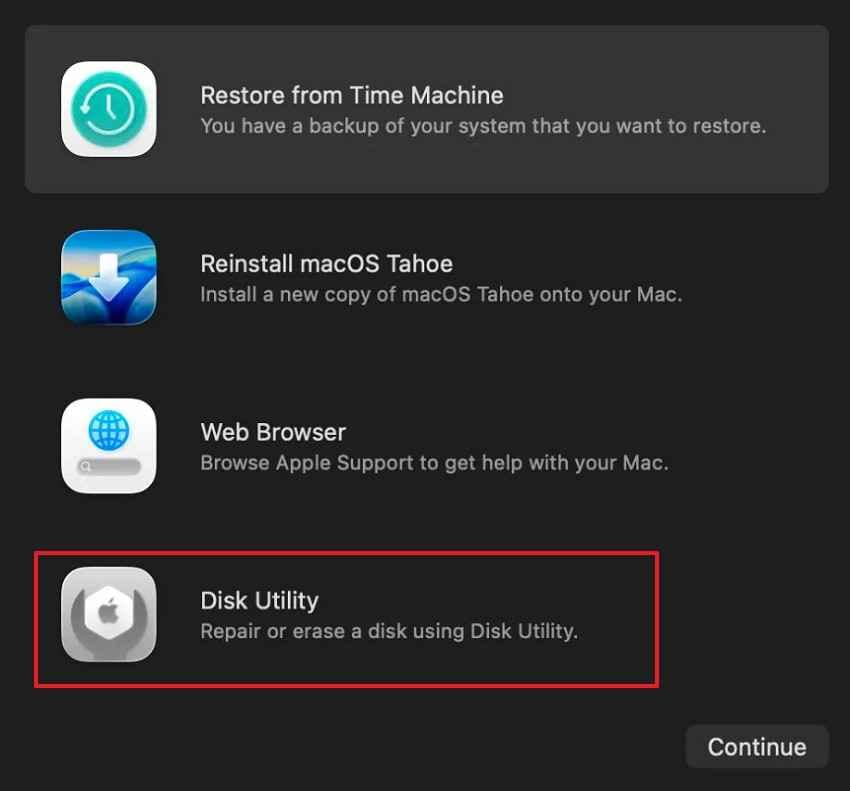
Recovery provides Disk Utility, macOS reinstallation, Safari support access, and—in some configurations—file-sharing tools when the normal desktop will not load.
Apple Silicon MacBook
- Shut down the Mac.
- Press and hold the power button until startup options appear.
- Click Options, then Continue.
- Select a volume and administrator account if requested.
Intel MacBook
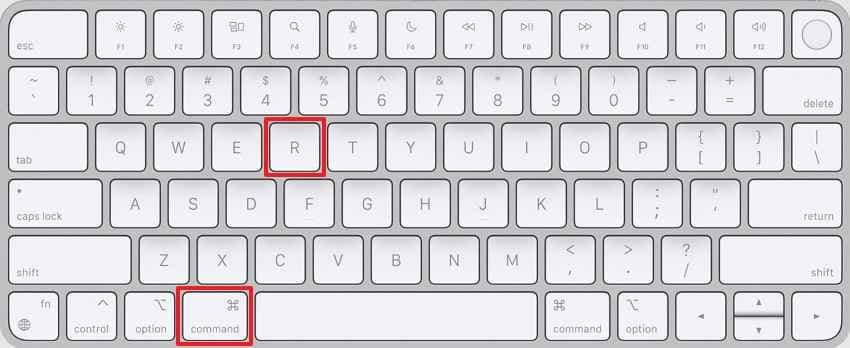
- Turn on or restart the Mac.
- Immediately hold Command + R until an Apple logo or spinning globe appears.
- Enter the requested administrator or firmware password.
Use Apple’s macOS Recovery guide if the key sequence or startup-options screen differs. If Apple silicon or a T2 Mac cannot start Recovery, do not erase it reflexively; Part 7 explains the firmware path.
Fix 8. Run Disk Utility First Aid
First Aid can repair certain file-system and directory-structure errors. It cannot repair a failed SSD or every form of corruption, so copy or recover important data first when the disk is still readable.
- Start in macOS Recovery and open Disk Utility.
- Choose View > Show All Devices.
- In the sidebar, begin with the last volume on the startup device and run First Aid.
- Continue upward through the remaining volumes, containers, and finally the physical storage device.
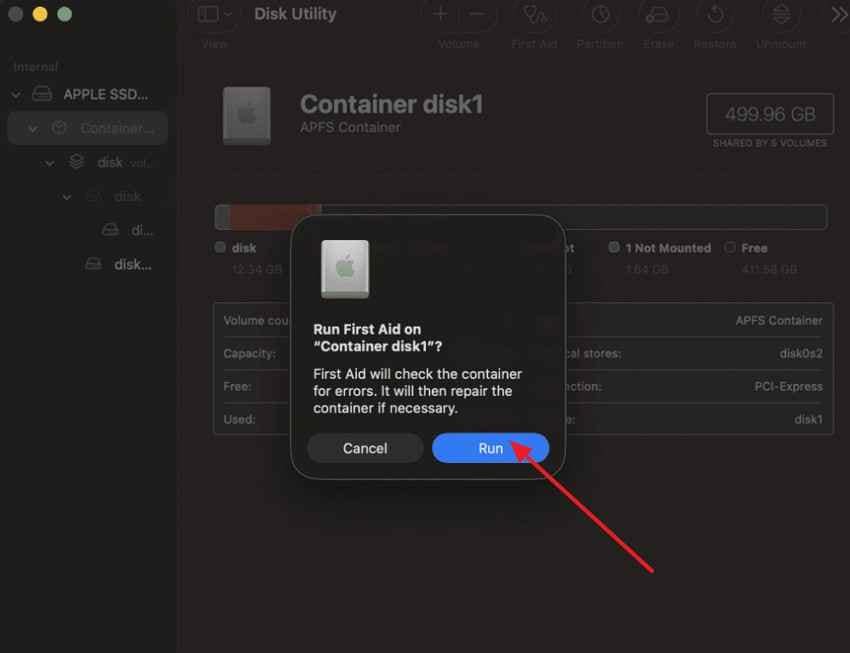
- Quit Disk Utility and restart the Mac.
Apple’s Disk Utility repair order is important. If the device does not appear, or First Aid reports that it cannot repair the disk, stop repeated repair attempts and consider service or data recovery.
Fix 9. Reinstall macOS
Reinstall only after backing up or recovering important data. Apple says reinstalling from Recovery normally keeps apps and personal data, but failures can happen and an erase is a separate, destructive operation.
- Start in macOS Recovery.
- Select Reinstall macOS and click Continue.
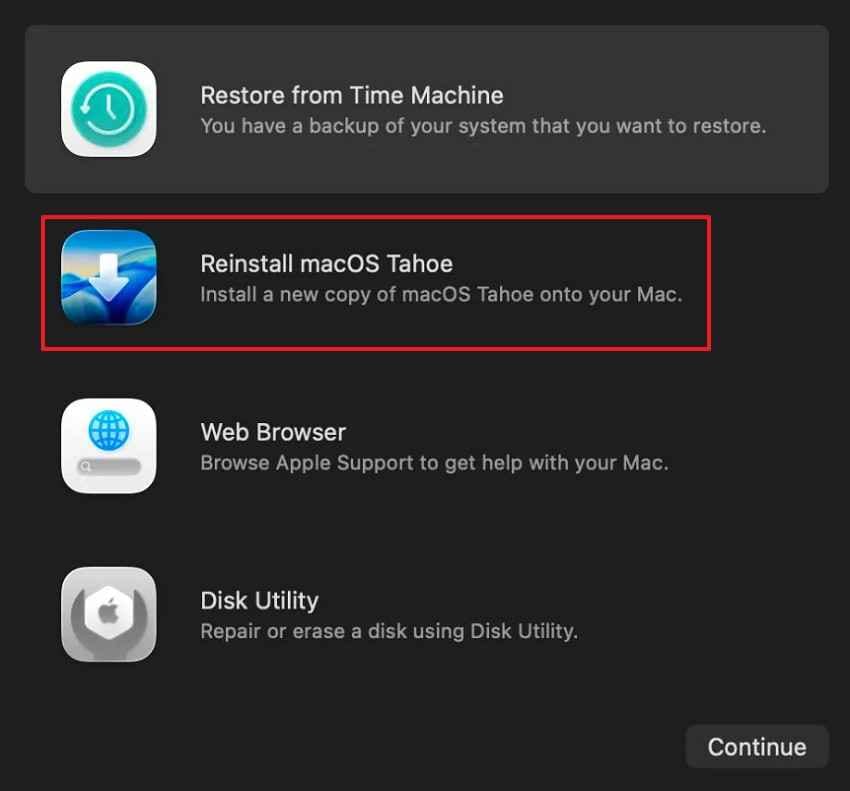
- Choose the normal system volume—usually Macintosh HD, not Macintosh HD - Data—when asked.
- Follow the installer and keep the Mac connected to power and the internet.
- Allow restarts and temporarily blank screens to complete without closing the lid or forcing the Mac off.
Apple recommends reinstallation after startup-disk repair when a Mac keeps starting to a blank screen. Review both the blank-screen workflow and current reinstallation instructions before proceeding.
Fix 10. Run Apple Diagnostics and Arrange Hardware Service
Apple Diagnostics checks supported internal hardware and can return reference codes for service. The launch sequence differs between Apple silicon and Intel.
Apple Silicon MacBook
- Shut down and disconnect nonessential devices.
- Hold the power button until startup options appear.
- Press and hold Command + D.
Intel MacBook
- Turn on the Mac and immediately hold D.
- If that does not work, try Option + D to use Diagnostics over the internet.
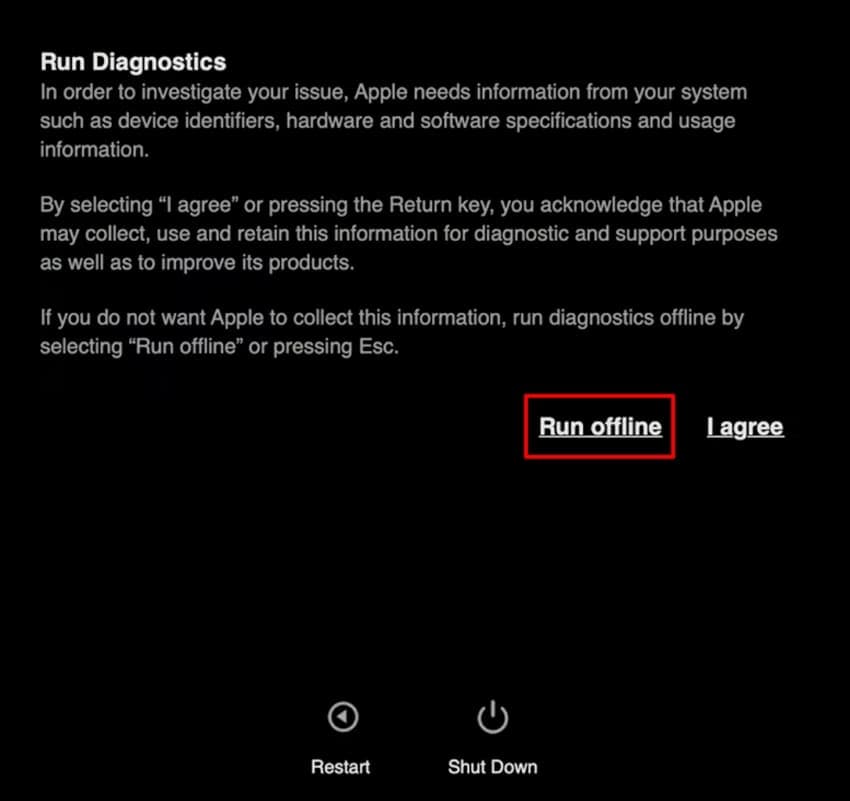
Follow the prompts and save every reference code. On macOS Tahoe 26 or later, supported Macs may let you choose a specific diagnostic, including the built-in display. Apple’s current Diagnostics instructions also require a stable, ventilated surface and only essential connections.
Part 5. Fix the MacBook Crash Screen by Symptom
Use this table to choose a first action without assuming every black or frozen screen has the same cause.
| Crash screen | Best first fix | Next step | When hardware service may be needed |
| Black screen but MacBook still makes sounds | Connect power, rule out sleep, and raise brightness. | Test a direct external display and enter Recovery. | The internal display stays blank while external video works, or Recovery also shows no built-in image. |
| Frozen screen with working pointer | Force quit the unresponsive app. | Update the app, remove plug-ins, and test another file. | Freezing spreads across apps or continues in Safe Mode. |
| Stuck Apple logo or progress bar | Disconnect nonessential accessories. | Use Recovery, run First Aid, and reinstall macOS if needed. | The startup device is missing, First Aid cannot repair it, or the Mac cannot enter Recovery. |
| Blank screen during startup | Force off once, remove accessories, and start Recovery. | Repair the disk, then reinstall without erasing. | The blank screen persists after Apple’s Recovery workflow. |
| Screen turns black and Mac restarts | Check for the unexpected-restart message and update software. | Disconnect peripherals, test Safe Mode, and run Diagnostics. | Restarts continue in Safe Mode or Diagnostics returns a code. |
| Visual lines, flickering, or color artifacts | Remove docks and adapters; update macOS. | Compare the built-in and a known-good external display. | Artifacts appear before macOS loads, in Recovery, or move with the lid. |
For comparison, a Windows machine with a black startup display follows a different boot and repair path; use this Windows black-screen guide only for Windows PCs.
Part 6. Recover Data Before Repairing a MacBook That Will Not Start
Data protection comes before an erase, firmware restore, disk replacement, or mail-in repair. Start with existing Time Machine, cloud, external-drive, and second-computer copies. If storage is readable but files are missing, recovery software may help; if the internal SSD is not detectable, encrypted and locked, or physically failed, software access may not be possible.
Recommended Tool: Wondershare Recoverit for Mac

Wondershare Recoverit for Mac can scan readable Mac storage and connected devices for deleted or lost files that still have recoverable data. The current Mac product page lists support for macOS Tahoe 26, Apple silicon and T2 Macs, and common Mac file systems including APFS, HFS, and HFS+.
- Readable-storage scanning: Scan an accessible internal disk, an external Mac drive, USB storage, memory cards, and other mounted media.
- File filtering: Narrow results by file type, path, size, and other available attributes.
- Preview before recovery: Open supported recoverable files to validate content rather than relying on a filename alone.
- Separate save destination: Save recovered data to another drive to avoid overwriting lost data on the source.
- Mac file-system coverage: Its Mac file recovery guidance covers common deletion scenarios on readable Mac storage.
How to Recover Files From Readable Mac Storage
This workflow applies when the affected storage appears in macOS or can be connected readably to a working Mac. Do not install software or save recovered files onto the affected volume.
- Select the readable source: Install and open Recoverit on a healthy volume. Choose the affected disk or connected storage device.

- Scan for recoverable files: Start the scan and use type or path filters while it progresses. Avoid writing new data to the source.

- Preview and save elsewhere: Preview important files, select the usable results, and save them to a separate external drive.

Recover Files From Readable Mac Storage
Security Verified. Over 7,302,189 people have downloaded it.
If an Apple silicon Mac reaches Recovery, Apple’s Share Disk workflow can copy existing readable files to another Mac over a direct connection. An Intel Mac may offer Target Disk Mode. These are file-transfer methods, not proof that a recovery app can perform a low-level scan across the shared connection.
When Software Recovery Is Unlikely to Help
Recoverit—or any desktop recovery utility—has practical limits. Do not promise recovery in these situations:
- Unsaved changes existed only in memory: A forced quit or shutdown can remove work that was never written to storage or AutoSave.
- The internal SSD is not detected: Software cannot scan a storage device the Mac and hardware interface cannot access.
- The SSD is soldered and the logic board has failed: Current MacBook storage may depend on the original board and encryption hardware.
- FileVault cannot be legitimately unlocked: Recovery software does not bypass encryption or account credentials.
- Blocks were overwritten or removed by SSD TRIM: File names may remain even when the original content is no longer recoverable.
- The device has physical damage: Liquid damage, electrical failure, or NAND/controller faults require professional evaluation rather than repeated scans.
Part 7. When a MacBook Crash Screen May Indicate Hardware Failure
Software troubleshooting should produce at least one stable environment—normal startup, Safe Mode, Recovery, Diagnostics, or an external display. If every environment fails in a consistent way, hardware becomes more likely.
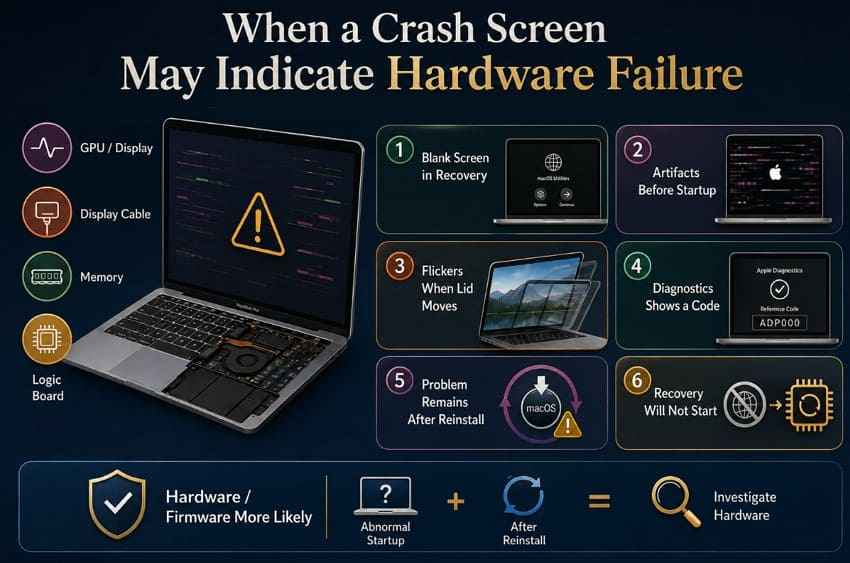
- The display remains blank in macOS Recovery: This reduces the likelihood that one normal-startup app alone is responsible.
- Lines or artifacts appear before macOS loads: Pre-login artifacts can implicate the display, cable, graphics path, firmware, or logic board.
- The image changes when the lid moves: A repeatable hinge-angle effect can point to the display flex path or panel and needs service inspection.
- Apple Diagnostics returns a reference code: Record it and provide it to Apple or an authorized service provider.
- Crashes continue after macOS is reinstalled: If a clean software environment and disconnected peripherals do not help, escalate to hardware diagnosis.
- The Mac cannot start Recovery: Apple silicon or T2 models may need a firmware revive; if revive fails, Apple service may be required before any destructive restore.
Apple advises service when a Mac continues starting to a blank screen after the documented Recovery workflow. Tell the technician that file preservation is the priority before authorizing any erase or logic-board replacement.
Part 8. Why Does a MacBook Screen Crash?
The same visible symptom can come from software or hardware. Use when the failure appears, what still responds, and which diagnostic environment works to rank the causes.
| Cause | Typical screen behavior | Software or hardware | Recovery difficulty |
| Frozen or incompatible app | One window stops responding; pointer or other apps may still work. | Software | Low if Force Quit, an update, or plug-in removal resolves it; unsaved in-memory changes can still be lost. |
| macOS or system software problem | Unexpected restart, post-login freeze, or repeated black screen. | Usually software | Moderate; Safe Mode, updates, and reinstallation can help after backup. |
| Problematic external device, dock, or display | Crash starts when an accessory is connected or under a specific workload. | Either | Low to moderate once the failing device, cable, firmware, or driver is isolated. |
| Startup disk or file-system error | Stuck Apple logo, progress bar, or blank startup screen. | Storage/software, sometimes hardware | Moderate to high; protect data before First Aid, reinstallation, or service. |
| Display, cable, graphics, or logic-board problem | Lines, flicker, no built-in image, lid-angle changes, or artifacts before login. | Hardware | High for repair; file access depends on whether the Mac and encrypted SSD remain readable. |
| Kernel panic caused by software or hardware | Screen goes black and the Mac restarts with a problem report. | Either | Varies; logs, Safe Mode, peripheral isolation, and Diagnostics help separate causes. |
Apple’s unexpected-restart guidance specifically covers installed software, connected hardware, Safe Mode, updates, macOS reinstallation, and Diagnostics as progressive checks.
Part 9. How to Prevent Future MacBook Screen Crashes
No maintenance routine prevents every hardware failure, but these habits reduce avoidable crashes and make the next incident less destructive.
- Keep macOS and important apps updated: Install stable security and compatibility updates after confirming that critical software supports them.
- Remove incompatible extensions and plug-ins: Old system-level add-ons can remain active long after the app that installed them is gone.
- Avoid faulty hubs, cables, and displays: Replace accessories that disconnect, overheat, flicker, or repeatedly trigger restarts.
- Maintain more than one backup: Use Time Machine plus a separate cloud or offline copy for irreplaceable files, and test restores.
- Keep free storage available: Very low startup-disk space can interfere with updates, swap, and app operation.
- Investigate repeated kernel panics: Save problem reports and note connected devices rather than treating every forced restart as harmless.
- Arrange service for recurring artifacts: Persistent lines, flicker, lid-angle failures, and blank screens are not problems to postpone when important data exists only on the Mac.
Conclusion
A MacBook crash screen is a symptom, not a diagnosis. Start with the evidence: does the pointer move, does the Mac make sounds, can another display show the desktop, and can the Mac enter Safe Mode or Recovery? Use Force Quit for one frozen app, disconnect accessories for repeated crashes, repair the startup disk only after protecting data, and reinstall macOS without erasing when Apple’s workflow calls for it.
If files are missing from readable storage, Recoverit can scan for recoverable copies and save them to another drive. It cannot reconstruct unsaved RAM-only work, bypass FileVault, or scan an undetected or physically failed SSD. When Recovery itself fails on Apple silicon or a T2 Mac, use Apple’s firmware and service path before approving an erase.
Recover Files From Readable Mac Storage
Security Verified. Over 7,302,189 people have downloaded it.
FAQ
-
Can a MacBook screen crash while the computer continues running?
Yes. Audio, notifications, keyboard response, or normal output on an external monitor can continue when the built-in display path fails. Test power, brightness, direct external video, and macOS Recovery before deciding whether the problem is the panel, cable, graphics path, or the whole system. -
Why does my MacBook screen go black only after waking from sleep?
A wake-related black screen can come from macOS, an app or extension, an external dock or display, power state, or display hardware. Update macOS, disconnect accessories, test Safe Mode, and check whether the same behavior happens without an external display or dock. -
Can a damaged display cause a MacBook to restart?
A damaged panel alone does not always restart macOS, but a fault in the display cable, graphics path, power circuitry, connected display hardware, or logic board can coincide with crashes or kernel panics. Save any panic report and run Apple Diagnostics rather than assuming the panel is the only failure. -
Why does my MacBook work with an external monitor but not its built-in screen?
That result points toward the built-in display, its cable, backlight, connection, or related logic-board path, but it is not conclusive. Back up important files while external video works, test the built-in display in Recovery, and arrange hardware inspection if it remains blank or distorted.


